Consulting Solutions Architect, Business Intelligence
Background
* This blog was last tested on OAC 105.8.0-133 (Version 5.8) + ADW 18c + Oracle Analytics Client Tools 5.8.0 [aka Oracle BI Administration Tool Version 12.2.5.8.0] +SQuirreL SQL Client Version 4.1.0 + Windows 10 Pro 64-bit OS *
This article walks through the steps to query an Oracle Analytics Cloud (OAC) and Oracle Fusion Analytics Warehouse (FAW) data model with SQuirreL (an open-source Java SQL Client).
The blog demonstrates both Resource Owner and JSON Web Tokens (JWT) assertion types.
This functionality has been available since OAC 5.6.
This blog was tested on an OAC instance that was created after 12th May 2020. If your OAC was created prior, see OAC JDBC Connection documentation for two extra steps to configure refresh security tokens [i.e. Set Up Refresh Security Token Generation Steps 2 to 4].
As of OAC 5.8 the JDBC driver cannot be used with Tableau.
During testing of this blog the JDBC driver was also copied to MacOs high Sierra 10.13.6 to test the connection to OAC/FAW.
JDBC users, regardless of tools, require properly OAC/FAW licensing to be compliant.
Install Developer Client Tool for OAC
Download Developer Client Tool for OAC from here. The Client Tool version should match the OAC/FAW version.
Install the Client Tool on a Windows OS.
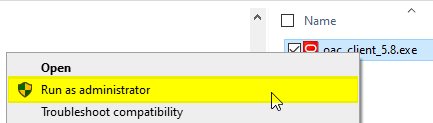
Unzip and run the .exe with “Run as Administrator”:
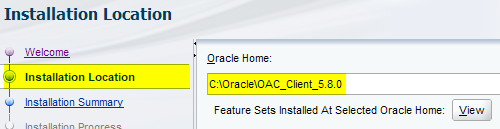
It is recommended to include the Client Tool version number in the install home directory. This allows for multiple versions of the Client Tool to be installed and easily identified.
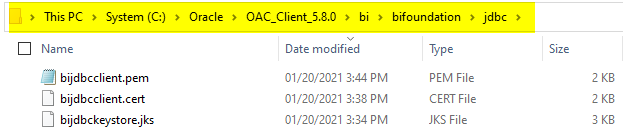
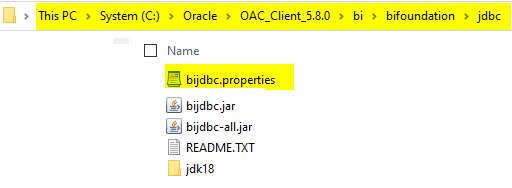
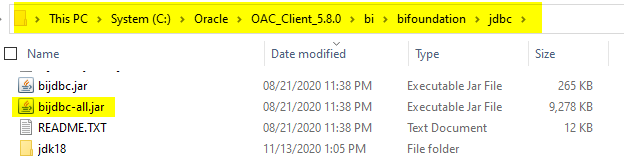
Copy the bijdbc-all.jar file to the OS you wish to connect from or leave it where it is if connecting from Windows OS where client was installed.
Configuring Assertion Type Resource Owner
These steps must be performed by an administrator.
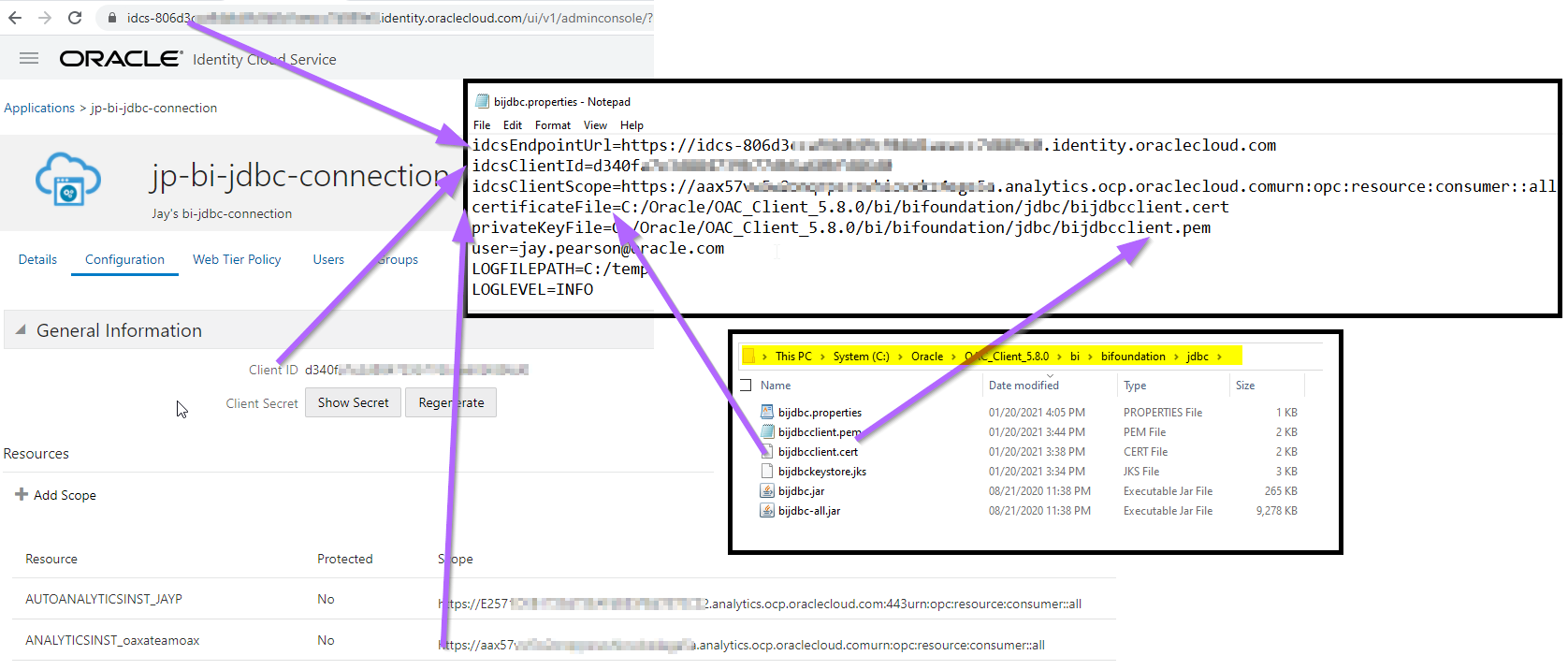
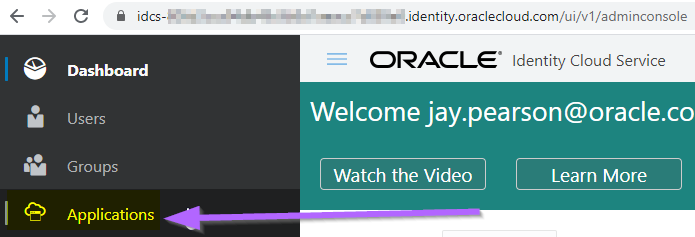
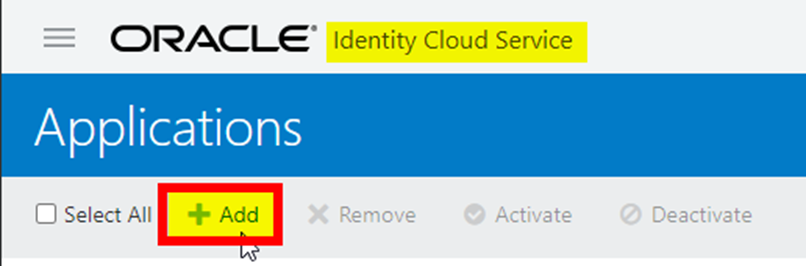
Create a new Application from Oracle Identity Cloud Service (IDCS) -> Applications -> Add -> Select Confidential Application
or directly from IDCS Admin Console URL: https://idcs-<your idcs>.identity.oraclecloud.com/ui/v1/adminconsole/
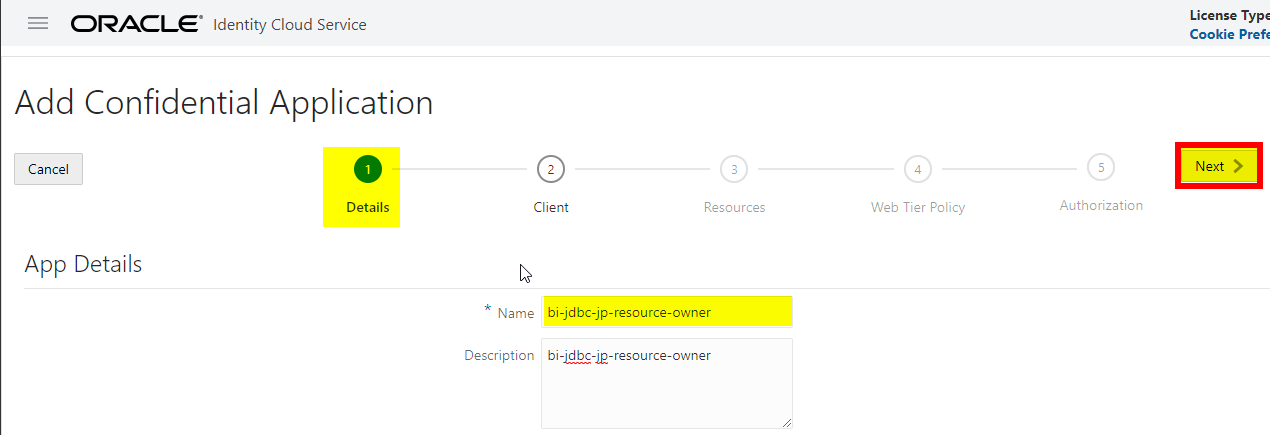
Specify a Name [i.e. bi-jdbc-jp-resource-owner] and description -> click Next
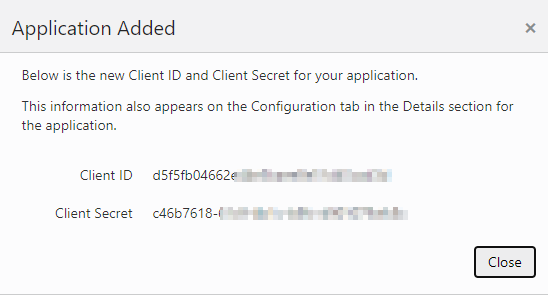
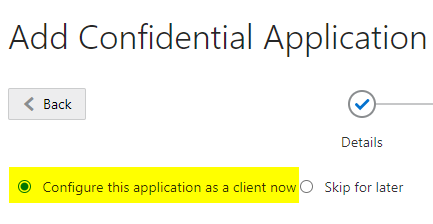
Select “Configure this application as a client now”, “Allow Grant Types” = “Resource Owner” and “Refresh Token”.
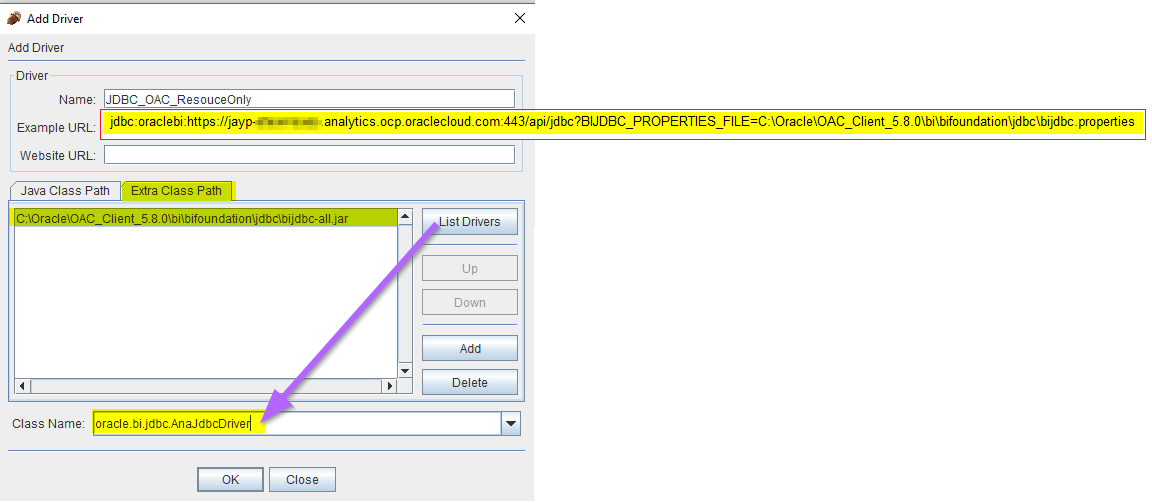
Add Driver -> Click “Extra Class Path” tab -> Click Add to select the bijdbc-all.jar
Example URL: jdbc:oraclebi:https://jayp-xxx.analytics.ocp.oraclecloud.com:443/api/jdbc?BIJDBC_PROPERTIES_FILE=C:\Oracle\OAC_Client_5.8.0\bi\bifoundation\jdbc\bijdbc.properties
Click List Drivers -> Select Class Name = oracle.bi.jdbc.AnaJdbcDriver.
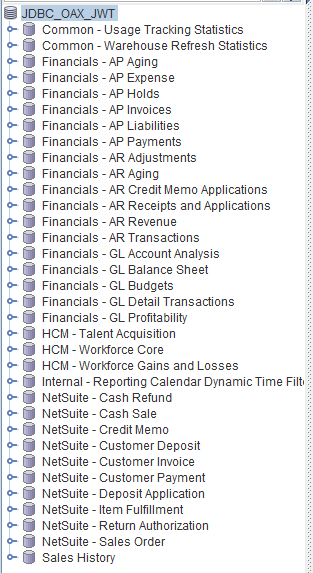
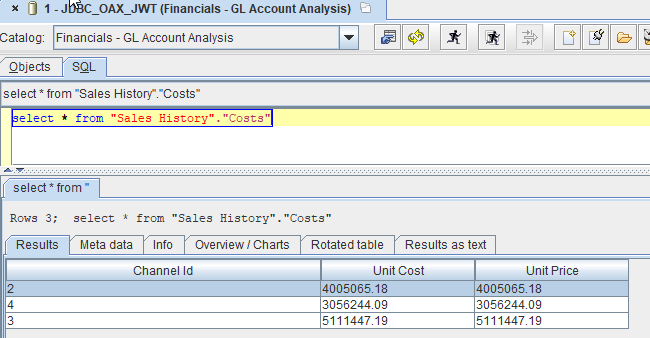
Once connected you can browse and query the FAW or OAC RPD presentation layer.
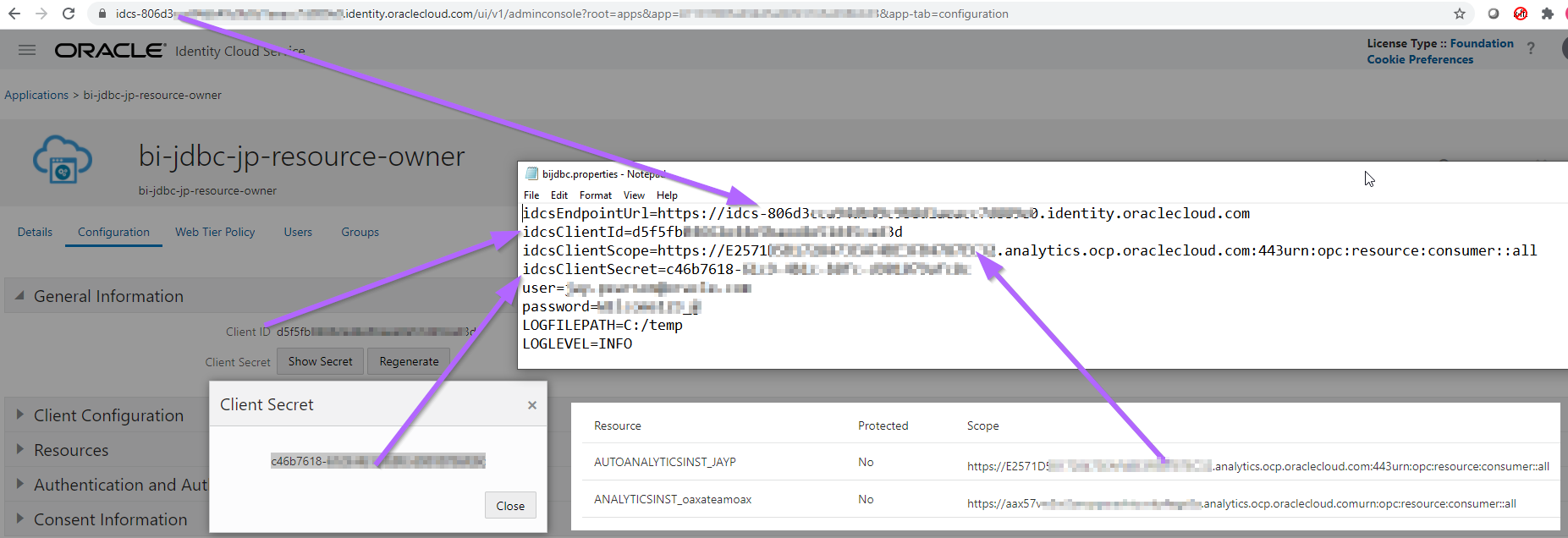
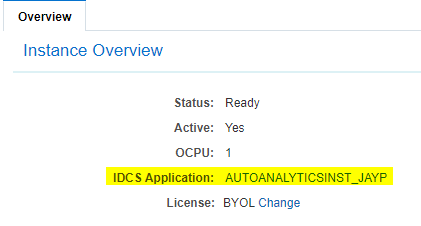
To get OAC Resource name: Analytics -> Analytics Cloud -> Select Region -> Select Compartment -> (may have to select Other Analytics)
Far right click on 3 vertical dots -> Manage Instances -> Click on instance -> IDCS Application = Resource name
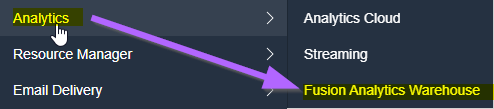
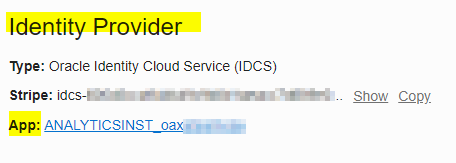
To get FAW Resource Name: Select Region -> Analytics -> Fusion Analytics Warehouse -> Select Compartment -> Click on Instance -> Click on Additional Details tab -> under Identity Provider -> App = Resource Name
Want to Learn More?
Click here for more A-Team Oracle Analytics (OAC) Blogs.
Click here for more info on Query Data Models Remotely Using JDBC.
Summary
This article walked through the steps to query an Oracle Analytics Cloud (OAC) and Oracle Fusion Analytics Warehouse (FAW) data model with SQuirreL (an open-source Java SQL Client). The blog demonstrated both Resource Owner and JSON Web Tokens (JWT) assertion types.
Authors
Jay Pearson
Consulting Solutions Architect, Business Intelligence





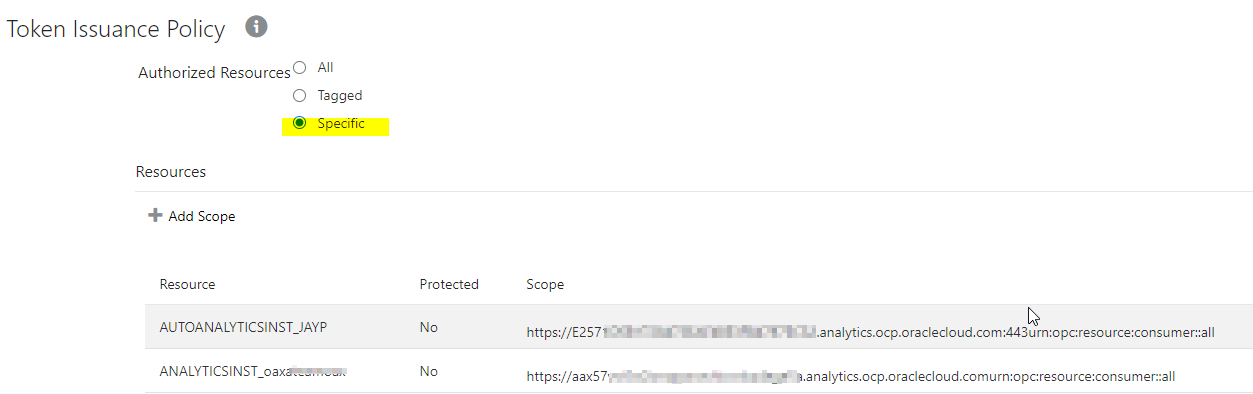
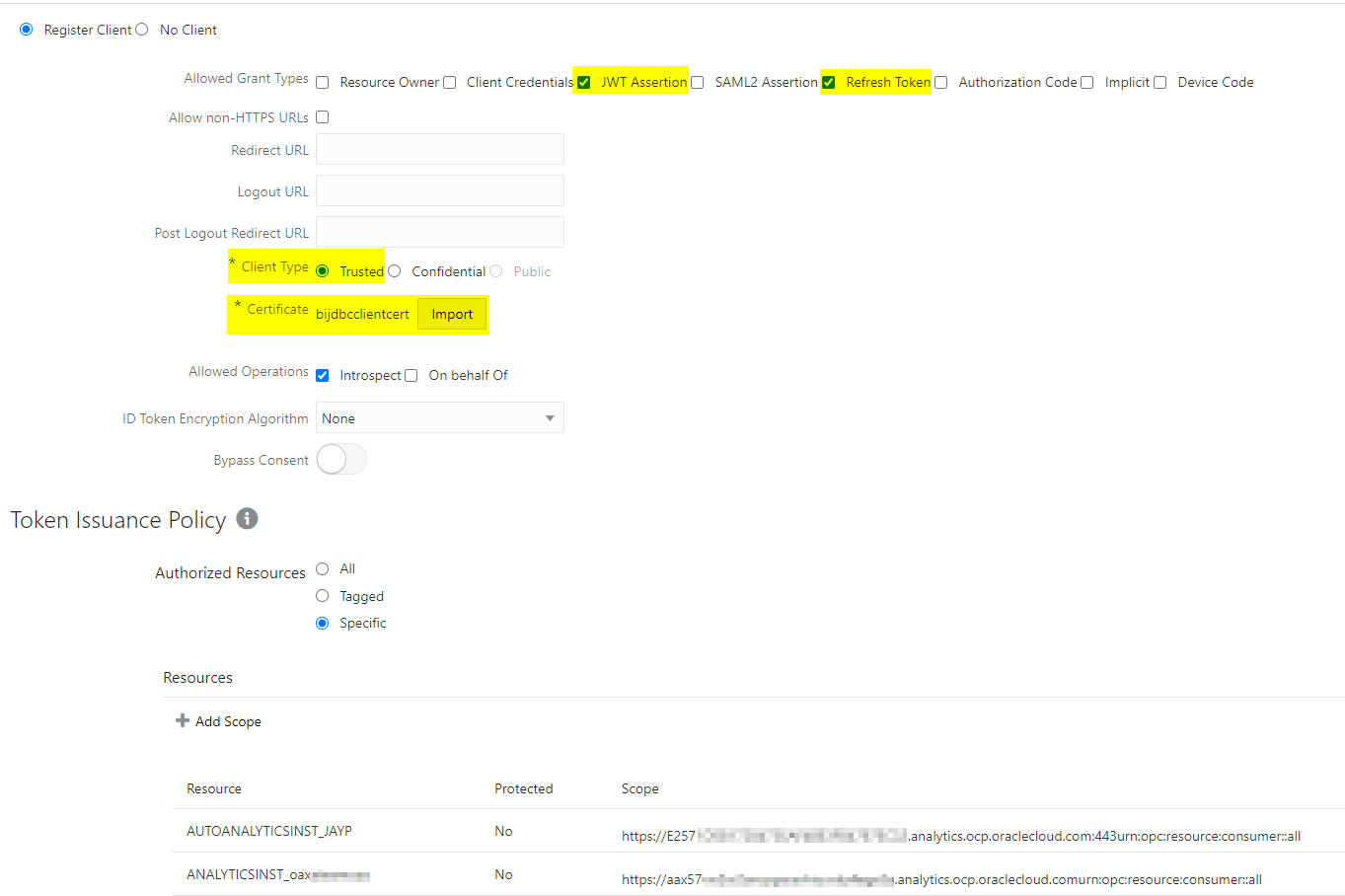
 Select “Authorized Resources” = Specific -> click + Add Scope -> add OAC/FAW Resources.