
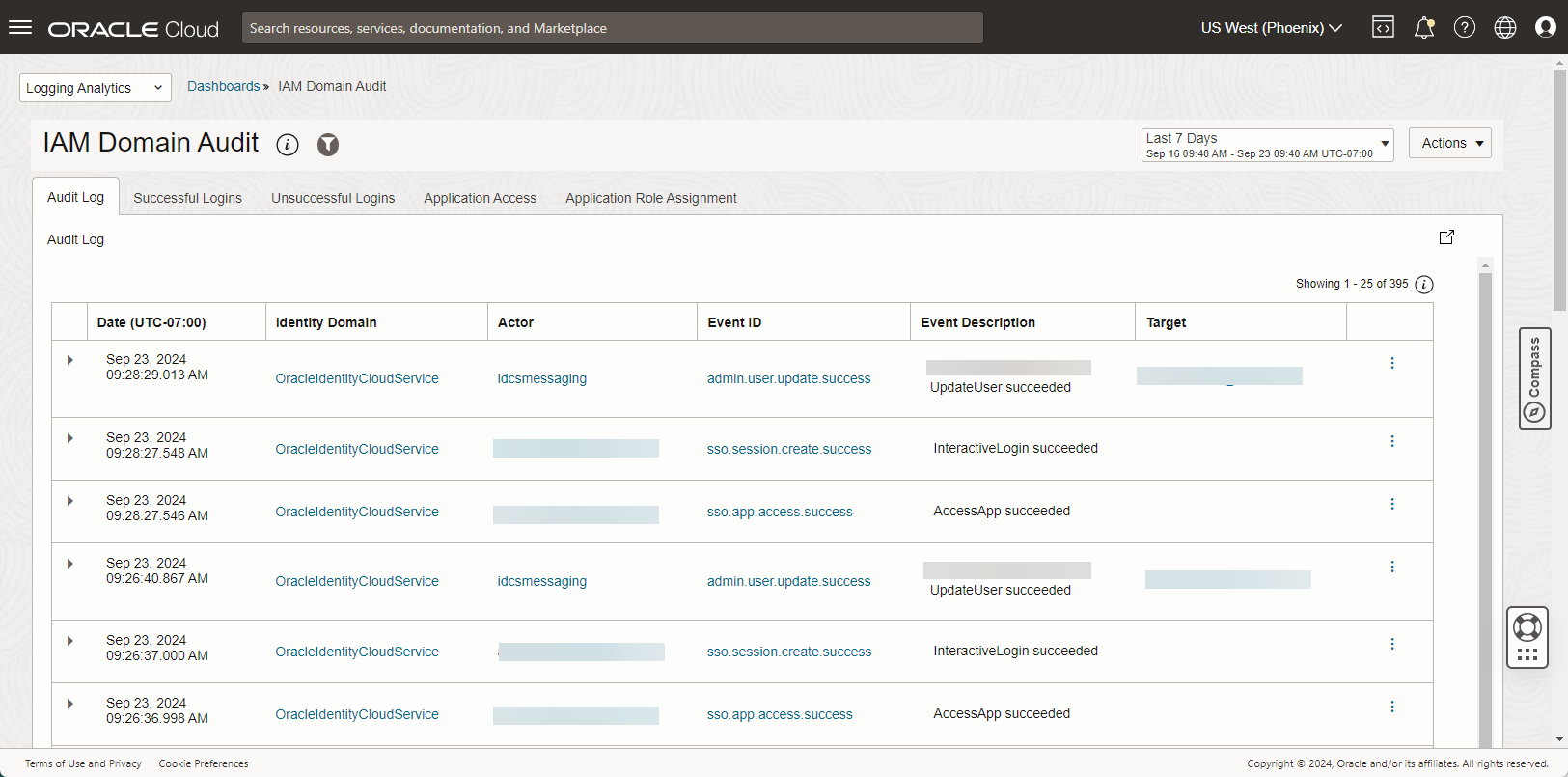
The OCI Identity Domain provides reports that help you capture audited events such as successful and failed logins. These reports are accessible in OCI console under “Identity & Security”->”Domains”->”<Domain Name>“->”Reports”. As stated on that page, “The following reports are deprecated, and will stop returning new data after Dec ’24. You can use OCI Logging APIs to get this data after Dec ’24“:
- Audit log report
- Notifications delivery status report*
- Successful login report
- Unsuccessful login report
- Application access report
- Application role privileges report
In this blog we show you how you can create these reports in the OCI Logging Analytics service. Using Logging Analytics provides a number of benefits, including higher limits for the number of records retrieved in the console, and longer time intervals for report data. This is because in Logging Analytics, you can choose to keep log data for as long as you need, including indefinitely if you so choose.
*Note: In this blog we recreate 5 of the 6 reports. The “Notifications delivery status report” is not included as can be seen in the screenshot.
Pre-requisites
We assume you have already enabled Logging Analytics in your tenancy, and you belong to an IAM group with the necessary privileges to use the service, as described in the documentation here: Enable Access to Logging Analytics and Its Resources. We also assume you are pushing audit data from the Logging service to Logging Analytics using a service connector.
If you are not using Logging Analytics yet and would like to enable the service to use this feature (or its many other features), please see the links in the “Resources and Reference” section at the end of this blog.
Complete the following pre-requisites:
- Identify or create a compartment to hold the saved searches and dashboards we will create.
- Make a note of the region where your Identity Domain is located.
Import the dashboard
- Download the dashboard JSON file from this link and save to your local laptop or workstation: IAM Domain Audit.json.
- In OCI console, navigate to “Observability & Management”->”Logging Analytics”->”Dashboards.”
- Click “Import dashboards” and select the JSON file.
- In the “Import dashboards” pop-up window, ensure you specify a compartment for both the dashboard and the saved searches.
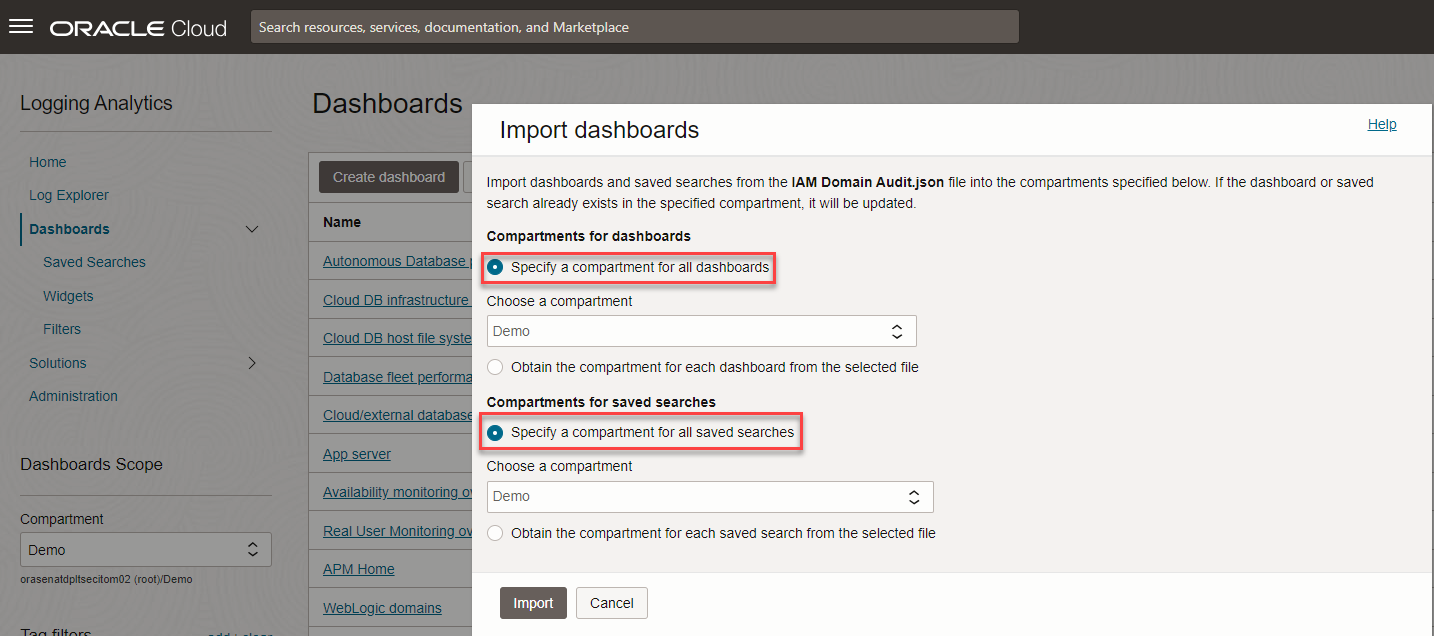
- Click “Import.”
- The dashboard now shows in your list of dashboards. Click on the dashboard.
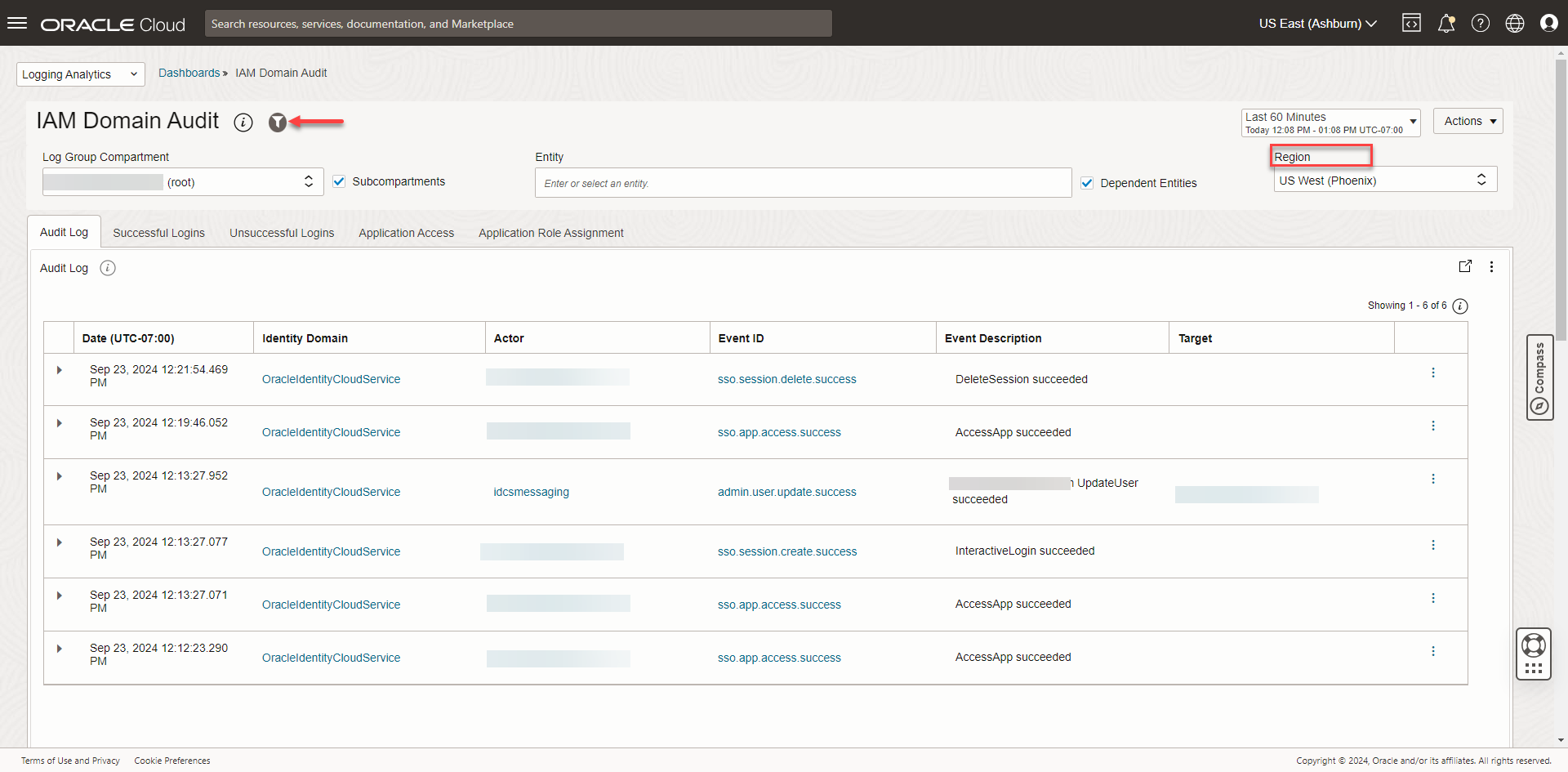
- If you don’t see any data, click on the filter icon and ensure your root compartment is selected, along with the “Subcompartments” checkbox. Ensure the region filter on the dashboard is set to the region where your Identity domain is located (even if the console region is set to a different region as this screenshot):
- Click on each tab and verify the data shows as expected. There may not be data for some of the tabs in the time interval selected in the console. If so, choose a longer time interval.
Resources and Reference
- Quick Start with OCI Audit Logs: Oracle Cloud Infrastructure Logging Analytics Quick Start Guide
- Logging Analytics – Management Dashboards: Create Dashboards
- Logging Analytics landing page on oracle.com: Logging Analytics