
Background
Fusion Applications have a number of mechanisms to embed Visual Builder (VB) pages, the main ones being Mashup and Page Integration. With a “normal” embedded VB application, when the user navigates to a VB page there is a redirect to IDCS to establish a security cookie and a call to IDCS to retrieve the current user’s information. This IDCS session is used to authenticate calls to Fusion REST endpoints.
With Mashups, there is pre-built functionality that allows the VB application to be configured such that the IDCS redirect and session is eliminated:
Fusion Mashups can only be used in the context of a Fusion Object, so they are ideal for providing alternative object visualizations, for example a custom Account Overview page. However, they cannot be used for “top level” pages that are added to the main Fusion navigator; these pages are added using Page Integration.
In 22A, applications embedded using Page Integration are not able to consume the Fusion JWT token safely – it is possible to append it to the application URL, but this is not recommended.
This blog shows how VB applications embedded using Page Integration (and Page Composer) can request a Fusion JWT token for use in VB service connections that call Fusion Rest APIs.
Solution Overview
The solution uses the javascript postMessage interface, allowing Fusion and the embedded VB application to communicate with each other through messages.
The high level communication “protocol” is:
- When Fusion loads, a listener is setup which waits for messages from the VB domain
- In VB, a custom security provider uses postMessage to send a “requestJwtToken” message to Fusion
- On receipt of a requestJwtToken message, Fusion uses Expression Langauage to obtain the current user’s JWT token, and uses postMessage to send it to the embedded VB application
- The VB application uses the received JWT token to make calls to Fusion REST services
The solution requires configuration in both the VB application, and in Fusion. The VB application uses the same custom security provider as used in the Mashup solution (see link above). Note, since the solution removes IDCS, the VB application cannot contain any functionality that depends on having an IDCS session, for example IDCS Application Roles.
The Fusion configuration is implemented as javascript in the Global Page Template; this sets up the listener and the postMessage to the VB iFrame.
The instructions below assume that the reader is familiar with configuring Visual Builder, and knows how to create sandboxes, edit the Global Page Template, and use Page Integration in Fusion applications.
Visual Builder Configuration
The VB configuration can be implemented as described here:
Note, if the embedded VB application only uses service connections to Fusion, then the code in the documentation is fine. However, if the embedded VB application also uses non-Fusion service connections that require the use of the VB Proxy, a modified version of FusionEmbeddedWithNoUserSecurityProvider.js is needed. The modified code is shown below:
define(['vb/DefaultSecurityProvider'],

  (DefaultSecurityProvider) => {

    class FusionEmbeddedWithNoUserSecurityProvider extends DefaultSecurityProvider {

      constructor() {

        super();

      }

      /**

       * Install our fetch handler to inject the JWT token from FA.

       */

      getServiceWorkerPlugins(config, isAnonymous) {

        return super.getServiceWorkerPlugins(config, isAnonymous)

          .then((plugins) => ['resources/js/InjectFATokenFetchPlugin', ...plugins]);
      }


      /**

       * Dummy method to return a user without any information, roles, or permissions. Used to skip the

       * traditional call to _currentusers for performance reasons

       */

      fetchCurrentUserRaw(config) {

        return new Promise((r) => {

          r({
            response: {

              ok: true

            },

            body: {

              userId: 'anonymous',

              username: 'anonymous',

              longId: 'anonymous',

              fullName: 'anonymous',

              email: 'anonymous',

              roles: [],

              permissions: [],

              isAdmin: false,

              isAuthenticated: true,

              isAnonymous: false

            }

          });

        });

      }

    }

    return FusionEmbeddedWithNoUserSecurityProvider;

  });
InjectFATokenFetchPlugin.js can be used as in the documentation. Also, remember to allow embedding of the VB application in the Fusion domain.
Fusion Configuration
The Fusion configuration uses javascript on the Global Home Page template to setup the listener and the message exchange with VB. The steps are:
- Create a Sandbox, selecting the Page Template Composer and Page Integration tools.
- Use “Edit Global Page Template” to add an HTML Markup component to the global template.
- Add the Visual Builder application using the Page Integration Tool
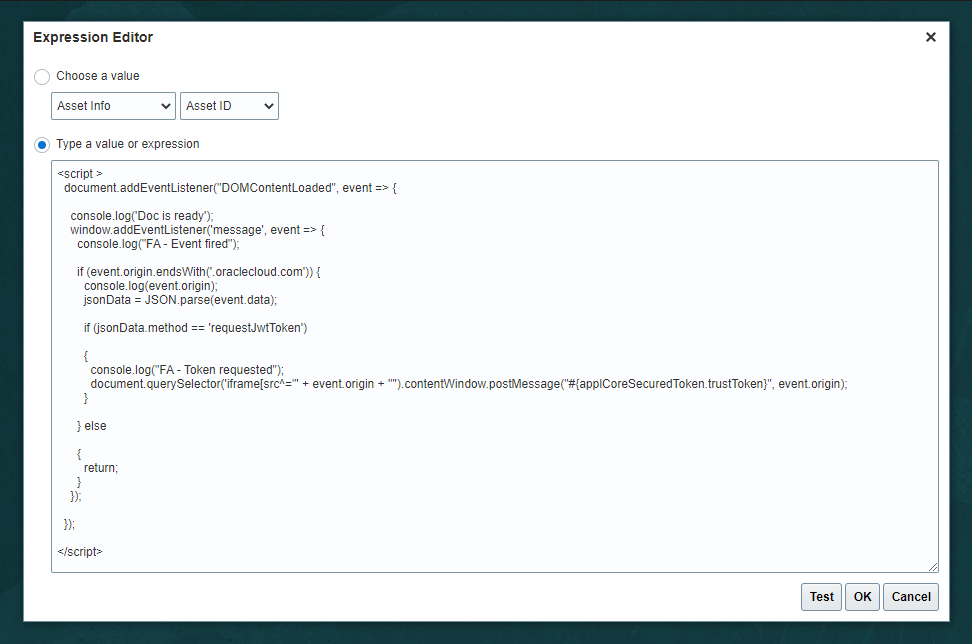
The content of the new HTML component must be added as an Expression – this is because the user’s JWT token is obtained at runtime by the Expression Language #{applCoreSecuredToken.trustToken}
The Expression is:
<script>
  document.addEventListener("DOMContentLoaded", event => {

    console.log('Doc is ready');
    window.addEventListener('message', event => {
      console.log("FA - Event fired");

      if (event.origin.endsWith('.oraclecloud.com')) {
        console.log(event.origin);
        jsonData = JSON.parse(event.data);

        if (jsonData.method == 'requestJwtToken')

        {
          console.log("FA - Token requested");
          document.querySelector('iframe[src^="' + event.origin + '"').contentWindow.postMessage("#{applCoreSecuredToken.trustToken}", event.origin);
        }

      } else

      {
        return;
      }
    });

  });
</script>
Note the statement “if (event.origin.endsWith(‘.oraclecloud.com’))” – this line will cause Fusion to inspect all messages received from *.oraclecloud.com. This can be modified to be the Visual Builder host if required. Also, note that Fusion will only post the JWT token to the iFrame that has a source starting with the origin of the domain requesting the token.
The configuration of the HTML component should look like:
The VB page is added to Fusion using Page Integration in the normal way.
Result
Using this configuration, the embedded VB app can be setup to be anonymous, meaning that no IDCS session is required to load it. This avoids the IDCS “handshake”, thereby speeding up the initial load of the application. It also means that the VB runtime instance and Fusion do not need to be federated.
Note the anonymous user in the screenshot of an embedded Contact list below (this would normally be removed from an embedded app, but has been left in for illustration):

The Contact data above is obtained using the FA issued JWT passed to VB via the iFrame communication.
Conclusion and further considerations
The technique above can be used to enable Fusion apps and embedded VB pages to exchange other messages and events. For example, using browser messaging, data from a VB page can be posted to Fusion and entered into input controls within the Fusion application – a recent customer solution used VB to model complex task assignment rules, then save the results back to Fusion. The main consideration when designing such solutions is that Fusion must “own” the VB page, either by embedding it, or launching it. The addition of HTML and JS to the “right” place in Fusion is frequently a challenge, particularly in Sales and Service. While this configuration uses the Global Page template, in many ERP and HCM pages HTML and JS can be added directly into the application pages.
The other major restriction to be aware of is that if Fusion and VB are hosted on differnt domains (which is usually the case), VB cannot interact directly with the parent Fusion page, it can only send messages which Fusion can listen for and act upon. Therefore, manipulation of a Fusion page from VB can only be done by sending “instructions” to Fusion, with Fusion taking the required action.