

In this blogpost we will focus on the network configuration needed to provide connectivity for the Oracle Autonomous Database (ADB) provisioned in Oracle Database at Azure (OD@A) to load data from an Azure blob storage.
The configuration created in this post uses a blob configured with a private endpoint in another subnet in the same VNET as the ODB@A, and the VNET is enabled with the Advanced Networking feature.
The configuration of the blob and the enablement of the advanced networking feature is not shown, and you are encouraged to read the public documentation. Personally, I used this blogpost showing the step-by-step configuration.
Architecture
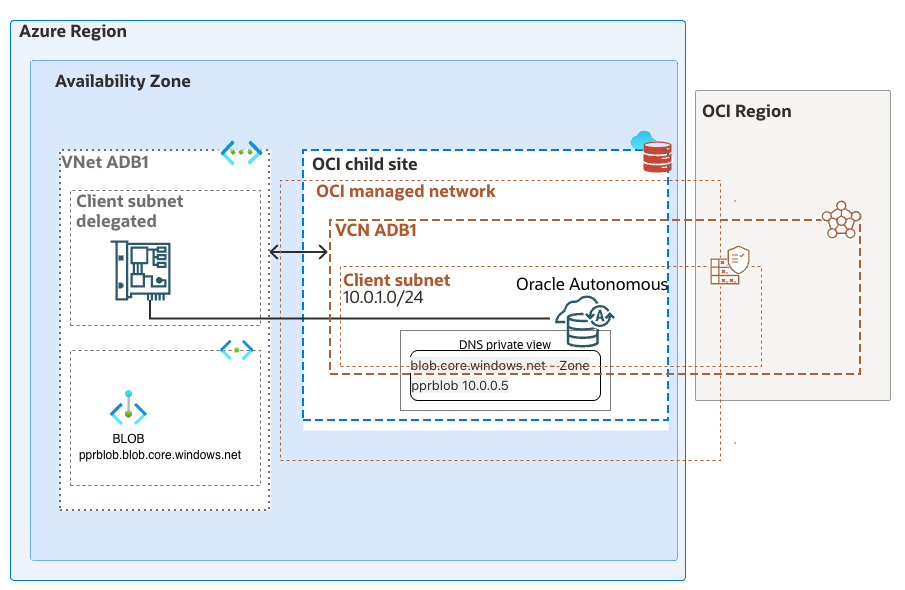
The ADB-S is a service managed by Oracle provisioned by the customer from the Azure console. There are multiple possible network deployments, the one enabling the customers to access the service from a vNIC in the Azure VNET is called “Managed private virtual network IP only”.
The provisioned ADB-S instance gets deployed in an OCI tenancy owned by the customer and is exposed in the Azure VNET via a vNIC in the delegated subnet, and the connectivity from the applications to the database uses a private endpoint. In the case of loading external data from the ADB-S, a module called “DBMS_CLOUD Package” is used and by default, it initiates connections from an endpoint in the service tenancy managed by Oracle. This outbound connectivity can be configured to use the private endpoint from the customer’s OCI tenancy.
You should familiarize yourself with the networking concepts of this deployment, my suggestion is to start reading the ADB-S documentation for the private endpoints, the DBMS_CLOUD documentation and the “Enhanced Security for Outbound Connections with Private Endpoints” documentation.
Please be aware that after you are modifying the “ROUTE_OUTBOUND_CONNECTIONS” property of the database, all the connections initiated by the ADB-S will use the private endpoint in the VCN from the child-site. Please consult the table summarizing the handling of outbound connections and DNS resolution based on the value of the ROUTE_OUTBOUND_CONNECTIONS database property from the documentation.
The network diagram of the deployment used in this post can be seen below.
Information gathering about the blob FQDN
This post assume that we have a running Blob Azure file storage configured with a private endpoint.
Navigate on Azure’s WebUI to the “Storage accounts > {your account} > Security + networking > Networking > Private endpoint connections > {your private endpoint} > Settings > DNS configuration” and under the Network interface grab the FQDN and the IP address.
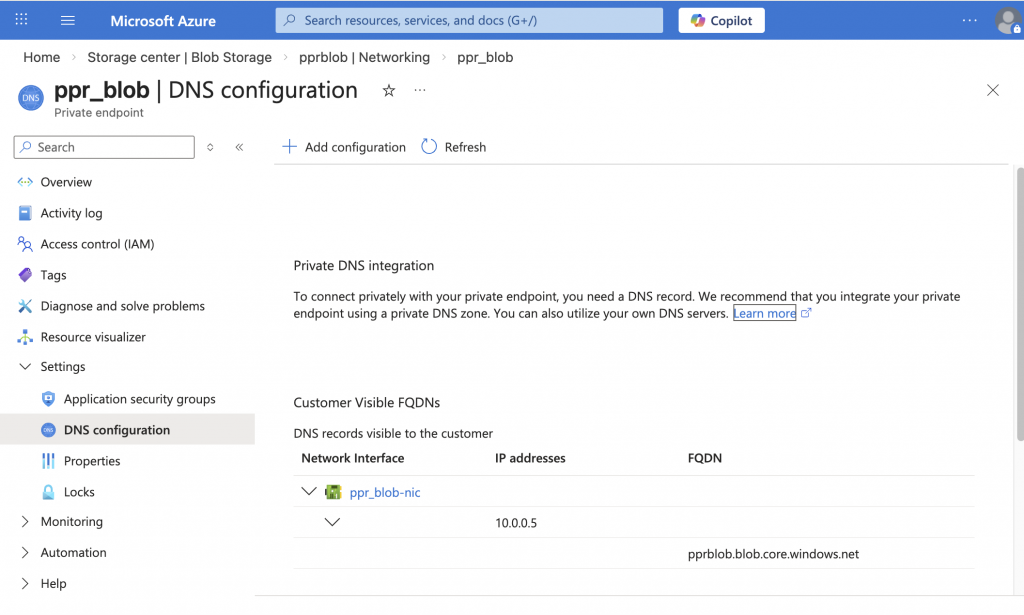
Configure the OCI DNS
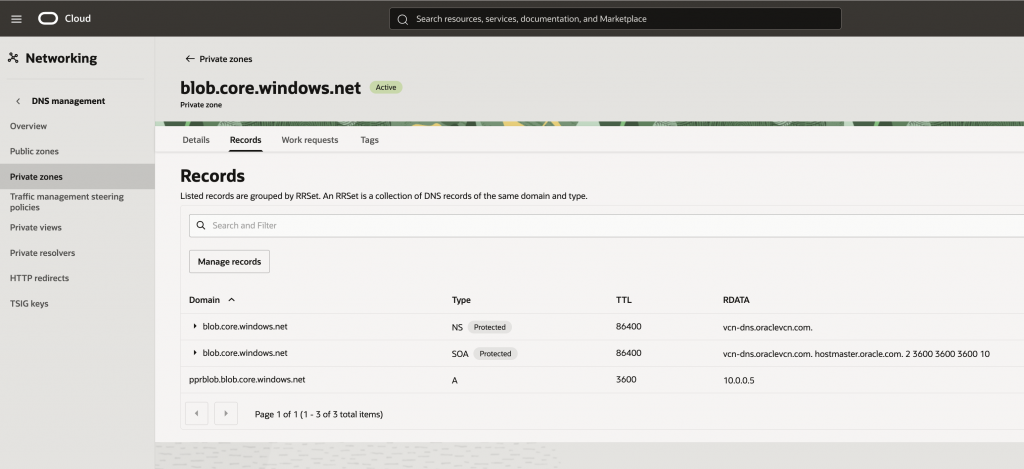
We will create a private DNS zone corresponding the FQDN of the NFS share from Azure. When ADB will resolve that FQDN, it will query the VCN resolver which will look in the zones from the private view. Here, there will be a record corresponding to the private endpoint of the Azure NFS storage.
Navigate to the Service UI console (notice the Database private IP from the “Network” section) and click “Go to OCI” link.
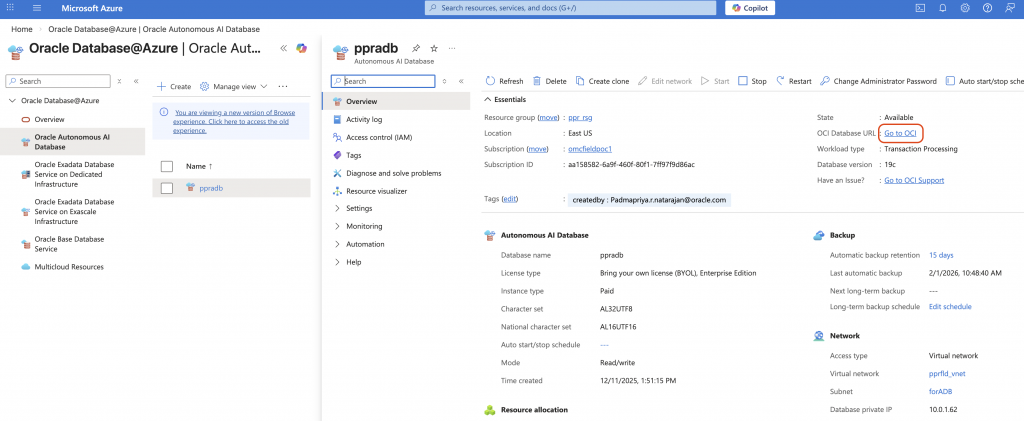
After the login to the OCI tenancy, the ADB screen will look like the one bellow.
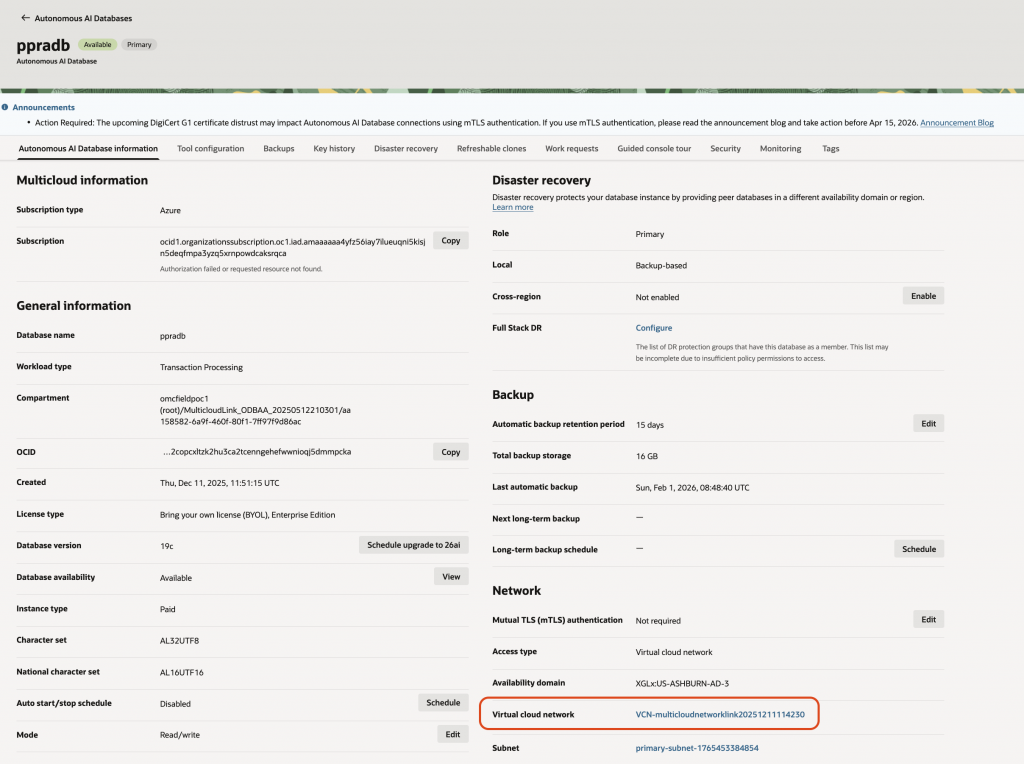
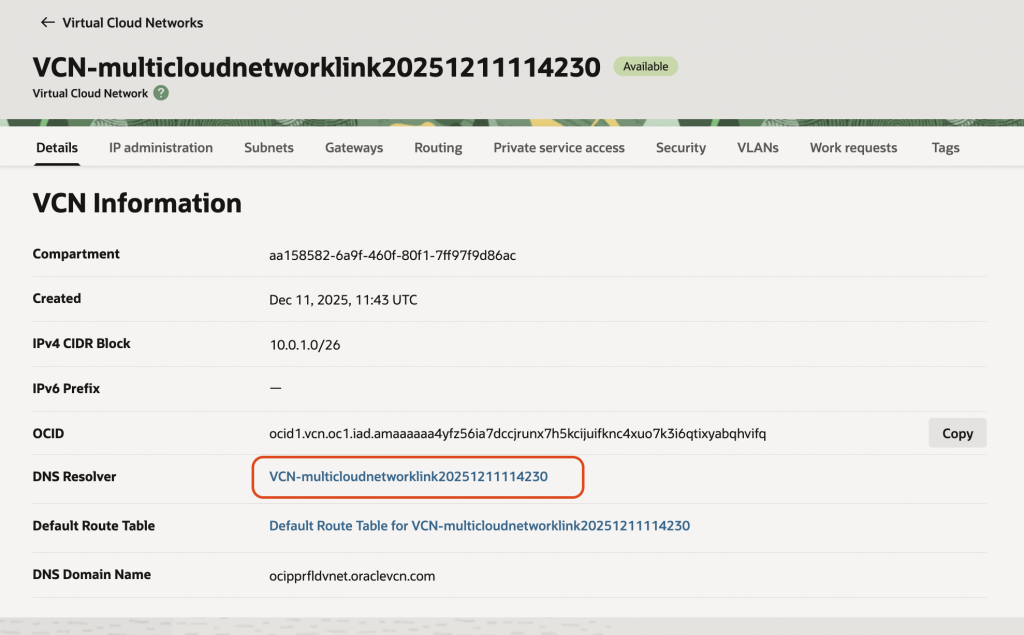
Click on the VCN link to provide the details of the VCN. Click on the “DNS Resolver” link.
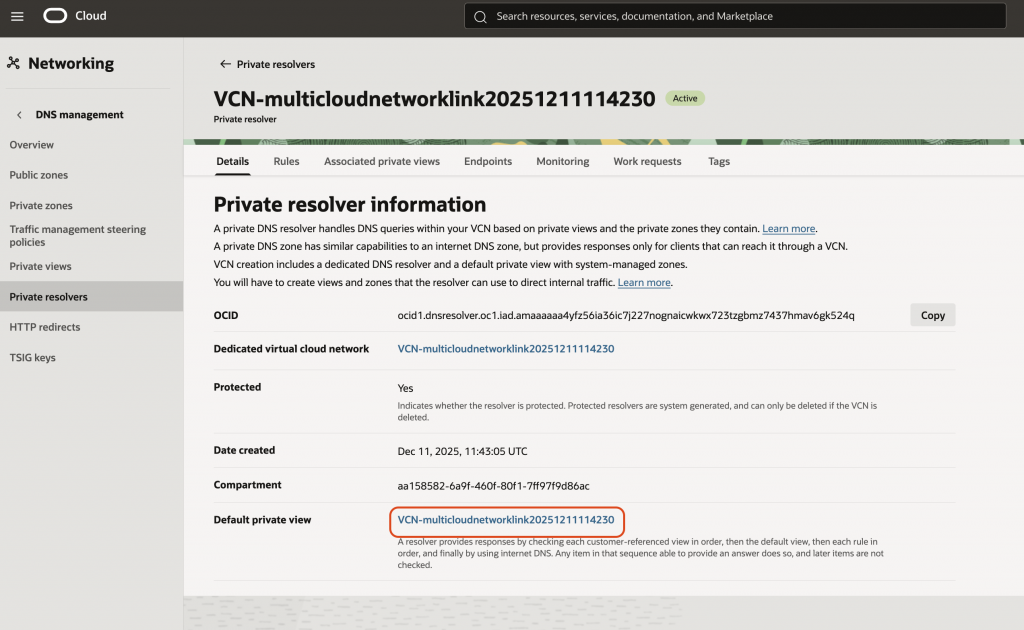
Click on the “Default Private View”.
Create a zone corresponding to the Azure blob, and an A-record for the private endpoint.
Connect the ADB-S to the Blob Storage
Before moving forward, we will need a working connection from an Oracle database tool to the ADB. The configuration of the specific tool and setup of the connection to the ADB is not in the scope of this blog.
If you want to learn more about the Oracle DB tools please read the official documentation.
For connecting to the database, an SQL client is needed. For the blog, I used a compute Linux VM in Azure provisioned in the same VNET as the ADB-S. The SQL client was downloaded from the official documentation.
Bellow are the configurations steps for the Autonomous Database to connect to the Azure blob:
- Ensure all outgoing connections to a target host follow and are restricted by the private endpoint’s egress rules.
ALTER DATABASE PROPERTY SET ROUTE_OUTBOUND_CONNECTIONS = ‘ENFORCE_PRIVATE_ENDPOINT’;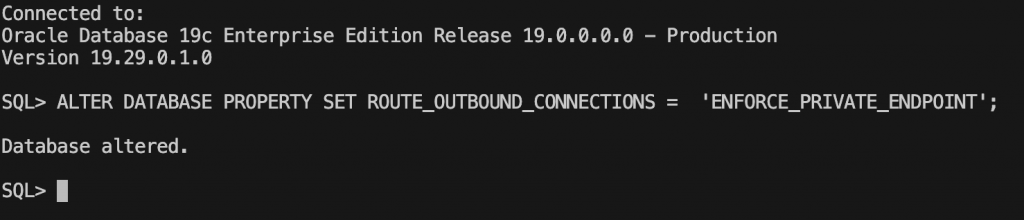
2. Add Blob FQDN to the Access Control List (ACL).
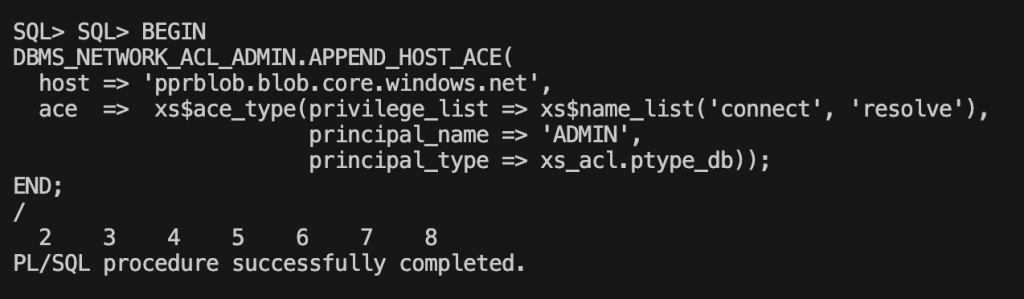
Use the DBMS_NETWORK_ACL_ADMIN.APPEND_HOST_ACE procedure to append an Access Control Entry (ACE) to the Access Control List of a network host. Below is an example, make sure you put your blob storage.
BEGIN
DBMS_NETWORK_ACL_ADMIN.APPEND_HOST_ACE(
  host => 'pprblob.blob.core.windows.net',
  ace  =>  xs$ace_type(privilege_list => xs$name_list('connect', 'resolve'),
                       principal_name => 'ADMIN',
                       principal_type => xs_acl.ptype_db));
END;
/
3. Create Azure Storage account credentials in your ADB-S
Navigate on Azure’s WebUI to the “Storage accounts > {your account} > Security + networking > Access Keys” and the “Storage account name” and the “key”.
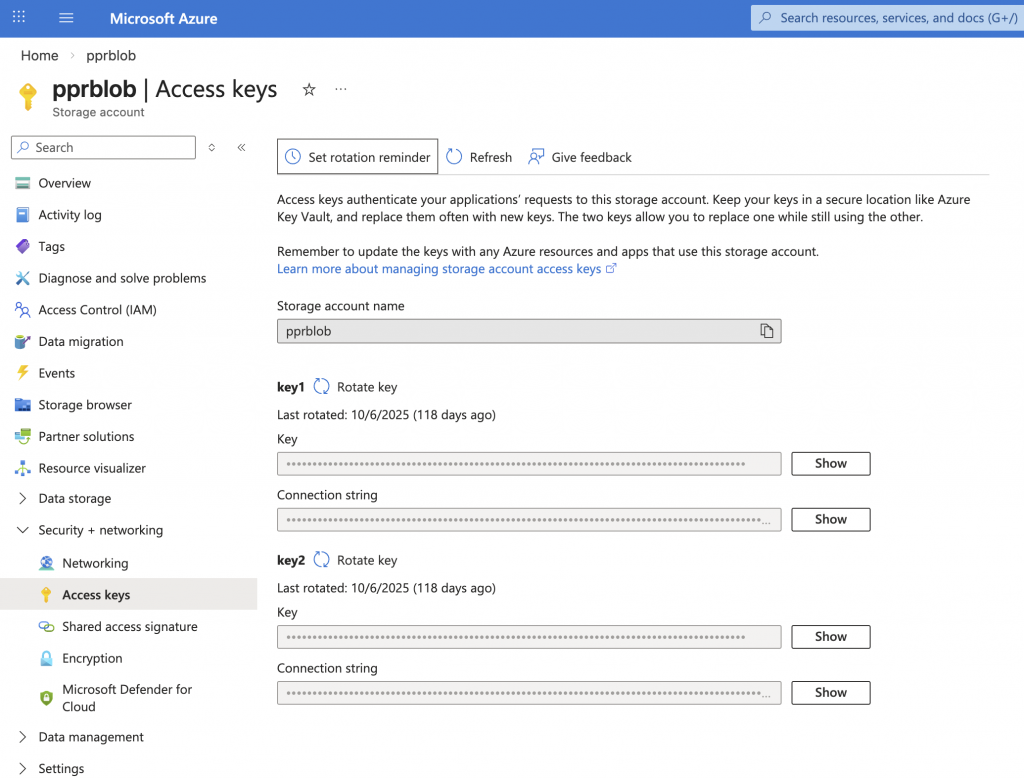
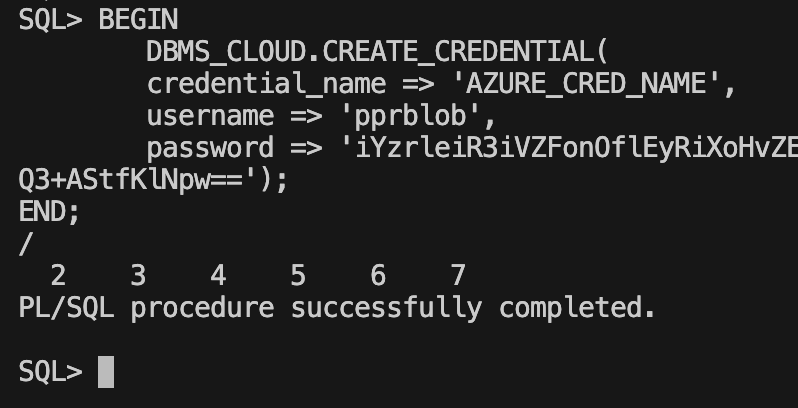
Store the Azure Storage account credentials in your Autonomous Database and specify a credential name. This enables the database to authenticate with your Azure Storage account and access the items in the Azure Storage account container.
BEGIN
  DBMS_CLOUD.CREATE_CREDENTIAL(
    credential_name => 'AZURE_CRED_NAME',
    username => 'pprblob',
    password => 'iYzrleiR3iVZFonOflEyRiXoHvZEUvpYbLYlUfr8YmDi18xHx6yapywWdxxxxxxxxxxpfwKtwtQ3+AStfKlNpw==');
 END;
/
4. Enumerate the objects from the Bloc Storage
SELECT * FROM DBMS_CLOUD.LIST_OBJECTS('AZURE_CRED_NAME', 'https://pprblob.blob.core.windows.net/datadmp/');
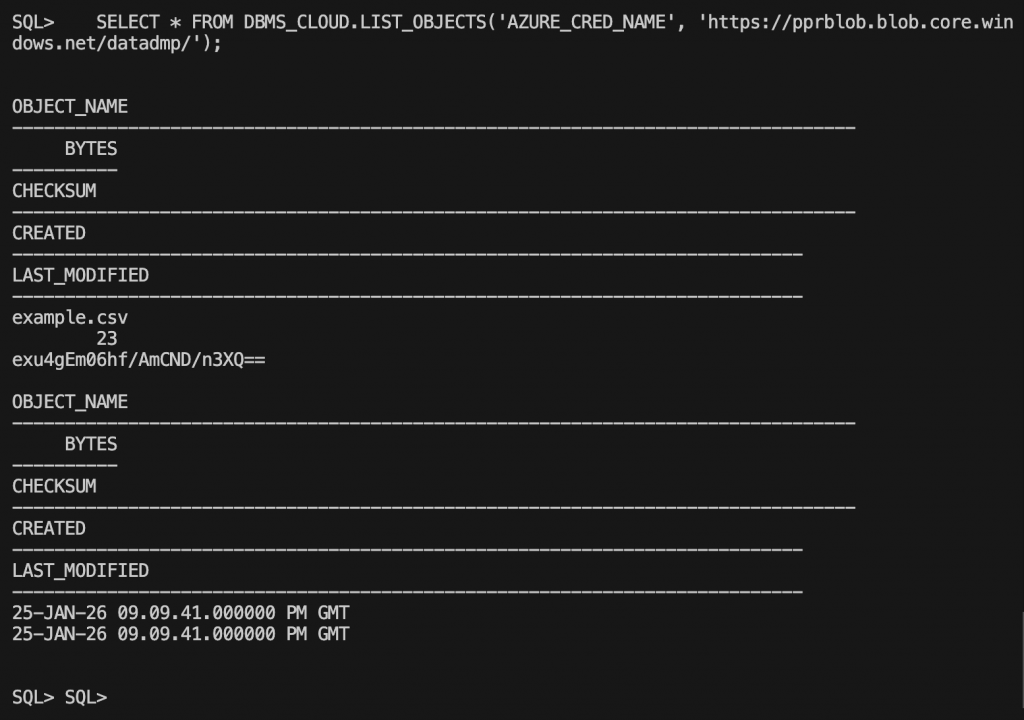
Conclusion
Being able to connect to Azure blob storage is a key functionality of Autonomous Database that database administrators rely on. In this post, we outline the configuration steps required to connect from Oracle Autonomus Database at Azure to the blob storage.