
The purpose of this blog is to guide you how to interconnect your Oracle Cloud VCN and your AWS VPC using a Megaport Cloud Router (MCR). This process can take approximately 1 hour to complete as the majority of the tasks can’t be done in parallel. In order to perform these task you need to have a basic understanding of networking, be familiar with OCI, AWS, and Megaport Networking concepts and their environments.
We should acknowledge that Megaport infrastructure now supports Megaport Cloud Router (MCR) with capacities of up to 100 Gbps throughput. Combined with the capability to establish FastConnect connections to OCI of up to 50 Gbps, this offers a highly scalable high-bandwidth connectivity option.
Additionally, Megaport infrastructure is capable of connecting to OCI OC1 (Commercial) regions as well as OC3 (OCI Government) regions.
Overview
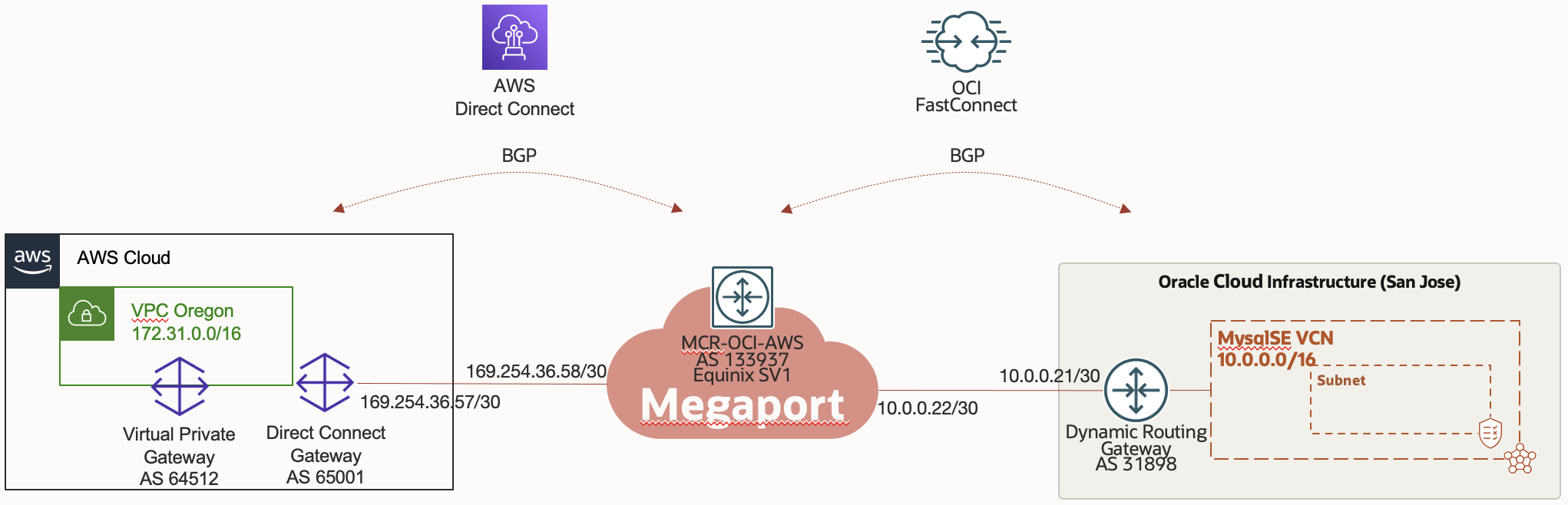
The diagram below represents the solution proposed on this blog where there are two environments in two different clouds (OCI and AWS). For this test OCI environment is deployed in the San Jose Region while the AWS environment is deployed in the Portland region. Be aware that you will get charged for the services used by OCI, Megaport, and AWS when you establish this connection. Consult with each service provider before you proceed with the configuration.
Prerequisites
To perform the configuration outlined above make sure you meet all these prerequisites:
- Check that Megaport can provide connectivity to the regions where OCI and AWS are deployed
- There is no IP address overlap between the VCN and the VPC
- BGP AS numbers are unique
- You have a tenancy in Oracle Cloud, you have a VCN created in the region where you want to establish the connection from AWS
- You have a Megaport account, and you have credentials to log into their portal and create resources
- You have an AWS account, you have a VPC created in the region where you want to establish the connection from OCI
Configuration
This process has a sequential approach as there are many dependencies in the configuration. The high-level process, is:
- Oracle
- Create Oracle FastConnect
- Megaport
- Create an MCR
- Create a virtual circuit to OCI
- Create a virtual circuit to AWS
- AWS
- Configure Direct Connect
1) Oracle Configuration
1. Log into the Oracle console and the region where you want to establish the connection from
2. Confirm the DRG is attached to your VCN
3. From the main menu select Network, FastConnect
4. Click Create FastConnect
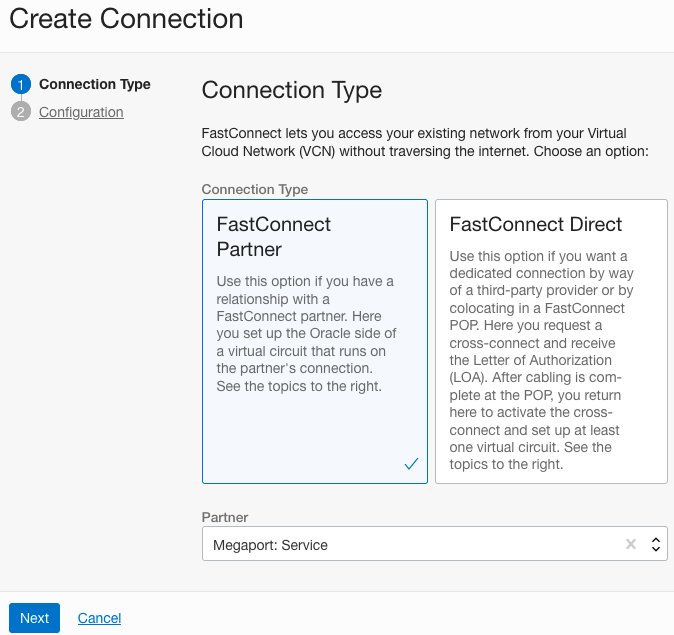
5. Select FastConnect Partner, select Megaport as the Partner, and click Next
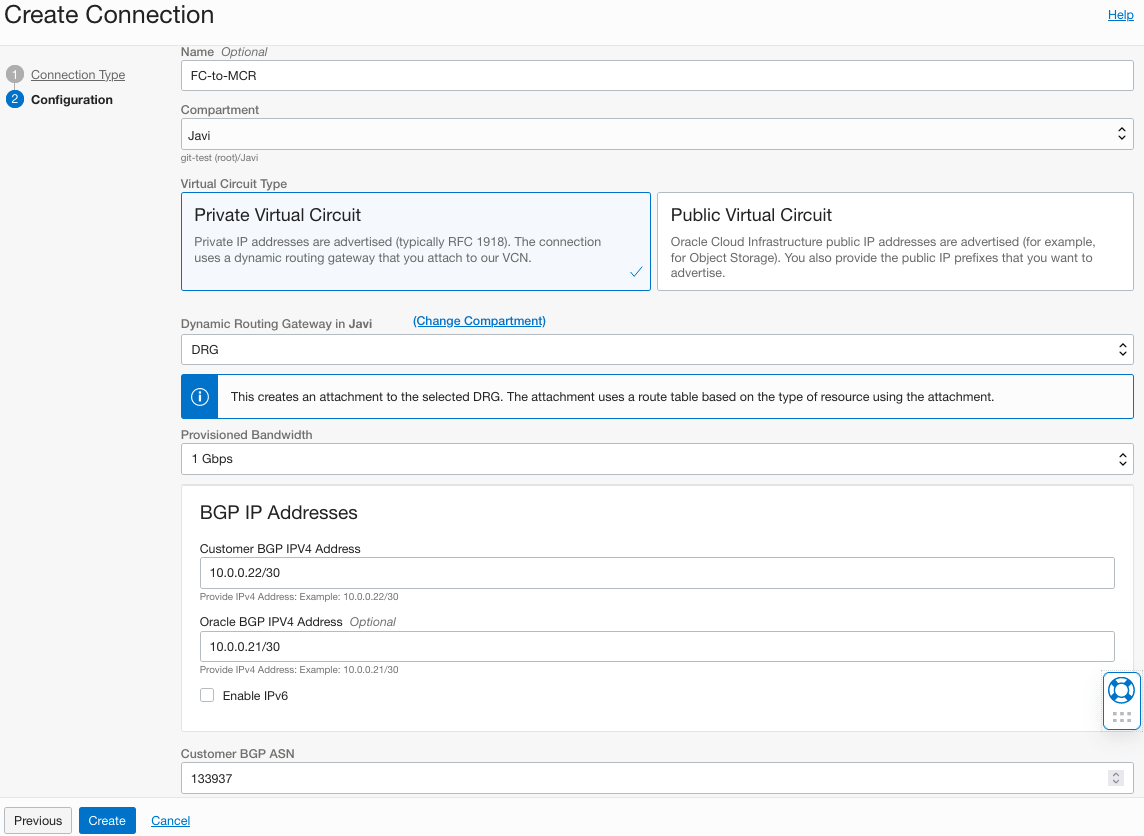
6. Give FastConnect a name, select the proper compartment, select Private Virtual Circuit, select the proper DRG, select the bandwidth, assign a /30 subnet to address the BGP peers. Write these IPs down as you need this info when configuring the Megaport router. Enter the MCR AS number, when you configure the MCR you will assign the AS# of your choice. Click Create
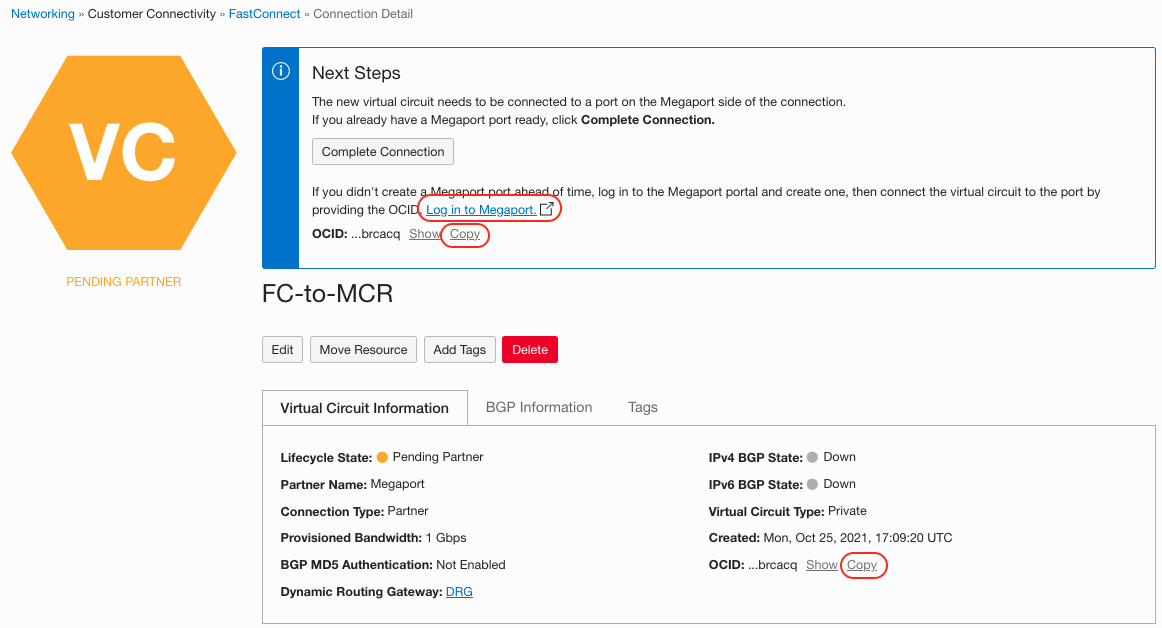
7. As the new FastConnect port is created you will get a screen similar to the one below. On this screen, click the Copy link to copy the FastConnect OCID. You will need this information to complete the configuration from the Megaport side, write it down in a notepad. Click the Log in to Megaport link to continue the configuration. Do not use the Complete Connection button
2) Megaport Configuration
8. Log into the Megaport portal
9. Click the Services Tab and click Create MCR
10. Filter by country and city and click Next
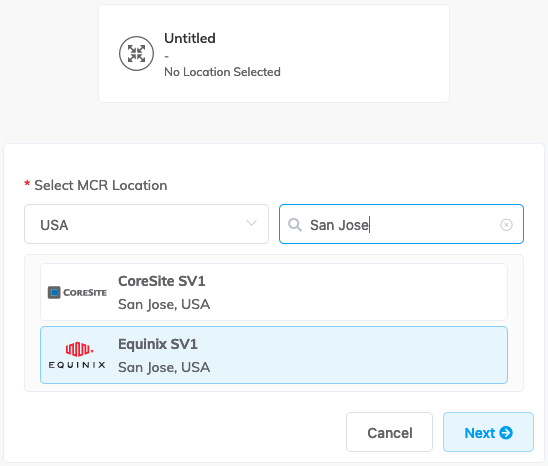
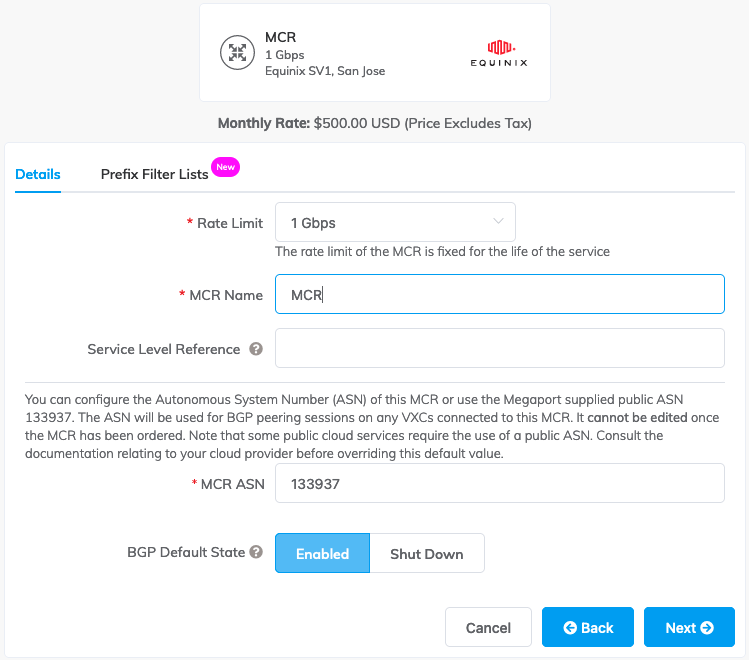
11. Select the Rate Limit for the MCR, give the MCR a name, provide the AS# for the MCR (should be the same AS# as you entered when you configured FastConnect), click Next
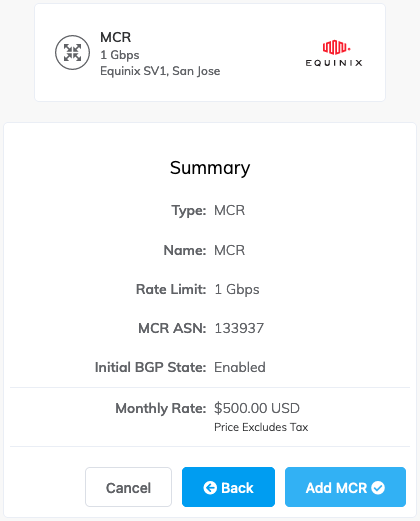
12. If the configuration looks good, click Add MCR
13. You actually need to order the MCR as it will not be created until you click the Order button.
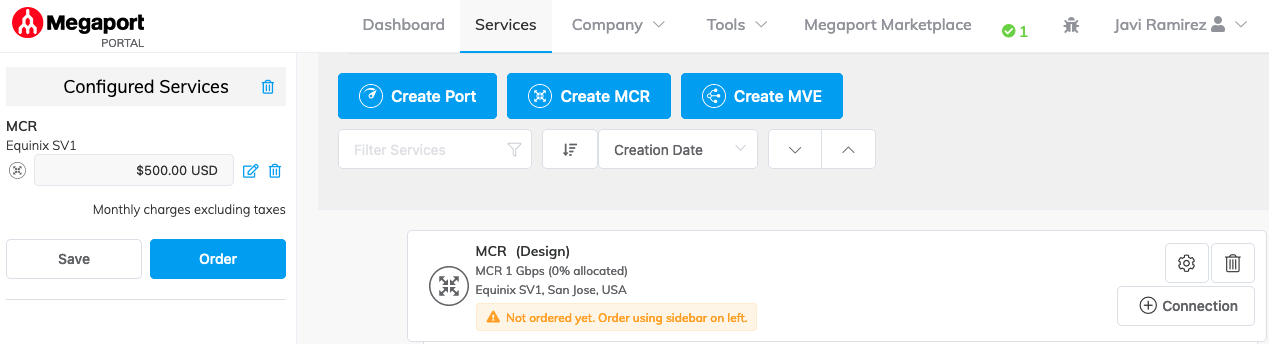
14. Once the configuration is validated, click Order Now. At this point the MCR will be provisioned. Wait couple minutes until the state changes to green

15. Now that your MCR has been instantiated, the next step is to configure the connection to OCI (FastConnect)
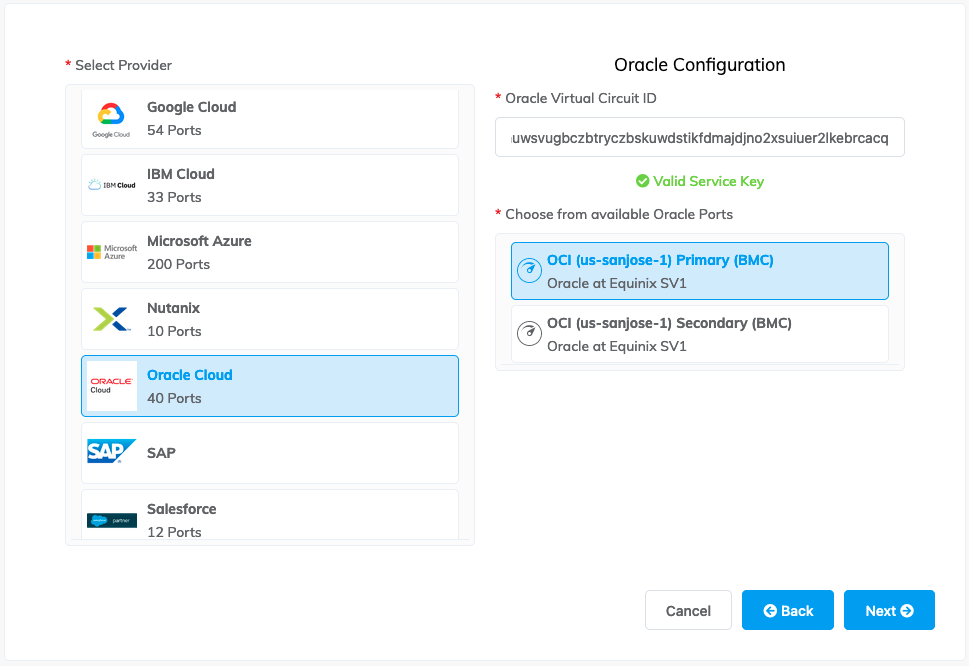
16. Click the Connection button, select Cloud from the next screen, scroll down and select Oracle Cloud, and in the right side paste the OCID that you saved when you created the FastConnect in the Oracle Console. Select Primary connection and click Next
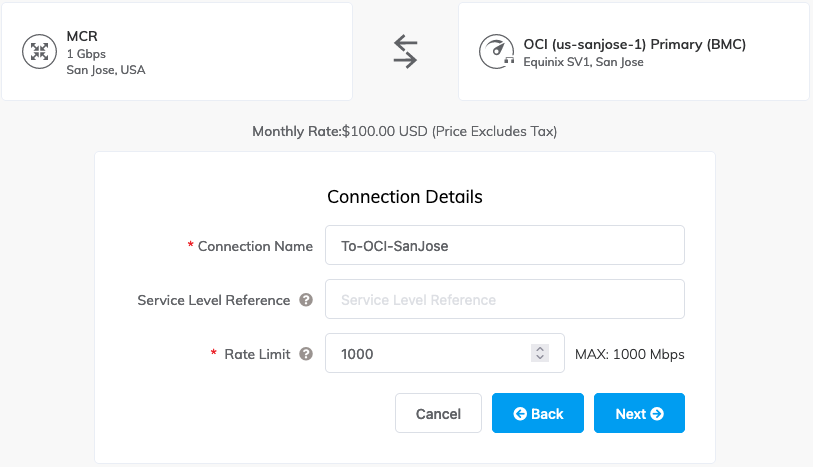
17. Give the connection a name, select the rate limit, and click Next
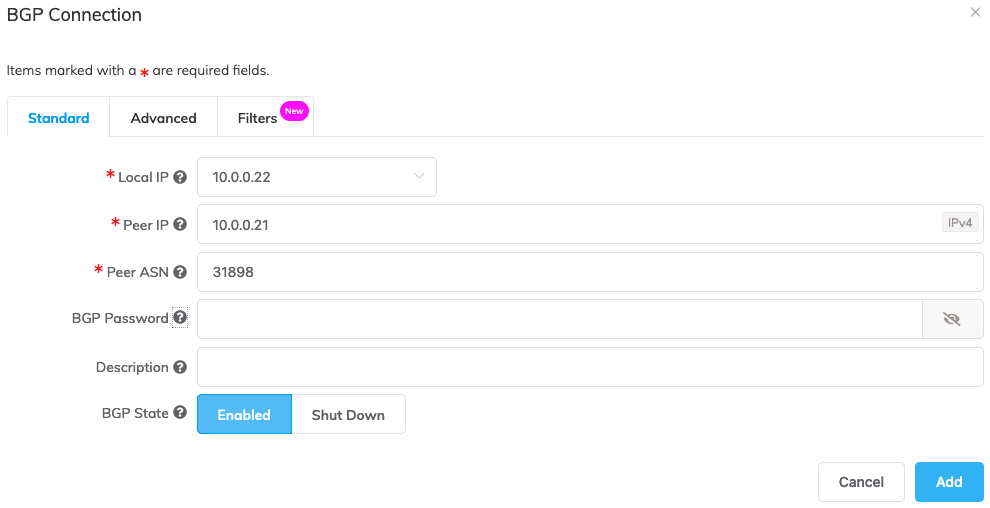
18. Enter the IP address and mask for the MCR interface (same IP you assigned in the OCI Console for the customer side), then click Add BGP Connection. Select the Local IP, enter the IP address for the Oracle Side, enter the AS# for the Oracle side, add a description if you want and click Add
19. Click the next button
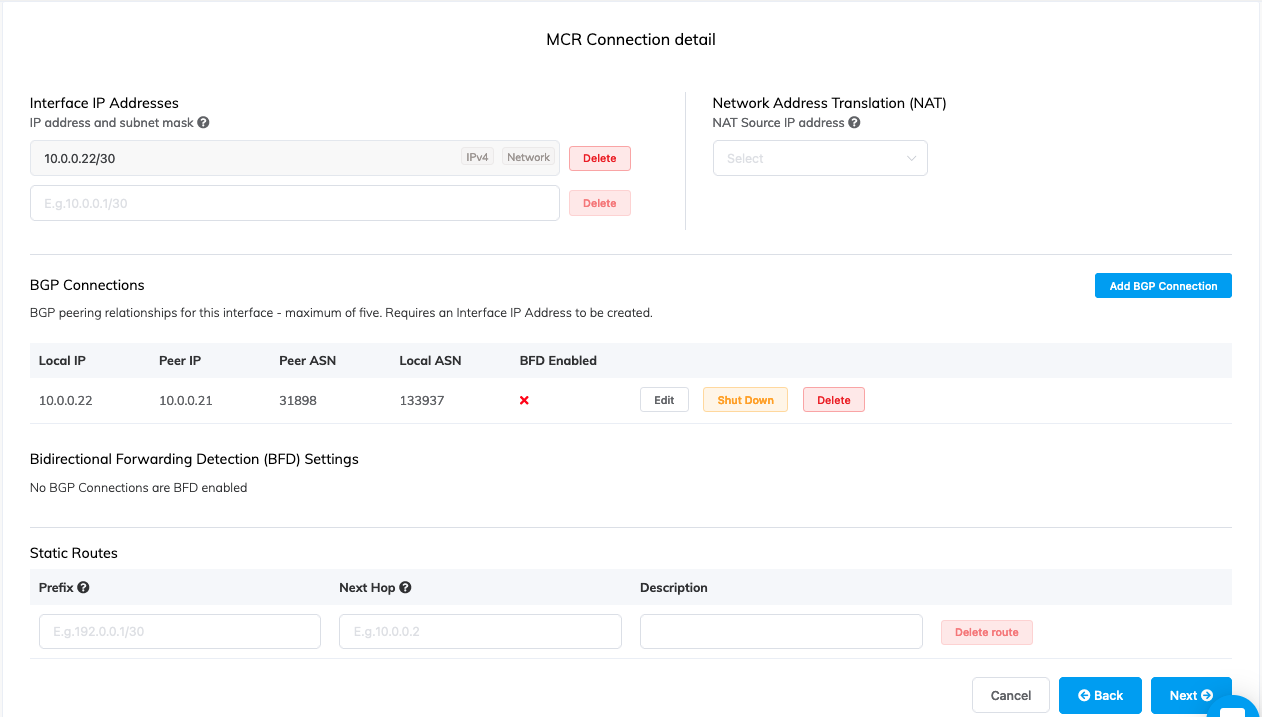
20. Check the details of the connection and click Add VXC
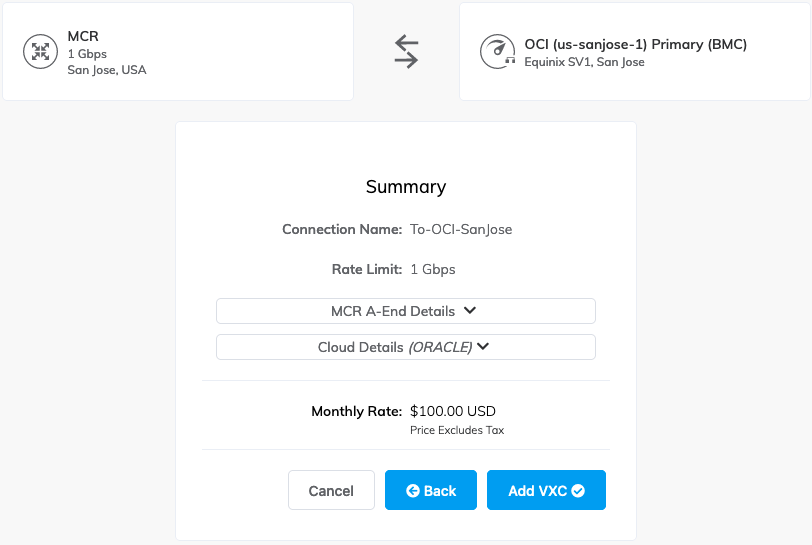
21. Click the Order button, once the configuration is validated, click Order Now
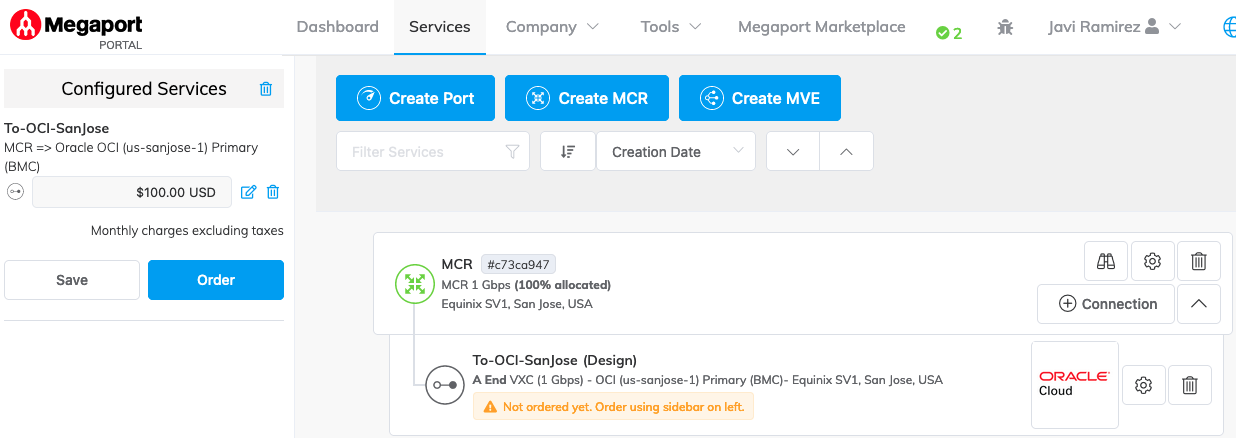
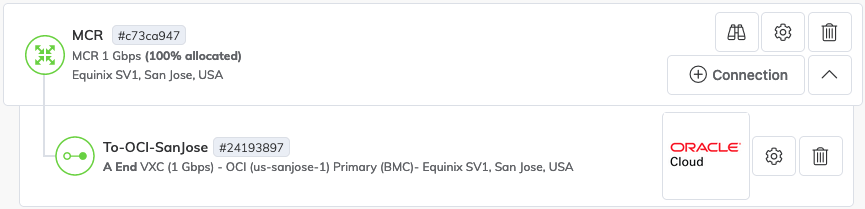
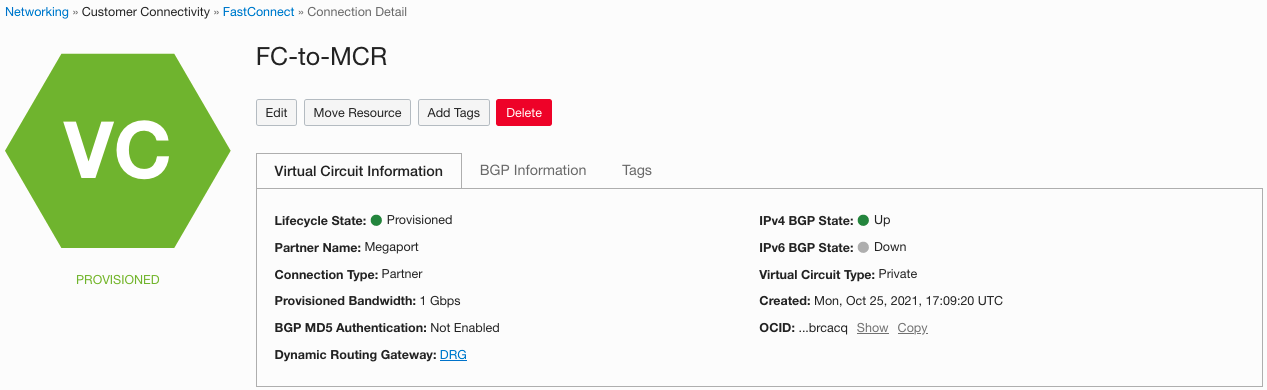
22. It will take couple minutes for the VXC to get provisioned. Once it is done, the status will turn green, and you should see the state of FastConnect in the Oracle Console also to change to green. This will take couple minutes after the VXC is green
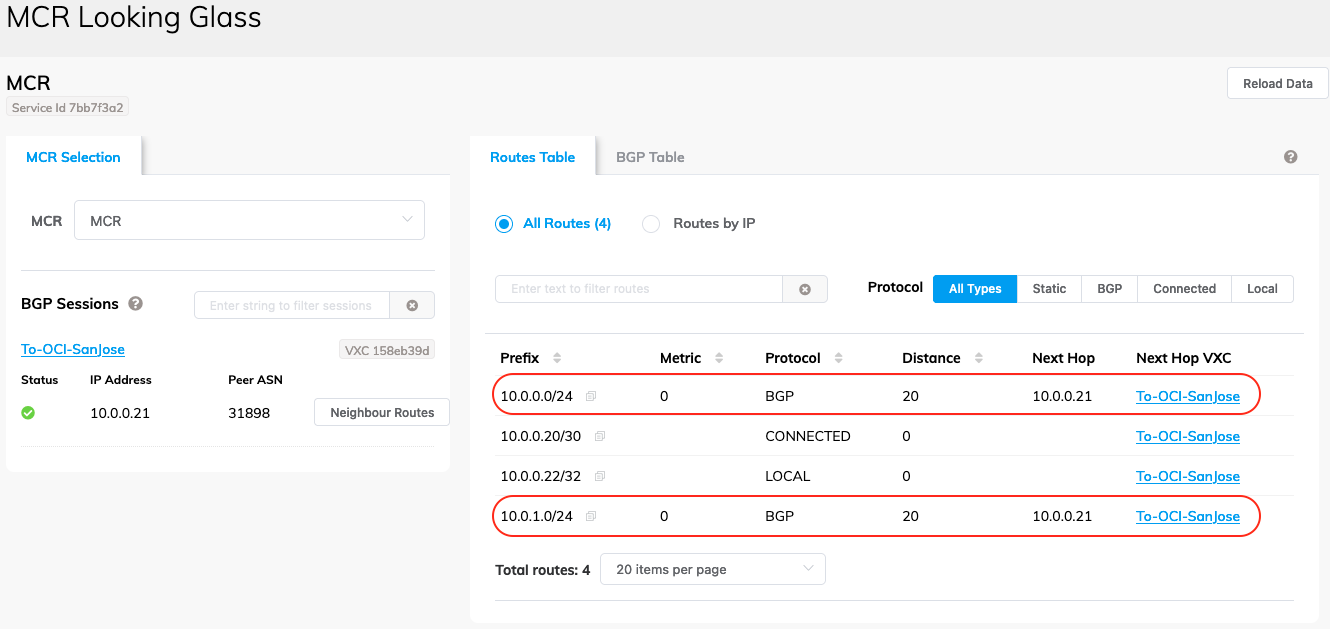
23. Once the connection to OCI is established, click the binoculars icon in the Megaport portal next to the MCR and you will see the routes from the OCI VCN and the BGP status. In the picture below you can see the two routes for subnets created in your OCI VCN
24. Go back to the MCR, by clicking the services Tab and click the connection button to create a connection to AWS
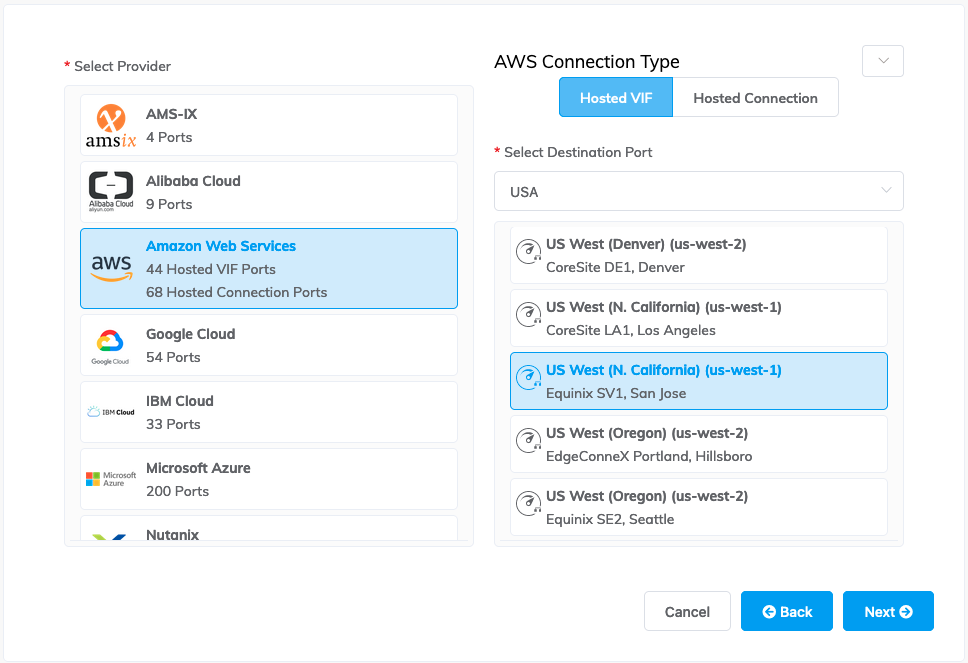
25. Click Cloud, select AWS from the list, click Hosted VIF, filter the list by country, and select the location of the VXC to AWS in this case San Jose as this is where the MCR is located, click Next
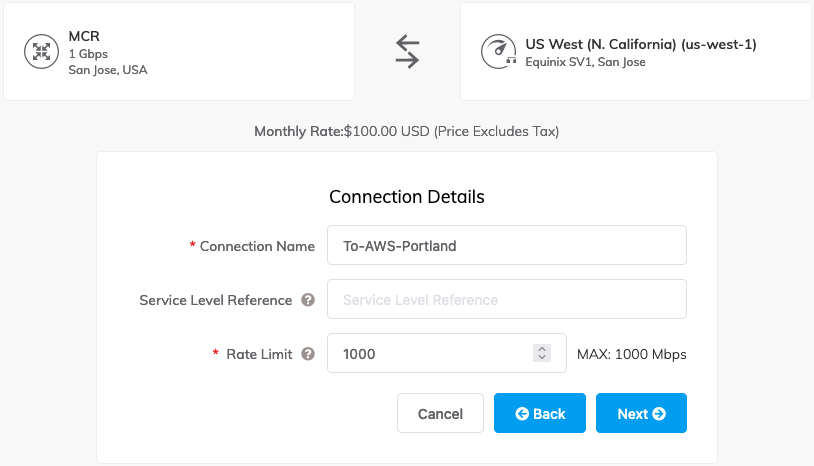
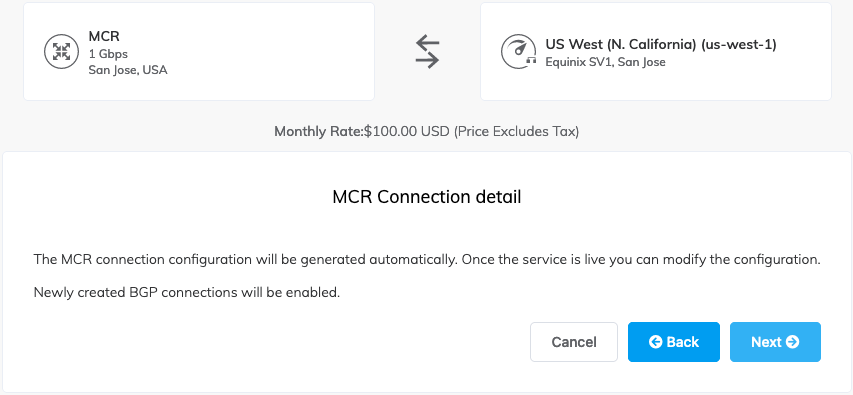
26. Give the connection a name, select the rate limit, and click Next. Read the next message and click Next
27. Select Private as the type of connection, enter your AWS Account ID (log into the AWS console, go to your profile and copy your account ID number), enter the Amazon ASN (this is the ASN assigned to your Direct Connect Gateway) and click Next
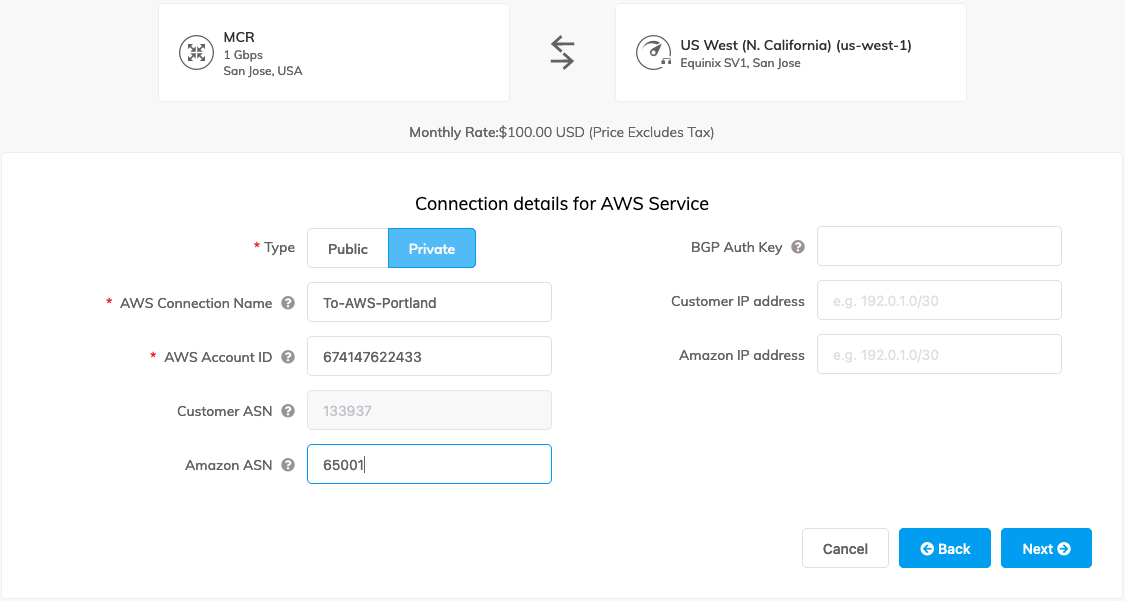
28. Review the configuration for your new VXC and click Add VXC
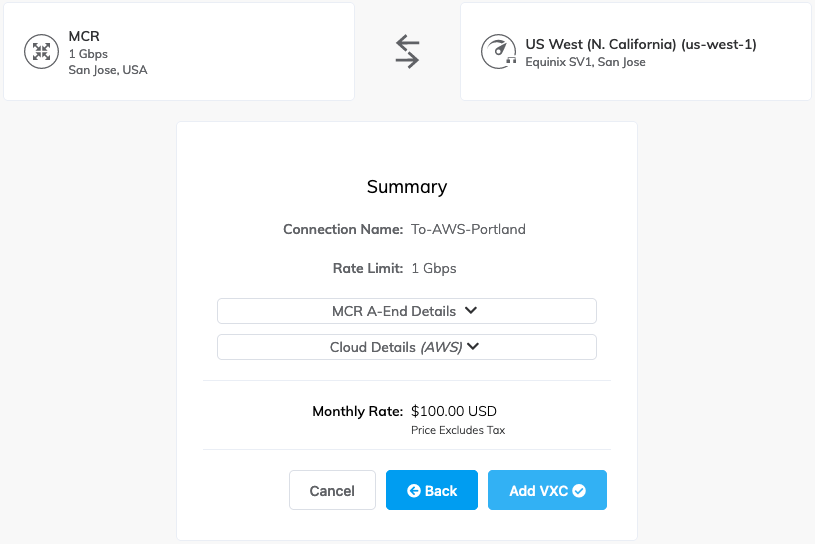
29. Click the Order button, once the configuration is validated, click Order Now
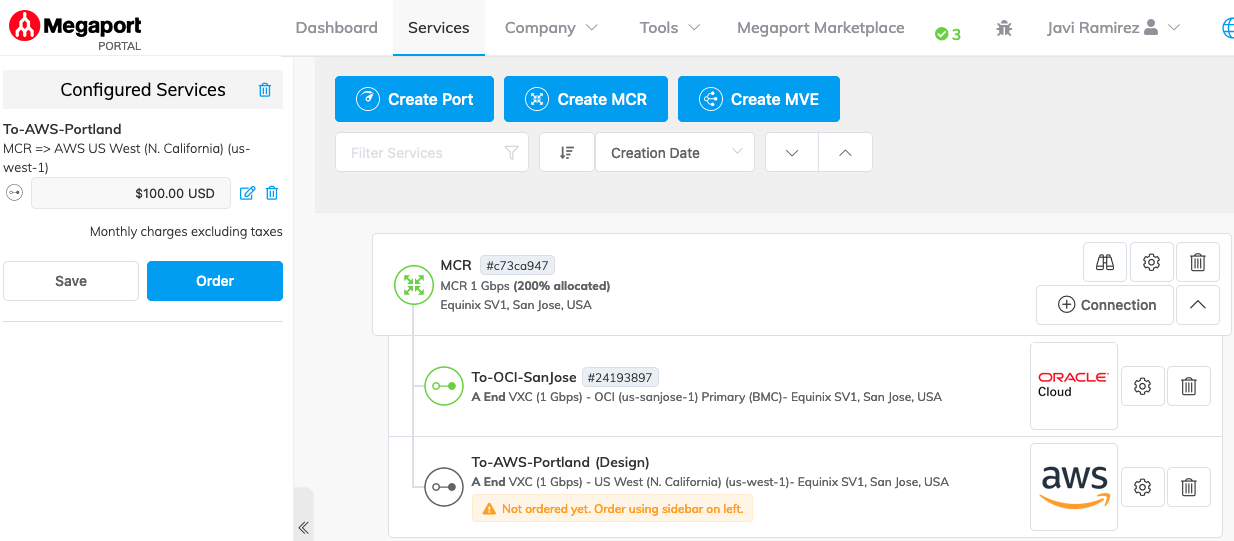
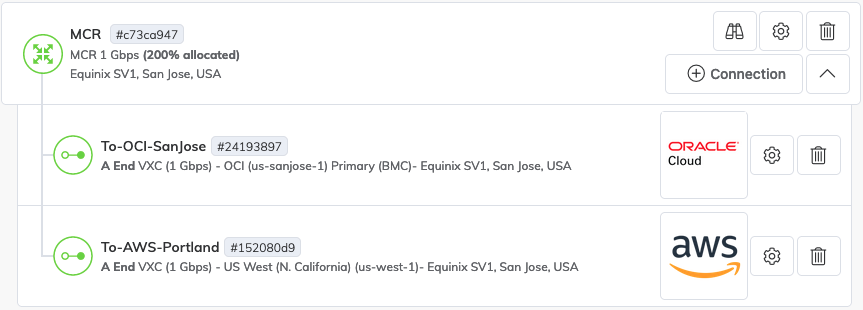
30. It will take couple minutes for the VXC to get provisioned. Once the status changes to green, continue with the configuration on the AWS Portal
3) AWS Configuration
31. Log into the AWS portal
32. Make sure you have a Direct Connect Gateway created and a Virtual Private Gateway attached to your VPC before proceeding
33. Select Direct Connect from the AWS services section
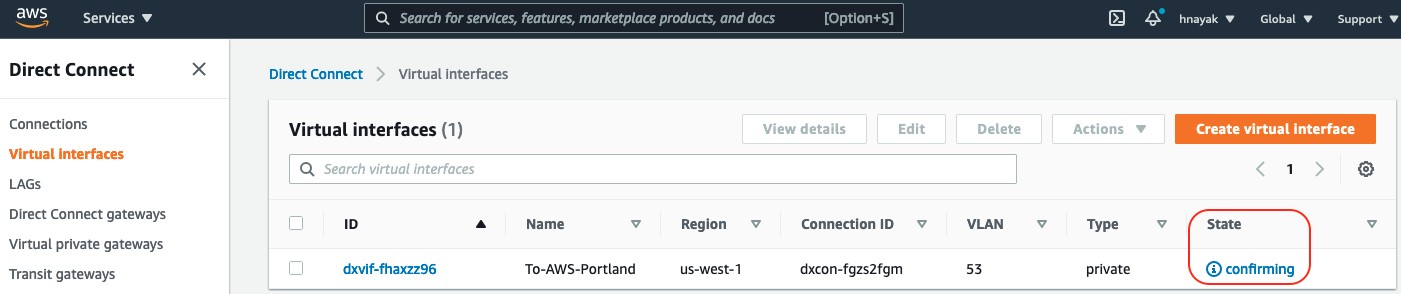
34. Click on Virtual Interfaces. Here you should see the VXC that was created from the Megaport side. It should be showing with “confirming” state and the name you gave it “To-AWS-Portland”
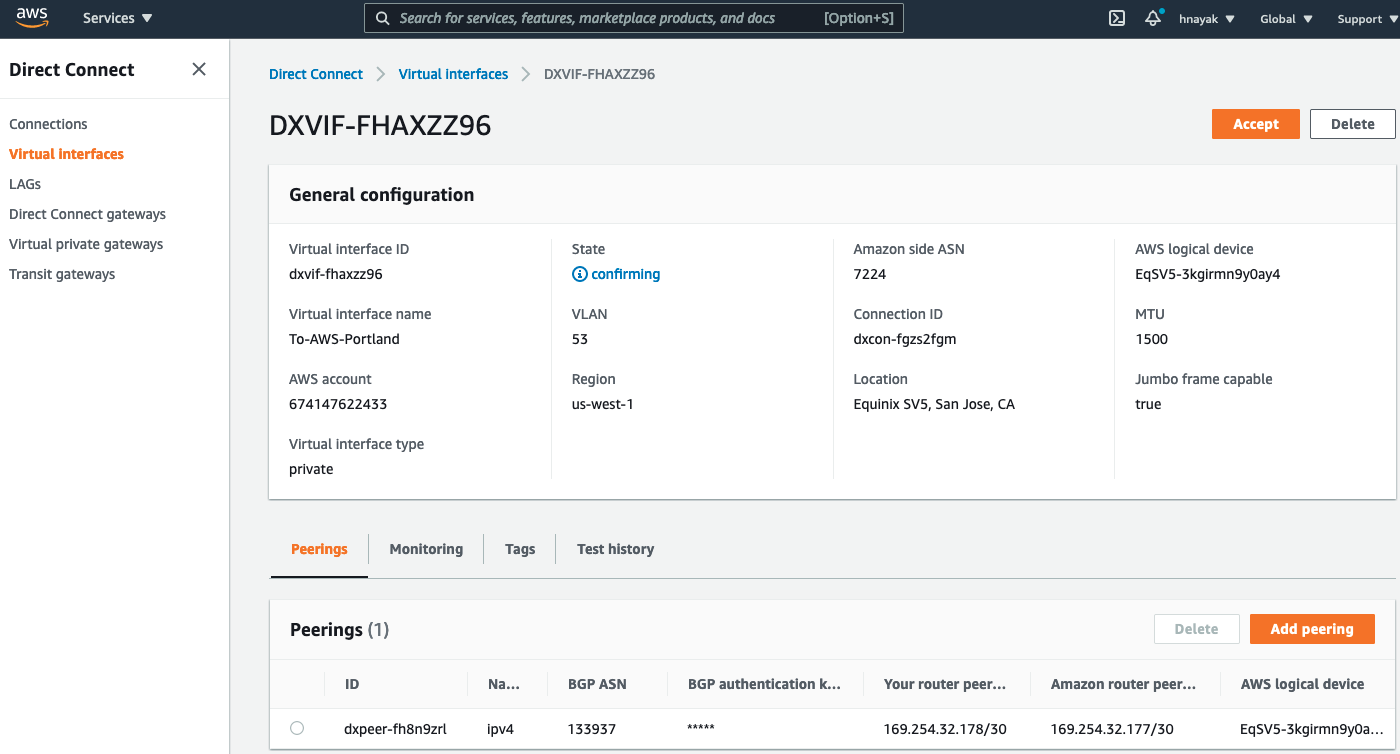
35. Select the new virtual interfaces created. Note the Amazon side ASN is showing as 7224 when we specified 65001, don’t worry about this, it will change once you accept the virtual circuit. Click the Accept button
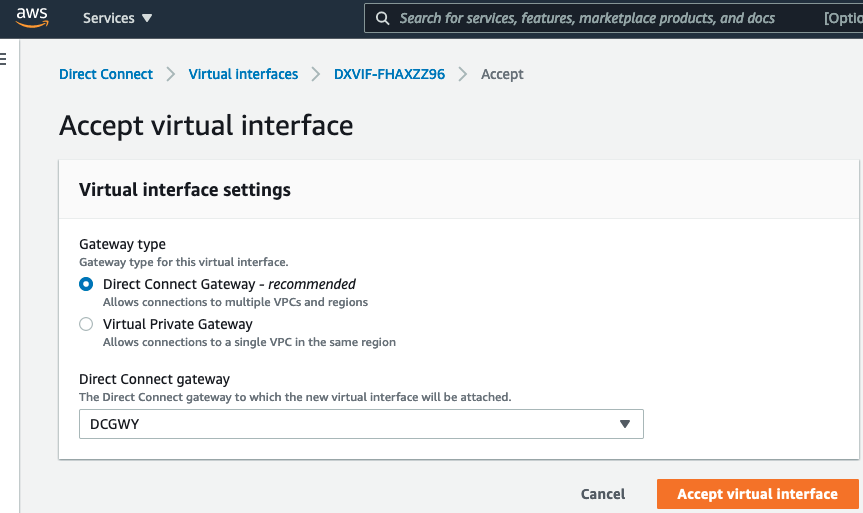
36. Select Direct Connect Gateway, select your Direct Connect Gateway, and click Accept virtual interface
37. Now the virtual circuit is associated with your Direct Connect Gateway which now has the proper AS number
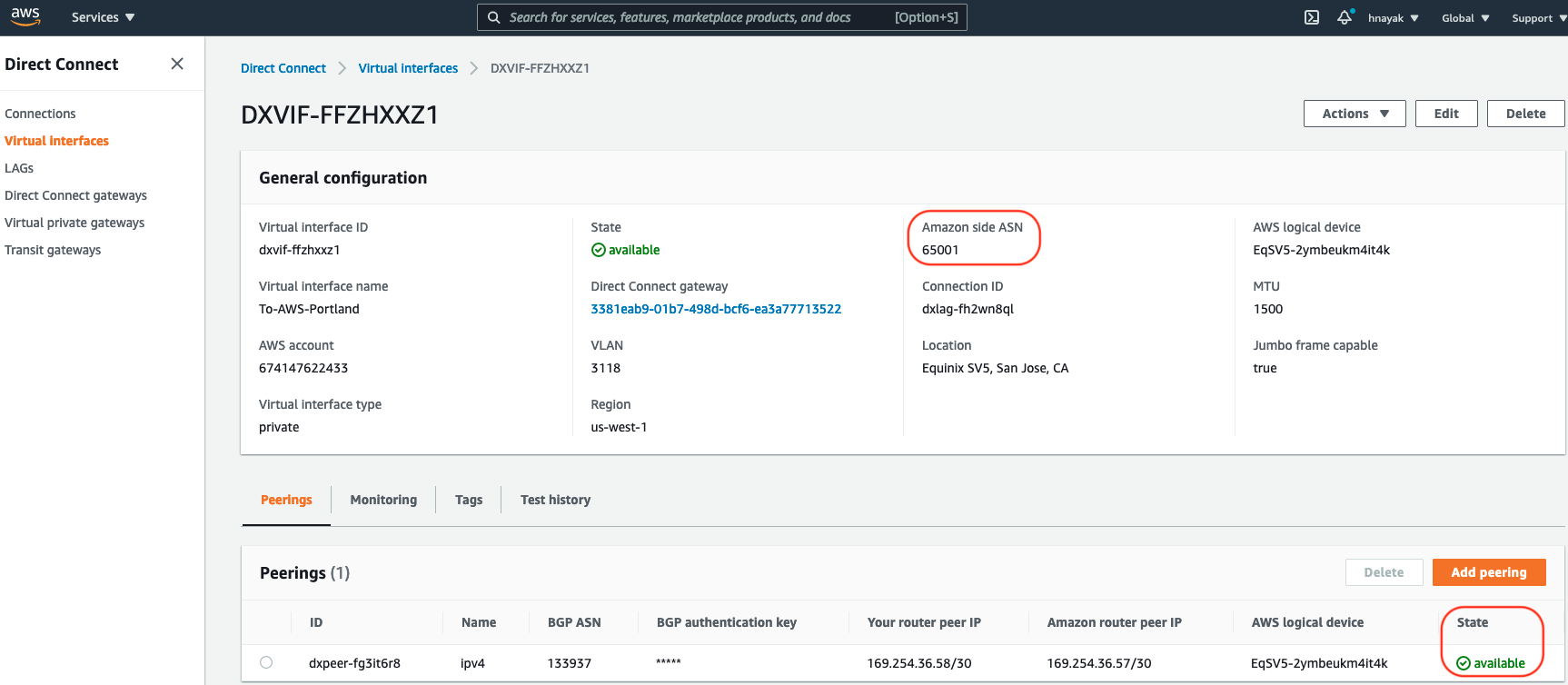
38. Wait for couple minutes until the configuration is complete, the state should change to available and BGP status to up. This state takes a while so be patient. If you check the MCR, click the binocular icon. You should see the state for the AWS connection also as green and see routes advertised from AWS to the MCR. You might have to use the Reload Data button to refresh the screen.
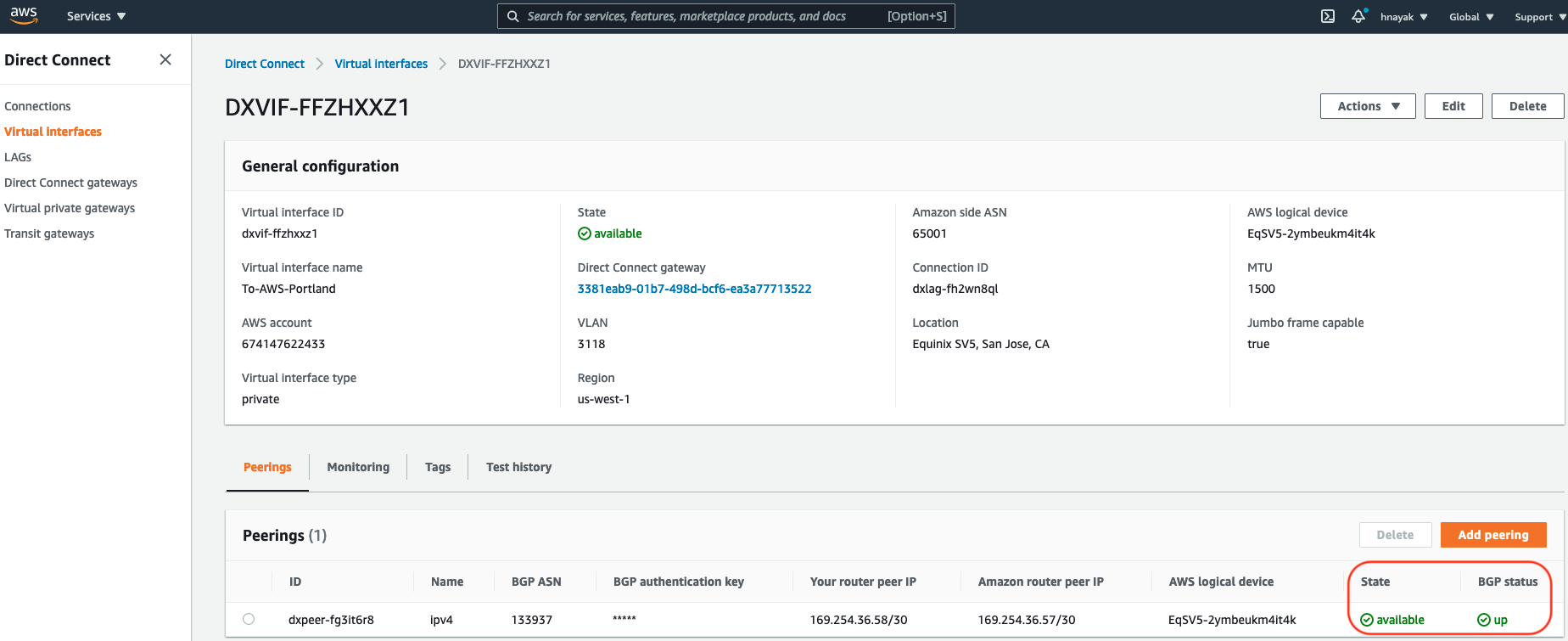
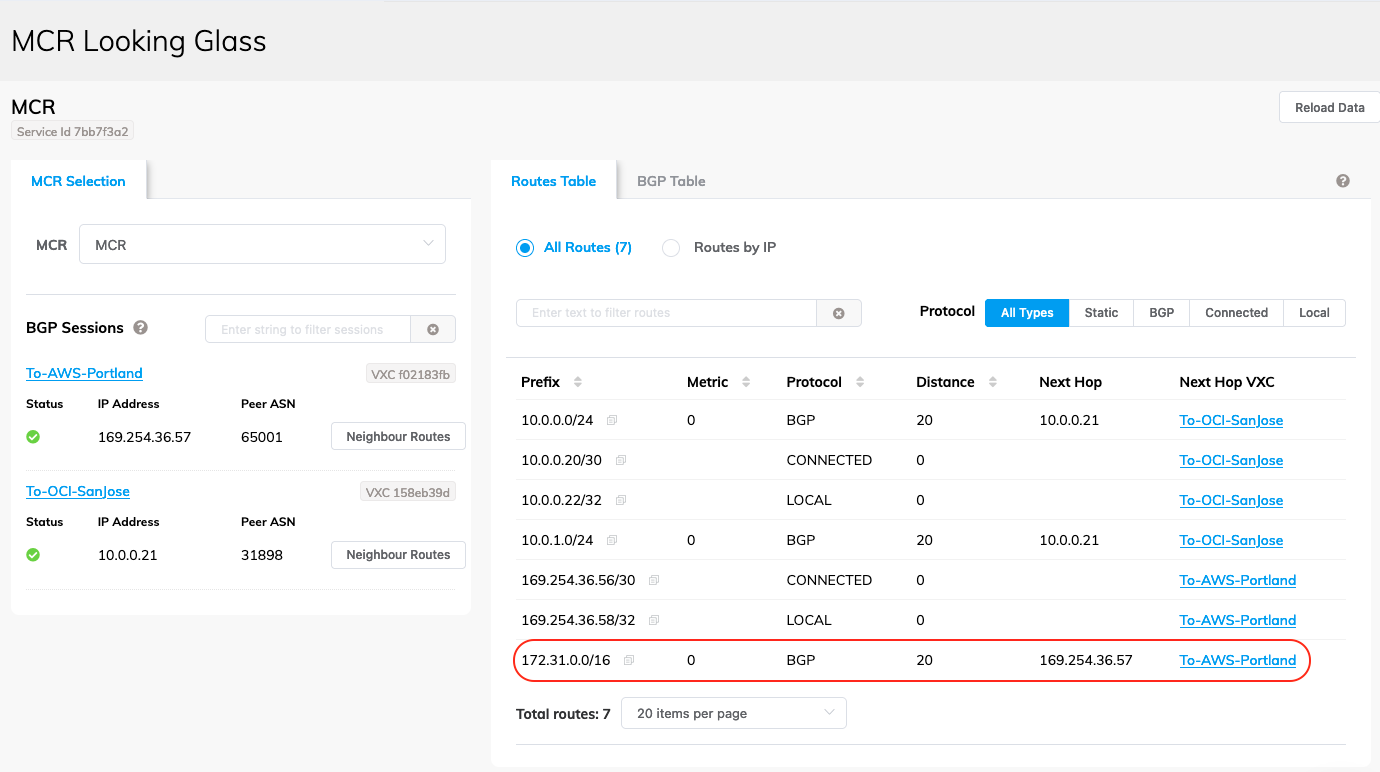
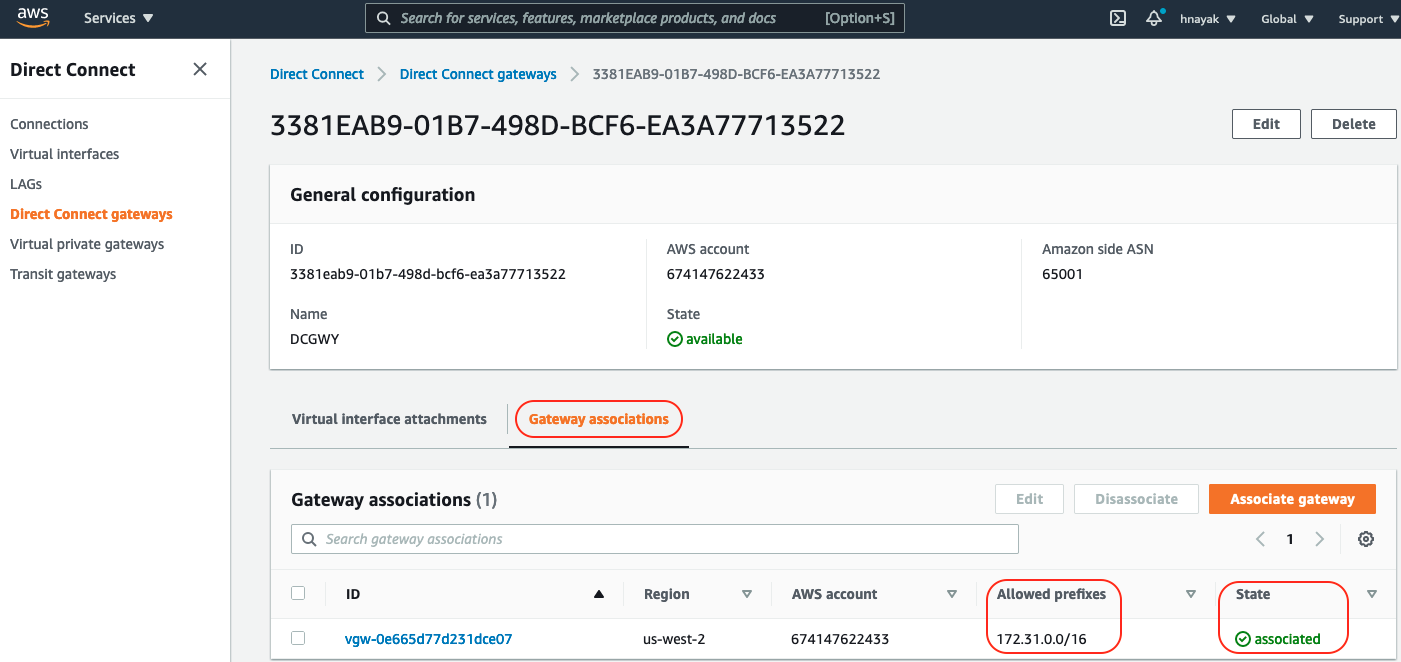
39. If you do not see routes from your VPC advertised to the MCR, check your Direct Connect Gateway is associated with the Virtual Private Gateway which is attached to your VPC and you are allowing the prefixes for the VPC. To check this, click Direct Connect gateways, select the Direct Connect gateway you use to terminate the virtual circuit, and then in the middle of the screen click Gateway associations. You should see the Virtual Private Gateway with the State as associated
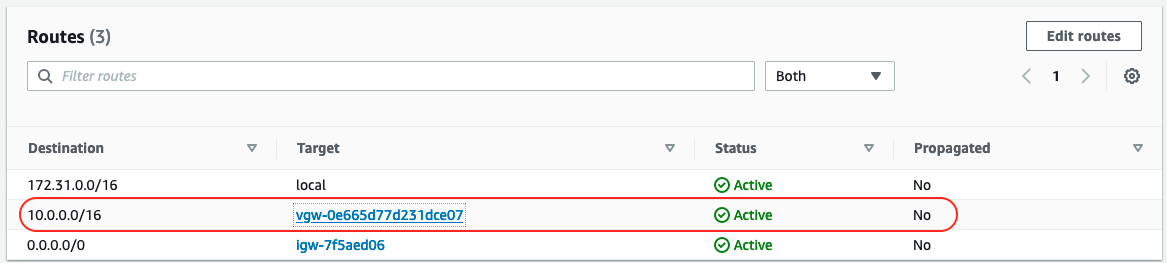
40. Go to the VPC and check you have a route for the OCI VCN (10.0.0.0/16) pointing to the Virtual Private Gateway
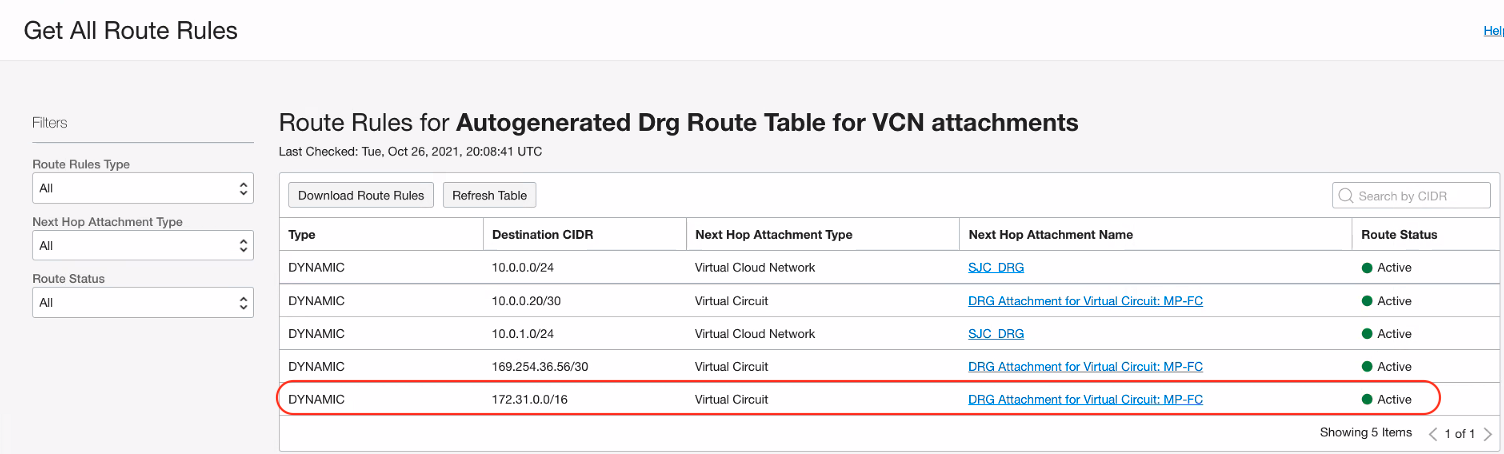
41. Go to the OCI Console and check you are receiving the routes from AWS through the MCR. Also check the route tables for the subnets within the VCN to have a route for 172.31.0.0/16 pointing to the DRG.
42. Check any security list in the path (OCI and AWS) is allowing the traffic between the two clouds
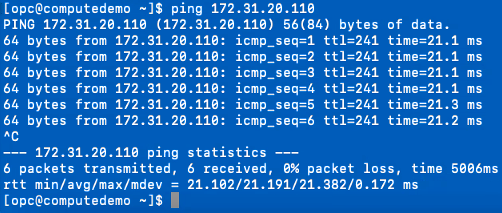
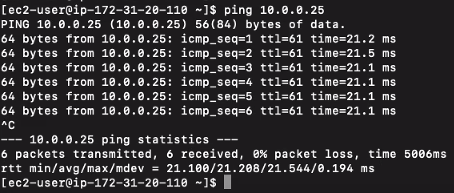
43. Now that routing is confirmed on both sides perform ping test from the VMs located in each cloud confirming the connectivity
From OCI to AWS
From AWS to OCI
Summary
Following these steps you are able to interconnect the two clouds with a cloud router. There are other ways to interconnect OCI with AWS like using a VPN or if your on-prem network is close two both clouds you can hair pin the traffic through your network.
References
Oracle – FastConnect: With an Oracle Partner
Megaport – Connecting to AWS Direct Connect
AWS – Direct Connect connections
Blog – OCI to AWS IPSec Tunnel using the built-in VPN Service