
Introduction
Many customers asked how they can set up monitoring and send alarms for FastConnect and/or VPN tunnels if one of their connections goes down or has unexpected issues.
OCI has different out of the box services that can help accomplish this:
- Monitoring service (Official documentation https://docs.oracle.com/en-us/iaas/Content/Monitoring/home.htm) that has the following components:
- Metrics – Will show the raw data coming from different sources. For FastConnect and VPN, these sources are automatically posted by Oracle Cloud Infrastructure resources.
- Alarms – Is triggered based on the value of the metric.
- Notification’s service (Official documentation https://docs.oracle.com/en-us/iaas/Content/Notification/home.htm) – Broadcasts messages to distributed components through a publish-subscribe pattern.
Now, this being said, let’s dive more into these components:
VPN and FastConnect metrics official documentation can be found on https://docs.oracle.com/en-us/iaas/Content/Network/Reference/ipsecmetrics2.htm#VPN_Connect_Metrics and https://docs.oracle.com/en-us/iaas/Content/Network/Reference/fastconnectmetrics.htm
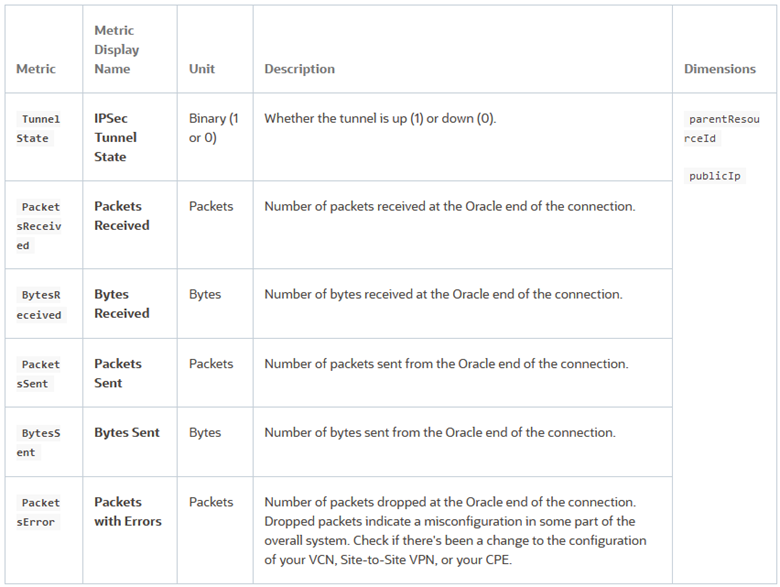
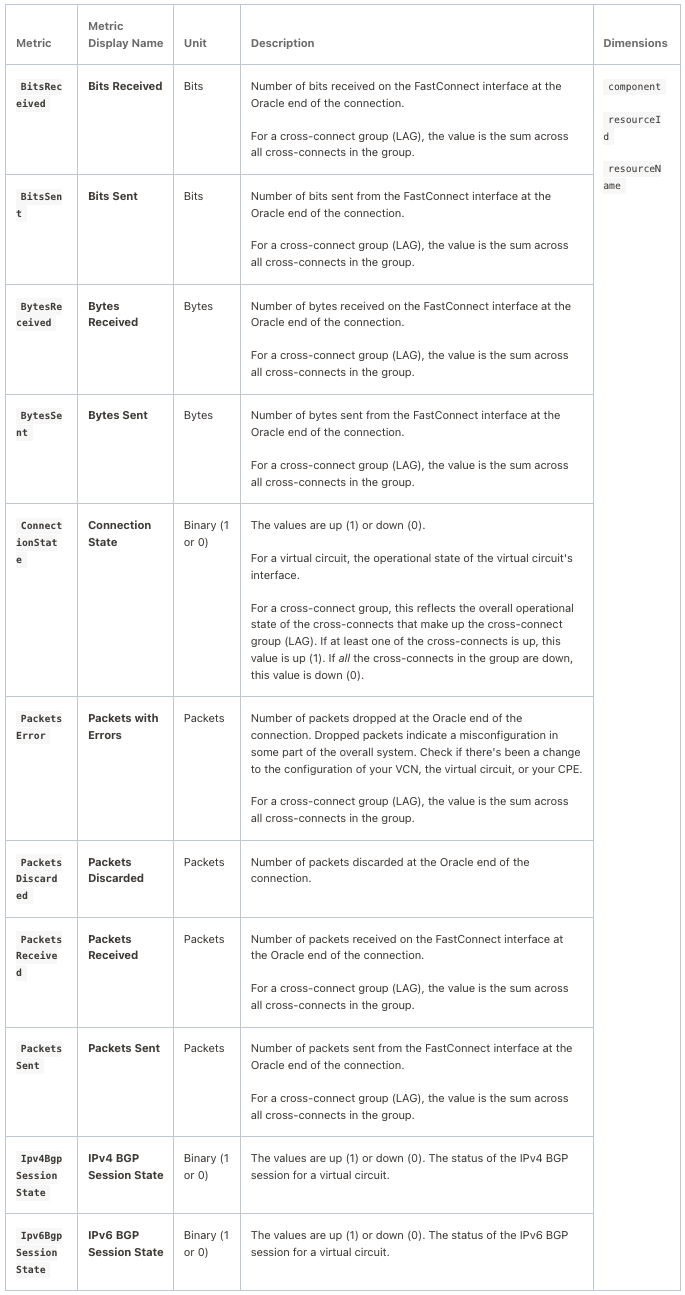
Based on those documents we have the following metrics:
-
VPN: TunnelState, PacketsReceived, BytesReceived, PacketsSent, BytesSent and PacketsError
-
FastConnect: BitsReceived, BitsSent, BytesReceived, BytesSent, ConnectionState, PacketsError, PacketsDiscarded, PacketsReceived, PacketsSent, Ipv4BgpSessionState and Ipv6BgpSessionState
Before moving to the Alarm configuration, we need to understand some basics about the Metrics service. Metrics are pulled from the infrastructure at 1 min interval for VPN and 4 min for FastConnect. Based on this information, we should precisely understand the threshold value that we should put in place so we don’t receive false alarms.
Based on all the metrics, we can configure alarms, and when they are triggered, a notification will be sent.
Before showing how to implement the solution, let’s discuss the prerequisites and scenarios we can implement using this blog.
Prerequisites:
- OCI VCN configured and working with traffic between On-premises and OCI resources
- FastConnect and/or IPsec configured and working
Scenarios that can be implemented:
- FastConnect virtual circuit down (Connection State)
- Fastconnect BGP down (Sesion State)
- FastConnect errors (Packets with errors)
- FastConnect bandwidth throughput
- IPSec Down (Connection state)
- IPSec BGP down (only tunnels with BGP)
- IPSec Errors
Solution description:
-
Setting up the Notification service. We can create one or many notification services that we can use, depending on the requirements (team to be alerted, distribution channel, etc.). In our case, we will provision and use only one Notification service. To provision such a service, we need to do the following things:
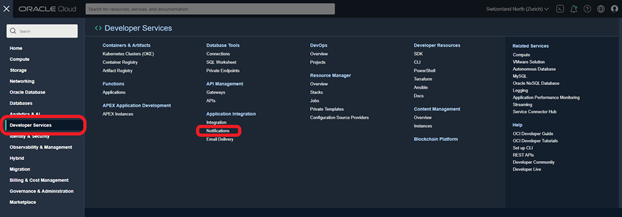
- Go to Notification by navigating to “Burger menu” -> “Developer Services” -> “Notifications”
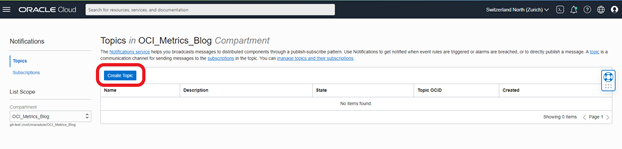
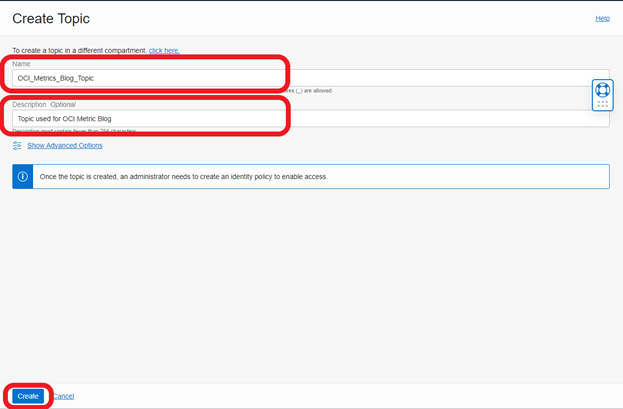
- Click on the “Create Topic” button
- Add a name and a description (optional) and click “Create”
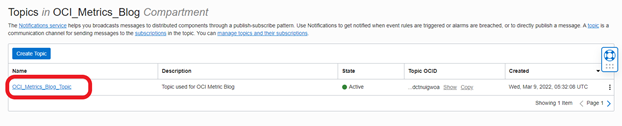
- Now, we will see the topic we have just created in the list of topics
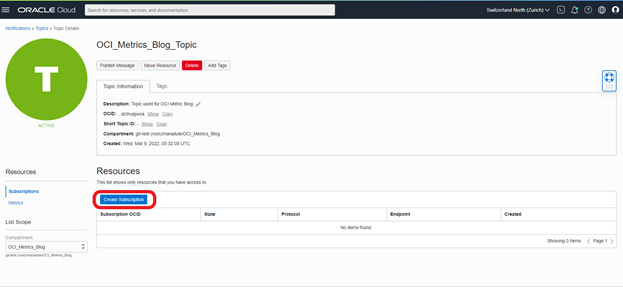
- Click in the topic name that we have created, which will bring us to the subscription page. On this page, click on “Create Subscription”
- Now select the protocol to use from the list. At the moment of writing this blog, we have the following possibilities: “Email”, “Function”, “HTTPS (custom URL)”, “PagerDuty”, “Slack” and “SMS (for Monitoring and Service Connector Hub)”. In our blog, I will select “Email” and I will add my email address and click “Create”
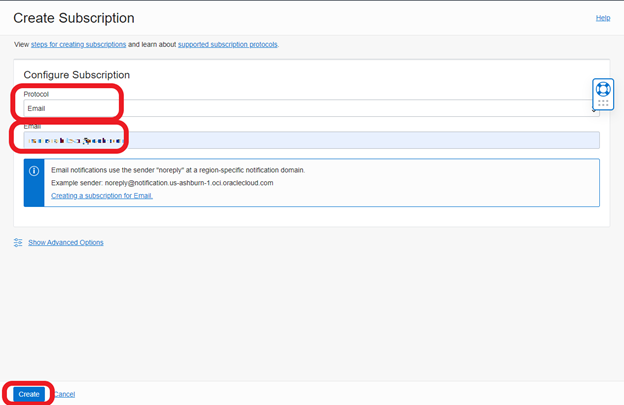
- Once you do this, you will receive an email to confirm the subscription. Confirmation is needed so the system can activate the delivery of the emails.

- Now that the Notification service is created, we can move on to how to create alarms for FastConnect by doing the following tasks:
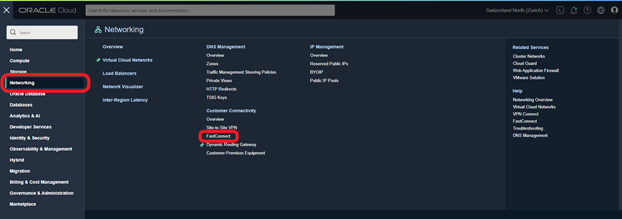
- From the burger menu, go to “Networking” – > “Fastconnect”
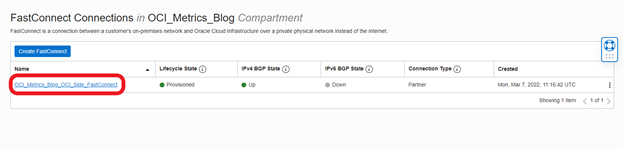
- Now select the Fastconnect we want to activate Monitoring
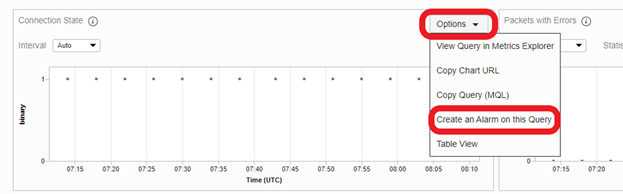
- Now, we can see Metrics for the FastConnect. On this, we can choose the metric we want and create the alarm, for example, on the “Connection State”, by going on “Options” – > “Create an Alarm on this Query” as shown in this example:
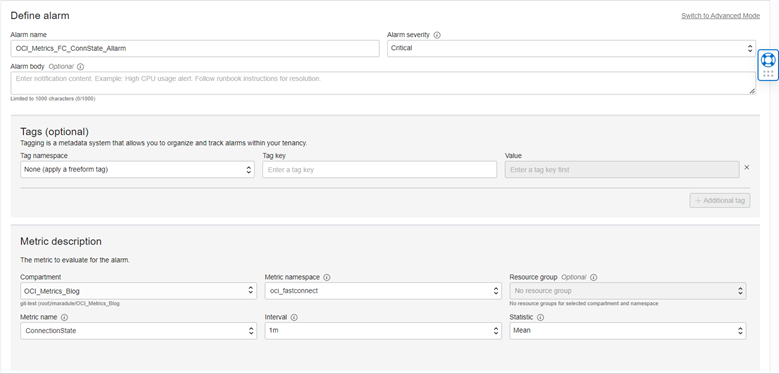
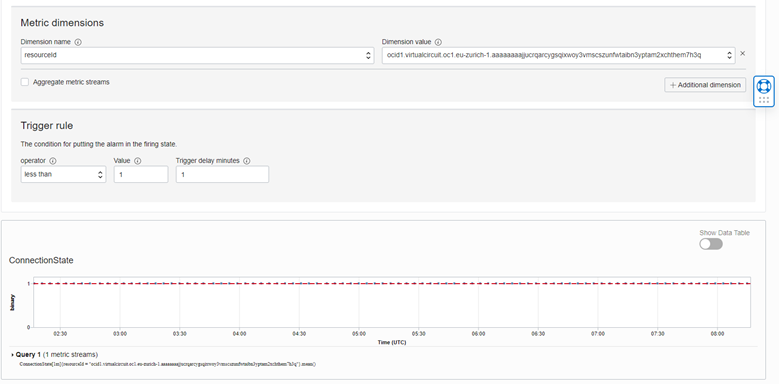
This action will take us on the “Create Alarm” page that will need to be filled up with the following information:
a. Alarm Name
b. Alarm Severity
c. Alarm Body (optional)
d. Tags (optional)
e. Metric description (can remain untouched)
f. Metric dimensions (can remain untouched)
g. Trigger rule – in our case for “Connection State” we will choose “less than” operator with a “Value” of 1 and a “Trigger delay minutes” of 5
h. ConnectionState Graph (untouched)
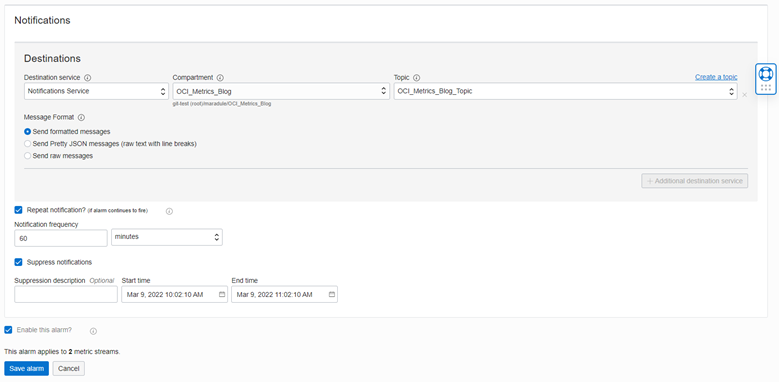
i. Notifications – we select the topic created at point 1, in our case, “OCI_Metrics_Blog_Topic” Also, in this section, we can select to repeat notification in case the alarm remains firing more than a specified interval. In our case, I have selected 60 minutes. Here we can also select a suppression on this alarm to send notification from “Suppress Notification” and select a start date and an end date of this suppression. “Repeat notification” and “Suppress notifications” are optional fields.
j. Enable Alarm
k. Save Alarm
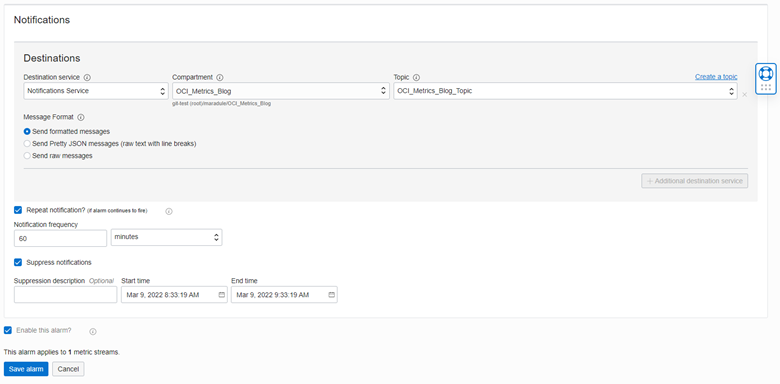
- After creation Alarm page should look like this
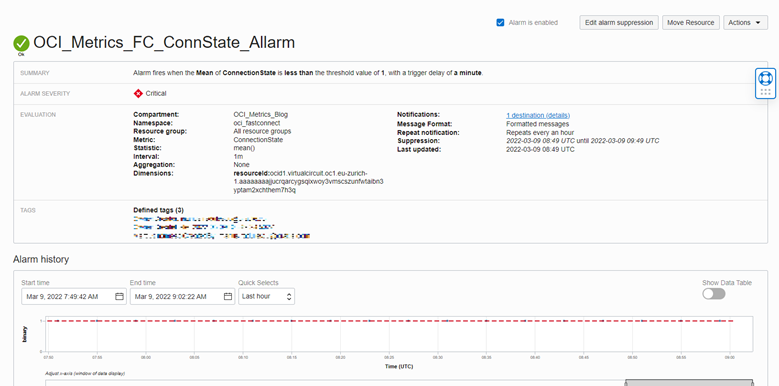
Based on this template, we can create multiple alarms that have a different starting point from any of the metrics available on the FastConnect ( BitsReceived, BitsSent, BytesReceived, BytesSent, ConnectionState, PacketsError, PacketsDiscarded, PacketsReceived, PacketsSent, Ipv4BgpSessionState and Ipv6BgpSessionState)
- Now, we can also make an alarm for one of the VPN tunnels. For doing this, we will need to do the following tasks:
- From the burger menu, go to “Networking” – > “Site-to-Site VPN”
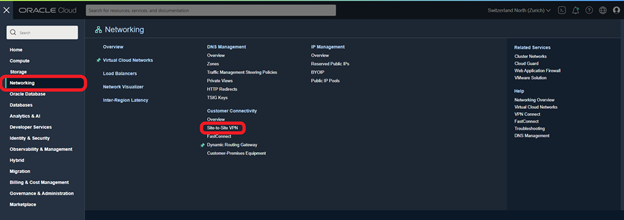
- Select the VPN we want to create an Alarm for
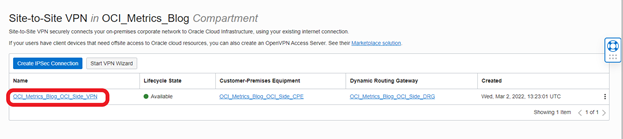
- Select the VPN tunnel. In our case, I will select the tunnel with BGP so I can show how to create an Alarm for the BGP session
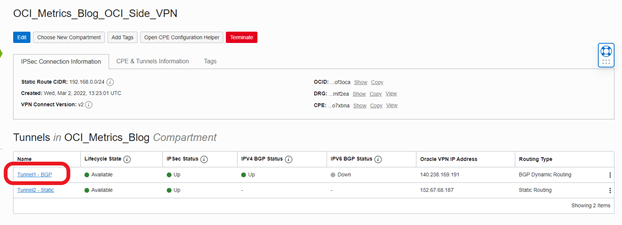
- Scroll down to the IPv4 BGP Session State click on “Options” -> “Create an Alarm on this Metric”

- This action will take us on the “Create Alarm” page that will need to be filled up with the following information:
a. Alarm Name
b. Alarm Severity
c. Alarm Body (optional)
d. Tags (optional)
e. Metric description (can remain untouched)
f. Metric dimensions (can remain untouched)
g. Trigger rule – in our case for “Connection State” we will choose “less than” operator with a “Value” of 1 and a “Trigger delay minutes” of 5
h. ConnectionState Graph (untouched)
i. Notifications – we select the topic created at point 1, in our case, “OCI_Metrics_Blog_Topic” Also, in this section, we can select to repeat notification in case the alarm remains firing more than a specified interval. In our case, I have selected 60 minutes. Here we can also select a suppression on this alarm to send notification from “Suppress Notification” and select a start date and an end date of this suppression. “Repeat notification” and “Suppress notifications” are optional fields.
j. Enable Alarm
k. Save Alarm
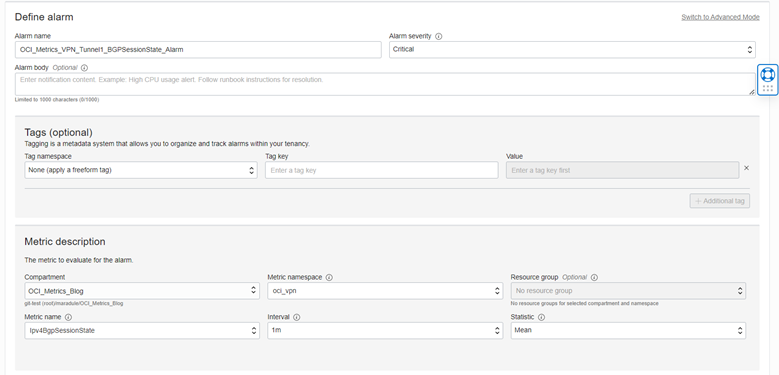
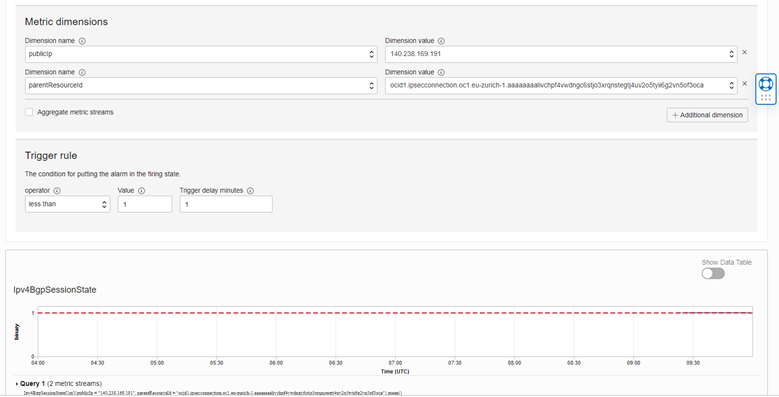
- After creation Alarm page should look like this
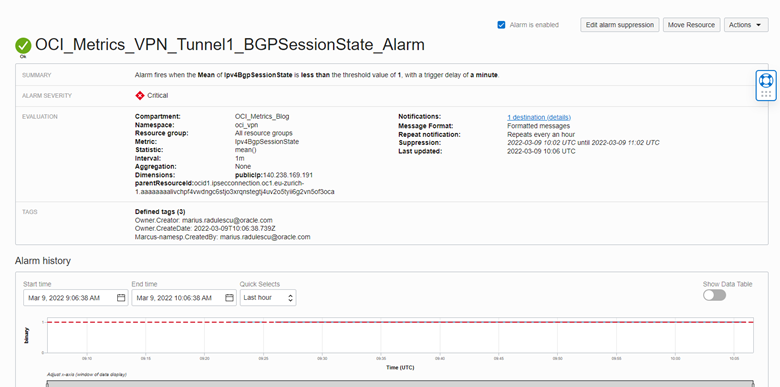
Now that we have configured one alarm for FastConnect and one for VPN, we can consider these your templates. We can create multiple alarms with a different metric as a starting point from the metrics list available on the FastConnect or VPN. We need to follow step 2 for Fastconnect or step 3 for VPN to create more alarms.
Validation
At this point, we should see Alarms firing and sending notifications.
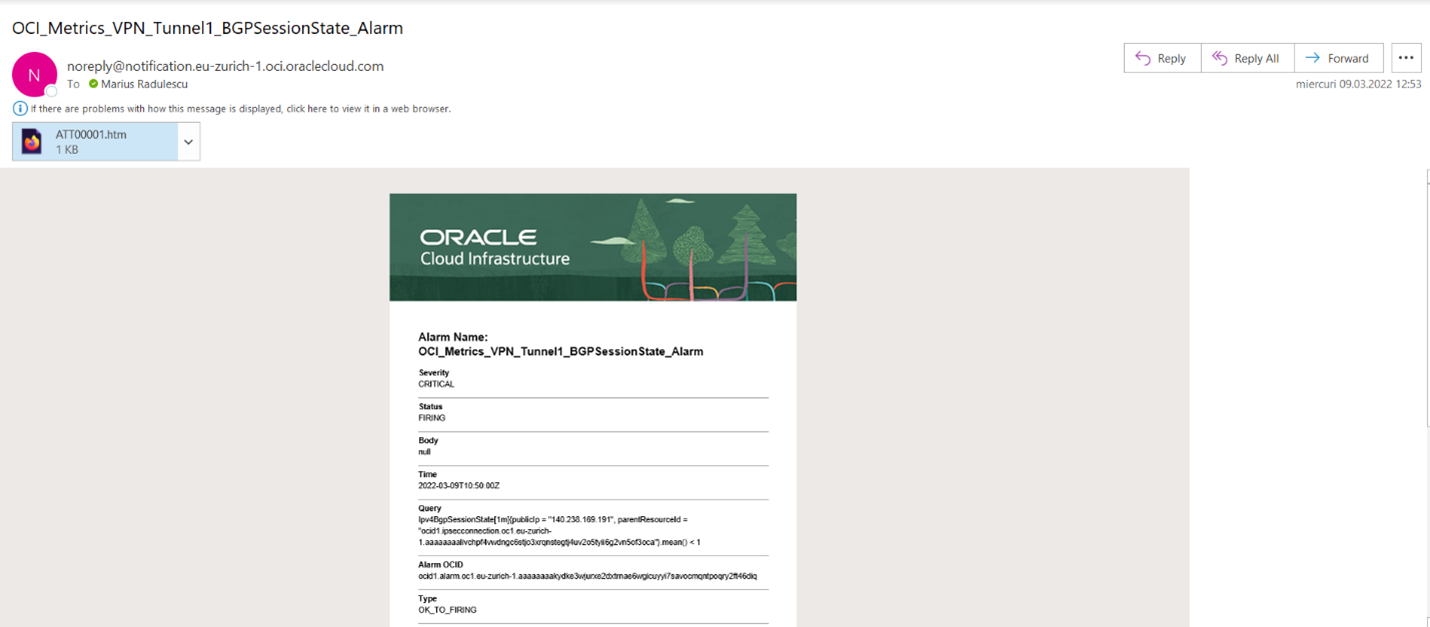
I have chosen to bring the VPN BGP Session down from the CPE device for this validation. Once I have done this, I am seeing see the following:
- BGP session on the VPN tunnel goes down

- Alarm goes on fire status
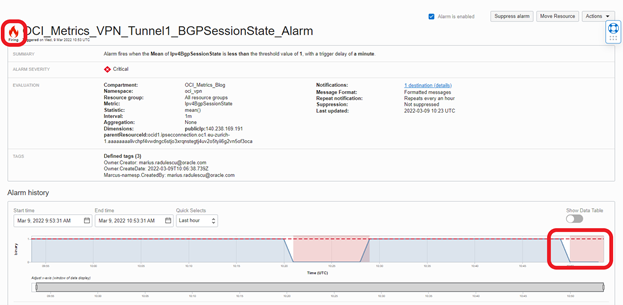
- Alarm is triggered

- Notification is sent
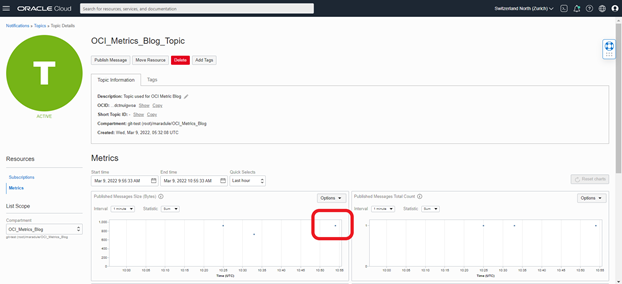
- An email is received
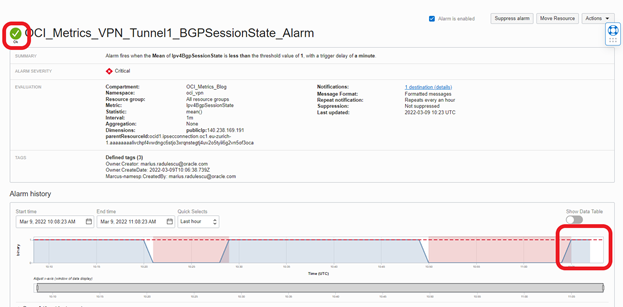
- Once the BGP Session is reestablishing, the Alarm goes on OK status
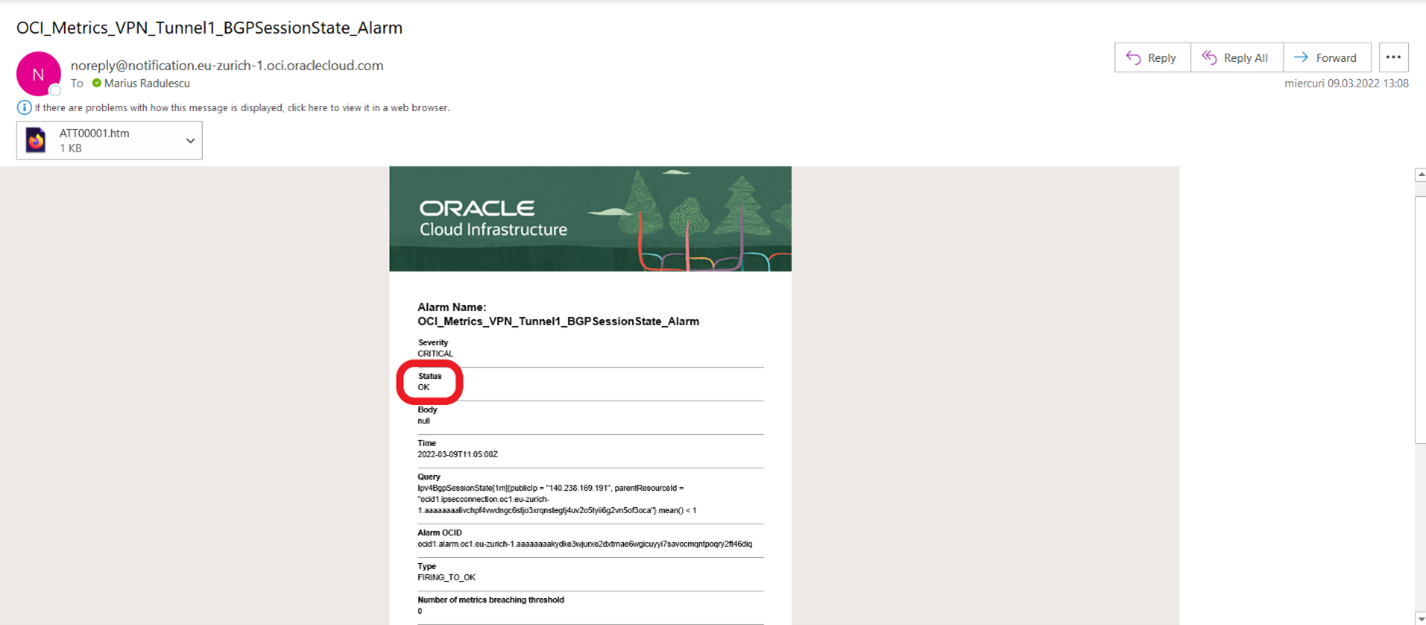
- and a new email is received with the OK status
Caveats and Limitations
- Fastconnect is pulling raw data from infrastructure at 4 minutes interval
- Fastconnect with a partner “ConnectionState” will go down only if something happens with the partner links to OCI and is not verified per customer.
- There is no “bandwidth throughput” on VPN tunnels
- In traffic volume, for VPN, is in Bytes, not in Bits as it should be for network traffic