For a few months now, I have been looking at observability and the tools available to monitor metrics, logs and distributed tracing. One of these tools is Prometheus. In my next article I will recount my journey with Prometheus, but today I would like to take a different direction.

As some of you may not know, the original architects of Prometheus chose deliberately not to build a distributed data storage layer to the time series database. They wanted to keep it simple. It’s important to underscore that this was not a weakness of the design. But rather, it was a conscious decision. They wanted to focus on one thing and do it really well.

The problem…

Now, if we have a large number of environments to monitor with a requirement to keep the time series for a long time, to analyze trends, for example, Prometheus won’t scale.

Since version 2.0 released in 2017, a new “Remote Write” protocol was introduced which enables data in Prometheus to be exported to either a long-term/larger remote storage, solving the storage constraints and scaling difficulties. This blog was written to illustrate how one could configure an adapter to export data from Prometheus.

And the solution…

There are many options to integrate Prometheus with an external system. You can find a full list at https://prometheus.io/docs/instrumenting/exporters/. But I choose to use Kafka because it would allow a decoupled association between any number of clients who need to read or collect metrics data from Prometheus that would have been ingested in a topic in Kafka.

In this article, I list all the steps to:

  • install Prometheus,

  • install Kafka,

  • configure Prometheus to “remote write” to a Kafka topic,

  • and finally read the topic.

The creation of a consumer to read the time series from Kafka and import to your desired final system is left as a homework assignment.

So let’s get to it…

Prometheus Installation

I created an OCI compute instance which I installed Prometheus and Kafka.


Step 1: Prepare environment.

$ sudo useradd --no-create-home --shell /bin/false prometheus

$ sudo mkdir /etc/prometheus

$ sudo mkdir /var/lib/prometheus

$ sudo chown prometheus:prometheus /etc/prometheus

$ sudo chown prometheus:prometheus /var/lib/prometheus


Step 2: Download and install Prometheus.

There are other options to run Prometheus, for example as a docker container. But in this blog we will install it using curl, then extract the content of the tar file and cd into the extracted directory:

$ curl -LO url -LO https://github.com/prometheus/prometheus/releases/download/v2.44.0/prometheus-2.44.0.linux-amd64.tar.gz

$ tar -xvf prometheus-2.44.0.linux-amd64.tar.gz

$ cd  prometheus-2.44.0.linux-amd64


Copy files required to run and change ownership to the user created above:

$ sudo cp prometheus /usr/local/bin/

$ sudo cp promtool /usr/local/bin/

$ sudo chown prometheus:prometheus /usr/local/bin/prometheus

$ sudo chown prometheus:prometheus /usr/local/bin/promtool

$ sudo cp -r consoles /etc/prometheus

$ sudo cp -r console_libraries /etc/prometheus

$ sudo chown -R prometheus:prometheus /etc/prometheus/consoles

$ sudo chown -R prometheus:prometheus /etc/prometheus/console_libraries


Step 3: Add configuration file.

$ sudo su –
$ cat << EOF > /etc/prometheus/prometheus.yml
global:
  scrape_interval: 10s
scrape_configs:
  – job_name: ‘prometheus’
    scrape_interval: 5s
    static_configs:
      – targets: [‘localhost:9090’]
EOF


Now change the ownership of the configuration file:

$ sudo chown prometheus:prometheus /etc/prometheus/prometheus.yml


Step 4: Create a systemd service to automatically run/restart on reboot.

$ sudo su -
$ cat << EOF > /etc/systemd/system/prometheus.service
[Unit]
Description=Prometheus
Wants=network-online.target
After=network-online.target
[Service]
User=prometheus
Group=prometheus
Type=simple
ExecStart=/usr/local/bin/prometheus \
    --config.file /etc/prometheus/prometheus.yml \
    --storage.tsdb.path /var/lib/prometheus/ \
    --web.console.templates=/etc/prometheus/consoles \
    --web.console.libraries=/etc/prometheus/console_libraries
[Install]
WantedBy=multi-user.target
EOF


Step 5: Reload systemd manager configurations, start and test the service.

$ sudo systemctl daemon-reload

$ sudo systemctl start prometheus

$ sudo systemctl enable prometheus

$ sudo systemctl status prometheus


The last command about is so you can check if prometheus successfully started.

You should see an output similar to this:

Prometheus service status active


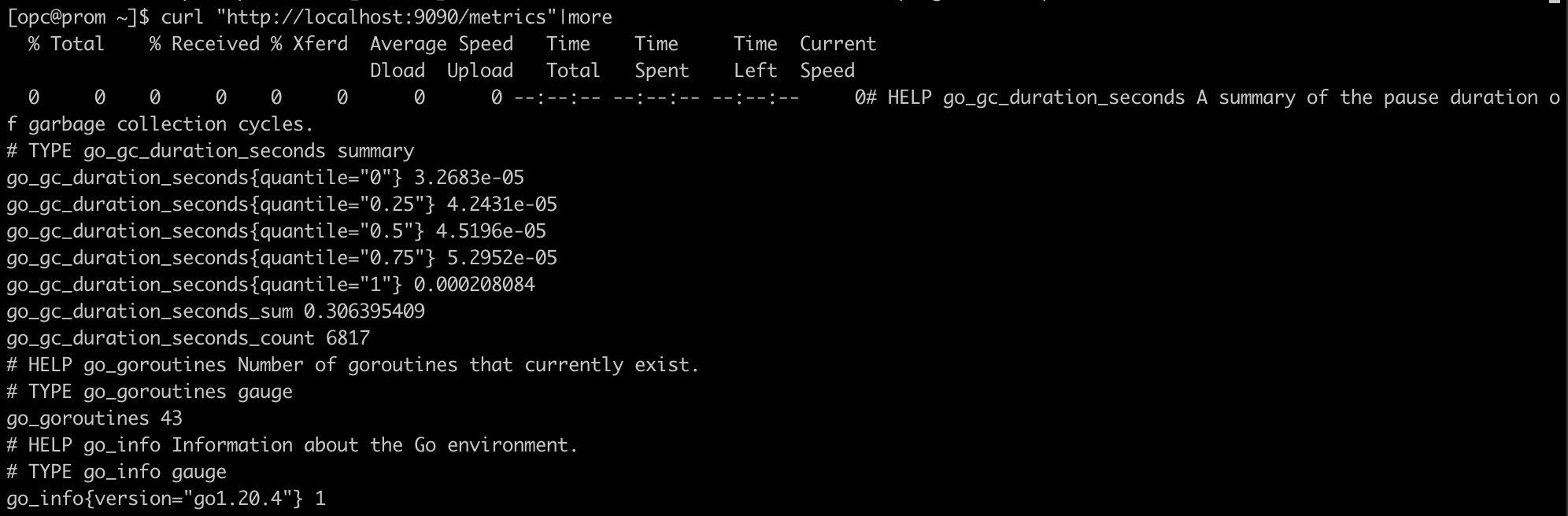
Step 6: Now test if prometheus is running.

$ curl "http://localhost:9090/metrics"

you should see an output like this:

Output of curl prometheus metrics


Kafka Installation

Step 1: Download and untar Kafka

$ curl -LO https://dlcdn.apache.org/kafka/3.4.0/kafka_2.13-3.4.0.tgz

$ tar -xzvf kafka_2.13-3.4.0.tgz

$ cd kafka_2.13-3.4.0


Step 2: install java.

Since Kafka runs on JVMs, you need to install Java. I chose JDK 14.

$ yum list jdk* (to findout which version is available)

$ sudo yum install jdk-14.0.1.x86_64


Step 3: Start the Kafka environment.

The default advertised.listener (localhost) did not work for me. Since I am running on OCI compute instance with 10.20.0.39 internal IP, I used it to configure the listeners.

Edit config/kraft/server.properties, change “localhost” to internal ip “10.20.0.39”

#advertised.listeners=PLAINTEXT://localhost:9092
advertised.listeners=PLAINTEXT://10.20.0.39:9092


To make it easier I added the internal IP to /etc/hosts:

10.20.0.39 kafka


Now generate a cluster id, configure storage and start Kafka:

$ KAFKA_CLUSTER_ID="$(bin/kafka-storage.sh random-uuid)"

$ bin/kafka-storage.sh format -t $KAFKA_CLUSTER_ID -c config/kraft/server.properties

$ bin/kafka-server-start.sh config/kraft/server.properties


Step 4: Create topic to store events and check it. Note: this is a topic used just for testing the producer and consumer in Kafka. Not the topic that will be used with Prometheus.

Open another terminal window and type the following to create a topic:

$ bin/kafka-topics.sh --create --topic quickstart-events --bootstrap-server kafka:9092


Check List of topics:

$ bin/kafka-topics.sh --bootstrap-server=kafka:9092 --list


Step 5: Test if you can write to and read from the topic.

In a new terminal window run this generic producer to write strings to the topic:

$ bin/kafka-console-producer.sh --topic quickstart-events --bootstrap-server kafka:9092


And in another terminal window, using this generic consumer, read from the topic:

$ bin/kafka-console-consumer.sh --topic quickstart-events --from-beginning --bootstrap-server kafka:9092


If you can see the same text in the consumer that you typed in the producer, it worked.

More detailed information on a “quickstart Kafka” can be found at https://kafka.apache.org/quickstart

Now let’s work on the exporter.

Prometheus-Kafka Integration

Step 1: If you don’t already have it, install git.

$ sudo yum install git


Step 2: Clone the adapter repository.

$ git clone https://github.com/Telefonica/prometheus-kafka-adapter.git


Step 3: The adapter run as a docker container, so you need to install docker.

$ sudo yum update

$ sudo yum install -y yum-utils

$ sudo yum-config-manager --add-repo https://download.docker.com/linux/centos/docker-ce.repo

$ sudo yum install docker-ce docker-ce-cli containerd.io

$ sudo systemctl start docker

$ sudo systemctl enable docker

$ sudo usermod -aG docker ${USER}


Step 4: Now we need to configure the adapter to talk to Kafka.

$ cd prometheus-kafka-adapter

Edit config.go, change “kafka” to “10.20.0.39” in kafkaBrokerList:

#kafkaBrokerList = "kafka:9092"
kafkaBrokerList = "10.20.0.39:9092"


Step 5: Time to re-build the adapter.

$ make fmt

$ make test

$ docker buildx build -t adapter:latest .


For more details see development section in https://github.com/Telefonica/prometheus-kafka-adapter


Step 6: start the container.

$ docker run -v /home/opc/prometheus-kafka-adapter:/app:z -w /app adapter


Step 7: update /etc/prometheus/prometheus.yml.

Get the container id and IP:

$ docker ps

Make a note of the container_id

$ Docker inspect <container_id> |grep "IPAddress"

Make a note of the IP address. It will be used in the Prometheus configuration file.

Add the following to the bottom of prometheus.yml:

remote_write:
  - url: "http://172.17.0.2:8080/receive"

The code above configures Prometheus to write it’s data to the docker container running the Kafka adapter, which is basically a producer.

Details on prometheus “remote-write” configuration is found at https://prometheus.io/docs/prometheus/latest/configuration/configuration/#remote_write


Step 8: Restart Prometheus.

$ sudo systemctl restart prometheus


Step 9: check that the “metrics” topic is being populated with time series events from Prometheus.

$ bin/kafka-console-consumer.sh --topic metrics --from-beginning --bootstrap-server kafka:9092

If everything is working, you should see on the screen messages from Prometheus, time series entries, that were ingested in the topic and were pulled out by the consumer above.

In summary…

We saw that Prometheus was not built with distributed data storage layer, but with the remote write protocol we can export time series data into a more long-term storage. We went through step by step instructions to install Prometheus, Kafka and configure both to talk to each other. I hope this has been useful.