
Get ready for the easiest VPN configuration ever! WireGuard is well known to provide secure and fast connectivity, and is very easy to generate a client and server configuration. I will dive into some of the details for this configuration so that you can get WireGuard configured with Oracle Cloud.
Deployment Steps:
0.) Prerequisites
1.) Set up WireGuard on VyOS
2.) Add a WireGuard Client to VyOS
3.) Modify and copy the WireGuard Client Configuration
4.) VyOS Routing and OCI Firewall Configuration + WireGuard Configuration Cleanup
5.) Import WireGuard Configuration and Test Connectivity
Prerequisites:
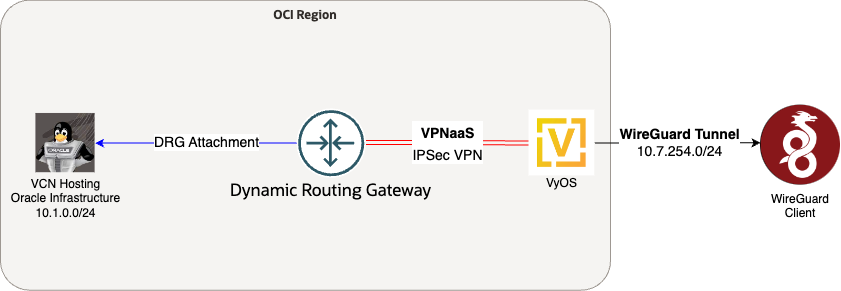
– IPSEC VPN and BGP peering must functional between VyOS and OCI – See the first blog post in this series
– WireGuard needs to be installed on the client operating system
Variables Referenced:
EMPLOYEE_ID_777 – the name of the WireGuard “peer”
132.226.58.8 – the public IP address we reserved in part one on the VyOS router
10.7.254.0/24 – The tunnel network for WireGuard. Each peer will have a unique IP address in this space. Size accordingly. OCI will need to be aware of this network, so I advertised with VyOS’s BGP AS. This network also needs to be a unique range of IP addresses.
10.7.254.1/24 – The WireGuard interface private IP (wg0)
10.7.254.2/24 – EMPLOYEE_ID_777’s tunnel interface on the WireGuard Client
Diagram of the Deployment
1.) Set up WireGuard on VyOS
Generate WireGuard Keypair on VyOS
Initial VyOS WireGuard Configuration
Note: Peer EPHEMERAL can be deleted, but is a dependency to start the WireGuard service. The end of the guide will delete this user.
set interfaces wireguard wg0 address 10.7.254.1/24
set interfaces wireguard wg0 port 51820
set interfaces wireguard wg0 peer EPHEMERAL allowed-ips 0.0.0.0/32
set interfaces wireguard wg0 peer EPHEMERAL pubkey ‘LRzpwEyd0zeq1P7rQLJP9KNtB23n/3IwLgspoSXiQ0o=’
commit;save;exit
2.) Add a WireGuard Client to VyOS
Generate Client Configuration
Note: Use the PUBLIC IP of VyOS as the server IP
Example commands to be run on VyOS running the “generate wireguard” command
set interfaces wireguard wg0 peer EMPLOYEE_ID_777 pubkey ‘K2DBX/+Cft2hAikHgLcF8CS5oUoYlsLe3wUBaJMPICY=’
3.) Modify and copy the WireGuard Client Configuration
This is an example of the data that needs to be output to an XXXX.conf file from the “generate wireguard” command. I would recommend modifying the “AllowedIPs” to the OCI destination IP range instead of 0.0.0.0/0, ::/0, remove the IPv6 block, and update/remove the DNS IP address.
PrivateKey = yNW77awvzMClrxGny88TCKc0WT+FZESLHGNxTYYrE3Q=
Address = 10.7.254.2/32
DNS = 1.1.1.1
PublicKey = FYWMto8ssxqnC5ErYIcqWTKzrYqImYpuSWtUK9B9kWM=
Endpoint = 132.226.58.8:51820
AllowedIPs = 0.0.0.0/0, ::/0
4.) VyOS Routing and OCI Firewall Configuration + WireGuard Configuration Cleanup
Traffic will source from the private client IP on the WireGuard tunnel network. This network will need to be advertised through BGP on VyOS for OCI to be aware of the network.
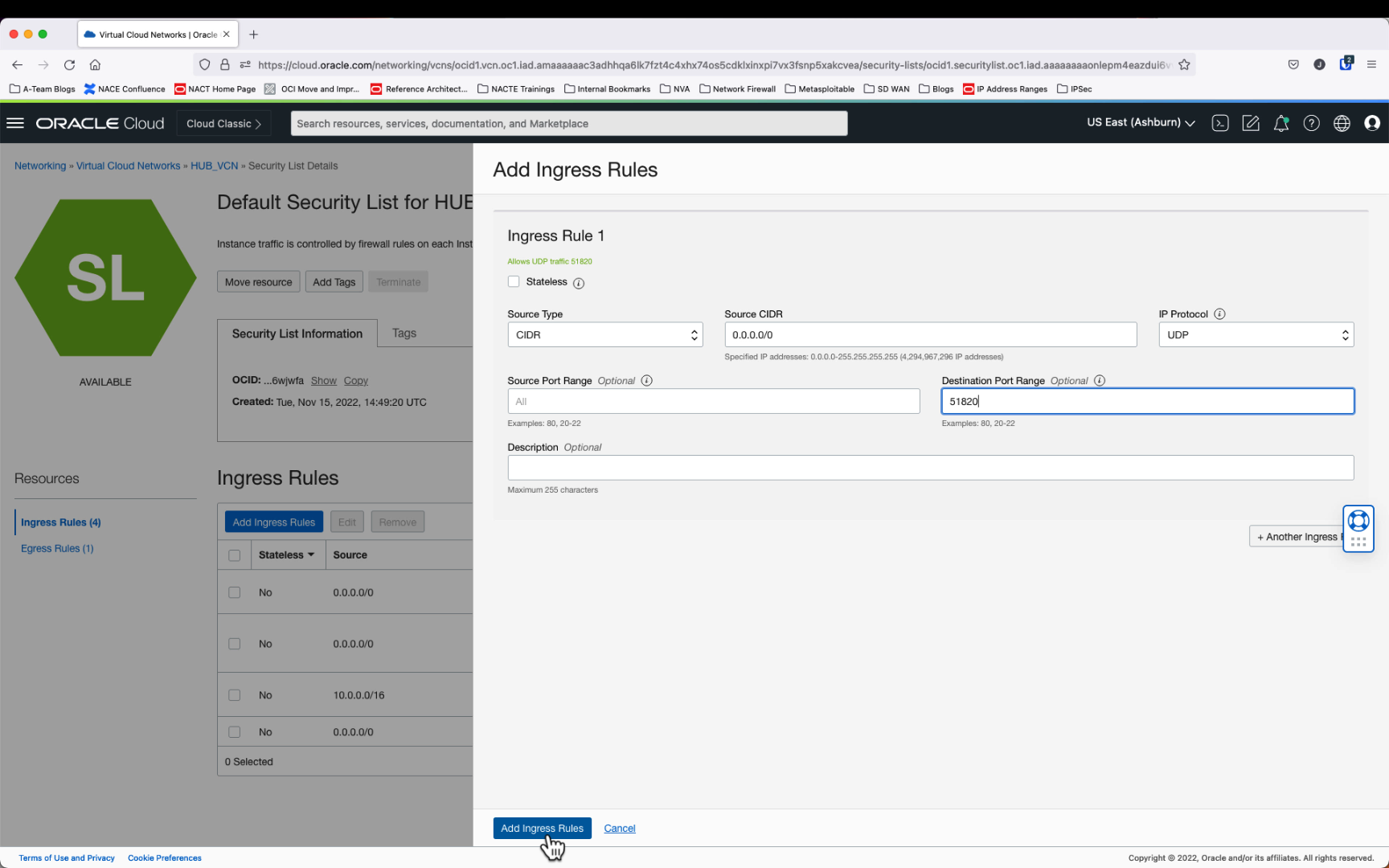
VyOS needs UDP/51820 opened to allow WireGuard traffic. This will be done at the security list or network security group associated with VyOS
Clean up the ephemeral user
delete interfaces wireguard wg0 peer EPHEMERAL
commit;save;exit
5.) Import WireGuard Configuration and Test Connectivity
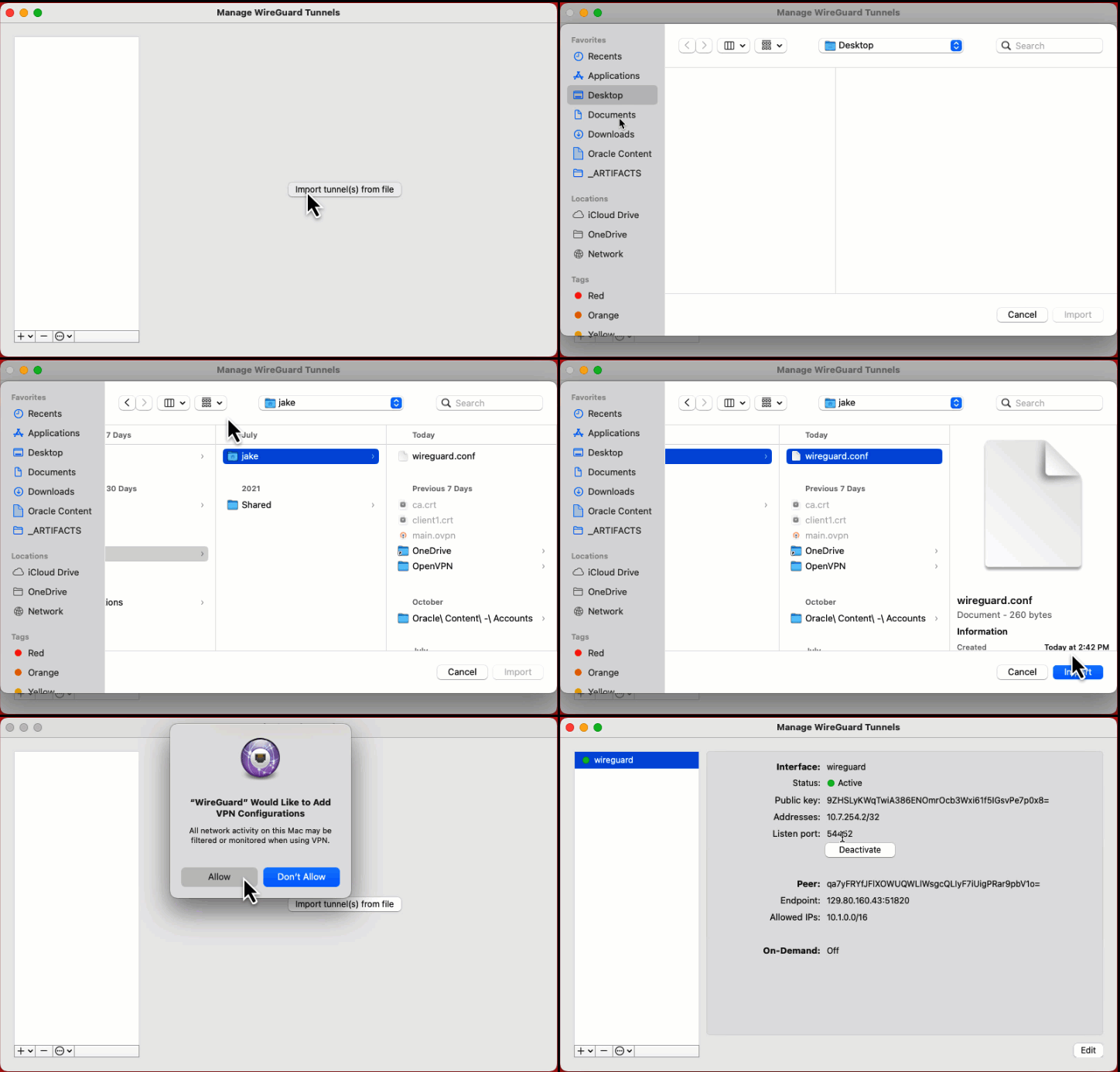
Once you have downloaded the WireGuard client, you can load the WireGuard configuration file into the client.
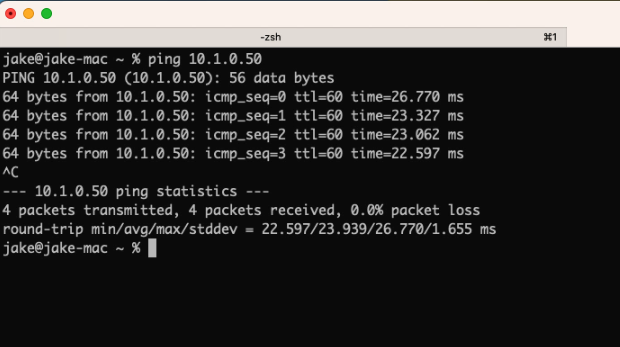
Now you will be able to ping the OCI instance from your desktop. Awesome!
Troubleshooting Tips
Tip #1 – Sometimes, Path MTU discovery doesn’t discover the proper MTU, so traffic gets black holed as soon as the payload exceeds this limit. The most common behavior for this is “hey, it pings! But I can’t get any traffic to pass! A fix for that is clamping the TCP-MSS to a value, you can do this on the WireGuard interface. You can also make sure that inline firewalls is not filtering ICMP (type3, code4) traffic. I would recommend setting TCP clamping on the remote VPN interface instead of each of the tunnel interfaces going to OCI, so you only have to do it once. The configuration looks like this.
Tip #2 – Verify there are no drops on the wg0 interface with “show interfaces wireguard wg0“
Tip #3 – TCPdump is your friend. “tcpdump -i any icmp” on the client, server, and router can help you understand and fix a lot of issues
Tip #4 – The default client configuration allows all IPv6 traffic and IPv4 traffic. Don’t forget to only allow the traffic you want over the tunnel.
Tip #5 – WireGuard does not have a good logging system, so you will have to rely on your networking expertise to debug connectivity issues.
For more VPN configurations using VyOS on OCI, you can refer to the Connecting to Oracle Cloud using VPNs blog series.