
Introduction
Welcome to Part 10 of the blog series on extending SaaS by AI/ML features. In this part, we’ll see how Oracle Analytics Cloud (OAC) can be combined with Oracle Machine Learning (OML) models to generate predictions and reports. In this setup, both the data and the machine learning model are stored within the database. Data scoring happens directly in the database, and the resulting dataset is also saved there. This setup allows you to take full advantage of Oracle’s machine learning engine to score large datasets. Plus, with Oracle Analytics Cloud, you can easily visualize and analyze your data using interactive reports, dashboards, and charts.
Let’s walk through the steps involved. This blog continues from the machine learning model discussed in Part 9 of the series.
Create Connection to Oracle Autonomous Database
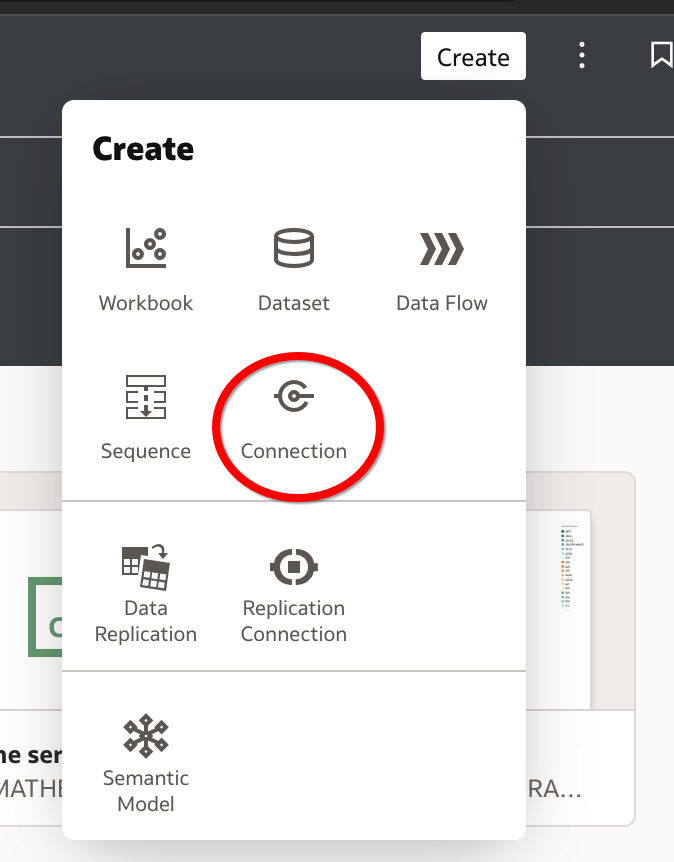
1. In the Analytics home page, click Create and select Connection.
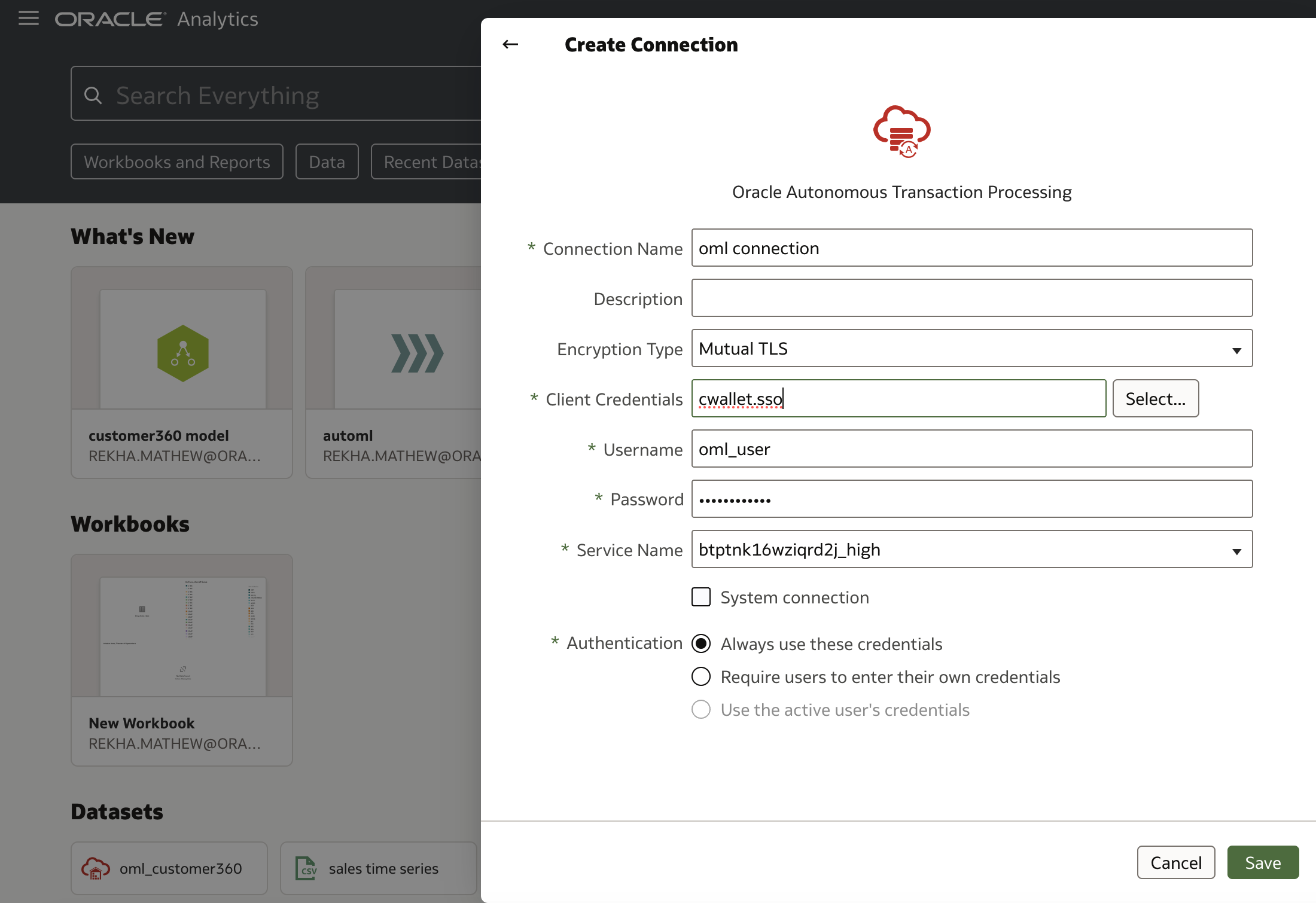
2. Create a connection to Oracle Autonomous Database.
Register Machine Learning Model in Oracle Analytics
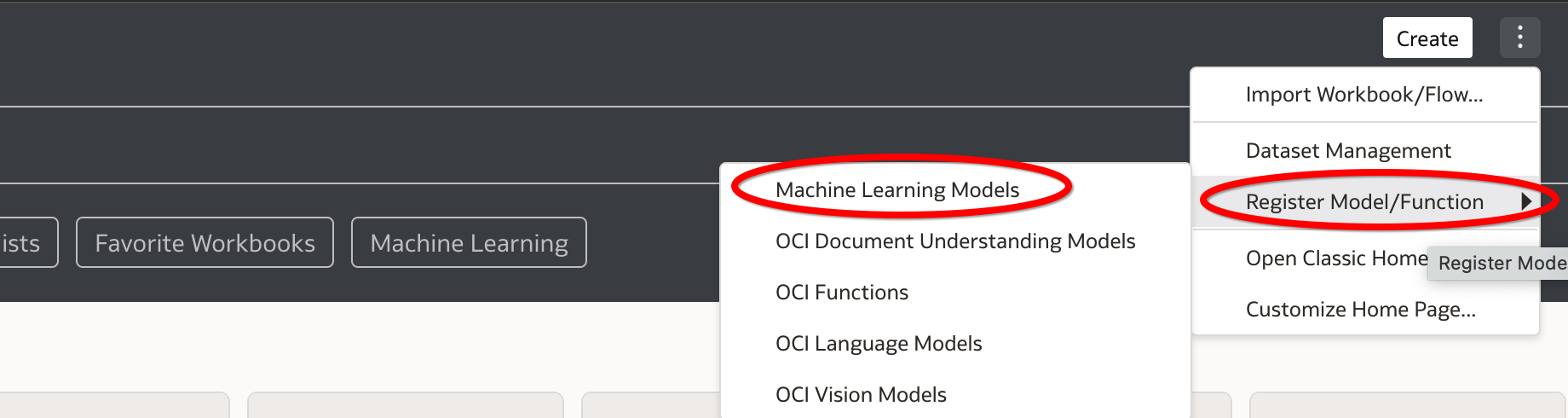
1. On the Analytics homepage, click Register Model/Function under Machine Learning Models. This is where you will register the model created in the Oracle Autonomous Database. For more detailed instructions, refer to Part 10 of this blog series.
4. Choose the model you’ve created in the database.
Now that the model is registered, create a dataflow in OAC.
Create Dataflow to make Model Predictions
1. To begin, you need to create a dataset for use in the dataflow.
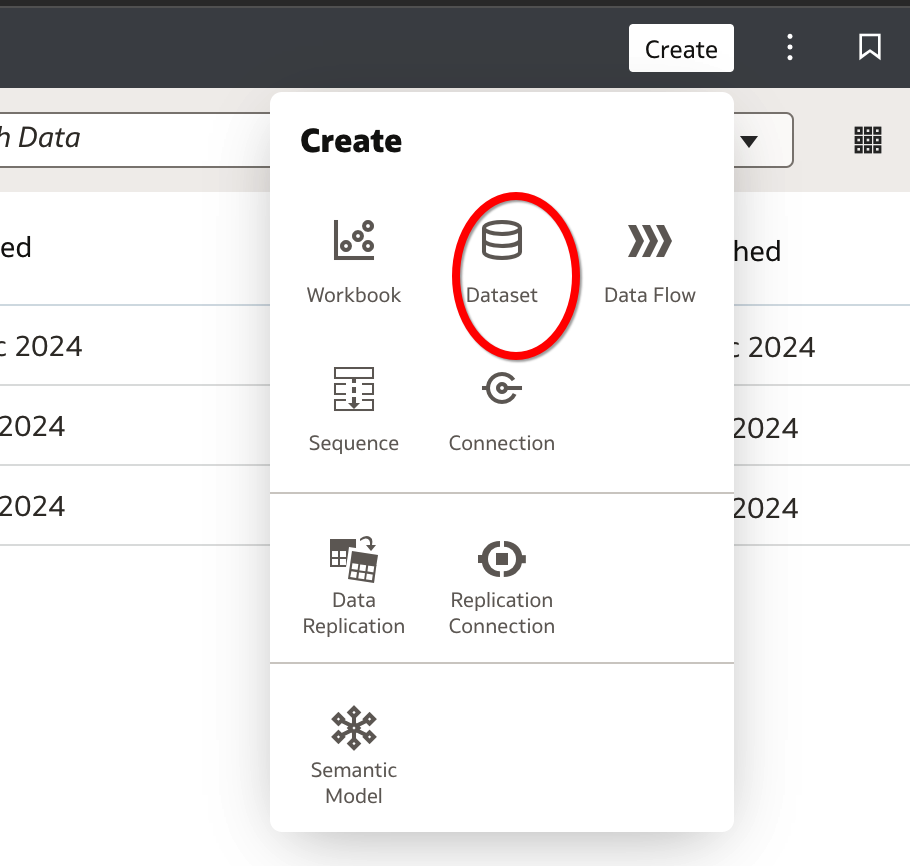
2. Select the database connection created earlier.
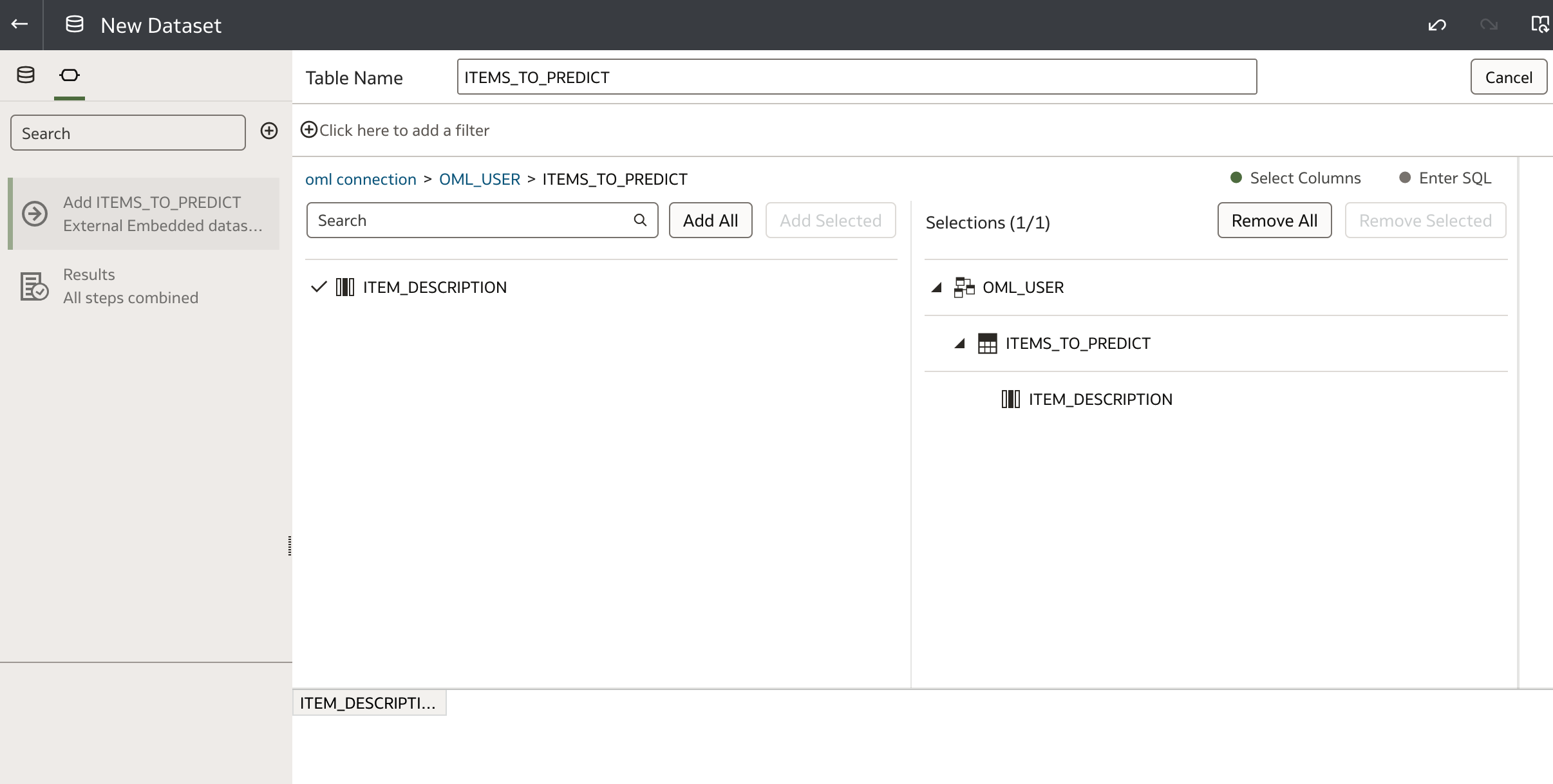
3. Select your schema and the appropriate table. For this example, I’m selecting the ITEMS_TO_PREDICT table. This table contains a column ITEM_DESCRIPTION based on which ITEM_CLASS will be predicted
4. Drag the table to the right pane, where the dataset properties will appear. Provide a name for the dataset and save it.
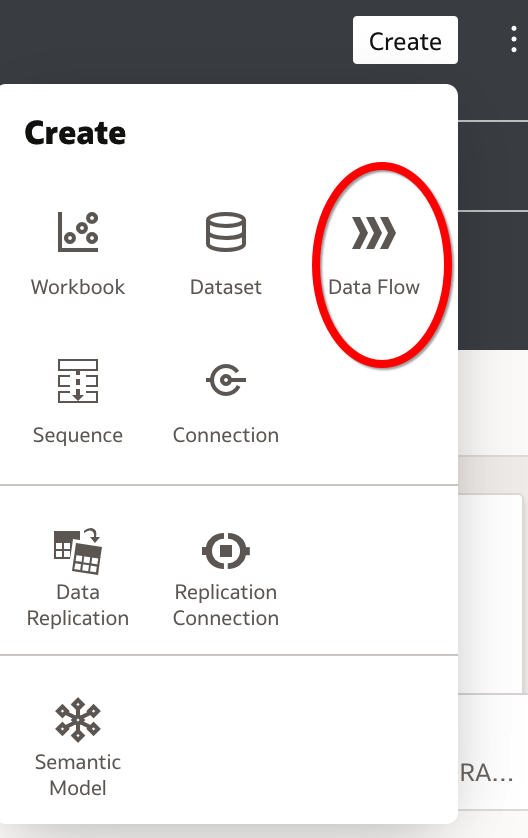
5. The next step is to create a Data flow.
Click Create and select Data Flow.
6. In the Add Data step, select the dataset you created earlier.
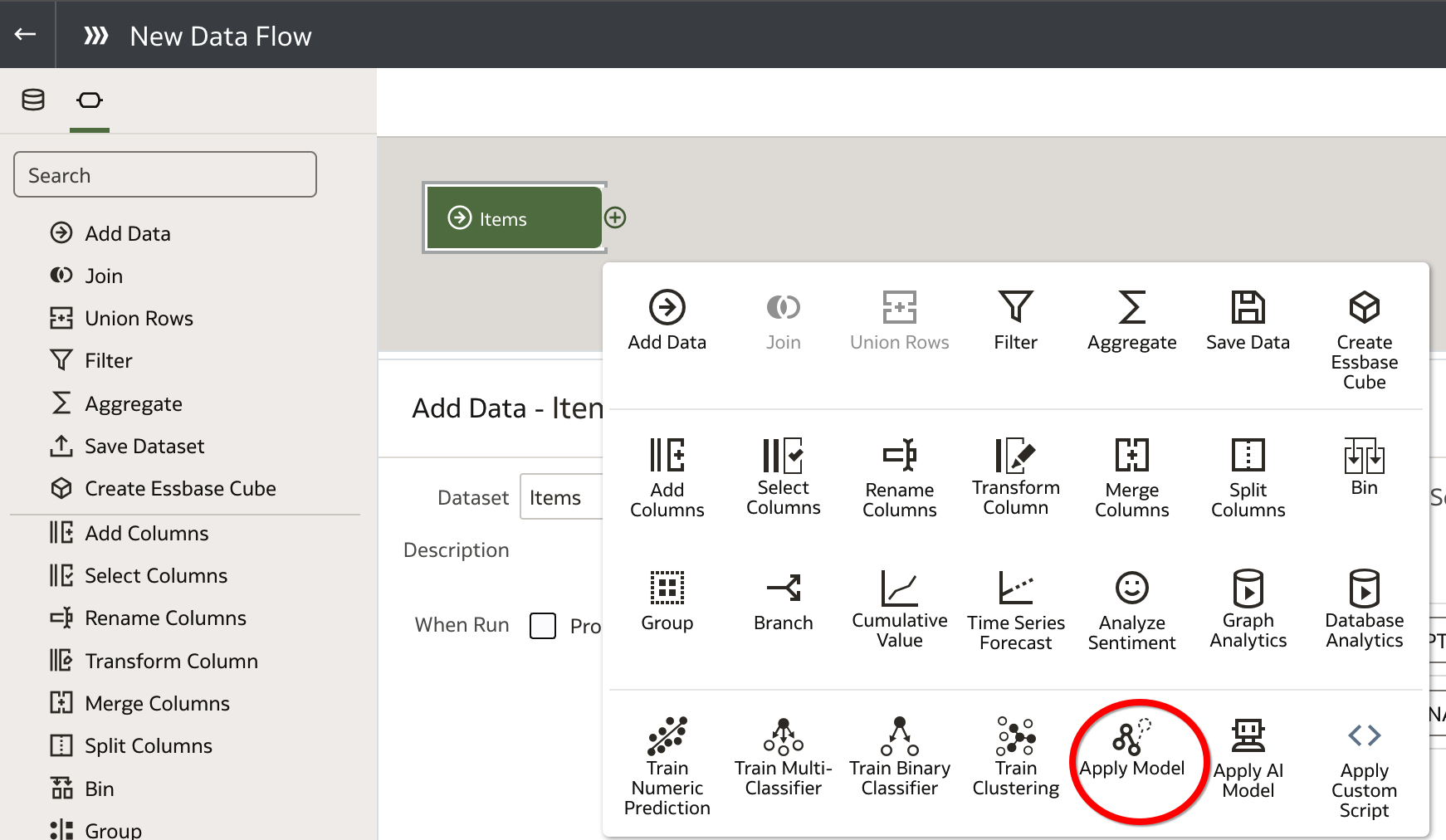
7. In the Data Flow editor, click Add a step (+).
Select Apply Model to apply the registered model to the dataset. You can also perform data transformations at this point, such as filtering, aggregating, merging columns, or transforming columns.
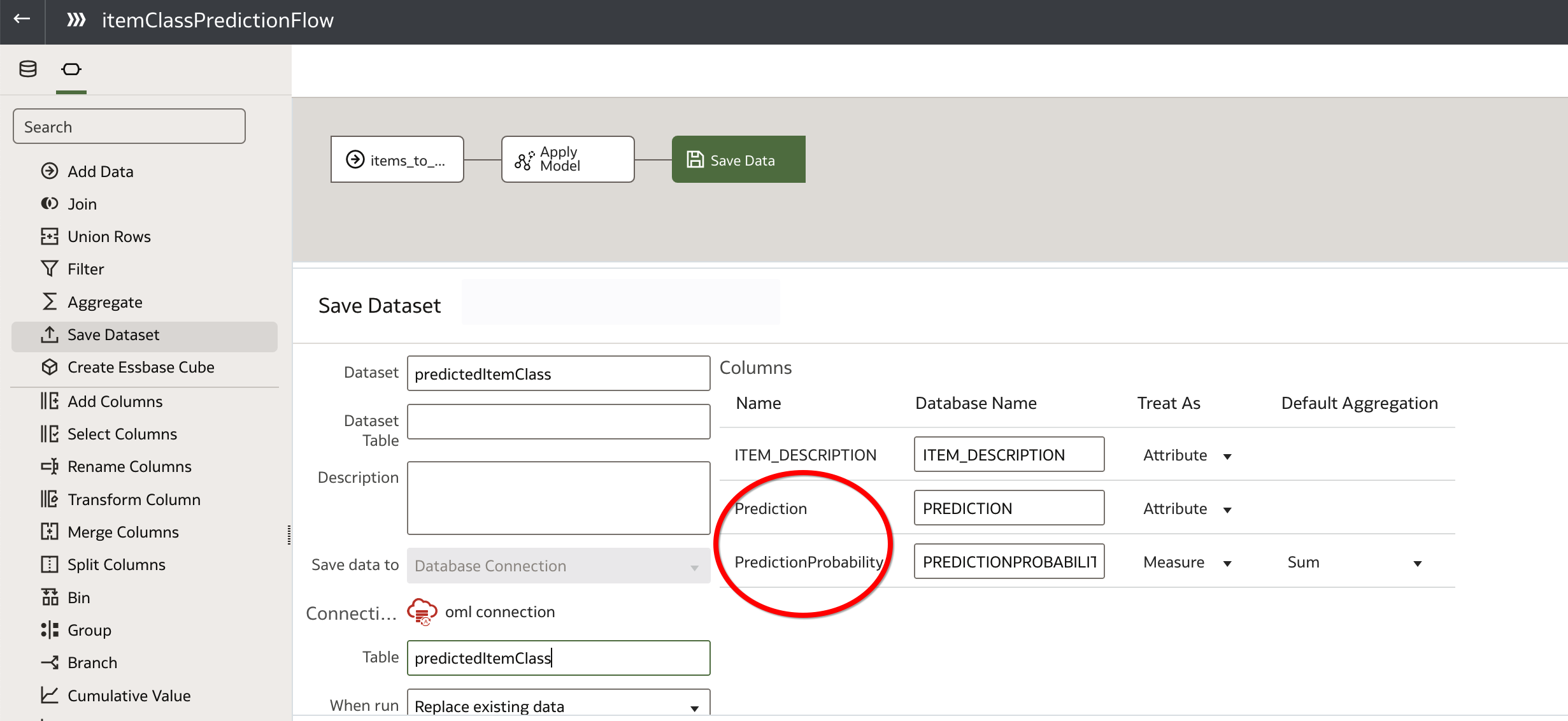
8. Select Save Model. When you save data, the apply model appends the model’s output columns that you selected to the input dataset.In this case, a new data set will be created with the Prediction and PredictionProbablity columns. Give a name to the dataset. e.g. predictedItemClass. The data set will also get saved to a table in the connected database. The Prediction column contains the ITEM_CLASS prediction.
9. Click Save, enter a name and description for your data flow, and then click OK to save it.
10. Click Run Data Flow to create the dataset. The dataset with the name predictedItemClass will get created.
Create Visualizations
Once the dataset with predictions is generated, you can start creating reports and visualizations based on the new data.
-
Click Create, then select Workbook.
-
In the Add Data dialog, search for the
predictedItemClassdataset, select it, and click Add to Workbook. -
(Optional) To apply a canvas layout template, click Select a Layout, choose your preferred layout (e.g., Filter Left or Filter Top), and click OK.
-
In the Data Panel, locate the columns you wish to use. Drag and drop them onto the Visualize canvas to begin building your visualizations.
Conclusion
You can use the combination of Oracle Autonomous Database and Oracle Analytics to gain deeper insights, optimize decision-making, and enhance your data-driven processes. Integrating machine learning insights into your Oracle Analytics environment helps you to automate predictions and generate meaningful visualizations. With your model predictions integrated into the dataset, you’re ready to use the reports and dashboards that drive informed business decisions.