
Introduction
Different customers often ask me if they could upgrade or downgrade a shape for a Fortinet Appliance installed on Oracle Cloud Infrastructure.
I created this blog to bring some light to this question as the answer is not a simple yes or no.
1. First, there are two types of licenses for the Fortinet Appliances, on OCI:
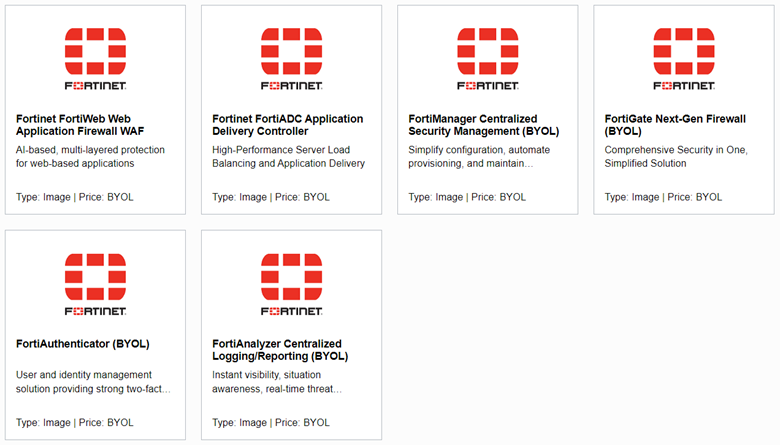
a. Bring your own license (BYOL) – In this case, the provisioning of the VM is not linked to a license, so all you pay is for the shape you are selecting. This model requires purchasing a Fortinet License and installing it on the VM after provisioning.
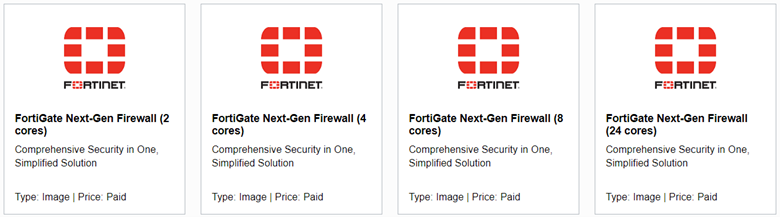
b. Paid – In this case, the image/software will come with an additional cost, besides the VM costs, depending on what type of the firewall you chose (bundle and OCPUs) and it includes the license and support, etc. This cost will be per hour of usage; for example, a FortiGate Next-Gen Firewall (2 cores) will cost $0.51/hour/OCPU, and a FortiGate Next-Gen Firewall (24 cores) will cost $0.17/hour/OCPU.
2. Depending on the license type you want, you can select the shape and you can choose:
a. BYOL – you can select the following shapes:
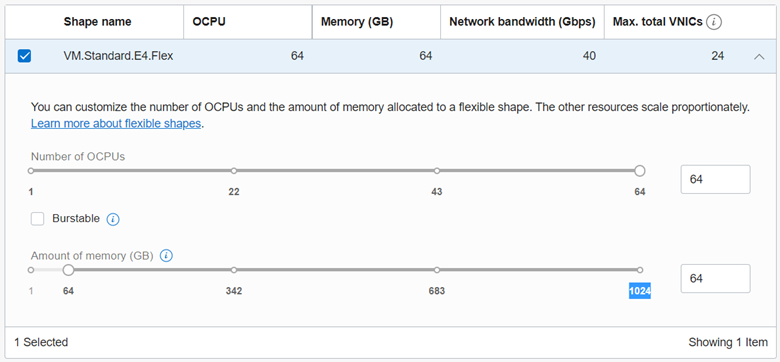
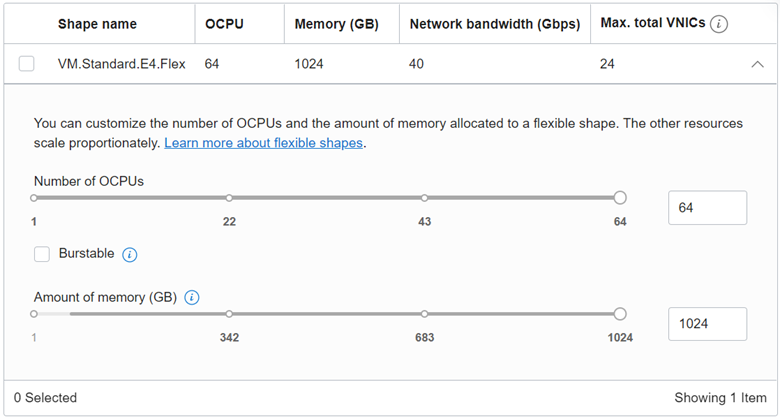
- AMD VM.Standard.E4.Flex with 1 to 64 OCPUs that will provide up to 1024 GB of memory, 1 Gb network bandwidth per OCPU up to a maximum of 40 Gb network bandwidth, and 1 VNICs per OCPU up to a maximum of 24 VNICs
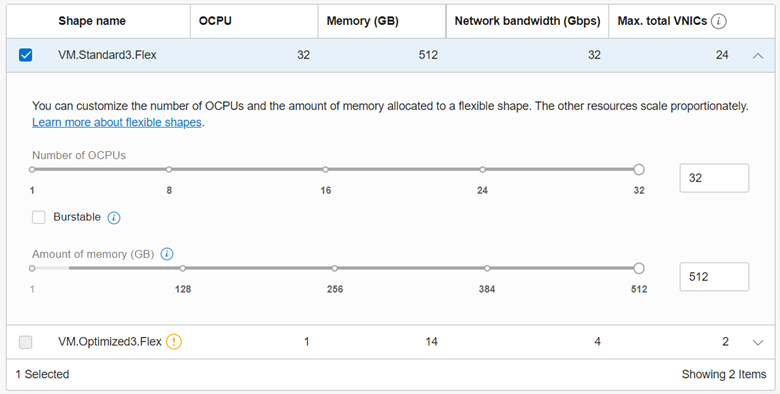
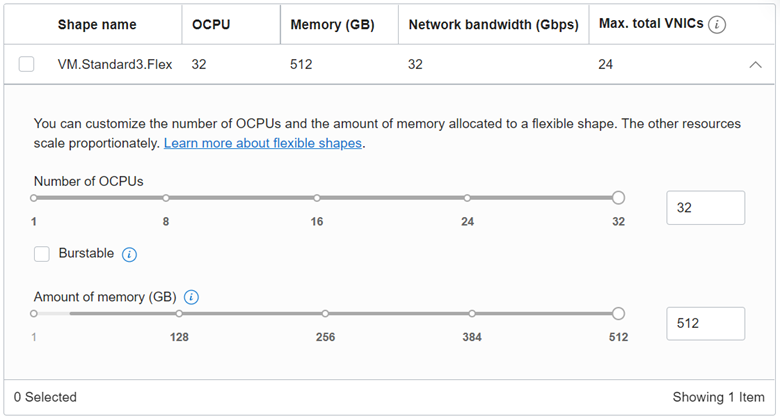
- Intel VM.Standard3.Flex 1 to 32 OCPUs that will provide up to 512 GB of memory, 1 Gb network bandwidth per OCPU up to a maximum of 32 Gb network bandwidth, and 1 VNICs per OCPU up to a maximum of 24 VNICs
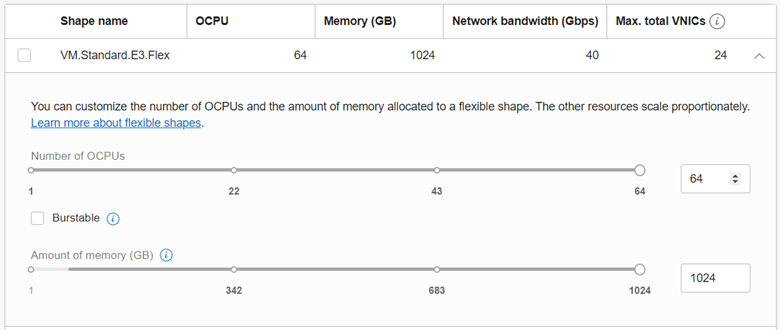
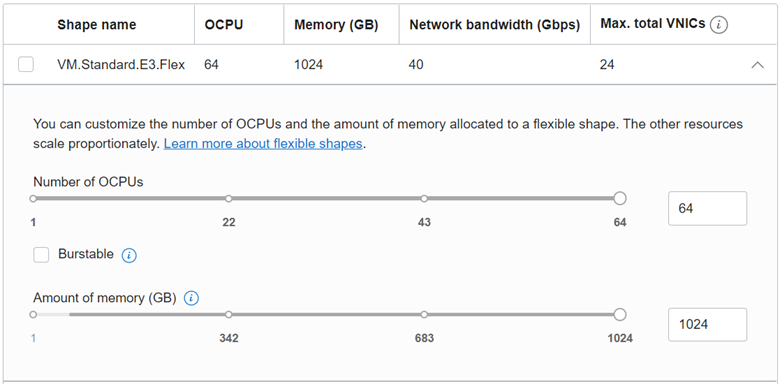
- AMD VM.Standard.E3.Flex with 1 to 64 OCPUs that will provide up to 1024 GB of memory, 1 Gb network bandwidth per OCPU up to a maximum of 40 Gb network bandwidth, and 1 VNICs per OCPU up to a maximum of 24 VNICs
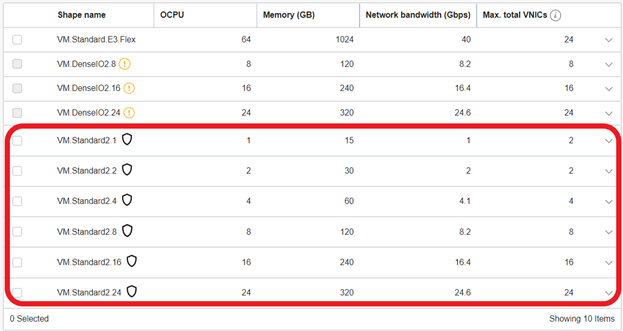
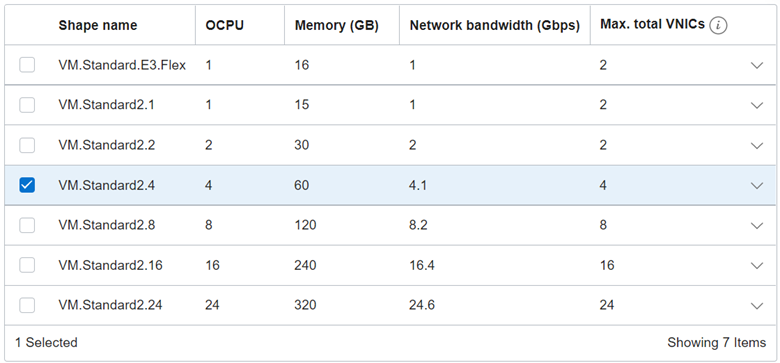
- Intel VM.Standard2.1, VM.Standard2.2, VM.Standard2.4, VM.Standard2.8, VM.Standard2.16 or VM.Standard2.24. These shapes will provide static RAM, Network Bandwidth, and VNICs as in the following picture:
b. Paid – On the paid license, the number of OCPUs is based on the number of OCPUs on the bundle. For example, if we are choosing a bundle with 4 OCPUs, we can select the following shapes:
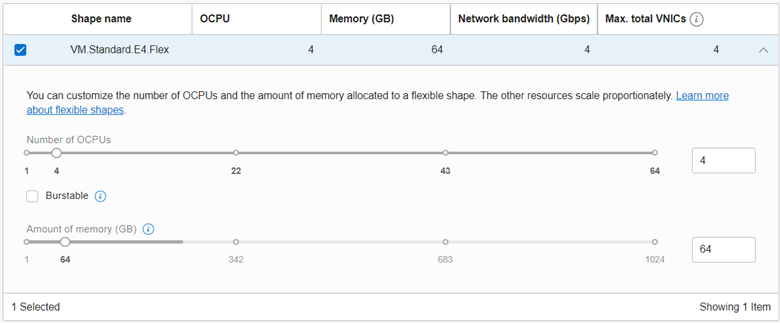
- VM.Standard.E4.Flex with only 4 OCPUs and memory between 16 GB and 256 GB
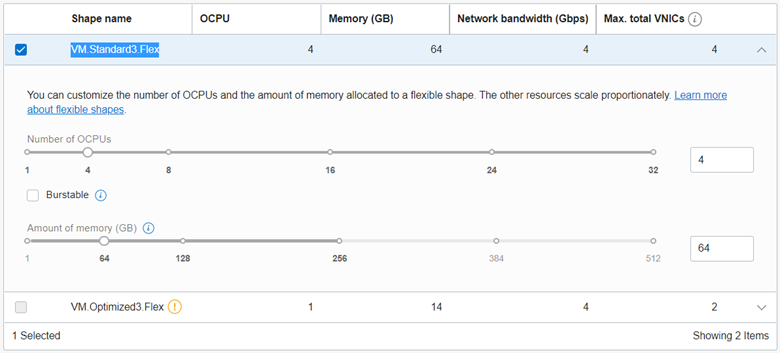
- VM.Standard3.Flex with only 4 OCPUs and memory between 16 GB and 256 GB
- VM.Standard2.4 only shape
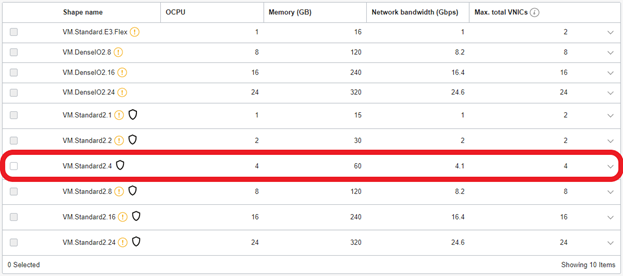
NOTE: If you want to keep the option to change shape at any point, you can see that the only option is to use the BYOL because if you choose to use a Paid option, the only change you can do is from a VM.Standard.E4.Flex with 4 OCPUs to a VM.Optimized3.Flex with 4 OCPUs or to a VM.Standard2.4 and vice versa.
Solution description:
To demonstrate this, I did the following tests:
a. Paid
- I created a Paid VM using FortiGate Next-Gen Firewall (4 cores) using the latest version available.
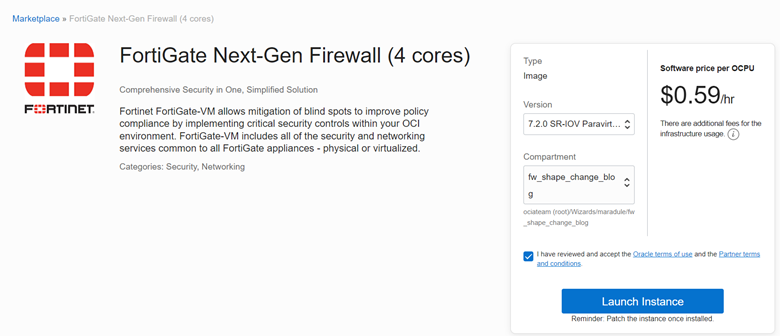
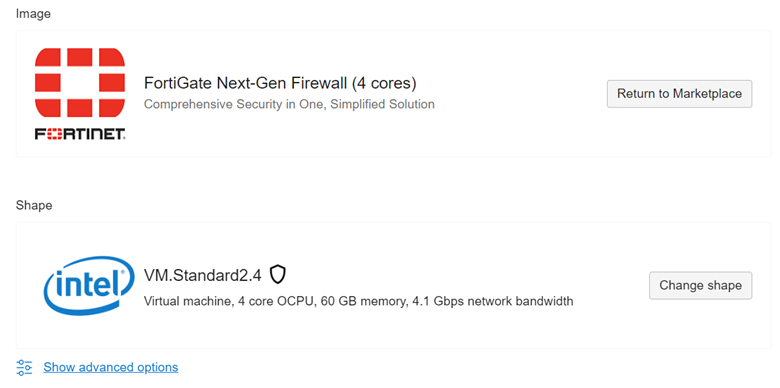
- I selected the shape VM.Standard2.4 and launched the instance.
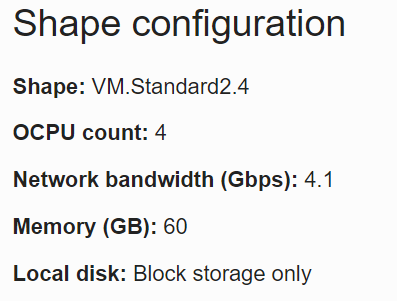
- Once the instance is up, we can see the shape configuration.
- Next, I edited the shape to a VM.Standard3.Flex, and after the instance rebooted, I could see the following shape configuration.
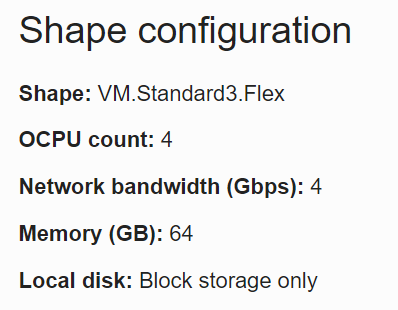
- Once More, I edited the shape to a VM.Standard.E4.Flex, and after the instance rebooted, I could see the following shape configuration.
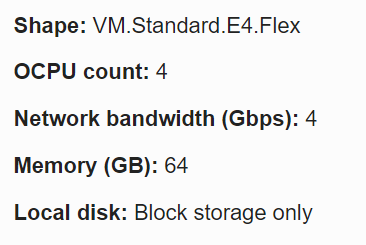
- For any other changes, we will get an error message like:
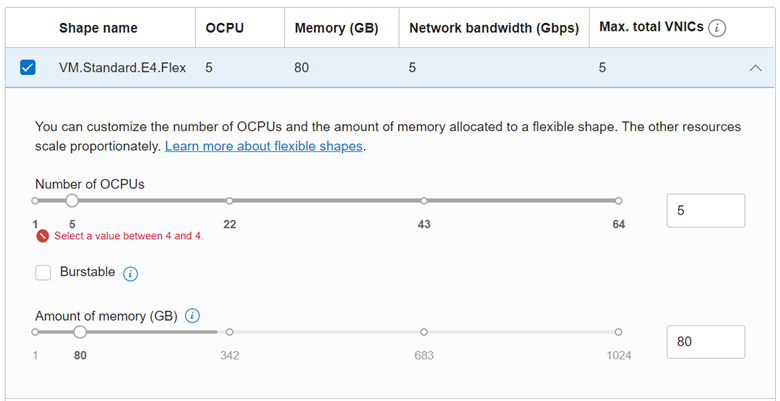
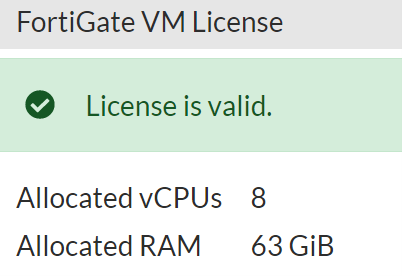
At this point, we can also see the license applied to the Firewall is a license with 8 vCPUs (1 OCPU = 2 vCPUs)
b. BYOL
- I created a BYOL VM using FortiGate Next-Gen Firewall
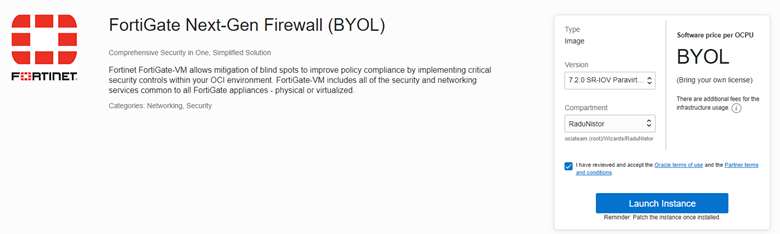
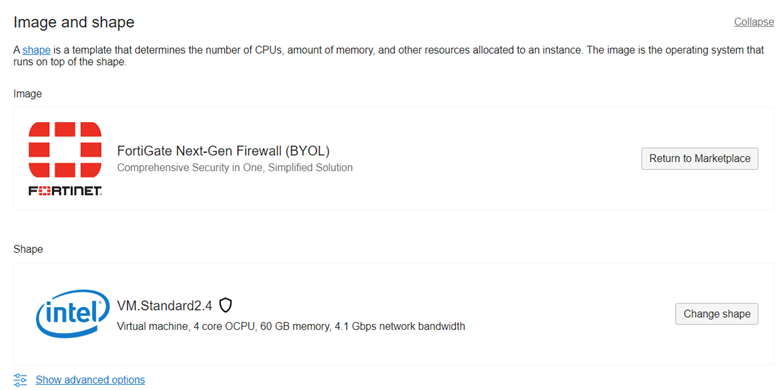
- I selected a VM.Standard2.4
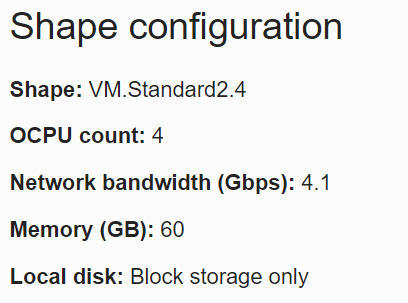
- Once the instance is up, we can see the following shape configuration
- Now, I can see multiple shapes available for the VM on the edit, all Standard2.x shapes
- On the VM.Standard.E3.Flex I can pick any number of OPCUs from 1 to 64
- For or VM.Standard3.Flex I can pick any number of OPCUs from 1 to 32
- Also, I can see VM.Standard.E4.Flex is available and I can pick any number of OCPUs between 1 OCPU and 64 OCPUs
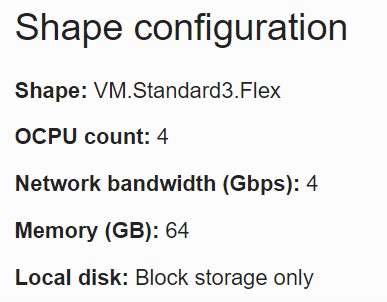
- After I edited the shape to a VM.Standard3.Flex with 4 OCPUs, and after the instance rebooted, I did see the following shape configuration
- At this point, I connected to the Fortinet GUI to see how many processors we will see. Once we connect Fortinet will request a License File
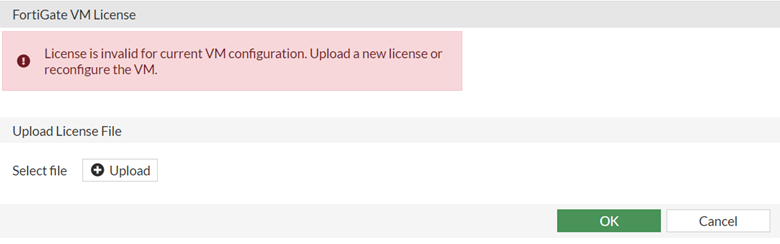
- I had a license file for 8 vCPUs (1 OCPU = 2 vCPUs) that I have uploaded, and after the reboot required to apply the file, I can see the following
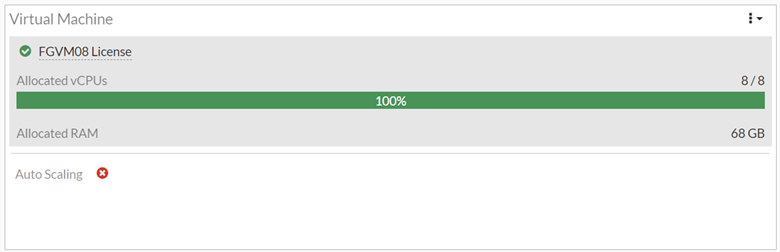
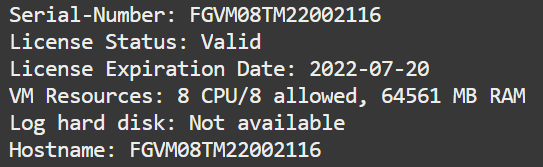
- The next test was to move to a new shape such as VM.Standard3.Flex with 8 OCPUs. After the instance rebooted, I saw the following shape configuration:
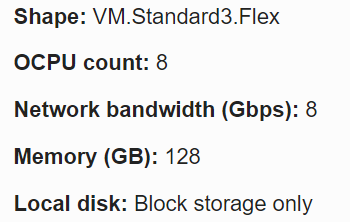
- I rechecked the number of vCPUs on the VM. Now I could not see 16 vCPUs (1 OCPU = 2 vCPUs) because the license installed on the firewall only has 8 vCPUs. The license will tell how many vCPUs to use on the VM. As an example, if you have a license of 8 vCPUs on a shape that will provide 8 OCPUs (16 vCPUs), the firewall will only use 8 vCPUs not 16 vCPUs
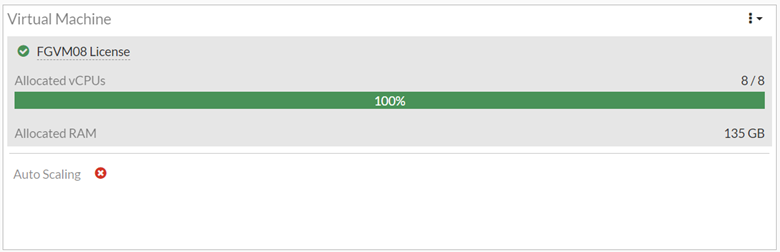
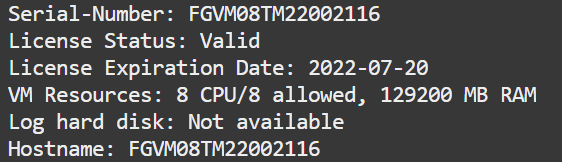
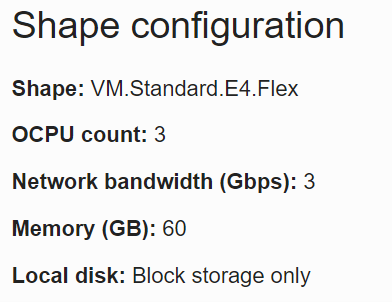
- Now I changed to VM shape to a VM.Standard.E4.Flex with 3 OCPUs and after a reboot, we can see the following shape configuration:
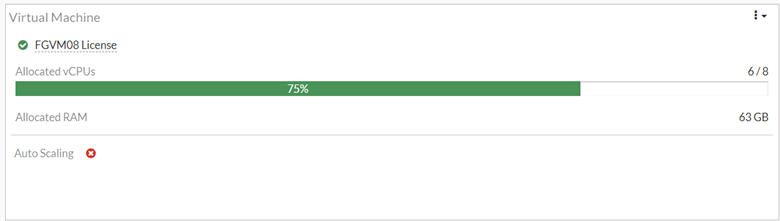
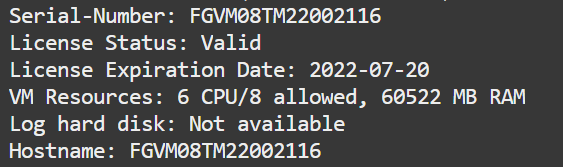
- Once again, I checked the number of vCPUs on the VM and I saw 6 vCPUs (1 OCPU = 2 vCPUs)
Conclusion
So yes, we can change the shape of a Fortinet firewall on the Oracle Cloud Infrastructure, but before we can do that, we need to understand precisely what license we have and why we need to change:
-
If we want to increase or decrease the vCPUs count, we need a license to have those vCPUs locked in. Also, in this case, the better option is to use a BYOL image.
-
If we only want to increase VNICs count, memory, or network bandwidth, then we can change the shape to one that will provide us the numbers we need, but also, in this case, the better option is to use the BYOL license to allow us the flexibility.
-
If we want to have a firewall deployed quickly, and we don’t what to go through the hassle of buying the license, the Paid option is better since it will provide us with the license and support on an hourly basis but will not allow us to be flexible in the future.
Be aware that during the change shape, disruption of services will be seen since a reboot is required. We can mitigate this if we use a High Availability (HA) Pair and make changes one by one on the standby
Before the changes, I also recommend that you back up the configuration using “Configuration backups” so you can have it in case of any issues that might appear during this process, so in this case, we can have a backup to do a restore of the Appliance.
For more information regarding how to administrate your FortiGate VM check OCI Administration Guide.