Obtaining OAuth Token in Visual Builder from Oracle IAM for Logged-In User
Oracle VBCS is already very tightly coupled with Oracle Fusion SaaS applications; in that you can make REST calls back into Oracle Fusion as the “logged in user” without any special code – it’s just configuration. This is important and sometimes you need to make calls to Fusion “as” the logged in user.
All this is good but there are times when it’s not possible to setup Oracle VBCS in a way that enables this identity propagation. Additionally, there are times when we need to generate a authorization token that we need to send to another system so that “it” can execute a REST call to Oracle Fusion as that user.
We faced this issue in our Microsoft Teams Fusion Integration (link) where we needed to make calls back to Oracle Fusion from Oracle Integration cloud as the logged in user and this technique documented below helped us.
OAuth to the Rescue!
The way we solved this in our Microsoft Teams Fusion Integration V2 release is by using the OAuth 2.0 Authorization Code flow. In this scenario we assume that the user has “single sign on” configured with an IDCS server which is associated with Oracle Fusion.
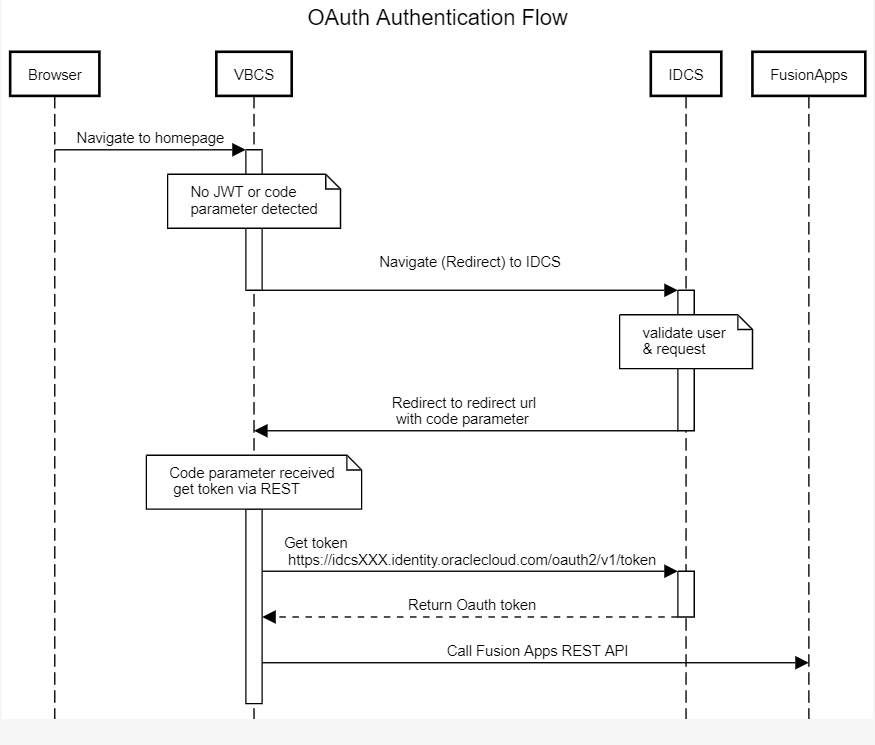
The general OAuth Authorization flow is:
User Logs into Oracle Fusion using the IDCS login
User navigates to the VBCS application
VBCS does not detect a valid token has been passed so it issues a web redirect to IDCS asking for a token
We need to pass a number of parameters, such as the OAuth Client ID, a code challenge (random 43 characters) , an OAuth scope which refers to the Oracle Fusion resource and finally a redirect URL
IDCS validates all the parameters (e.g., is the user is authenticated, do they have has access to the OAuth application etc.), if all is good then IDCS will then redirect back to VBCS and importantly will add a parameter called “code”.
The VBCS application receives the redirect, it detects the “code” parameter and thus knows it has been called as part of the redirect flow from IDCS
At this point VB, calls an IDCS REST endpoint, passing a number of parameters and importantly also the code passed into VBCS
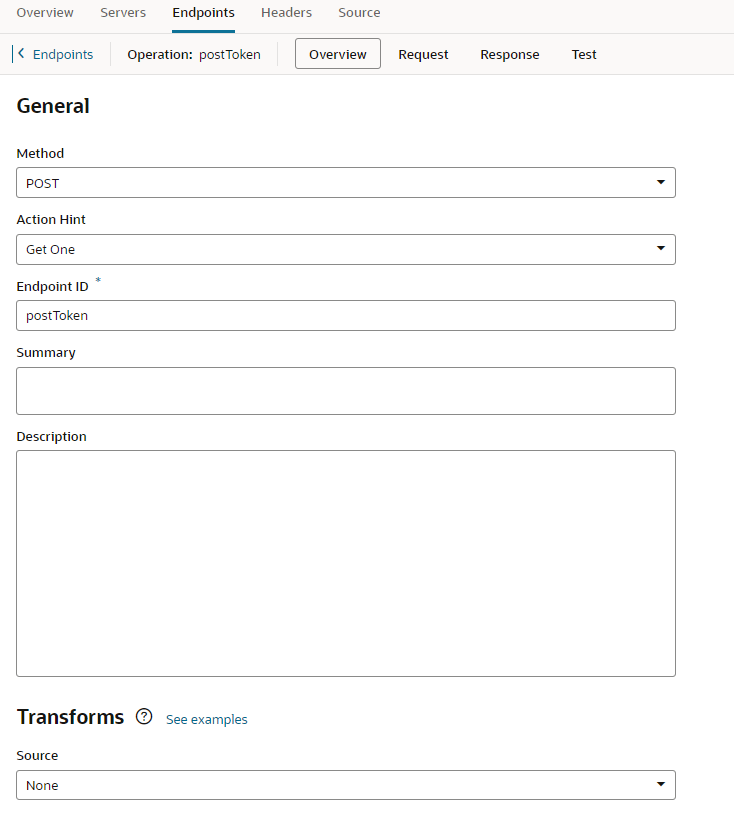
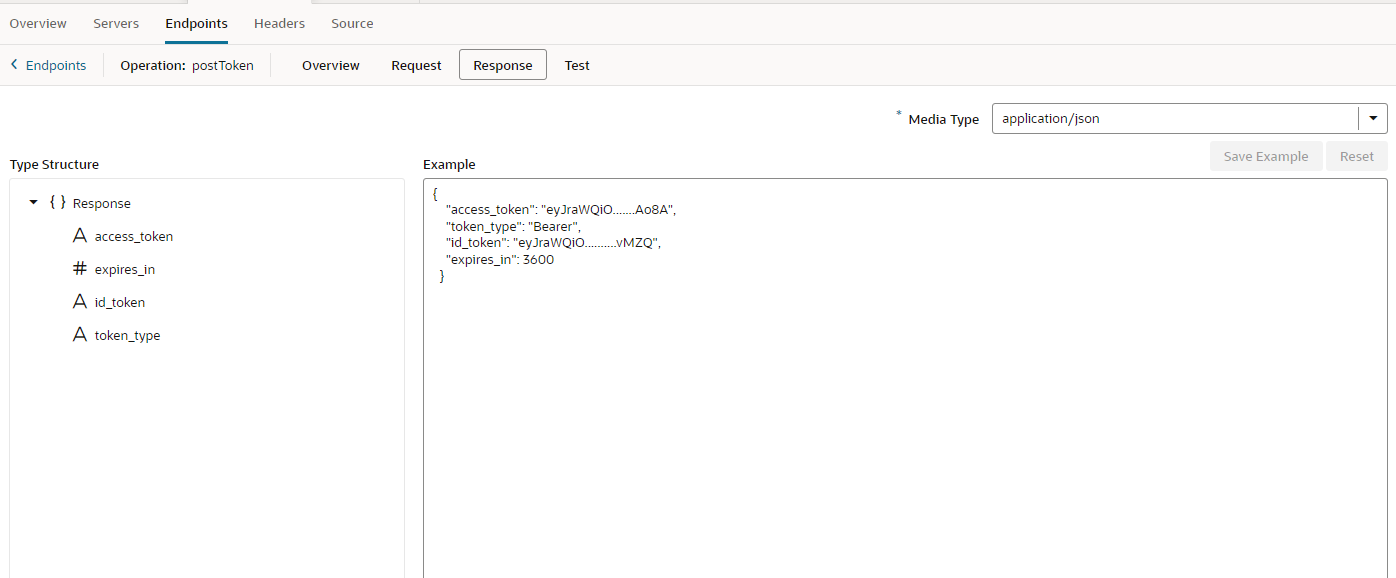
The IDCS rest end point is https://idcs-server.identity.oraclecloud.com/oauth2/v1/token, it is a HTTP POST
A successful REST call response will include a token that can then be used against Fusion Applications and importantly as the user
Use Cases?
There are principally two use cases where this technique can be used
When VBCS isn’t setup for identity propagation back to Oracle Fusion
When you need to generate a token, which is valid for Oracle Fusion, and can be sent to a 3rd party system
Visual Builder Implementation
The next section details how the OAuth authentication flow can be implemented in VB. The detail below assumes the reader is familiar with VB development however detailed OCI IAM steps are provided.
Create the OCI IAM Mobile Application
Within Oracle OCI IAM there are two types of OAuth applications you can implement. A confidential application and a mobile application. For our use case we must use the “mobile” application as client is not considered secure, we need a solution which does not require the OAuth client secret
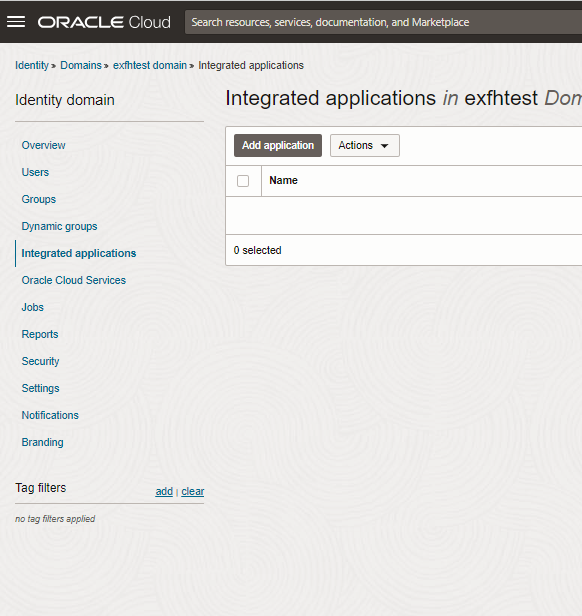
Log into Oracle OCI IAM and within Integrated Applications create an OCI IAM Mobile app
Click next and add a name to the OCI IAM application.
Click next and
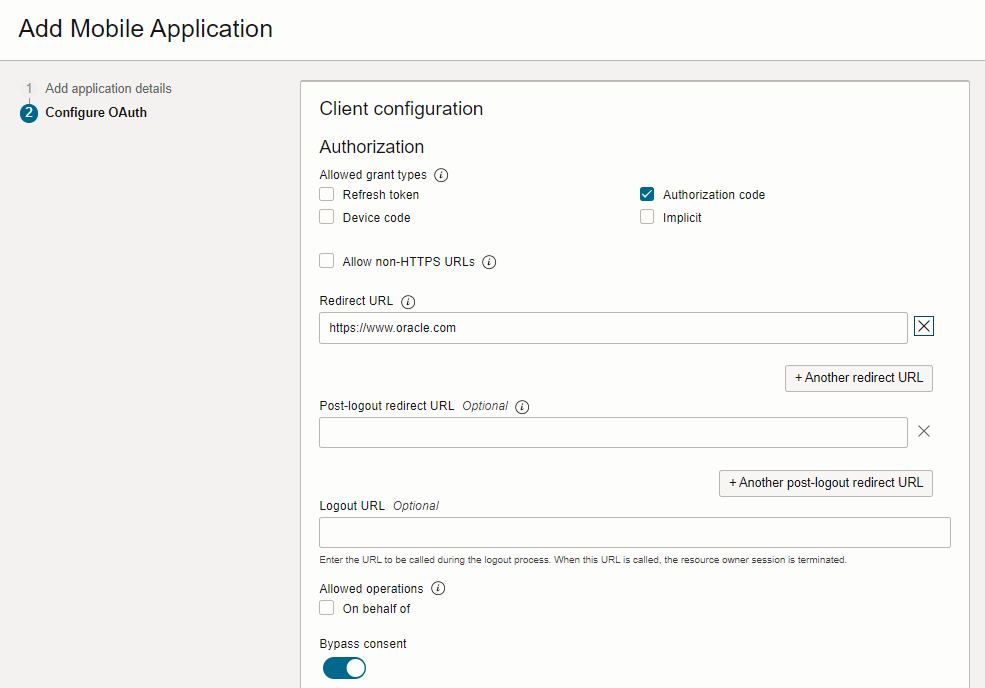
Select Authorization Code as the allowed grant type
This is the OAuth authentication scheme we will be using.
Select “Bypass Consent “
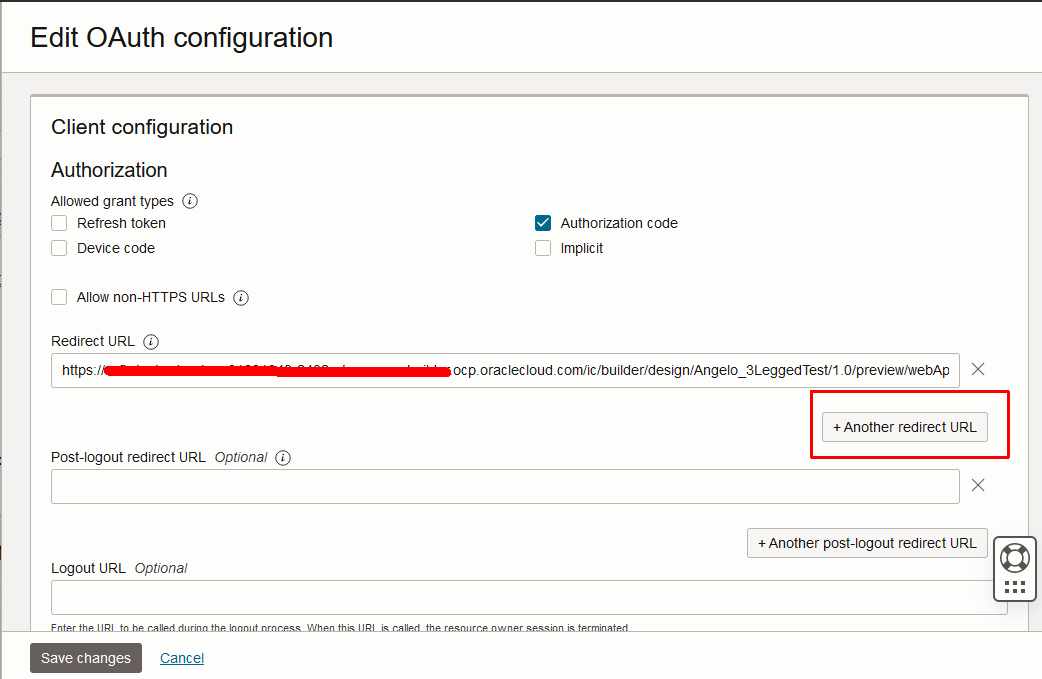
For now, in the redirect URL enter any URL, e.g. https://www.oracle.com. We will need to change this later.
If you plan to test this using postman (recommended) then you will also need to add the postman redirect URL, i.e. https://oauth.pstmn.io/v1/callback , just remember to remove it later
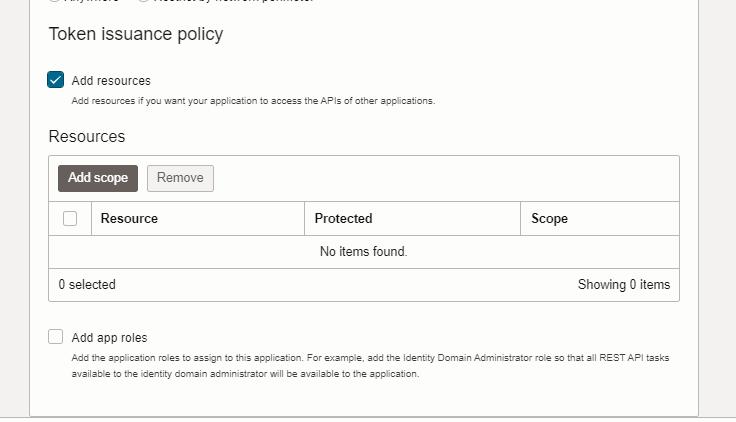
Scroll down and select Add resources in the token issuance policy checkbox
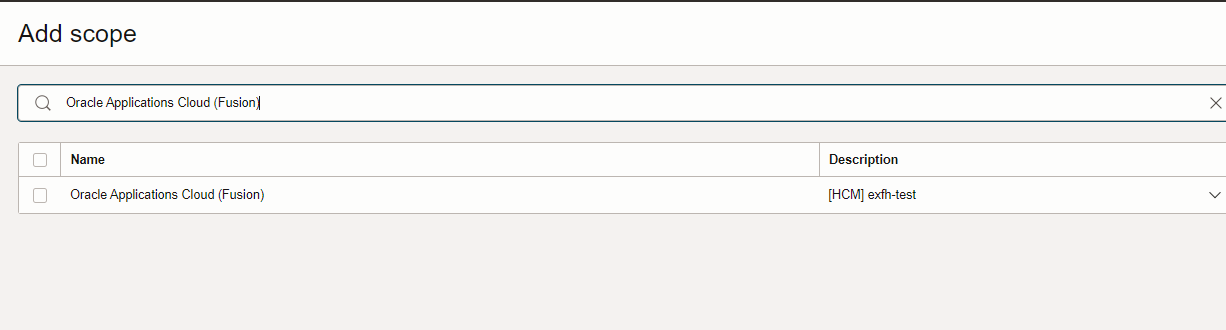
Add a scope. Here we are adding the Oracle Fusion Scope as a resource
Search for the Fusion Applications scope, its usually called “Oracle Applications Cloud”, select it and add it to the resource list.
Finish the creation of the OCI IAM application.
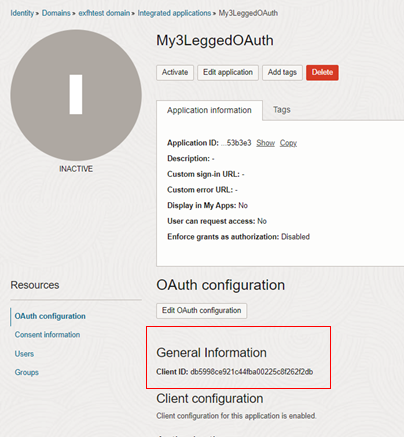
Once the Application is created make a note of the “client_id” on the main page
Testing the OCI IAM OAuth Flow in Postman
You can now test the OAuth flow in postman. This is recommended so that we are sure everything else is working before we start with VB.
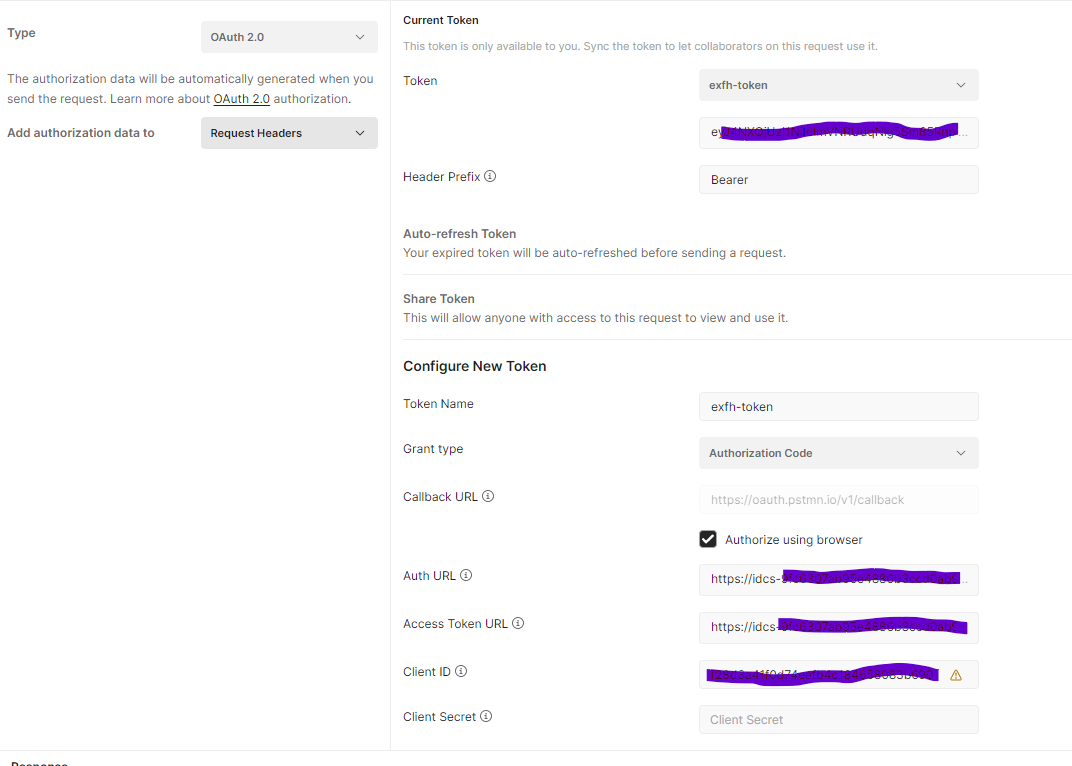
Within postman :
Create a new REST request for Oracle Fusion, e.g., calling GET on this URL for Sales cloud https://{{hostname}}/crmRestApi/resources/latest/opportunities?fields=OptyNumber,Name&onlyData=true&limit=1)
Client ID, what you saved earlier in Oracle OCI IAM
Scope: From what was looked up earlier, e.g. urn:opc:resource:fa:instanceid=XXXXXXXurn:opc:resource:consumer::all
At the bottom of the Security section, you will see a button called “Get New Access Token”, pressing this will make postman obtain a new token with which you can use it in your REST call.
If you have any errors, check the postman console for clues into what the error is and resolve this before continuing.
Create a VBCS Application
Now it’s time to create the sample VBCS application. The VB application has several components which we will be using.
Application-Level variables
We will use these to store pre-sets, like the hostname to Oracle OCI IAM
A single VB Enter Event listener.
This controls the entire flow.
Definition of the REST call to OCI IAM and one to Oracle Fusion Applications, not using the catalog
Finally, a simple UI showing the retrieved JWT token or the results of your successful REST call.
VB Application-Level variables
At the VB application level, create the following variables. These variables are used to store various configuration parameters, several required parameters for OAuth
Variable Name
Sample Value
Usage
URL Parameter
code
Default Value = NOT-SET
This value is sent back from OCI IAM from the redirect
Yes
iam_base_url
<your OCI IAM hostname> e.g. oci-iam-123123123.identity.oraclecloud.com
Create a variable called “state” which will contain a JSON object containing all the URL parameters passed into VB we want to preserve, in our case its parameter1 and parameter2. The entire string is URL encoded to ensure it is URL safe
Redirect the browser to the OCI IAM “Auth URL”, passing the client_id, code challenge, redirect URL, state etc.
The “Redirect URL” automatically generated.
If we have been run as the result of a redirect, i.e., the code variable is NOT “NOT-SET” then:
Restore our URL parameters
The `state` parameter sent back from OCI IAM contains the state data we sent when doing the redirect. We need to URL Decode this, parse it and assign it to the relevant application variables
Call OCI IAM to exchange our authentication token for a JWT token.
The call to OCI IAM is unauthenticated and all the parameters we send must match what we sent as part of the initial redirect
Some checks to see if there was an error
And finally set the application level ‘jwttoken’ variable to the value of the JWT token, which in turn displayed in the UI
This code sample doesn’t do this, but you can now use the JWT Token as the authentication parameter to any REST call to Oracle Fusion Applications.
Running The Application for The First Time
The first time you run the application it will give an error, this is normal. This is because the redirect URL which is being sent to Oracle OCI IAM is not recognised, we only added the postman redirect URL.
OCI IAM will however tell us what URL was passed as part of the error and we can use this. We now need to copy this URL and add it to the list of “Redirect URLs” within the OAuth application we created earlier.
Running the Application, a Second Time
When running the application, the second time we should see:
The browser redirecting to OCI IAM
Then it immediately redirects back to VB
VB will detect the `code` parameter and then call OCI IAM via REST
OCI IAM then returns a valid OAuth JWT token.
VB displays this in the text field we added earlier to the page.
You can now use this OAuth JWT token to call Fusion Applications from either VB or passing it securely to another application so it can call Oracle Fusion Applications.
Warning: NEVER pass the JWT token via URL parameters always send it as part of a HTTPS request, you should send it either in a header variable or in the payload body. If you send the JWT token as part of the URL, i.e., a URL parameter, then it can easily be seen in the browsers history and many access logs along the route to the calling service and hence a security risk.
Quick Note About Redirect URLs
Within OCI IAM you need to enter a valid redirect URL, however within a VB ecosystem only the “live” URL stays the same. Preview and stage URLs contain the version number within it so if you make a new version of the application you will need to add a new redirect URL to OCI IAM. Generally, I tend to only stage my applications and only publish live when finished.
Conclusion
This blog post describes how you can implement 3 Legged OAuth within VB to get a OAuth JWT token which you can use to call Fusion Applications REST APIs. Whilst VB doesn’t really need this technique, as it automatically does this for you, there are instances when VB isn’t configured in this way, or you need to obtain a OAuth JWT token to pass to a downstream server.
Any questions send me an email!
Authors
Angelo Santagata
Architect
25+ years of Oracle experience, specialising in Technical design and design authority of Oracle Technology solutions, specialising in integrating technology with Oracles SaaS products.
Extensive credible communication skills at all levels, from hard core developers to C-Level executives.
Specialities: Oracle Fusion Apps Integration, Oracle Cloud products, SaaS Integration architectures, Engaging with SIs & ISVs, Technical Enablement, Customer Design Reviews, advisory and project coaching.
TOGAF 9 Architect and Oracle Cloud Infrastructure Architect Certified