

Integrate Oracle Cloud Alarms with Splunk and ServiceNow
As organizations transition to Cloud Infrastructure, many customers are adopting a hybrid cloud strategy that encompasses multiple cloud services. While this approach provides the flexibility to deploy workloads on the infrastructure that best suits application needs, it also increases the complexity of service integration. In this blog, we will explore the integration of Oracle Cloud Infrastructure (OCI) Alarms and Notifications with Splunk. For OCI customers utilizing ServiceNow integration through the Splunk platform to create incidents and support tickets, incorporating Alarms and Notifications from OCI into Splunk will enable the generation of incidents using the same framework.
This approach can also be adapted to any scenario with similar limitations on data ingestion from OCI to other third-party tools.
Architecture
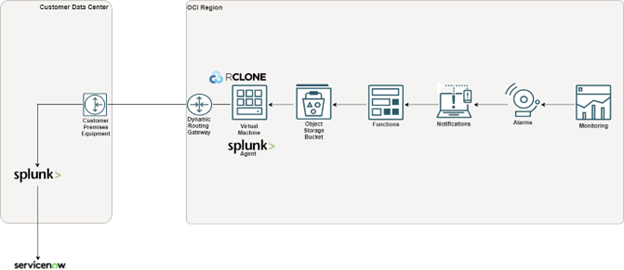
Solution Objective
There are two alternatives for data export in real-time from OCI to Splunk:
- Push-based method: Data is transmitted to the Splunk HTTP Event Collector (HEC) which supports OCI Logs, Events and Alarms.
- Pull-based method: Data is retrieved from OCI using the Splunk Add-on (Oracle Cloud Infrastructure (OCI) Logging Addon – https://splunkbase.splunk.com/app/5222) for OCI. This method supports OCI Logs and Events but does not support OCI Alarms/Notifications.
In certain situations, a pull-based method may be the only viable option for ingesting data, especially if your Splunk deployment lacks a Splunk HEC endpoint or if other factors prevent the use of HEC. Since the Oracle Cloud Infrastructure (OCI) Logging Add-on for Splunk does not support the ingestion of OCI Alarms, the solution outlined in this article is well-suited for this type of integration. This approach can also be adapted to any scenario with similar limitations on data ingestion from OCI to other third-party tools.
This solution can be extended to any use-case that has a similar limitation of data ingestion from OCI to other third-party tools.
Getting Started
To summarize the implementation of this solution: when an OCI alarm is triggered, an OCI Serverless function is activated to log the alarm data in Object Storage. Then, the rclone tool copies this data from OCI Object Storage to a directory that Splunk can acces, enabling Splunk to process the data further.
Here is a high-level overview of this implementation:
- Setup OCI Object Storage Bucket to store OCI Alarm JSON messages
- Create OCI Serverless Function to publish OCI Alarm JSON messages to Object Storage
- Configure OCI Alarm/Notification Subscription to OCI Serverless Function
- Install rclone and Create OCI Object Storage Remote Connection
- Setup a Windows Task to run rclone copy
- Ingest OCI Alarm/Notification JSON message files from local directory to Splunk
- Use the Splunk to ServiceNow Integration Framework to create a ServiceNow Incident
- Configure a Lifecycle Policy to Purge files in Object Storage
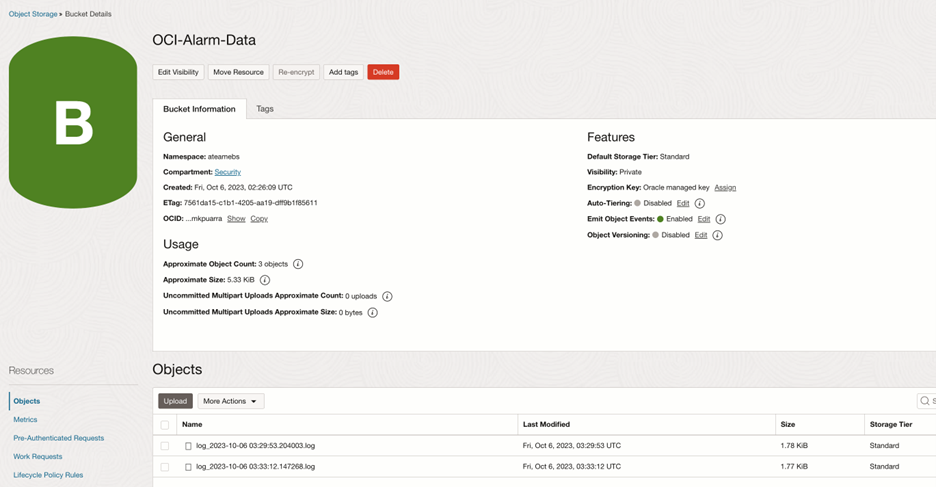
Setup OCI Object Storage Bucket to store OCI Alarm JSON messages
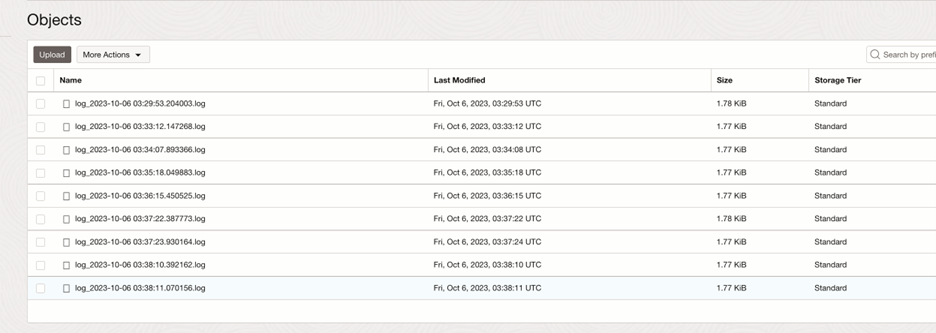
Create a private Bucket to store OCI Alarm/Notification JSON messages. The messages will be published as log files using an OCI Serverless Function. Note the Namespace and Bucket name as these will be needed in the configuration of the OCI Function.
Create OCI Serverless Function to publish OCI Alarm JSON messages to Object Storage
Quick Start Guide for developing and deploying OCI Serverless Functions
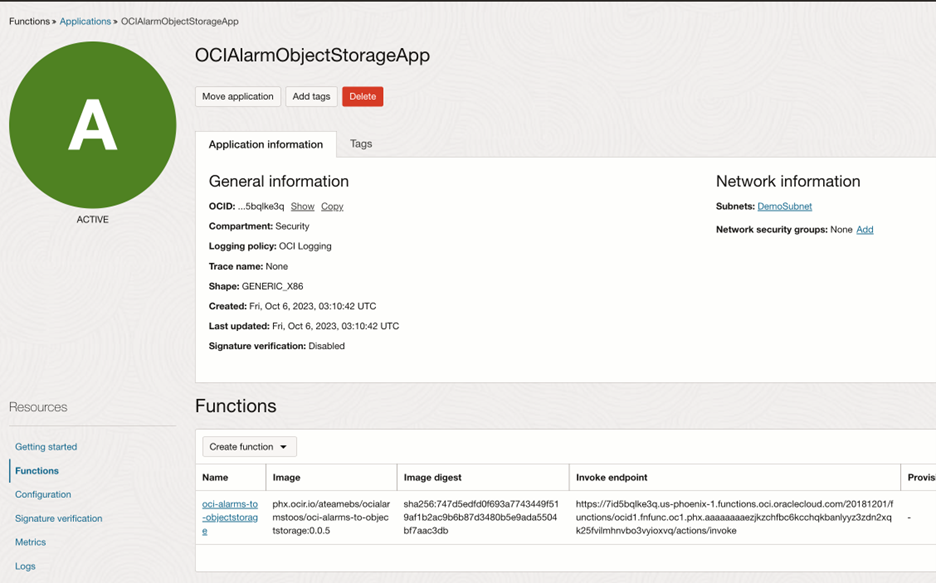
Create an OCI Function Application
Functions Code Specification –
Language: Python
Application Name: OCIAlarmObjectStorageApp
Function name: oci-alarms-to-objectstorage
Add requisite IAM policies for Function and Dynamic Group:
Allow group <group-name> to manage functions-family in compartment <compartment-name>
Allow group <group-name> to manage logging-family in compartment <compartment-name>
Allow group <group-name> to use virtual-network-family in compartment <compartment-name>
Allow group <group-name> to manage repos in tenancy
Allow dynamic-group <func-dyn-grp-name> to manage objects in compartment <compartment-name> where all {target.bucket.name=<object-storage-bucket-name>’}
For Function to be able to write data to Object Storage Bucket, include the function in a dynamic group with the following rules:
ALL {resource.type = ‘fnfunc’, resource.compartment.id = ‘<compartment-ocid>’}
or
ALL {resource.type = ‘fnfunc’, resource.id = ‘<function-ocid>’}
After the function creation, “oci-alarms-to-objectstorage” function code will contain the below 3 files with a template Hello-world code, replace code with your custom code:
- func.py
- func.yaml
- requirements.txt
Deploy the Function App – If successfully deployed a docker image registry will exist in OCI Container Registry
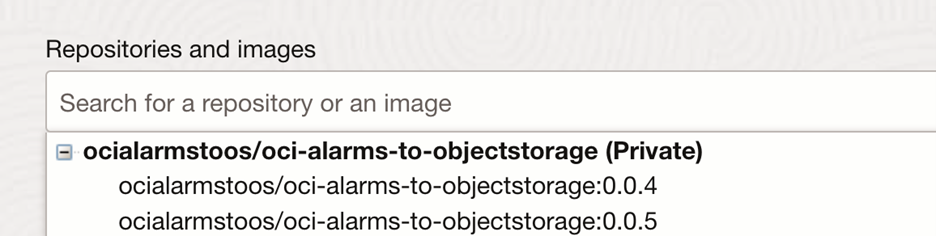
func.py – Python code to write alarms as log files to object storage, each log file is appended with a current timestamp.
Resource principal Authentication method is used for OCI Functions to access Object Storage
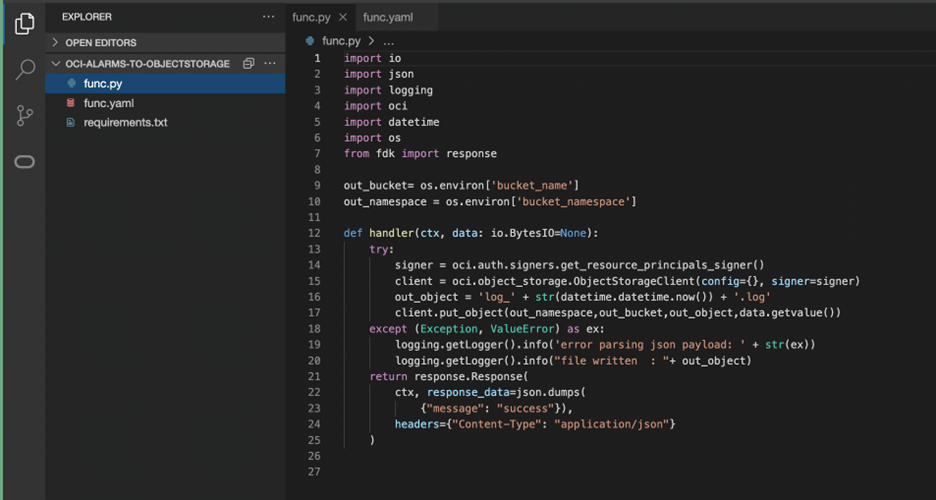
func.yaml – Function definition file
Config parameters, bucket_namespace and bucket_name are set to the Object Storage Bucket namespace and Object Storage Bucket Name created in previous Step.
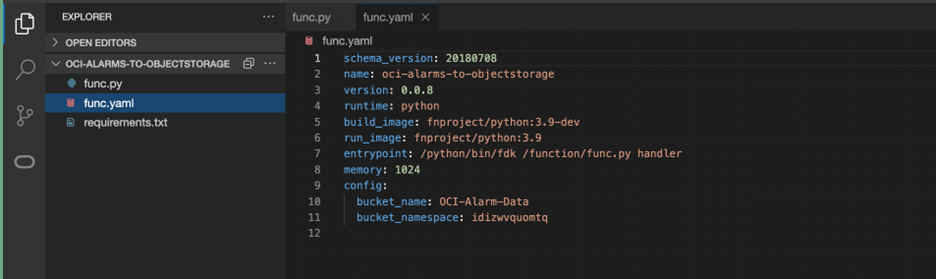
requirements.txt – Lists library dependencies
Troubleshooting OCI Functions/Object Storage
- Enable OCI Function Application and OCI Object Storage Service logs
- For issues with Functions
- Check OCIAlarmObjectStorageApp_invoke logs, navigate to logs from Applications page or from Logging service.
- Use the link (https://docs.oracle.com/en-us/iaas/Content/Functions/Tasks/functionstroubleshooting_topic-Miscellaneous-issues-when-using-Oracle-Functions.htm ) to search for specific issue, follow instructions to debug further.
- If function is not invoked for any reason, re-deploy code
- Verify Function App logs for any authentication errors
- For issues with Object storage
- Check object storage logs
Configure OCI Alarm/Notification Subscription to OCI Serverless Function
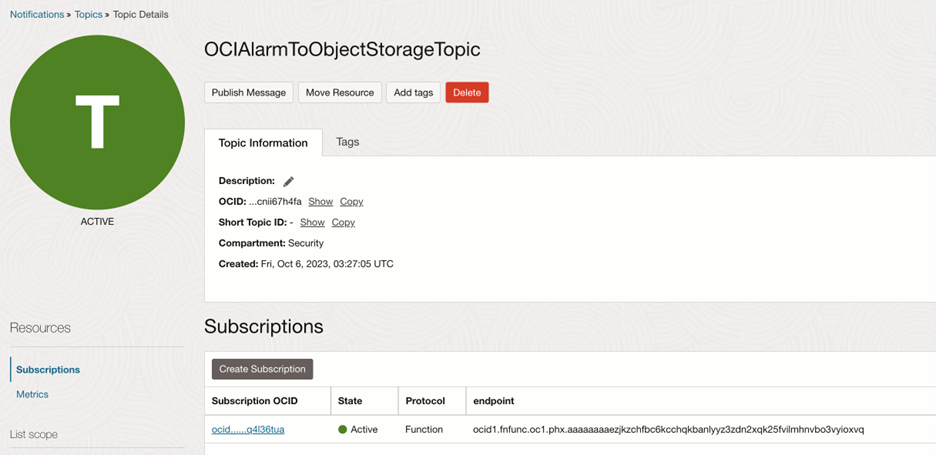
Create an OCI alarm and add Function as the subscription. When an OCI Alarm is triggered and a Notification is sent, the OCI Function will be invoked to publish the JSON data to Object Storage. The same process can be also used for OCI Events.
Install rclone and Create OCI Object Storage Remote Connection
rclone is an open-source command-line tool for managing files. In this context, it is used to copy or sync files from OCI cloud storage to local storage, facilitating data ingestion into Splunk.
The rclone config command is utilized to set up OCI Object Storage as a remote repository, while the rclone copy command is employed to transfer or mirror data from the source OCI Object Storage Bucket to a local destination folder. This destination folder acts as a data source for Splunk, Rapid7, or other third-party tools.
rclone is compatible with both Windows and Linux VMs. This blog will demonstrate the setup on a Windows VM provisioned in OCI.
High Level steps for Installing and Using rclone
- Pre-requisite: Instructions for rclone configuration specifies four OCI Authentication methods that rclone supports. For this deployment, Instance Principal authentication is used. Dynamic Group and IAM policy will be created for this purpose:
Create Dynamic Group with a rule to include OCI Windows VM as member:
Any {instance.id = ‘<compute-instance-ocid>’}
And requisite IAM policy for the dynamic group to be able to read object-storage:
Allow dynamic-group rclone-dg to manage object-family in <compartment-name>
- Install rclone and winfsp on the Windows VM
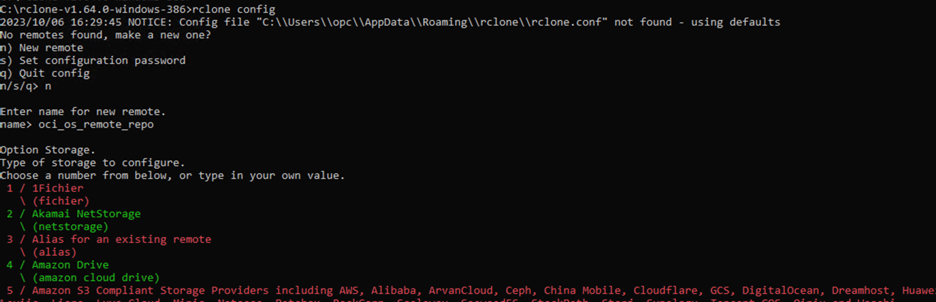
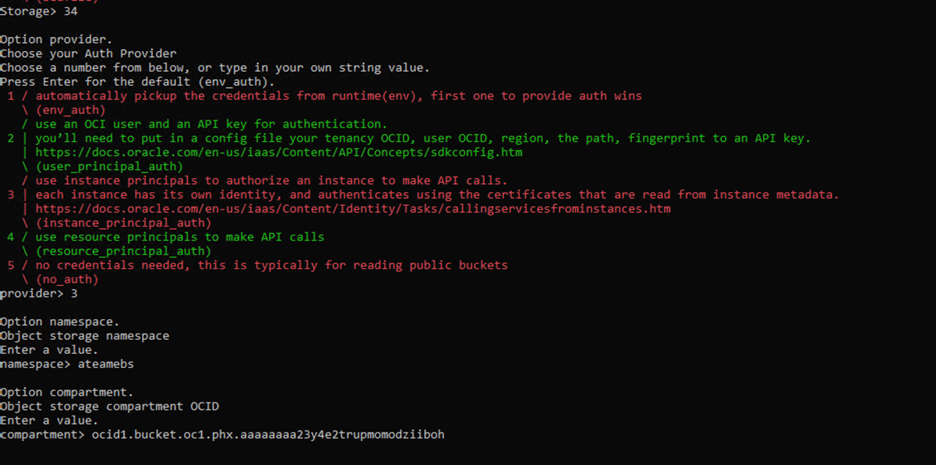
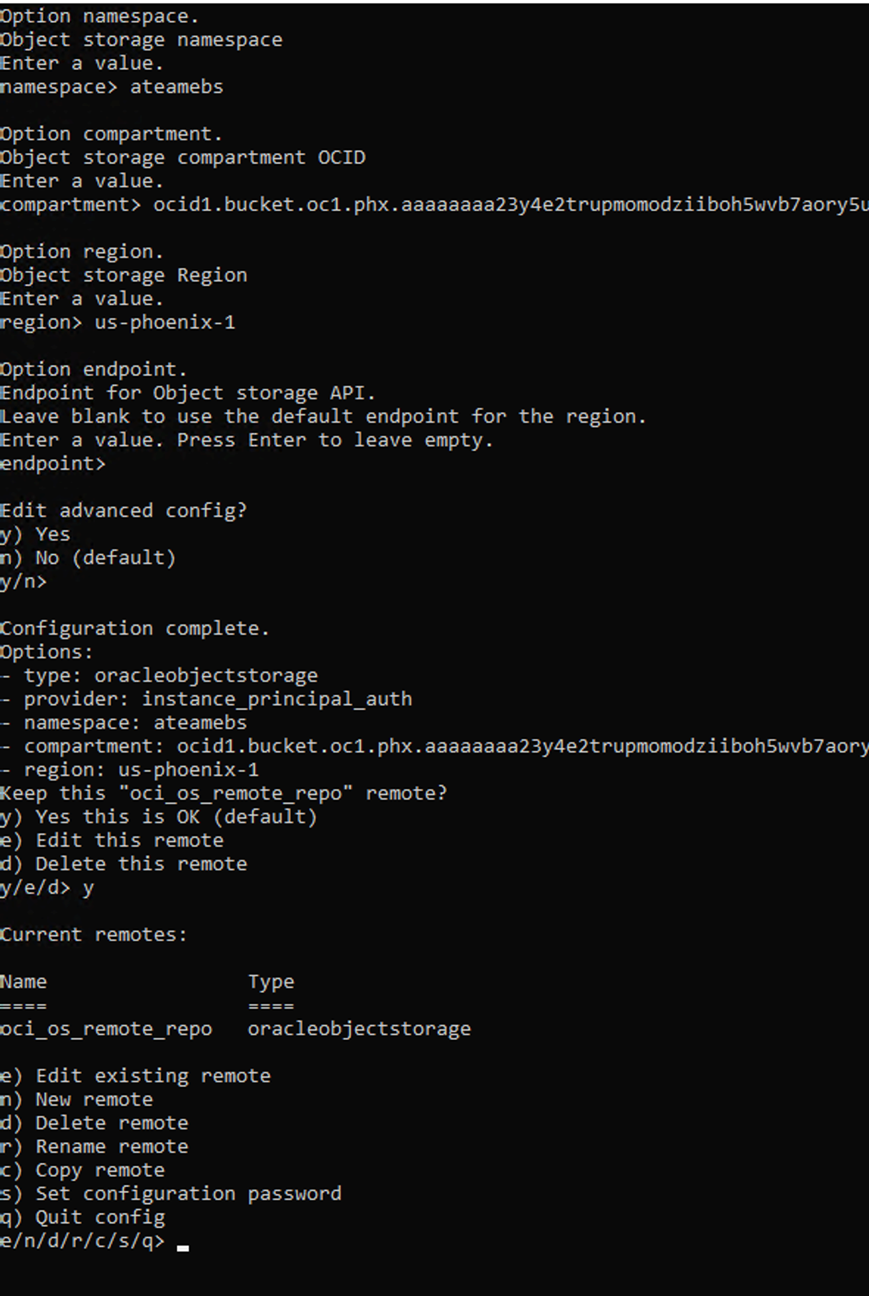
- After the installation, all rclone commands will be accessible. Execute ‘rclone config’ (Follow instructions in https://rclone.org/oracleobjectstorage/) to create a new remote connection to OCI Object Storage providing relevant information at each prompt as below:
Note: Do not create a OCI object-storage bucket here as this was already created in a previous step
List all Buckets:

List objects in Bucket – All the files in the OCI Bucket is now visible
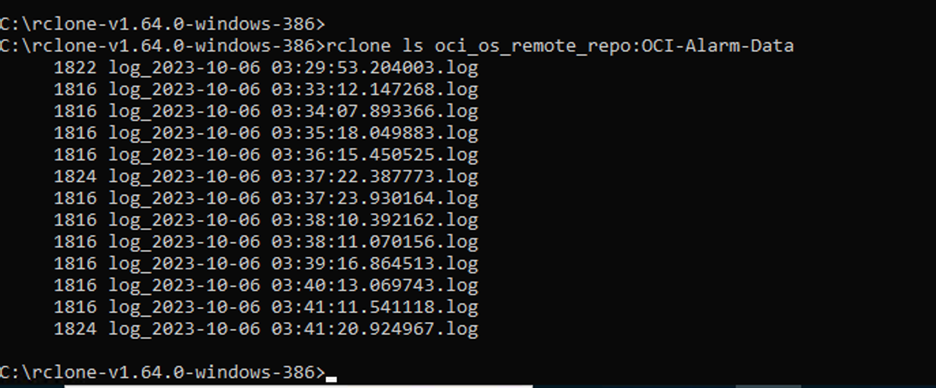
- Execute rclone copy command, this copies all the files skipping files that already exist in the destination.
The copy command takes the form of:
rclone copy “source:sourcepath” “destination:destinationpath”
<rclone_path>\rclone.exe copy <rclone remote repo name>:<OCI Object Storage Bucket> <local path where the directory should be created> –no-console
Example: This command copies and also creates the local directory C:\oci_alarms
C:\rclone-v1.64.0-windows-386\rclone.exe copy oci_os_remote_repo:OCI-Alarm-Data C:\oci_alarms

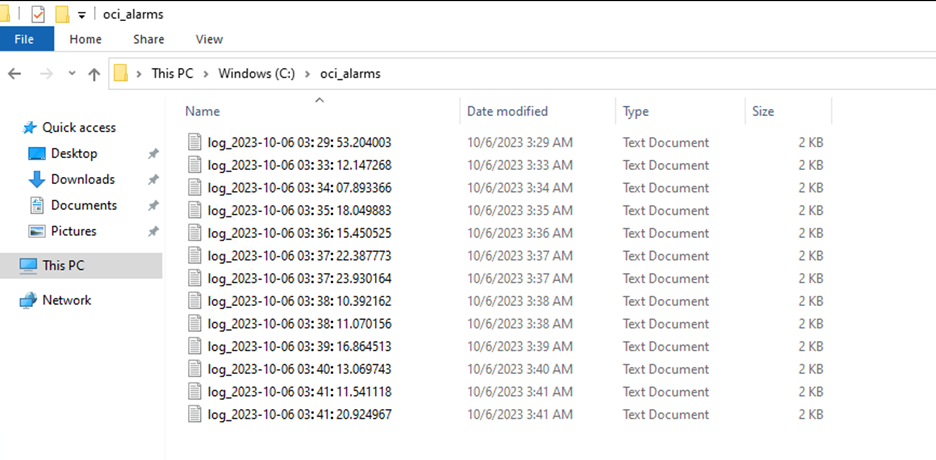
- After completion of the above steps, the local folder in Windows VM will mirror data from OCI Object Storage Bucket. Configure Splunk Agent in Windows to read data from this local directory.
Files in local directory
Setup a Windows Task to run rclone copy
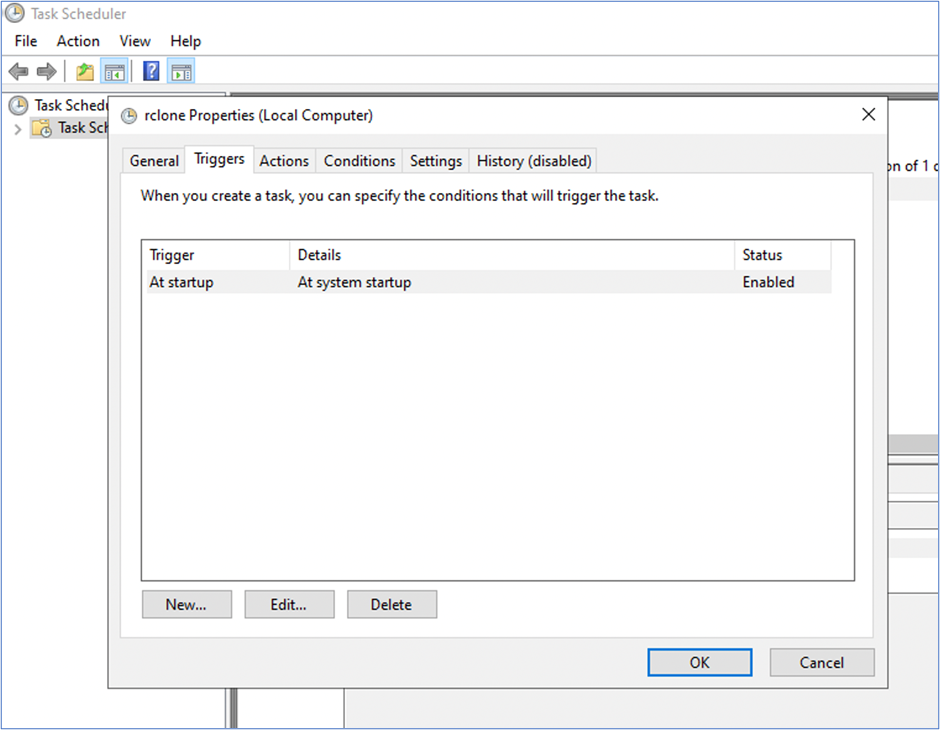
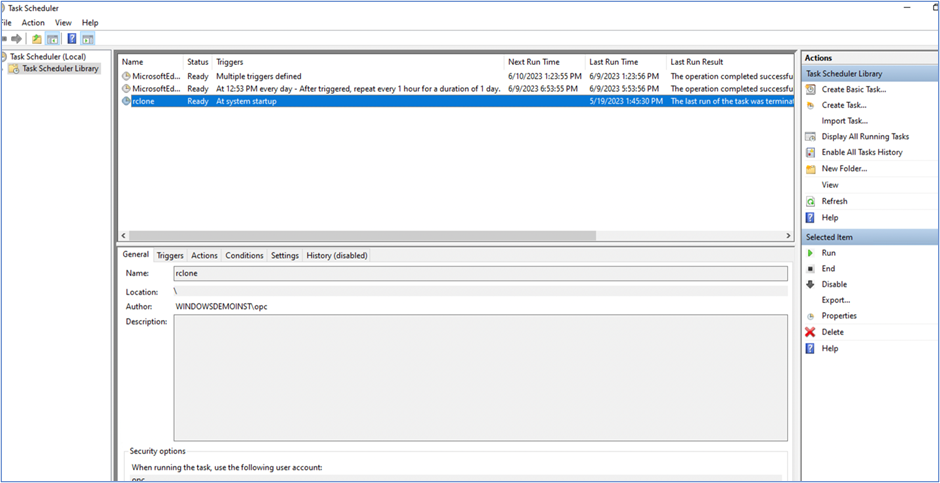
rclone copy process stops when system/instance is shutdown, to keep this process on-going and working seamlessly after reboots, rclone copy command needs to be executed every-time a system boot-up happens.
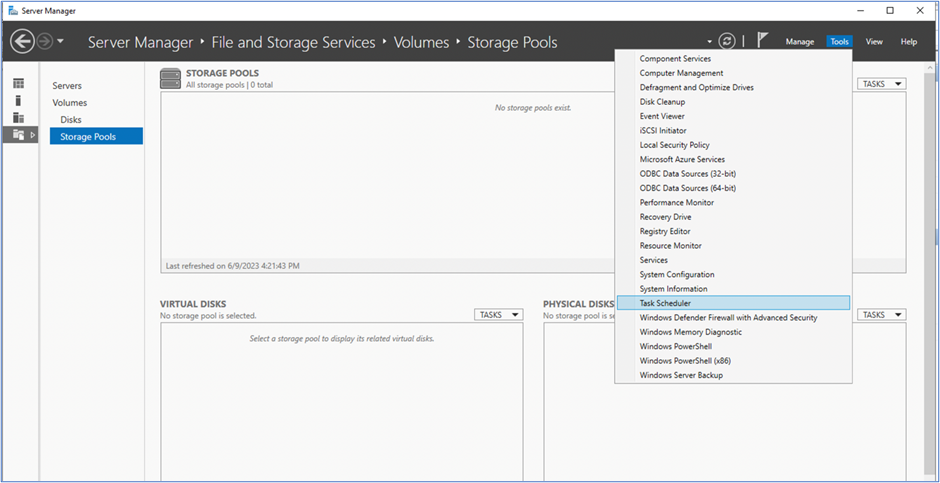
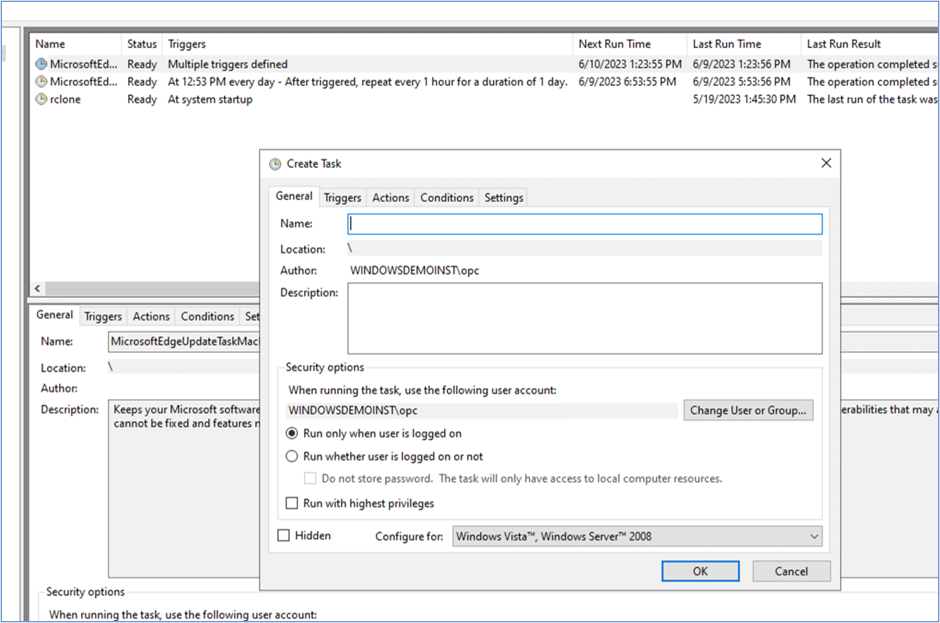
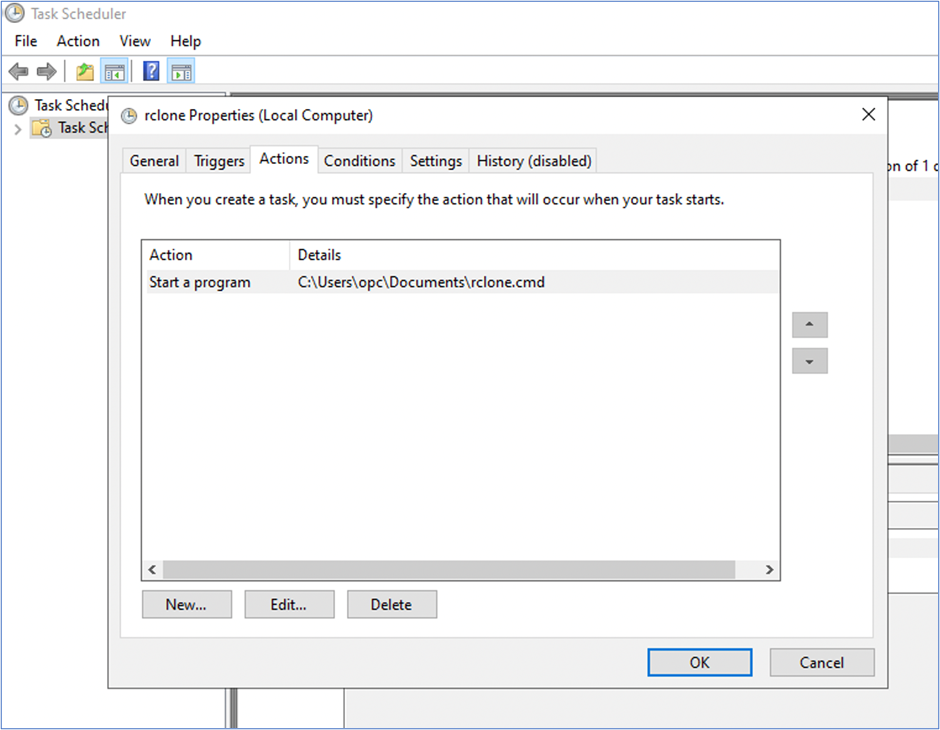
This can be achieved in windows by creating a task using Task Scheduler to execute rclone copy command on event of a system boot. Follow steps below in snapshots to create this task.
- Create a “*.bat” or “.cmd” file with rclone copy command as below. Provide this file location in the task actions section.
Rclone.cmd
<rclone_path>\rclone.exe copy <rclone remote repo name>:<OCI Object Storage Bucket> <local path where the directory should be created> –no-console
Example:
C:\rclone-v1.64.0-windows-386\rclone.exe copy oci_os_remote_repo:OCI-Alarm-Data C:\oci_alarms –no-console
Ingest OCI Alarm/Notification JSON message files from local directory to Splunk
rclone copy continuously copies/syncs files to local directory. For this data to be available in Splunk, install Splunk agent in windows instance to ingest data to Splunk.
If Splunk is on-prem, network connectivity needs to be established between Windows instance (where local directory exists) and Splunk on-prem.
Use the Splunk to ServiceNow Integration Framework to create a ServiceNow Incident
After successful ingestion, OCI Alarm data will appear in Splunk. Using this JSON data, identity fields/attributes that can form a Unique key for Incident creation. Follow your organization’s process for creating ServiceNow Incidents and assignment to relevant group/team.
{
“dedupeKey”: “3c5ebd51-992e-4a66-b57e-8fc98c9c8caa–7808025763705296615”,
“title”: “CPU Usage Events Alarm”,
“body”: “CPU Usage Alarm. Trigger will fire if the mean value is >80 and Notification will be sent if this threshold is breached for 5 minutes. Notification will be repeated after 60 minutes if the issue Continues.”,
“type”: “FIRING”,
“severity”: “CRITICAL”,
“timestampEpochMillis”: 1689177540000,
“timestamp”: “2023-07-12T15:59:00Z”,
“alarmMetaData”: [
{
“id”: “ocid1.alarm.oc1.iad.aaaaaaaaeuao4nwziq2yhnpnoezr6n74jlk7”,
“status”: “FIRING”,
“severity”: “CRITICAL”,
“namespace”: “oci_compute_agent”,
“query”: “CpuUtilization[1m].groupby(resourceDisplayname).mean() > 80”,
“totalMetricsFiring”: 0,
“dimensions”: [
{
” resourceDisplayname “: “mycompute”
}
],
“alarmUrl”: “https://urldefense.com/v3/__https://cloud.oracle.com/monitoring/alarms/ocid1.alarm.oc1.iad.aaaaaaaaeuao4nwziq2yhnpnoezr6n74jlk7efp3zzyvkyinqjgyl7mfv3zq?region=us-ashburn-1__;!!NlL3gfXN!9bNFo-teB3bFWMcTCu9Zw1F9WnVy6HqHOHzlFYvvlm9hZKj8CG1EGkizytkmqLGpNkIyG0qyu2oYeo7b7kiklVse_fJPchgfgj2UL9AuxqWngjBZjbuHSA$“,
“alarmSummary”: “Alarm \” CPU Usage Events Alarm \” is in a \”FIRING\” state; because the resources with dimensions listed below meet the trigger rule: \” CpuUtilization[1m].groupby(resourceDisplayname).mean() > 80\”, with a trigger delay of 5 minutes”
}
],
“notificationType”: “Split messages per metric stream”,
“version”: 1.4
}
In the example data, a combination of the fields highlighted can be used as a unique combination to identity different error scenarios and create related incidents in ServiceNow
Configure a Lifecycle Policy to Purge files in Object Storage
Lifecycle management is generally used to manage Object Storage data that can help reduce storage costs and the amount of time you spend manually managing data.
Keeping these benefits in mind, we can setup a Lifecycle rule to delete Object Storage files after their ingestion to Splunk is completed.
Below IAM policy is needed for Lifecycle management for Object storage, this is regional.
Allow service objectstorage-us-ashburn-1 to manage object-family in <compartment-name>
Sample Lifecycle Policy rule to delete all data in the Bucket after a day:

Conclusion
For customers who have implemented Splunk and ServiceNow as their enterprise-wide incident and ticketing systems, the integration process described in this blog will enable a seamless connection with Oracle Cloud Infrastructure alarms and 3rd party tools, maximizing the benefits of a hybrid cloud strategy.
References
- Quick Start Guide for developing and deploying OCI Serverless Functions
- Managing OCI Alarms
- Rclone install guide
- Winfsp Install Guide