
Introduction
Nowadays, customers deploy a complex virtual network topology that could come up with troubleshooting challenges.
This blog will discuss OCI Network Path Analyzer, On-demand troubleshooting, and diagnostic tools.
Network Path Analyzer (NPA) helps you to identify virtual network configuration issues that impact connectivity. Using automated configuration analysis, NPA examines routing and security rules by analyzing hop-to-hop paths to identify connectivity problems.
As for some NPA use cases, by using NPA, you can troubleshoot routing and security misconfigurations, validate the logical network paths, and verify that the virtual network connectivity setup works as expected.
The NPA test supports the following scenarios:
- OCI to OCI
- OCI to on-premises
- On-premises to OCI
- Internet to OCI
- OCI to internet
Please check the link below for more info regarding the test-specific parameters and NPA limitations.
Configure Network Path Analyzer
Now, let’s test a couple of supported scenarios by NPA. I have created an OCI Load Balancer inside the Ashburn region and have attached one VM to the backend set.
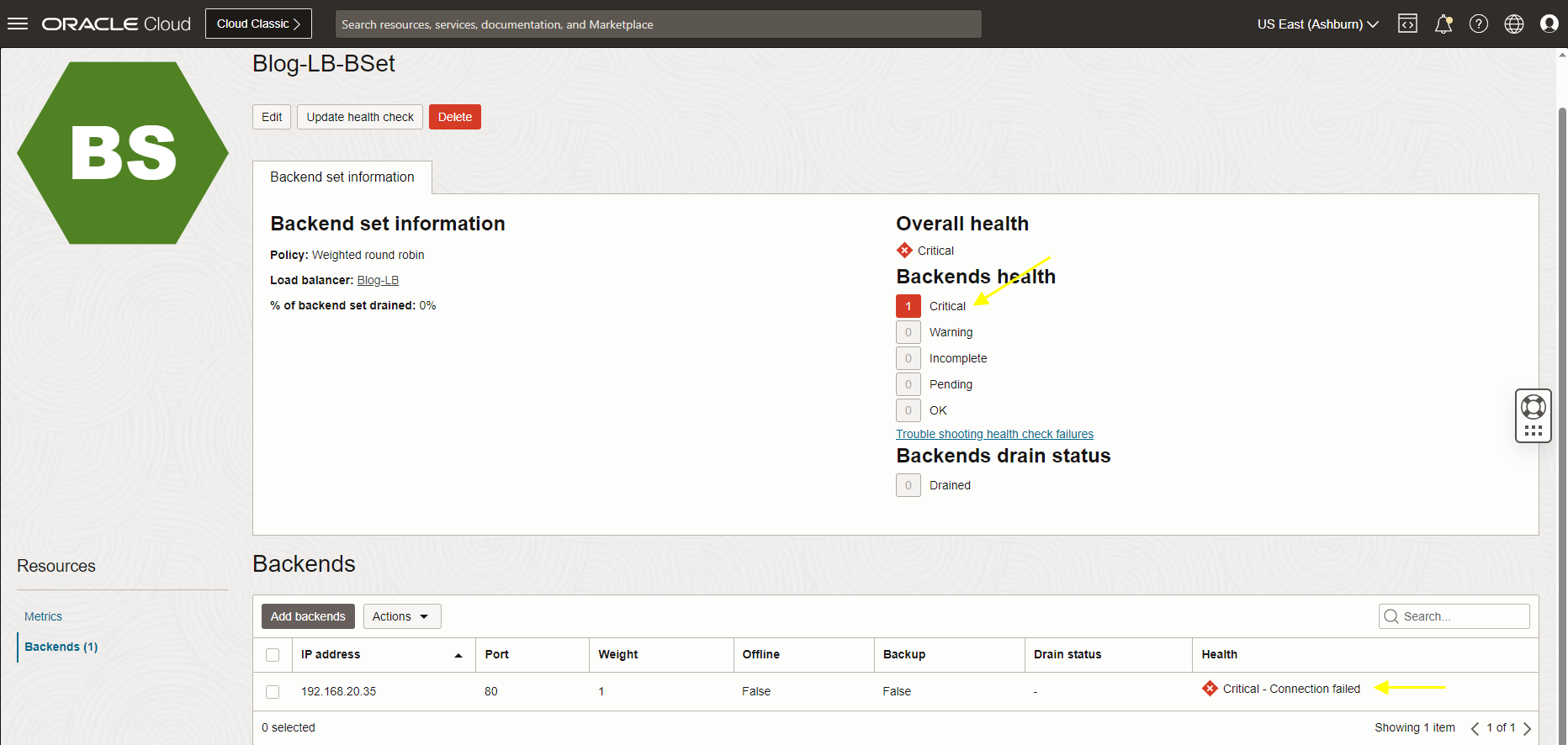
My LB status shows critical, and I will run an NPA test to check the possible issue.
Note: Please configure the required policy before running the NPA test. Check the link below.
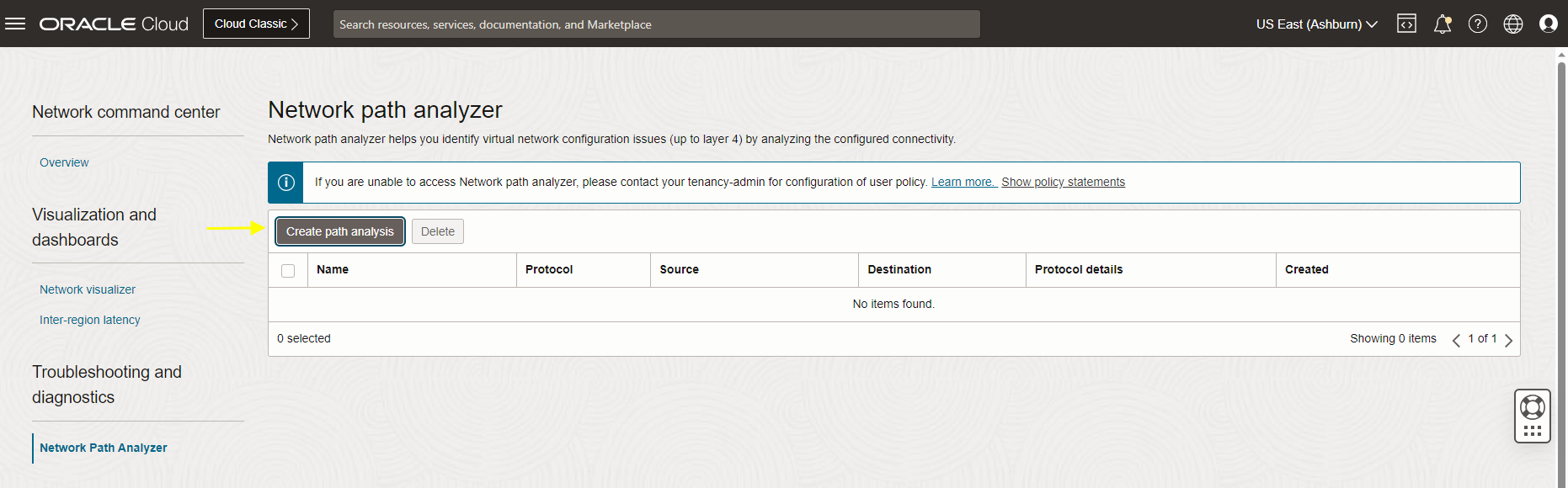
Navigate to the hamburger menu, Click on Networking, under Network Command Center, click Network Path Analyzer.
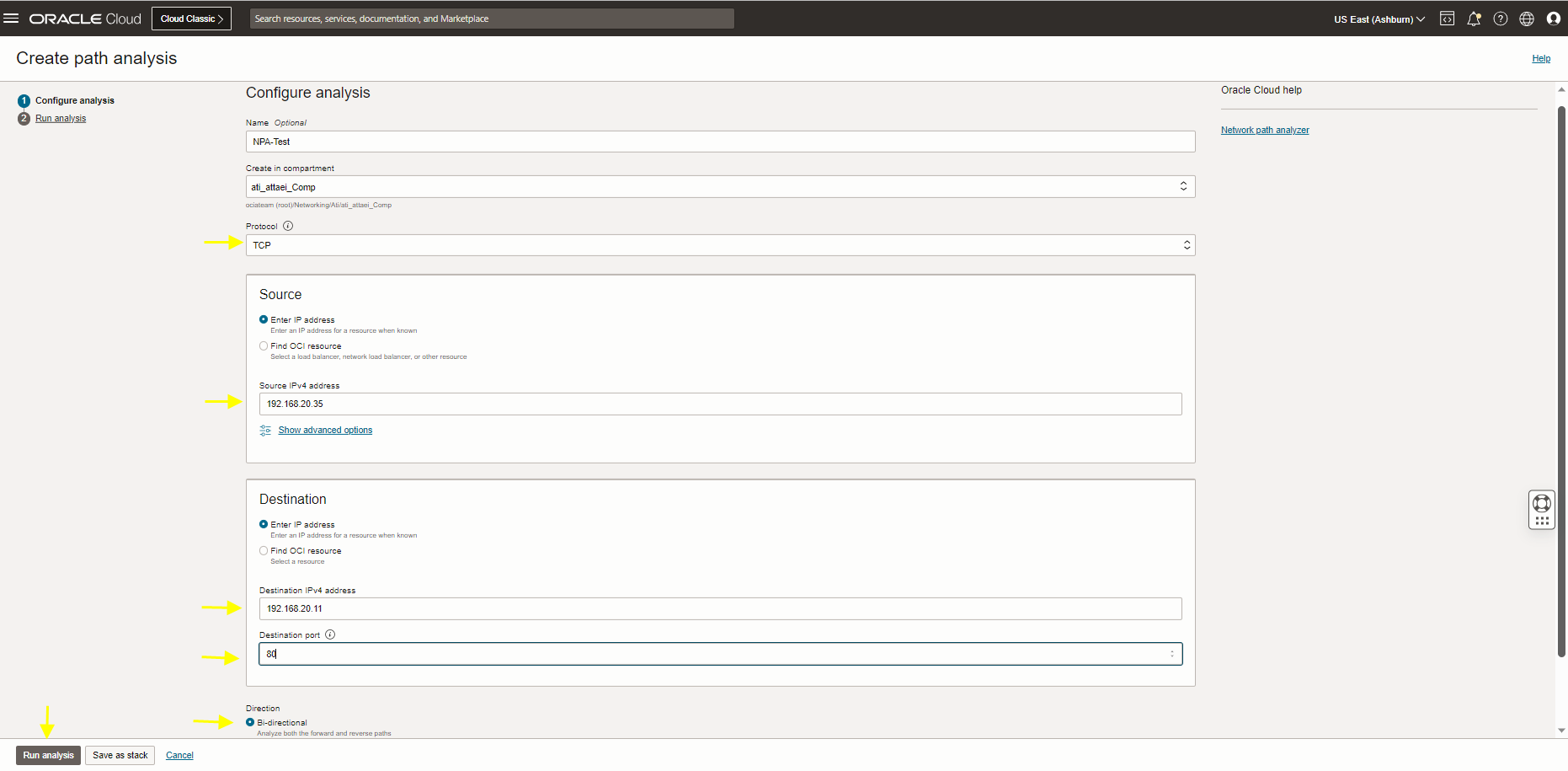
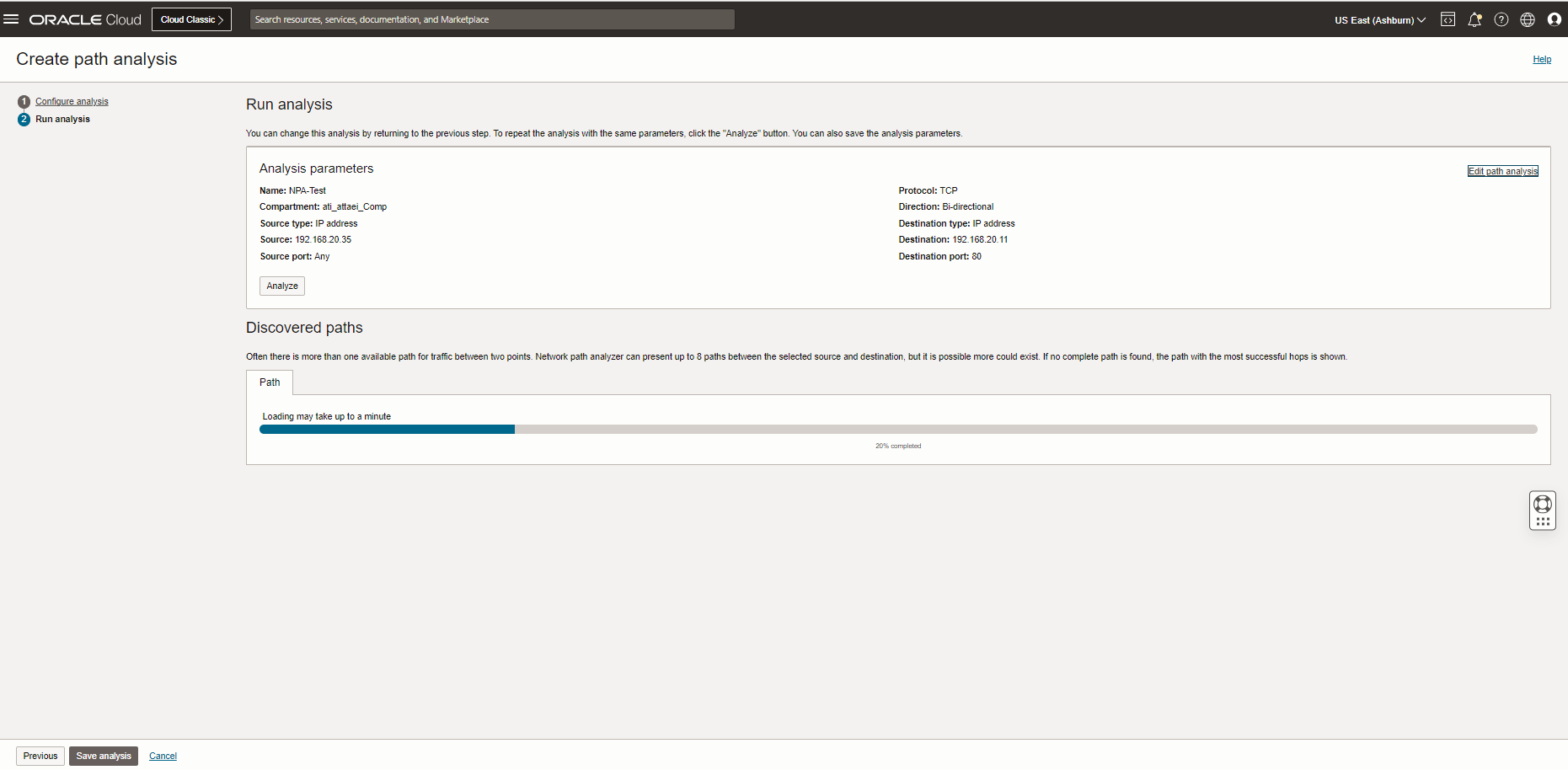
Create path analysis. Fill up the required link and click on Run Analysis (Source IP is VM backend server, destination IP is LB private IP) (Loading the path info may take up to a minute).
The result above shows that the status of the NPA test is unreachable. The security status shows Denied.
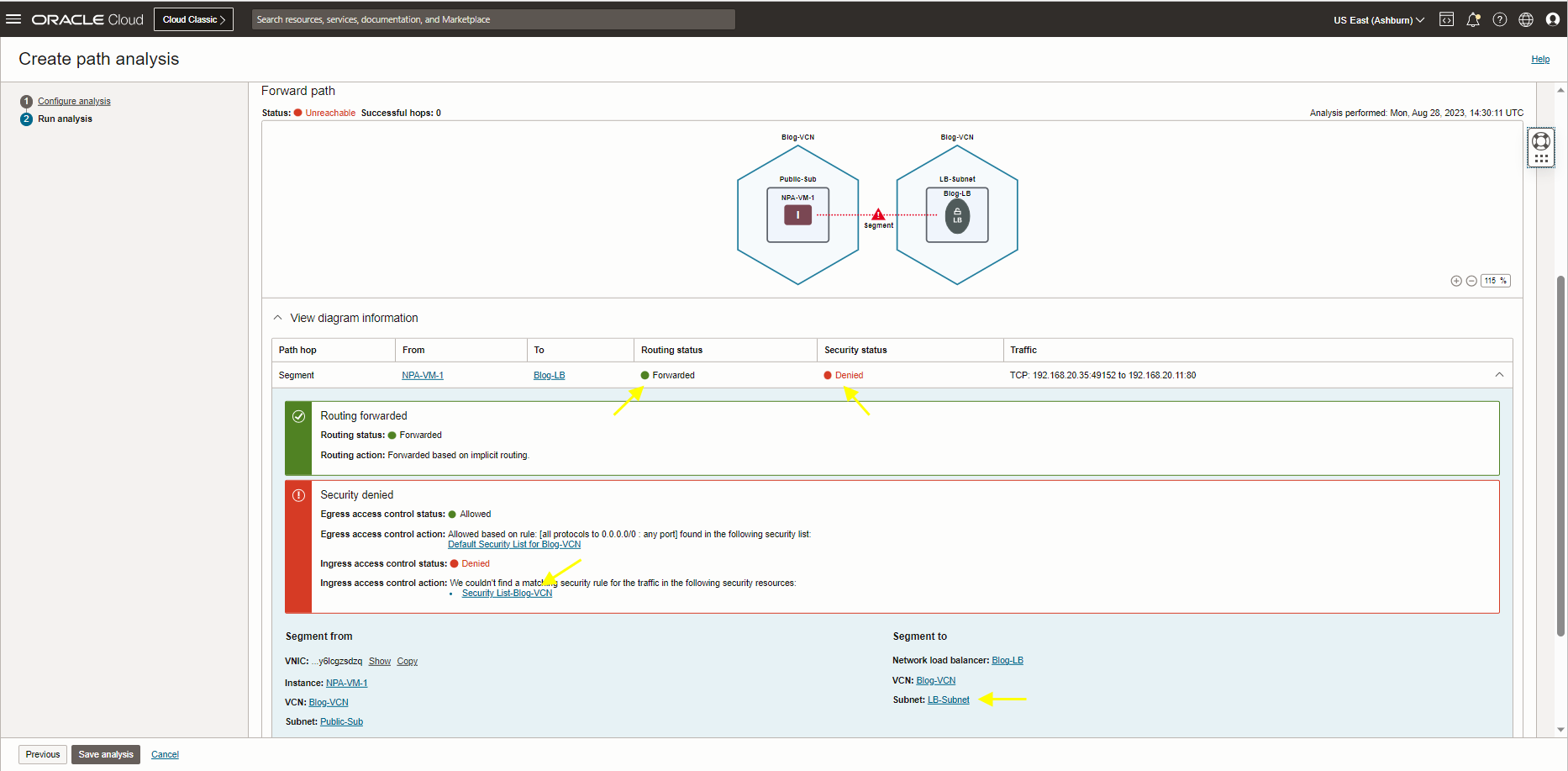
Click on view diagram information and see the security denied error message.
As you see, the Ingress access control status is Denied due to not finding the matching security rule for this request. Click on Security List-Blog-VCN and check the Security List attached to LB-Subnet.
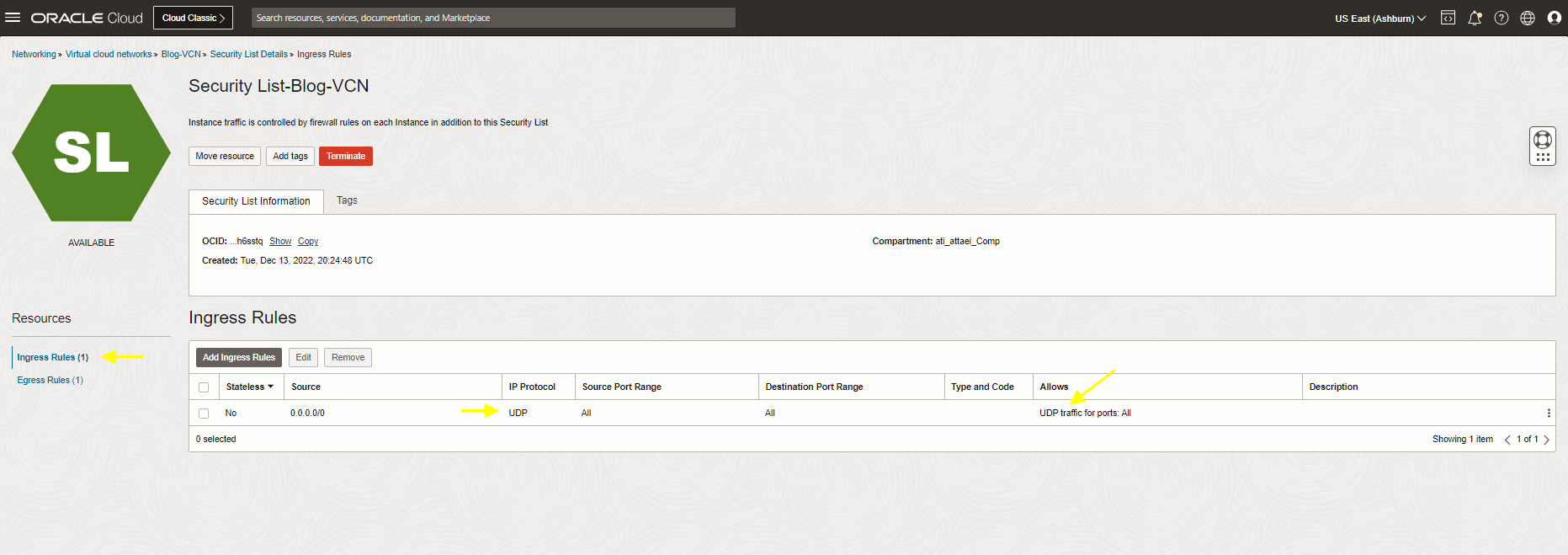
As you see above, we allow UDP protocol for default route 0.0.0.0/0.
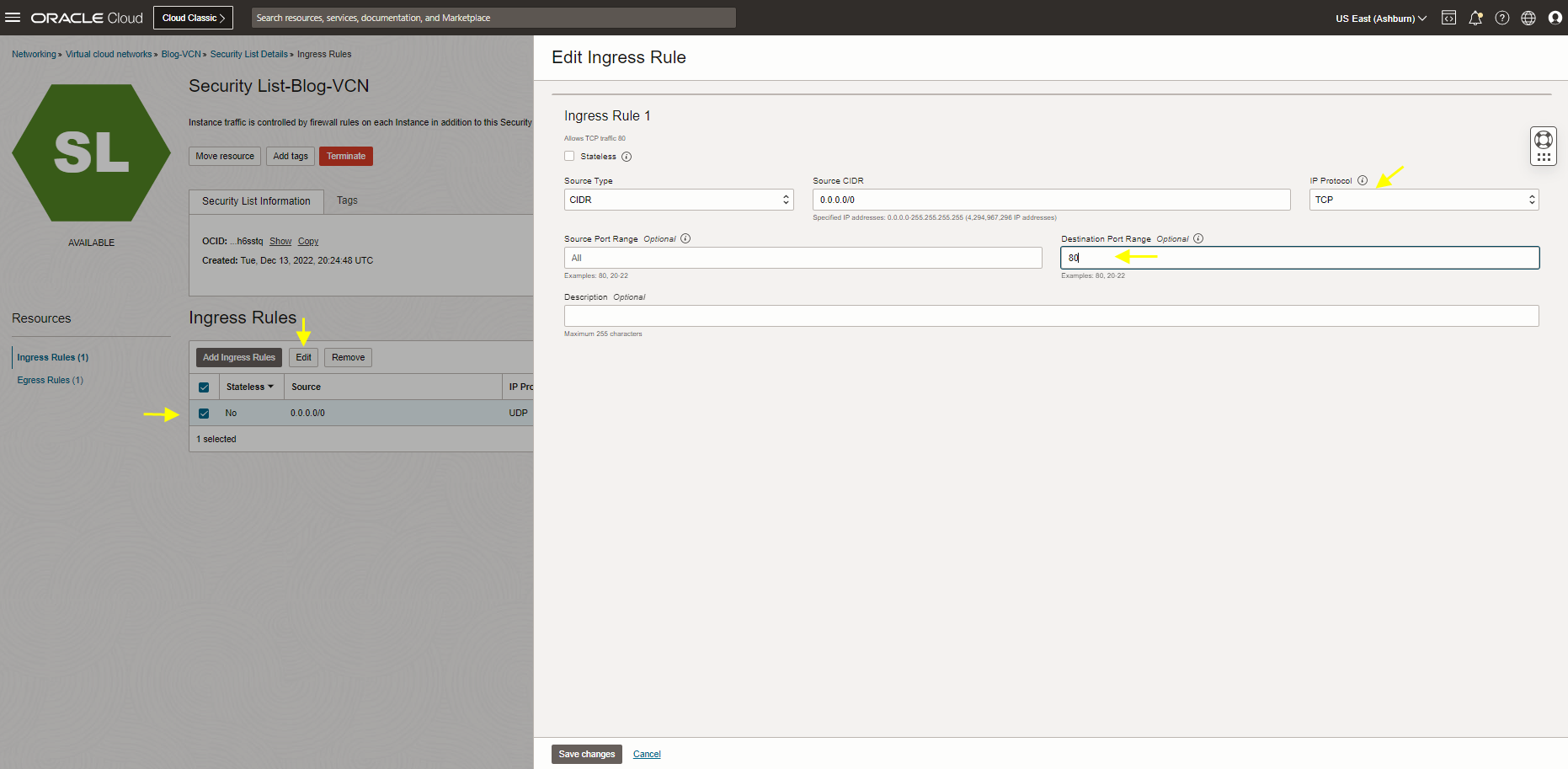
However, we ran the test for TCP port 80 (Load Balancer listener port configured for port 80) Let’s edit the rule, change it to TCP port 80, and rerun a test.
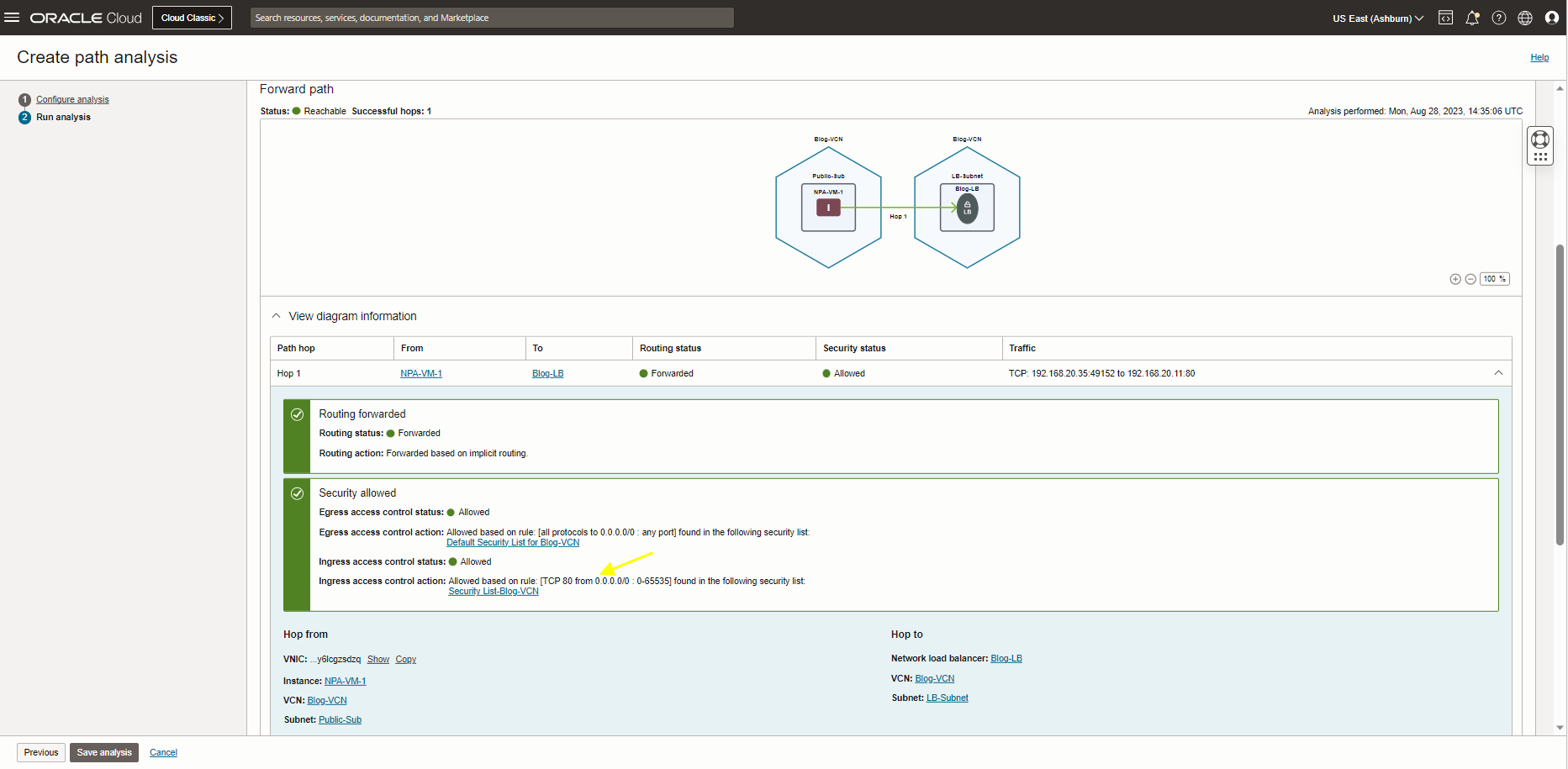
As you see, the result status changed to reachable, and the security status has changed to allow this time.
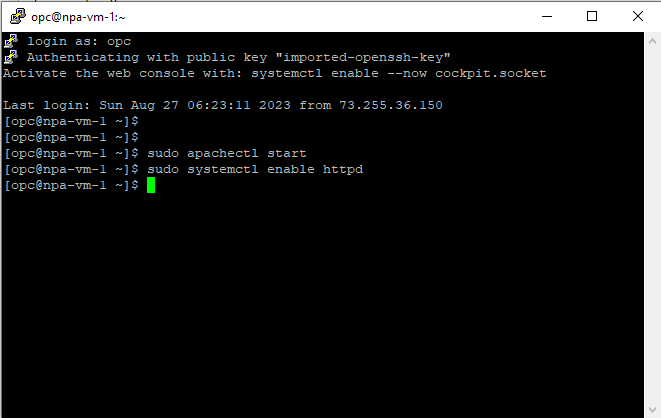
For the next step I checked my LB Health Status and is still shows critical, let’s SSH to my VM.
I tried SSH to my VM server (Load Balancer backend server) to start my Apache server. However, I got a connection timed-out message.

Let’s check why I can’t SSH to my VM web server.
Run the NPA test this time with a different source (my computer’s public IP address) and destination (VM public IP) See the screenshot below. The status is Unreachable.
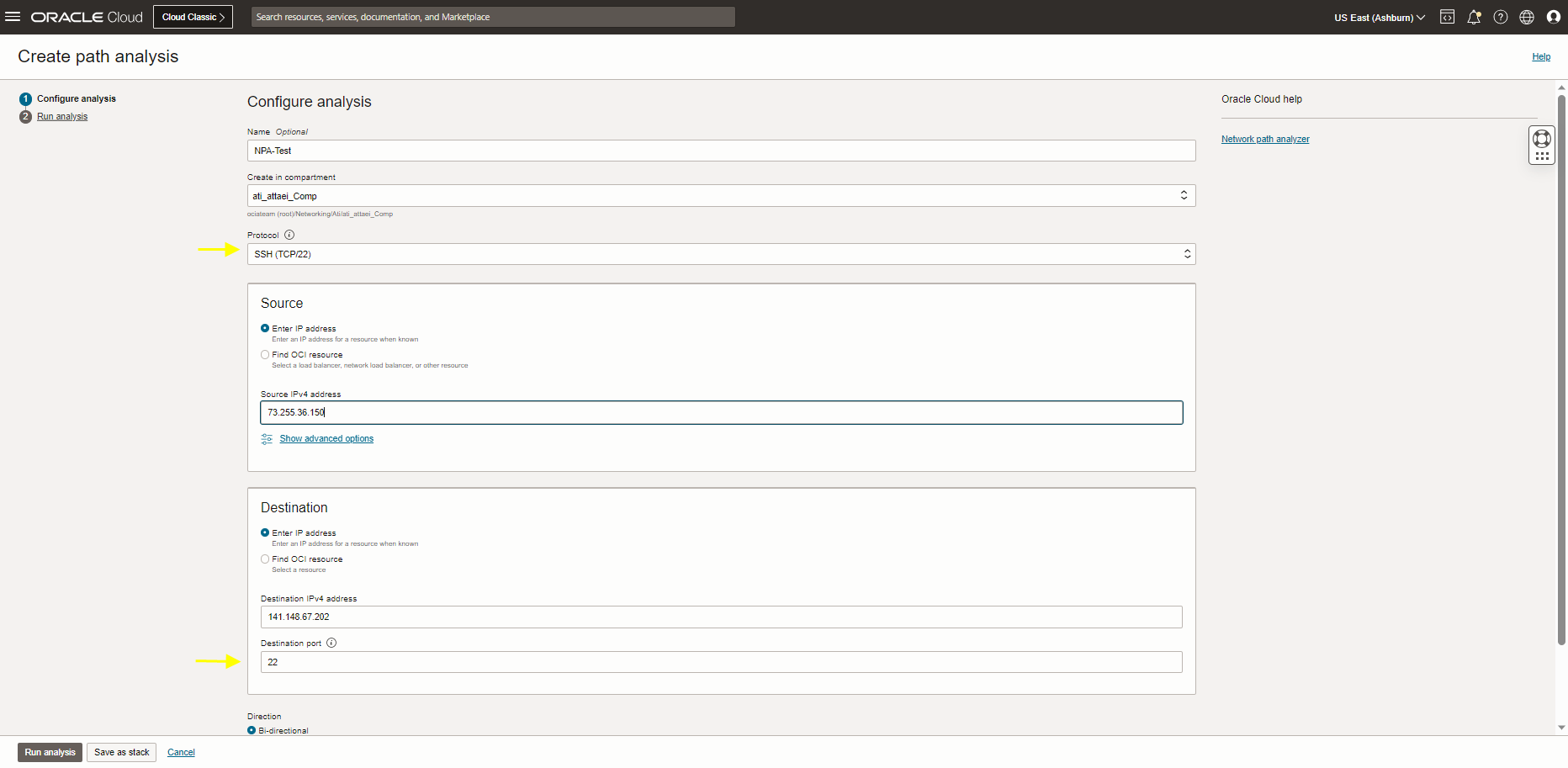
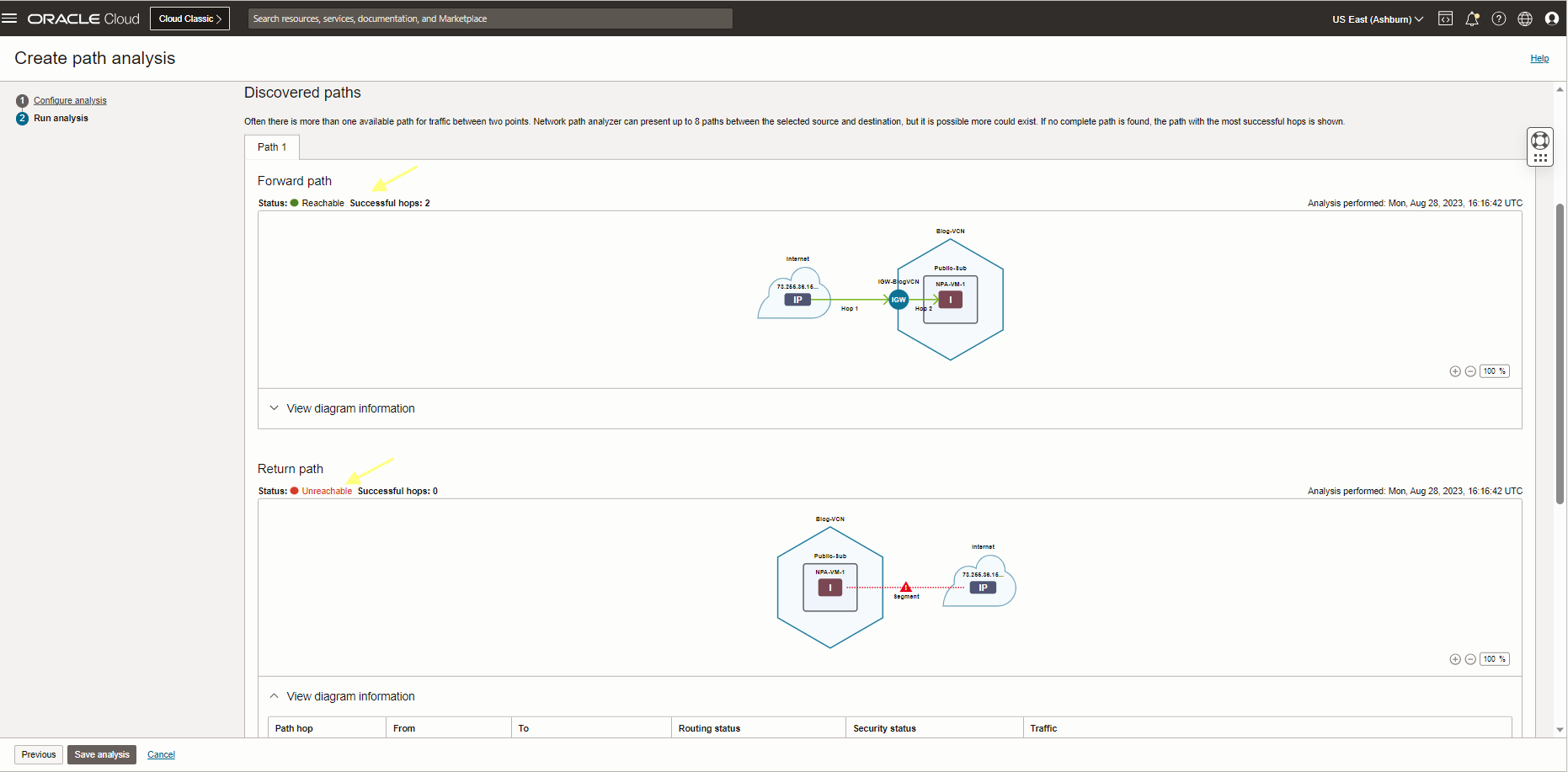
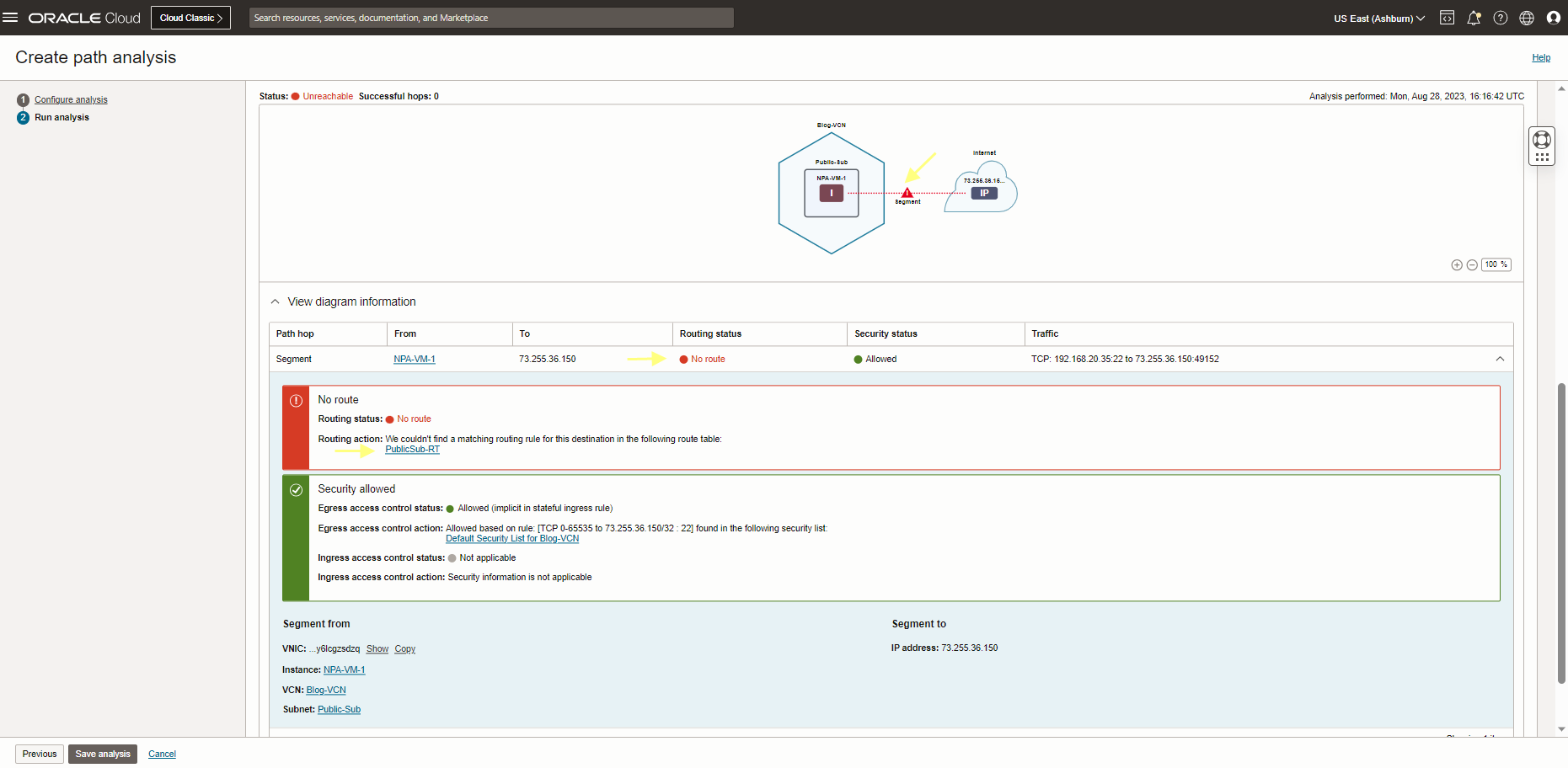
As you see the result above, there is no route from NPA-VM-1 compute instance to my computer. Let’s check the PublicSub-RT (This routing table is attached to my VM subnet) to add the proper routing rule there.
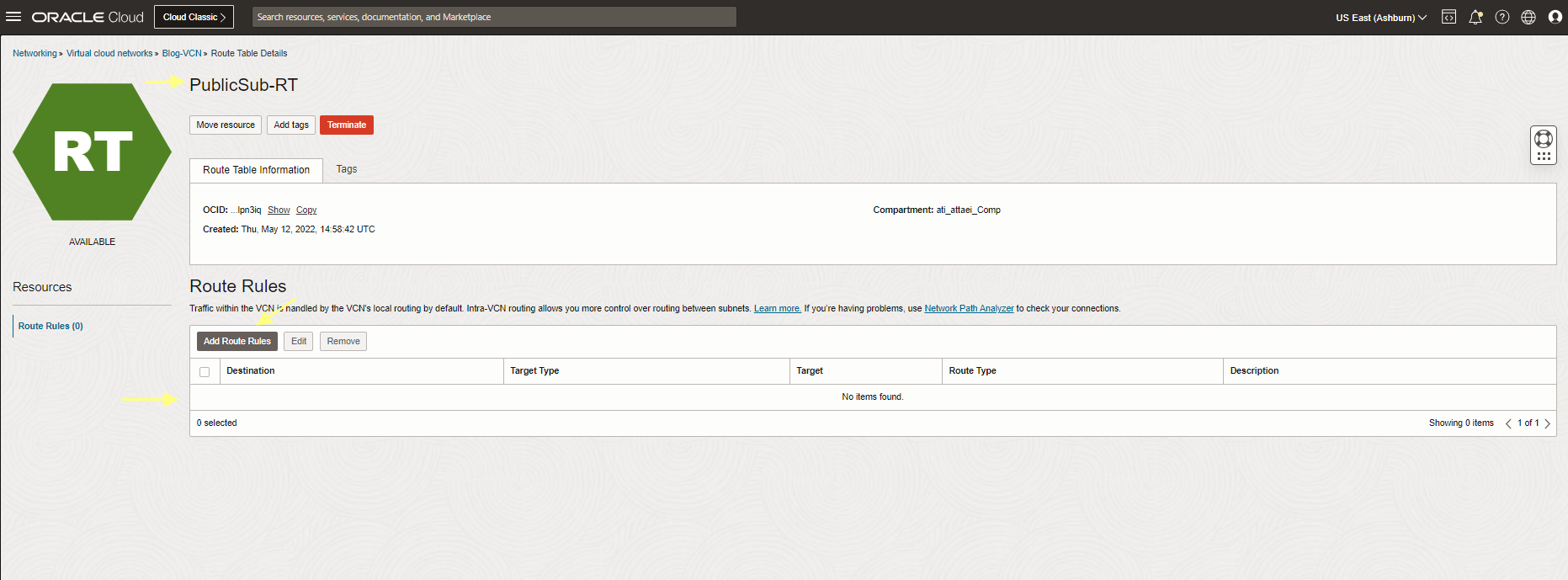
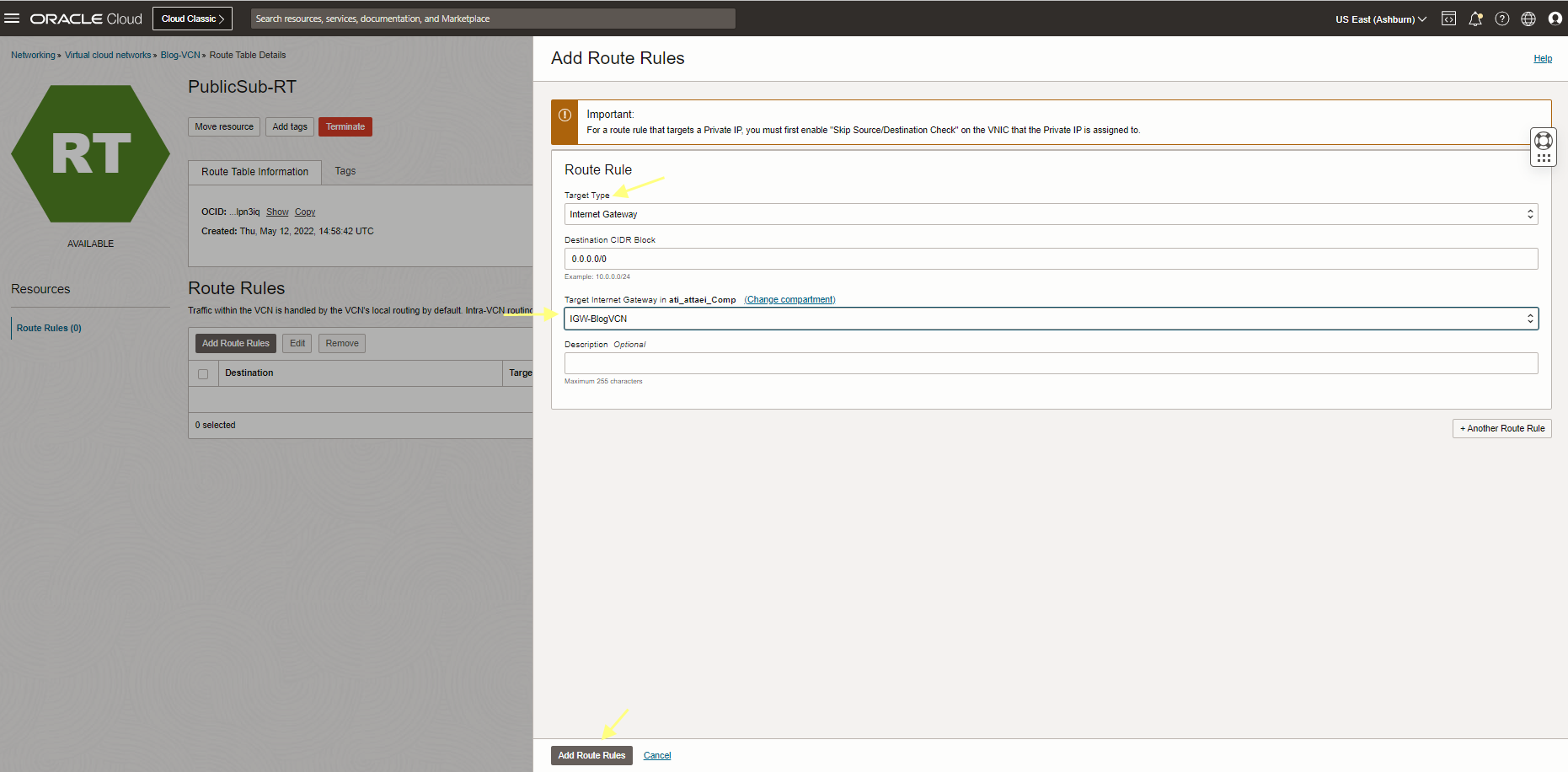
The result above shows that the routing table needed the proper gateway to reach outside.(Internet Gateway required to be added there).
I added and rerun a test.

There you go, the status changed to reachable; based on the NPA result, I can SSH to my VM to start my Apache server.
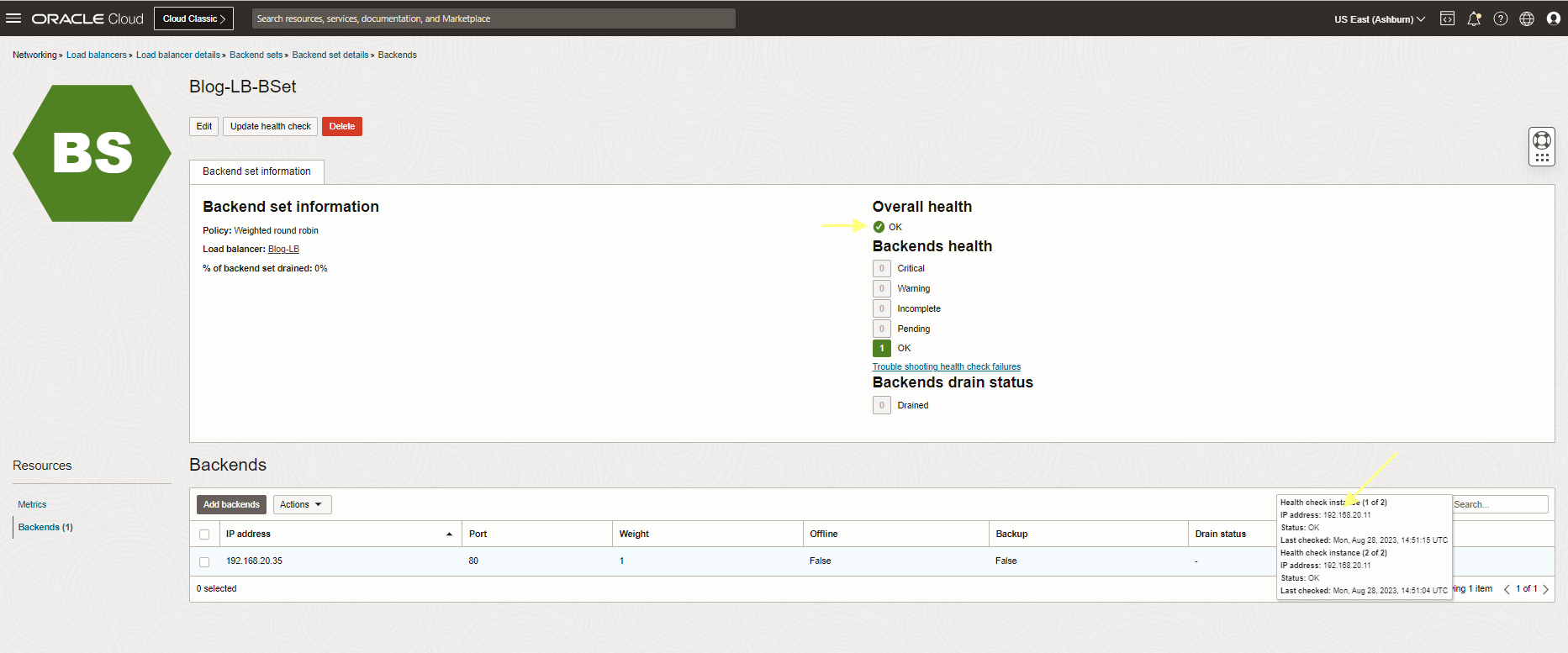
Let’s check the LB status,Overall Health is green (my favorite color) and OK!
Conclusion
In conclusion, with the NPA test, you can Enable self-diagnosis and troubleshoot the connectivity in minutes, which Improves your overall experience with OCI.
I hope you enjoyed it!