Consulting Solutions Architect, Business Intelligence
Background
* This blog was last tested on OAC 105.8.0-133 (Version 5.8) + ADW 18c *
~
This blog explains how to reference relational data sources using a Pipelined Table Function.
See this blog for instructions on how to reference SOAP/REST API’s sources using a pipelined table function.
~
This article walks through the steps to use Pipelined Table Functions in Answers (Analysis) Dashboards.
Pipelined table functions provide the ability to create a dynamic table view of the data on the dashboard. The view can be altered based on what is selected in the prompt.
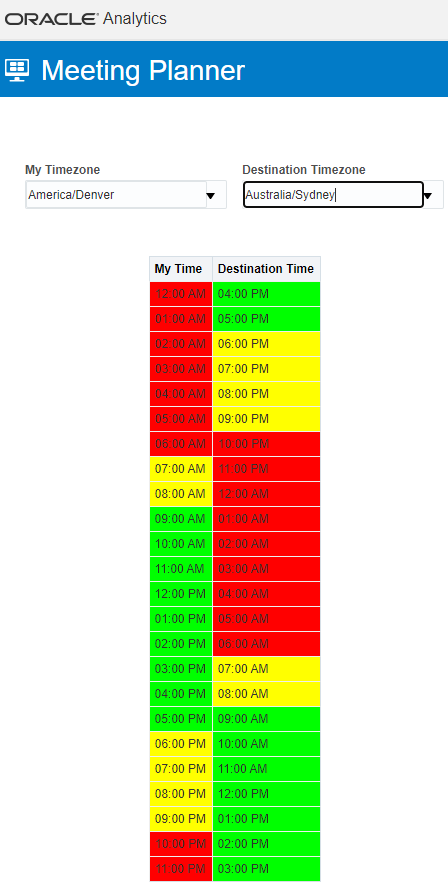
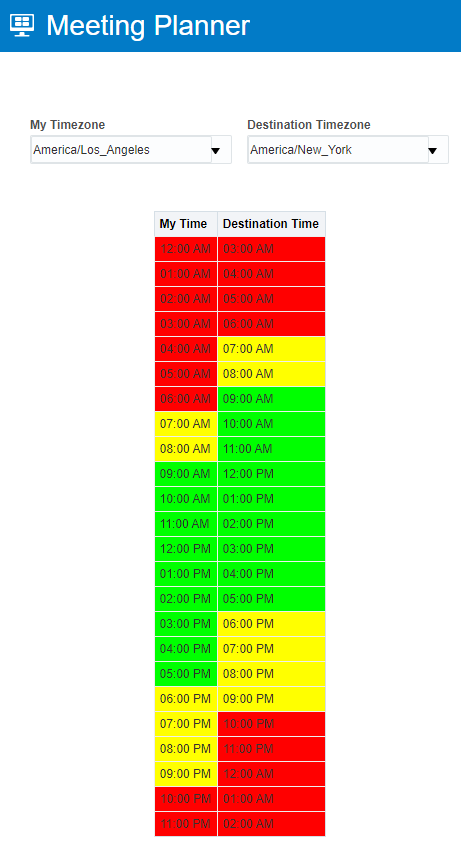
The blog shows how to create a Meeting Planner Dashboard where the user selects their timezone and the destination timezone for the meeting. A Pipelined Table Function is used to generate a list of suggested suitable meeting times for the two timezones.
The blog is divided into five sections:
1) Create and Test Pipelined Function
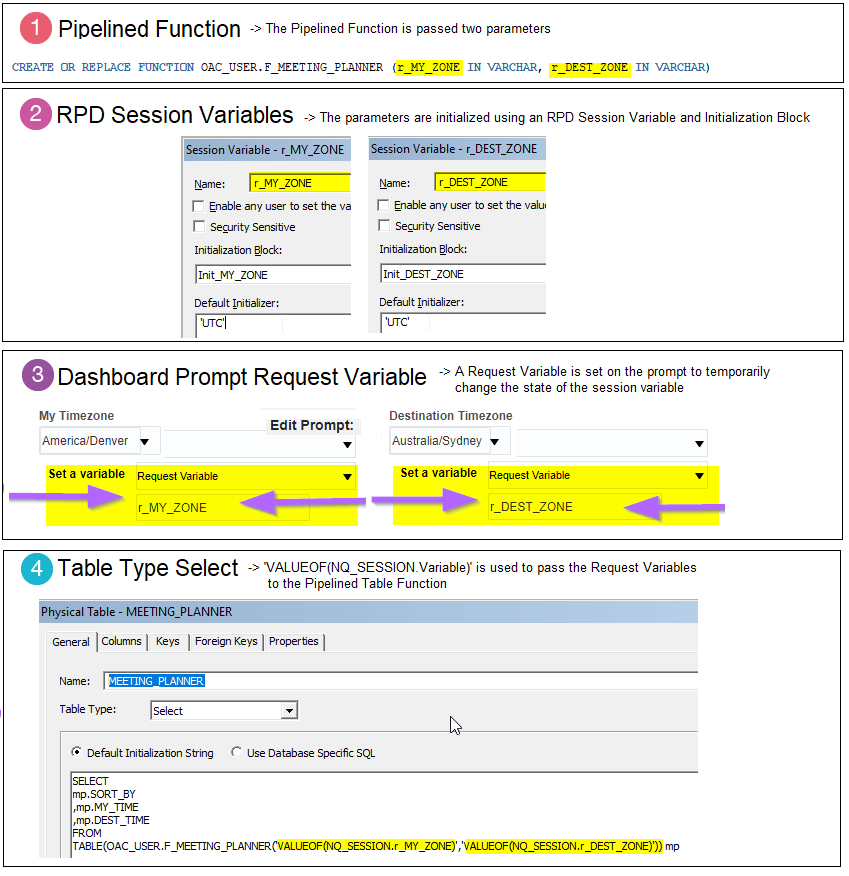
2) RPD Configurations for Timezone Prompts
3) Create Timezone Dashboard Prompts
4) RPD Configurations for Pipelined Table
5) Create Analysis and Dashboard
The primary design function of each section is illustrated below:
Additionally, the blog covers other OAC Classic topics such as: Dashboard Prompts, Creating Analysis/Dashboards, Session Variables, Initialization Blocks, RPD Layers, Sort Order Columns, Conditional Formatting, PL/SQL, Dummy Table Joins, and more!
Create and Test Pipelined Function
Download SQL from here to avoid browser copy/paste errors.
–Create Type CREATE TYPE OAC_USER.O_MEETING_PLANNER AS OBJECT ( SORT_BY INTEGER, MY_TIME VARCHAR(50), DEST_TIME VARCHAR(50) );
–Create Type as Table of Object CREATE TYPE OAC_USER.T_MEETING_PLANNER AS TABLE OF OAC_USER.O_MEETING_PLANNER;
–Create Function CREATE OR REPLACE FUNCTION OAC_USER.F_MEETING_PLANNER (r_MY_ZONE IN VARCHAR, r_DEST_ZONE IN VARCHAR) RETURN T_MEETING_PLANNER PIPELINED AS i_MY_TIME VARCHAR(50); i_DEST_TIME VARCHAR(50); i_SORT_BY NUMBER; START_MY_TIME TIMESTAMP := CAST(sysdate || ’12:00:00 AM’ as timestamp); START_DEST_TIME TIMESTAMP := FROM_TZ(CAST(FROM_TZ(cast(sysdate || ‘ 12:00:00 AM’ as timestamp),(r_MY_ZONE)) AT TIME ZONE ‘UTC’ AS TIMESTAMP),’UTC’) AT TIME ZONE (r_DEST_ZONE); BEGIN FOR i in 1..24 loop SELECT i SORT_BY ,TO_CHAR(START_MY_TIME,’hh:mi AM’) as MY_TIME ,TO_CHAR(START_DEST_TIME,’hh:mi AM’) as DEST_TIME INTO i_SORT_BY, i_MY_TIME, i_DEST_TIME FROM DUAL; PIPE ROW (O_MEETING_PLANNER(i,i_MY_TIME,i_DEST_TIME)); START_MY_TIME := START_MY_TIME + 1/24; START_DEST_TIME := START_DEST_TIME + 1/24; END LOOP; RETURN; END F_MEETING_PLANNER; /
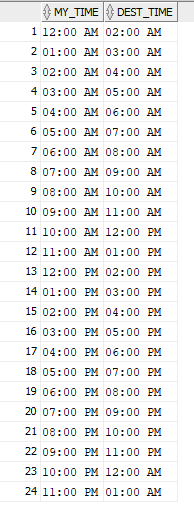
–Test Function SELECT mp.MY_TIME ,mp.DEST_TIME FROM TABLE(OAC_USER.F_MEETING_PLANNER(‘America/Denver’,’America/New_York’)) mp ORDER BY mp.SORT_BY
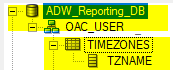
–Create Timezone_Names table for Prompt CREATE TABLE OAC_USER.TIMEZONES AS ( SELECT DISTINCT TZNAME FROM V$TIMEZONE_NAMES )
RPD Configurations for Timezone Prompts
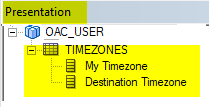
a) Import OAC_USER.TIMEZONES into the Physical Layer -> Drag to the Business Model Layer.
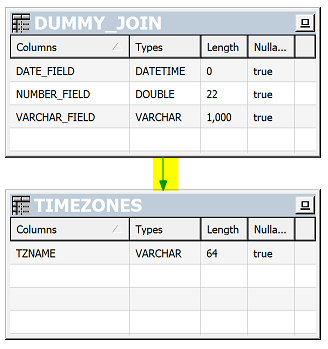
b) Join to a dummy table in the Physical & Business Layers if necessary.
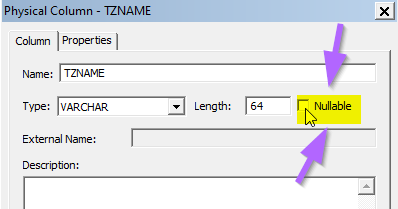
c) Uncheck Nullable on the column in the Physical Layer
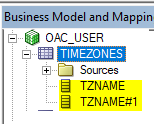
d) Duplicate TZNAME in the Business Model Layer.
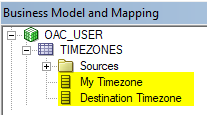
e) Rename TZNAME Columns to “My Timezone” and “Destination Timezone”.
f) Drag to Presentation Layer.
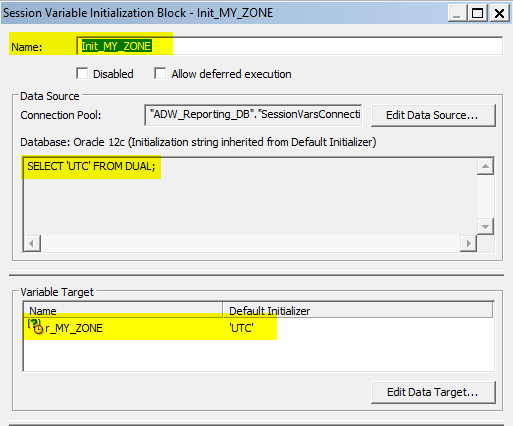
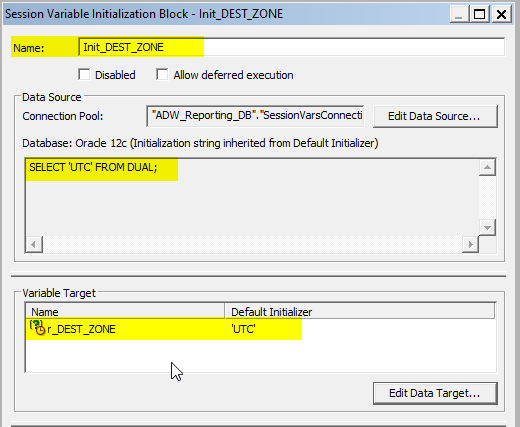
g) Create an initialization block and session variable for r_MY_ZONE and r_DEST_ZONE.
Create Timezone Dashboard Prompts
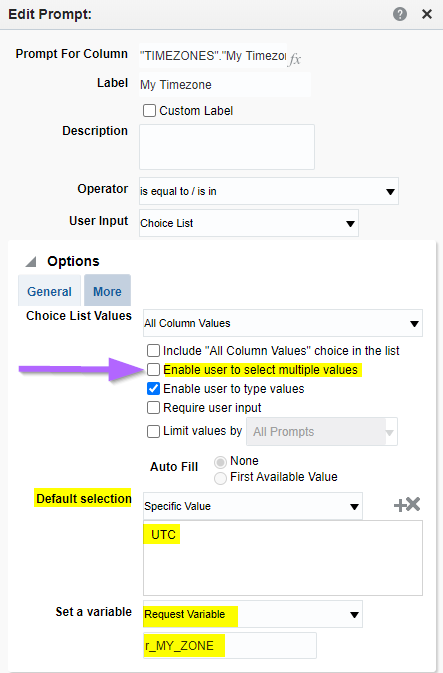
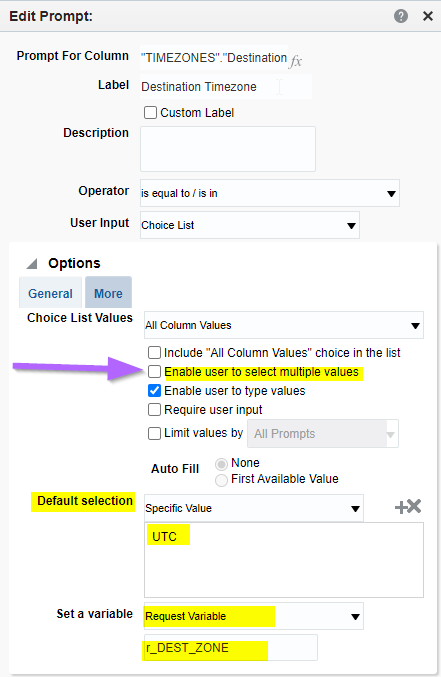
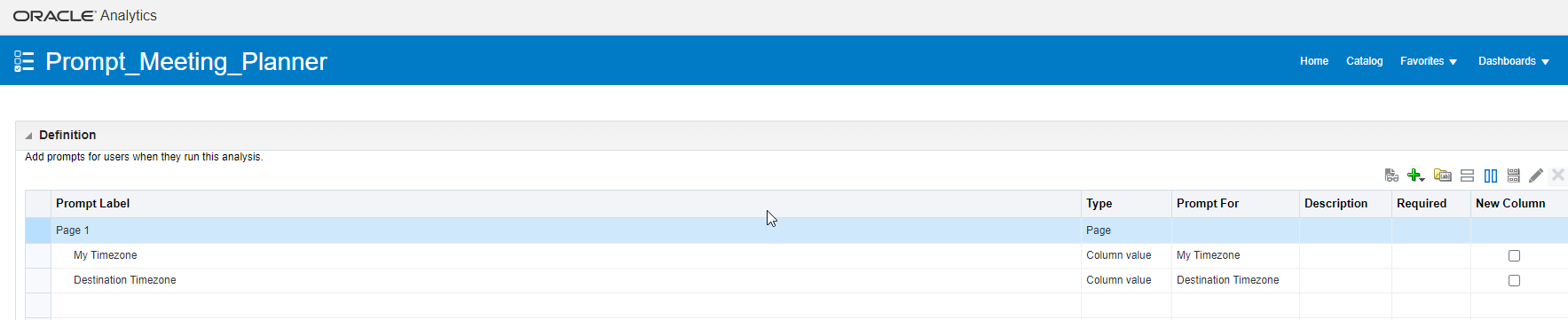
a) Create a Dashboard Prompt with two Prompts for “My Timezone” and “Destination Time Zone”.
The prompts are based on “TIMEZONES”.”My Timezone” & “TIMEZONES”.”Destination Timezone” using the TIMEZONES table created in Step 1.
b) Uncheck “Enable user to select multiple values”. Set a default of UTC for each.
c) Set a Request Variable for each.
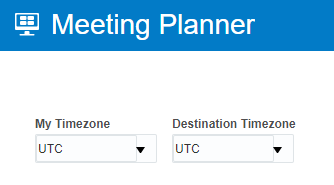
d) Add the Dashboard Prompt to the Dashboard
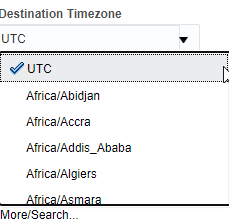
e) Test the Dropdown can return the available timezones.
RPD Configurations for Pipelined Table
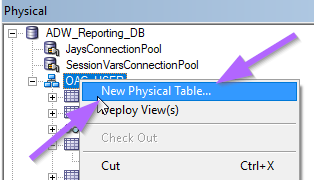
a) From the Physical Layer in the RPD -> Create a New Physical Table.
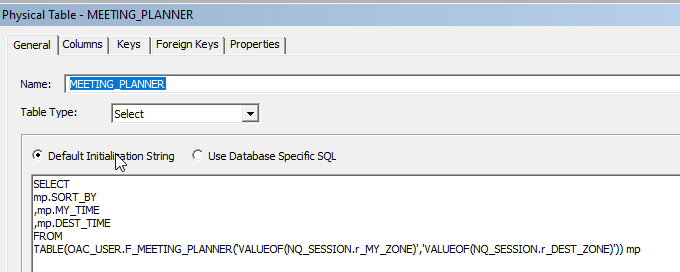
b) Set the default Initialization String to select from the Pipelined Table Function and pass the Session Variables to it.
SELECT mp.MY_TIME ,mp.DEST_TIME FROM TABLE(OAC_USER.F_MEETING_PLANNER(‘VALUEOF(NQ_SESSION.r_MY_ZONE)’,’VALUEOF(NQ_SESSION.r_DEST_ZONE)’)) mp
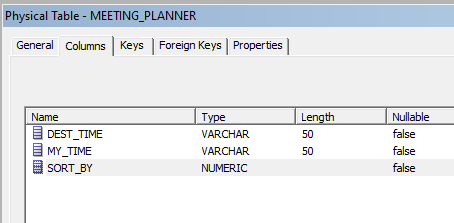
c) Define Columns.
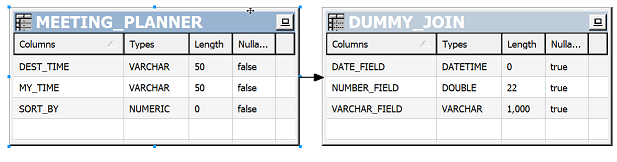
d) Bring into Business and Presentation Layers and join to dummy table if needed.
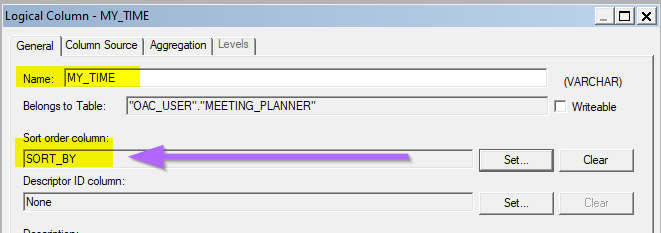
e) In the Business Layer sort MY_TIME by the SORT_BY column.
Create Analysis and Dashboard
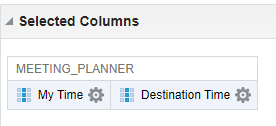
a) Add “MEETING_PLANNER”.”MY_TIME” and “MEETING_PLANNER”.”DEST_TIME” to the Analysis.
Click here for a blog written by Jay Pearson in 2015 on using Pipelined Functions to retrieve data from REST APIs.
Click here for more A-Team Oracle Analytics Cloud (OAC) Blogs.
Summary
This article walked through the steps to use Pipelined Table Functions in Answers (Analysis) Dashboards.
The blog contains a workshop that illustrates how to create a Meeting Planner Dashboard where the user selects their timezone and the destination timezone for the meeting. In the example, a Pipelined Table Function is used to generate a list of suggested suitable meeting times for the two timezones.
On completion of the blog/workshop, readers will have the knowledge to take the sample and convert it to other use cases that may benefit from a dynamic table populated by dashboard prompts.
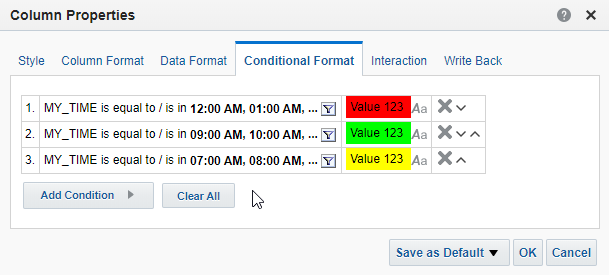
Additionally, the blog covered other OAC Classic topics such as: Dashboard Prompts, Creating Analysis/Dashboards, Session Variables, Initialization Blocks, RPD Layers, Sort Order Columns, Conditional Formatting, PL/SQL, Dummy Table Joins, and more!
Authors
Jay Pearson
Consulting Solutions Architect, Business Intelligence