
Oracle Fusion Cloud Bill Management – External User Setup
Introduction
Bill Management handles both Business-to-Business and Business-to-Customer transactions. Once you register existing customers as external users, here are some tasks that they can do in the application:
- Review accounts
- Make online payments
- Print transactions
- Dispute transactions (if authorized)
Steps Involved in the setup
1) Create customer
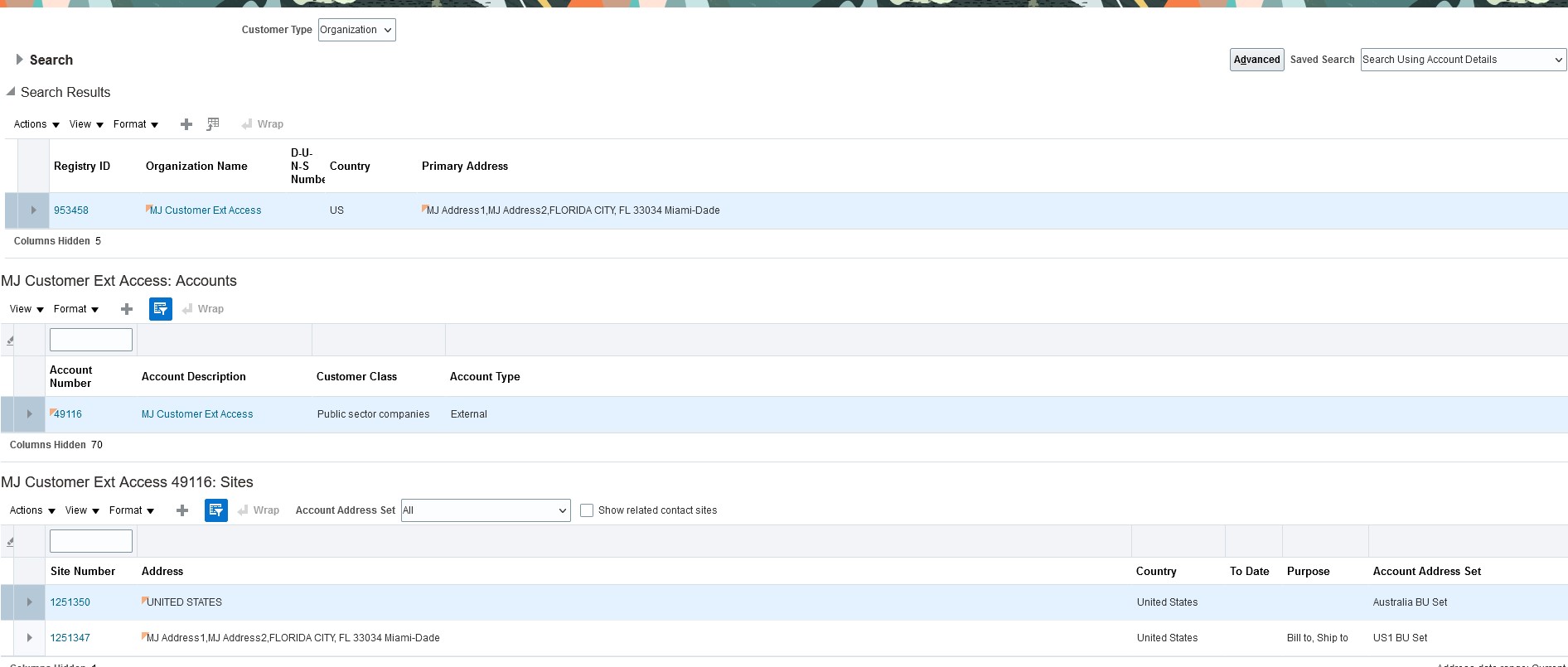
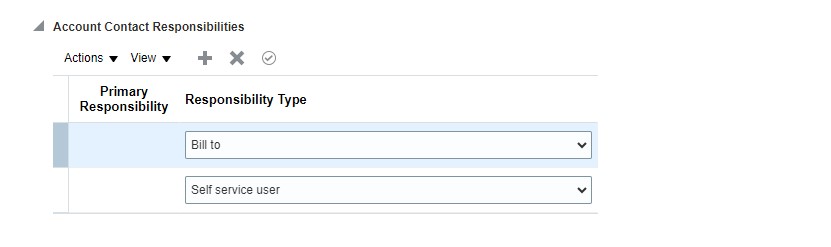
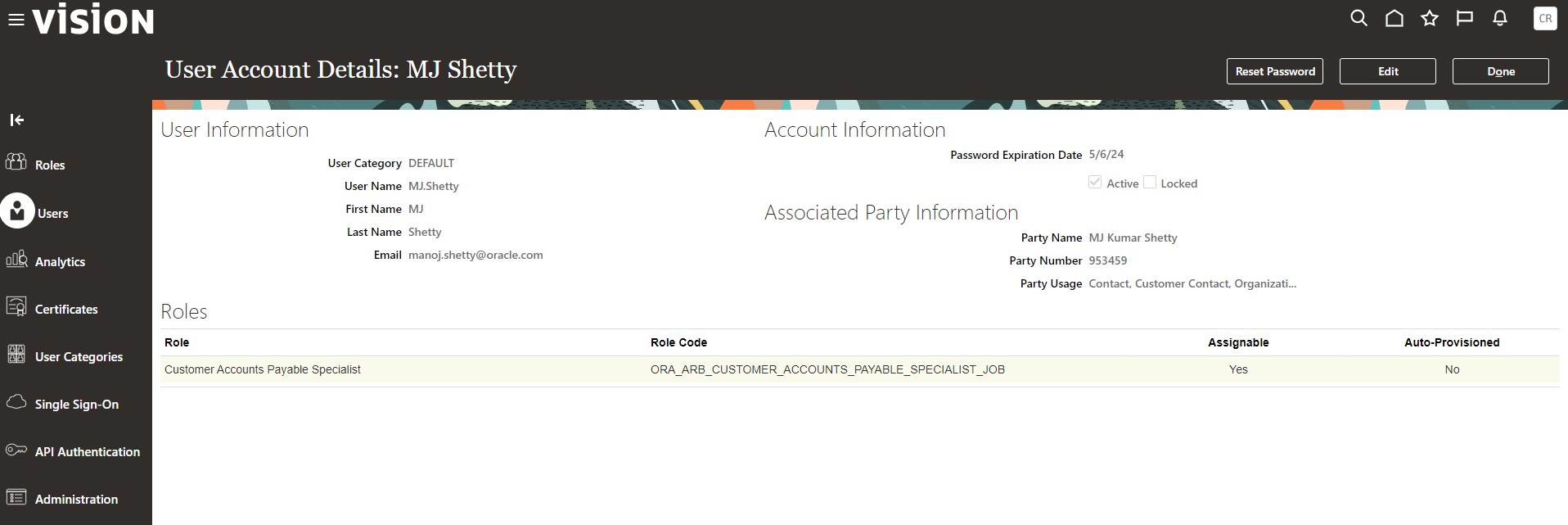
2) Attach user to the customer
Note: Make sure user and email is not existing or attached old users.
3) Register External user
- Sign in to Oracle Applications.
- In the Setup and Maintenance work area, select these options:
Offering: Financials
Functional area: Bill Management
Task: Manage Bill Management Registration
- Click Register Users.
- Search and select the customer contact.
- Click Register. Review the customer status. If the status is:
| Status |
What you need to do |
| Registering |
Wait for a few minutes. If the customer contact gets successfully registered, the status changes to Registered. If not, it changes to Error. |
| Error |
Register your customer contact again. |
| Registered |
That’s it! You have completed the registration process. The customer receives emails with the user-name, password, and link to access Bill Management. |


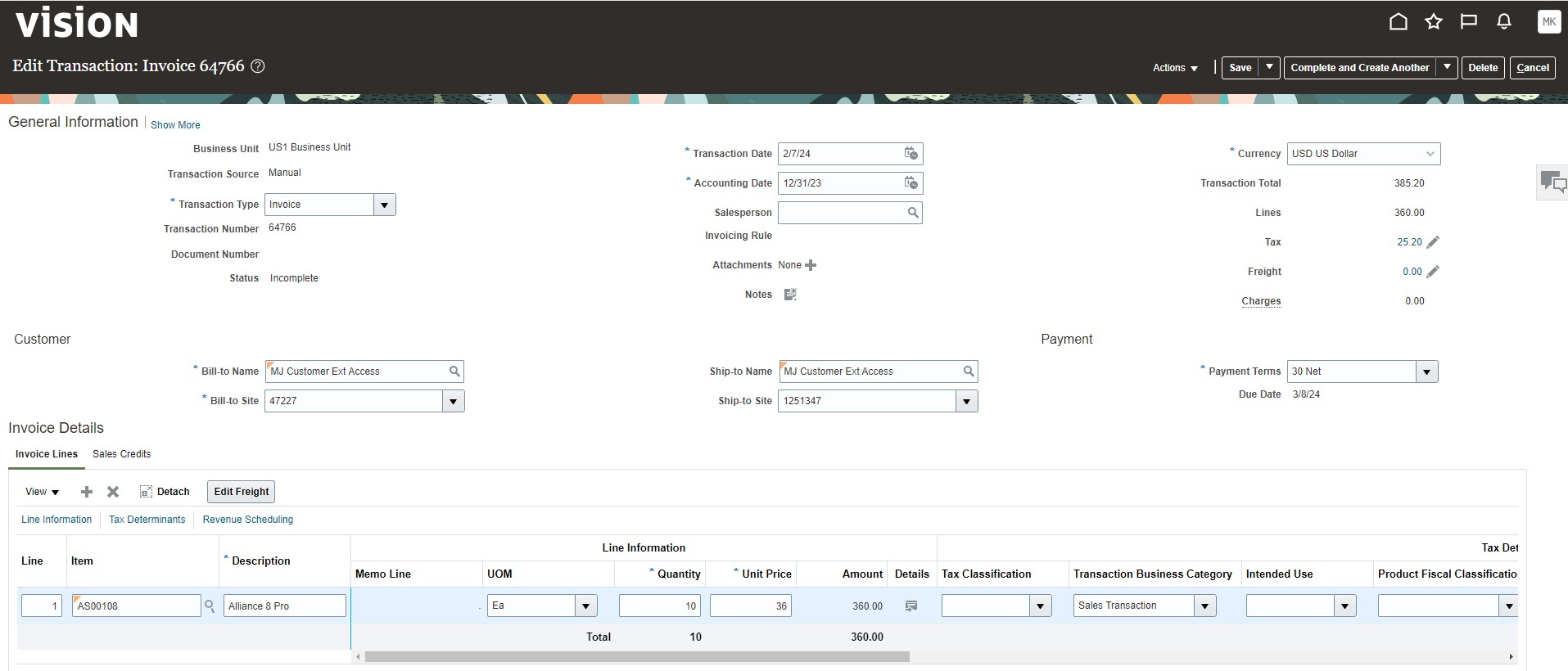
4. Create AR Invoice for your customer (e.g : MJ Customer External Access)
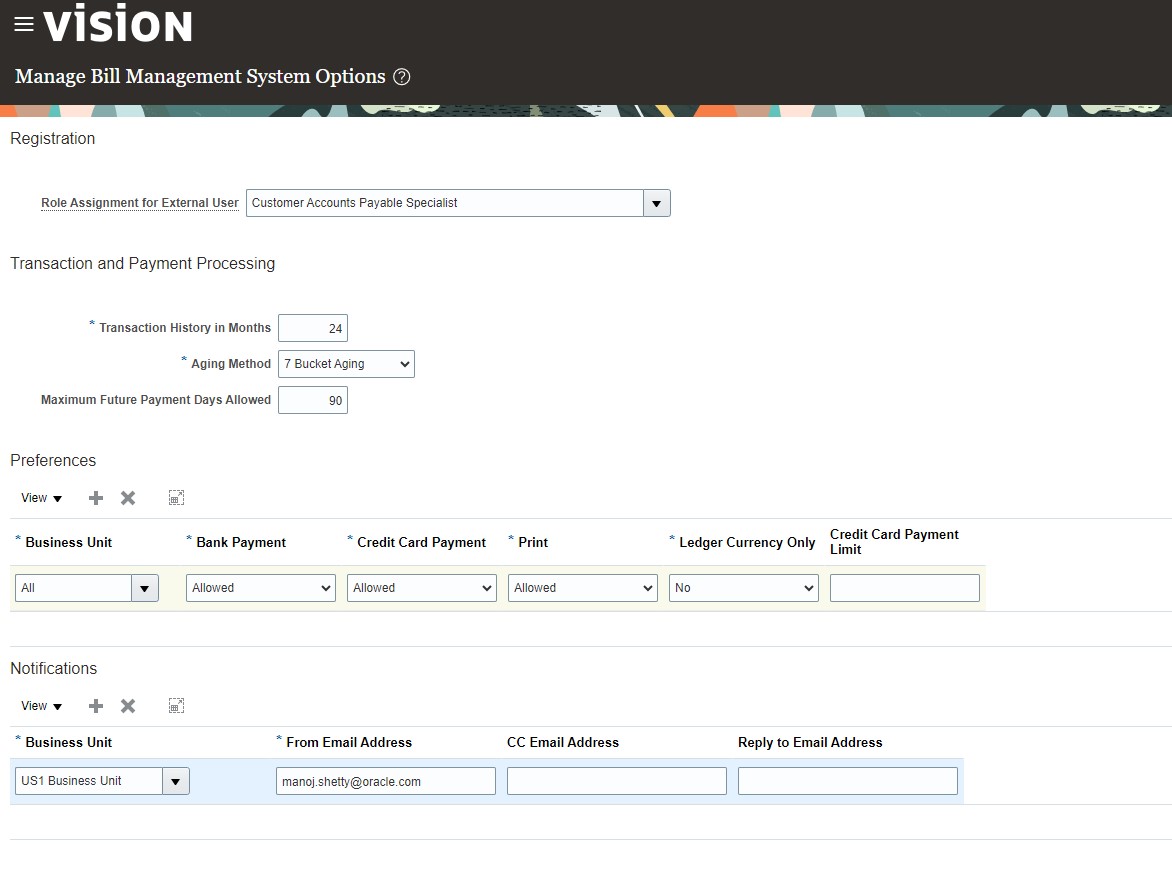
5. Setup the profile as per your requirement
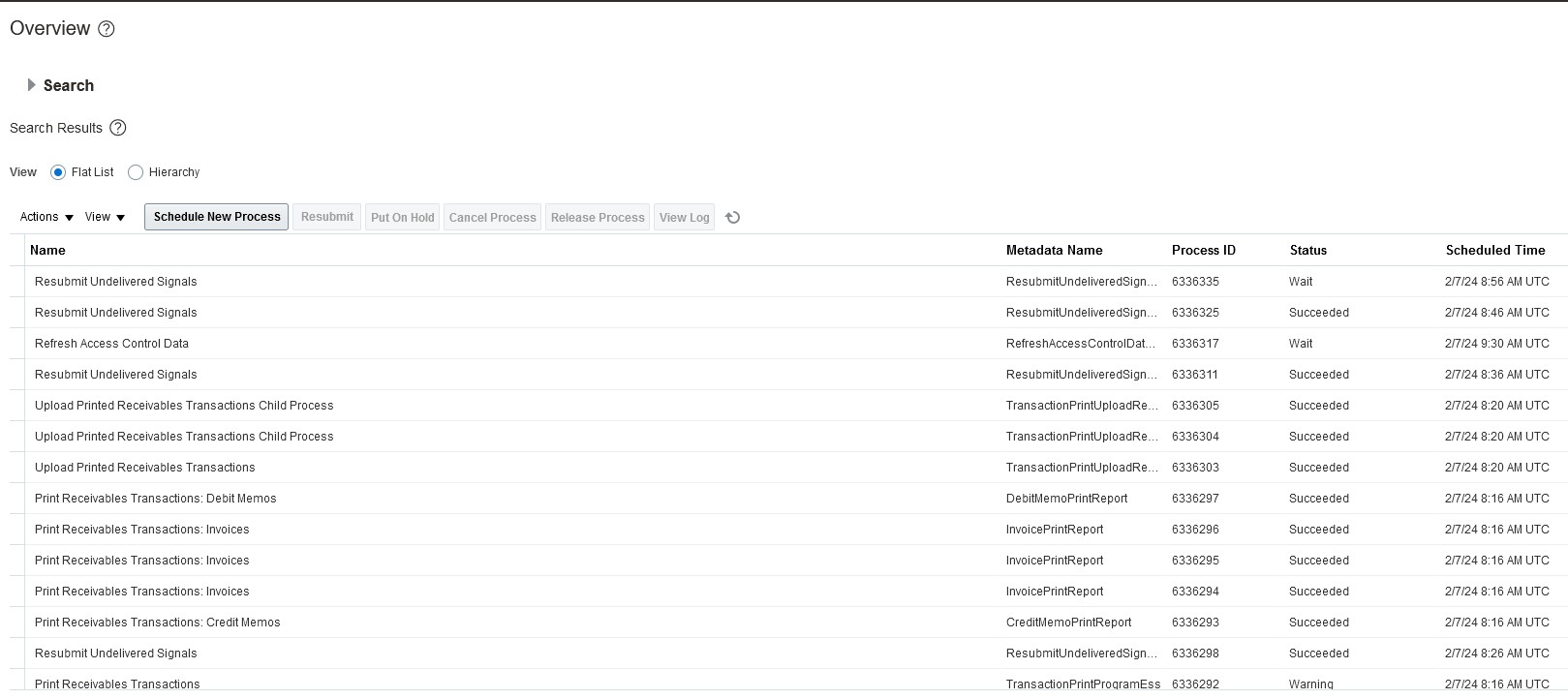
6. Run “Print Receivables Transactions” scheduled job
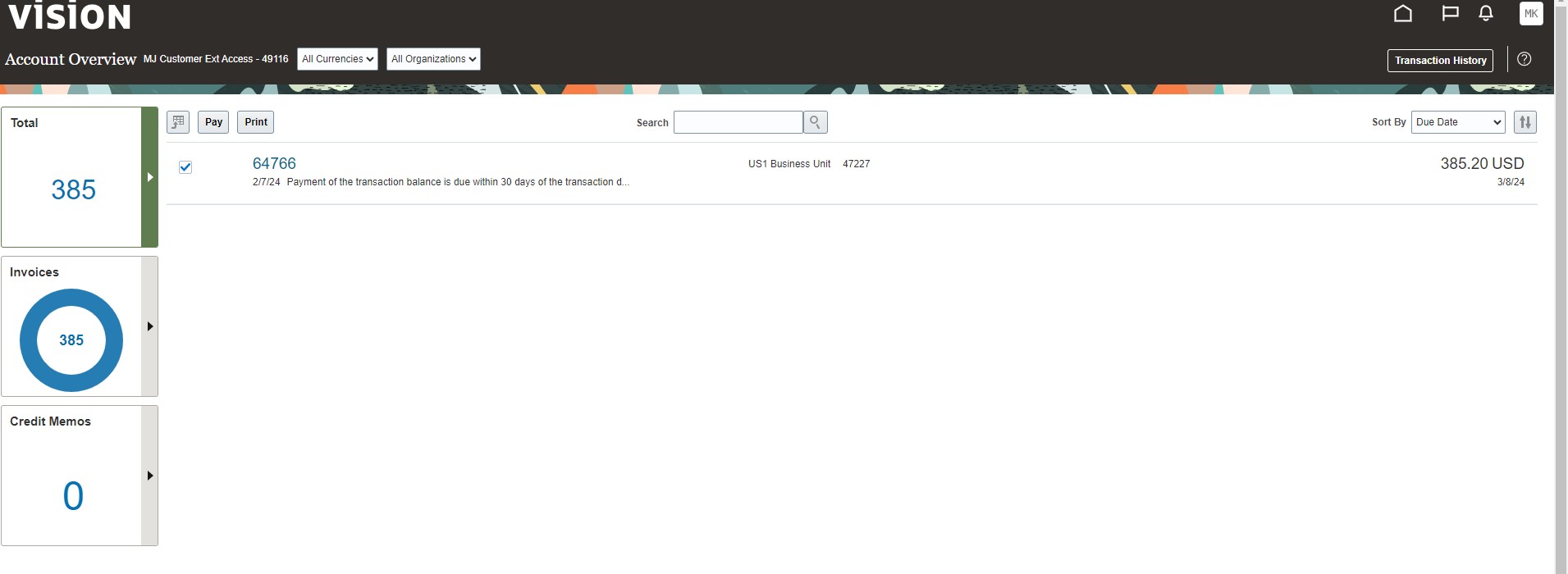
7. Sign-in Oracle fusion application using newly created user and password and select the customer account created in the first step.
- Sign in to Oracle Applications.
- From the application dashboard, select Bill Management.
- In the Select Account dialog box, enter the details of the customer account.
- Click Search.
- Select the customer and click OK.
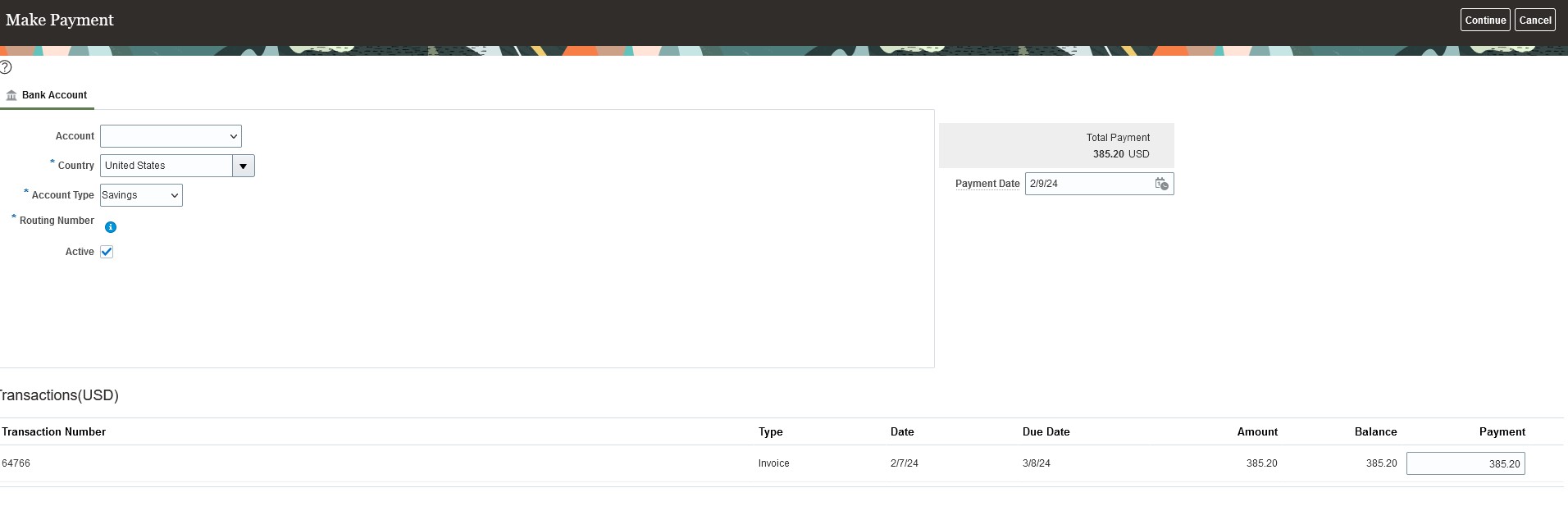
Make Payment
8.Review Customer Accounts Invoices, Open transactions that are pending, printed invoices, aging bucket and disputed transactions

Conclusion :
The purpose of this blog is to give clear direction or guidance on bill management setups with all the screen shots for the quick setup/reference. This blog is based on the Fusion cloud 24A setups and customer’s request. There might be small changes or no changes based on the Fusion cloud release version.