

The Problem Statement
In today’s world, most of the web application users are forced to memorize and track their passwords. Many of them try to keep the same or similar password for all the applications. Sometimes they use weak passwords or repeated passwords or write or save the password to a file or on some sticky note which leads to an increased risk of possible breaks from bad actors. In most cases, hackers or attackers can guess or steal credentials to gain access to sensitive information by using Keylogging, Phishing, Brute Force, or by the Man in middle attacks. Further, these attacks account for most data breaches, with more than 82% stemming from stolen passwords, phishing, misuse, and errors.
OCI IAM Domains offers a feature called “Passwordless authentication” that helps to overcome this problem. In this blog, we are going to explore Passwordless Authentication in more details:
Introduction / Overview
Passwordless authentication is a technique that allows a user to bypass the standard web-form-based authentication to gain access to a web application or IT system without entering a password or by answering security questions or any other secret. Passwords have been considered not to be safe for a very long time. As the passwords are hard to remember and they can be easily misplaced.
Getting Started
Passwordless Authentication can be achieved in many ways but following are the most common ones:
- One-time passwords (OTPs)
- Hardware Tokens or Software Tokens
- Authenticator Apps
- Biometrics
Advantages:
- Improved user experience and productivity
- Better or greater security
- Reduced helpdesk costs
Disadvantages:
- Dependency on the device or authenticator apps where you get your one-time password.
- Single point of failure if a user has only “mobile” factor configured. You can’t login into applications if you do NOT have access to your mobile device where you get/see OTP and do push notifications (ex: device switch off, poor cell reception, lost or stolen).
The Confusion:
Passwordless authentication is sometimes confused with Multi-factor Authentication (MFA). Both MFA and Passwordless Authentication use a wide variety of authentication factors, but MFA is often used as an extra layer of security on top of regular password-based authentication. Whereas Passwordless authentication doesn’t require a memorized secret and usually uses just one secure factor to authenticate identity, making it faster and simpler for users.
Steps to enable Passwordless Authentication in OCI IAM Identity Domains.
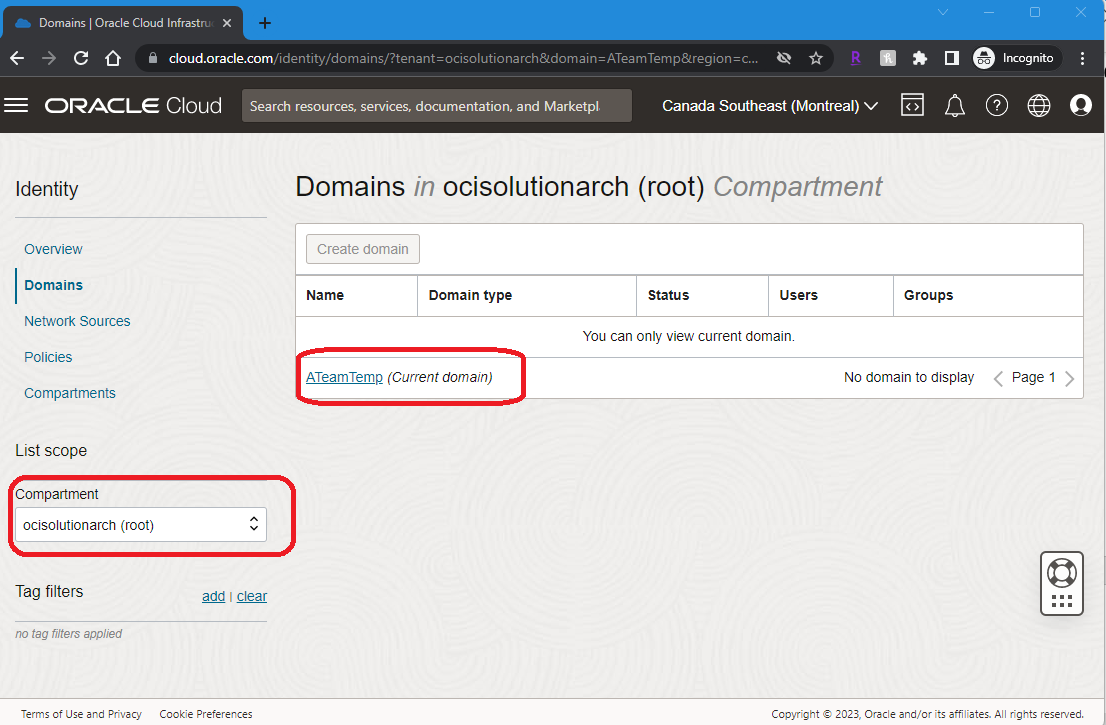
1. Log into OCI Console as Identity domain administrator role and go to the respective Identity Domain under which you want to enable Passwordless Authentication. From the OCI Console screen click on the “Menu option on the top left “Identity & Security” -> Domains
Note: Select the correct compartment to display “Domains”. Please see the below snippet for reference
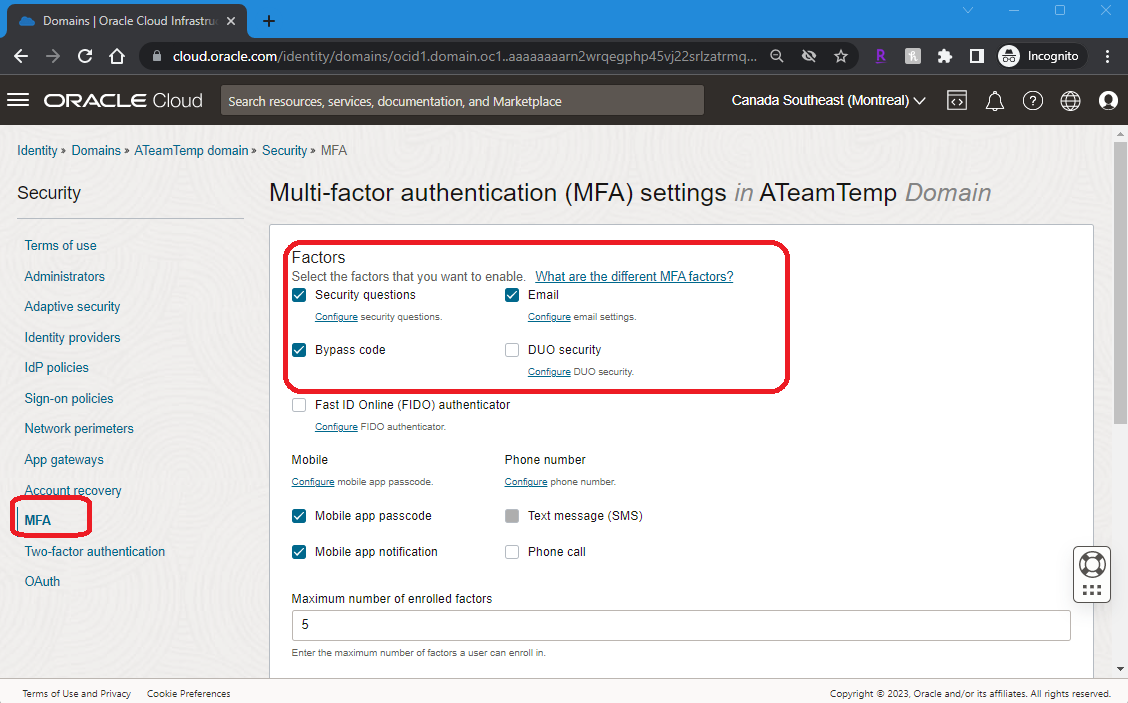
2. Click on the <DomainName> “Security” MFA and Enable the respective MFA factors (or any other factor) that you will use as an alternative for password. In this blog, Email is used as the factor.
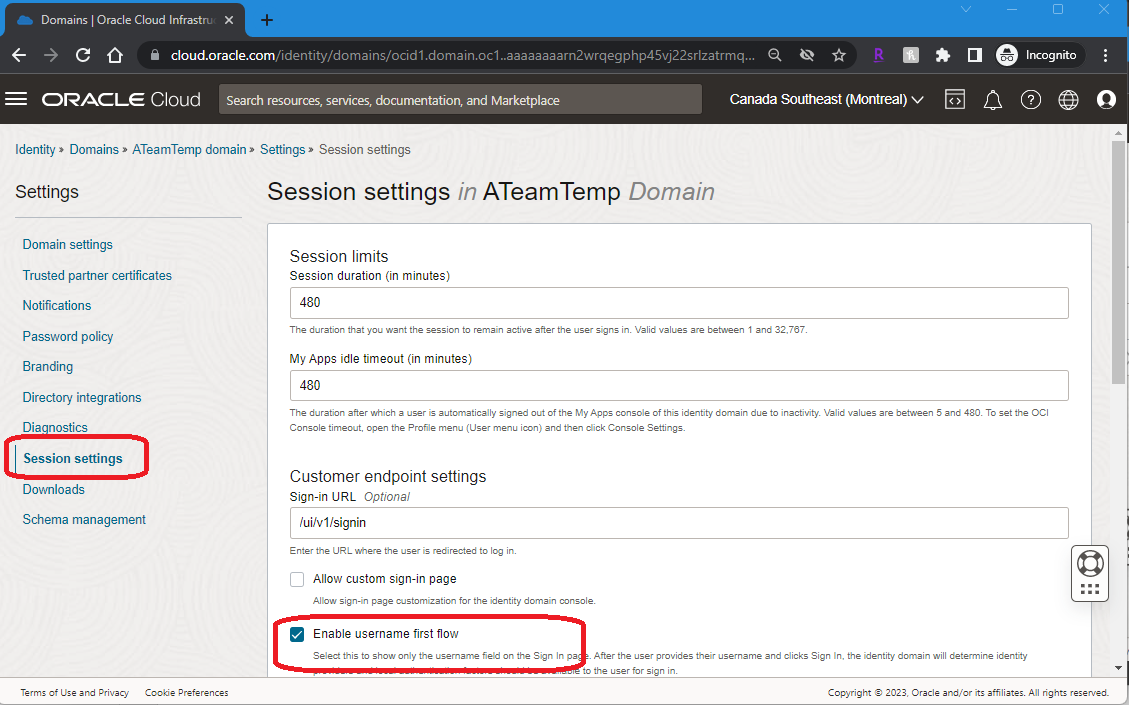
2. “Enable Username first flow” i.e., Change the setting on the sign-in page to change to only display the “username” field as shown below. Click on the <DomainName> Settings “Session Settings” select “Enable username first flow” Save changes.
Enabling “Enable User Name First” option allows the use of passwordless authentication. This setting changes the conventional username and password login to user name, followed by additional factor to log in.
3. Create or Update the “Identity Provider (IdP) policy to include the rule for Passwordless Authentication. Click on the <DomainName> Security “IdP Policies” “Default Identity Provider Policy” Click on “Add IdP rule” “Assign identity providers” select Conditions(if any) once done click on “Add IDP rule” as shown below
Note: I am using any user who is part of the “Domain Readers” group to trigger Passwordless Authentication.
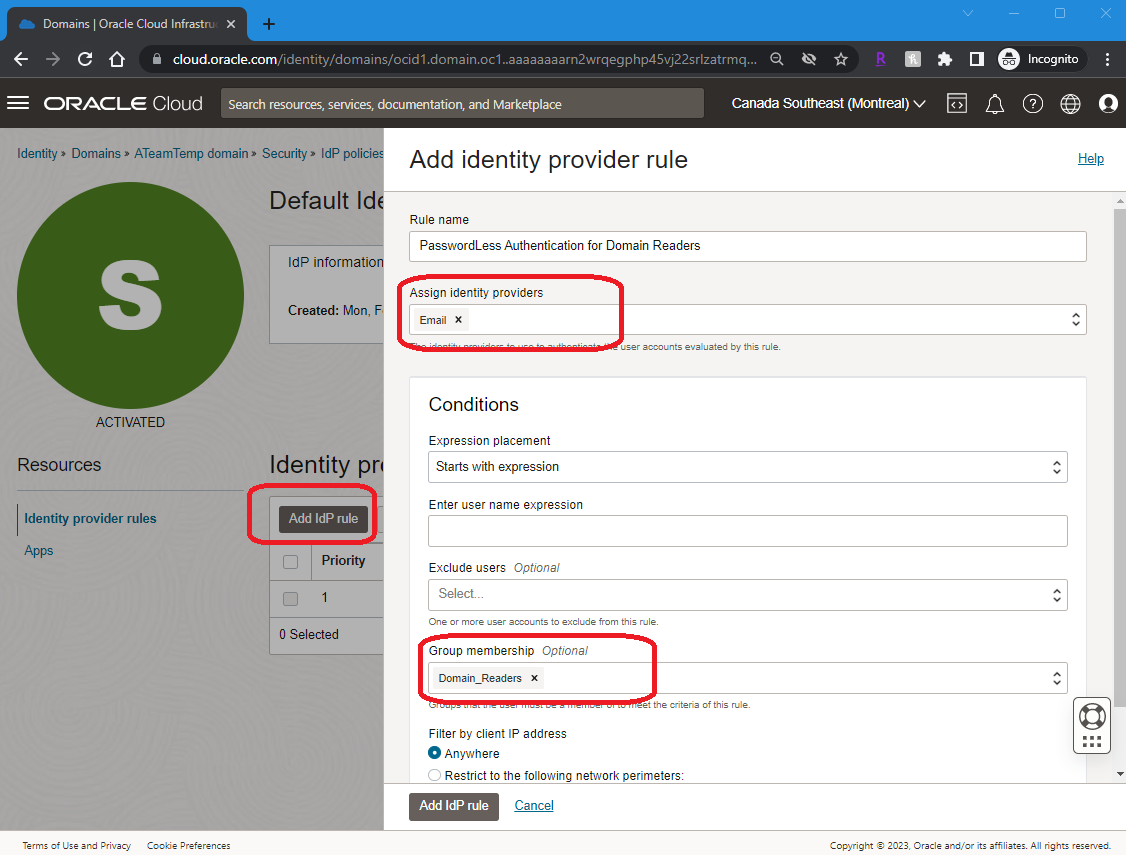
4. Modify or Edit the “Identity Provider rule” by placing the “PasswordLess Authenticate rule” on the top as shown below:
Note: Optional: Select the Apps if you want to enable the rule for only those applications.
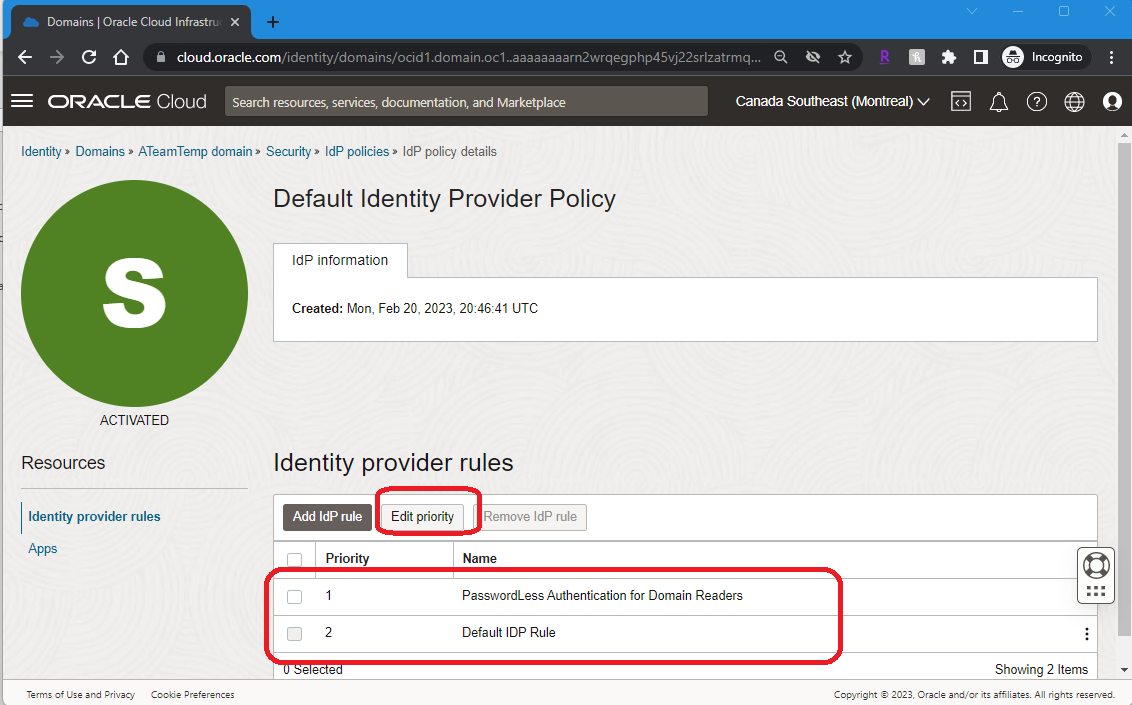
5. Test the Configuration.
5.1 Open a different browser or incognito mode (Chrome) or private window (Firefox). Now access the protected application. The user should get redirect to Login page where you see “username” as the only option (no password field). If you still see the password field, you need to close the browser and make sure you open a new browser session and try it again.
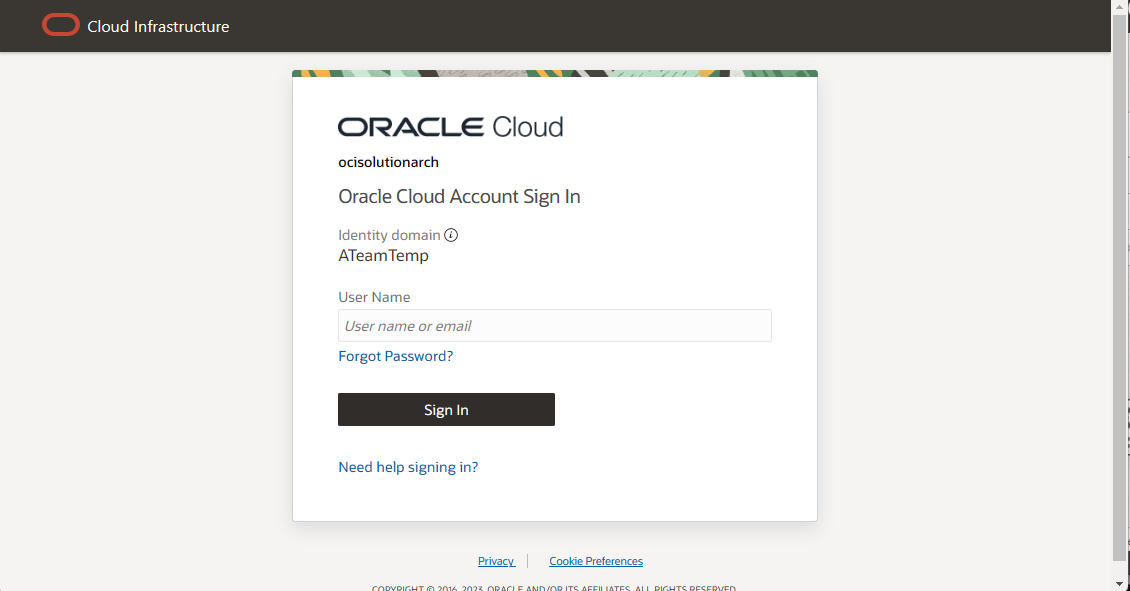
5.2 Enter the UserName and click on “Sign-In”
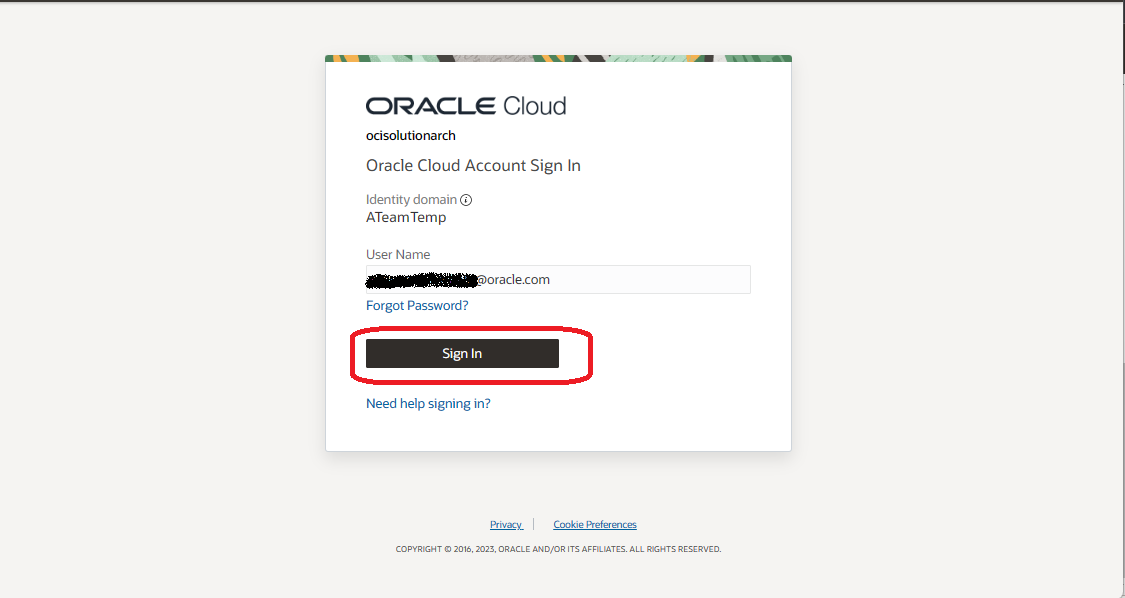
5.3 The user should get redirected and the login page should be asking for “passcode” instead of “password”. If you don’t see it then make sure you have not misconfigured anything and double check steps mentioned in the previous section.
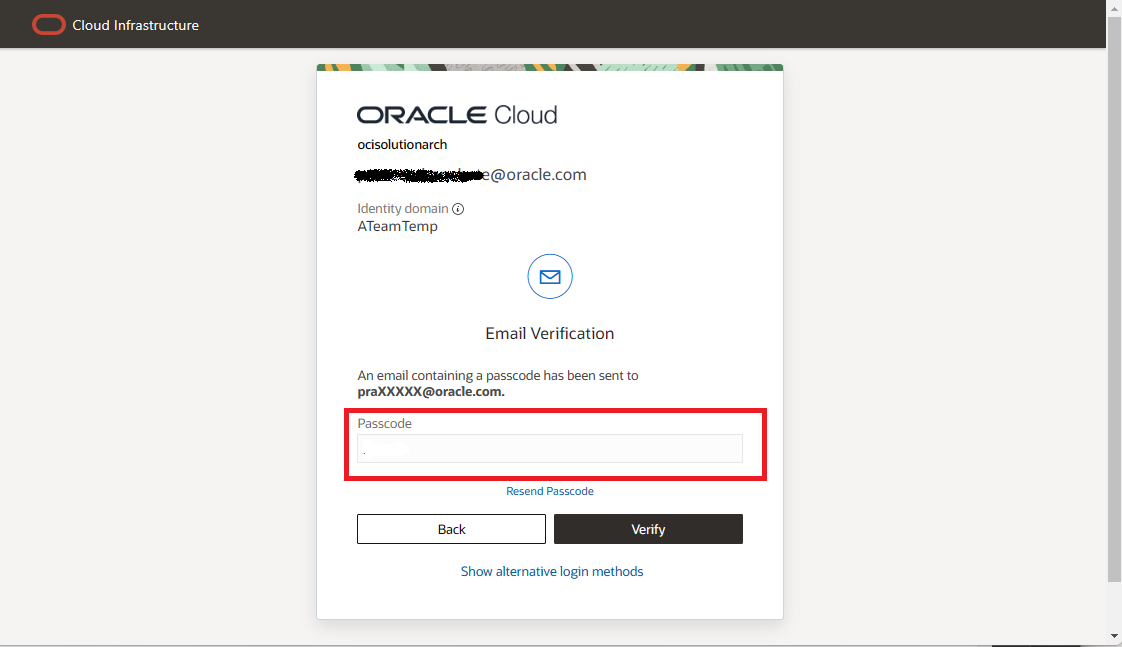
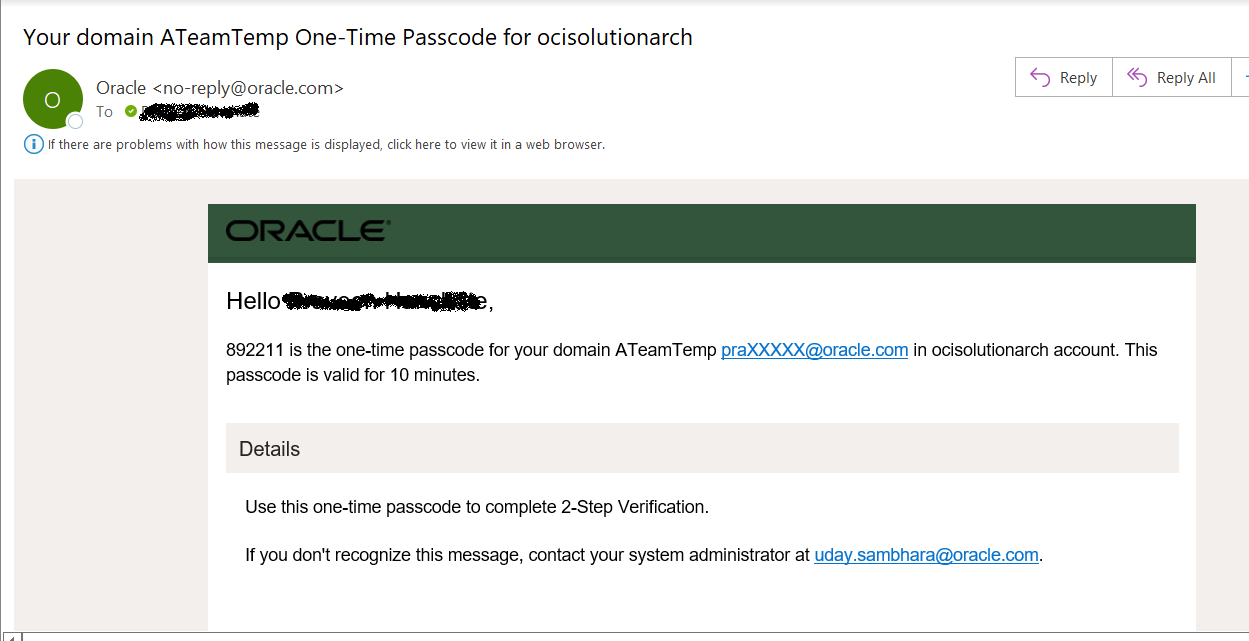
5.3 Enter the passcode received in the Email which is the MFA factor configured in the rule in step #3. and click on “Verify”
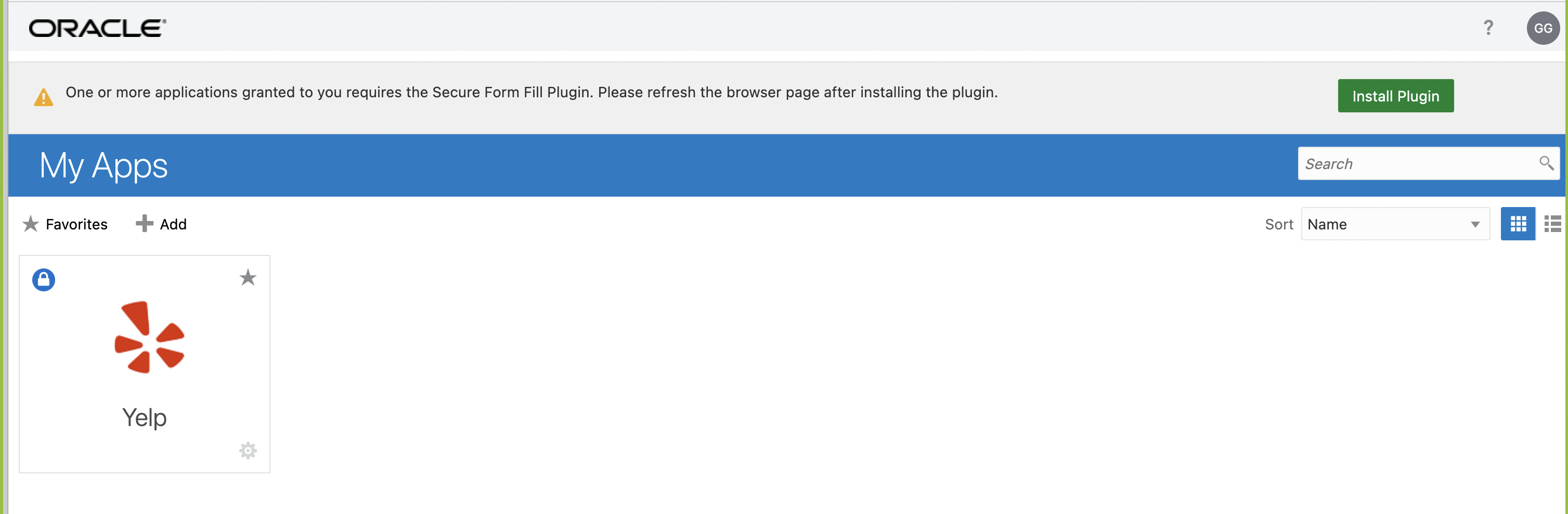
5.4 Bingo… The user should have successfully logged or landed on the application.
Summary
Passwordless Authentication is trending and more and more organization are adapting it to their individual use cases and hence becoming a new industry standard. Passwordless authentication allows users not to remember their passwords as it operates in the background making users stay productive. Passwordless Authentication used in conjunction with MFA and SSO solutions allows users to improve the experience and strengthen security and hence helps reduce IT operations expense and complexity making it a better choice for organizations to adopt.
References
https://docs.oracle.com/en/cloud/paas/identity-cloud/uaids/manage-passwordless-authentication.html