
Introduction
Oracle CX Sales and B2B Service (formerly Engagement Cloud or Sales Cloud) provides a set of powerful object based REST APIs to perform CRUD operations on individual objects. While these APIs are very powerful and serve most use cases, there are use cases where you need to combine data from different objects. E.g.,
- Query opportunities, but also retrieve some attributes of the Account object associated with the opportunity.
- Query opportunities for accounts who meet a certain criteria
Using object based REST APIs, this can be achieved, but not in a single call. You would run one query and then for every record returned by that query, you will query the second object.
This approach works only for an extremely small result set. Of course, you can optimize it by running the operations within a loop in parallel, but eventually you hit a point where the performance is unacceptable.
This is where the adaptive search APIs really shine.
Main Article
In this post, we’ll see how the above use case can be best implemented using the adaptive search REST APIs.
We’ll use an example where you want to find all opportunities with accounts who have more than 100,000 employees and has the text “Fortune 500” in the description. Since these fields do not exist in the opportunity record, usually a separate query has to be made on the account object. However, this will be done in a single call.
This is a simplified hypothetical example. The filter condition can be more complex involving multiple attributes using AND or OR clauses etc. But I leave that for the reader to implement.
First we have to setup adaptive search, if not already.
Setup Adaptive Search
Go to Setup and Maintenance.
Search and Click on Task “Configure Adaptive Search”
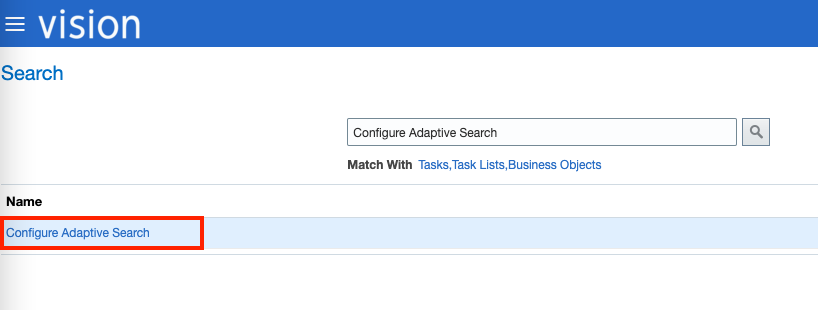
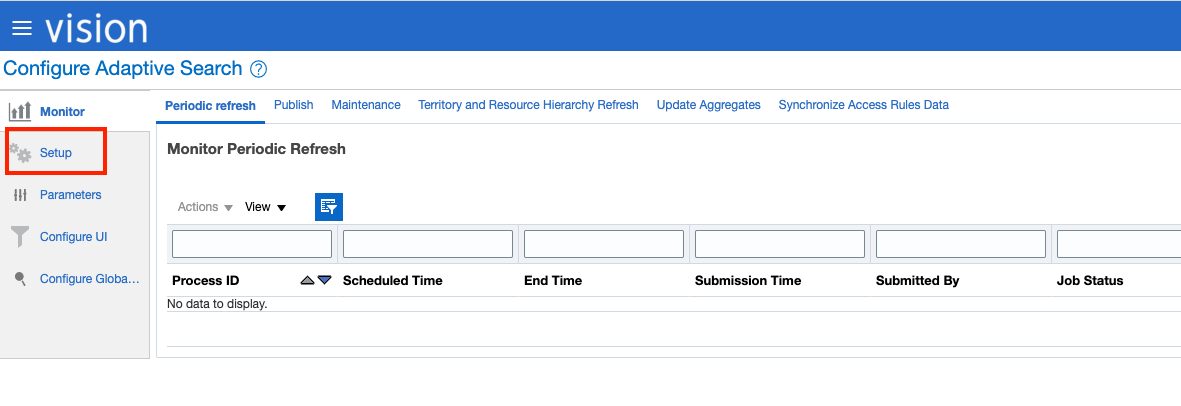
Default view for this task is the Monitor jobs tab. This lets you view the results of the various jobs
Click on Setup to configure objects for Adaptive Search
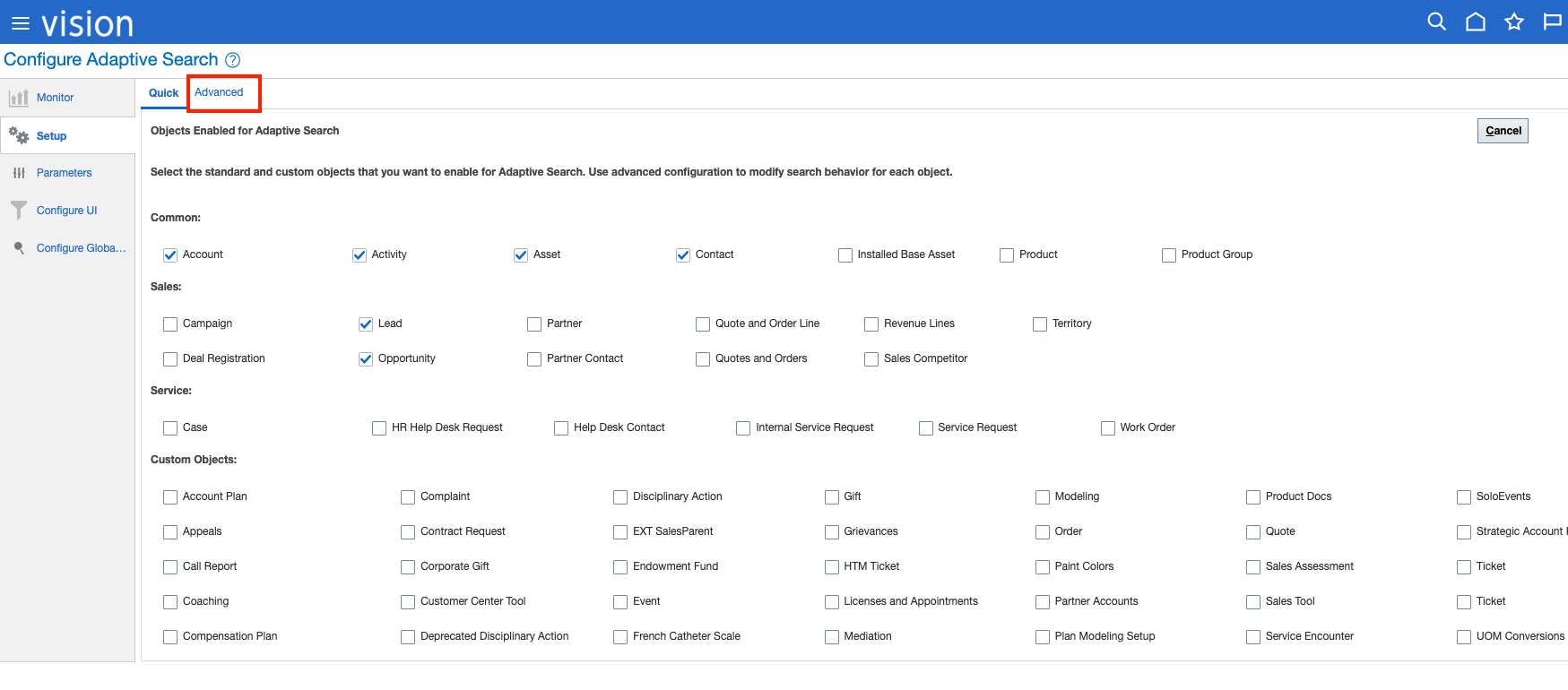
The landing tab displays the objects available and allows to quickly enable or disable objects.
However, it does not allow for fine grained configuration. For that, click on the Advanced tab
The advanced tab provides fine grained control over adaptive search configuration of application objects and their fields.
1. In the left pane, you can see the object hierarchy and information on which objects are enabled for adaptive search.
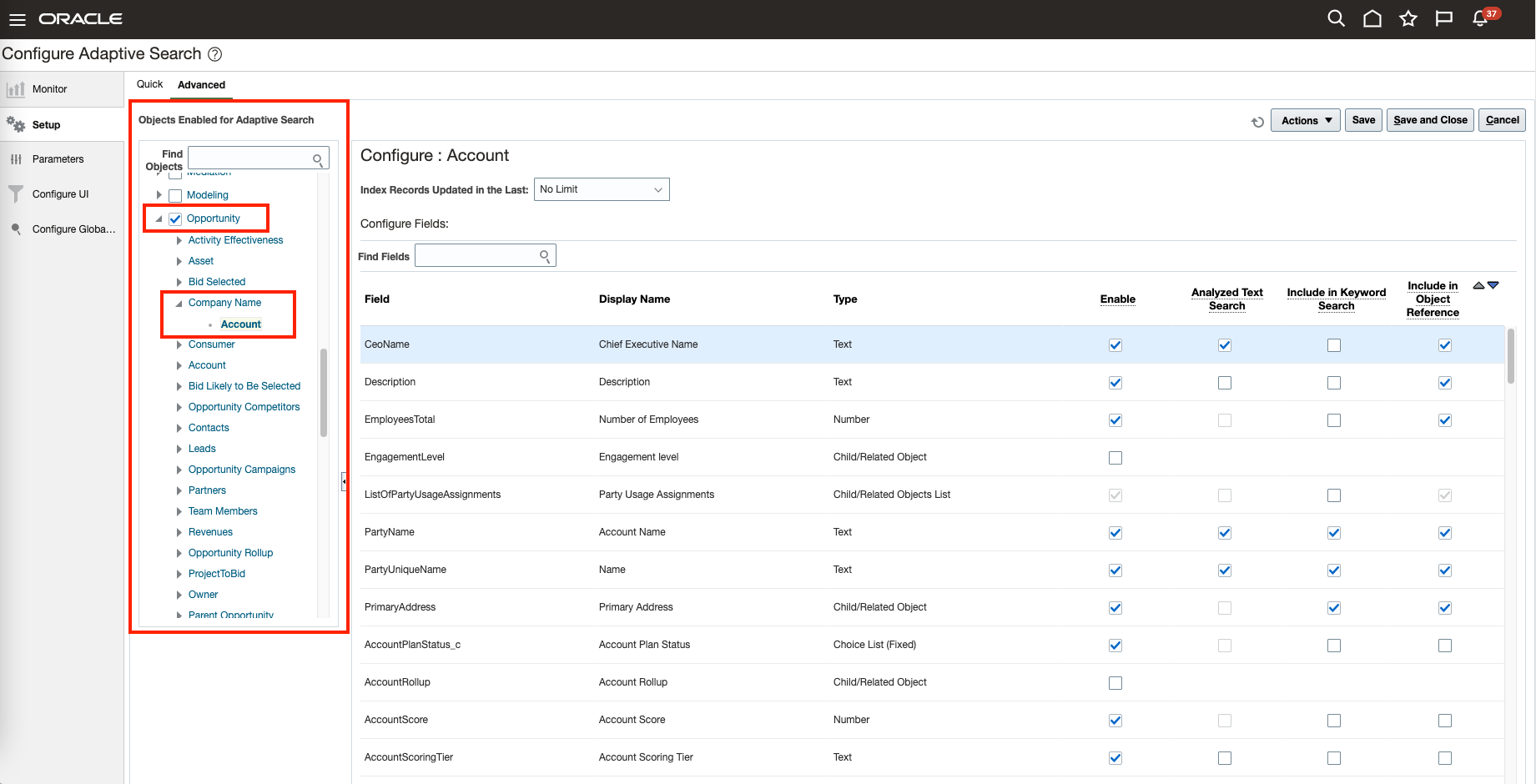
E.g., in the screenshot, Opportunity Object is enabled for adaptive search (indicated by a checkmark against it)
It can also be seen that the opportunity object had a lot of child or related objects. One such field, Company Name, is a reference to a record in the Account object.
Note: You only want to enable objects and fields you are interested in for adaptive search for optimal performance.
2. In the right pane, you can see details about individual fields of the object selected in the left pane.
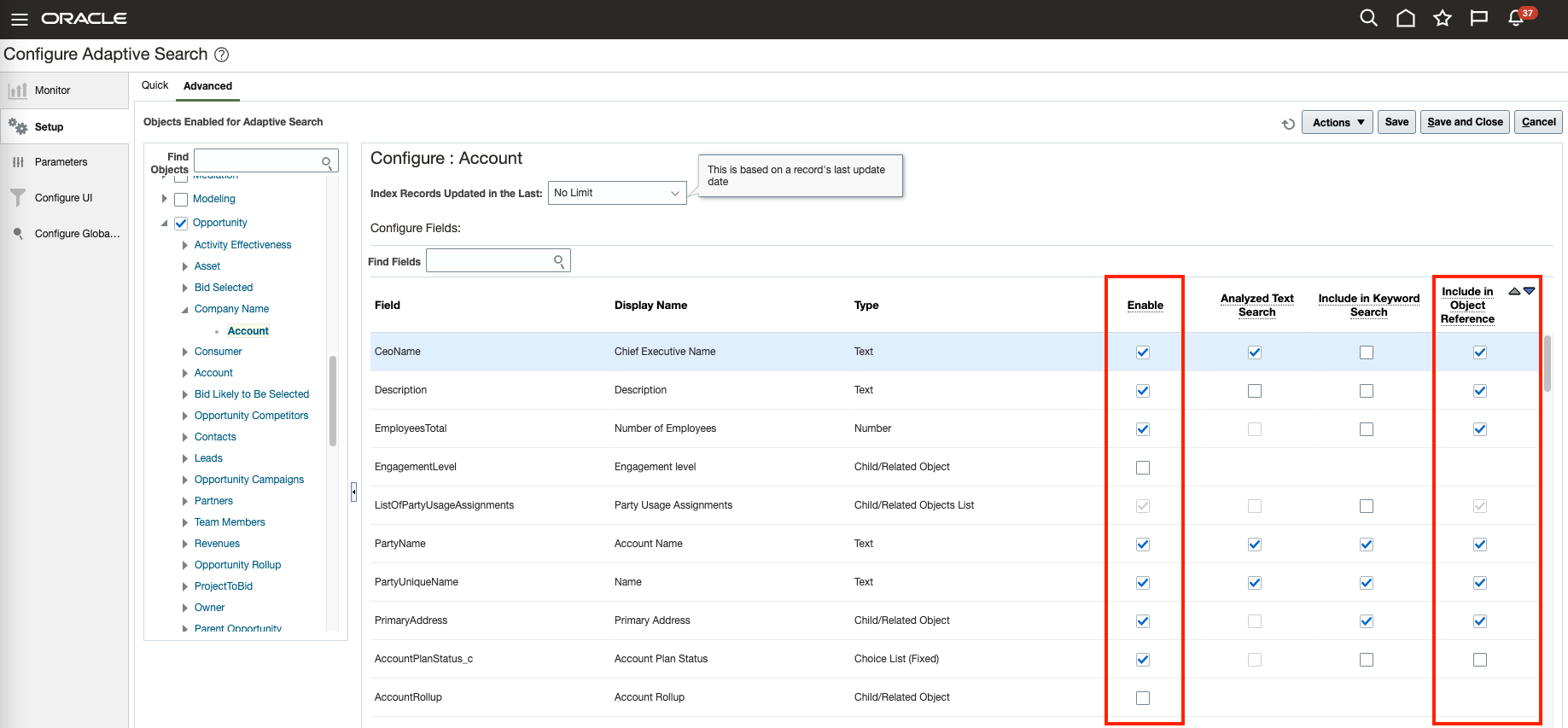
E.g., in the screenshot, you can see the Field Name and its description. Let us review the 4 checkboxes against each field
• Enable: You must enable an attribute if you want that attribute to be available in the search, filter, or results card.
• Analyzed Text Search: This is required to enable attributes to be searched as individual words during search.
• Include in Keyword Search: This makes field searchable in the top level workspace search.
• Include in Object Reference: Use in searching for parent in the related object search. This is the one that enables a join query.
Enable and Include in Object Reference are the ones crucial for our use case. The fields that are to be a part of the response payload as well as queries need to be “Enabled”. Moreover, the reference object fields that need to be returned along with the main object payload or that need to be a part of the query should be “Included in Object Reference”
Configure Main and Reference Objects for Adaptive Search
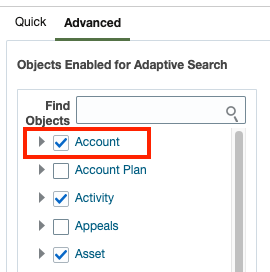
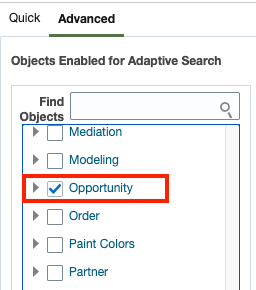
If not already, Enable the Account and Opportunity objects for Adaptive Search. In the left pane, check the box against Opportunity and Account objects.
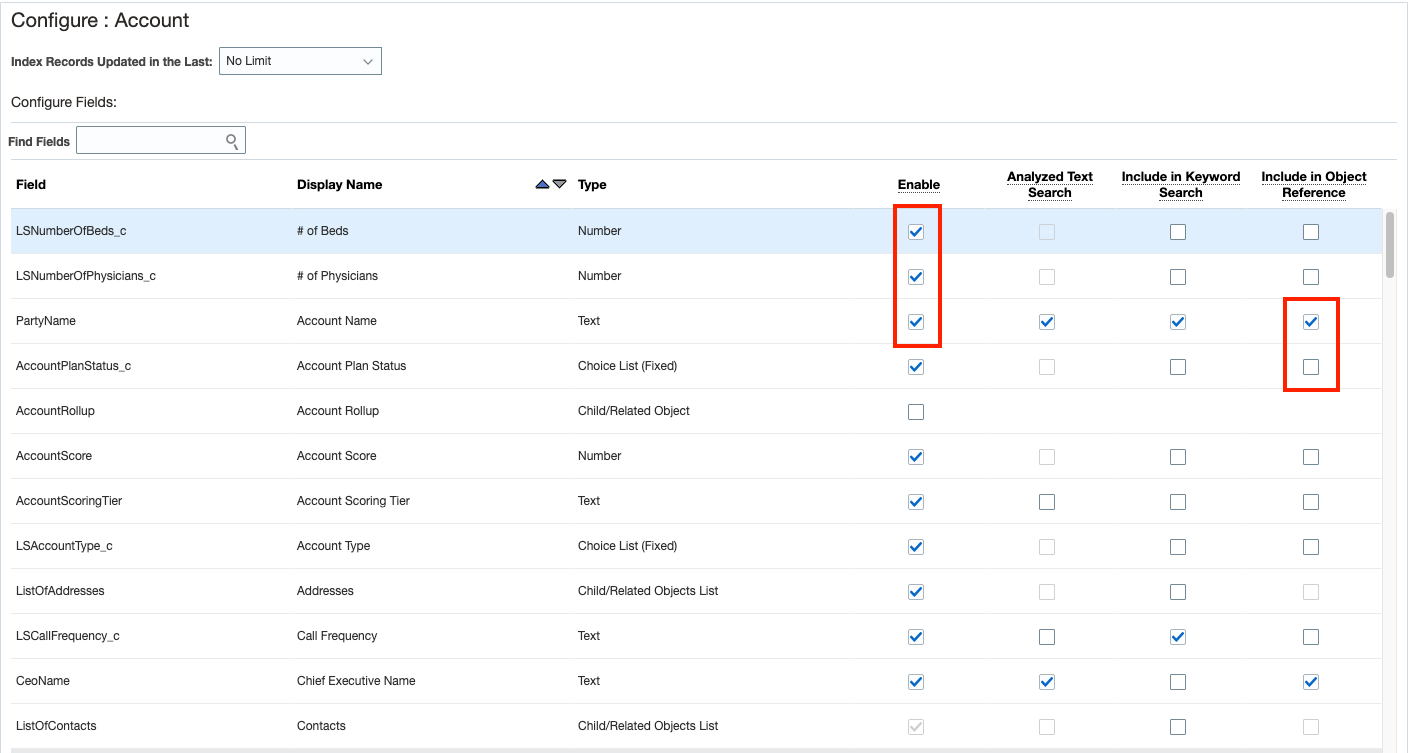
Click on the account object in the left pane. This will display all its fields in the right pane. Check the “Enable” box against all the fields that you want to be a part of the adaptive search – either as a response payload or part of the query.
Since the Account object is a reference object for this use case (Opportunity is the main object that we will be returning the record of), check the “Include in Object Reference” box against the fields in the Account object which you would want to be a part of the adaptive search – either as a response payload of the main object or part of the query
A max of 15 fields are allowed to be included in object reference, so choose wisely
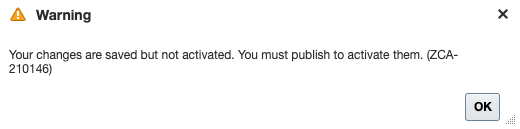
Click on Save to save the changes. You will get a warning indicating that the changes will not be activated until you Publish the changes.
Click on the Opportunity object in the left pane. This will display all its fields in the right pane. Check the “Enable” box against all the fields that you want to be a part of the adaptive search – either as a response payload or part of the query.
Once you have selected all the required objects and their fields, you need to publish to register the objects and fields with adaptive search. To do so, click on Actions drop down and select Full Publish or Partial Publish.
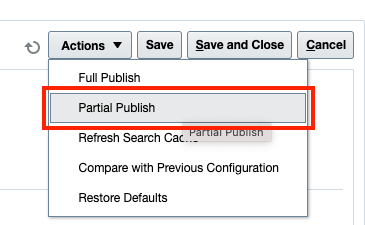
Full Publish: If you want to publish all changes that have been made since the last publish process
Partial Publish: If you want to publish only a few objects that have been changed. This is useful when multiple people are working on different objects or when you are only partly done with a few objects and don’t want them to be included.
You will get a Publish confirmation. Review the objects that will be published and click Publish

You can monitor the progress of the publish job by navigating to Monitor -> Publish tab.
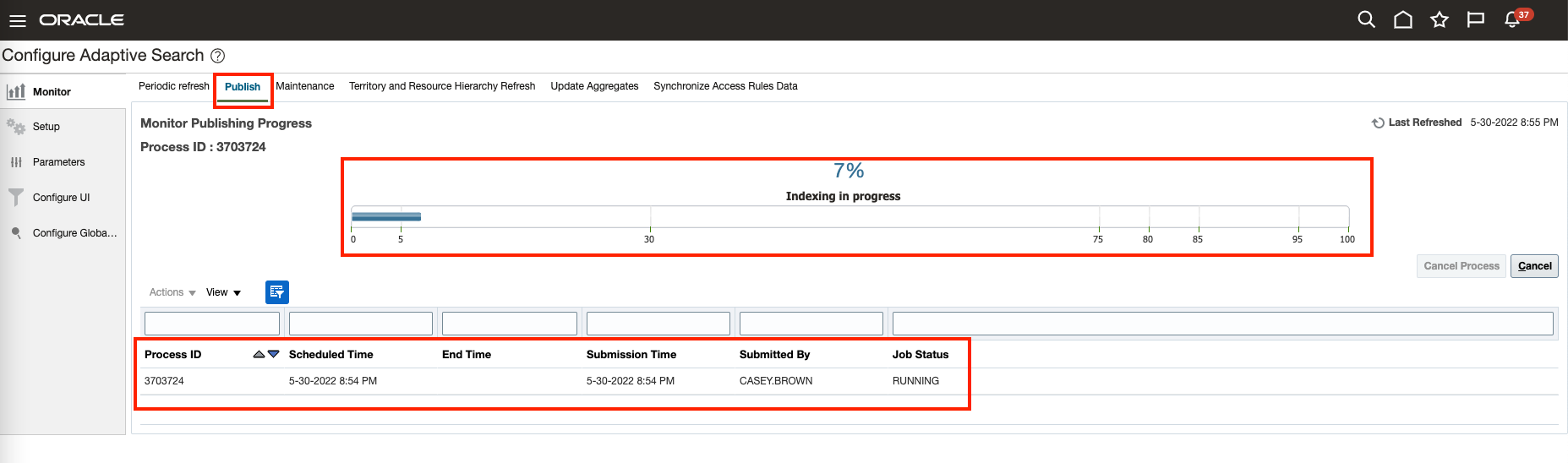
Once the job has finished, you can use the objects and query them using the adaptive search.
Here are the details of the Adaptive Search REST API that we will use to run this query
URI: crmRestApi/searchResources/latest/custom-actions/queries
Method: POST
Headers:
Authorization: Basic or Bearer
Preference: transient
Content-Type: application/json
Body:
{
    "entities":
    {
        "Opportunity":{
            "q": {
                "op": "$and",
                "criteria": [
                    {
                        "op": "$gt",
                        "attribute": "CustomerAccount.EmployeesTotal",
                        "value": 1000000
                    },
                    {
                        "op": "$co",
                        "attribute": "CustomerAccount.Description",
                        "value": "Fortune 500"
                    }
                ]

            },
            "fields": [
                "OptyId",
                "CustomerAccount.Description",
                "CustomerAccount.PartyName",
                "CustomerAccount.EmployeesTotal",
                "OptyNumber",
                "Amount_c"
            ],
            "excludeFields": null
        }
    },
    "onlyData":true
}
In the above payload, CustomerAccount is the field in the Opportunity Object that references the Account object
Here is an example response:
{
    "items": [
        {
            "_entity": "Opportunity",
            "OptyId": 300000187096316,
            "CustomerAccount": {
                "Description": "A Fortune 500 company, engaged in diversified fields - from construction to healthcare",
                "PartyName": "McNally Products",
                "EmployeesTotal": 1500000
            },
            "OptyNumber": "273834",
            "Amount_c": null
        },
        {
            "_entity": "Opportunity",
            "OptyId": 300000187096365,
            "CustomerAccount": {
                "Description": "A Fortune 500 company, engaged in diversified fields - from construction to healthcare",
                "PartyName": "McNally Products",
                "EmployeesTotal": 1500000
            },
            "OptyNumber": "273835",
            "Amount_c": null
        },
        {
            "_entity": "Opportunity",
            "OptyId": 300000187096309,
            "CustomerAccount": {
                "Description": "A Fortune 500 company, engaged in diversified fields - from construction to healthcare",
                "PartyName": "McNally Products",
                "EmployeesTotal": 1500000
            },
            "OptyNumber": "273833",
            "Amount_c": null
        }
    ],
    "totalResults": 3,
    "count": 3,
    "hasMore": false,
    "limit": 10,
    "offset": 0
}