
Authentication to Linux servers can be handled a number of ways thanks to the Pluggable Authentication Module (PAM). Given the importance of securing these machines, managing account lifecycles is vital. Using local authentication means that any changes do not persist beyond the server. So, if you have a fleet of servers to manage, changes such as disabling a user must be replicated across all machines that user has access to.
Using the Identity Cloud Service (IDCS) PAM module will let you administer user accounts centrally in IDCS. All machines configured to use the PAM module will reference IDCS as a central repository for user accounts. Disable the user in IDCS, and they lose the ability to authenticate to the server fleet. However, for ease of use users will want to use an account they have already created instead of adding IDCS to their password list. Delegating authentication to Active Directory (AD) solves this problem by offloading the authentication to AD, which is where many organization accounts already reside.
What You Will Need
- Microsoft Active Directory Bridge for IDCS
- IDCS with Standard License
- An Active Directory Deployment
- An Admin account for Active Directory
- An Admin Account for IDCS
- 1 or more Linux servers
Configuring PAM to Use Delegated Authentication
Ideally, you are already familiar with the IDCS PAM module. The IDCS PAM module allows Linux’s pluggable authentication module to authenticate users against IDCS in addition to the local passwd file. If you are not familiar with PAM, detailed instructions for installing and using the module can be found here.
The other piece of this puzzle is configuring the Active Directory (AD) Bridge. If you don’t have a live AD Bridge, installation is simple and documentation can be found here. The primary use of the AD Bridge is synchronizing users to and from AD and IDCS. If you’re using AD Federation Services, the two services can be combined to allow SAML SSO with minimum user management. Any changes made to user accounts in AD are replicated to IDCS and vice versa. However, since SAML SSO requires a browser to be involved to pass the assertion, there are limits with using it via command line tools like ssh.
If you have both of these services installed and configured, enabling Delegated Authentication is easy.
How Delegated Authentication Works
If an AD Bridge is active in IDCS, Delegated Authentication can be enabled to allow AD to maintain user passwords. IDCS will not store the user’s password, but will pass any password changes to AD. Likewise, IDCS will pass credentials to AD for authentication directly. For all intents and purposes, this means that AD will be authenticating the user, but you will still get all the advantages of using a cloud identity provider.
OCI will maintain IDCS high availability in the cloud. However, what happens if the AD bridge crashes or your AD domain controller goes down? IDCS can optionally store a cache of passwords for when AD is unreachable. Upon a successful login IDCS will cache the hash of the password for a configurable length of time. This will allow users to authenticate without a connection to AD for a time while services are being restored.
Activating Delegated Authentication
Activation of Delegated Authentication is easy. Before beginning, go to Settings > Directory Integrations and make sure that your AD bridge status is active and connected:
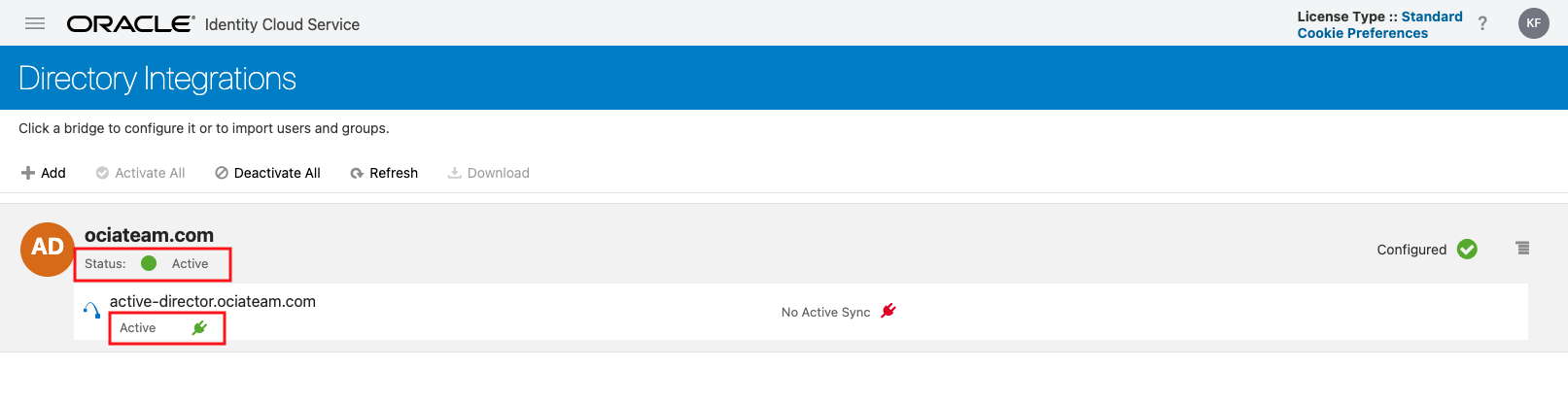
If the AD Bridge is active, then all that’s left to do is test and activate delegated authentication. Go to Security > Delegated Authentication and expand the Active Directory domain by clicking the small triangle next to the domain name. You will see a screen similar to this, except the Activate Delegated Authentication slider will be off.
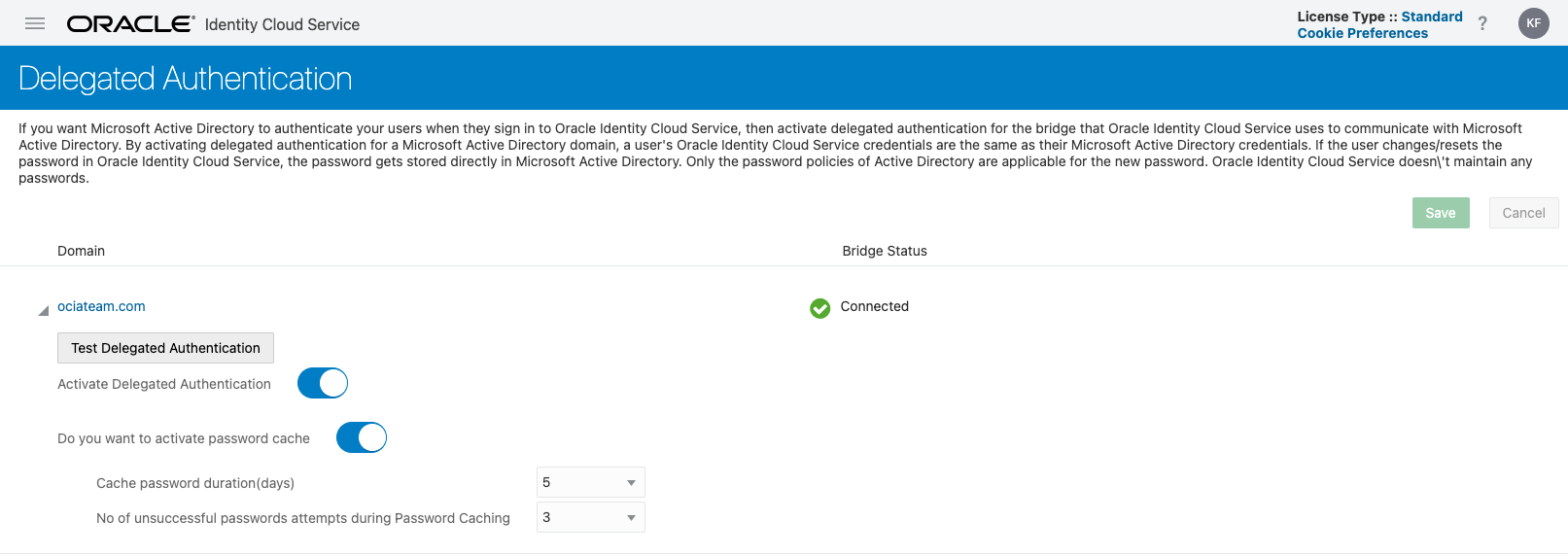
Click on the Test Delegated Authentication button and enter an Active Directory username and password. If the test is successful, a green banner will be displayed at the top of the page, which will look like this:


Once you’ve successfully tested delegated authentication, set the Activate Delegated Authentication slider to the on position. Congratulations! Your Linux machine configured with IDCS PAM module can now use AD credentials for authentication. Please be careful not to hurt your shoulder as you pat yourself on the back.
When your users log in, they will be able to use a username that originated in Active Directory, provide the password for their account in Active Directory, and be granted access. The screenshot below shows this flow; SSH was set to use kc.flynn who was created in Active Directory and replicated into IDCS via the AD Bridge. The account kc.flynn has no password in IDCS, but since Delegated Authentication is enabled, the password was validated against Active Directory for SSH access.

Troubleshooting
The AD Bridge keeps its own log files that can be combed through if authentication isn’t working. Check the AD Bridge logs by opening the AD Bridge application and selecting the View Logs button. This can give the perspective on what is happening from the Bridge’s point of view. The AD Bridge logs are stored on the machine running the bridge in two text files.

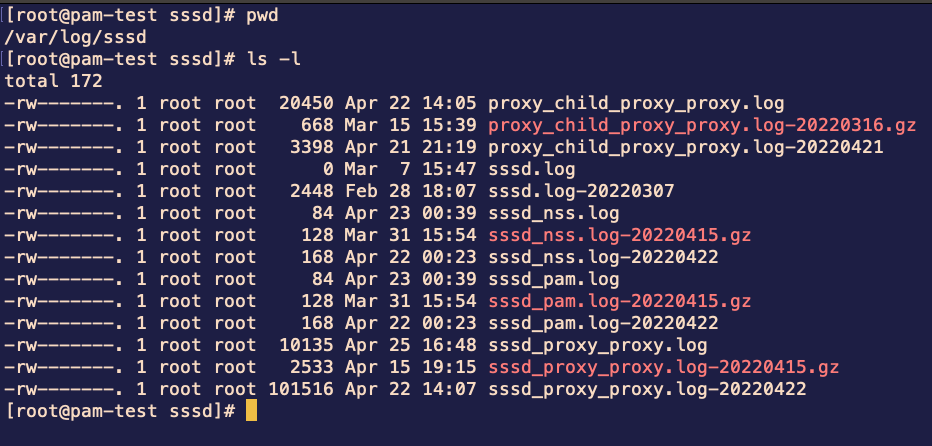
Other places to check for errors would be the SSSD/NSCD logs in Linux at /var/log/ as well as using systemctl status commands to check if the SSSD/NSCD services are running. This is useful for checking to see if the PAM module is having difficulty communicating with IDCS or diagnosing configuration problems.
Finally, detailed IDCS logs can be generated by going to Settings > Diagnostics and selecting Service View and Save. Re-create the issue, then download the diagnostics from Reports > Diagnostic Data and select Service View from the dropdown and Download Report. This gives a detailed account of activity inside IDCS that may help diagnose problems with communication between AD, IDCS, and the PAM module.