
Introduction
This blog is the first of three scenarios mentioned in “How to access OIC in a secure way” mini-series. The main page presenting all scenarios can be found here.
In this scenario, we will discover how to connect from an On-Premises network via VPN or a FastConnect private peering connection.
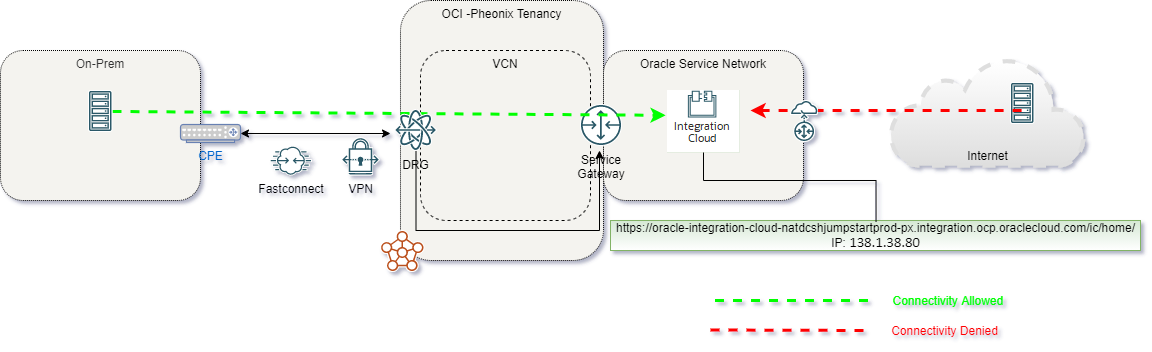
For this connectivity model, we will use a VPN tunnel with BGP. All information can also be applied to a FastConnect virtual circuit.
In this scenario we will use the following technologies:
- VPN tunnel – for more information please access official documentation here
- Service Gateway (SGW) – for more information please access official documentation here
- Virtual Cloud Network (VCN) – for more information please access official documentation here
- Dynamic Routing Gateway v2 (DRGv2) – for more information please access official documentation here
Prerequisites
In this blog, we will cover how you can access OIC over VPN tunnel and Service gateway. For doing this we will need the following resources already provisioned:
1. OIC instance – in our test will be having an OIC instance preconfigured in the Phoenix region that is having access URL as https://oracle-integration-cloud-natdcshjumpstartprod-px.integration.ocp.oraclecloud.com/ic/home/.
2. VCN – in our case is named “OCI_VCN” with a non-overlapping CIDR block, in our case “10.0.0.0/24”.
3. Service Gateway (SGW) – in our case is named “OIC_Blog_SGW”.
4. VPN tunnel – In our case is named “OIC-Blog-IPSec”.
5. Customer On-Premises network with a non-overlapping CIDR block, in our case “172.16.0.0/24”.
6. A Windows VM/Server that is part of an On-premises network.
7. All security rules (OCI and On-Premises) are in place to allow traffic.
Solution Description
For this scenario, I have used the following network diagram
To have secure connectivity from On-premises to the OIC instance, we need to find the IP address of our OIC instance, which in our case has the IP “138.1.38.80”. This IP address can be found using the nslookup command:

Now we need to activate Transit Routing so that the On-premises network will receive over BGP the Oracle Service Network (OSN) prefix routes.
To do that, we need to complete the following steps:
1. Create a new routing table in the VCN that is pointing to the Service Gateway (SGW) and allow all Region Services over that route:
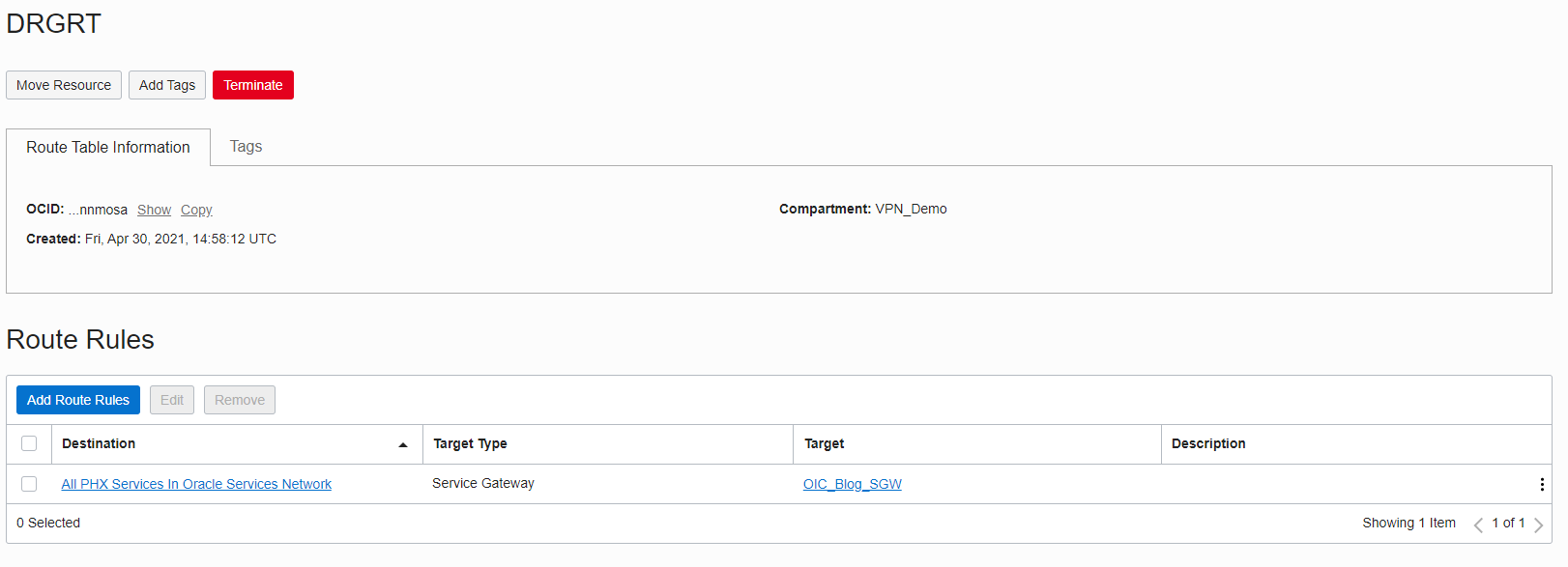
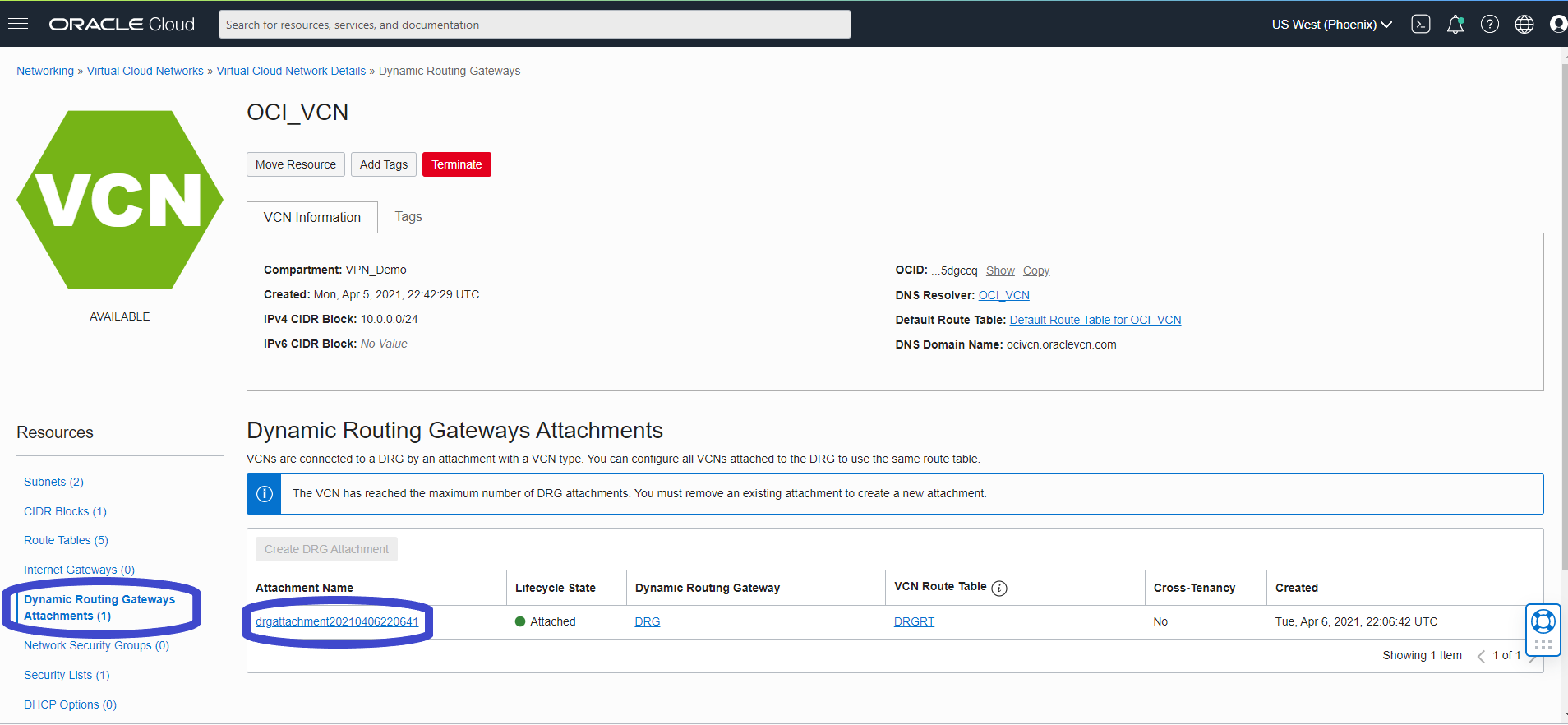
2. Attach the newly created routing table to the VCN attachment by going to “VCN -> Dynamic Routing Gateways Attachment” and click on the attachment name:
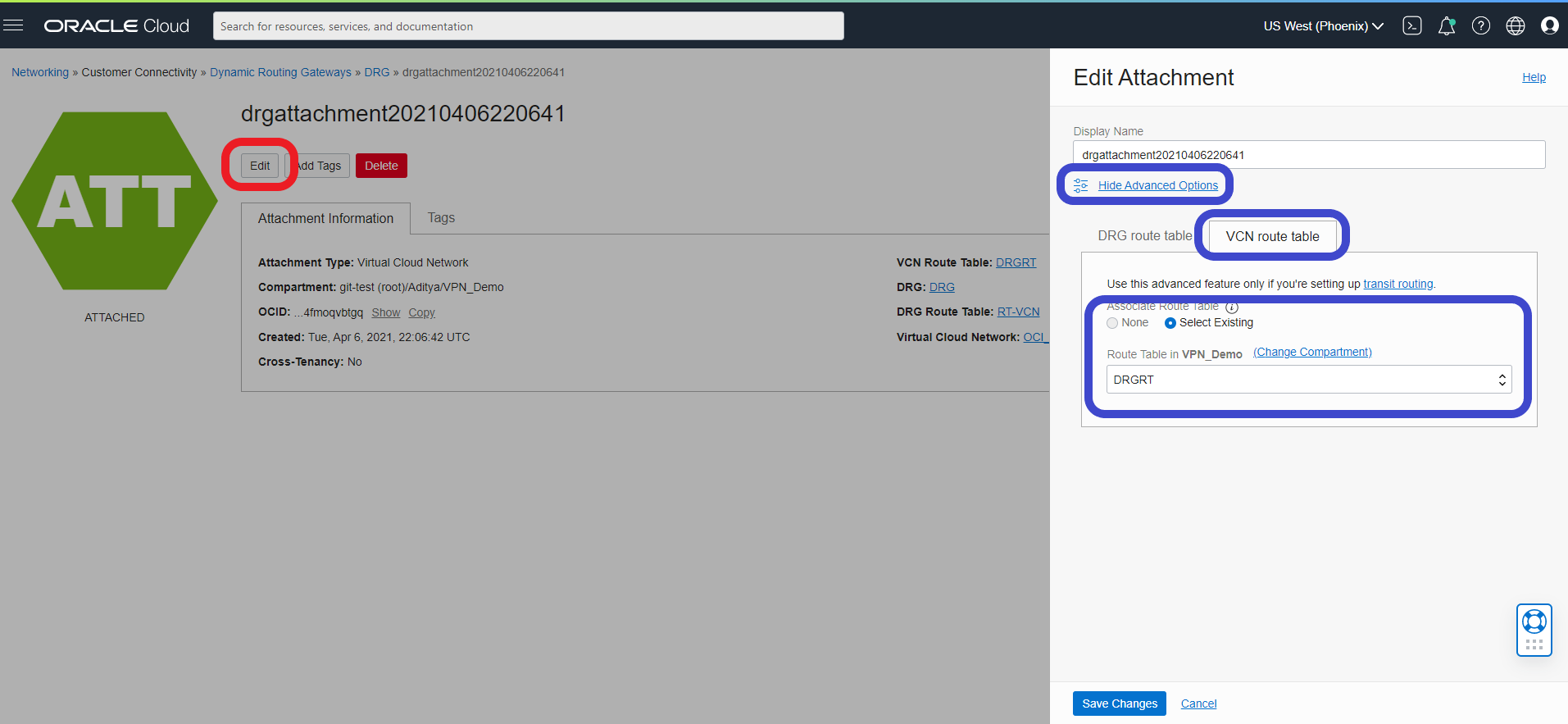
3. Now click the edit button and under advanced options select the VCN route table tab and select the existing route table that we created earlier:
We should now see the OSN subnets advertised over the BGP link:
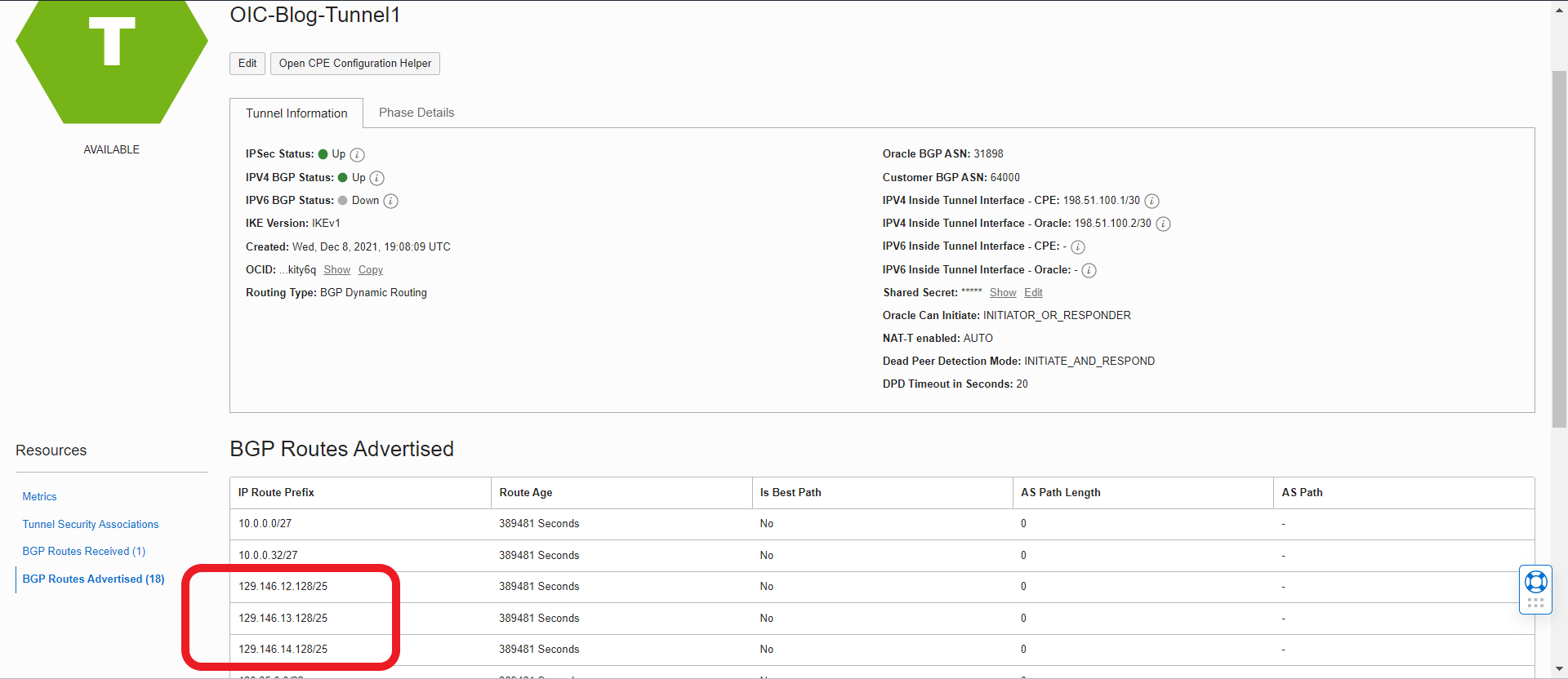
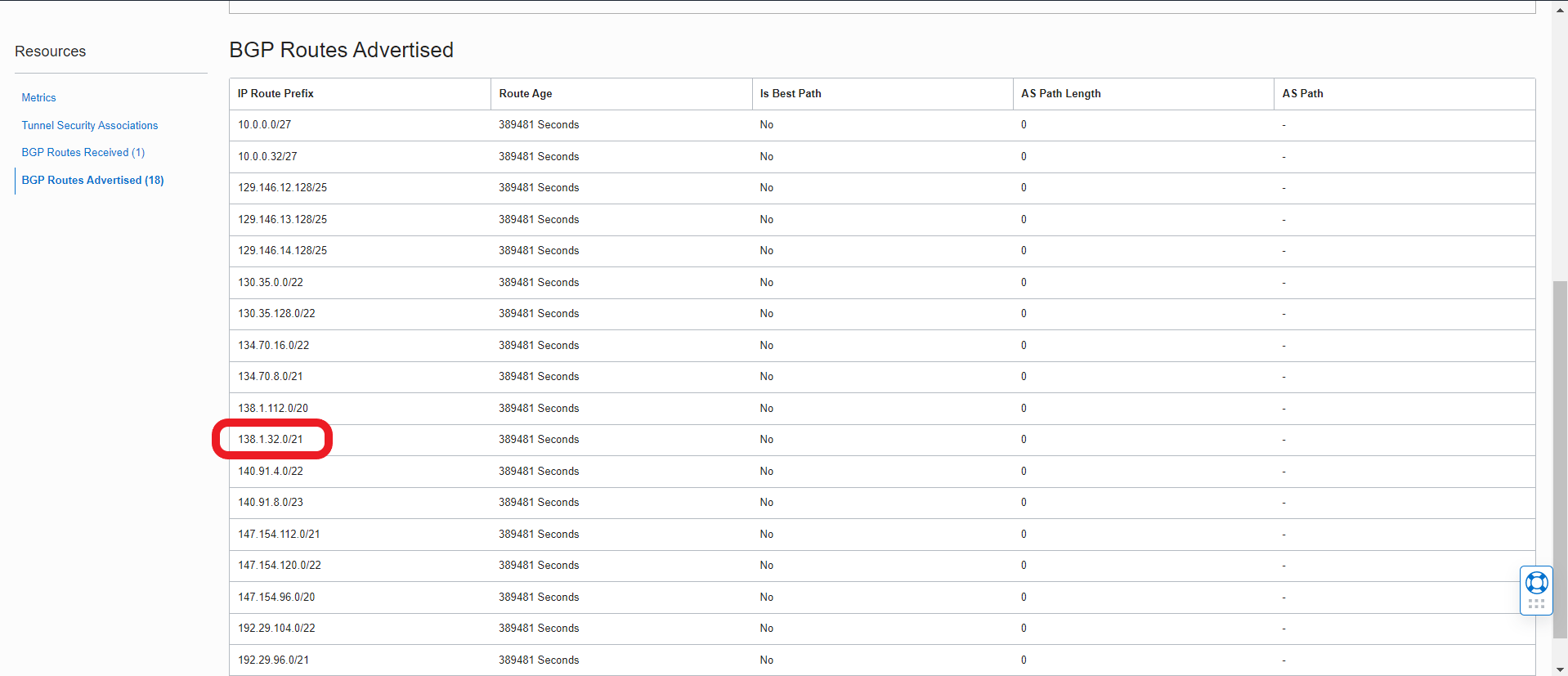
One of those subnets advertised via BGP will also have the OIC instance IP address, which in our case is part of the “138.1.32.0/21” subnet:
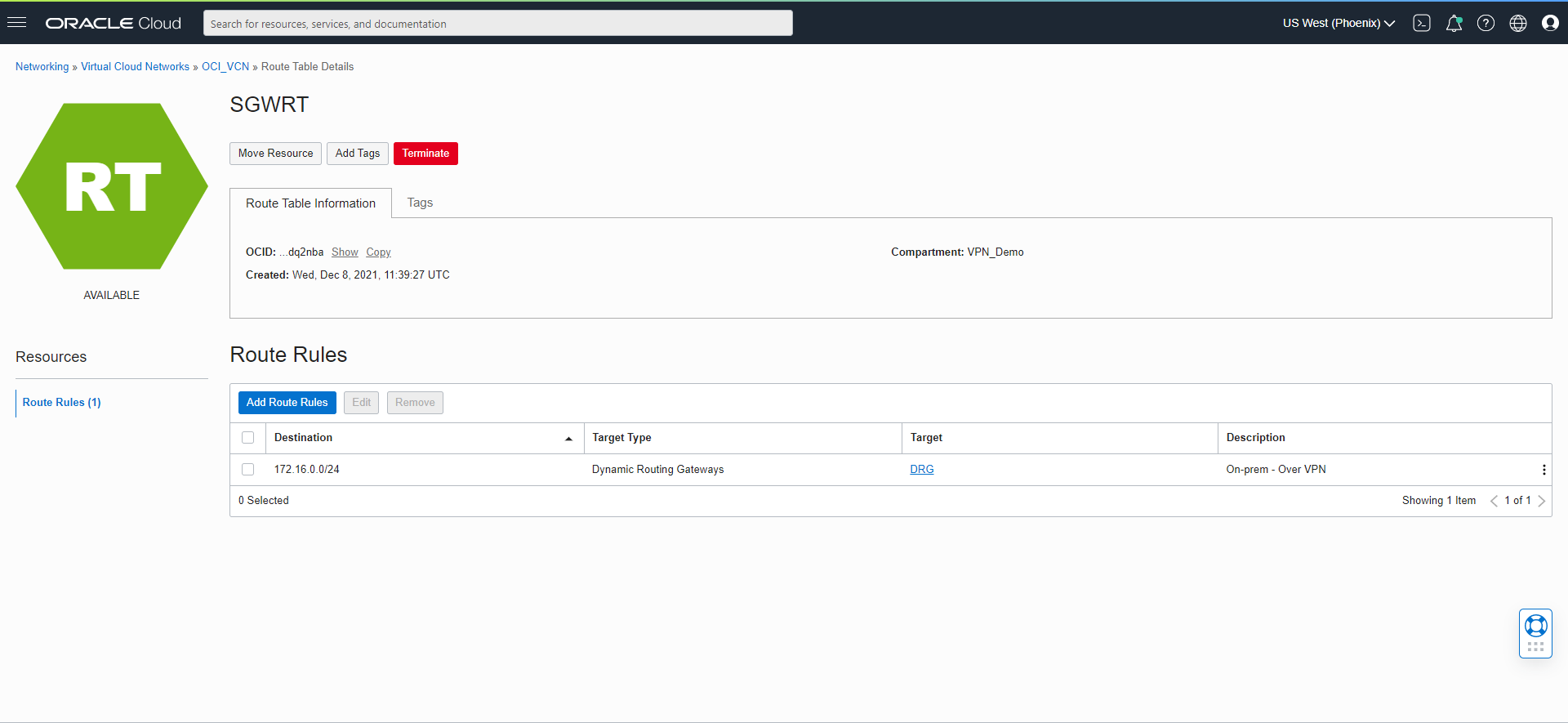
4. Now we need to create a new VCN routing table with the routing rule for the On-Premises CIDR block going via DRG:
5. With this newly created routing table, go to the Service Gateway (SGW) and attach the routing table. After this is done the SGW page should look like this:

6. At this point, all necessary routing changes will be done on the On-Premises CPE so the OIC subnet “138.1.32.0/21” (or the IP address “138.1.38.80”) will point to OCI via the VPN tunnel. After this step is completed on the On-Premises network, you should have access to the OIC instance over VPN.
7. The last step is to activate the OIC Network Access using the Virtual Cloud Network OCID:
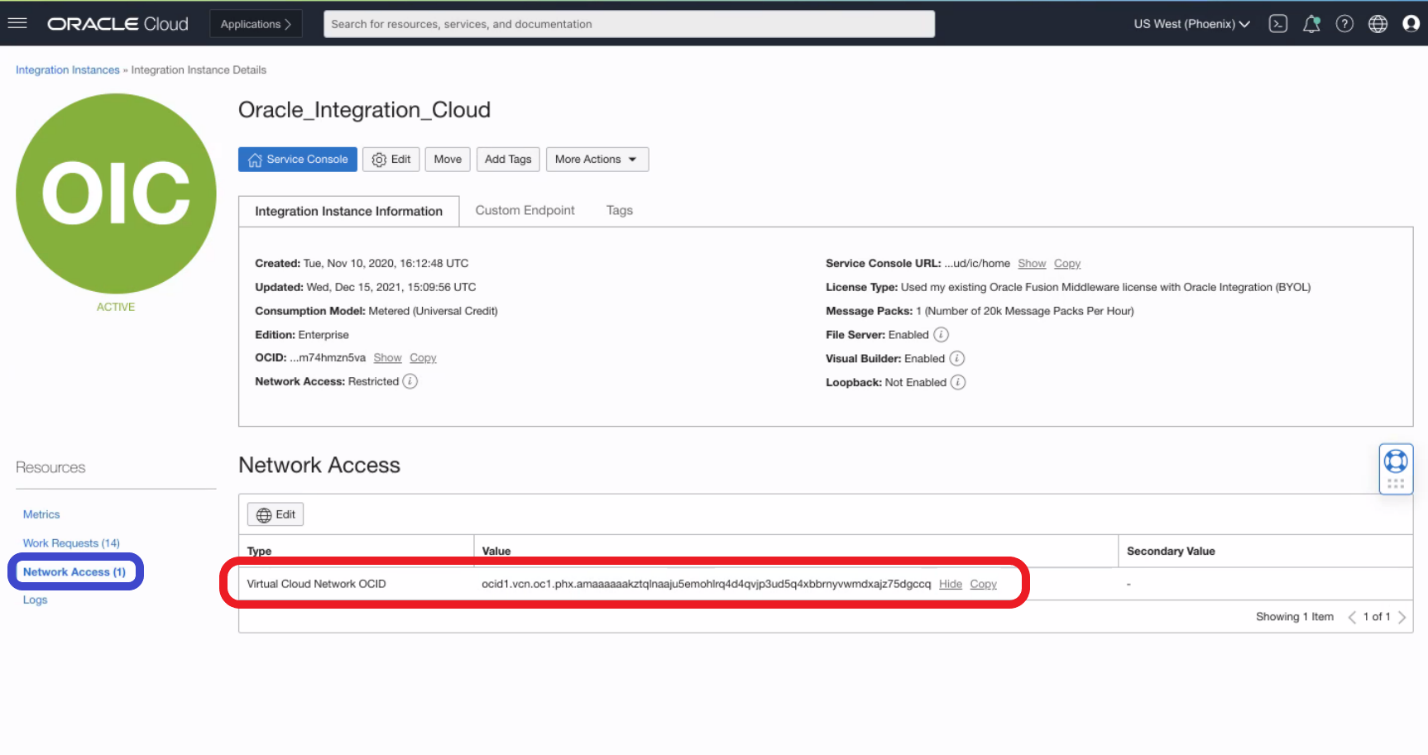
On the OIC Network Access Page we can now allow access only from the On-Premises network via VPN and block everything else.
Validation
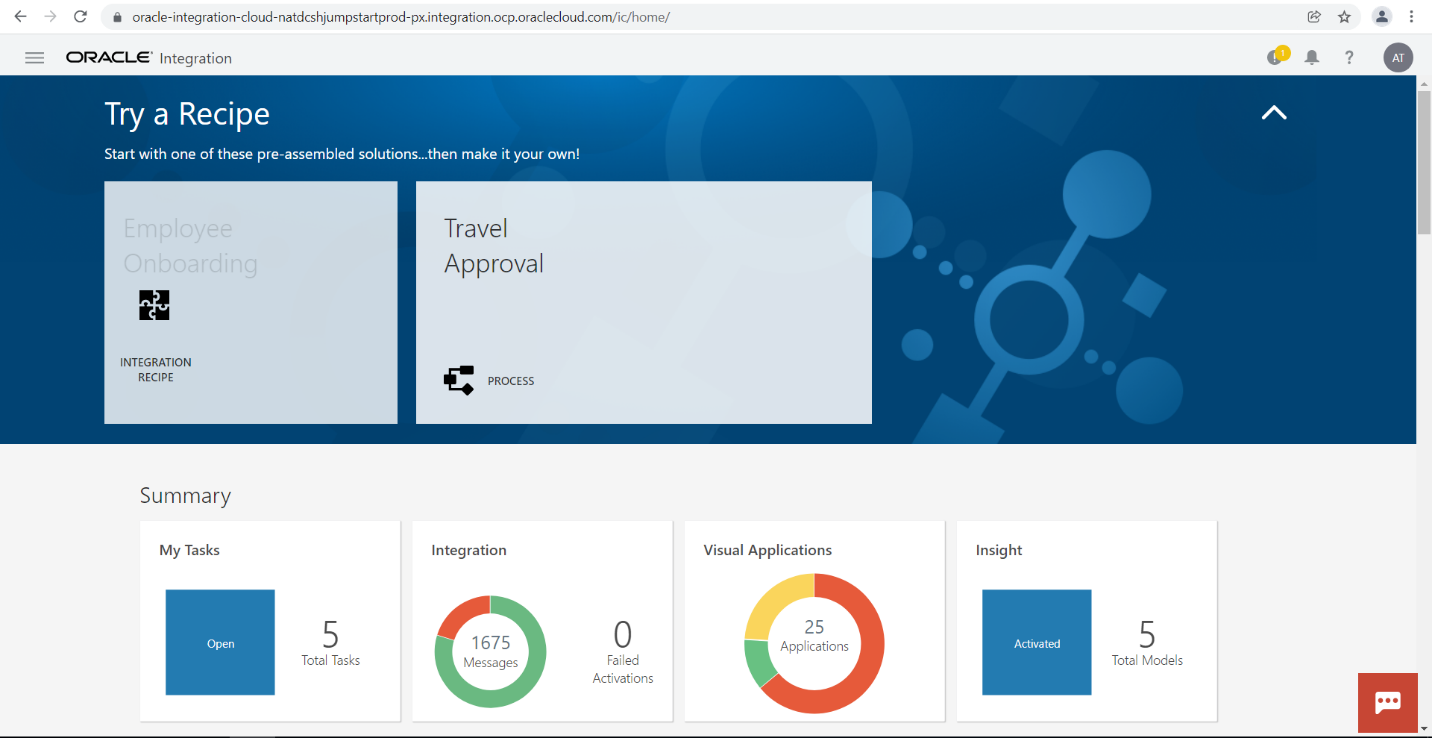
At this point we should have access to OIC from the On-Premises VM/Server:
If we try to access OIC from a different source, we will get a “403 Forbidden” error as access is denied:

In the next scenario, I will talk about providing access from another OCI Region using Remote Peering Connection (RPC) to an OIC instance. This scenario can be found here.