


Overview
Updated June 2026: Customer guide for the standard model after the Fusion Identity Upgrade
Use this guide when your employees authenticate to Oracle Fusion Cloud Applications through a corporate identity provider, IdP, such as Microsoft Entra ID, Okta or Ping, and you want Supplier Portal users to use native Fusion multifactor authentication, MFA, instead of being onboarded into the employee IdP.
This is the standard model after the Fusion Identity Upgrade: employee authentication remains with the employee IdP, supplier authentication uses direct Fusion sign-in through the Fusion Applications identity domain in Oracle Cloud Infrastructure Identity and Access Management, OCI IAM, and supplier MFA is configured in the Security Console using User Categories.
This approach uses standard Oracle Fusion Cloud capabilities and does not require custom IAM policies, custom federation logic, or supplier onboarding into the corporate identity provider.
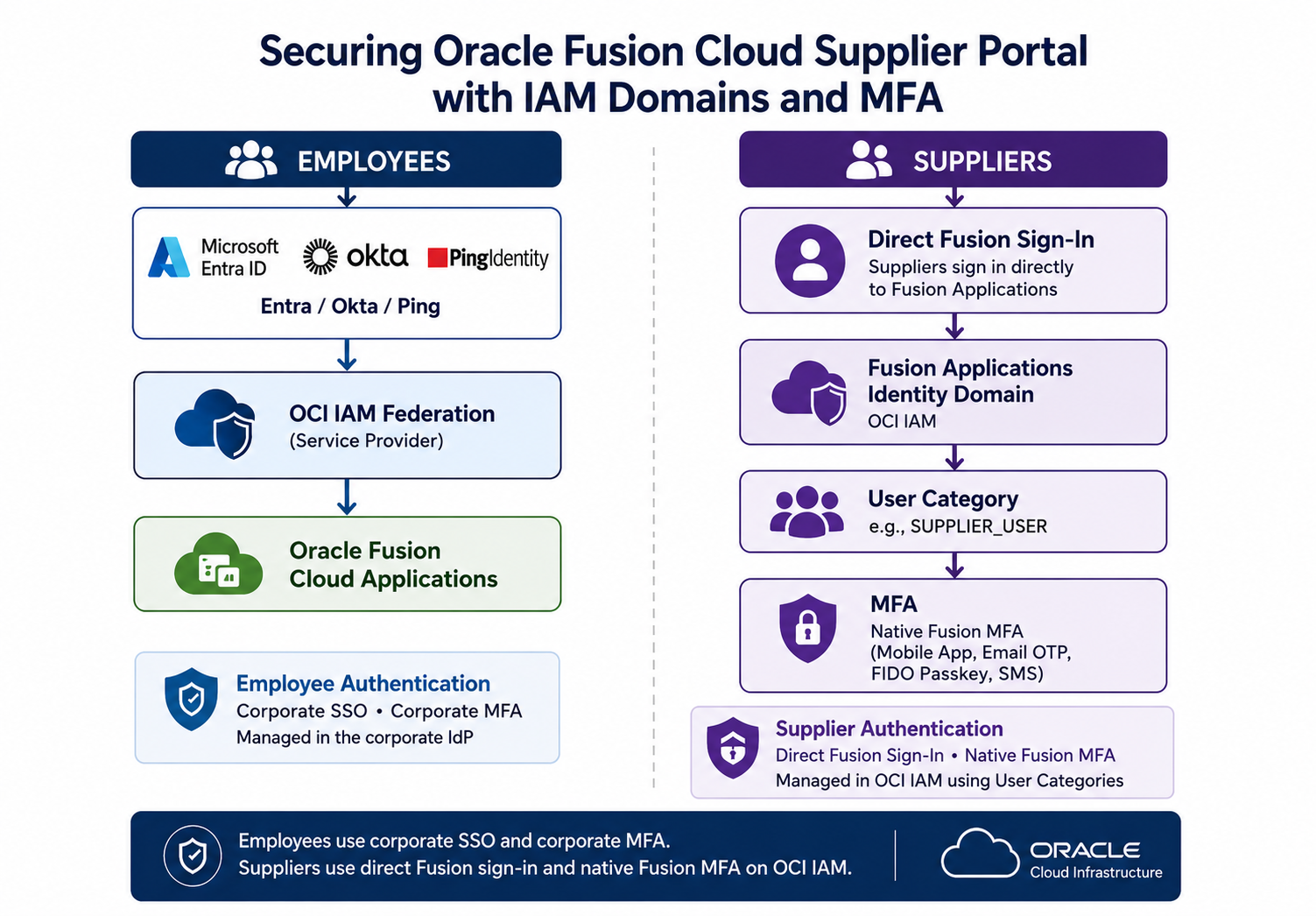
Recommended model
Employees use corporate SSO. The Fusion Applications identity domain in OCI IAM acts as the service provider, and the customer IdP acts as the external identity provider. Employee MFA remains in the customer IdP, where the organization already manages conditional access, device rules and employee security policy. For the OCI IAM federation model, see Managing Identity Providers.
Suppliers use direct Fusion sign-in. Supplier Portal users remain Fusion application users. They are created and maintained through the normal supplier lifecycle, but they do not need to be added to the employee IdP. They sign in through the Fusion Applications identity domain and complete native Fusion MFA on OCI IAM.
Supplier MFA is segmented by User Category. Create a dedicated category such as SUPPLIER_USER, assign supplier users to it, and configure the MFA methods that suppliers can use.
Fusion User Category
Prior to User Category based MFA, customers often used separate identity domains to enforce different authentication policies for different populations. User Categories now provide a supported way to apply MFA requirements to specific Fusion user segments while keeping lifecycle management inside Fusion Applications. This simplifies administration and reduces dependency on identity-domain segmentation solely for MFA purposes.
Important guardrails
Do not assign integration, service, or automation accounts to MFA-enforced categories unless the authentication flow has been explicitly designed for MFA.
A Fusion User Category does not assign a user to Entra, Okta, Ping or another IdP. User Categories define Fusion user segments and Fusion MFA behavior.
Employee SSO availability is controlled by OCI IAM identity provider policies and by assignment in the external IdP application.
Do not place employees or automation accounts into the supplier MFA category.
Configure supplier MFA through the Security Console. Do not manually edit the generated OCI IAM sign-on rules unless Oracle Support or product guidance directs you to do so.
Step 1 – Confirm the sign-in paths
Before changing MFA settings, confirm the intended sign-in path for each population.
- Employees: Fusion redirects to the employee IdP. Employee MFA happens in that IdP.
- Suppliers: suppliers use direct Fusion sign-in and are prompted for native Fusion MFA.
- Other external users: decide whether they follow the supplier pattern or need a separate category.
If a supplier is redirected to the employee IdP, check the OCI IAM IdP policy and the external IdP application assignment. If an employee receives the supplier MFA experience, check the user category and SSO routing.
Step 2 – Clean up Supplier Portal users first
MFA strengthens sign-in. It does not fix role or data access problems. Before rollout, review supplier users in Fusion Applications. Inactivate stale supplier accounts, confirm the supplier contact is still valid, check the assigned Supplier Portal roles, and verify whether access should be at supplier or supplier site level.
For the supplier lifecycle model, see How Supplier User Provisioning Works and Supplier User Account Administration.
Step 3 – Create the Supplier Portal MFA category
Go to Navigator, Tools, Security Console, User Categories. Create a category for supplier users who sign in directly to Fusion, for example SUPPLIER_USER. Keep the category focused on Supplier Portal users. Each user can belong to only one User Category, so avoid overlapping categories that compete with each other.
For User Category behavior, see Overview of User Categories.
Step 4 – Configure MFA methods for suppliers
Open the supplier category, select Two-Factor Authentication, and choose the methods suppliers can use. A practical starting point is Oracle Mobile Authenticator and email OTP. Add FIDO passkeys where your supplier population can support them. Use SMS only when phone data is reliable and accepted by your security policy. Keep bypass codes for help desk recovery.
For available MFA methods and Security Console configuration, see Oracle Fusion Cloud Applications Multifactor Authentication. For segmented MFA guidance, see the A-Team article Configuring MFA across User Segments using Fusion Cloud User Categories.
Step 5 – Assign users and pilot
Assign a small pilot group of supplier users to the category before broad rollout. Use Security Console for small populations. For larger populations, use the documented approach in Add Users to a User Category or the Fusion Applications REST API if automation is required.
Validate at least one supplier user who creates or views invoices, one user who maintains supplier profile information, and one user with supplier site scoped access. Confirm first sign-in, MFA enrollment, subsequent sign-in, Supplier Portal access, and data visibility.
Step 6 – Communicate and support the rollout
Tell suppliers what will change before you enforce MFA. Keep the message simple: the Supplier Portal sign-in URL is not changing, MFA will be required, users may need email, mobile app, passkey or SMS verification, and the support team can help with lost devices.
Prepare support teams for the common cases: missing email address, missing mobile number, lost authenticator device, no MFA prompt, wrong redirect to the employee IdP, or successful MFA followed by missing Supplier Portal access. When MFA succeeds but Supplier Portal access is wrong, troubleshoot Fusion roles and supplier data access, not MFA.
Sample supplier message
We are strengthening Oracle Fusion Cloud Supplier Portal sign-in security. You will be asked to set up multifactor authentication the next time you sign in. Your Supplier Portal URL is not changing. Follow the on-screen prompts to register an approved verification method. Contact Supplier Portal support if you cannot complete enrollment or if you replace your device.
Troubleshooting quick signals
- Supplier is sent to the employee IdP: check OCI IAM IdP policy rules and external IdP assignment.
- Supplier signs in but is not prompted for MFA: check User Category assignment and MFA settings.
- User moved between categories and behavior looks stale: reset MFA factors if required and retest.
- MFA works but Supplier Portal access is wrong: review supplier roles and supplier data access.
Summary
After the Identity Upgrade, this is the clean operating model: employees use corporate SSO and corporate MFA, suppliers use direct Fusion sign-in and native Fusion MFA on OCI IAM, and Supplier Portal lifecycle management stays in Fusion Applications. The result is strong supplier authentication without forcing suppliers into the employee IdP or creating an additional supplier-only identity domain.
References
Oracle OCI IAM, Managing Identity Providers
Oracle Fusion Cloud Applications, Multifactor Authentication
Oracle Fusion Applications, Overview of User Categories
Oracle Fusion Applications, Add Users to a User Category
Oracle Fusion Applications, How Supplier User Provisioning Works
Oracle Procurement, Supplier User Account Administration
Specify User Category for New Supplier Users
Oracle A-Team, Configuring MFA across User Segments using Fusion Cloud User Categories