
We want to make things simple for our end users. One of the ways that an organization can do this is by providing a dashboard. Dashboards are a landing page for users that contain links to useful tools and locations in an easily digestable format. Can’t find the application to fill out an expense report? Don’t stress, just select Expenses from the dashboard.
With Oracle Identity Cloud Service or OCI IAM Identity Domains, creating these links is trivial when the application uses IDCS/Identity Domains for authentication. All that’s required is to select Display in My Apps in the application settings. However, not all applications will require IDCS authentication. For these applications, we will want to make sure that users can quickly and easily access them but have no corresponding IDCS/OCI IAM application for authentication. I refer to these as bookmark apps.
Requirements
- A Standard License IDCS Stripe or Any OCI IAM Identity Domain
- Administrator privileges to the IDCS stripe or Identity Domain
- A URL you want to access
Licensing Considerations
The only functional difference between IDCS and Identity Domains is the licensing. To create a custom application in IDCS you need a Standard Enterprise or Consumer User license. Identity Domains allow for a maximum of two external applications included in the free tier license.
More information on licensing for IDCS can be found here and Identity Domain licensing information can be found here.
Creating the Bookmark App
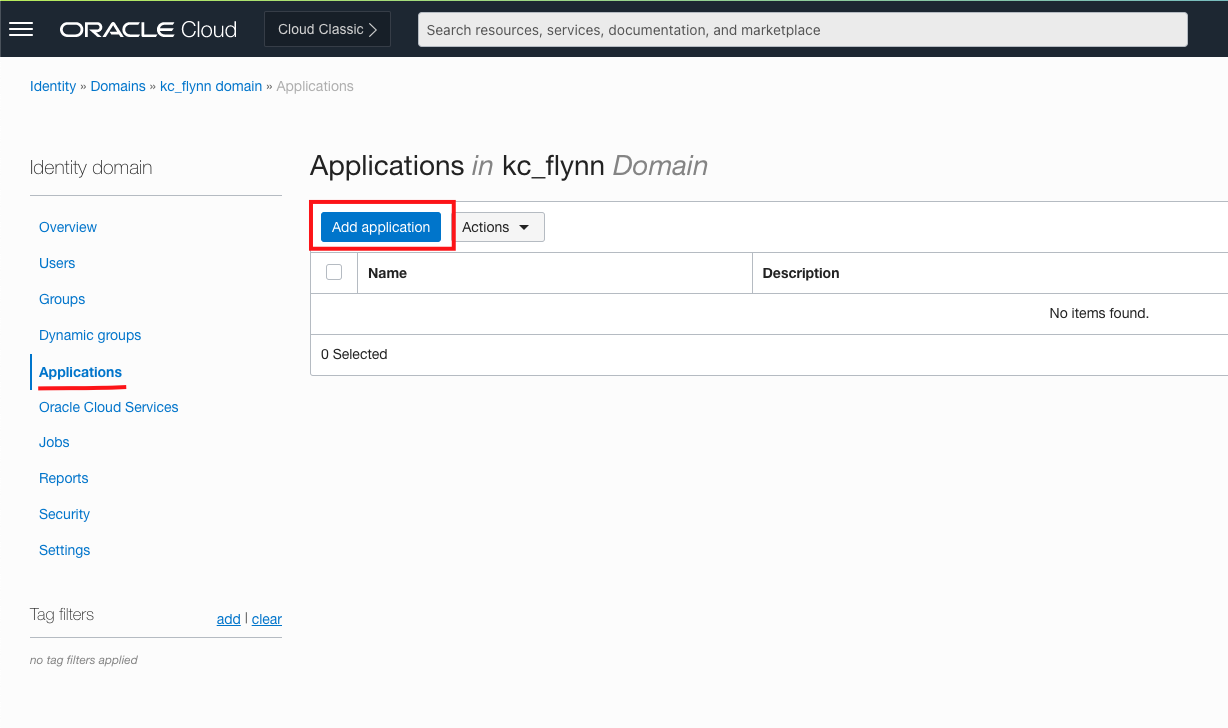
Creating the app is quick and easy. In the IDCS stripe/Identity Domain (ID) that your users are utilizing for their dashboard. Navigate to your IDCS Admin Dashboard or ID in the OCI Console and select Applications and Add Application.
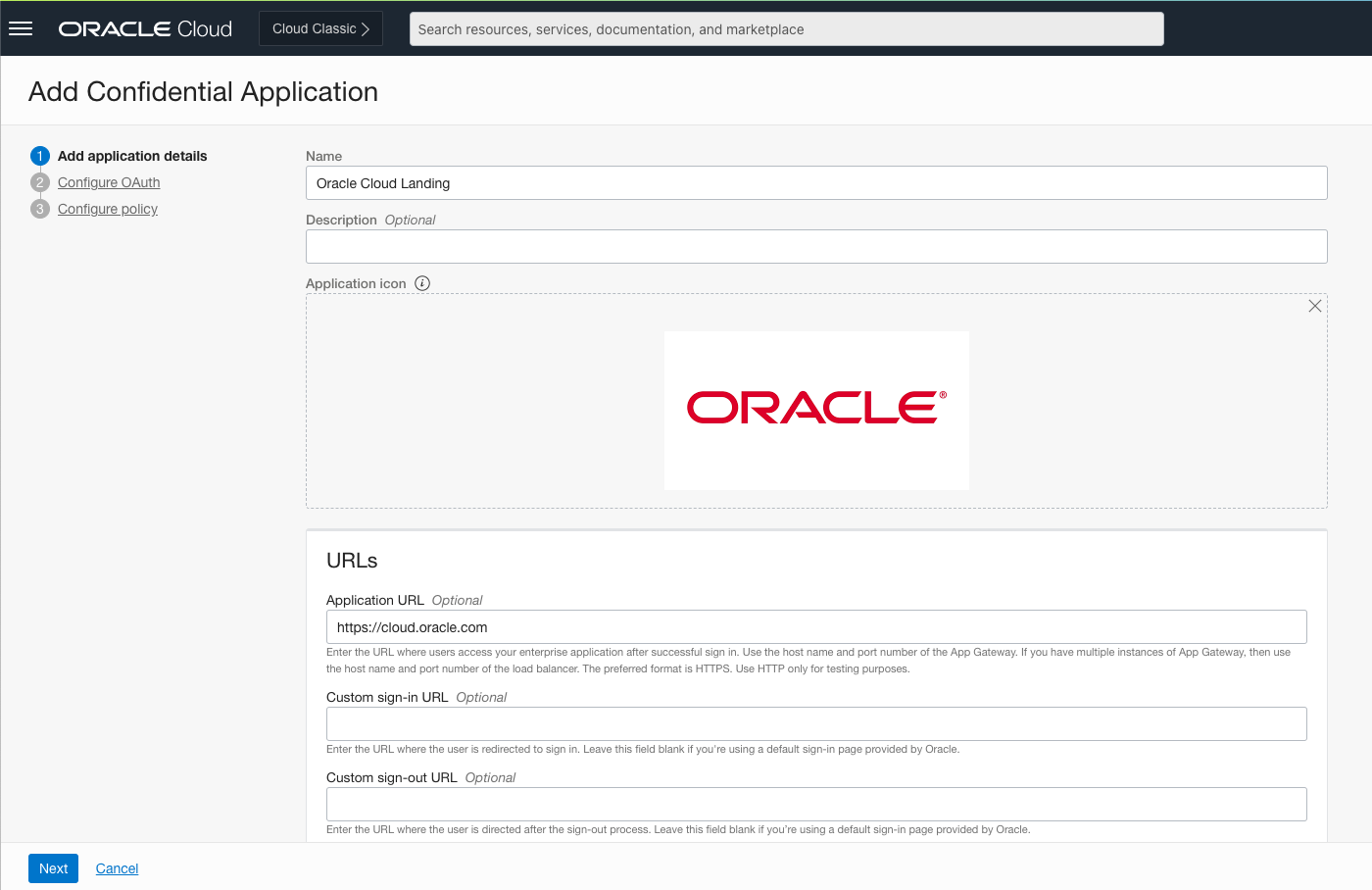
Select Confidential Application and launch the confidential app workflow. Give it a name that your users will recognize and optionally a description and icon. In Application URL enter the site that you want to send users to. This URL must start with http:// or https://.
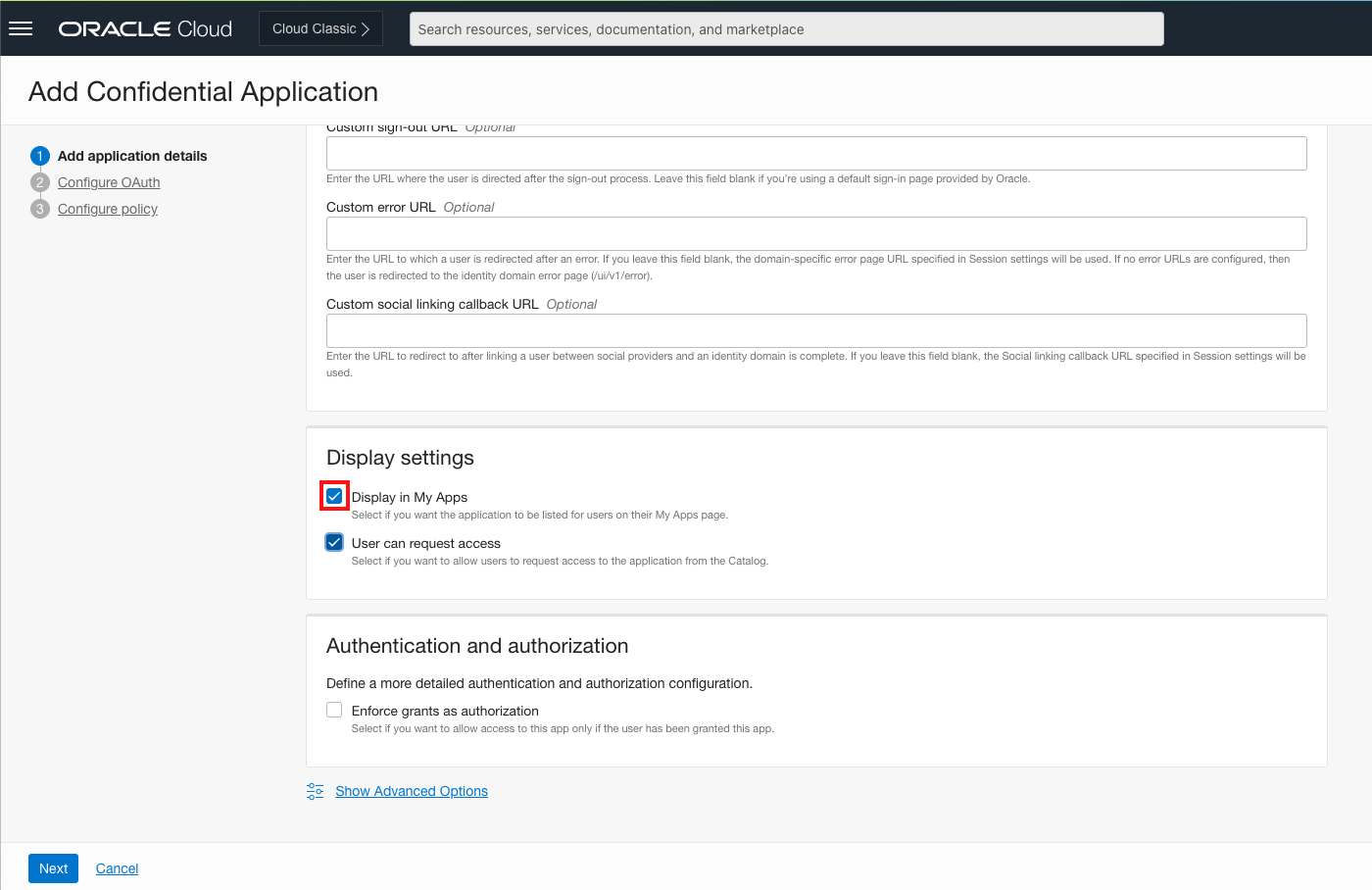
Scroll down and make sure Display in My Apps is checked. This will allow the application to appear on the user dashboard.
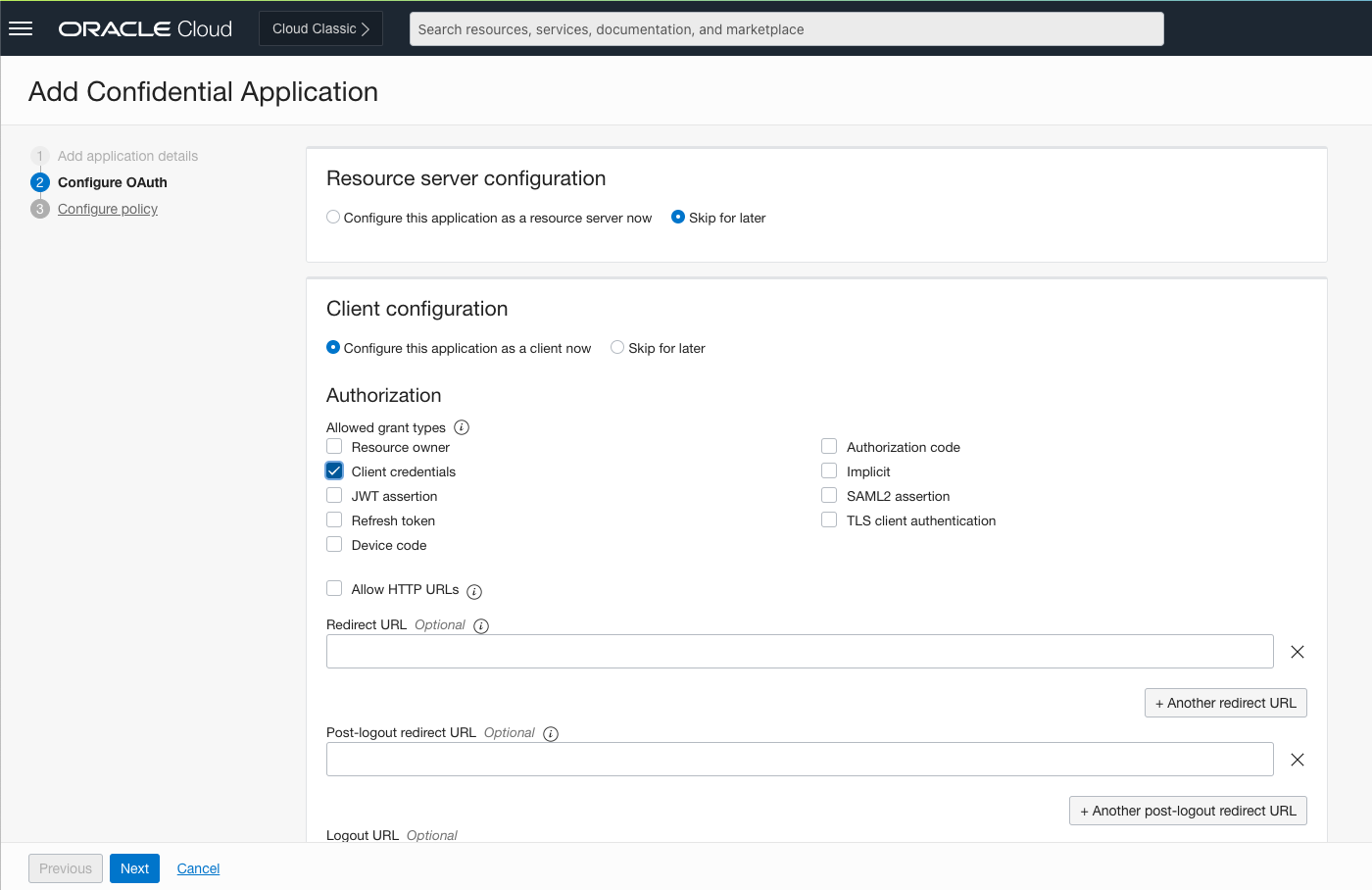
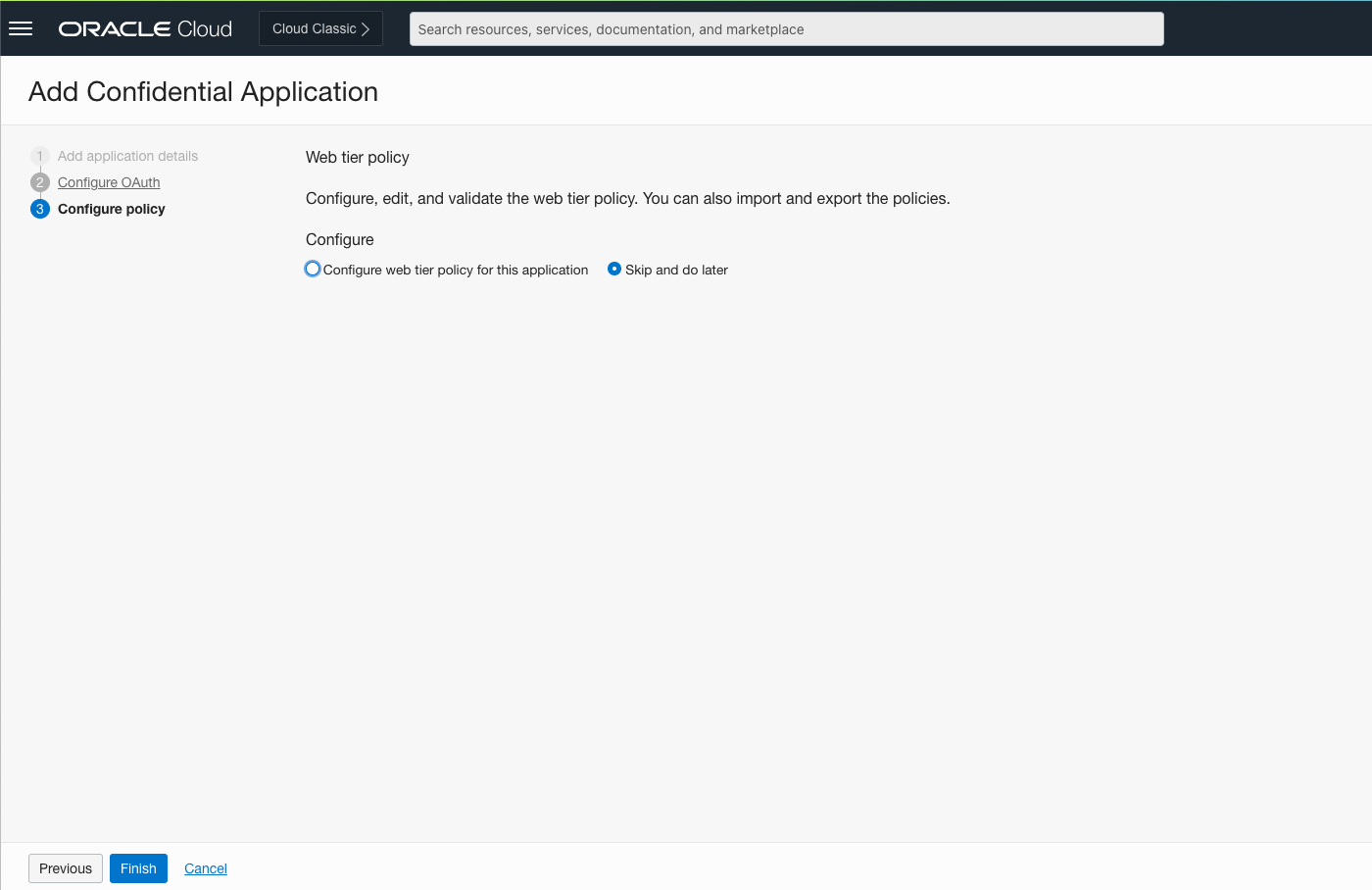
Click Next and select the Configure this application as a client now radial button. The application must have a grant type associated with it. In our case, we’re going to select Client credentials. Don’t worry, your users won’t have to know or access a client ID or secret. Click Next.
The Web tier policy should be set to Skip and do later. Click Finish.
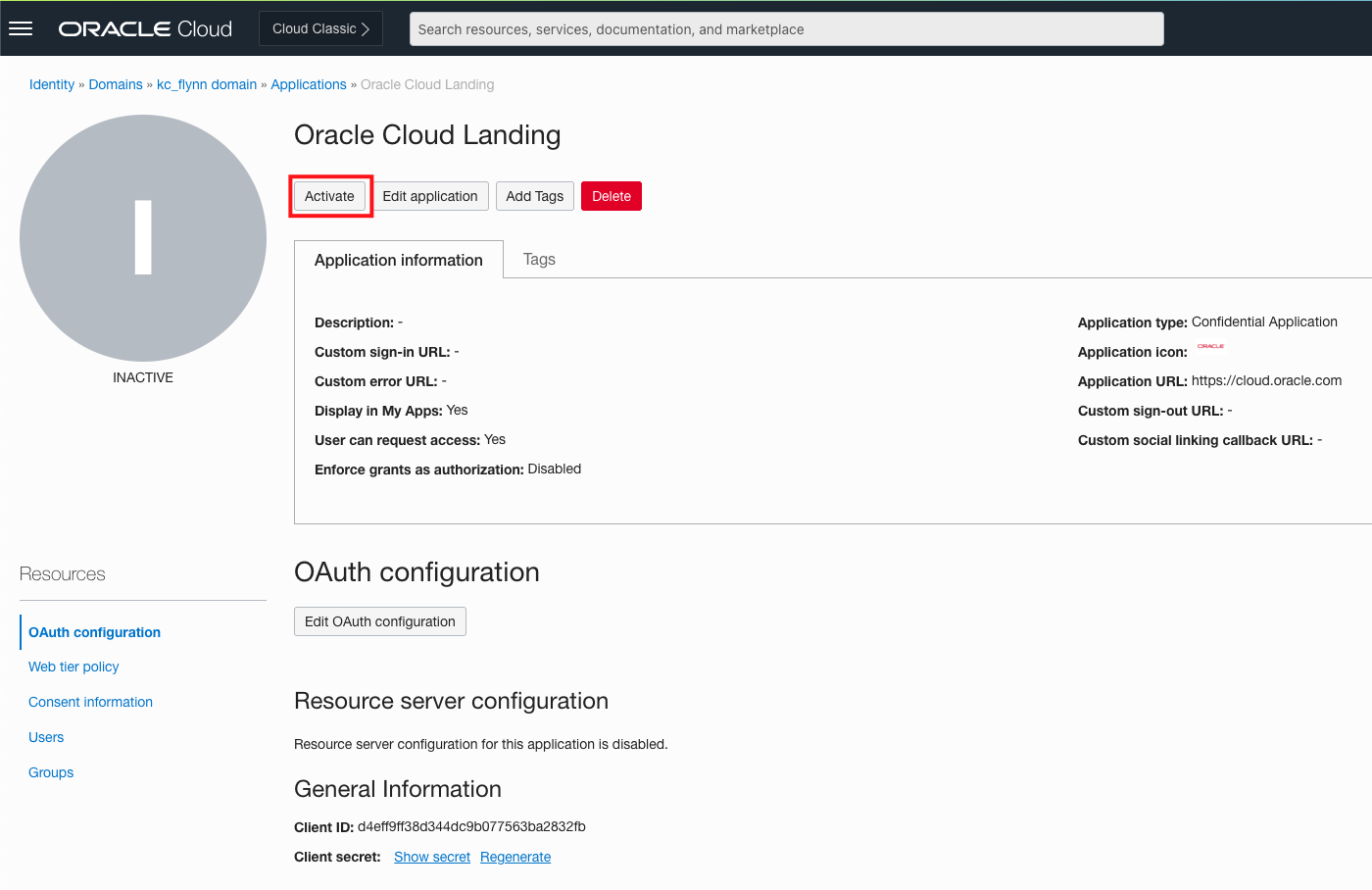
Finally, on the application details page, click the Activate button to make the application go live. Select Users or Groups under the Resources menu to assign users to the application, which will cause it to display on their dashboard. If you selected User can request access during application creation, user will also be able to request access to the app. This can be changed after the application has been created by selecting the Edit Application button.
Navigate to the Dashboard
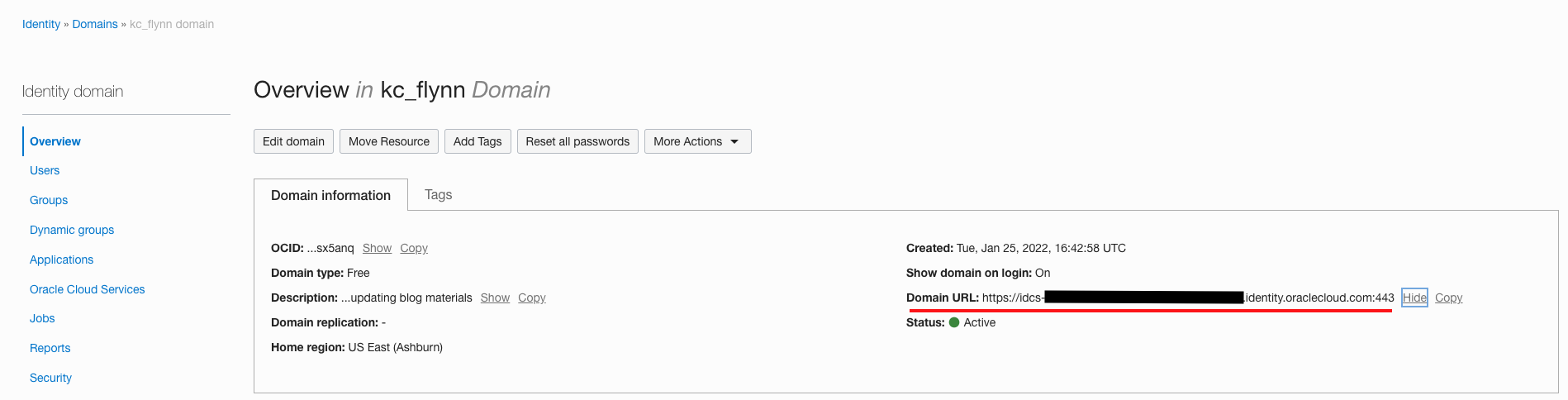
The dashboard can be found at https://idcs-<YourDomainURLHere>.oraclecloud.com/ui/v1/myconsole whether IDCS or OCI Identity Domains are being used. If using IDCS, simply append /ui/v1/myconsole to the end of the IDCS URL. If using OCI Identity Domains, you can find the link to your domain on the domain details page at Domain URL. It will be in the same format as IDCS, the process of finding the URL is just a bit different.
If you’ve added your user to the application, you will see it on the dashboard.
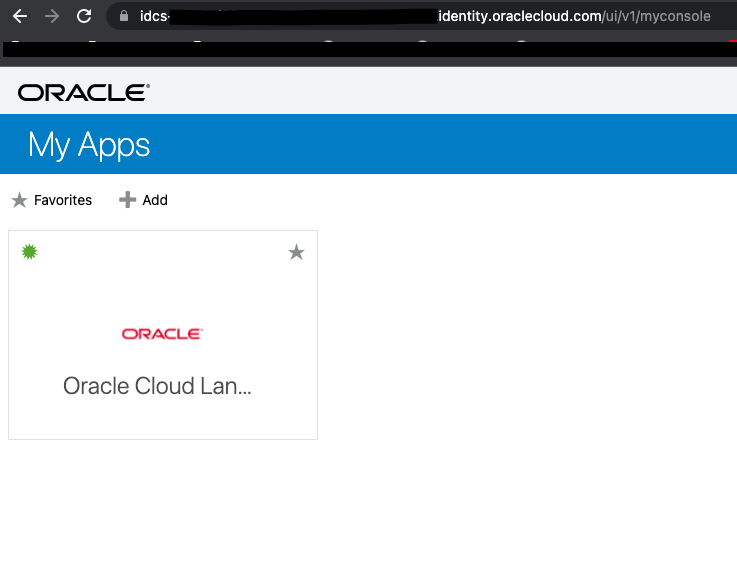
Clicking the tile will take you to the Application URL, in this instance I’ve directed it to https://cloud.oracle.com.
How Bookmark Apps Can Be Utilized
The capability to build a single place for your users to access applications is a good feature to have. In some cases, it’s been a business requirement. I worked with a customer that had an Oracle Analytics Cloud (OAC) deployment that was created in a separate domain from their production system.This customer was already using the Dashboard feature of Identity Domains to give their users quick access to the different SaaS and PaaS applications in each domain separately. We were able to federate the two domains and set up user provisioning easily enough, but there was no option to display an app managed by one domain in the Dashboard belonging to the other domain. Using the above method and the correct Identity Provider Policy in each domain, the end users were able to access OAC without knowing or caring about what the exact identity setup looked like behind the curtain.