
OCI provides visibility into what’s happening with network traffic entering or exiting a VCN when VCN Flow Logs features are enabled. Flow logs will capture a 5-tuple (source and destination IP, source and destination port, & protocol) of information that can be used for network analysis or troubleshooting. We’re glad to announce new enhancements to our VCN flow log services!
Previously, VCN flow logs were only available at the subnet level, and logs were required to be enabled individually once the subnet was created. With the recent changes, we’re now able to also perform the following with VCN Flow Logs:
-
Enable flow logs for an entire VCN.
-
Enable flow logs for a specific resource.
-
Capture specific flow log traffic between source and destination addresses.
-
Capture a sample amount of flow log traffic for an enablement point (VCN, Subnet, or resource).
This blog will cover configuring these new features with four scenarios below.
Prerequisites:
- Existing VCN, subnet, or OCI resource with an existing vNIC
- A log group to hold the captured VCN flow log data
- Permissions to create log groups, capture filters, and flow logs
Before we walkthrough the various scenarios, I’ve also included a quick video overview on the new steps necessary to enable VCN flow logs:
Scenario 1: Enabling VCN Flow Logs for a VCN
The high-level steps for configuring VCN Flow Logs will be similar for each use case. What changes is the type and amount of traffic we’re deciding to capture and where in our VCN environment we choose to capture that traffic. In subsequent scenarios, we’ll reference steps from this scenario if the configuration process remains the same. The following steps show how to capture all incoming and outgoing network traffic for an entire VCN.
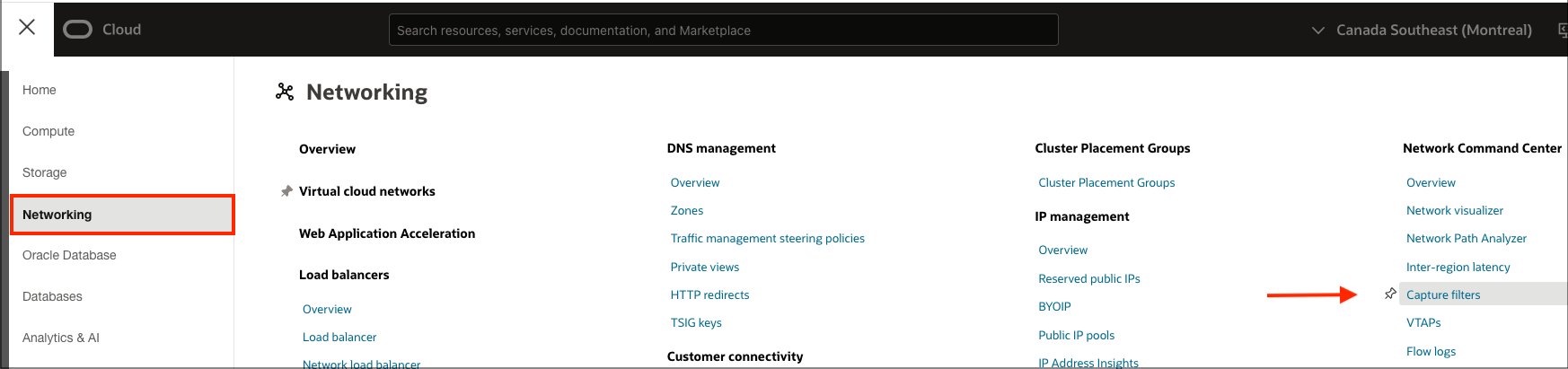
1. In the OCI Console, select the top-left Navigation (Hamburger) menu, and under the Networking sub-menu, select Capture filters.
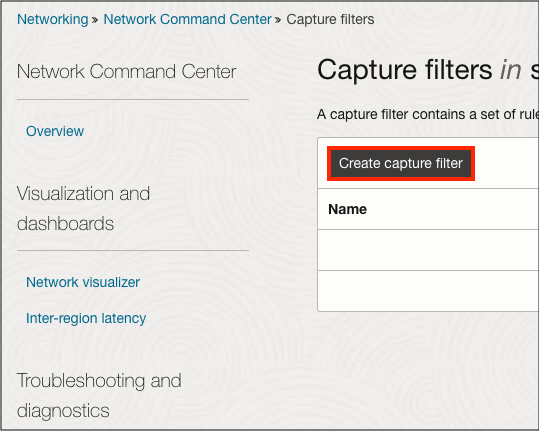
2. Click Create capture filter, which contains the set of rules used to govern what network traffic is captured by the flow log.
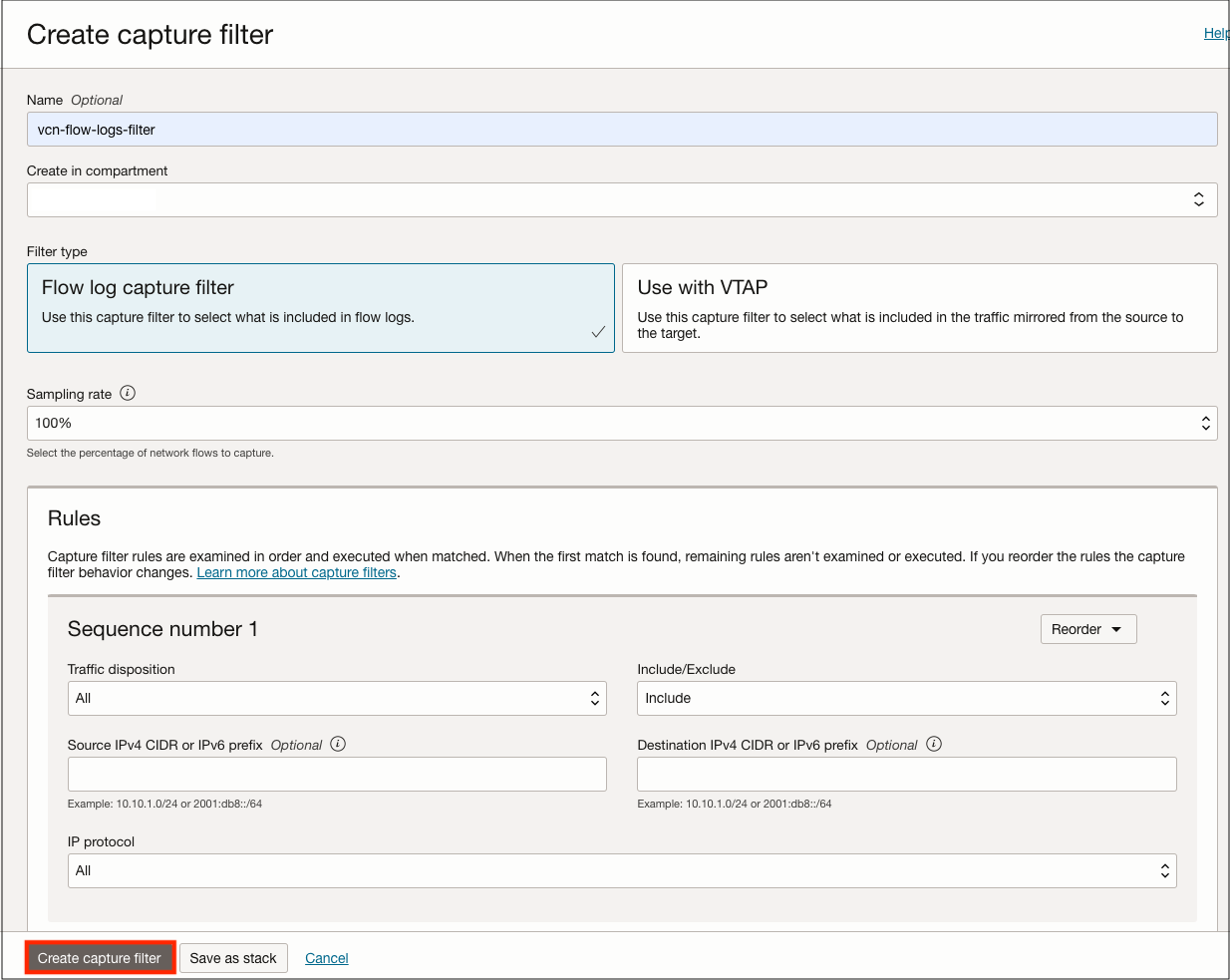
3. In the capture filter, fill in the following details:
- Provide a name and select the appropriate compartment for the filter. Select Flow log capture filter Filter type.
- The sampling rate determines the portion of network traffic to capture based on percentages. We want to capture all traffic within the VCN and select 100% from the Sampling rate drop-down menu.
- In the rules section, ensure that the Traffic disposition and IP protocol are set to All, Include is selected from the Include/Exclude drop-down, and the Source and Destination IPv4 CIDR fields are left blank. This rule captures all traffic from our enablement point (VCN).
- Select Create capture filter.
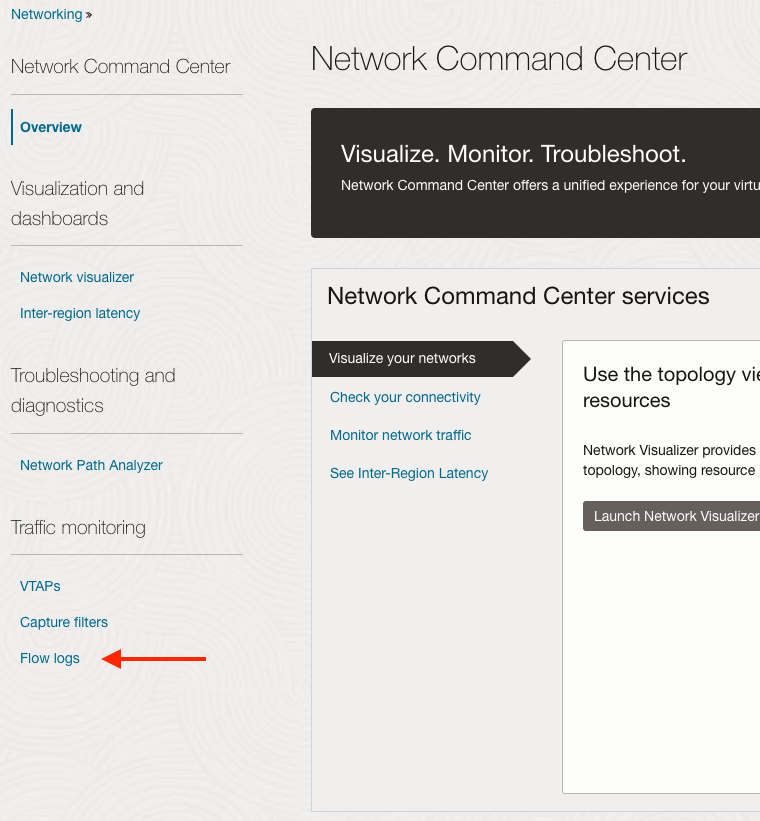
4. With our capture filter in place, we can apply it to our enablement point. The enablement point in this scenario is the VCN. Navigate to the Network Command Center, which can be found under the top-left Navigation (Hamburger) menu, under the Networking sub-menu. Select Flow logs on the bottom left menu pane.
5. Select Enable flow logs, fill in the following details:
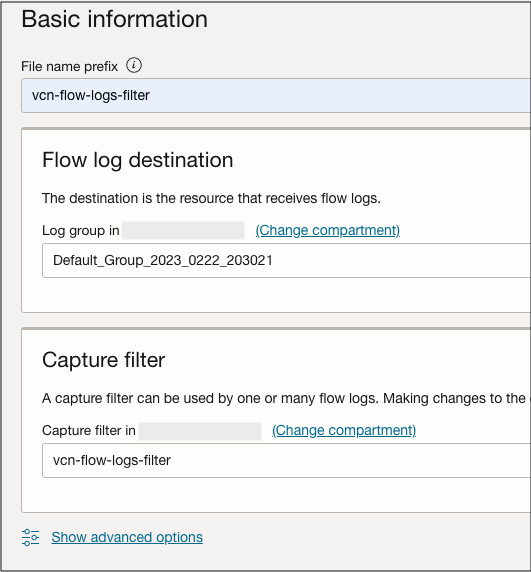
- On the Basic information page, provide a name for the flow log we’re creating.
- In Flow log destination, select the log group to store the flow logs.
- Under the Capture filter drop-down, select the filter created in Step 3.
- Click Next.
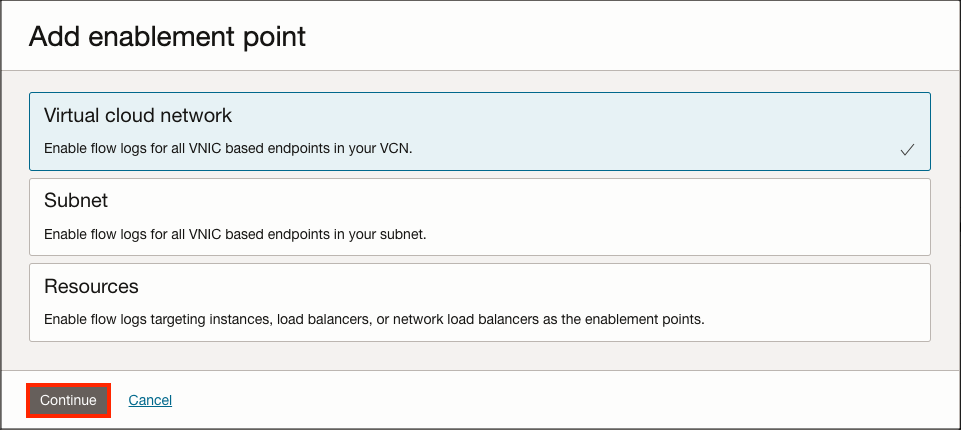
6. Apply the capture filter to the entire VCN by selecting Add enablement points and Virtual cloud network as our enablement point. Click Continue.
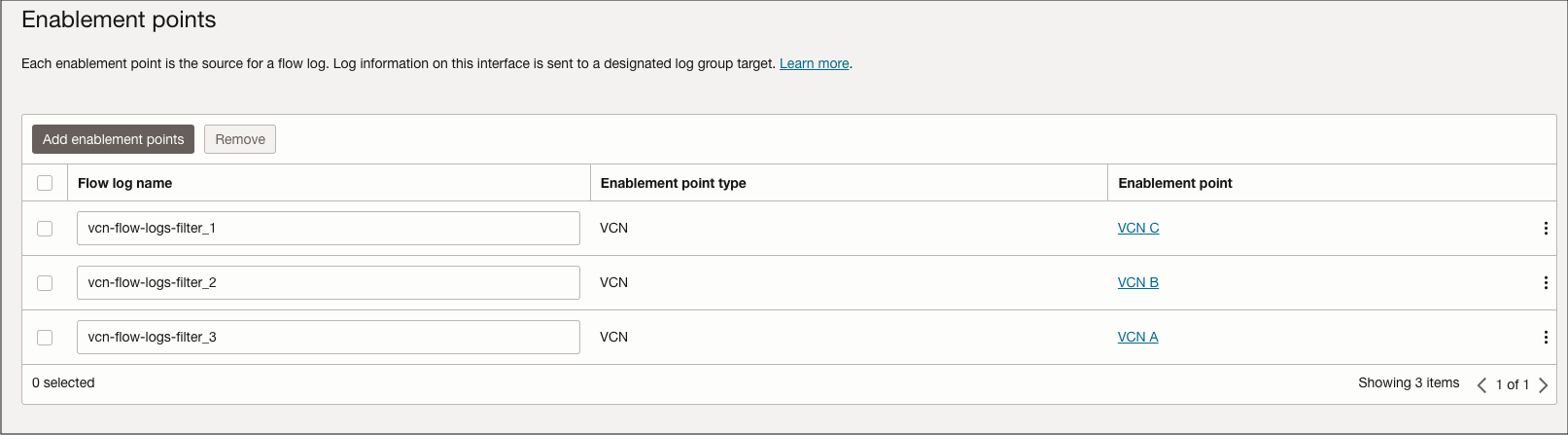
7. In the Add virtual cloud network enablement points menu, select the VCN that will need flow logs captured. Note that multiple VCNs can be added! Once finished, click Add enablement points. Followed by Next on the Enablement points menu.

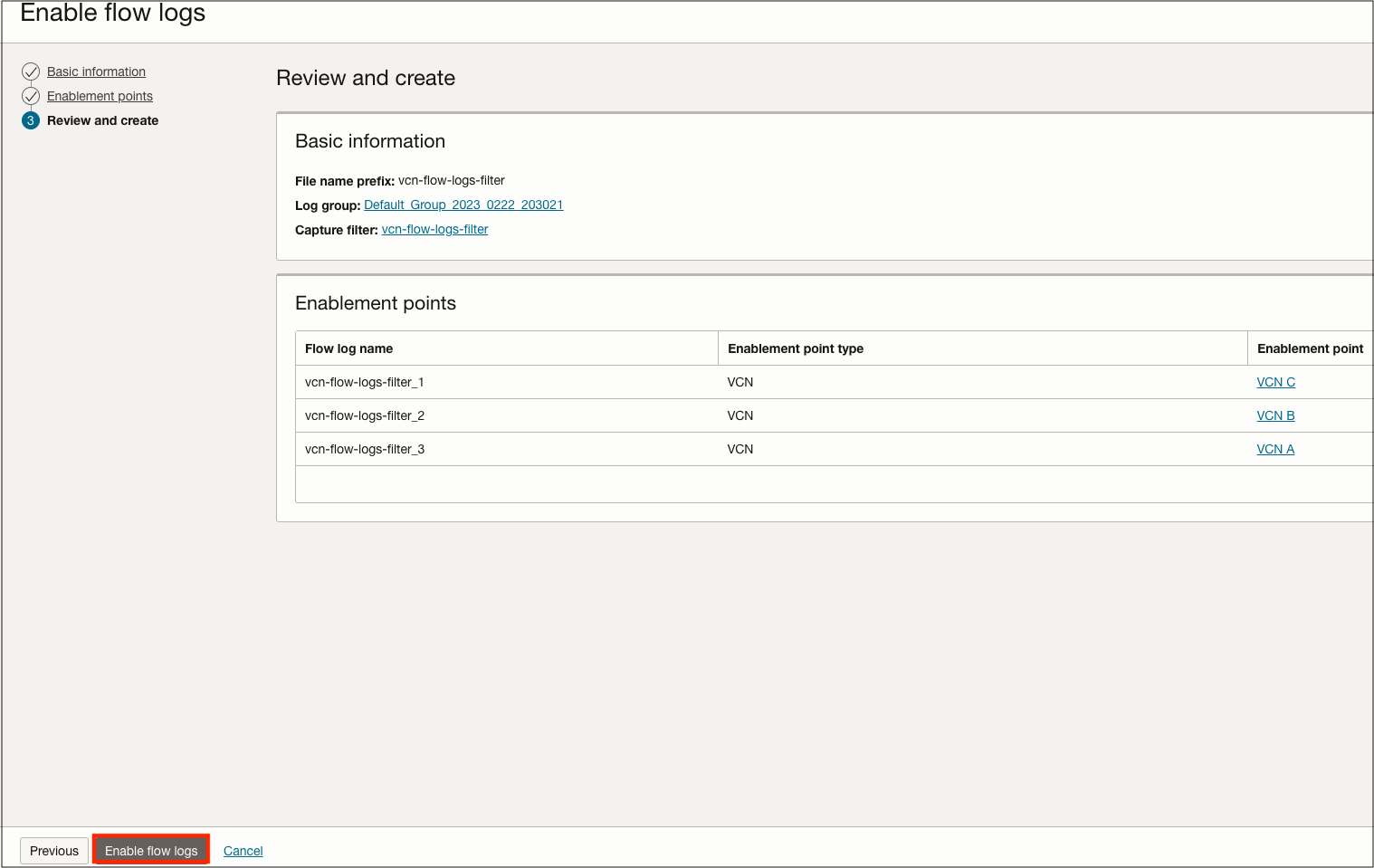
8. Verify the configuration on the Review and create page; select Enable flow logs once finished.
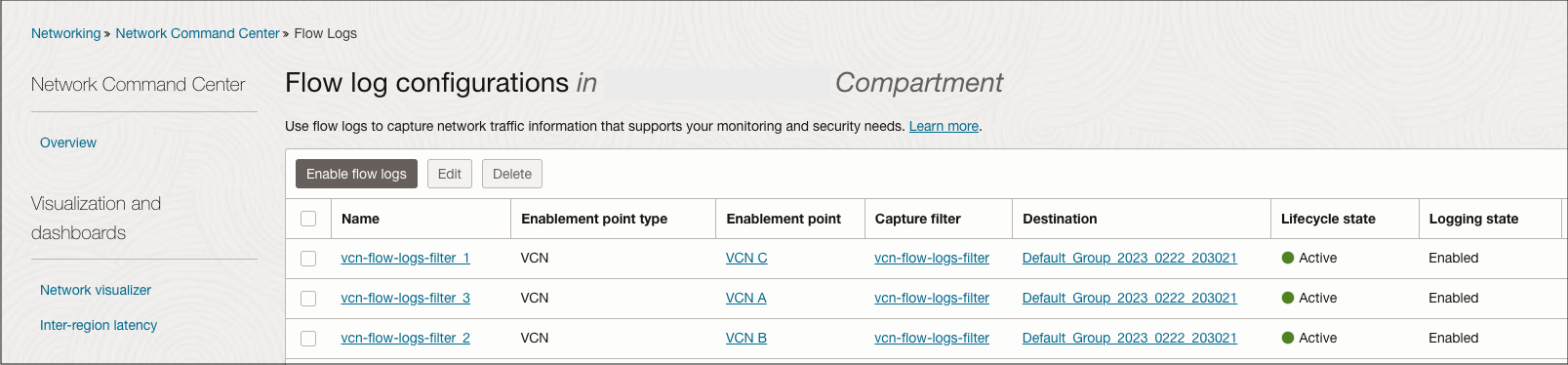
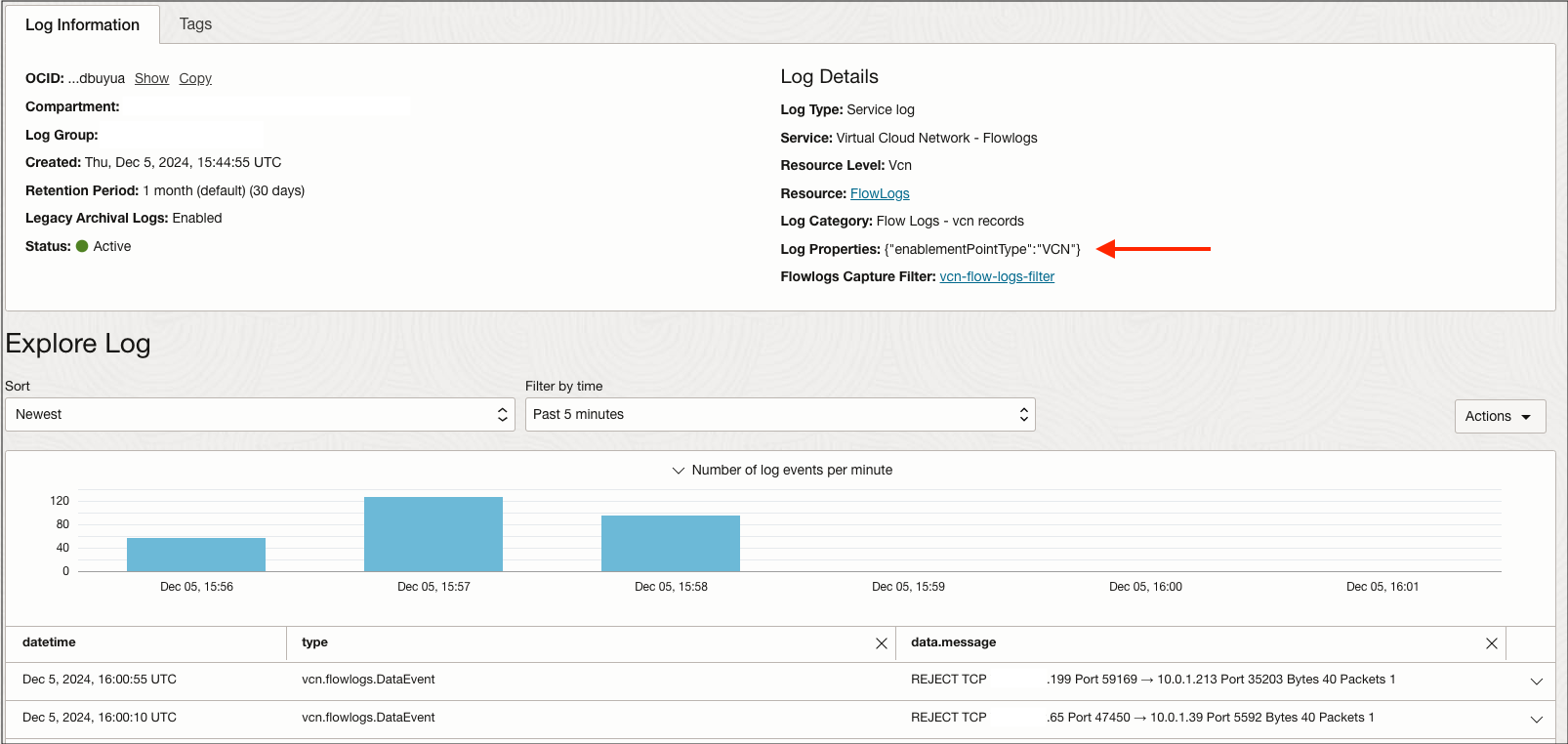
9. With our flow logs created, we should now be able to collect and see this data in our OCI console after a few minutes. While Flow logs can be accessed in various ways, the flow logs menu under the Network Command Center will easily provide a list of all the existing flow logs we’ve created.
Scenario 2: Enable VCN Flow Logs for a Specific Resource
1. Follow steps 1-5 as mentioned in Scenario 1 above. Note that the enablement point will be a specific resource rather than the entire VCN.
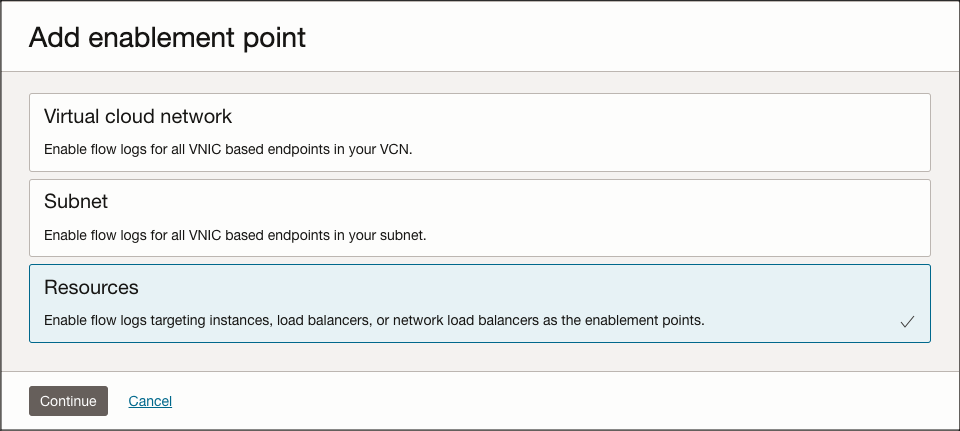
2 Apply the capture filter to the entire VCN by selecting Add enablement points and selecting Resources as our enablement point. Click Continue.
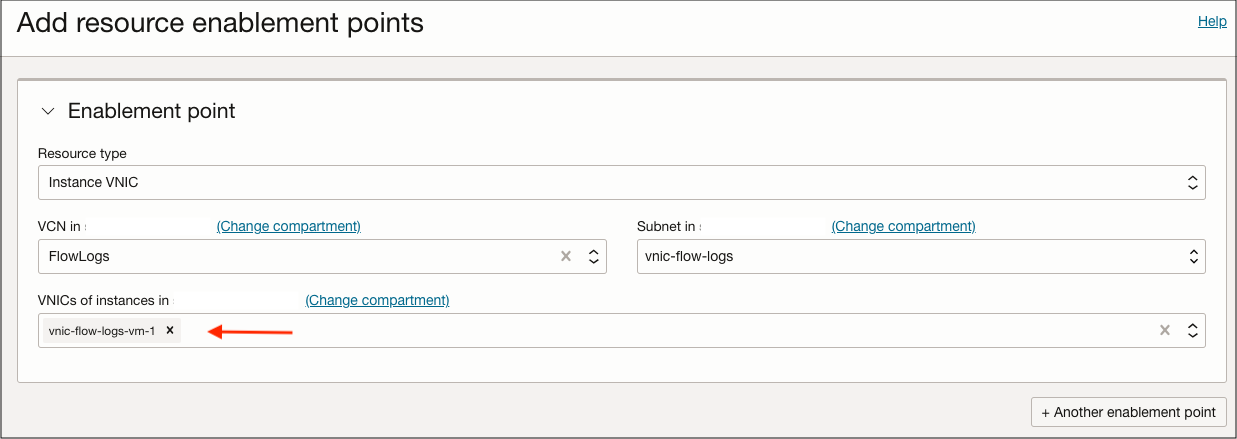
3. In the Add resource enablement points menu, select the resource that will need flow logs captured. The resource type can be an Instance vNIC, Network load balancer, or vNIC OCID. Multiple resources can be added to the same flow log profile. Once finished, click Add enablement points. Followed by Next on the Enablement points menu.
4. Verify the configuration on the Review and create page; select Enable flow logs once finished.
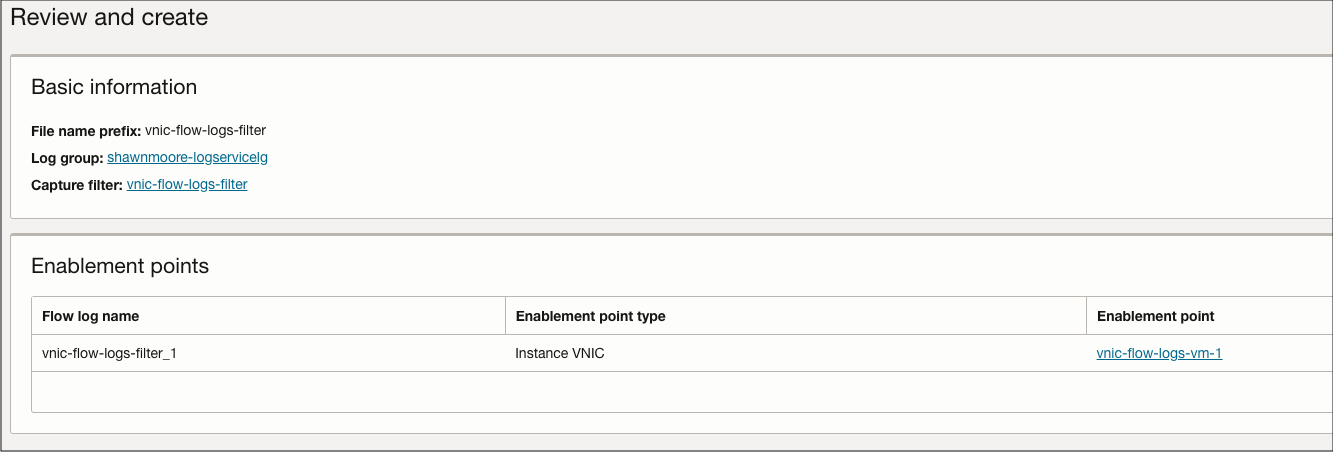
5. With our flow logs created, we should now be able to collect and see this data in our OCI console after a few minutes. While flow logs can be accessed in various ways, the flow logs menu under the Network Command Center will easily provide a list of all the existing flow logs we’ve created.

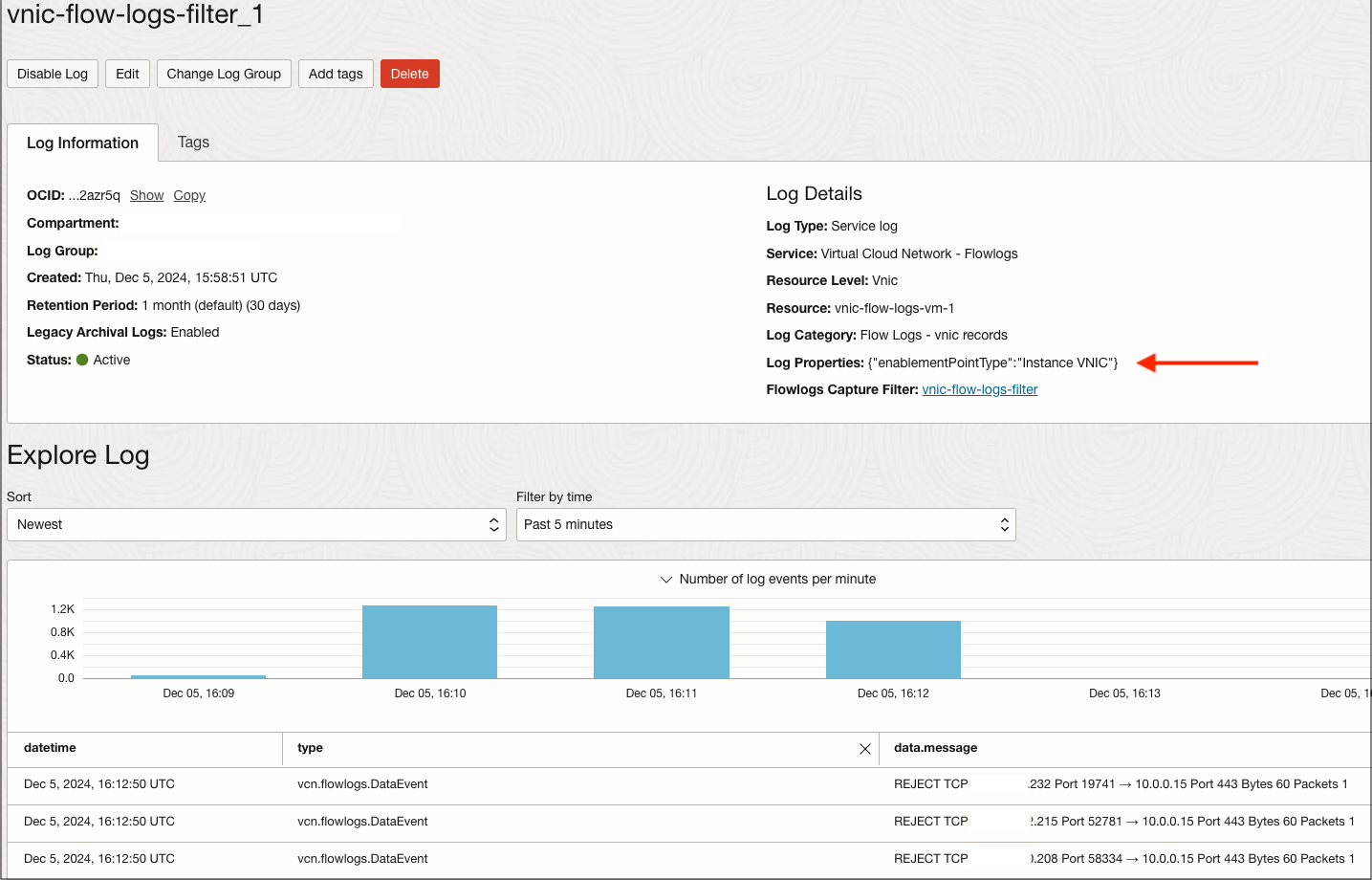
Scenario 3: Capture Specific Flow Log Traffic Between Source and Destination Addreses.
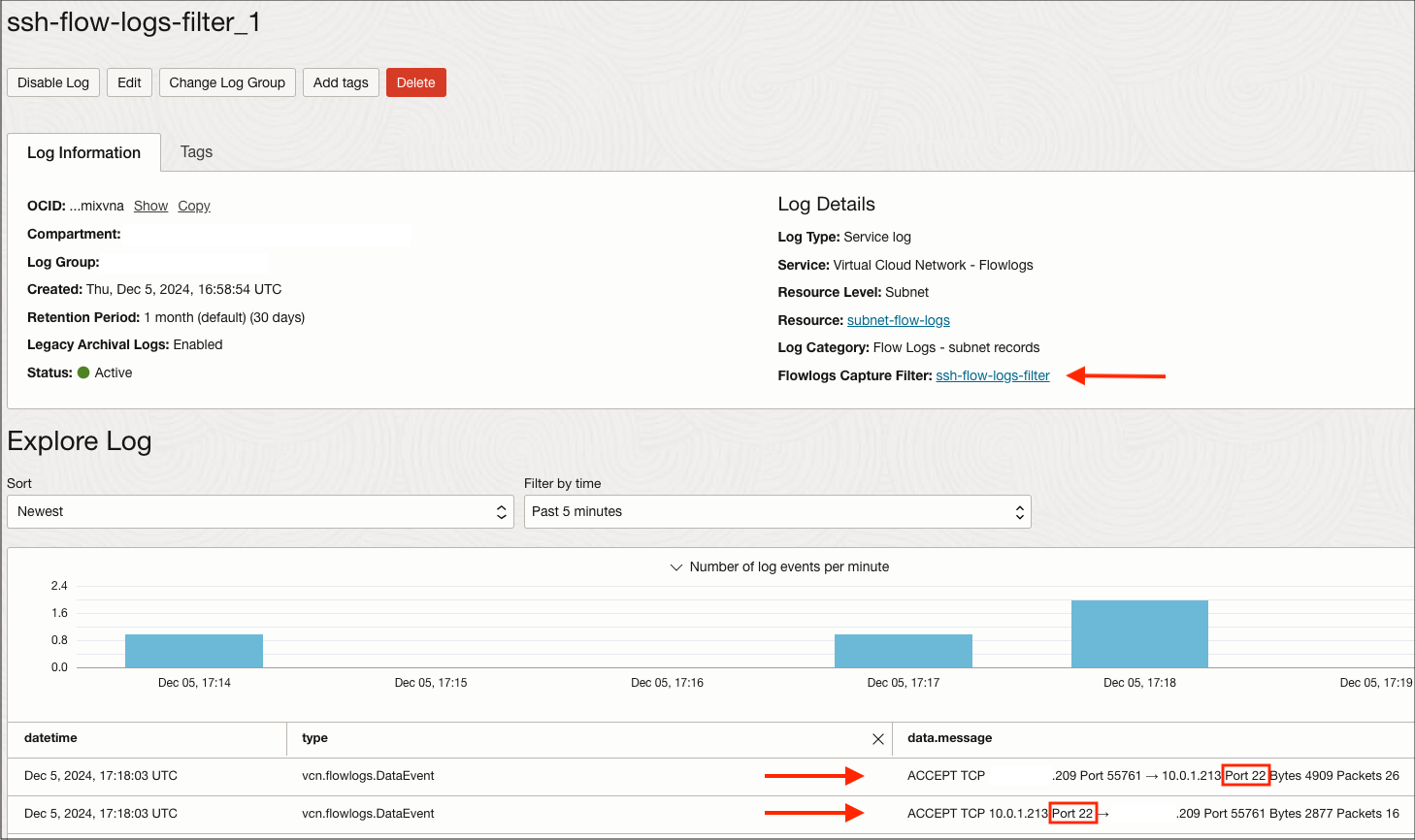
I will capture any SSH data flows in or out of a specific VCN subnet for this scenario. Multiple rules can be added to a single filter to capture different data types or source and destination addresses.
1. To begin, follow steps 1-2 as mentioned in Scenario 1 above.
2. In the capture filter, fill in the following details:
- Provide a name and select the appropriate compartment for the filter. Select Flow log capture filter filter type.
- The sampling rate determines the portion of network traffic to capture based on percentages. We want to capture all SSH traffic within the subnet. Select 100% from the Sampling rate drop-down menu.
- In the rules section, ensure that the Traffic disposition and IP protocol are set to All, Include is selected from the Include/Exclude drop-down, and the Source and Destination IPv4 CIDR fields are left blank.
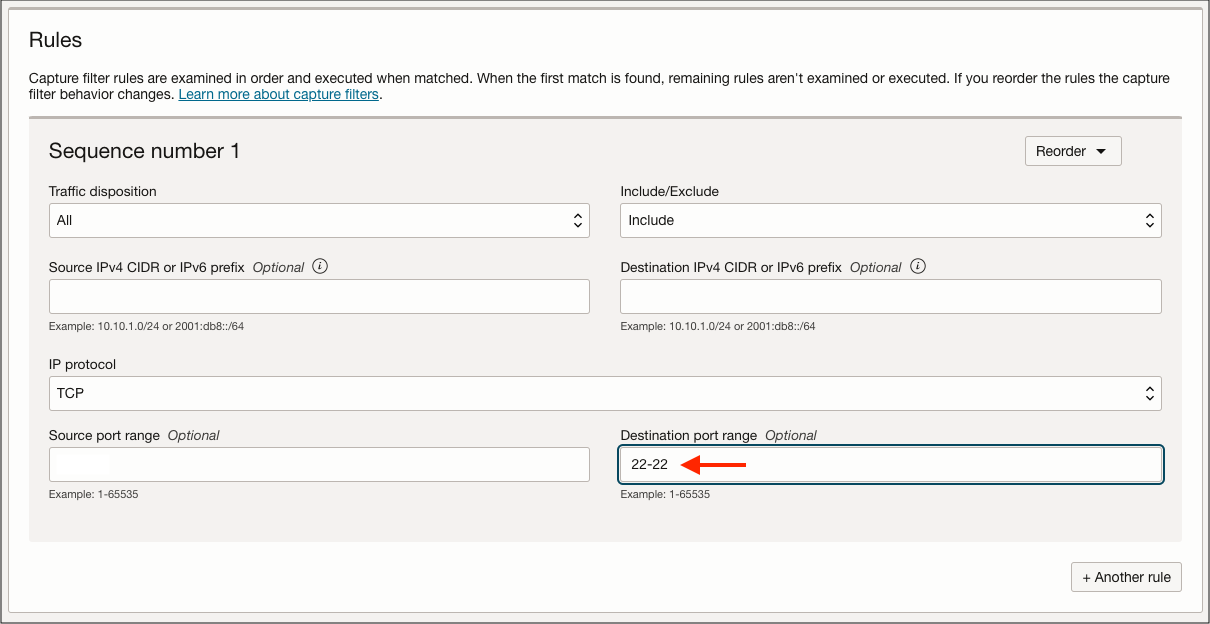
- Change the IP protocol drop-down from All to TCP.
- In the Destination port range field, enter TCP port range 22-22, which limits flow logs to the standard SSH TCP port 22. This rule captures all traffic initiated at our enablement point (Subnet).
- Select Create capture filter.
3. With our capture filter in place, we can now apply it to our enablement point; in this example, the enablement point was a subnet. The enablement point steps will follow the same process as listed in steps 4-9 in Scenario 1. Once completed, you should see specific traffic captured in flow logs as shown below:
Scenario 4: Capture a Sample Amount of Flow Log Traffic for an Enablement Point.
The last scenario describes capturing 5% of VCN flow log traffic using sampling. This can be useful for saving costs on storing VCN flow log data or using external network monitoring tools that ensure network data flows are working correctly.
1. To begin, follow steps 1-2 as mentioned in Scenario 1 above.
2. In the capture filter, fill in the following details:
- Provide a name and select the appropriate compartment for the filter. Select Flow log capture filter Filter type.
- The sampling rate determines the portion of network traffic to capture based on percentages. We want to capture a small sampling of traffic within the VCN, so select 5% from the Sampling rate drop-down menu.
- In the rules section ensure that the Traffic disposition and IP protocol are set to All, Include is selected from the Include/Exclude drop-down, and the Source and Destination IPv4 CIDR fields are left blank. This rule captures all traffic from our enablement point (VCN).
- Select Create capture filter.
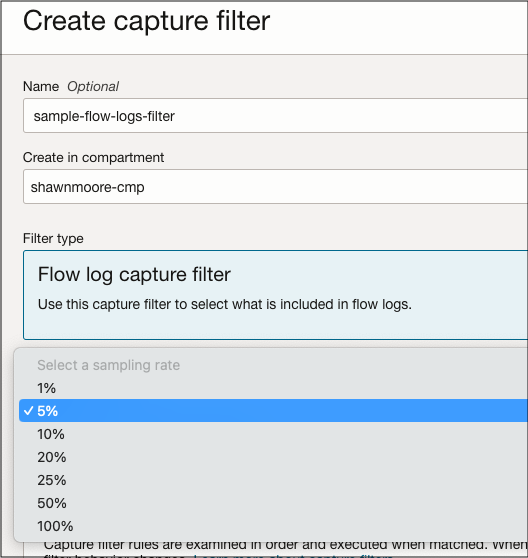
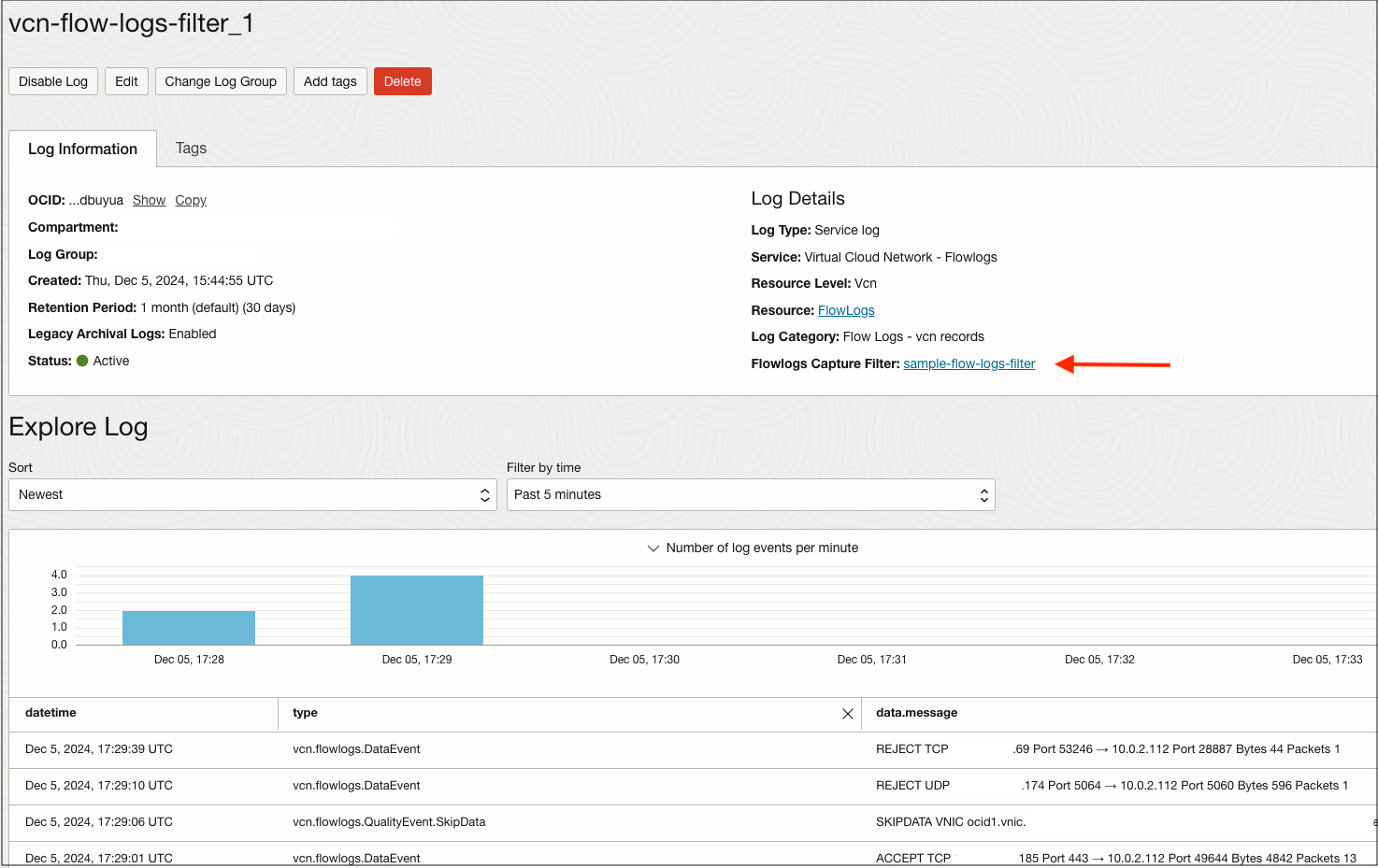
3. With our capture filter in place, we can now apply it to our enablement point, which, in this example, was the VCN. The enablement point steps will follow the same process as listed in steps 4-9 in Scenario 1. Once completed, you shoud see specific traffic captured in flow logs as shown below:
Conclusion
Our new VCN Flow Logs enhancements offer granularity that was not available before. Control what type of network traffic and how much with the latest flow log features available. These changes do not affect existing flow logs enabled on individual subnets and will continue to work as configured. For additional instructions on configuring VCN Flow Logs, visit our official documentation page.