

Introduction
Different cloud service providers excel in various areas, and with the increasing need for cloud-based solutions, organisations are constantly seeking ways to leverage the best features and tools from each provider and mitigate the risks associated with vendor lock-in.
A key component in any enterprise solution is the Database. Oracle’s robust database management system supports complex transaction processing and analytics, ensuring data consistency and availability, which is crucial for business operations.
Oracle Database within a multi-cloud framework allows enterprises to manage and utilise data with exceptional efficiency and reliability across different cloud environments.
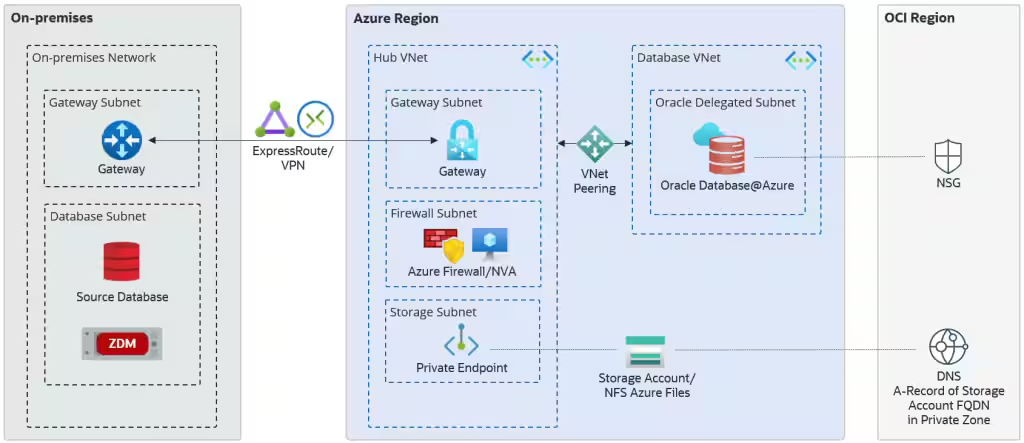
In this blog-post we will focus on the network configuration needed to provide connectivity for the Oracle Autonomous Database (ADB) provisioned in Oracle Database at Azure (OD@A) to mount an NFS Azure file share.
The creation of the file share in Azure, and the connectivity between the nfs private endpoint and the ADB endpoint are not in scope of this blog.
Before moving forward you must be familiar with the Oracle Database at Azure: network topologies, provisioning of the ADB, exploring NFS Storage Options, and Oracle Database at Azure DNS options.
Architecture
The Oracle Autonomnous Database at Azure implementation uses the VCN DNS resolver. This resolver relies on the private DNS zones configured on the private view inside the VCN and if the requested FQDN is not present, will forward the request to the OCI DNS internet resolver. In other words, Azure and the OD@A DNS service are independent and not possible to do cross cloud DNS resolution of the private zones.
During the provisioning, of the Networking, the ADB will have an FQDN from the “oraclecloud.com” domain. This zone is a private DNS zone that resides in OCI. After the provisioning of the service, the records from this zone are replicated from OCI to an Azure corresponding private DNS zone. The applications from Azure that connects to the ADB resolve the FQDN by using the Azure private DNS zone.
The private zone from Azure is linked to the Virtual network where the ADB is provisioned.
Information gathering about the NFS file share
This post asume that we have a running NFS Azure file storage configured with a private endpoint. If you are not familiar with the configuration, you should follow the official documentation.
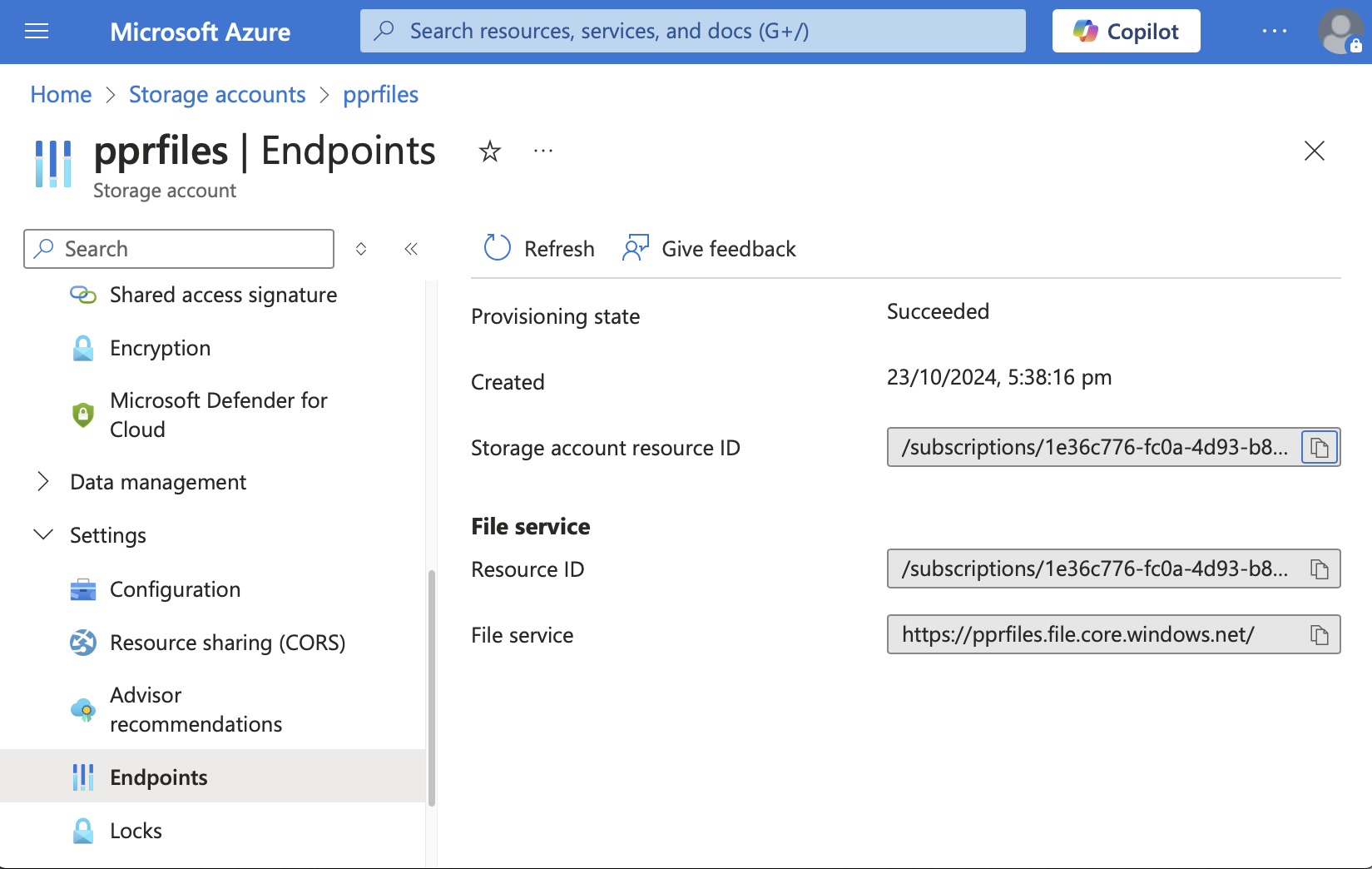
Navigate on Azure’s WebUI to the “Storage accounts > {your account} > Security + networking > Networking > Private endpoint connections > {your private endpoint} > Settings > DNS configuration” and under the Network interface grab the FQDN and the IP address.
Configure the OCI DNS
We will create a private DNS zone corresponding the FQDN of the NFS share from Azure. When ADB will resolve that FQDN, it will query the VCN resolver which will look in the zones from the private view. Here, there will be a record corresponding to the private endpoint of the Azure NFS storage.
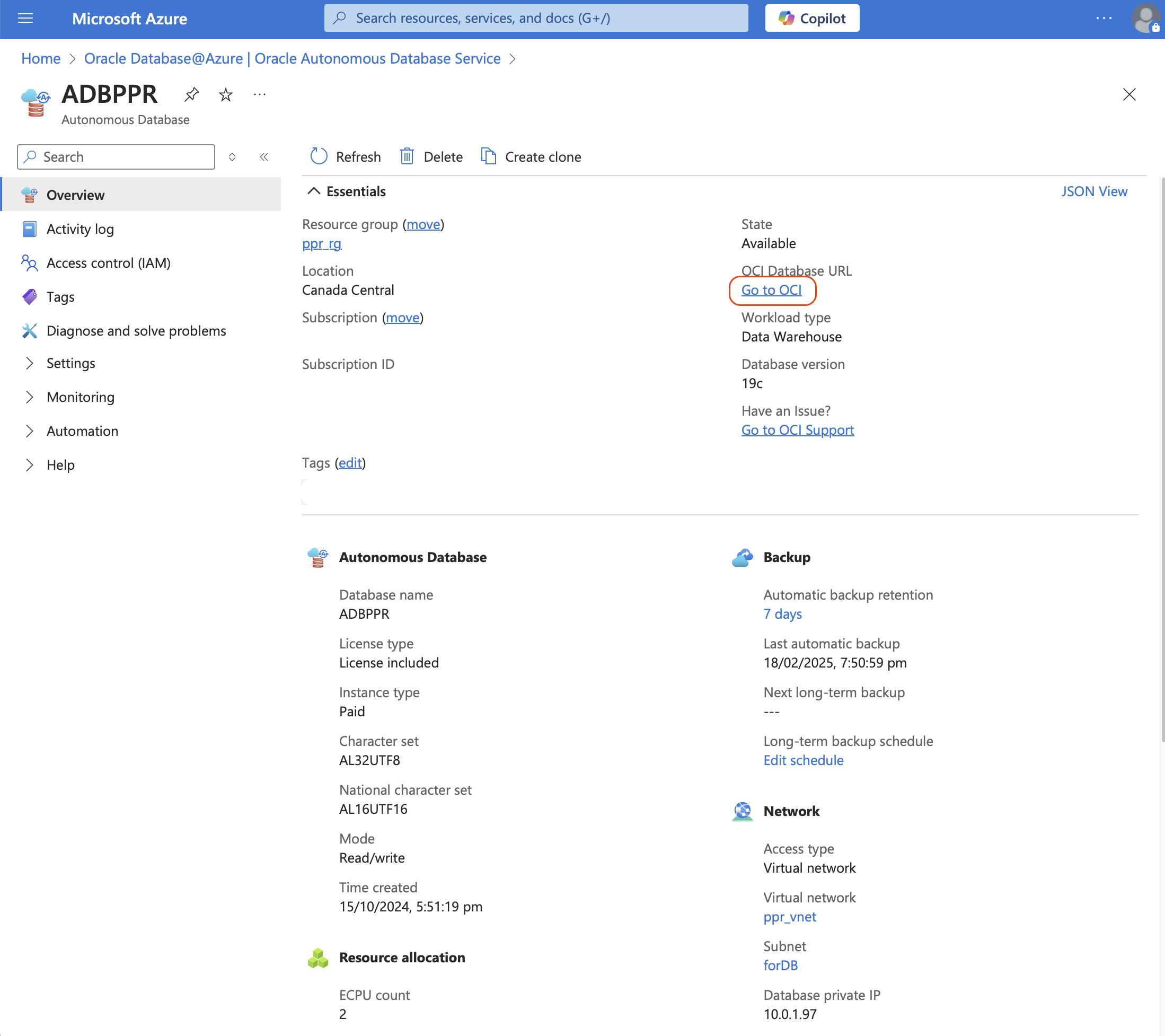
Navigate to the Service UI console (notice the Database private IP from the “Network” section) and click “Go to OCI” link.
After the login to the OCI tenancy, the ADB screen will look similar to the one bellow.
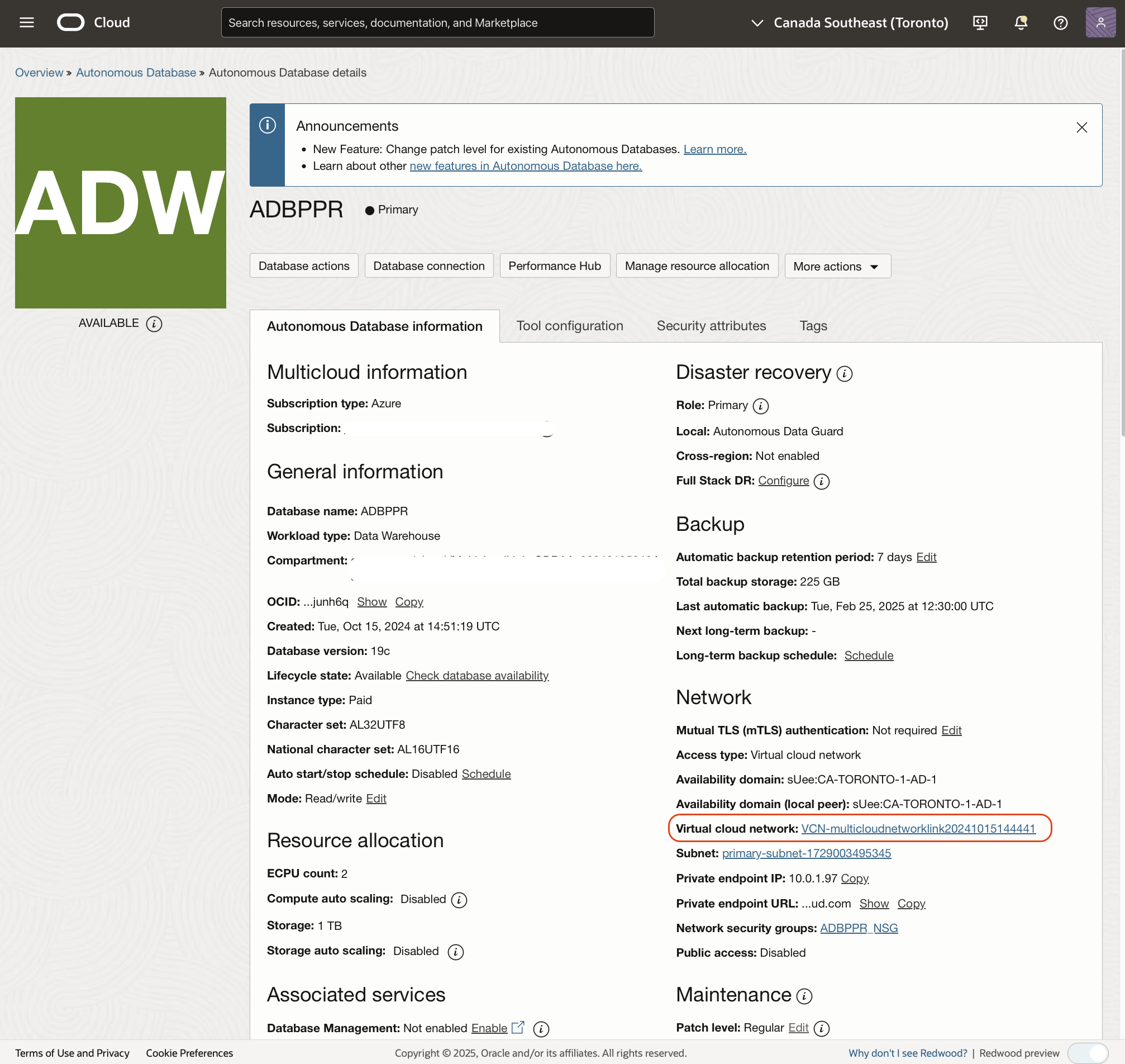
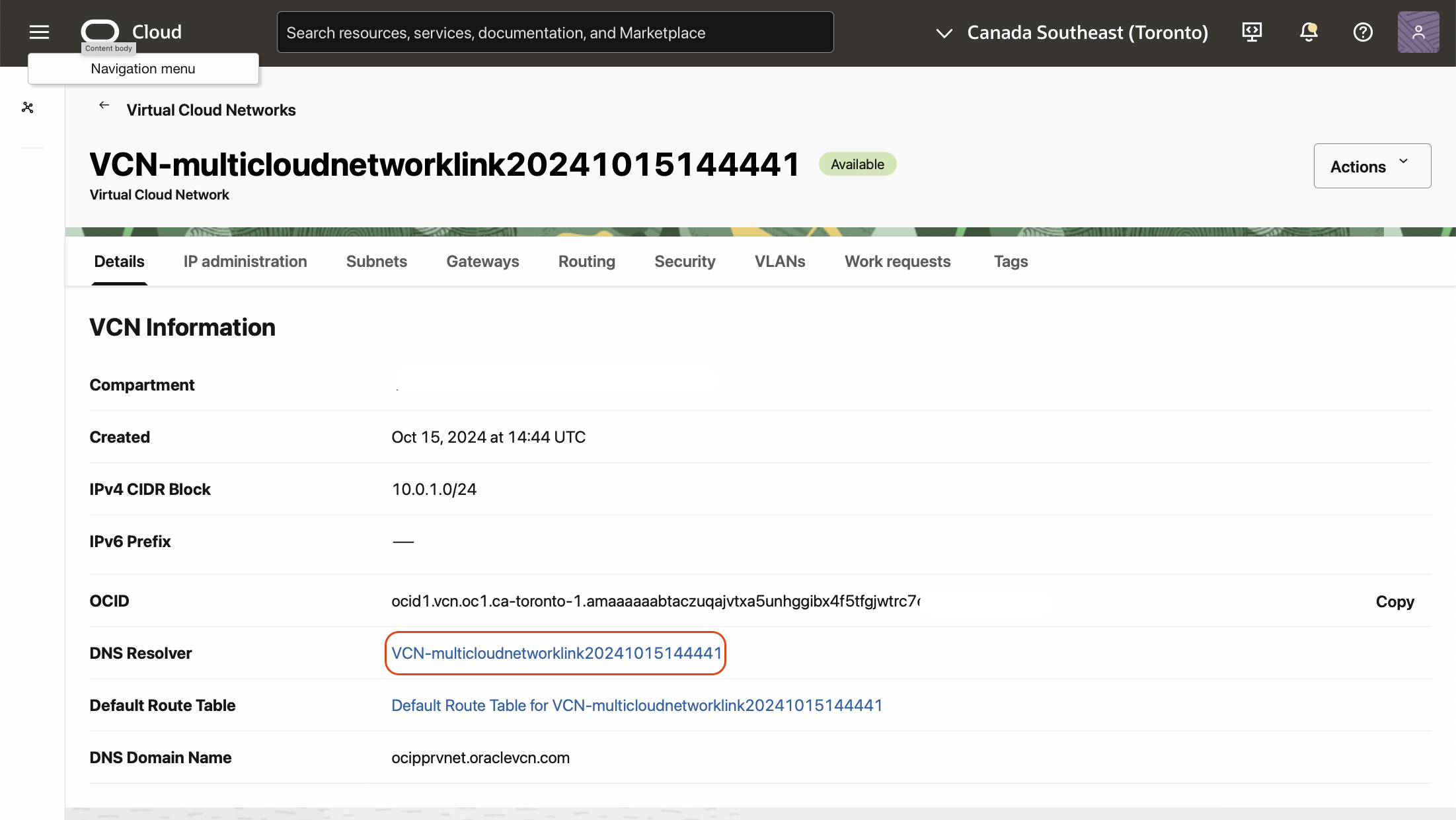
Click on the VCN link to provide the details of the VCN. Click on the “DNS Resolver” link.
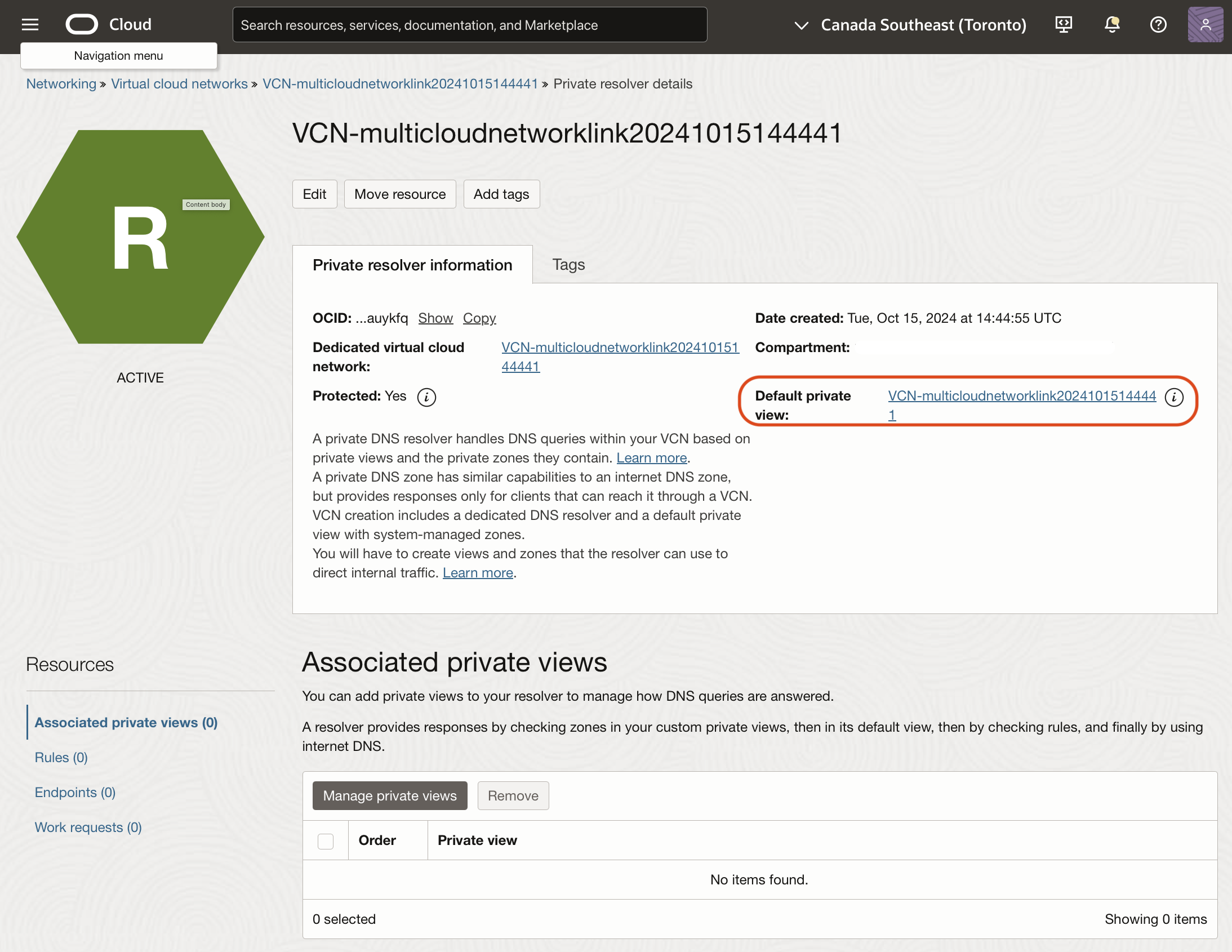
Click on the “Default Private View”.
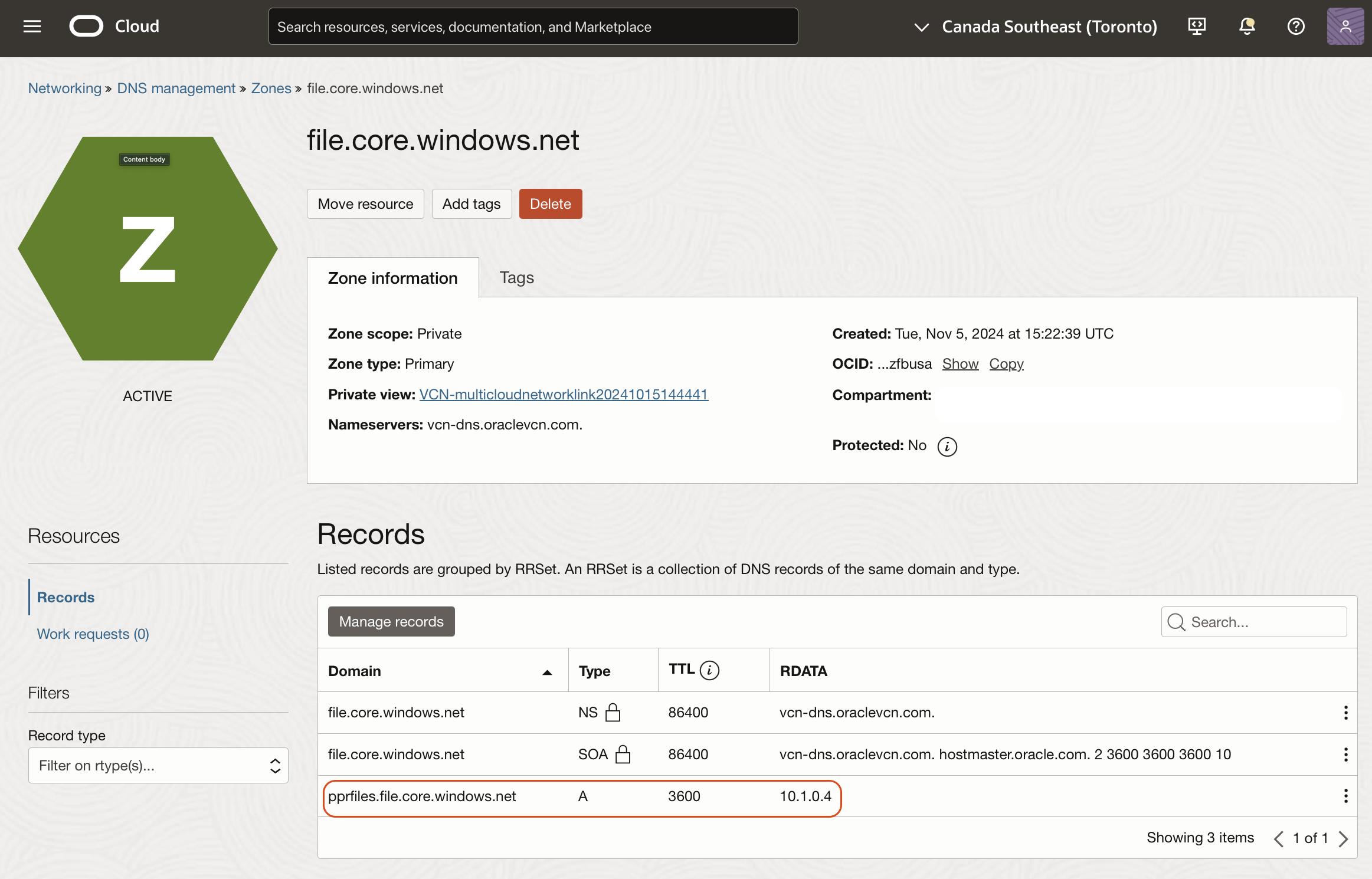
Create a zone corresponding to the Azure NFS storage, and an A-record for the private endpoint.
Mount the NFS storage to the ADB
Before moving forward, we will need a working connection from an Oracle database tool to the ADB. The configuration of the specific tool and setup of the connection to the ADB is not in the scope of this blog.
If you want to learn more about the Oracle DB tools please read the official documentation.
These are the prerequisites required to begin accessing Network File System from your Autonomous Database:
– Ensure all outgoing connections to a target host follow and are restricted by the private endpoint’s egress rules.
‘PRIVATE_ENDPOINT’;
– add NFS Mount FQDN to the Access Control List (ACL).
- Use the DBMS_NETWORK_ACL_ADMIN.APPEND_HOST_ACE procedure to append an Access Control Entry (ACE) to the Access Control List of a network host. Below is an example, make sure you put your nfs share.
DBMS_NETWORK_ACL_ADMIN.APPEND_HOST_ACE(
host =>’pprfiles.file.core.windows.net’,
ace => xs$ace_type(privilege_list => xs$name_list(‘connect’, ‘resolve’),
principal_name => ‘ADMIN’,
principal_type =>xs_acl.ptype_db));
- create a directory or use an existing directory to attach a NFS in your Autonomous Database. Check the documentation for more details.
- attach NFS to a directory in your Autonomous Database. Below is an example, make sure you put your details. Check the documentation for more details.
DBMS_CLOUD_ADMIN.ATTACH_FILE_SYSTEM(
file_system_name => ‘AZUREFILES’,
file_system_location =>’pprfiles.file.core.windows.net:/pprfiles/bkpfiles’,
directory_name => ‘FSS_DIR’,
description => ‘Attach Azure Files’,
params => JSON_OBJECT(‘nfs_version’ value 4) );
Verify the result by running the following command:
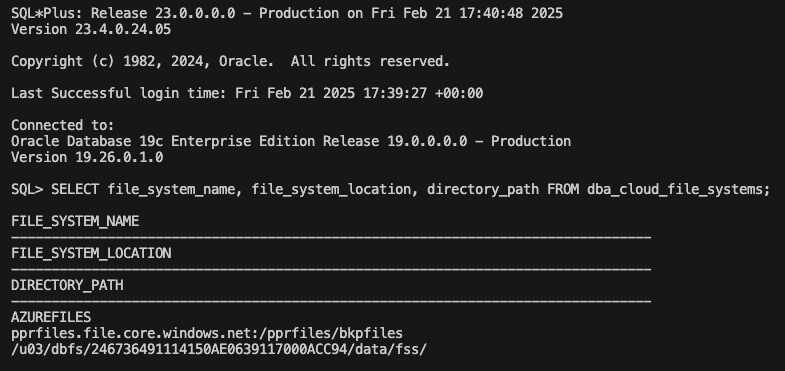
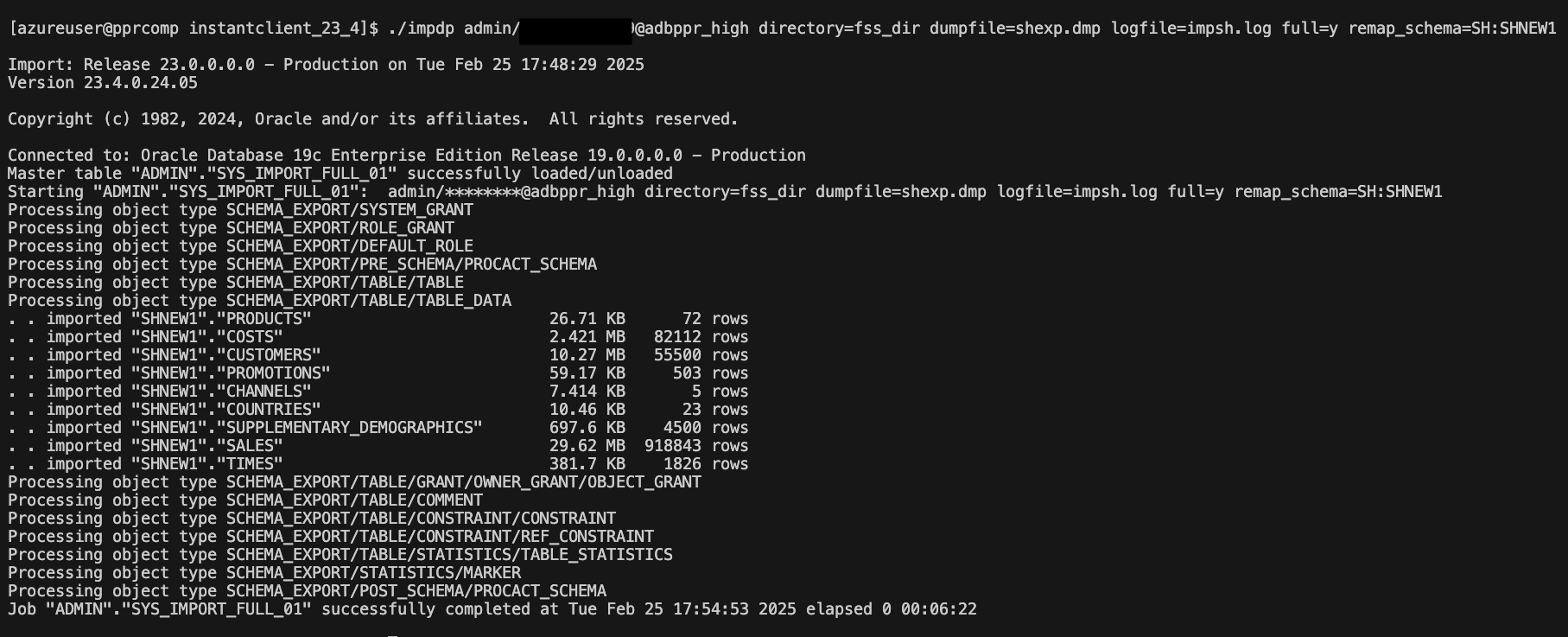
As a test, we will load to the ADB an dump from the source database. The operation of mounting the NFS share to the source database is not covered in this blog. Copy the required export dump file to the NFS storage account from the source database and it can be imported into Autonomous Database
Export of SH schema from source is copied to NFS mount. It will be imported in a new schema SHNEW1.
Conclusion
Loading data from external storage is a key feature of Autonomous Database that database administrators rely on. In this post, we outline the configuration steps required to attach an NFS storage from Azure.