
Introduction
When it comes to the Flexible Load Balancer (FLB) in OCI, maintaining high availability and seamless traffic management is crucial for any enterprise. However, what happens when all the primary backends in your backend set are down? Without proper configurations, this scenario can lead to downtime and frustrated users.
In this blog, I’ll guide you through the steps to configure a backend to act as a last resort option, ensuring minimal disruption to your services. This backend can be setup to respond with a maintenance splash page to let users know there is an outage or could also be a scaled down version of the application itself.
Whether you’re an OCI beginner or a cloud architect, this guide will help you enhance your application’s resilience and reliability.
As a prerequisite, you should be familiar with OCI Flexible Load Balancer and have already created a FLB on OCI with some backend servers configured. For more information, please check this link.
Let’s get stared.
I have created the public OCI FLB with two backend servers. As you see below the FLB overall health is “OK” and healthy.
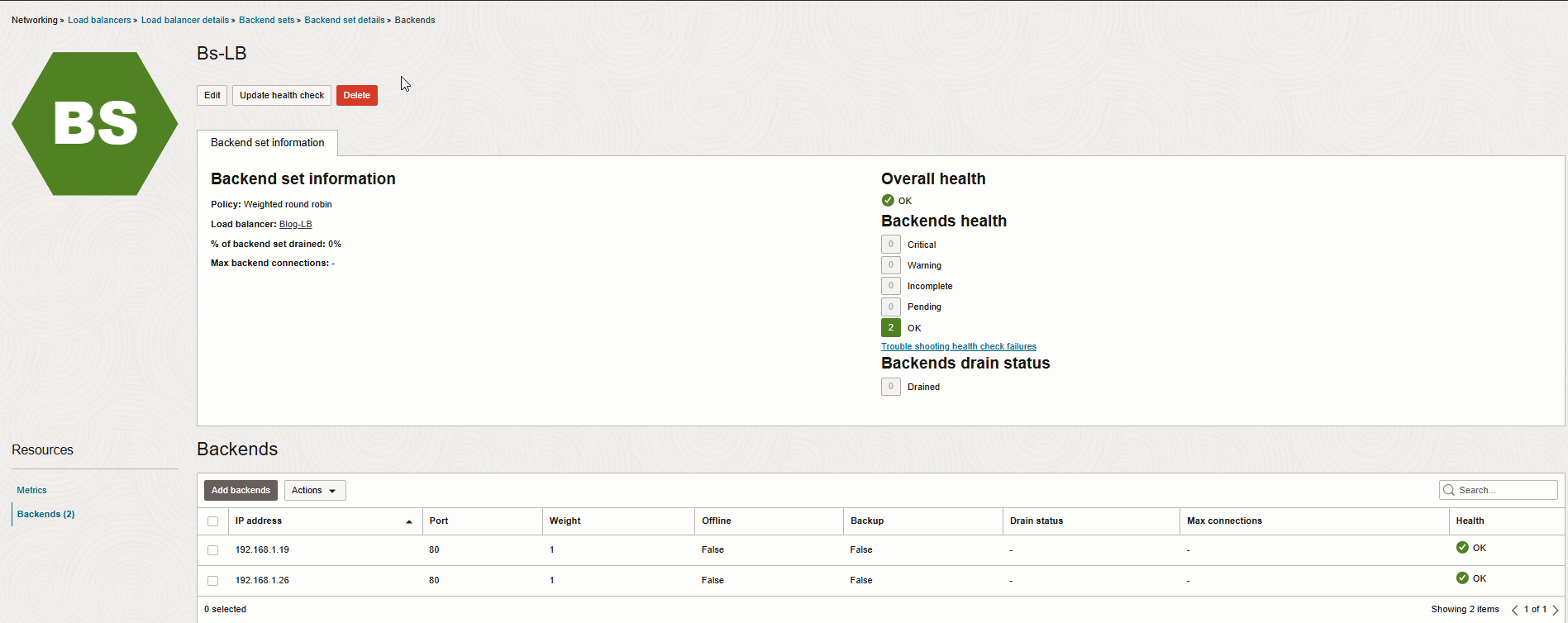
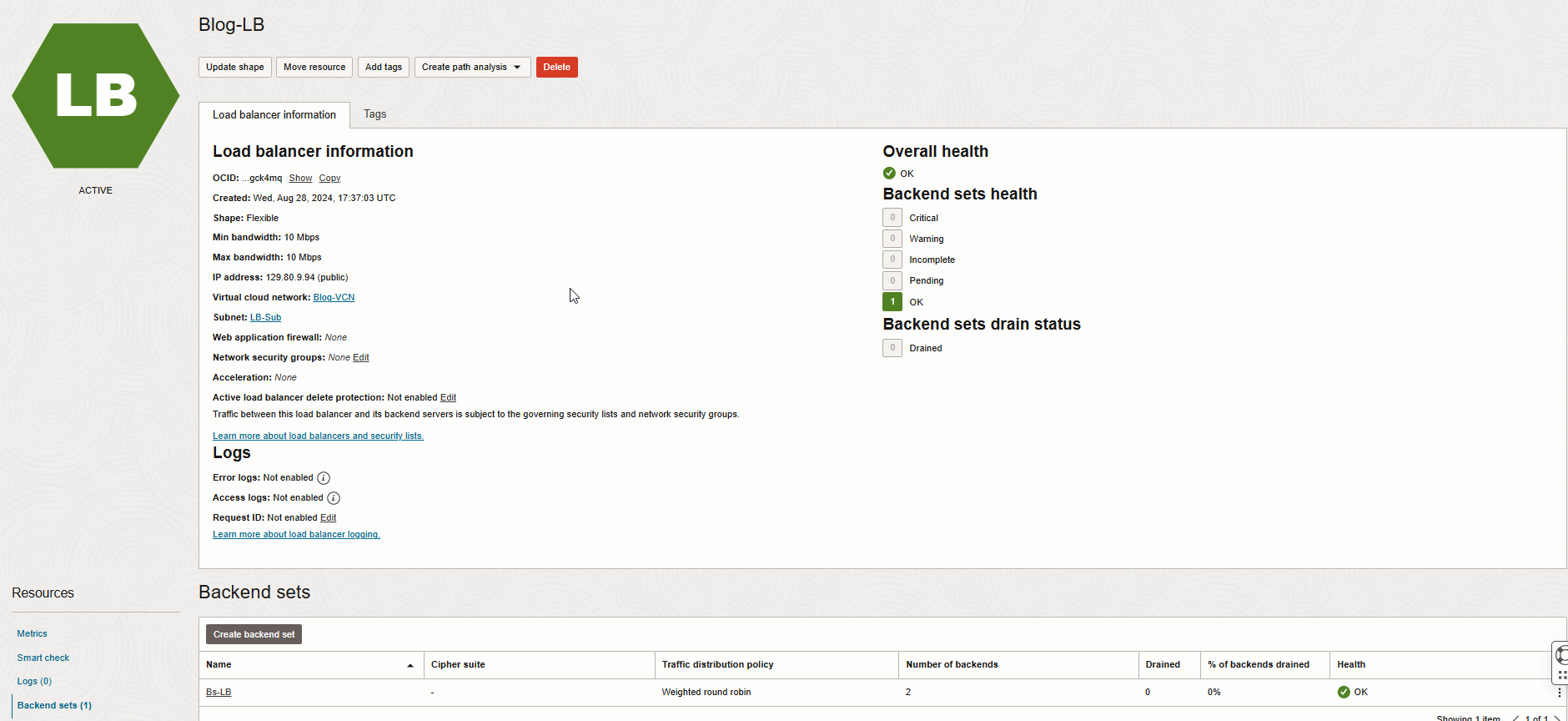
The FLB has a public IP address assigned by Oracle with “Weighted round robin” as a traffic distribution policy.
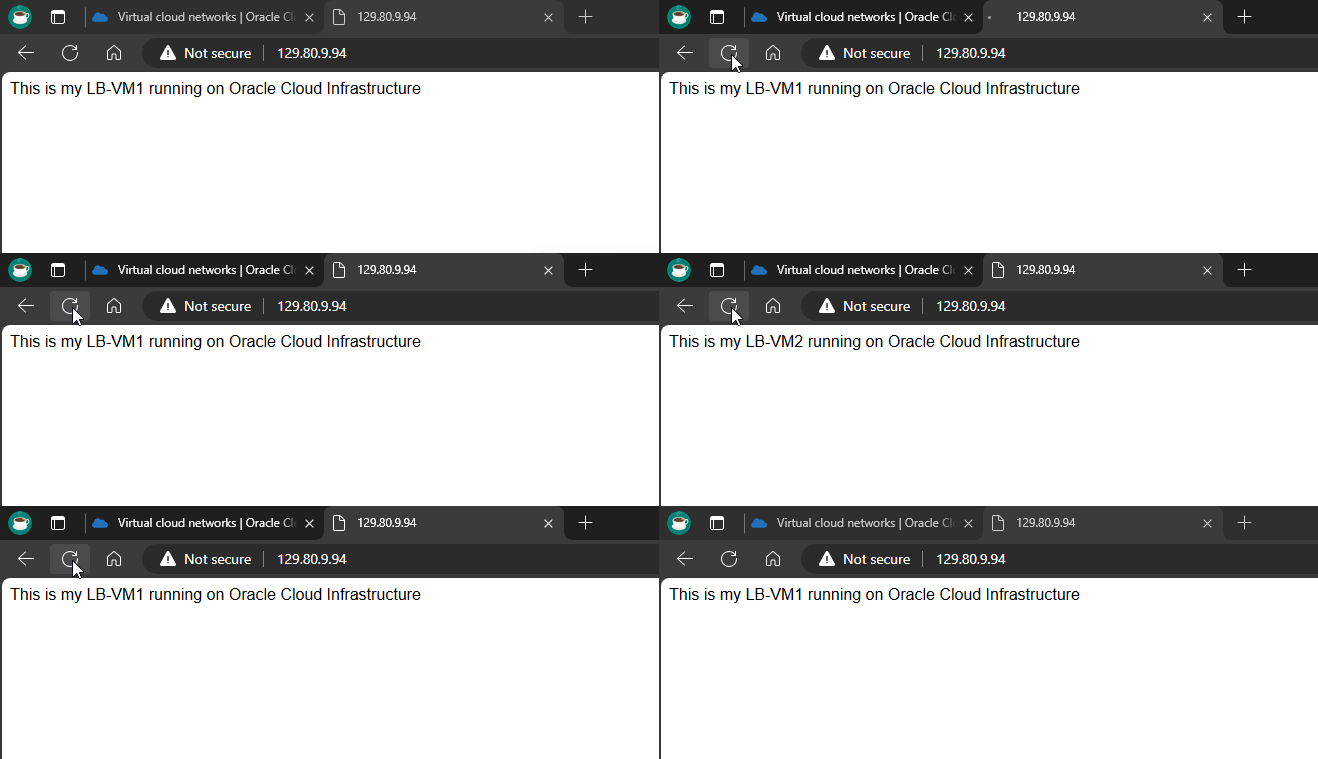
If I open a new tab in my browser and test the FLB connection, the incoming traffic to FLB will go sequentially to each server in a backend set list.( VM1 and VM2 )
Now let’s set one of the backend servers as a backup.
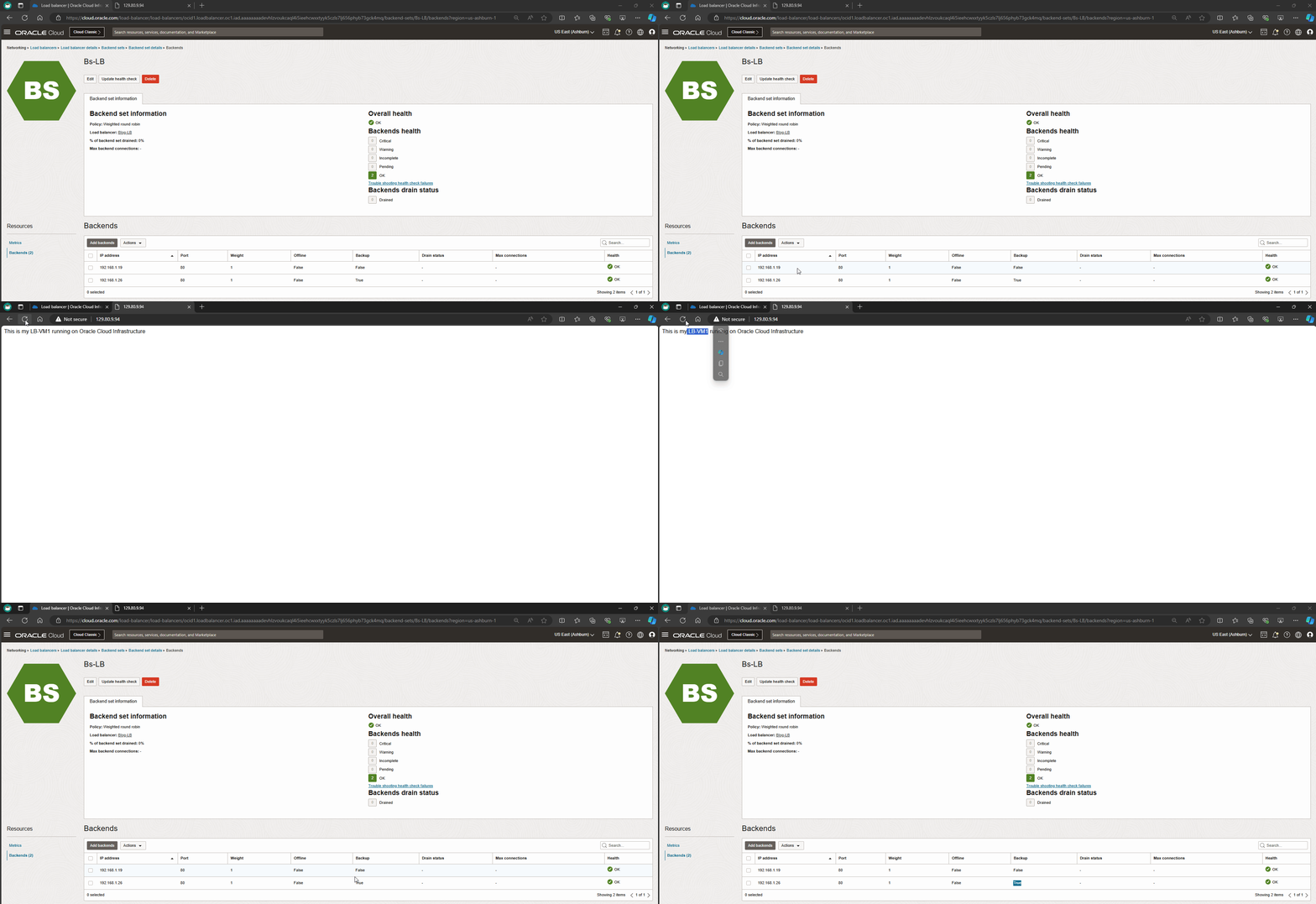
From the backend set page, under resources, click on backend, check the box next to VM2 and click on action to set it as a backup. In this case, the FLB forwards ingress traffic to the backend server (VM2) only when all other backend servers not marked as “backup” and have critical health status.
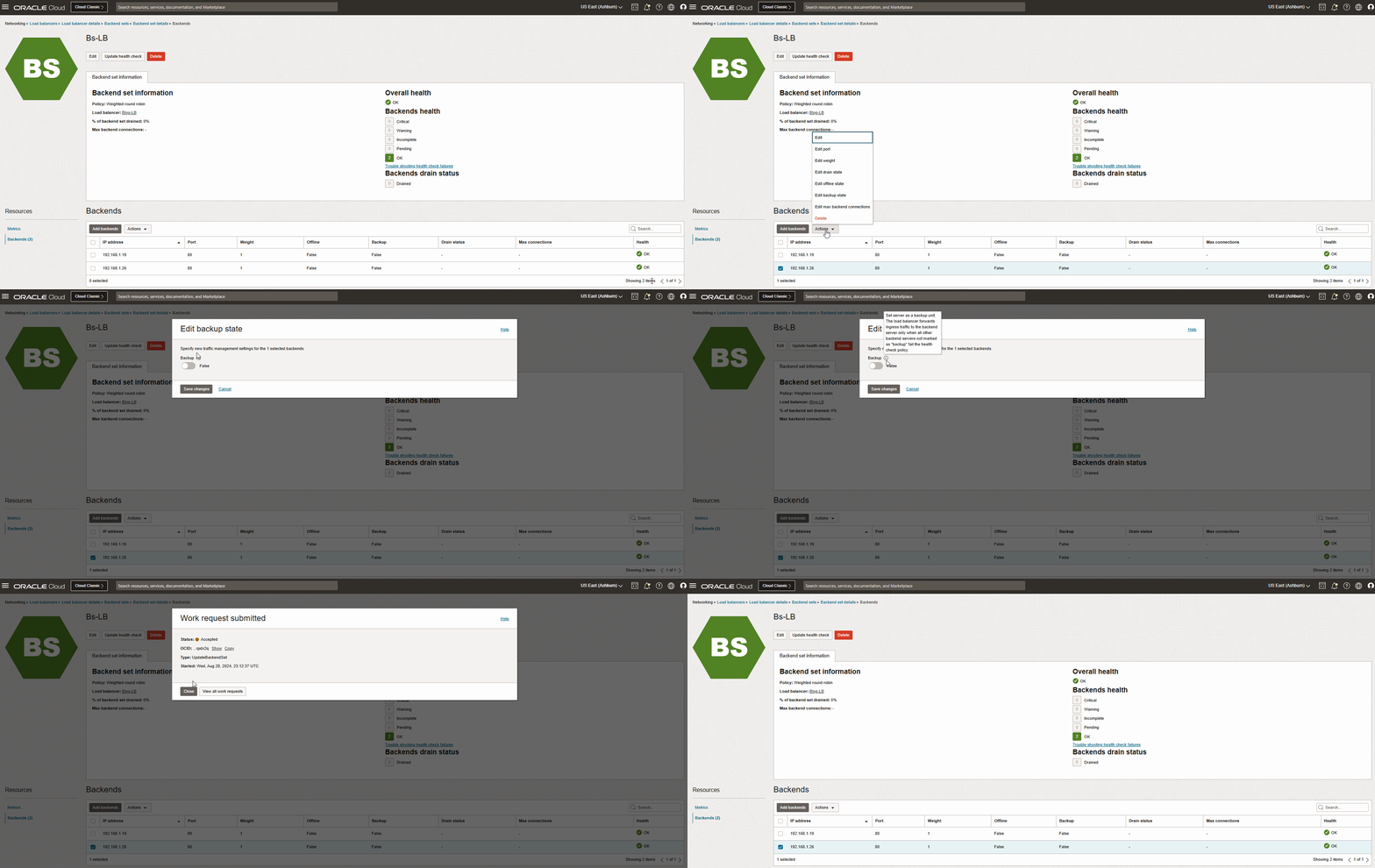
After a few seconds you should see the backup status of VM2 is changed to “True.”

And if refresh the FLB browser, you would see the load balancer forwards ingress traffic to just VM1.
Verification
For confirming the traffic redirect to backup server (VM2), I change backend server (VM1) health status to critical by set the VM1 to offline status.
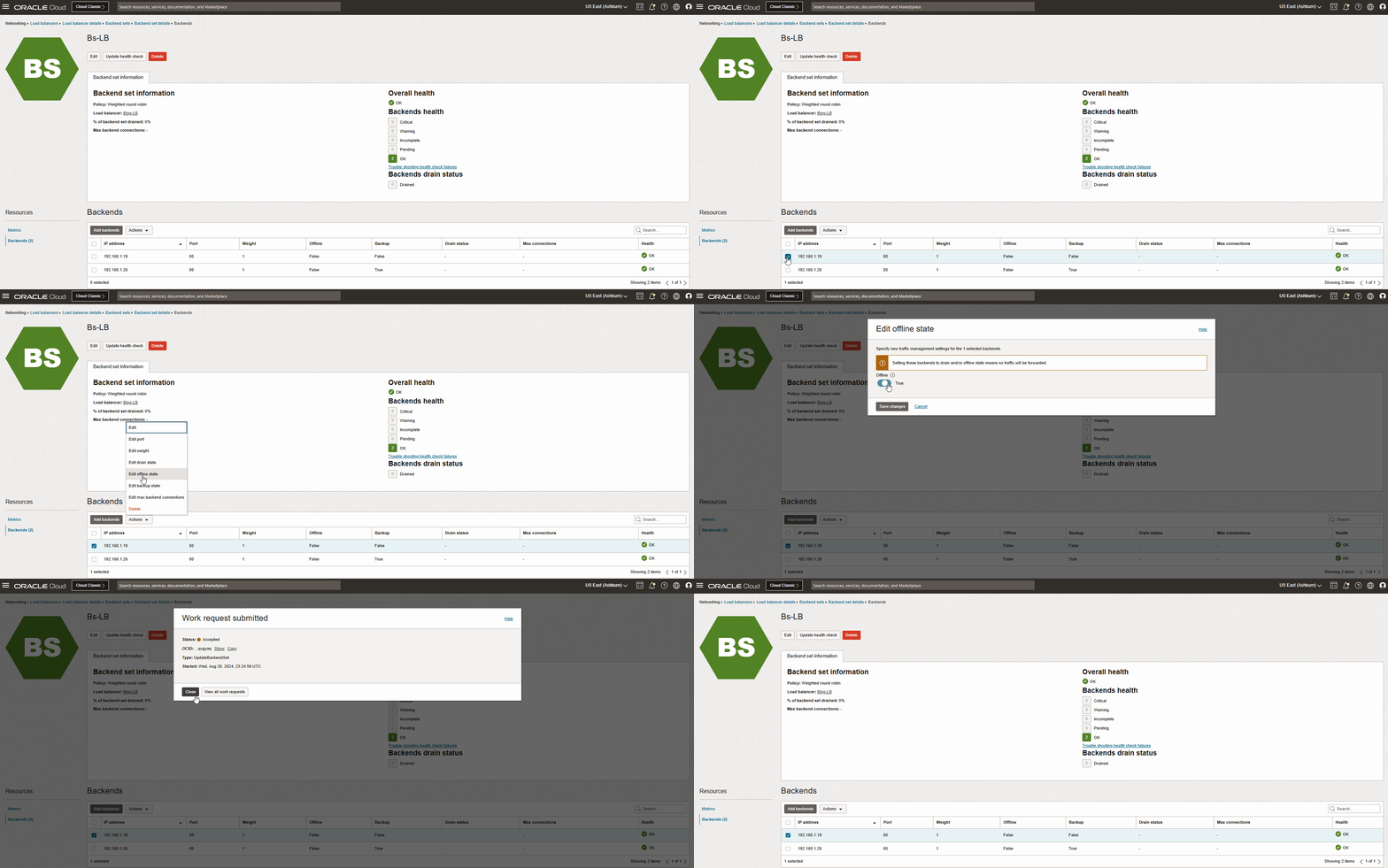
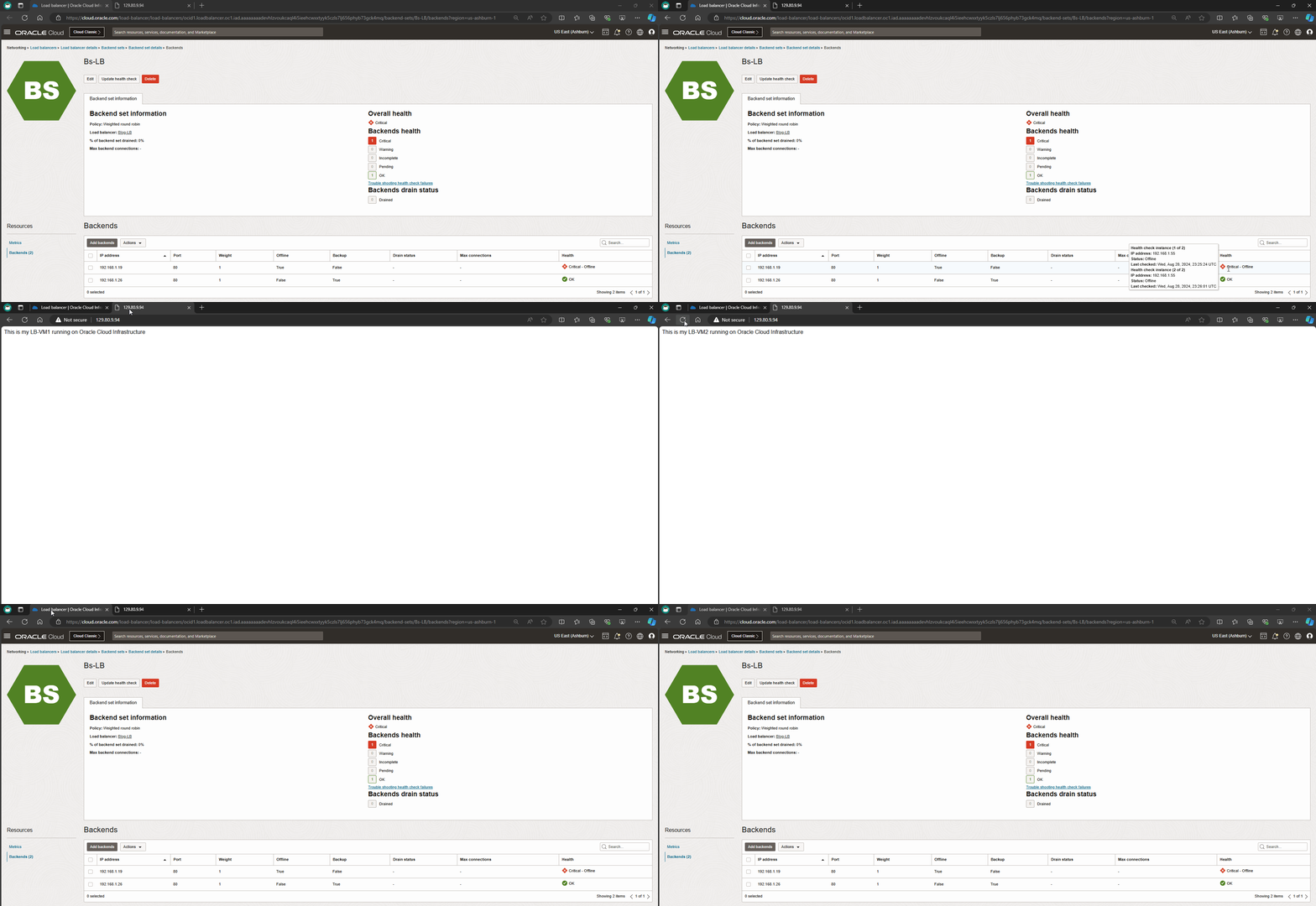
After a few seconds, offline status of VM1 is changed to “True” and health status to “Critical.”
If refresh a FLB browser, the FLB just redirect the traffic to VM2 or a backup server.
Conclusion
As I demonstrated above, If you set the server’s backup status to “True”, the load balancer forwards ingress traffic to this backend server only when all other backend servers not marked as backup fail the health check policy. This configuration is useful for handling disaster recovery scenarios. Please keep in mind, backend servers marked as “Backup” aren’t compatible with a load balancer that uses the IP Hash policy.
I hope you enjoyed it!