
Introduction:
Inspecting the traffic through a third-party virtual appliance such as Palo Alto is not uncommon among OCI customers. Typical use cases include:
- Customers have a publicly hosted application and want to inspect all the traffic from the internet to the server through a virtual appliance.
- Customers want to inspect all the outgoing traffic to the internet through a virtual appliance.
Both use cases require that the virtual appliance acts as a gateway. This blog focuses on NAT enablement required on the Palo Alto and OCI configuration to support it.
Network Setup:
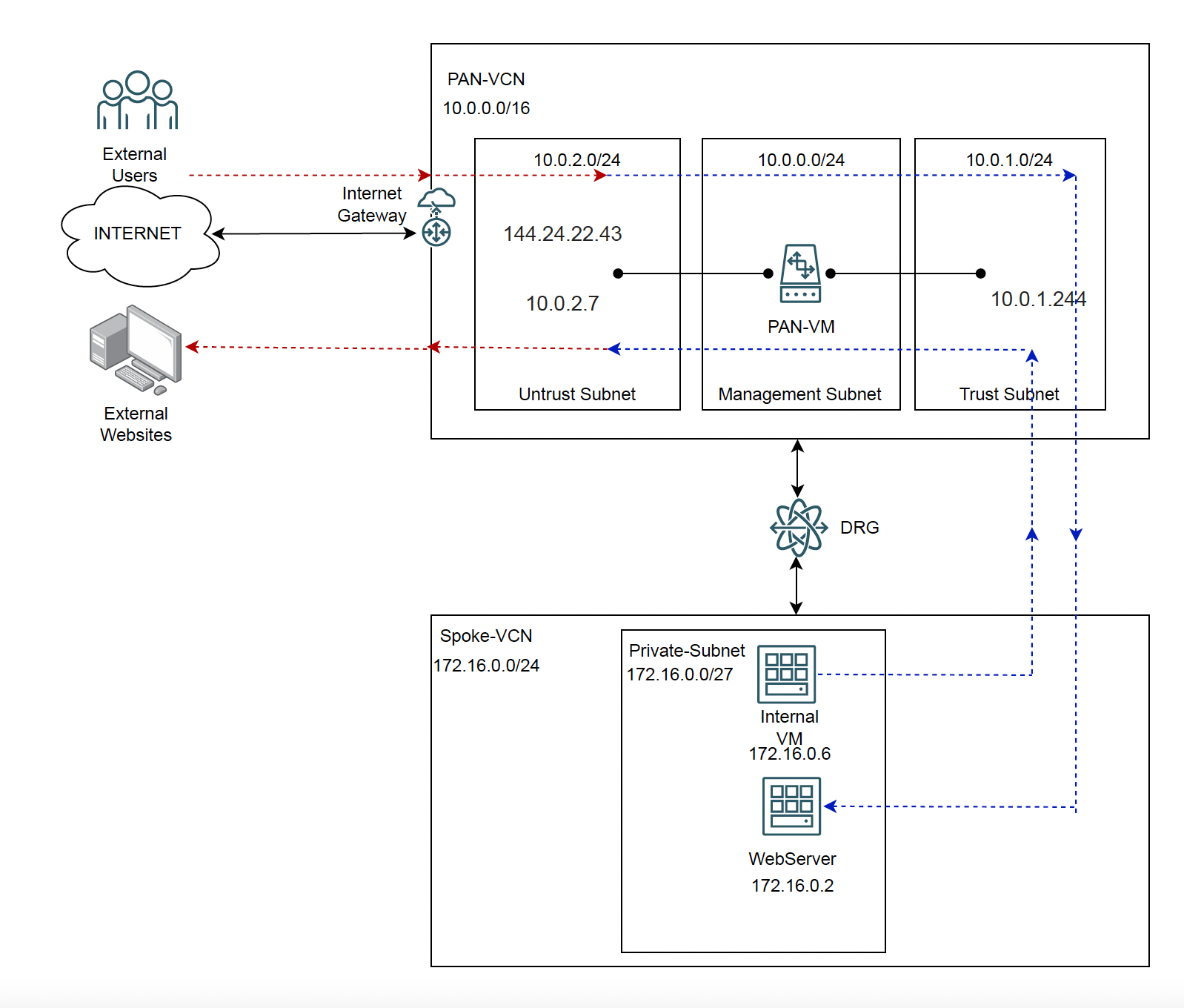
Since the focus of this blog is to go over NAT policies on Palo Alto and the respective OCI configuration, we won’t be going into the complete Palo Alto deployment configuration. As prerequisites, I have already completed the following:
- Palo Alto VM series firewall deployed in its own dedicated VCN called PAN-VCN (https://docs.paloaltonetworks.com/vm-series/9-1/vm-series-deployment/set-up-the-vm-series-firewall-on-oracle-cloud-infrastructure/bootstrap-the-vm-series-firewall-in-oci)
- Interface (trust/untrust) configuration on OCI as well as Palo Alto (https://docs.paloaltonetworks.com/vm-series/9-1/vm-series-deployment/set-up-the-vm-series-firewall-on-oracle-cloud-infrastructure/bootstrap-the-vm-series-firewall-in-oci)
- Security policies configuration required to allow necessary traffic on Palo Alto device
- Both PAN-VCN and spoke VCN attached to the DRG
To cover the use cases, I have deployed two VMs inside the spoke VCN:
- Internal VM: To access external websites
- WebServer: To host a publicly hosted website
OCI Routing Configuration:
For both source NAT and destination NAT to work in our use cases, the following OCI configuration is required.
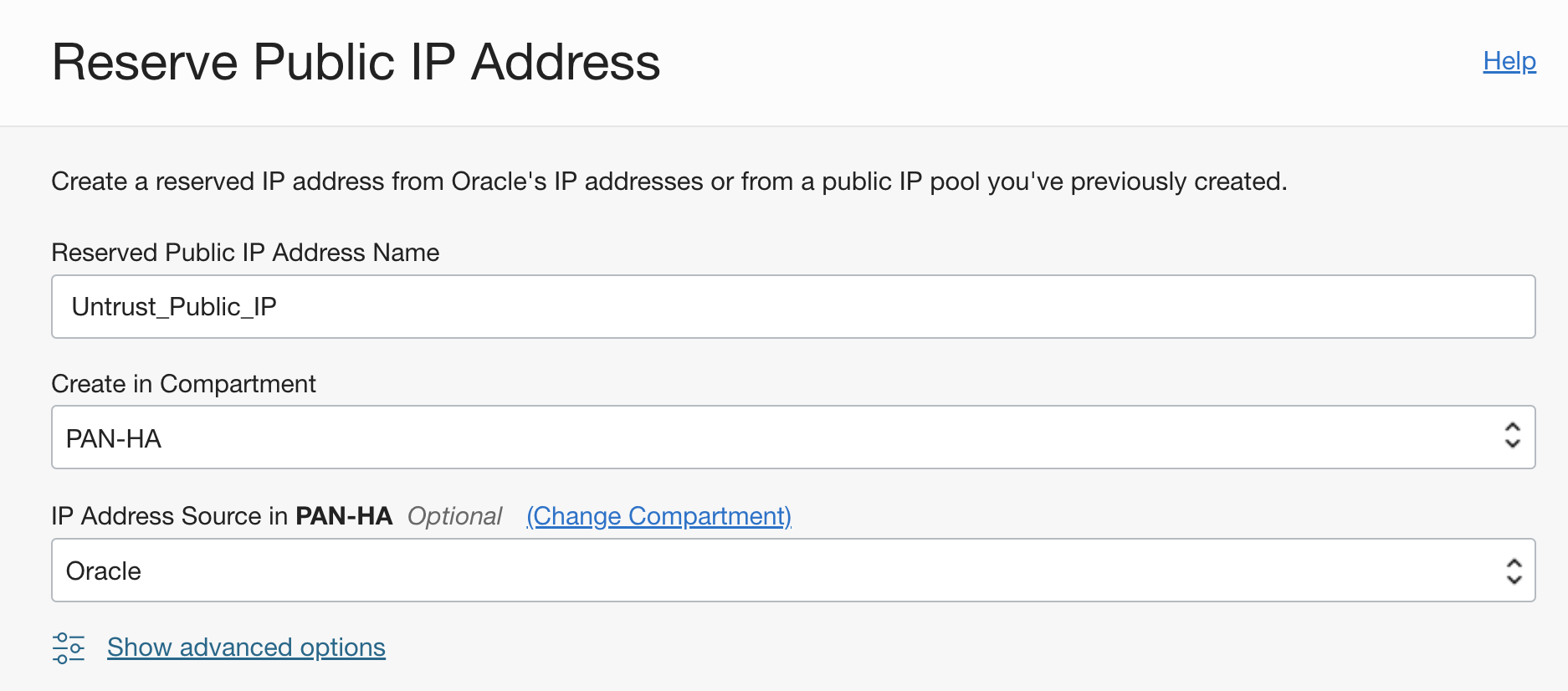
- Add a public IP to the untrust interface on OCI
Go to IP Management Reserve a public IP Select ‘Oracle’ as IP Address Source from the dropdown:
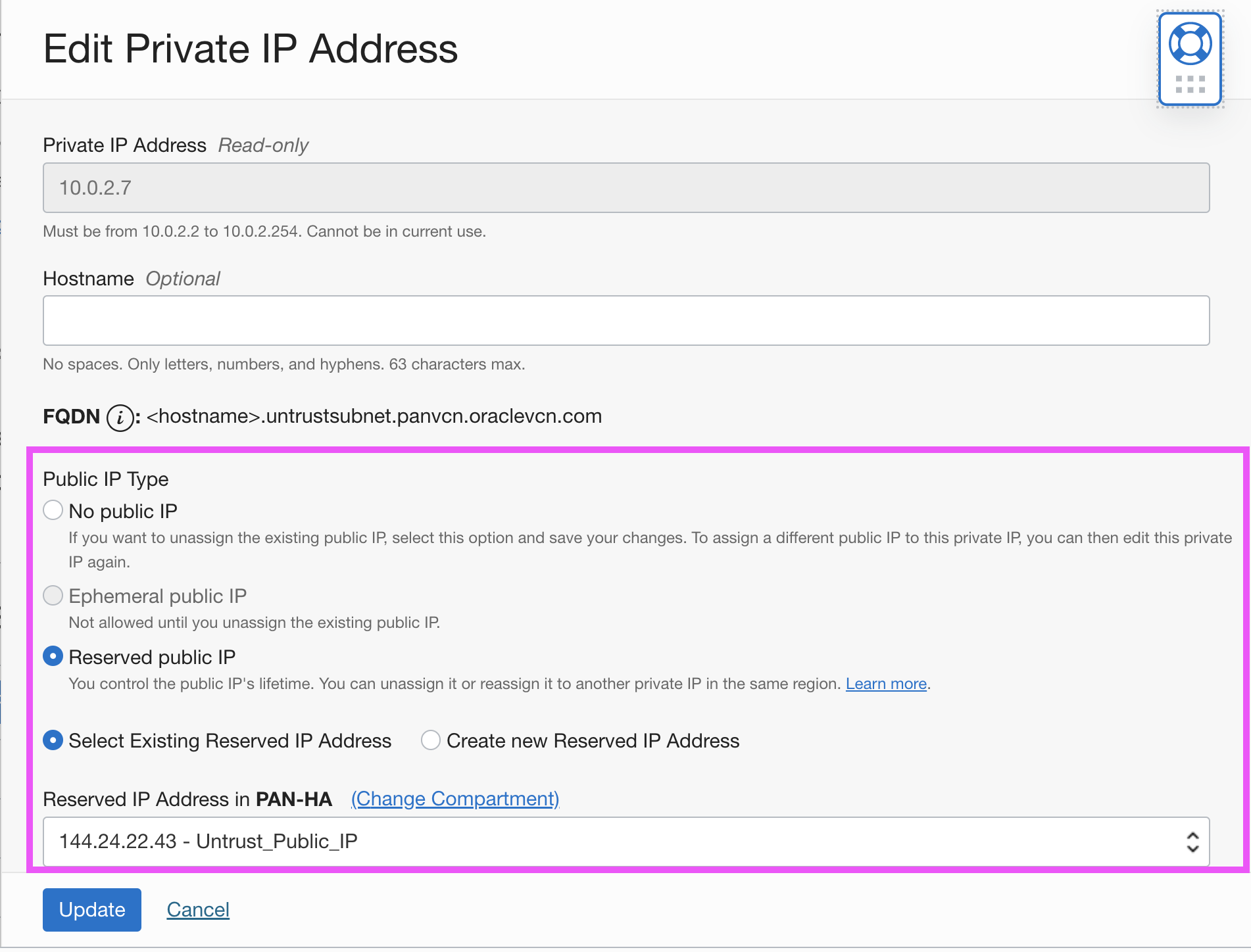
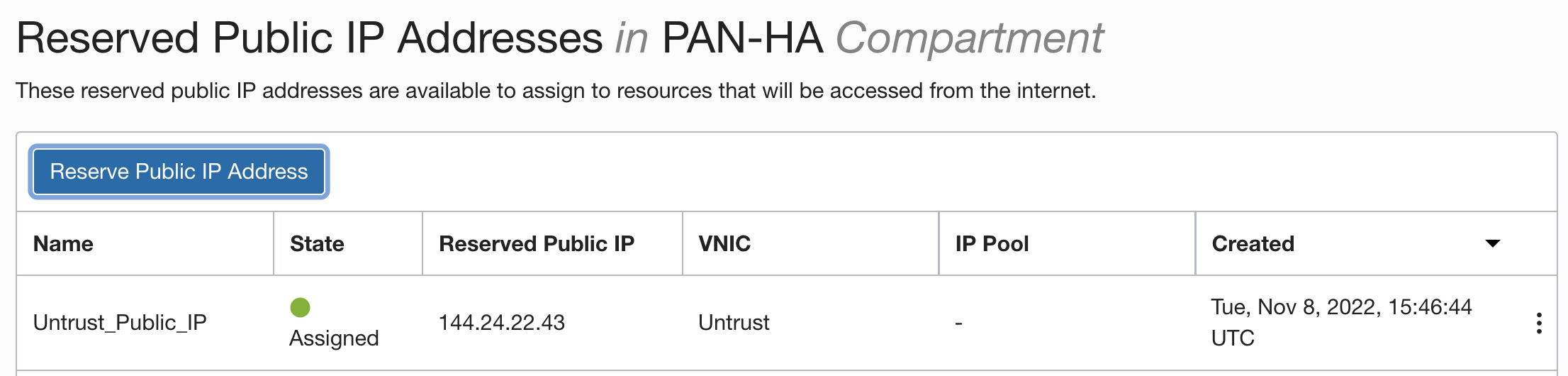 Now, go to PAN-VM Attached VNICs Untrust IP Addresses Edit the IP address Select the previously created reserved public IP as follows and update.
- Update the spoke subnet’s route table to add a route rule to send all the traffic to the DRG
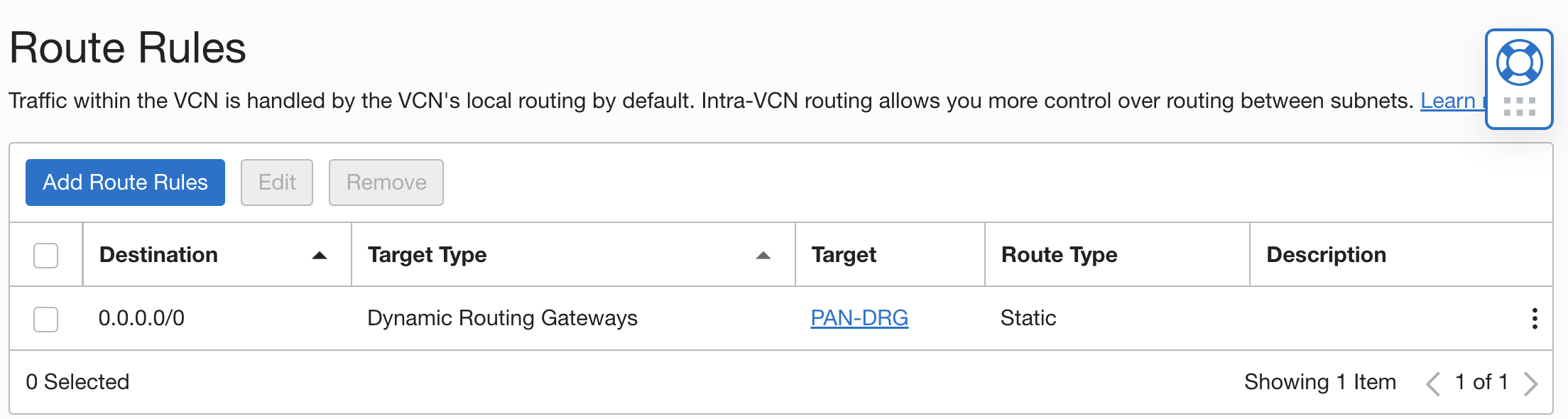
This step ensures that all the initiated/return traffic destined to the internet gets sent to the DRG first.
- Create a new route table for the spoke VCN attachment and add a static route to forward all the traffic to PAN-VCN attachment
Go to the DRG DRG Route Tables Create a DRG Route table
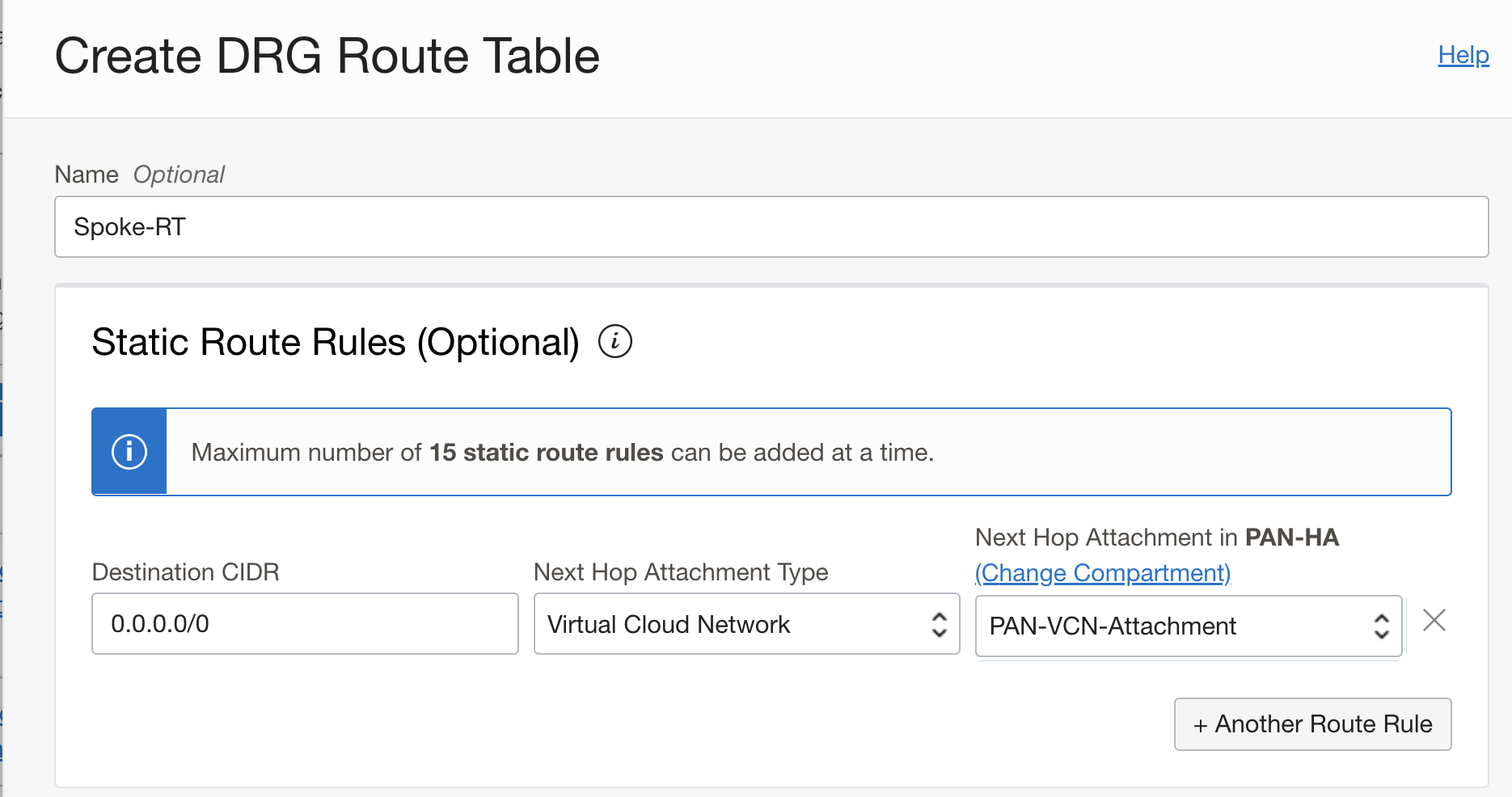
- Attach a VCN route table at the PAN-VCN and add a route rule to send all the incoming traffic to the trust interface
Go to PAN-VCN Route Tables Create New Route Table Add the following route rule:
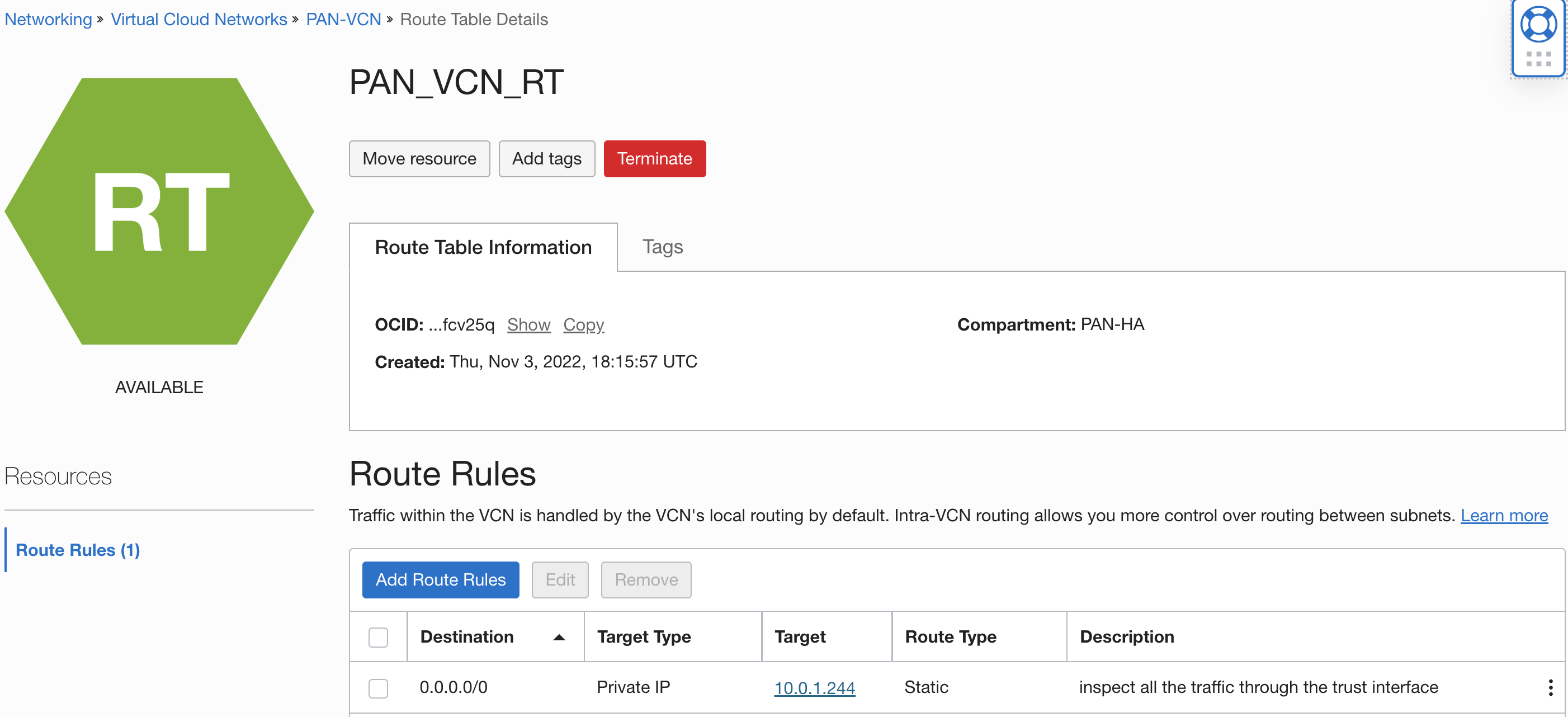
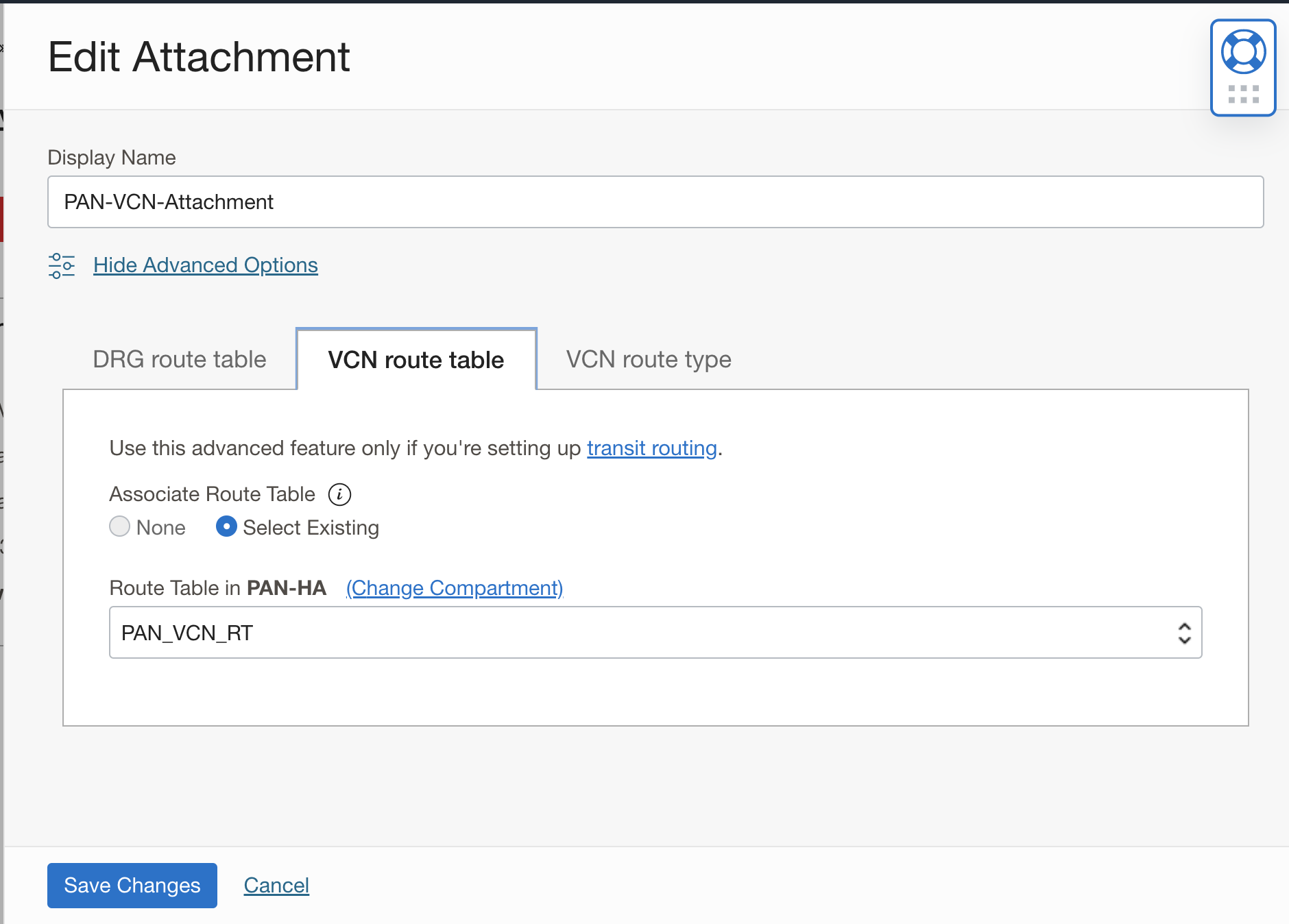
Go to DRG VCN Attachment Edit click on VCN route table select the route table we previously created:
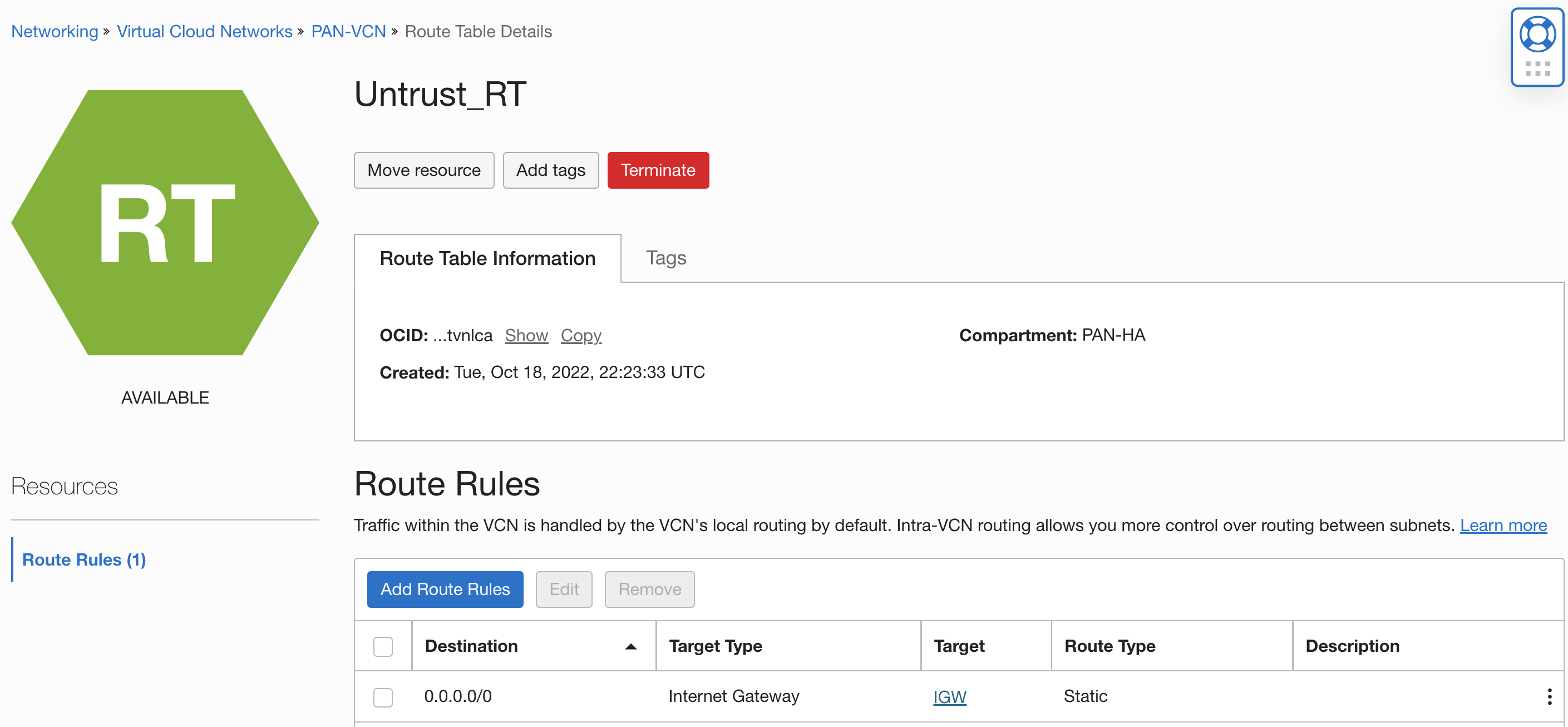
- Update the untrust subnet’s route table to send all the traffic to the internet gateway
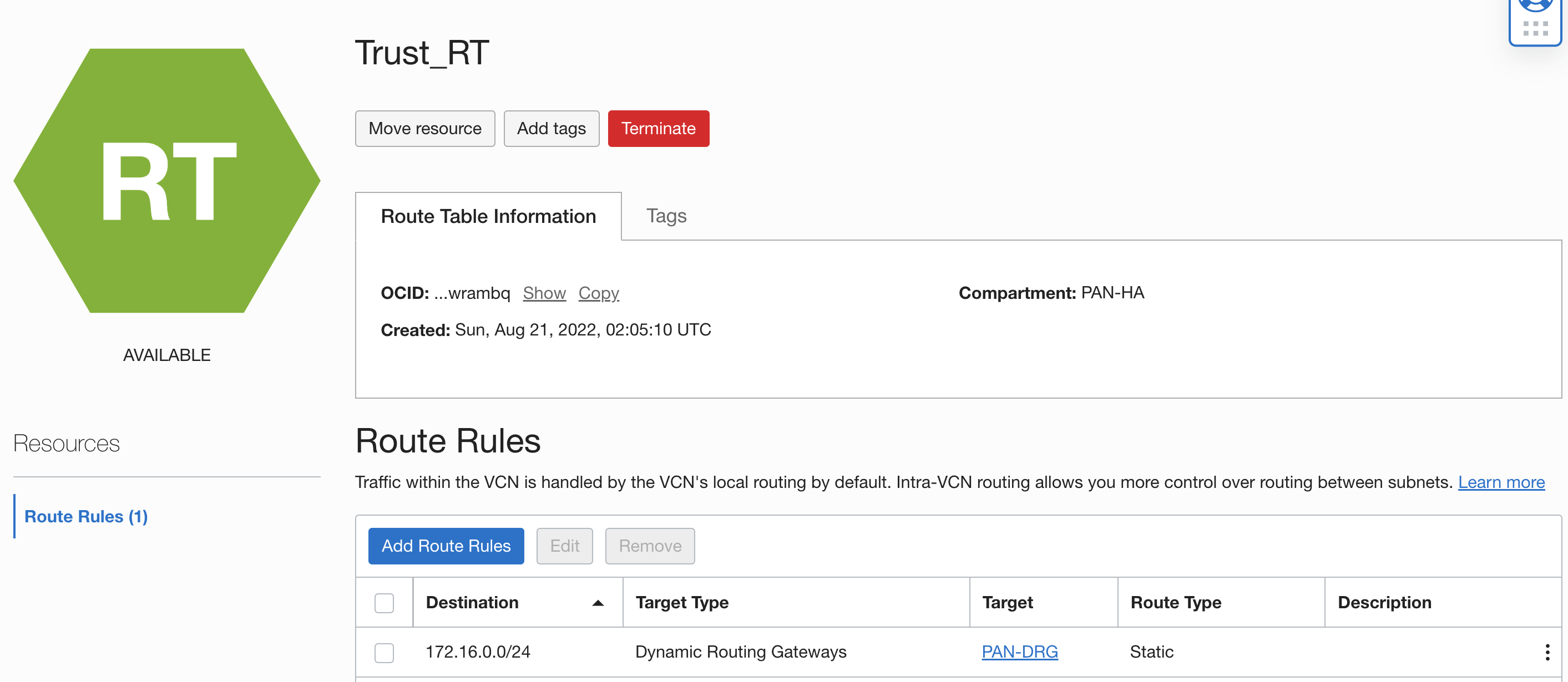
- Update the trust subnet’s route table to send traffic destined for 172.16.0.0/24 (Spoke-VCN) to the DRG:
Palo Alto Routing Configuration:
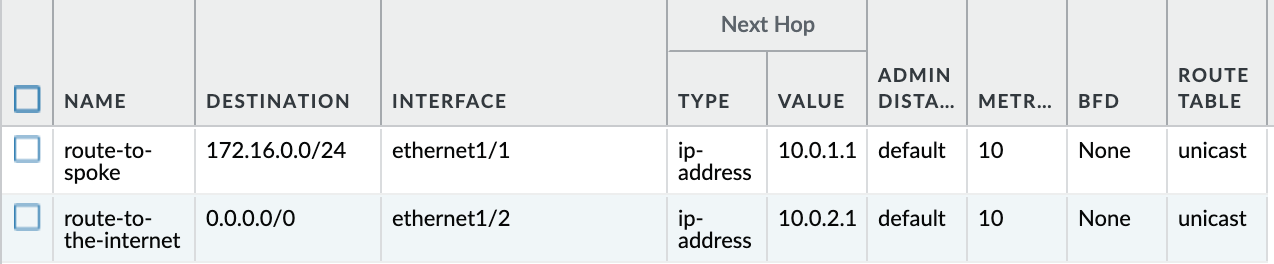
2 route rules need to be added at the default router of Palo Alto.
- Route rule to send all the traffic destined to 172.16.0.0/24 to the default gateway of the trust subnet (10.0.1.1)
- Route rule to send all the traffic destined to 0.0.0.0/0 to the default gateway of the untrust subnet (10.0.2.1)
Use Case 1: Inspecting the traffic from the internal VM to the public internet (SNAT)
NAT Policy Configuration:
Go to Policies NAT click on the ‘Add’
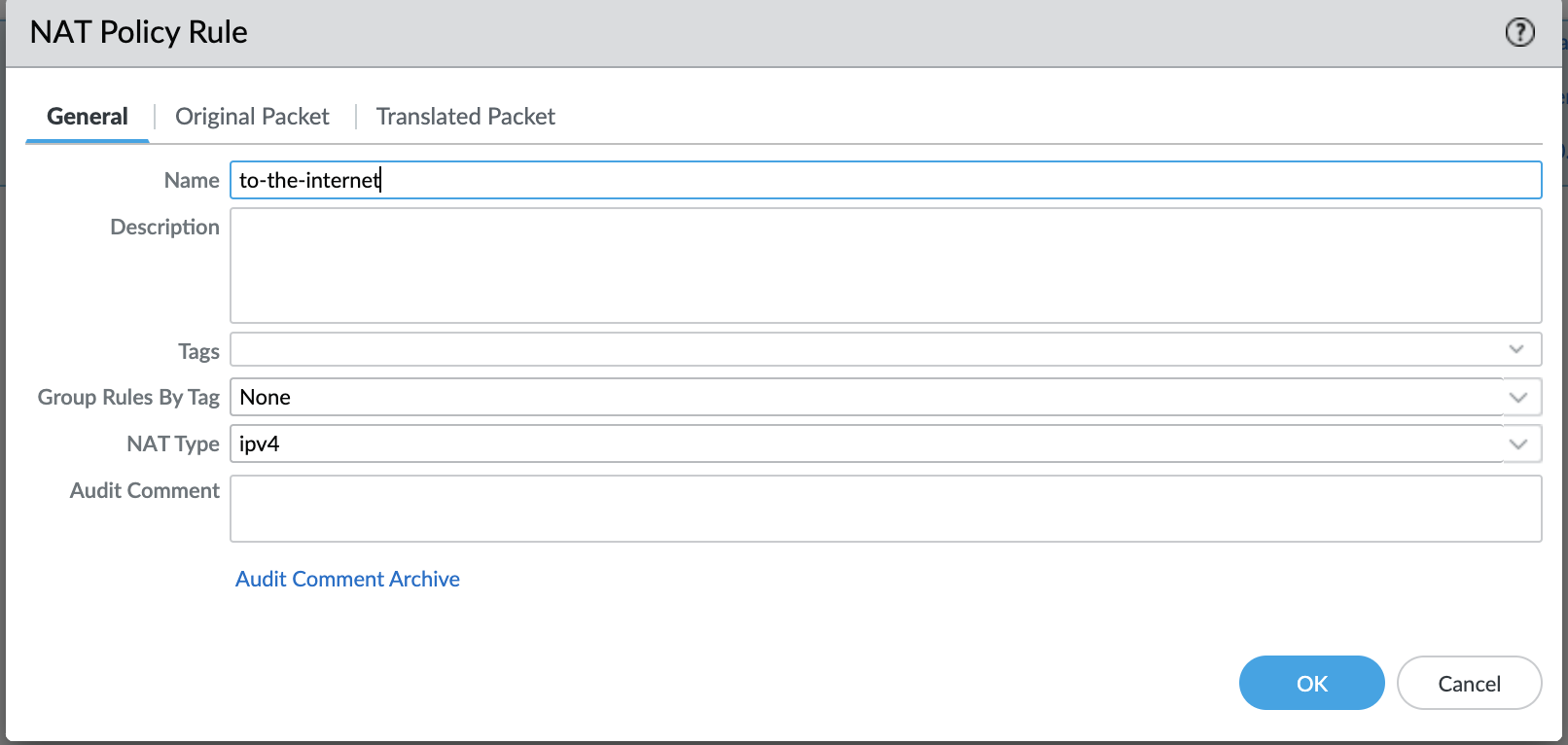
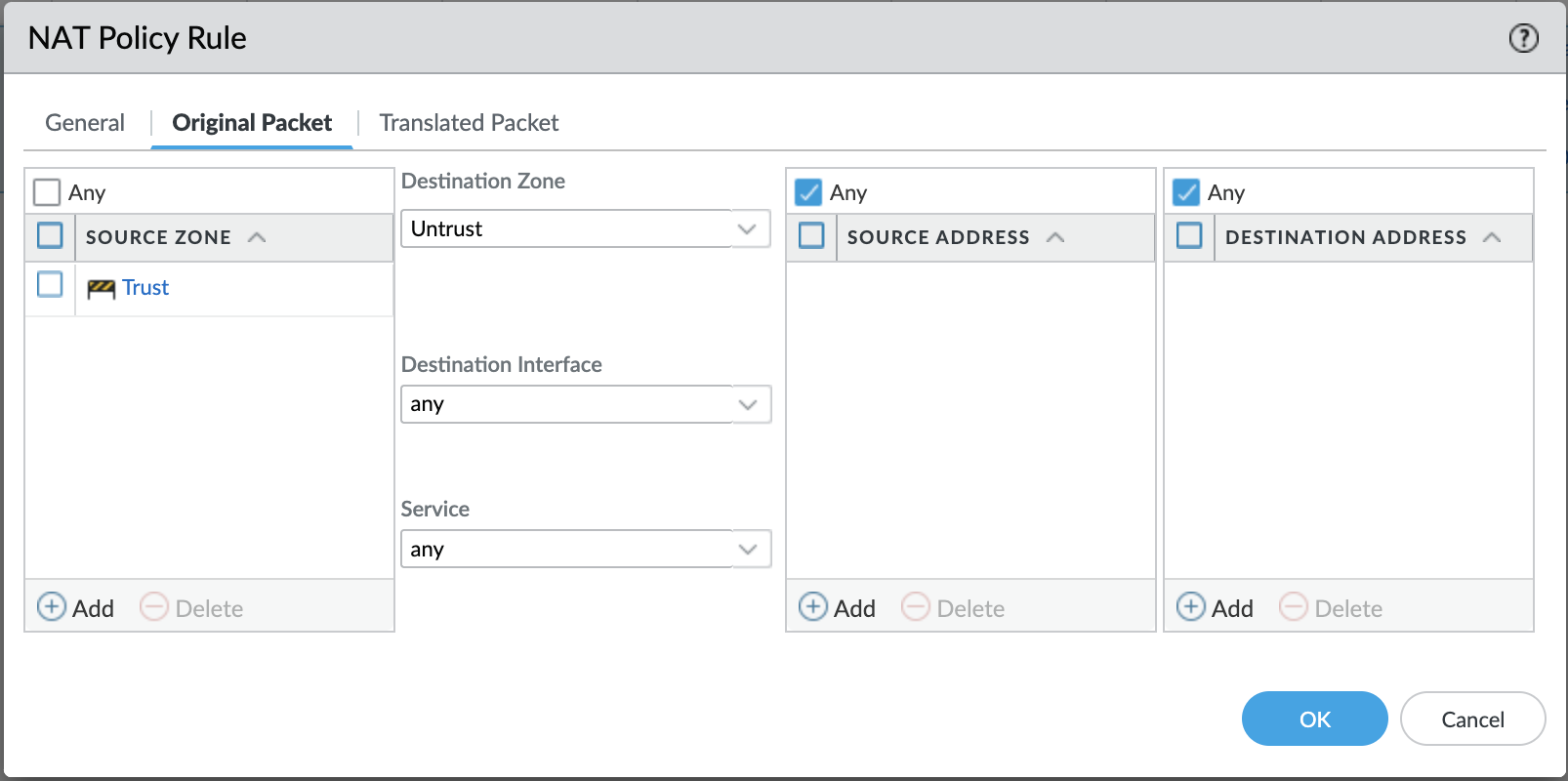
The original packet would be coming from the internal VM (spoke VCN) (trust zone) and going out to the internet (untrust zone). Destination address can be anything on the internet.
Since the packet is going out to the internet, the source IP of the internal VM needs to be translated to the untrust IP. Select the address type as ‘Interface Address’ and select untrust interface (in my case, it is ethernet1/2).
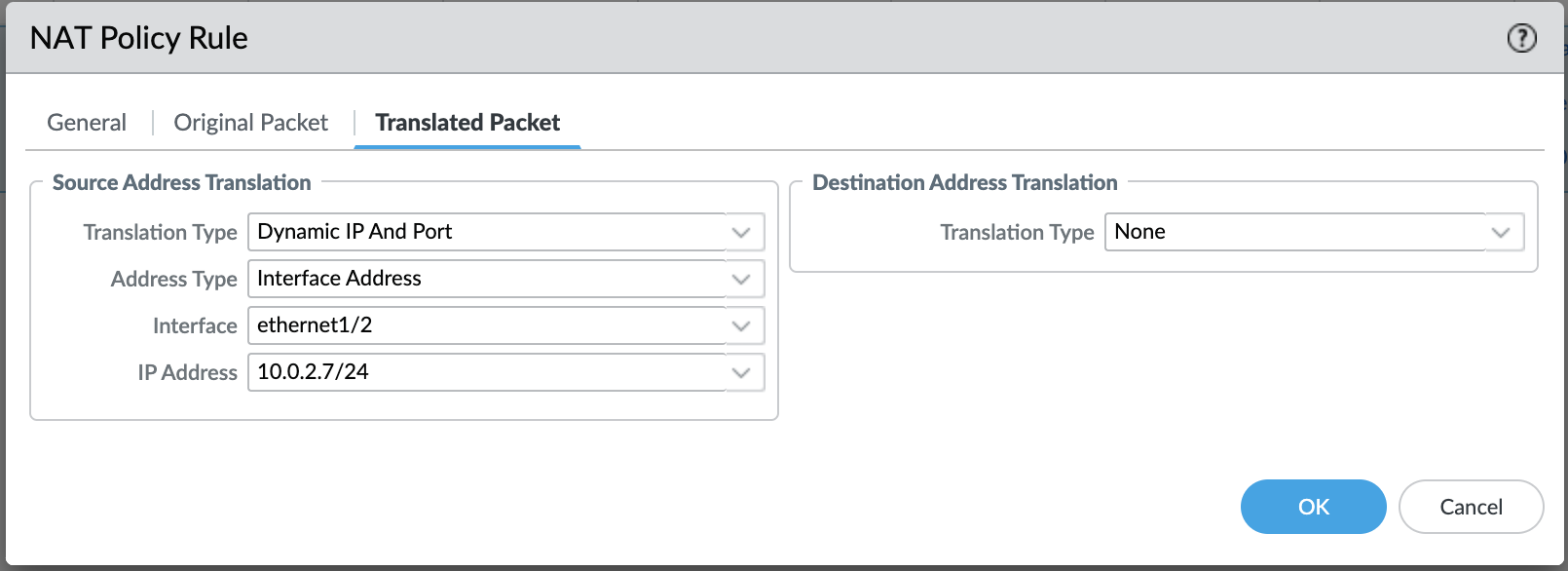
The final NAT policy should be like this:

Verification:
To verify, let’s do a ping test to the external website (for example www.google.com)
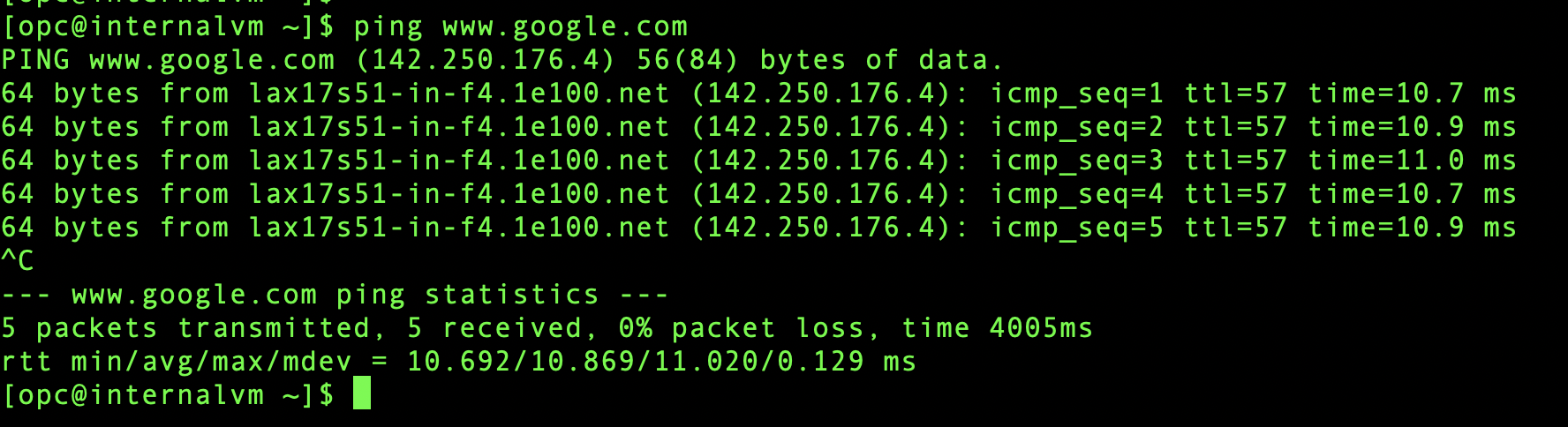
As expected, ping test is successful.
Now let’s see in the Palo Alto logs if our NAT policy is working as expected.
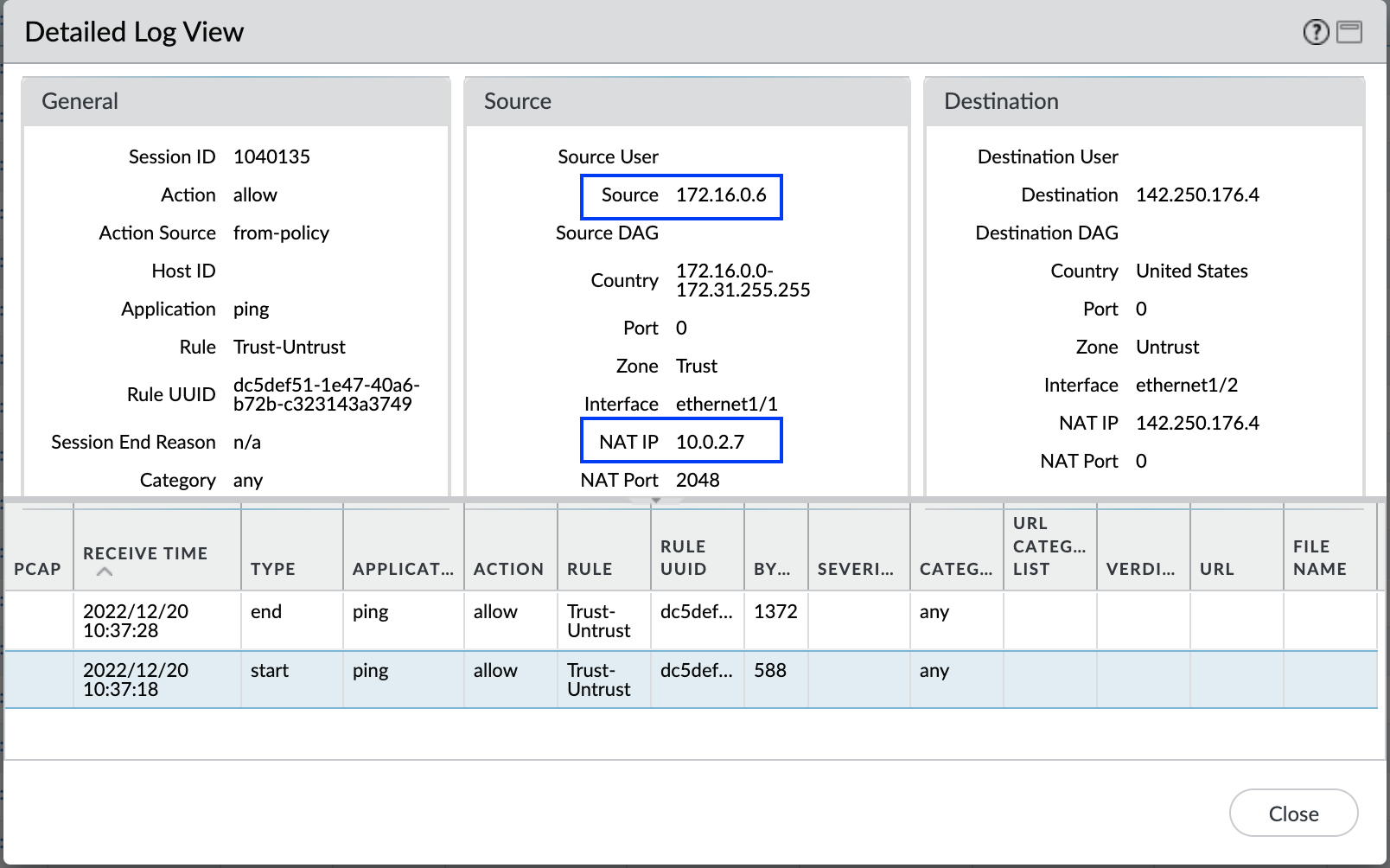
As seen from the logs, 172.16.0.2 is getting source translated to 10.0.2.7 (untrust IP).
Use Case 2: Inspecting the traffic from the internet to the public web server (DNAT)
To demonstrate, I have deployed a sample web application on the WebServer using this guide.
NAT Policy Configuration:
Go to Policies NAT click on the ‘Add’
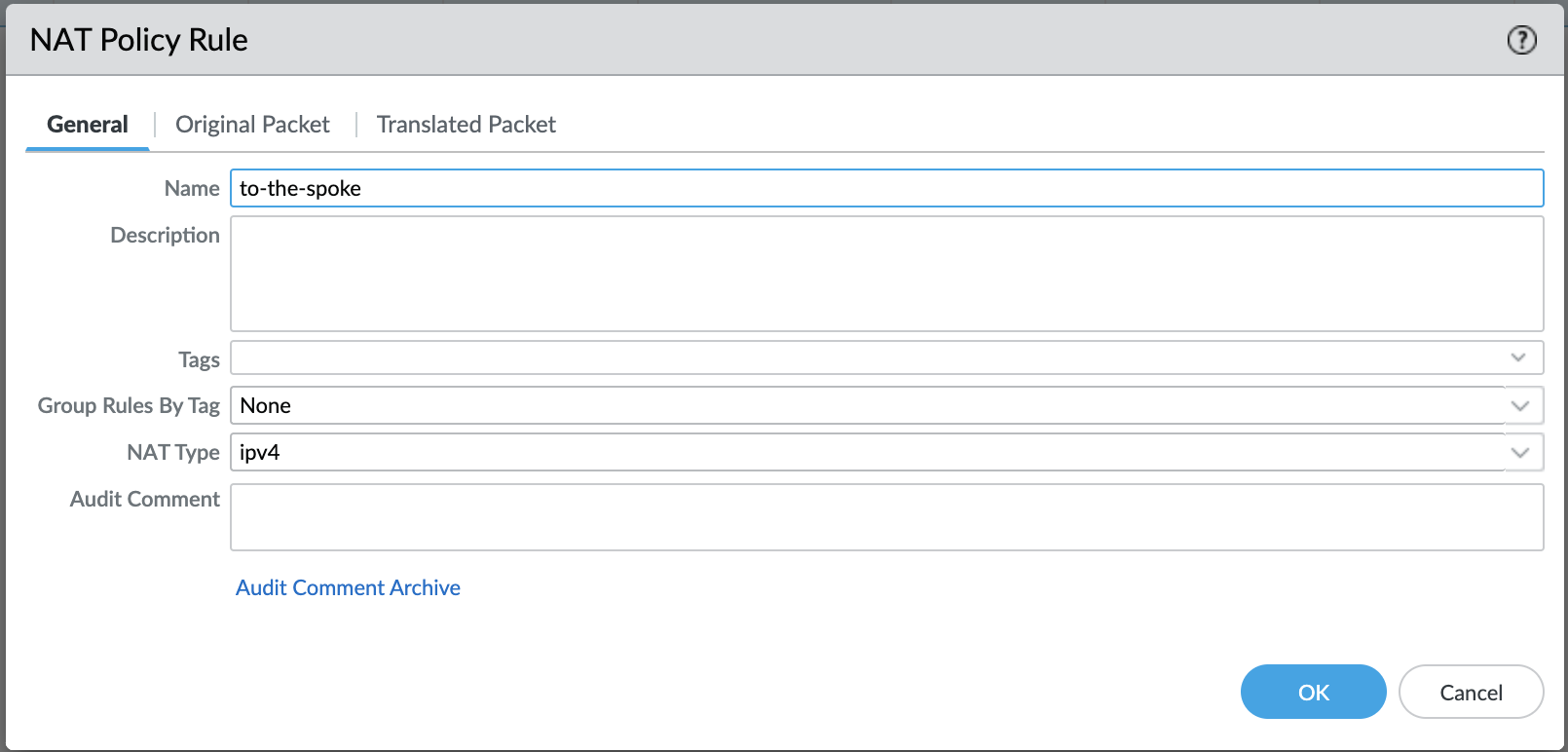
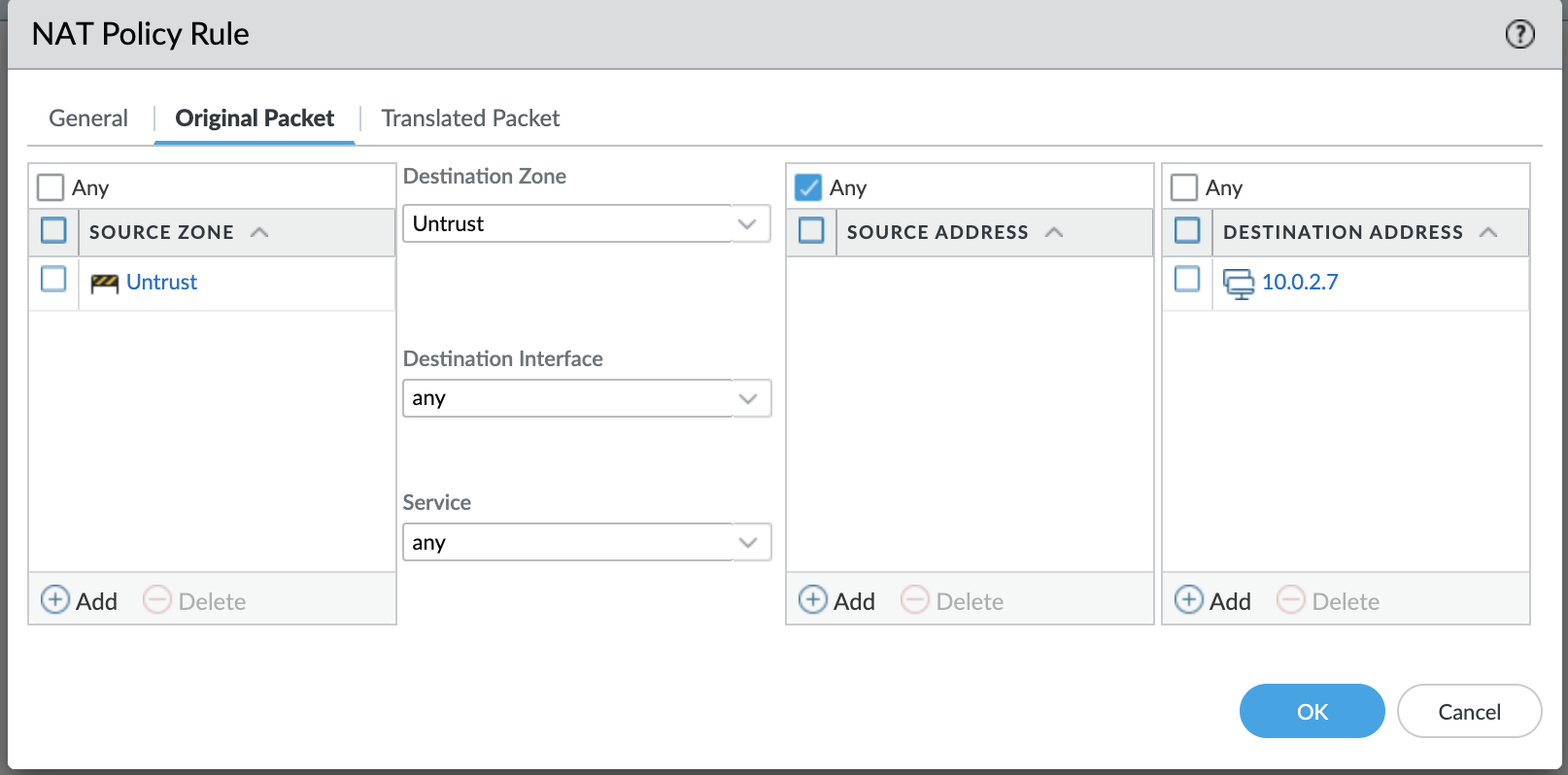
The original packet would be coming from the internet (untrust zone) and will have the destination address of the untrust interface.
Hence, select untrust to be the source as well as the destination zone. Enter the destination address as the untrust private IP (10.0.2.7).
Now, we want the packet to be translated to the IP of the web server so that OCI can route this packet to the destination based on the previously added routing configuration. Add the WebServer IP details in the destination address translation.
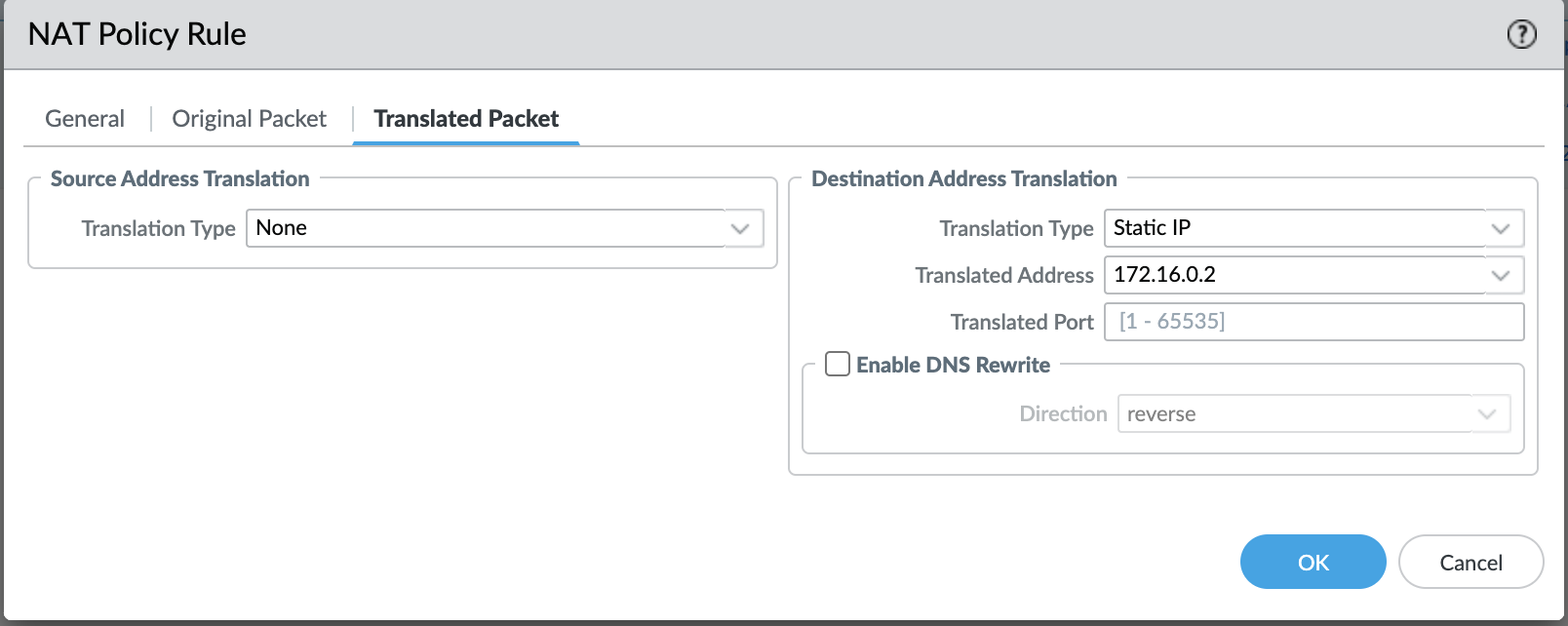
The final NAT policy should look like this:

Verification:
To verify, we will try to connect to the untrust public IP (144.24.22.43) at port 80.

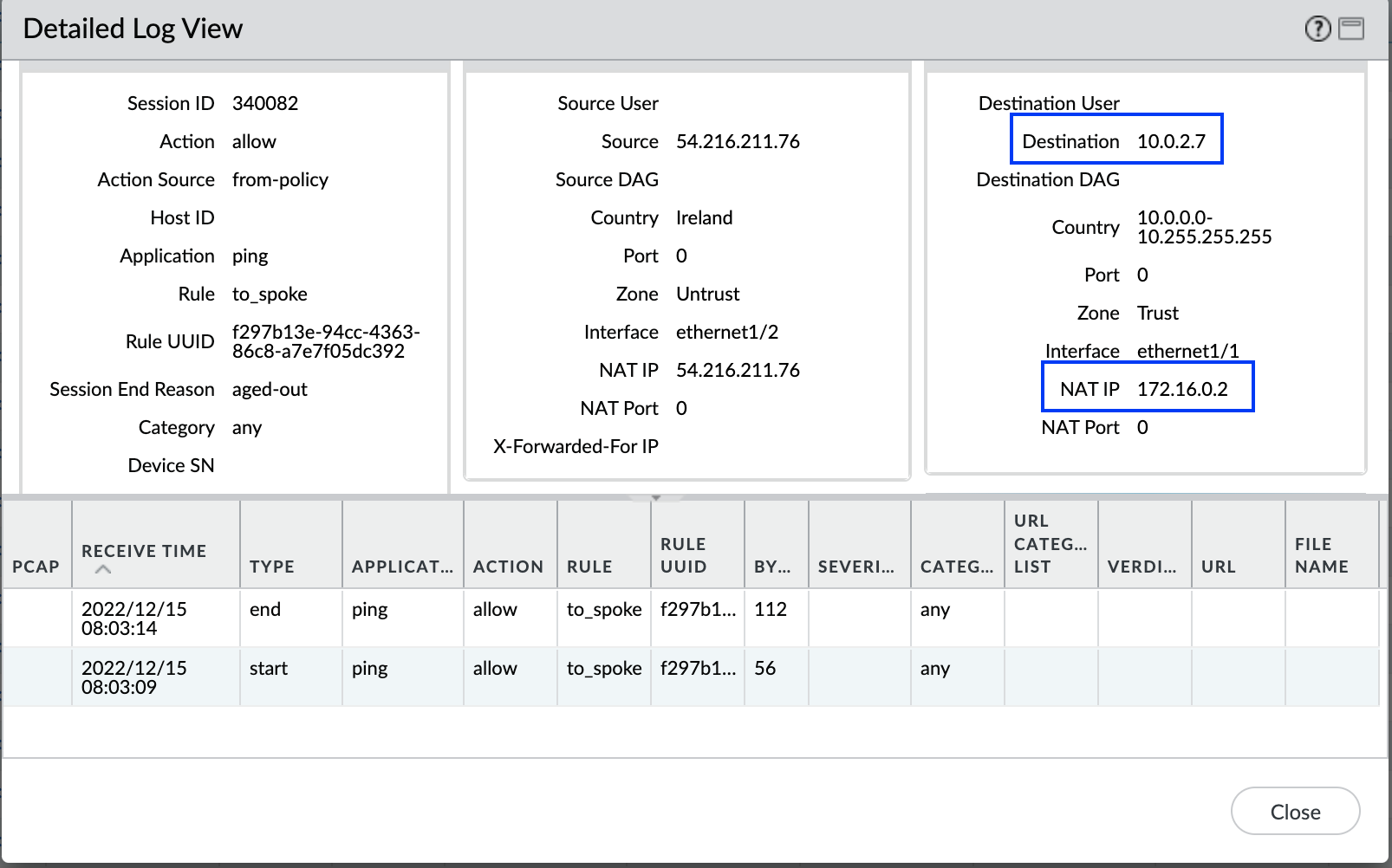
We can see the correct webpage. Also, from Palo Alto logs, we can see that 10.0.2.7 is being destination translated to 172.16.0.2 (WebServer IP).
Conclusion:
In this blog, we went through the source NAT and destination NAT configurations required for implementing the most common use cases when using Palo Alto as a virtual appliance on OCI. We also went through the corresponding OCI, and Palo Alto routing configurations required for NAT policies to work.