
Introduction
This is a quick follow up to several articles I’ve written, but especially Identity Domains, POSIX, and You. In that article, I wrote about setting up POSIX attributes required for Linux PAM Authentication (with Delegated Authentication) to compute instances in OCI. This was an attempt to smooth out a rough patch in the user account lifecycle process using REST APIs to construct a custom solution. The Active Directory (AD) Bridge is able to bring user accounts from good ol’ AD, but the POSIX attributes were not able to be accessed by the bridge.
Given that we have the AD Bridge to synchronize users and authenticate across platforms, why not simply use it to sync POSIX attributes from AD as well? Why not just use AD as a primary source of truth, managing user attributes from one place that can be leveraged across identity systems? That’s such a good idea that we went ahead and did it. Use AD to set user POSIX attributes, and have them synchronized the same as all other user attributes via AD Bridge. This will let you do all user management in a single place.
Let’s See How It Works
We are going to add POSIX attributes to a user in Active Directory, and then map the attributes to be included in the Identity Domain user attributes.
In Active Directory User and Computers
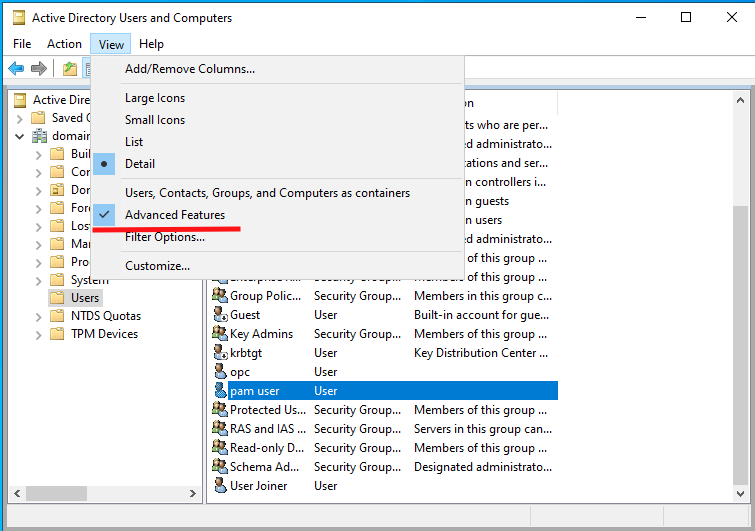
To add attributes in AD, you will need to open Active Directory Users and Computers, then under View make sure Advanced Features are checked.
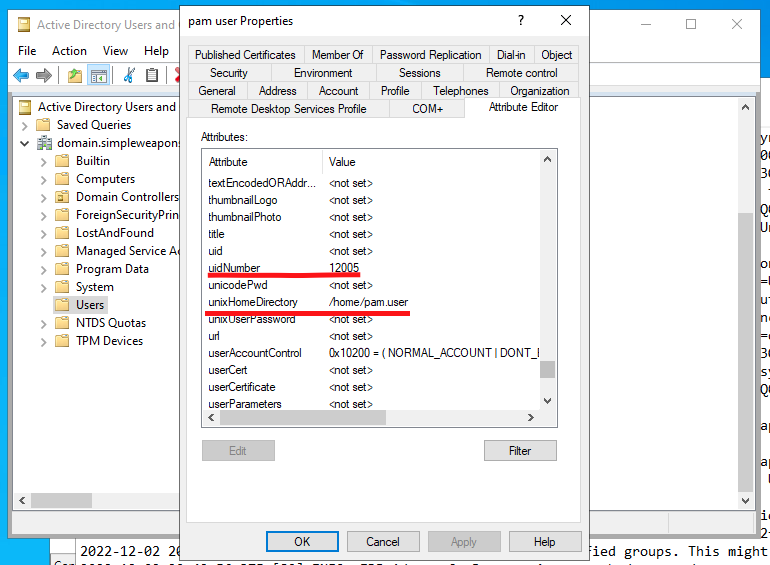
Now you will be able to open users’ properties and see the Attribute Editor tab. This tab will let you see and edit the attributes set on users. We will want to select and edit 5 attributes for the user. Enter the appropriate value for each of these attributes
- uidNumber
- gidNumber
- loginShell
- unixHomeDirectory
- gecos
In Oracle Identity Domains
Assuming that you already have an AD Bridge set up, using this new feature is straight-forward. It’s only a matter of adding a few attributes in the directory integration settings.
In the Identity Domain, go to Settings > Directory Integrations and click on your AD Domain. In the Configuration tab, find the Edit Attribute Mappings button. You will find the attribute mappings for users between Active Directory and Oracle Identity Domains. There will be a number of attribute mappings configured here, but we need to add more.
We want to add 5 attributes to this list. Under Directory User Attributes, select from the drop down menu or type in (you can type in attributes here if needed):
- unixHomeDirectory
- loginShell
- gidNumber
- gecos
- uidNumber
Once this is done, we need to map the matching attributes. On the other side of the mapping, add these attributes:
- POSIX User Home Directory
- POSIX Login Shell
- POSIX guidNumber
- POSIX gecos
- POSIX uidNumber
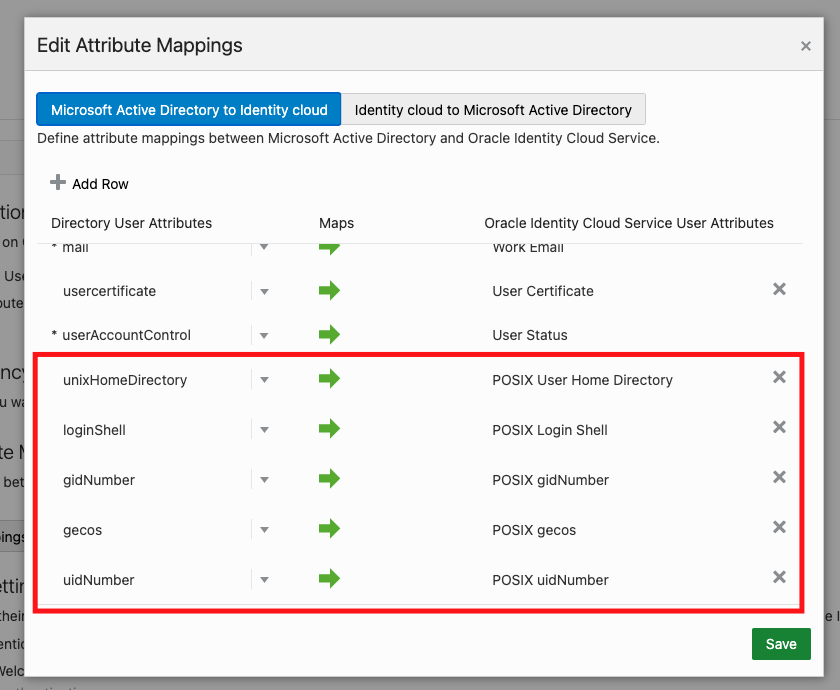
Save the settings, and that’s it. You may want to run an Incremental Import to make sure everyone’s attributes are pulled in, but it will be business as usual from this point forward.
Conclusion
With this article, we’ve seen another way to manage user POSIX attributes for use with Linux authentication. This solution allows you to manage all user attributes from a single place – Active Directory. In my last article, we saw how REST APIs could be leveraged to create an automated attribute manager. However, this is my preferred method. The reason? It lets you leverage systems that you’re already using in your environment to save time and effort.