ADW Version Oracle Database 19c Enterprise Edition Release – Production Version 19.11.0.0.0
Oracle Cloud Application 22C (11.13.22.07.0)
Fusion Analytics Warehouse Application Version 22.R2R3
Salesforce Developer Edition
Background
Oracle Fusion Analytics provides analytics for Oracle Cloud applications, powered by Autonomous Data Warehouse and Oracle Analytics. More specifically:
Fusion ERP Analytics provides accounting data sourced from ERP Cloud in a warehouse designed to support broad set of analytics use cases.
Fusion HCM Analytics provides comprehensive workforce, turnover data sourced from Fusion HCM Cloud.
Fusion SCM Analytics give customers the ability to gain visibility into Supply Chain performance, correlate Supply Chain processes with business goals and detect, understand and predict Supply Chain issues.
Making the right business decisions is intrinsinclty tied to the system of records data accuracy of a company. In many specific use cases, Fusion Analytics data can be complemented with additional data from external source such as On Premise, Legacy applications, Non Fusion SaaS application, OCI source, Third party cloud applications, and so on…
To support these data enrichment and consilidation requirements, Fusion Analytics is introducing a new feature named Managed Pipelines to leverage the Fusion Analytics Oracle Managed data pipeline infrastructure to extract data (full and incremental) from these external sources following a defined schedule, potentially reducing custom data extraction code, infrastructure and platform costs.
We have cover in this previous blog how to use Oracle Analytics Cloud (OAC) to extract data from Salesforce to Autonomous Data Warehouse (ADW) and in this one how to use Oracle Data Integrator (ODI) to achieve the same goal.
This blog describes how to utilize Fusion Analytics (FAW) Data Augmentation feature to replicate transaction data from Salesforce Cloud Applications into ADW to extend the Data Layer of FAW. This blog will also detail the steps to extend the semantic model to ultimately allow customers to answer business questions and gaining business insight such as :
Opportunity conversion: As open sales opportunities move through the stages of sales, a sales executive wants to track the progress so that he/she can guide their team members
Bookings and Revenue by Customers and/or Channels or Regions
Forecast accuracy : As a sales/business executive, compute and manage open opportunities to bookings
Average resolution time : Compute and manage/improve resolution of customer issues 
Customer retention: An executive in customer support or customer experience organization needs to track and manage customer satisfaction leading to customer retention, in many industries such as retail, banking, financial services, etc.
Lead generation : Gaining the interest of potential customers in order to increase future sales
* Have access to an Fusion Analytics Instance (OAC, ADW) with Administrative privileges
* Have access to a Salesforce Instance
* Have configured SQL level access to Fusion Analytics ADW, as described in Krithika and Gunaranjan blog post here.
* Have the Salesforce Managed pipeline / connector enabled for your Fusion Analytics tenant through Service Request with Oracle Support
Architecture Overview
FAW Data Augmentation allows customers to leverage the FAW data pipeline to augment reports with datasets created :
By adding a new dimension in the target instance,
By adding a new fact in the target instance.
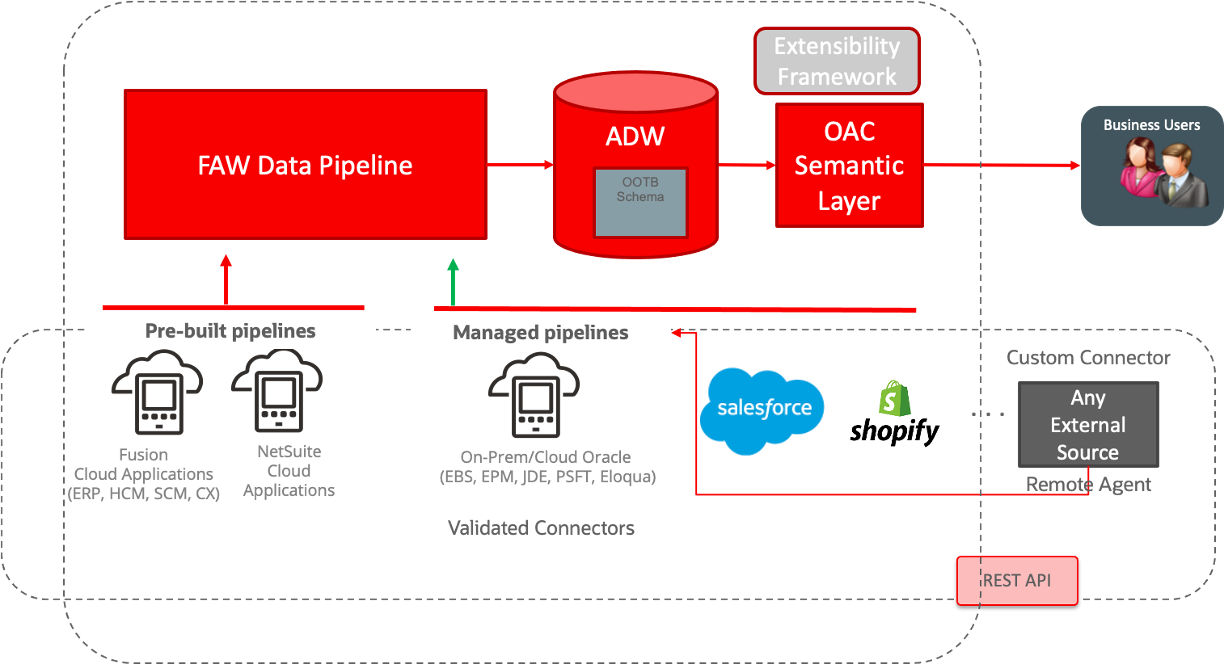
The diagram below details the architecture for the Managed Pipelines:
Figure 1: FAW Data Augmentation flow with Salesforce Managed Pipeline
The high level configuration flow is as follow:
FAW Data Augmentation
Create the Salesforce connection
Create Dimensions and Fact Data Augmentation on Salesforce source tables
Choose Attributes for the Data Augmentation
Select dimensions to be mapped with Fact columns
Save and Schedule the data augmentation pipeline jobs
FAW Data Pipeline processes the data augmentation pipeline jobs, extract the data from Salesforce tables and load it into ADW, queryable via synonyms starting with DW_SA_X
Augmented data can be then queried directly using OAC Data set or a SQL client like SQL developer, through the database synonym named after the table name give in the first step
Semantic model can be extended by customizing an existing subject area or addition of a new subject area to allow reporting on augmented data extracted in ADW. This will require the creation of database objects (views and grants). We will cover the basics here to be able to build a visualization against the extracted Salesforce Data.
Creating FAW Data Augmentation with Salesforce Managed Pipeline
Set up SQL Developer Access to Fusion Analytics Warehouse Data with OAX_USER
Follow the steps described in the CEAL Team blog here to enable SQL Developer access to FAW augmented data: this will allow user to execute SQL queries against FAW delivered data model and FAW augmented data for any ORacle SQL Client (sqlplus, sqlcl, SQL Developer…).
Create the Connection to Salesforce in Data Augmentation
The steps belows require to Fusion Analytics tenant to have Salesforce connection enabled. Please work with the appropriate Oracle Support channels to do so.
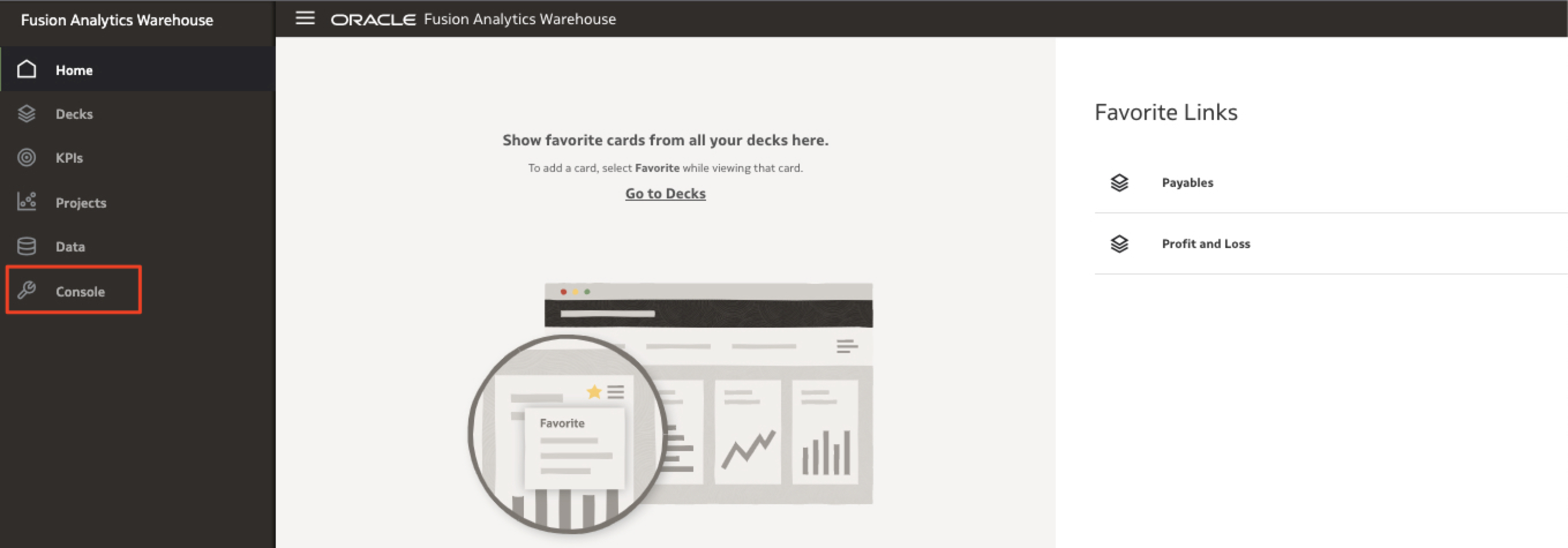
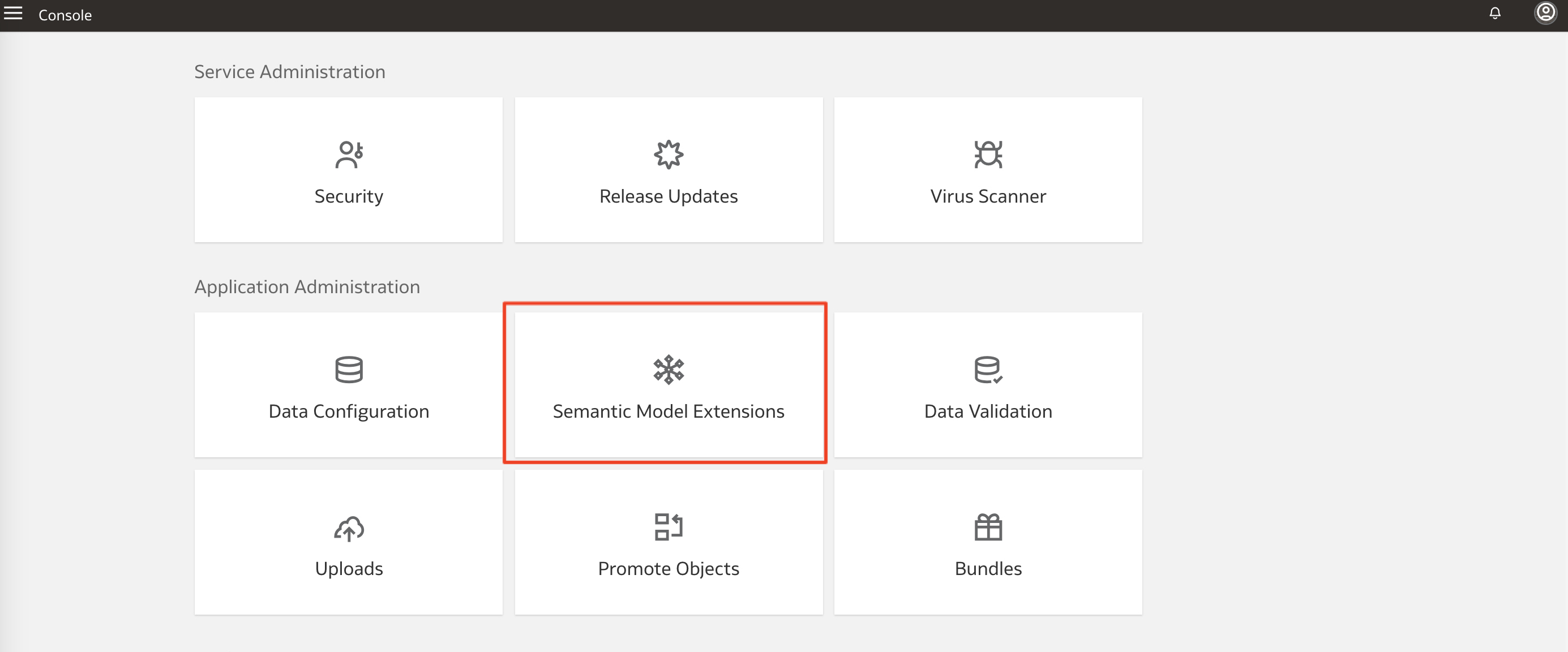
a) Sign in to FAW and connect to the Console
Figure 2: FAW Console
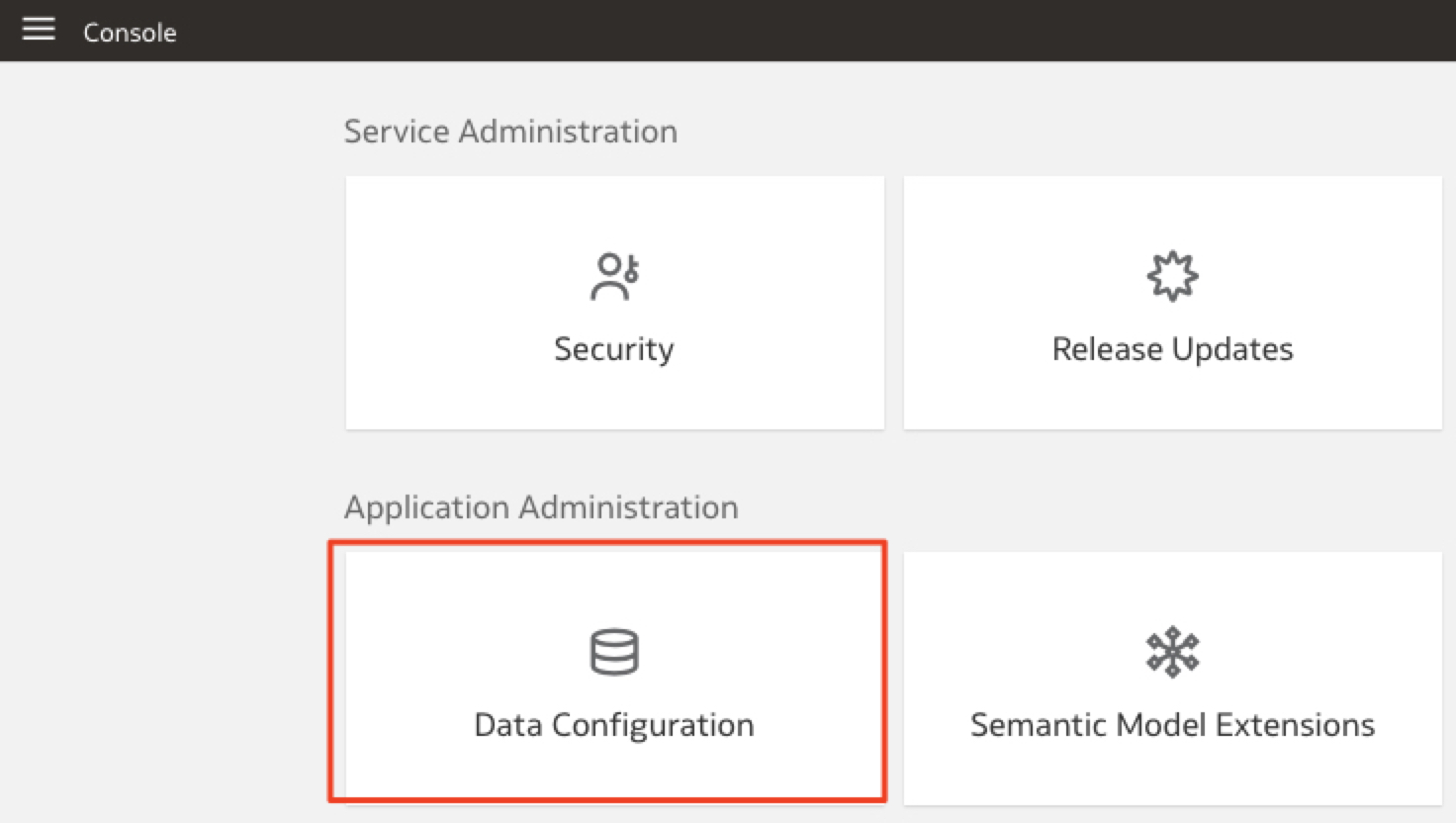
b) Click on the Data Configuration Tile
Figure 3: FAW Data Configuration
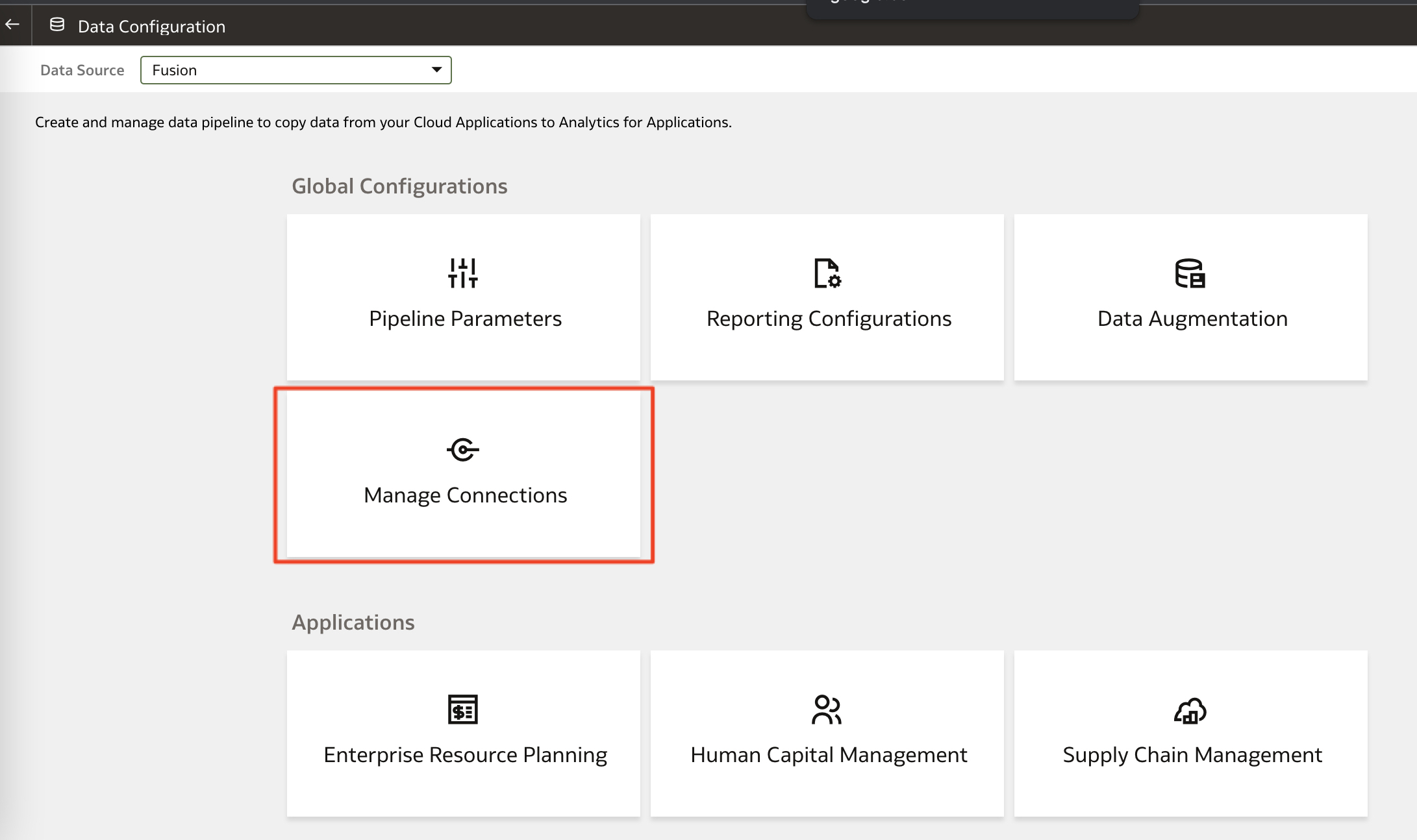
c) Then click on Manage Connections
Figure 4: FAW Data Augmentation Tile
d) Click on Create connection and in the list of Connections select Salesforce
Figure 5: Create Salesforce Connection
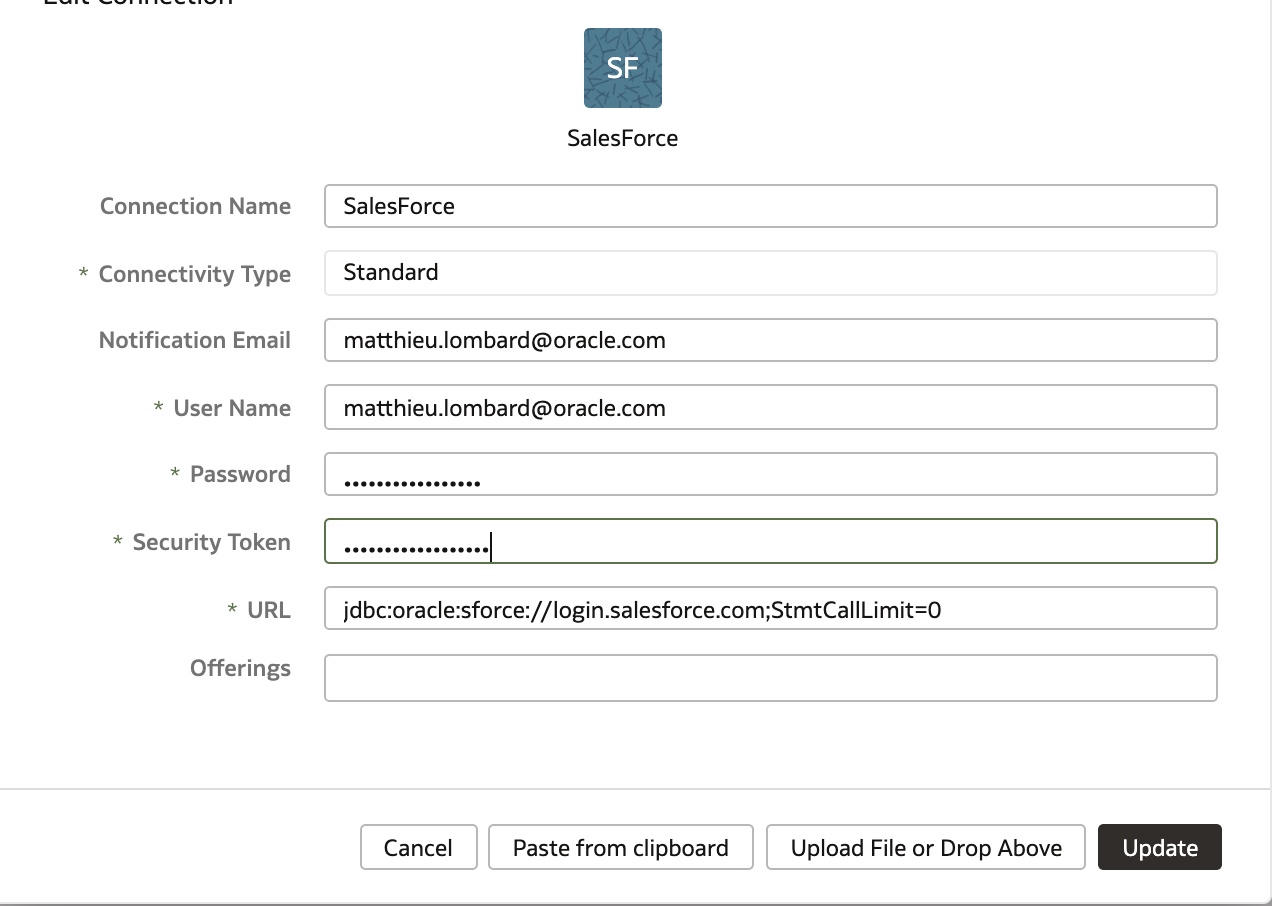
e) Enter the Salesforce connection details and make sure the url is the following jdbc:oracle:sforce://login.salesforce.com;StmtCallLimit=0
Figure 6: Enter Salesforce connection details
f) Test the Connection
Figure 7: Test Salesforce connection
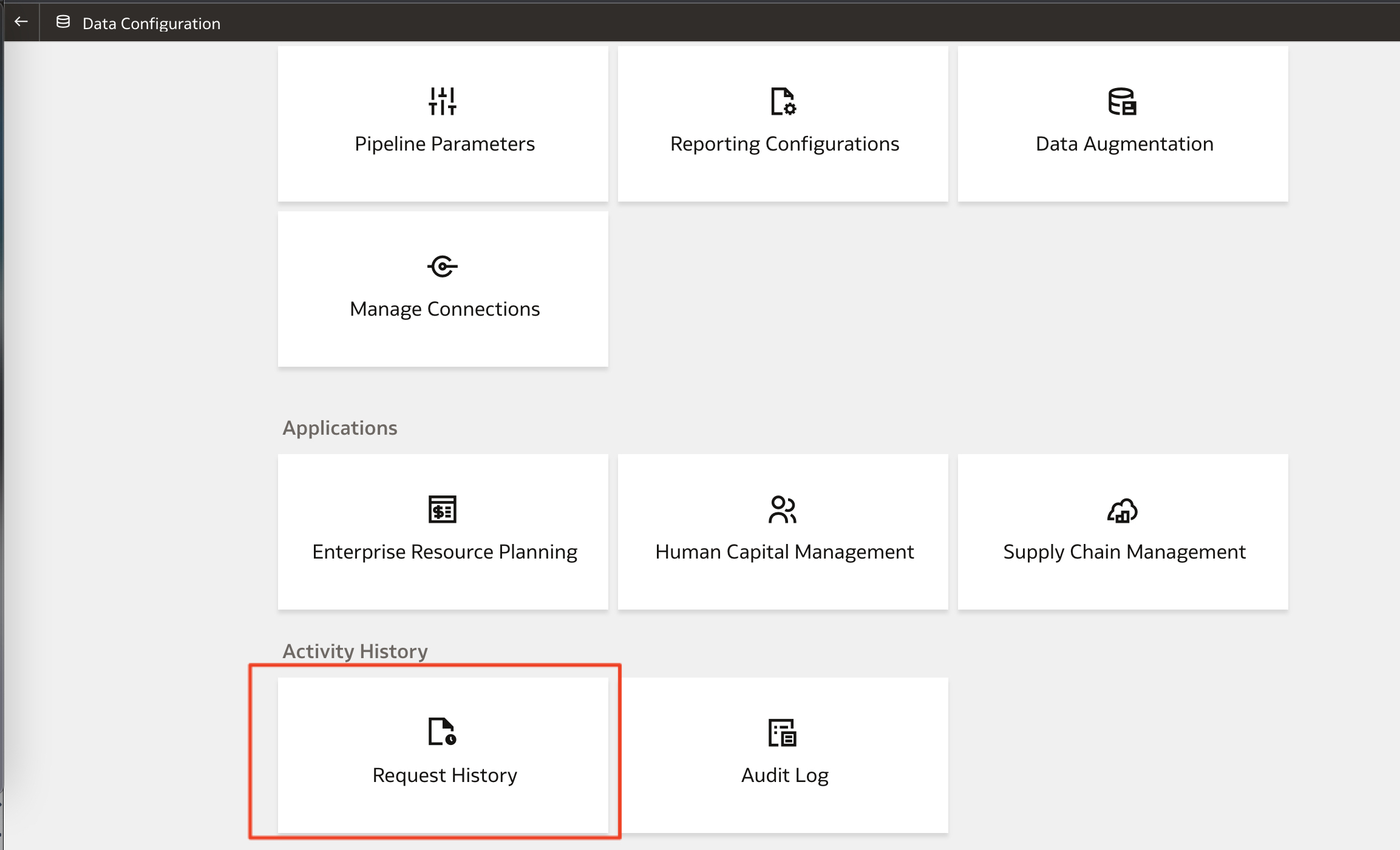
g) Navigate to Data Configuration and Click Request history
Figure 8: Request history
h) Verify the connection test Completed succesfully
Figure 9: Test Successful
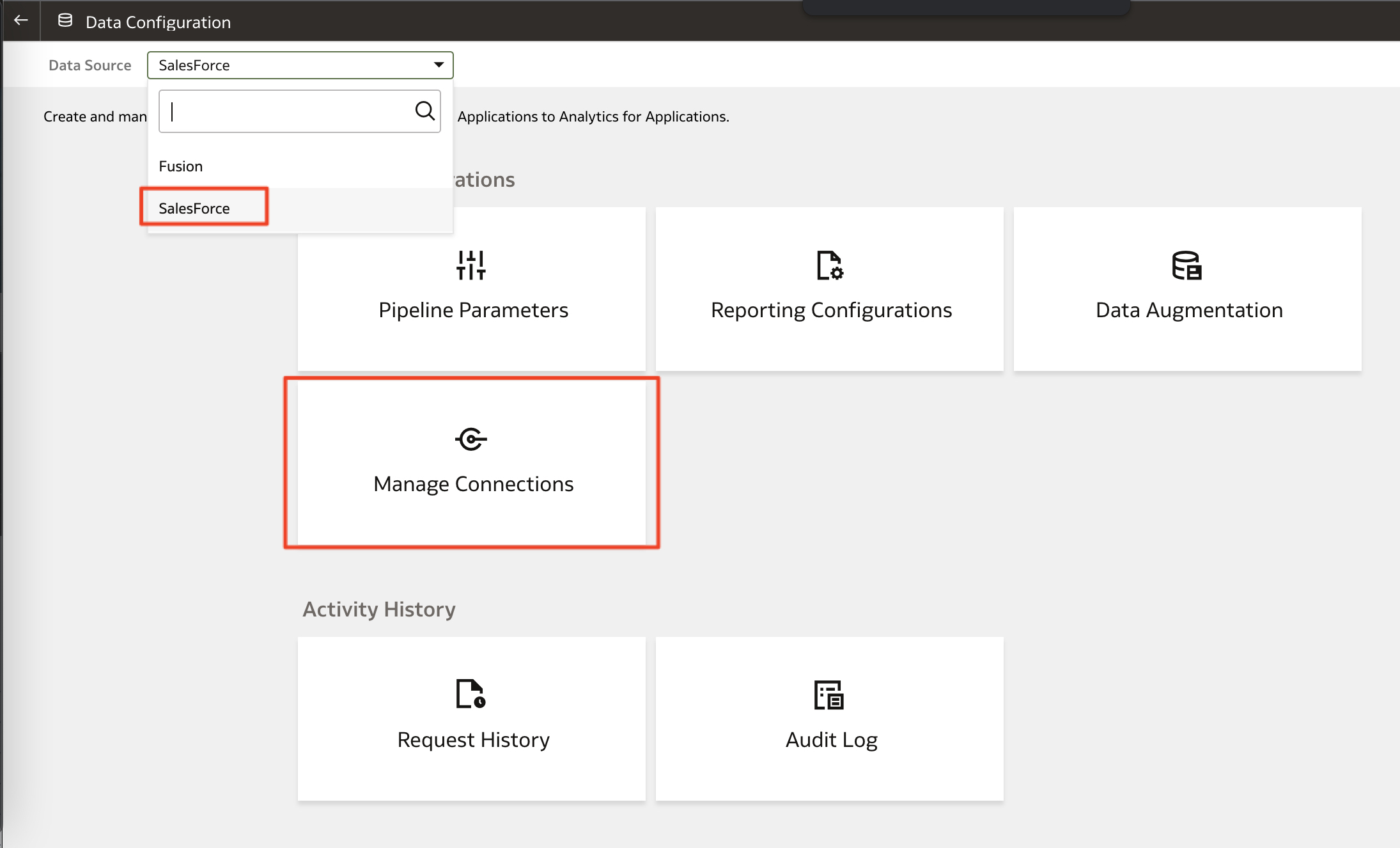
i) Go back to Data Configuration, select the Salesforce connection in the drop down list and click on Manage connections
Figure 10: Manage Connections
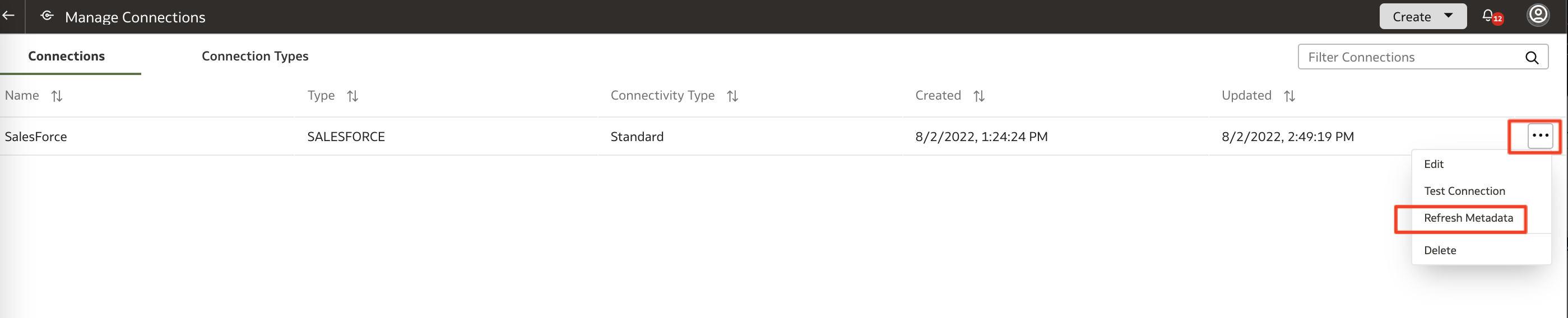
j) Select the Salesforce connection and click Refresh Metadata
Figure 11: Refresh Metadata
c) Go back to Request History and confirm the metadata refresh / extract is completed successdfully: this will allow FAW to extract data from Salesforce by cataloging the latest definition of the Salesforce tables
Figure 12: Metadata extract successful
Create Salesforce Data Augmentations
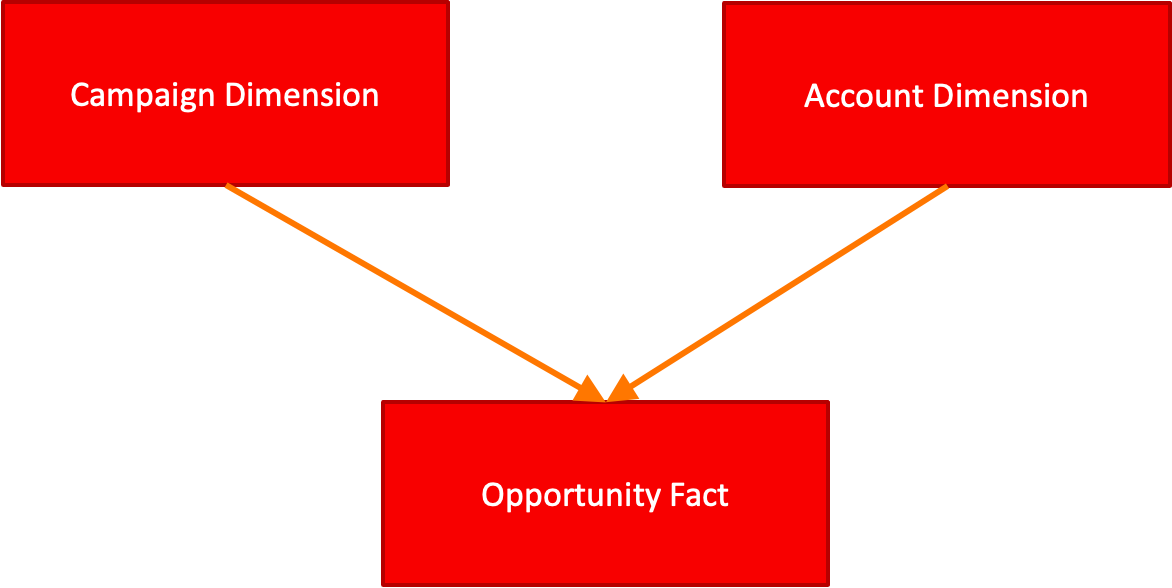
The objective is to be able to extract a Sales schema from Saleforce into Fusion Anaytics ADW, as per the Salesforce Data model documented here. In this exercise, we will focus on a subset of the Sales schema with three entitied :
Opportunity being our Fact Table
Account being one of our Dimension Table
Campaign being our second dimension
Figure 13: Subset of the Sales Data model targeted for extract
Let’s use the Data Augmentation to now extract the above Salesforce tables, starting with the Account and Campaign Dimension and then finishing with the Opportunity Fact
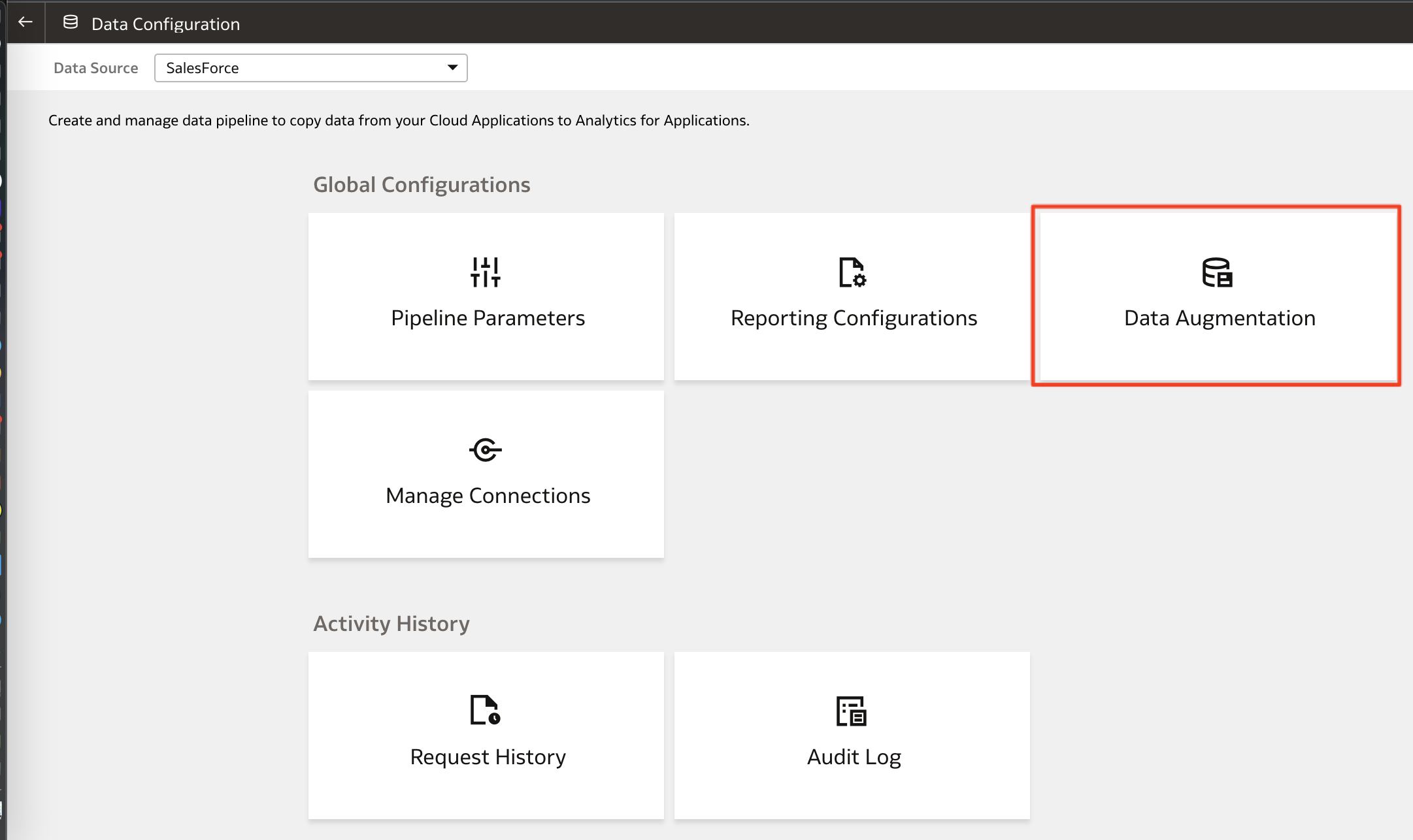
a) In the Console > Data Configuration, select Salesforce Data Source and click on Data Augmentation Tile
Figure 14: FAW – Salesforce Data Augmentation Tile
b) Click on Create
Figure 15: FAW – Create Salesforce Data Augmentation
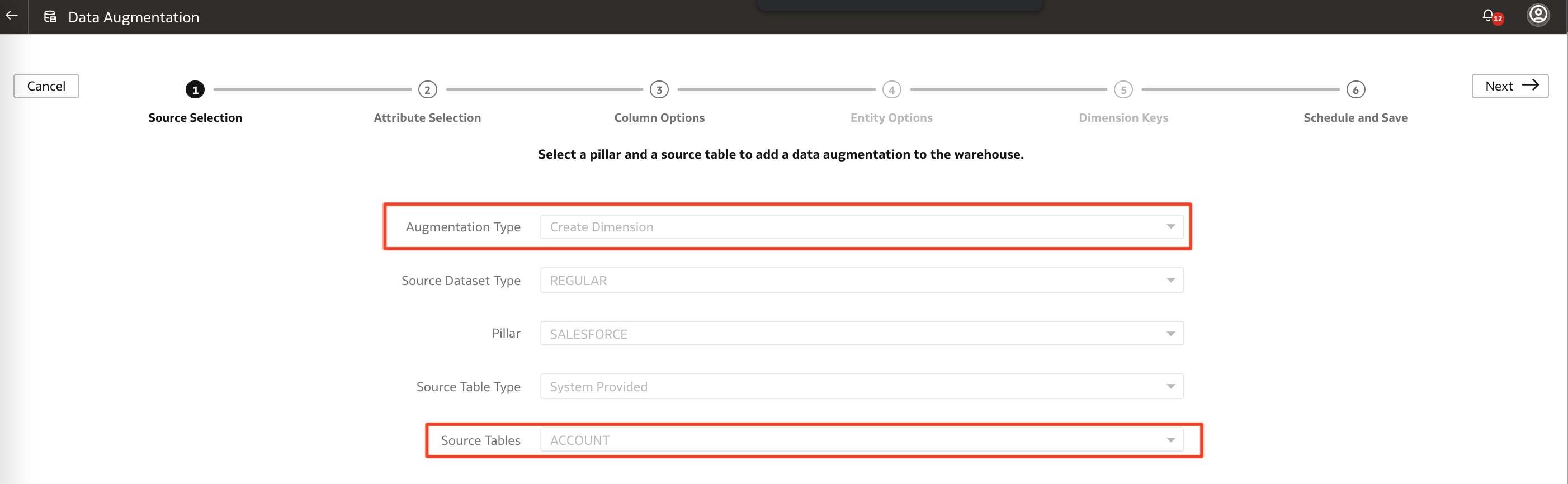
c) Enter Create Dimension as an Augmentation Type, Regular Source Dataset Type, Salesforce pillar, System provided Source Table type and choose the ACCOUNT source table. Click Next
Figure 16: Select Account table extract
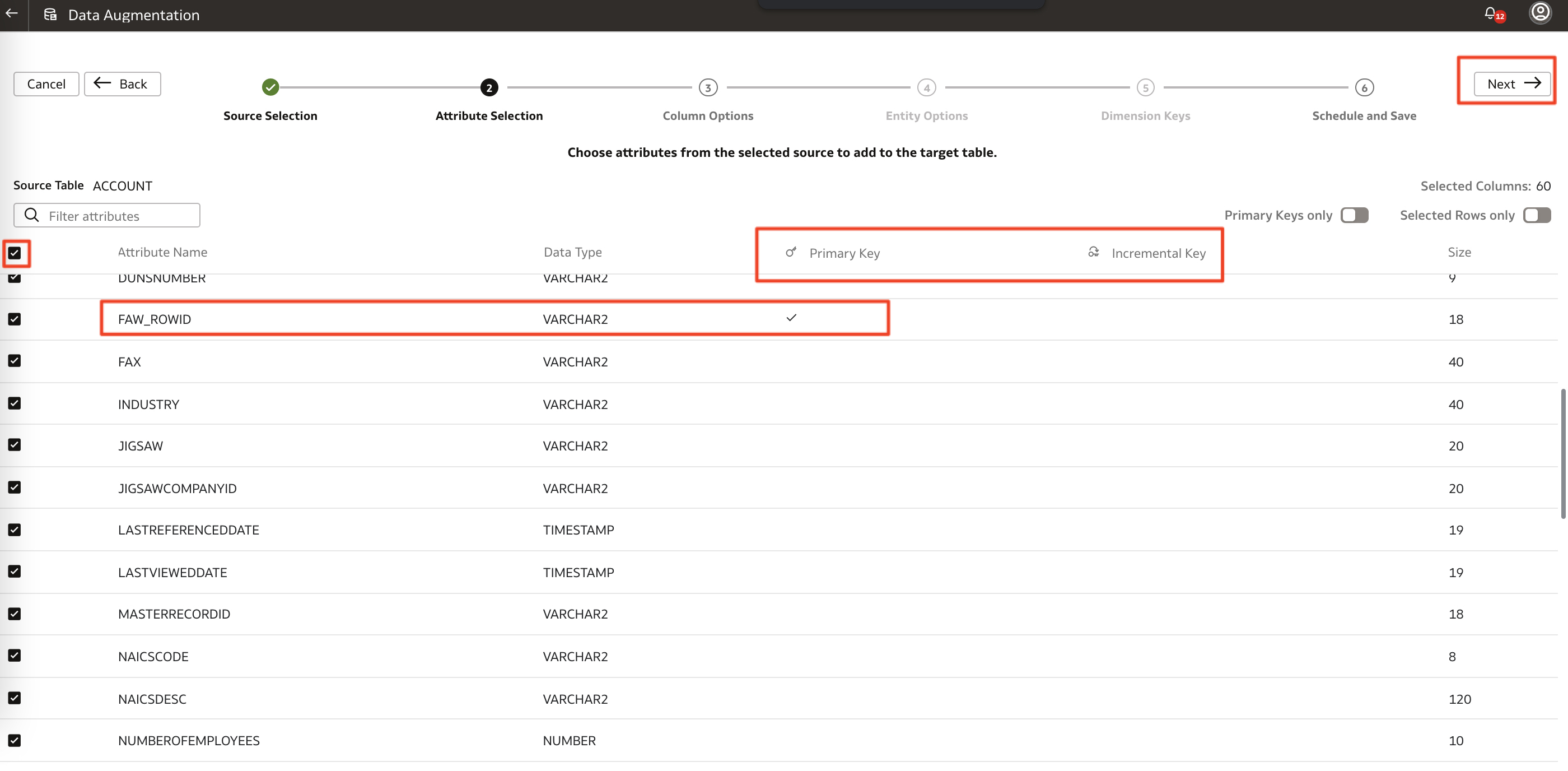
d) Select all attributes bu checking the highest check box, ensure a primary key and an incremental key are selected. The Salesforce Primary ROWID are renamed FAW_ROWID as ROWID is a reserved word in Oracle database. Click Next.
Figure 17: Select Account Attributes
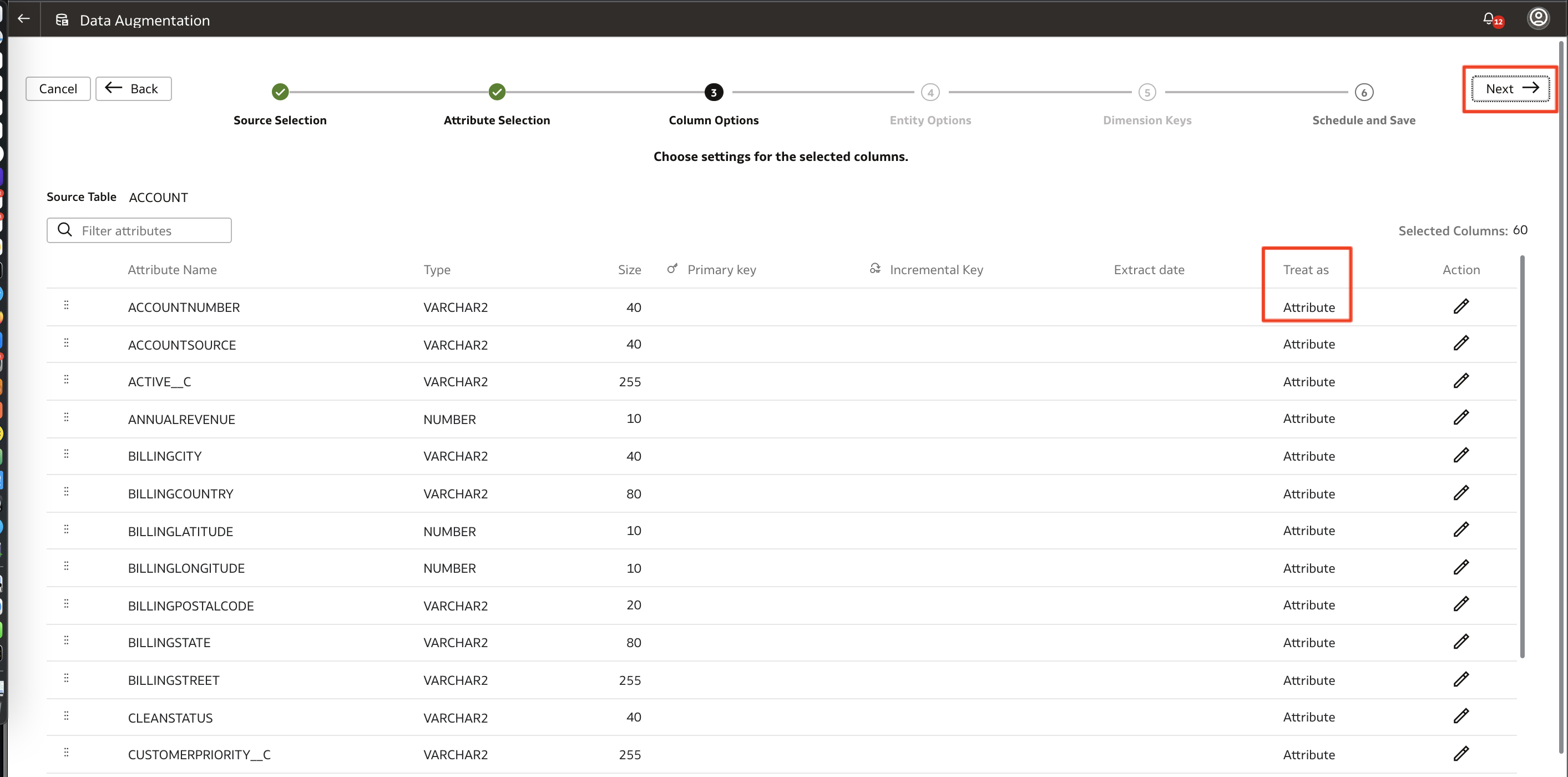
e) Review the Account dimension colum options and ensure all columns are treated as Attributes. Click Next.
Figure 18: Select Account column options
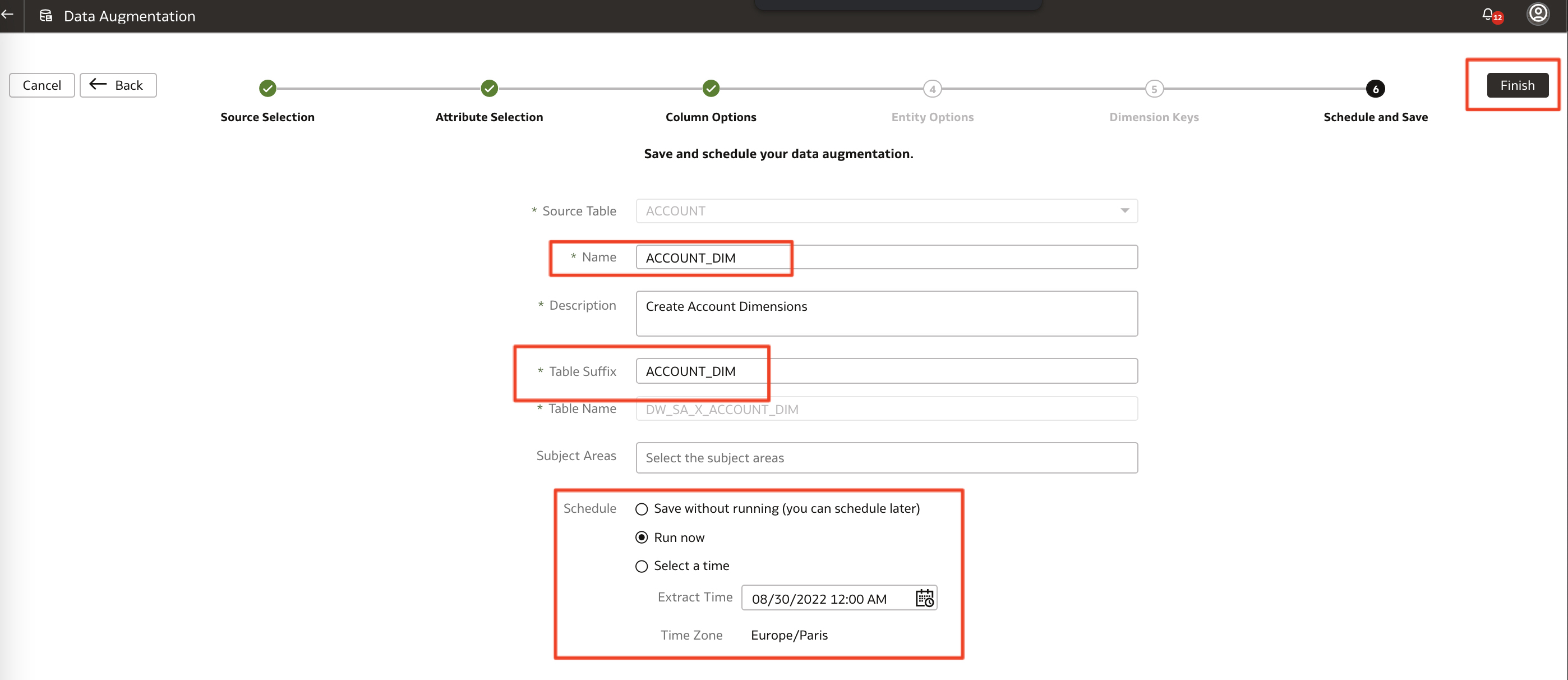
f) Enter a Name, a Description, a table suffix. In the Schedule section, select Run now. Click Finish
Figure 19: Schedule and Save Account Dimension Salesforce Data Augmentation
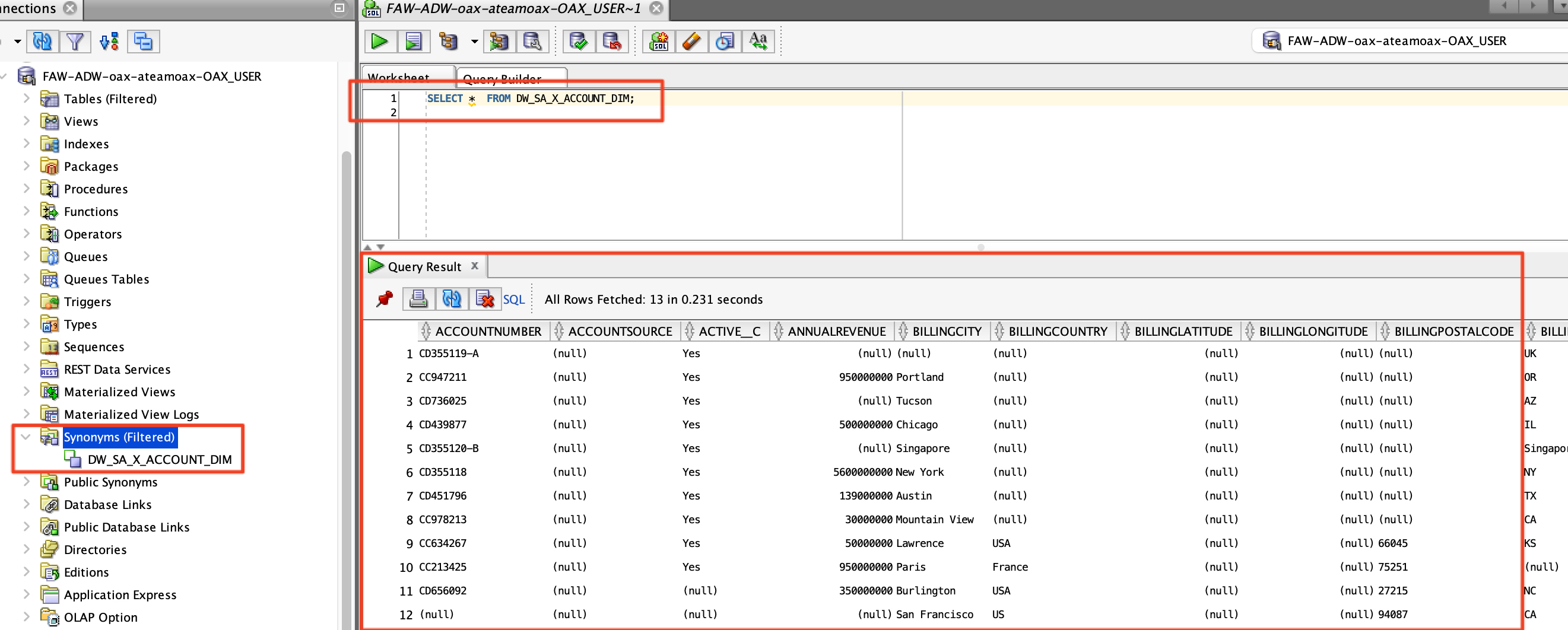
g) In the request history, the Actication Request for Account DImension should be created in Status Activation Schedule. After a while, the status should convert to Activation Completed and a synonym names after the table name in previous step should be created and can be queried in SQL Developer
Figure 20: Account Dimension table created and extracted
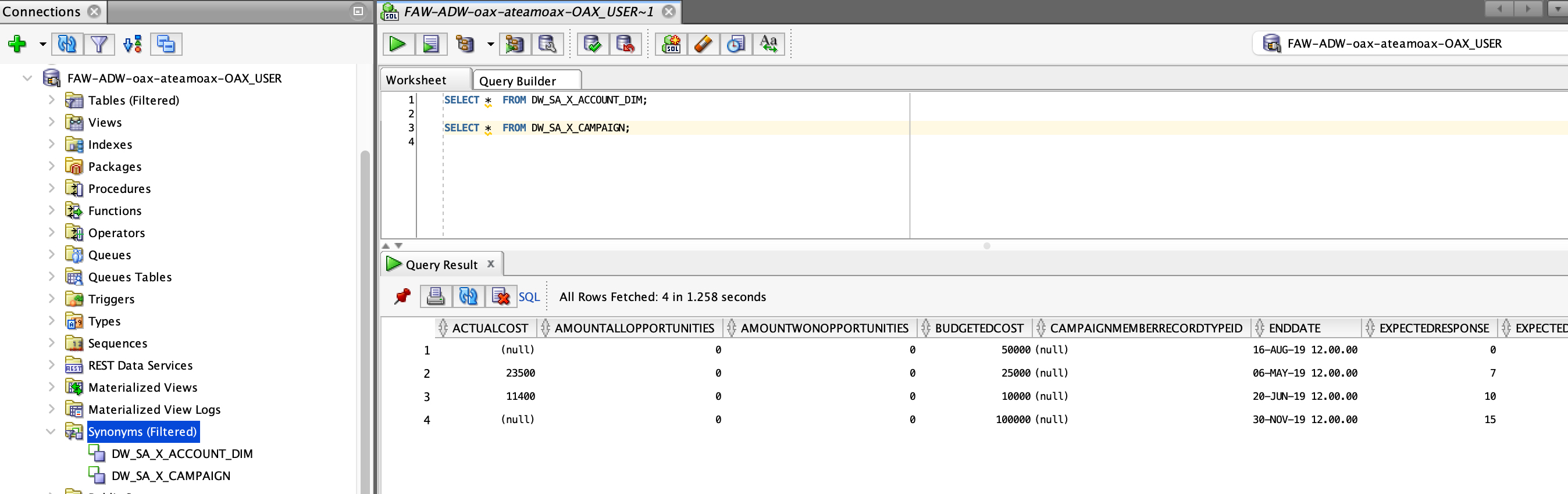
h) Repeat steps b to f to create the Campaign Dimension
Figure 21: FAW – Campaign Dimension table created and extracted
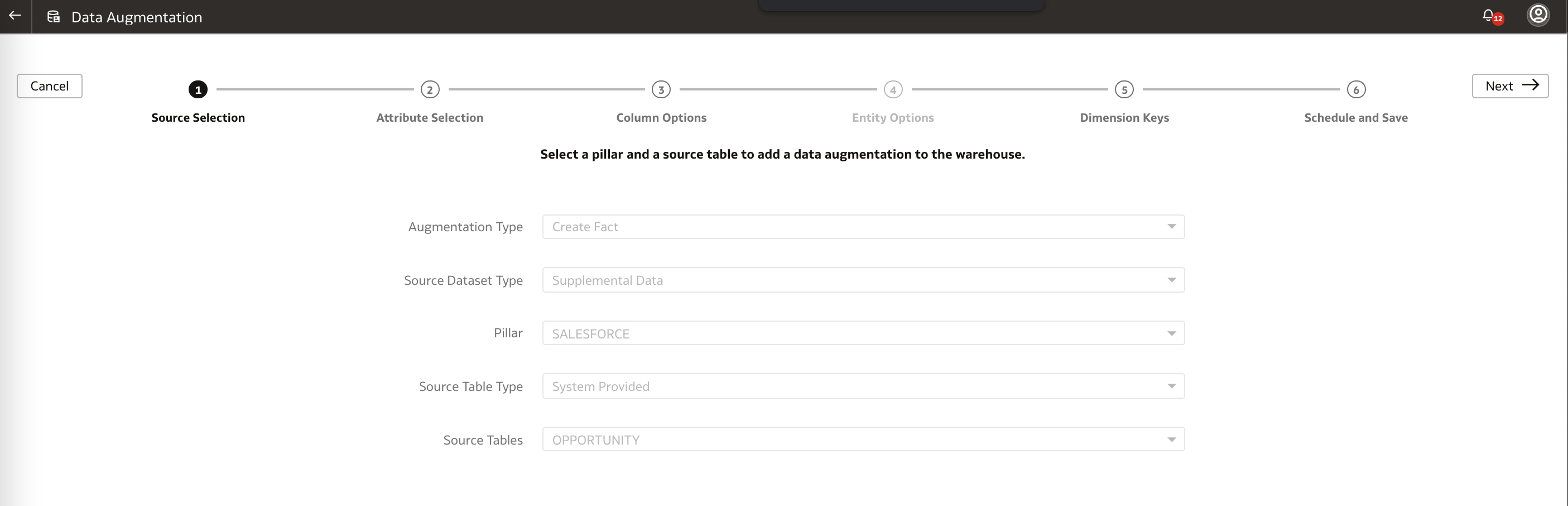
i) Create the Data Augmentation for the Opportunity Fact: enter Create Fact as Augmentation Type, Supplementad Data Source Dataset Type, Salesforce pillar, System provided Source Table type and choose the OPPORTUNITY source table. Click Next
Figure 22: Opportunity Fact Salesforce Data Augmentation
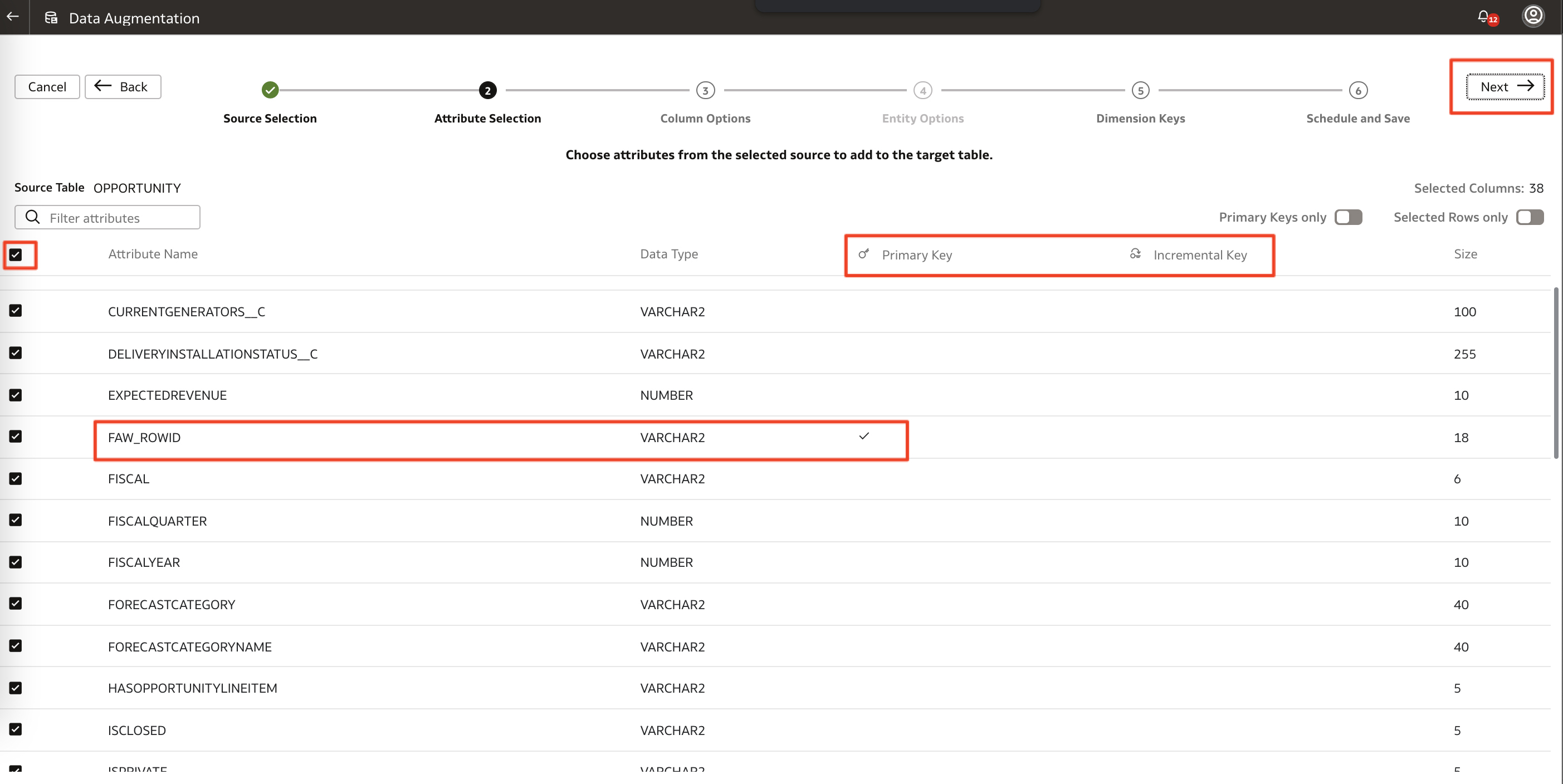
j) Select all attributes, ensure a Primary and Incremental Key are selected and click next
Figure 23: Opportunity Fact Attributes
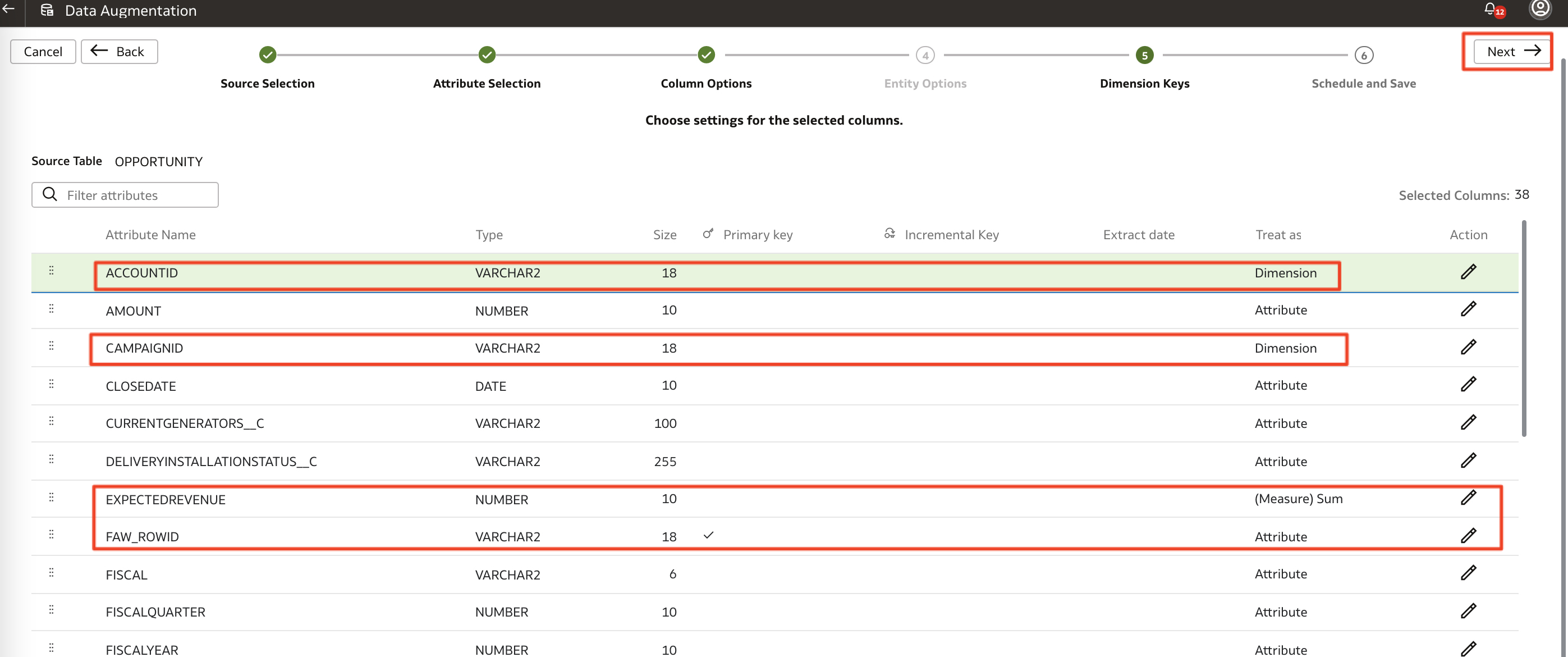
k) Update the ACCOUNTID and CAMPAIGNID to be Treated as Dimensions, EXPECTEDREVENUE as Measure with Sum Aggregation rule, review the Primary and Incremental Key. Click Next
Figure 24: Opportunity Fact Column Options
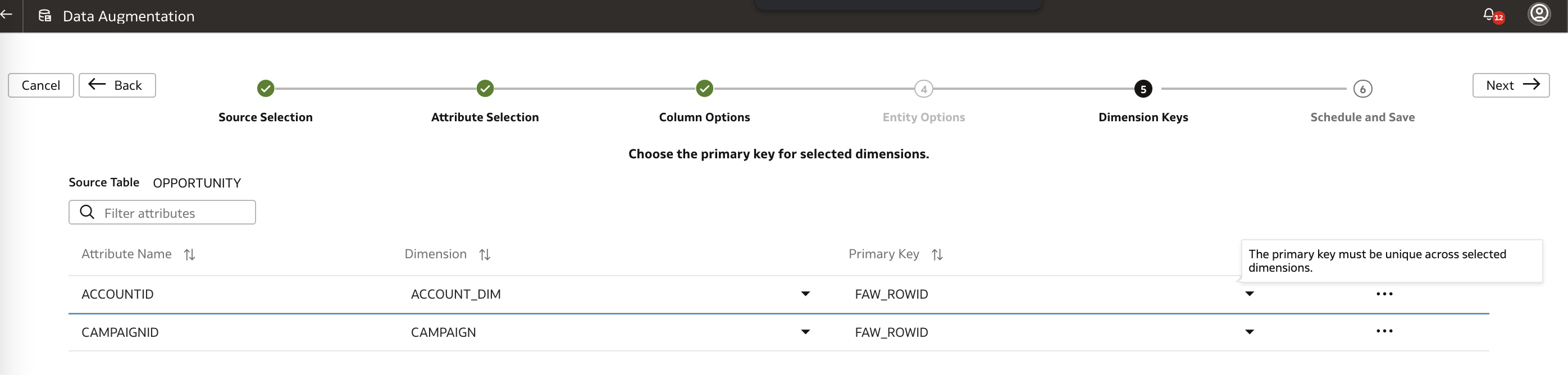
l) Select the Dimension Keys to CAMPAIGN and ACCOUNT Dimensions as per the below screen. Click Next once done.
Figure 25: Opportunity Fact Dimension Key
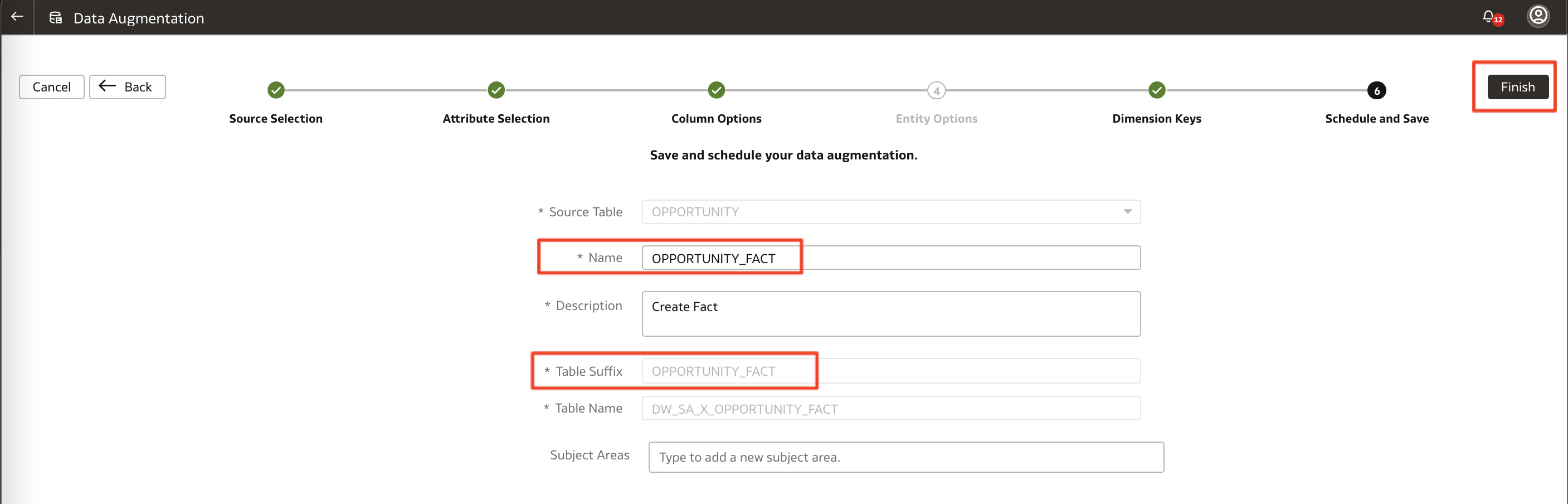
m) Enter the Opportunity Fact details schedule and click Finish.
Figure 26: Opportunity Fact Schedule and Save
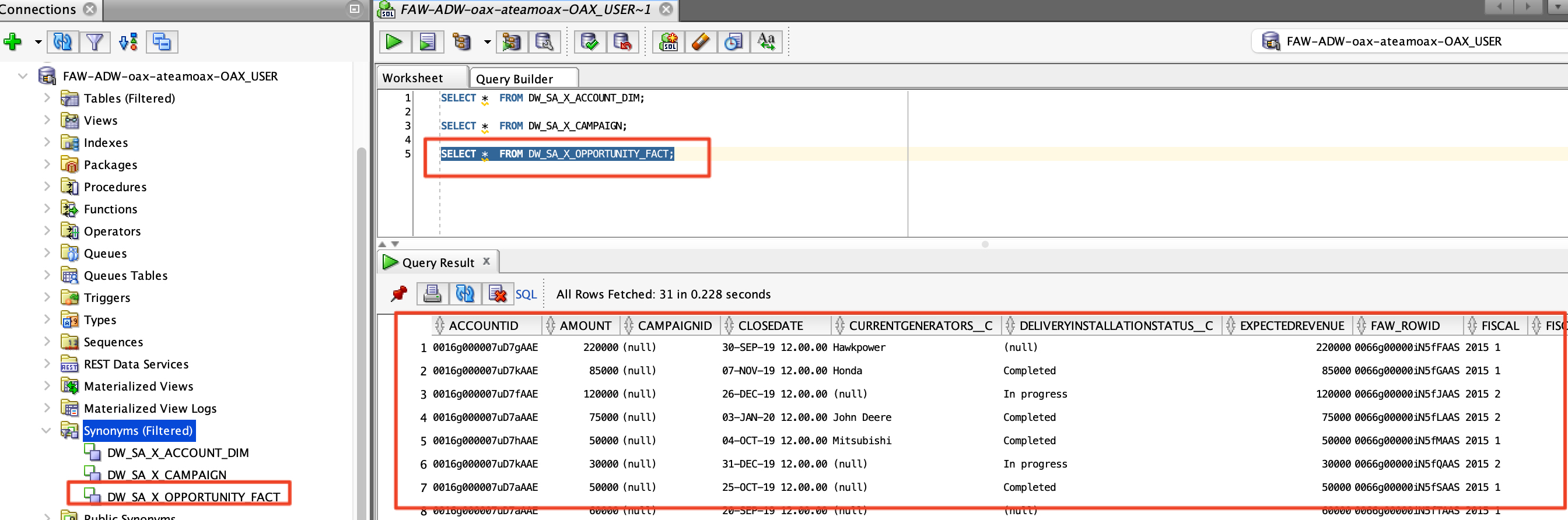
n) Check the Request History and confirm the Activation is created and then after a while Completed. The synonym can now be queried from SQL Developer
Figure 27: Opportunity Fact table created and extracted
Extending the FAW Semantic Model with Salesforce Subject Area
Now that the Salesforce tables have been extracted into ADW, we can use the Semantic Model extension wizards to create a Salesforce Subject Area
Create the required database objects for the Salesforce extracted tables
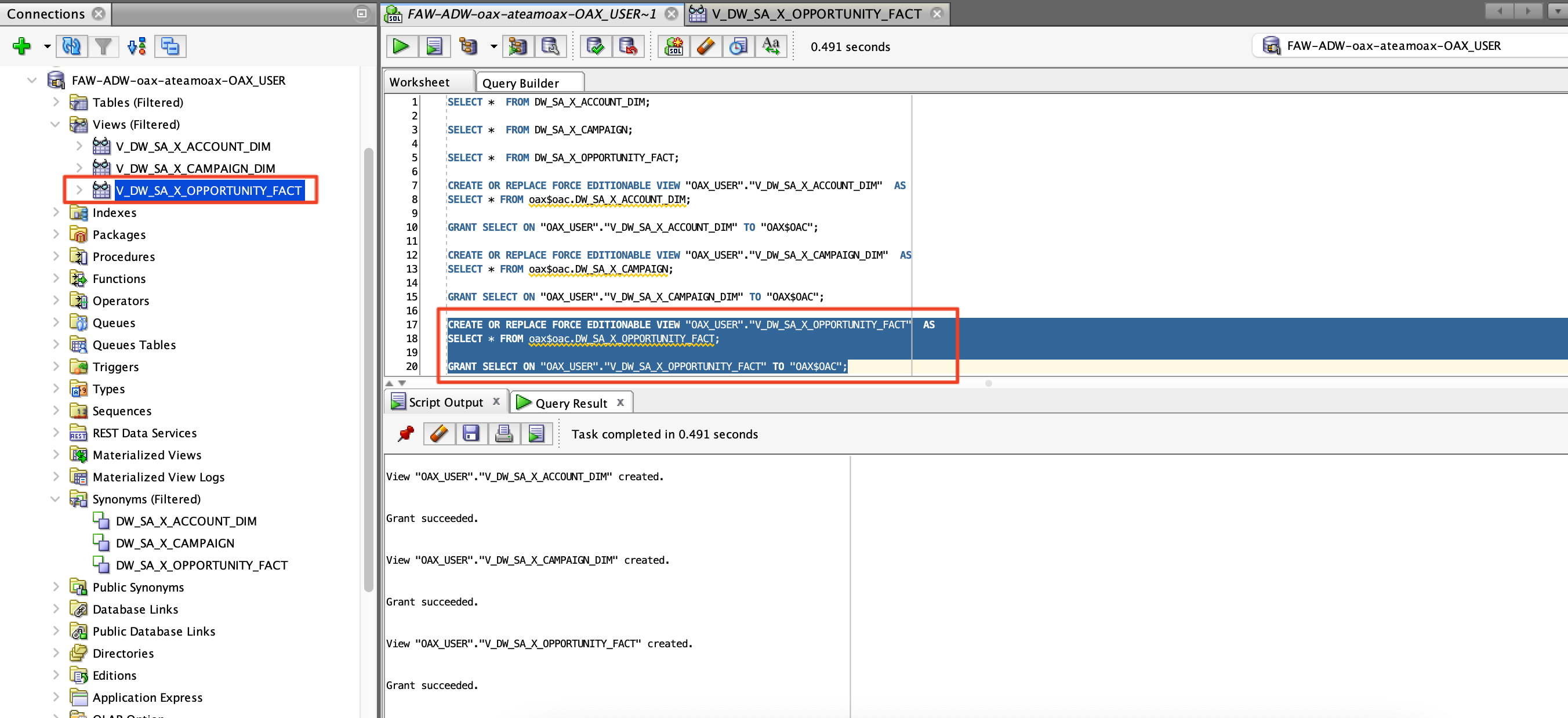
In order for FAW to be able to read the Salesforce tables, the recommended approach is to create database views based on the synonym definitions under the OAX_USER schema and to grant the OAX$OAC user access to these views.
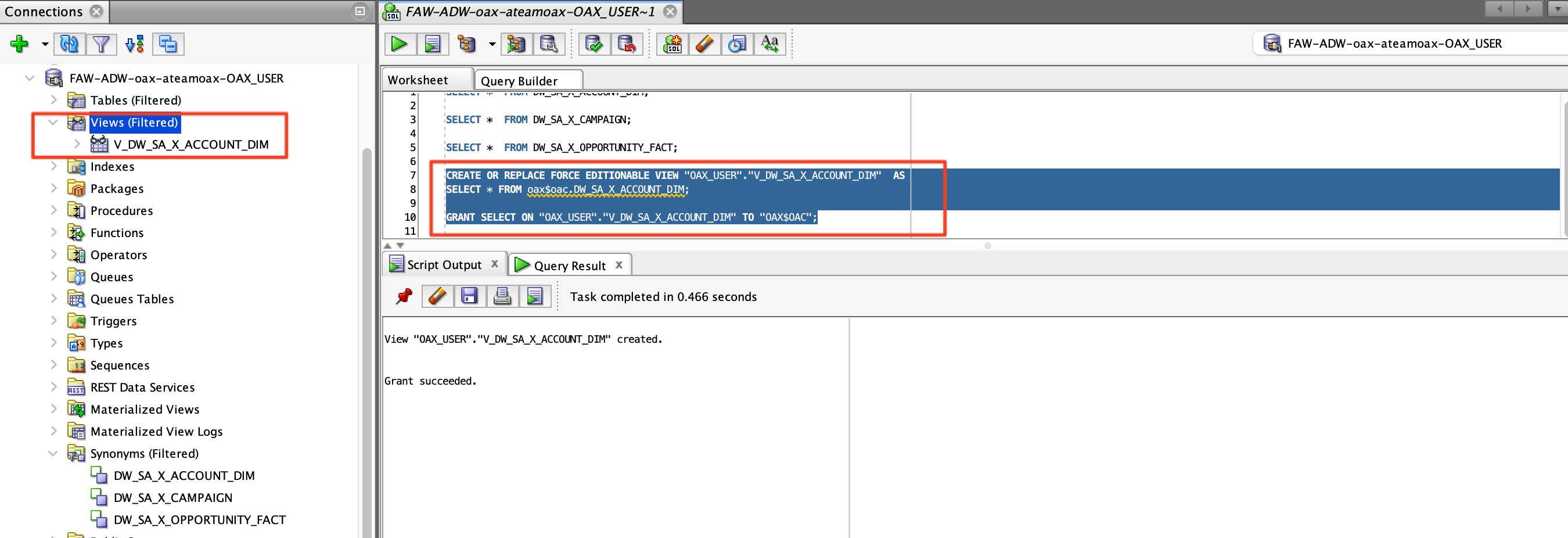
a) In SQL Developer, connect to ADW with OAX_USER and create a view and grants with the following SQL queries for Account Dimension.
CREATE OR REPLACE FORCE EDITIONABLE VIEW "OAX_USER"."V_DW_SA_X_ACCOUNT_DIM"  AS
SELECT * FROM oax$oac.DW_SA_X_ACCOUNT_DIM;

GRANT SELECT ON "OAX_USER"."V_DW_SA_X_ACCOUNT_DIM" TO "OAX$OAC";
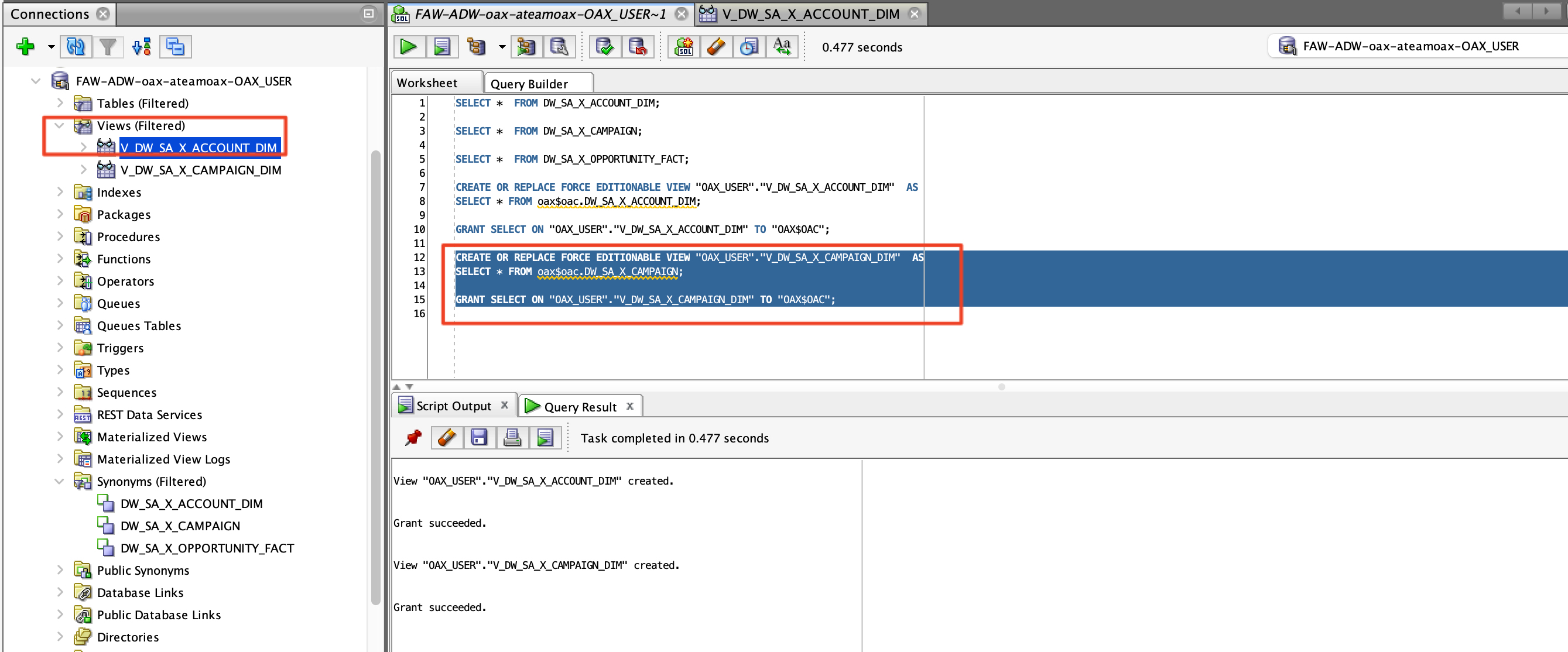
b) Create a view and grants with the following SQL queries for Campaign Dimension.
CREATE OR REPLACE FORCE EDITIONABLE VIEW "OAX_USER"."V_DW_SA_X_CAMPAIGN_DIM"  AS
SELECT * FROM oax$oac.DW_SA_X_CAMPAIGN;

GRANT SELECT ON "OAX_USER"."V_DW_SA_X_CAMPAIGN_DIM" TO "OAX$OAC";
b) Create a view and grants with the following SQL queries for Campaign Dimension.
CREATE OR REPLACE FORCE EDITIONABLE VIEW "OAX_USER"."V_DW_SA_X_OPPORTUNITY_FACT"  AS
SELECT * FROM oax$oac.DW_SA_X_OPPORTUNITY_FACT;

GRANT SELECT ON "OAX_USER"."V_DW_SA_X_OPPORTUNITY_FACT" TO "OAX$OAC";
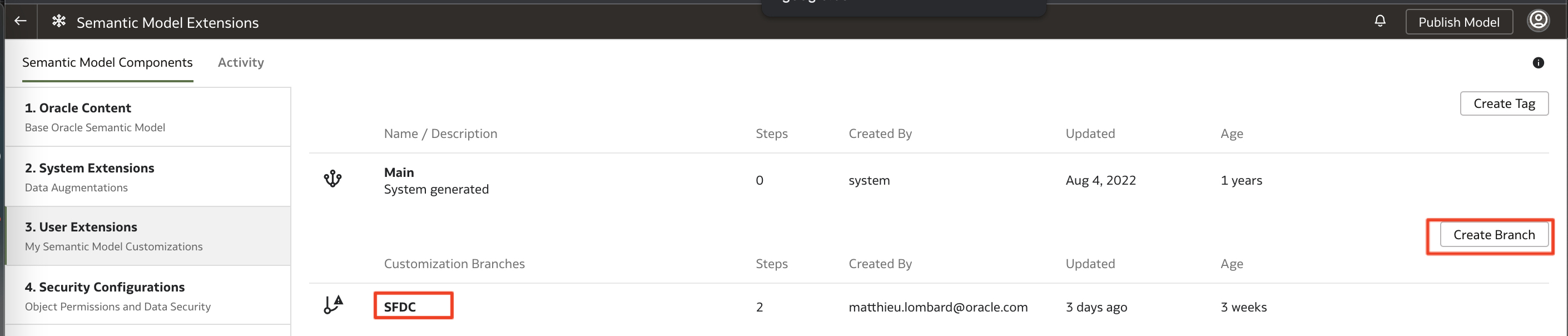
a) In the Console pane, click Semantic model extensions and create a new Branch for Salesforce Subject Area
Figure 31: Salesforce Semantic model extension
b) Add Steps to create a new Salesforce subject area named Custom SFDC
Figure 32: Add New Subject Area step
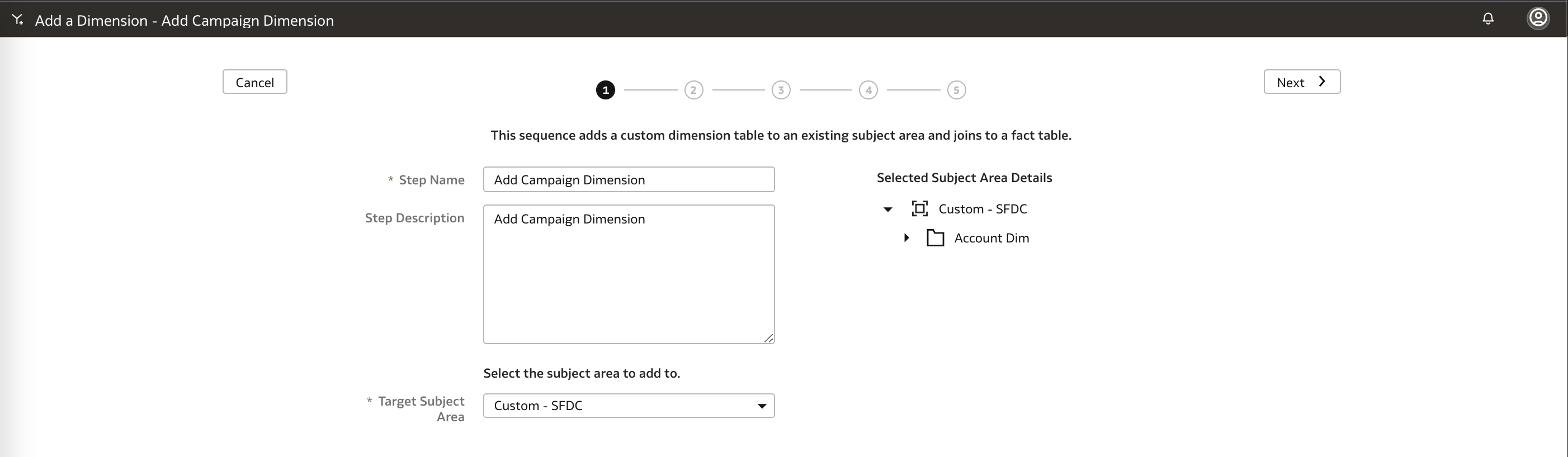
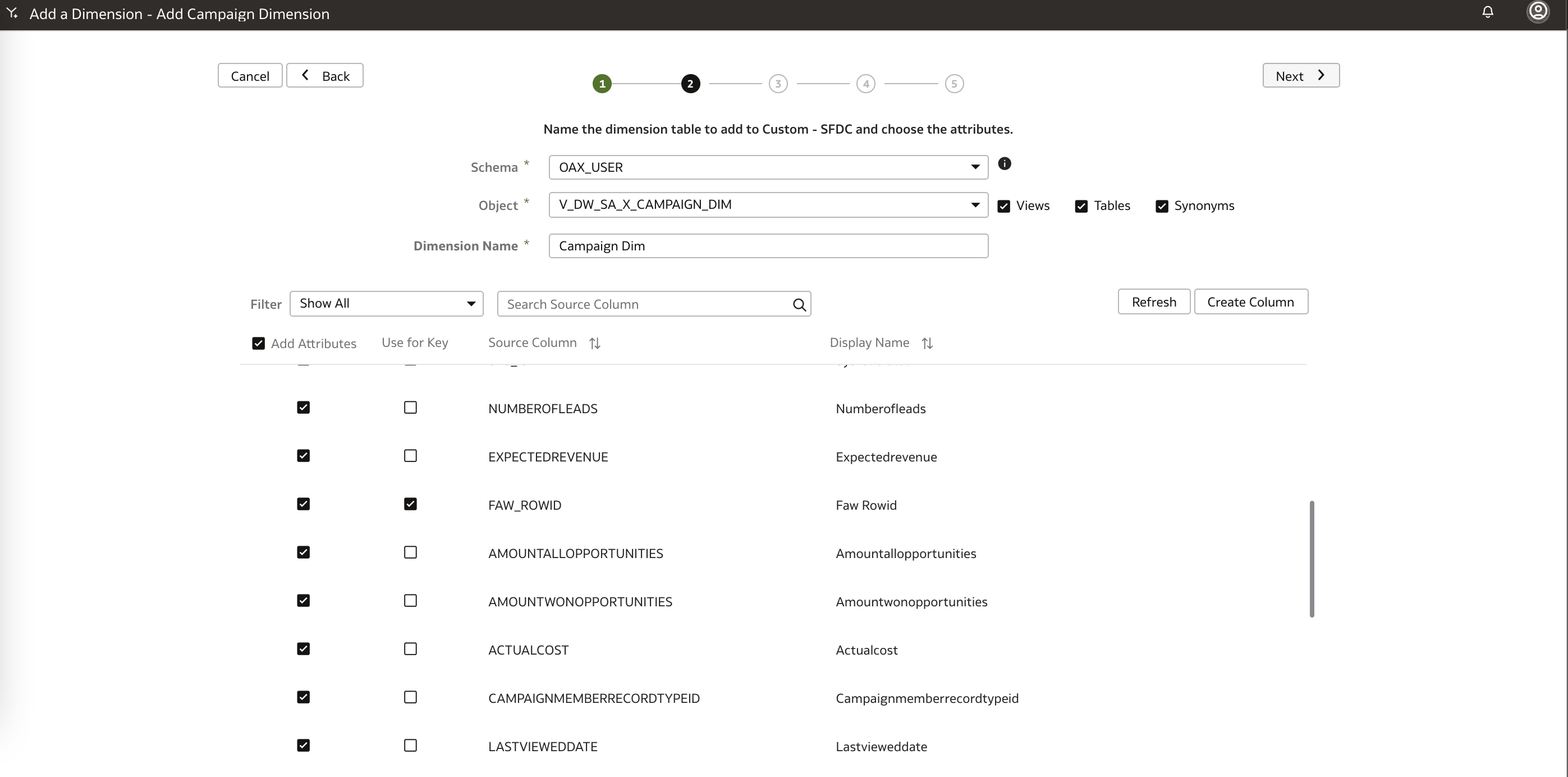
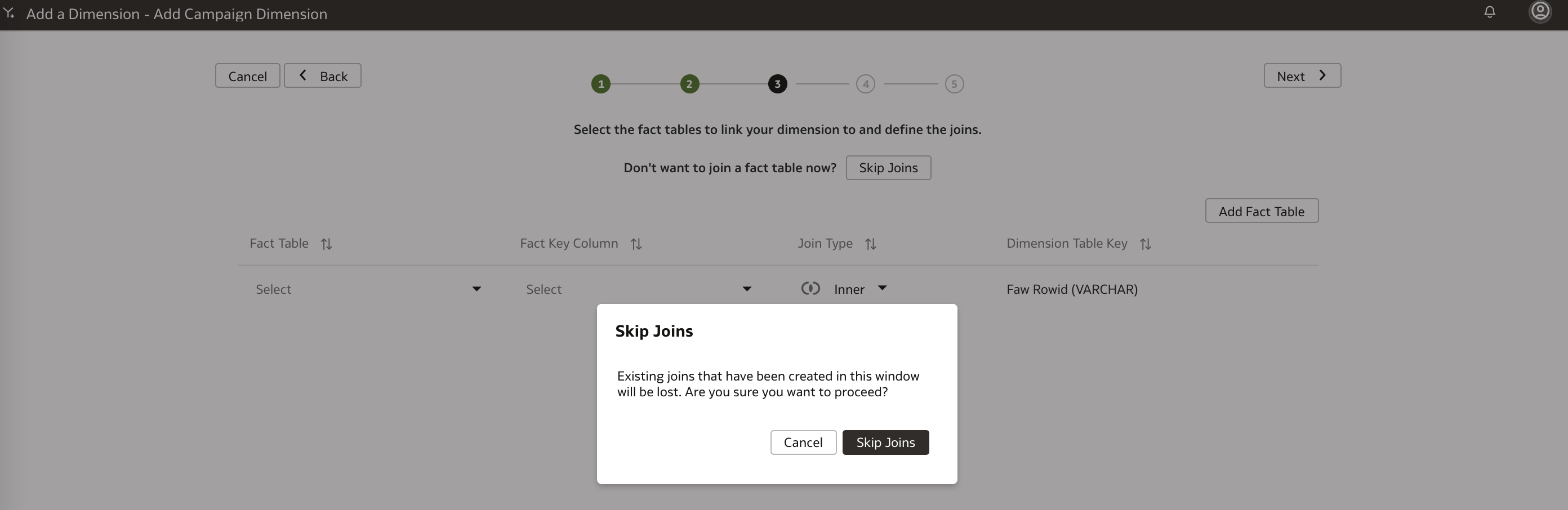
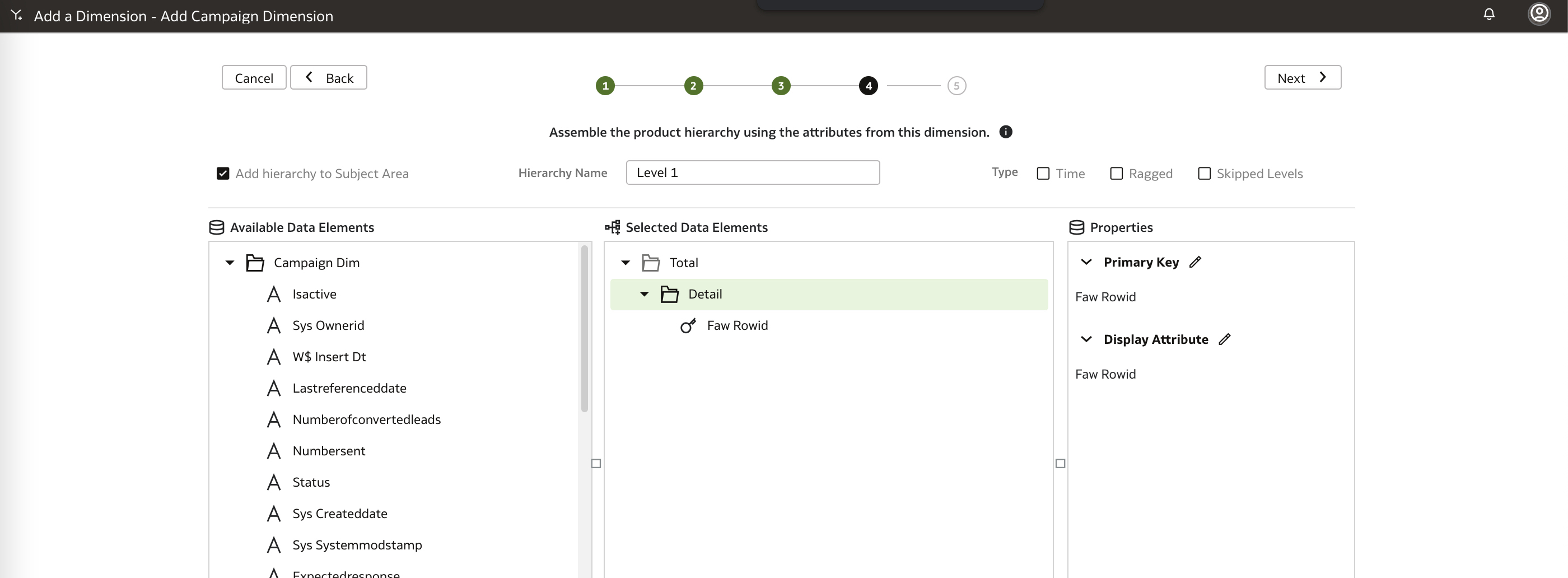
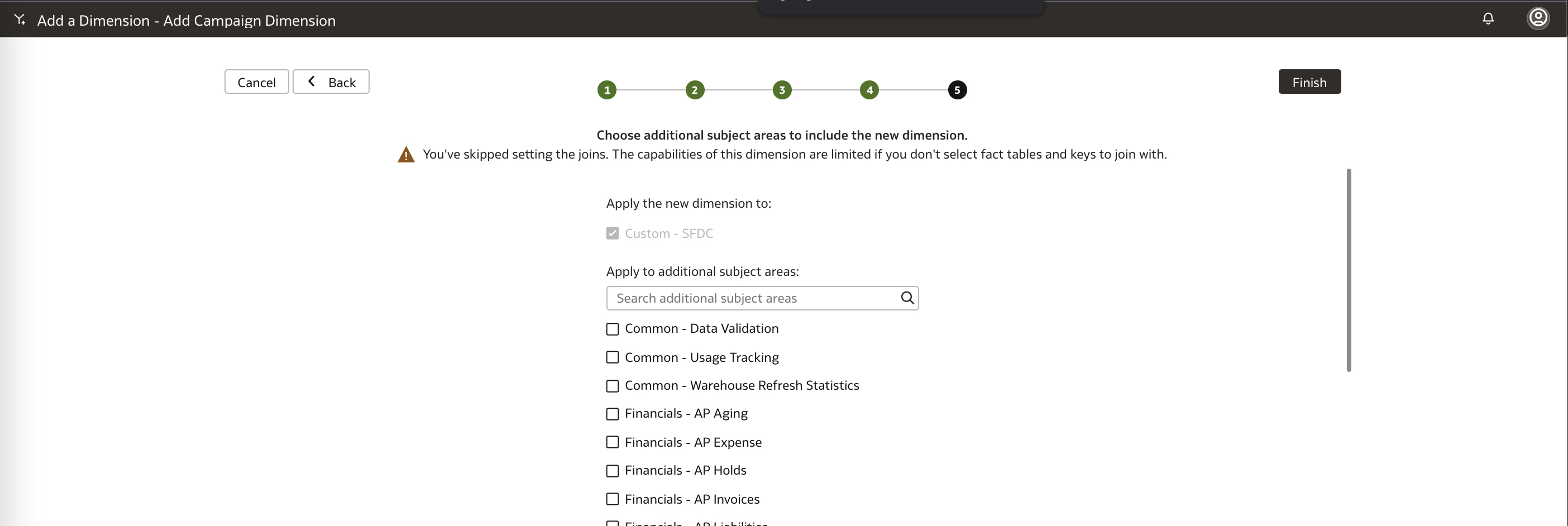
c) Add two Dimension steps for Account dimension and Campaign Dimension:
* Enter a Step name and Descritpion
* Choose the Custom – SFDC target subject area and click Next.
* Chose the OAX_USER schema, the dimension database view created earlier. Rename the Dimension, select all columns and click Next
* Skip the joins and click Next
* Add a hierarchy to the dimension
* Choose a target subject area and finish
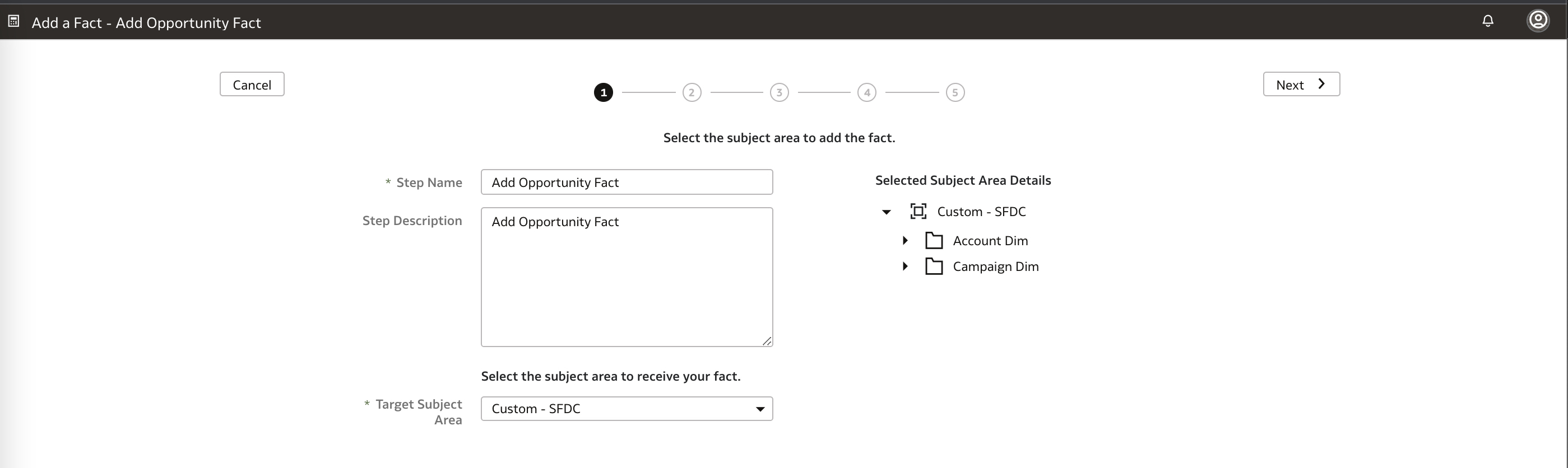
Figure 33: Add dimension steps
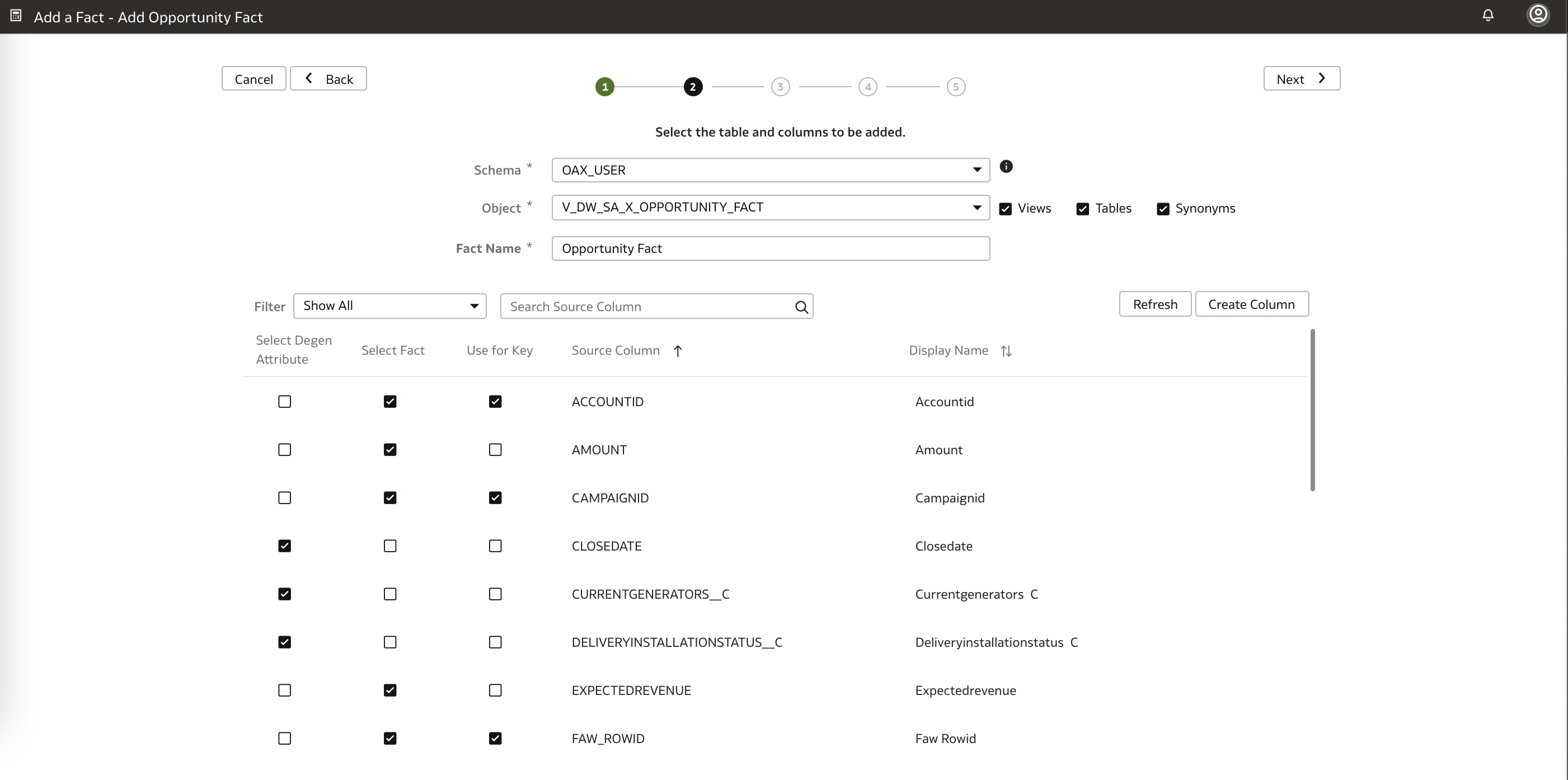
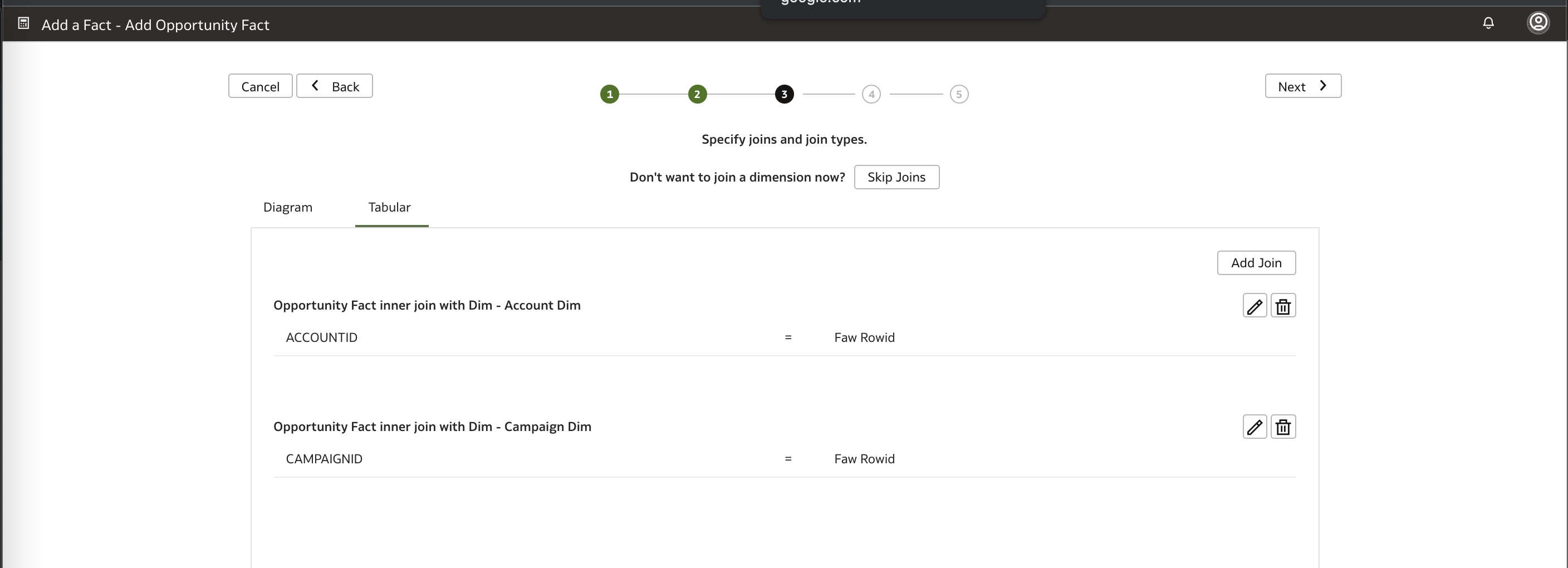
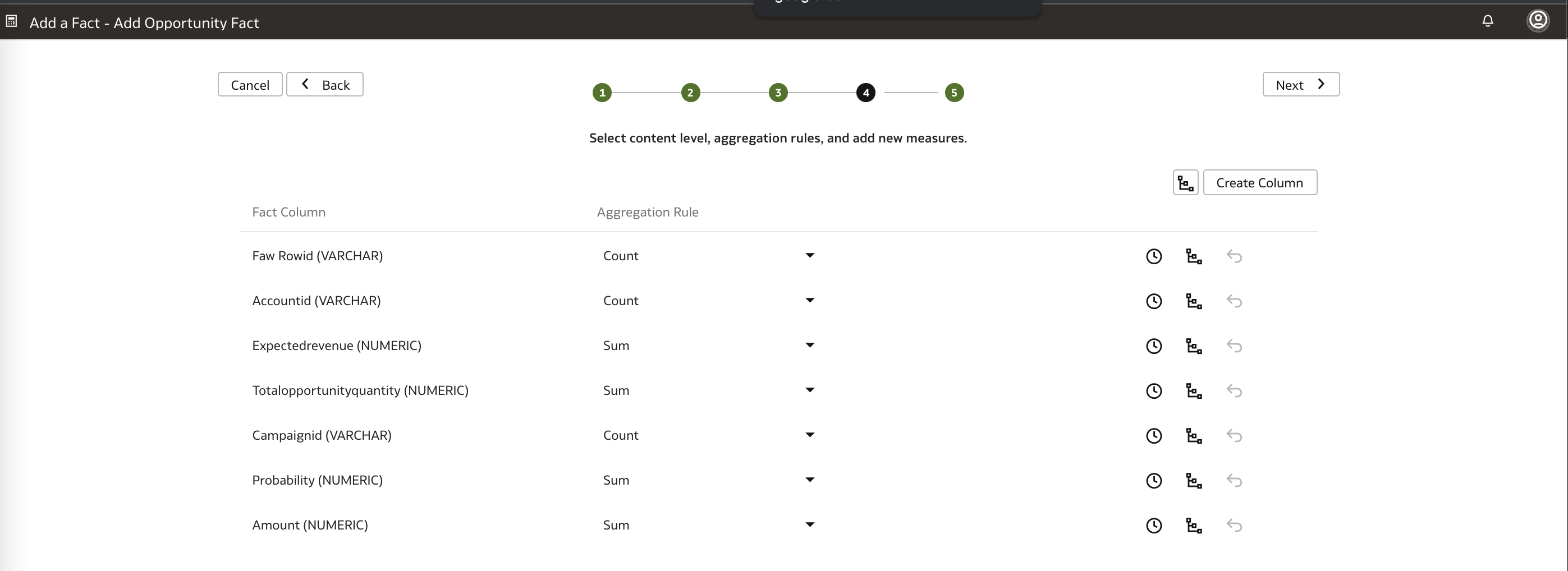
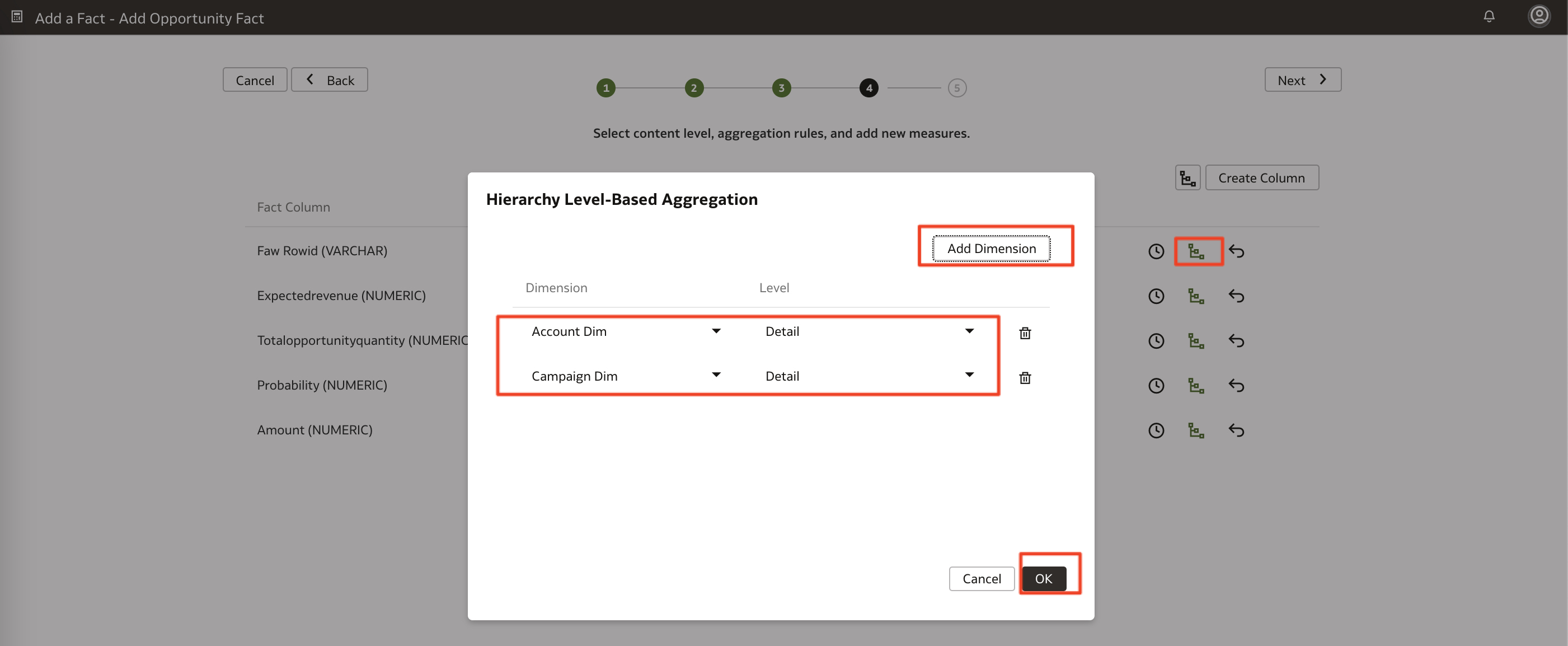
d) Add the Opportunity Fact step
* Enter the Opportunity Fact details and target subject area
* Select the facts, keys and degenerated attributes
* Define the joins to the Campaign and Account dimension
* Define the aggregation rules for the measures and aggregation levels
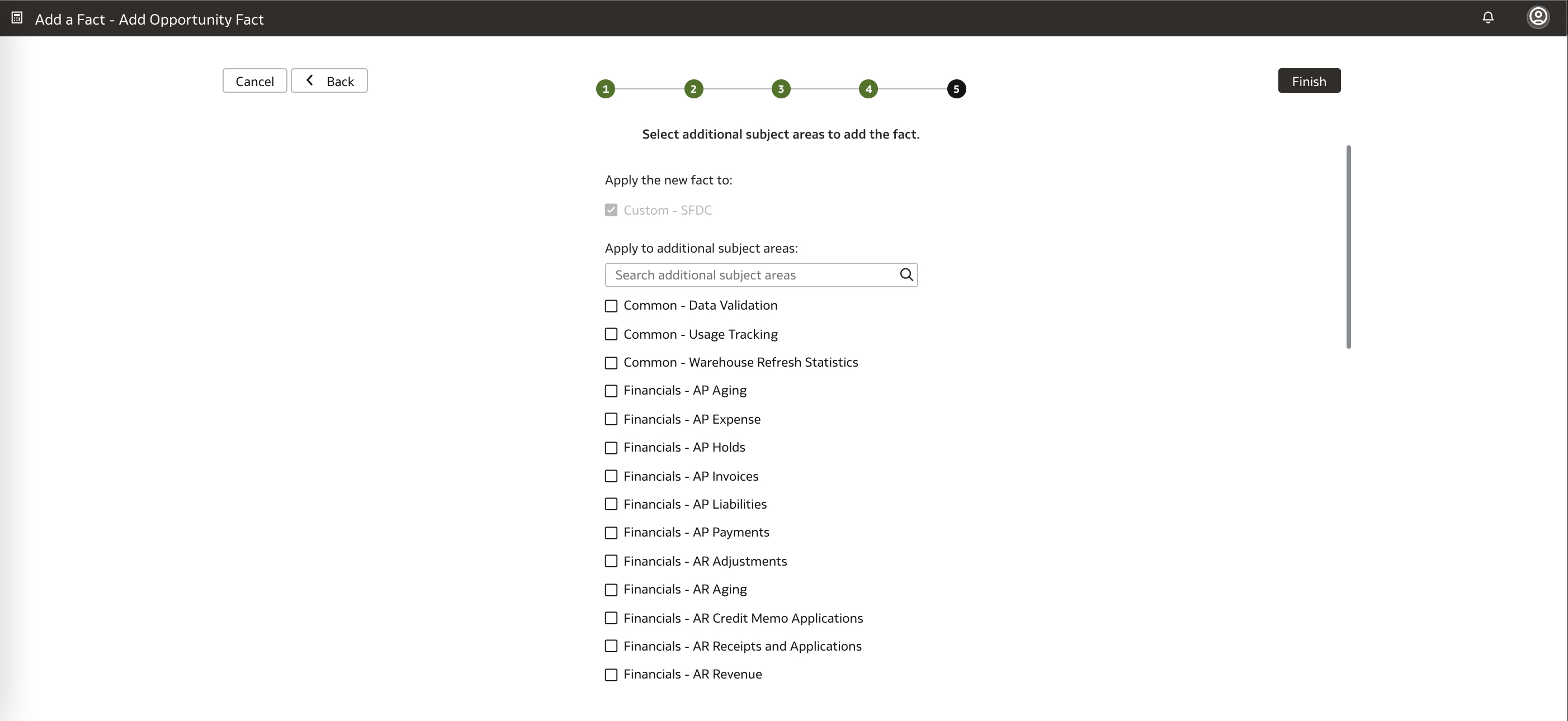
* Choose a target subject area and finish
Figure 34: Add Fact step
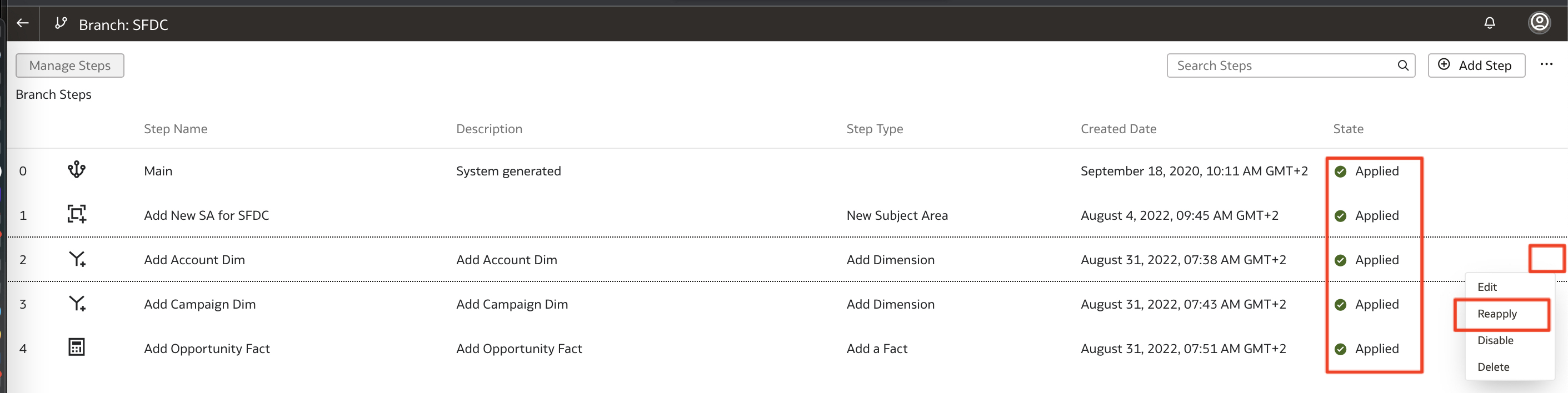
f) IfThe Account Dimension and the Campaign Dimensions steps will have warnings as they have been applied before any fact was created. Reapply these steps and validate that all the steps are applied succesfully without warnings once complete.
Figure 35: New SA, Dimensions and Fact steps applied
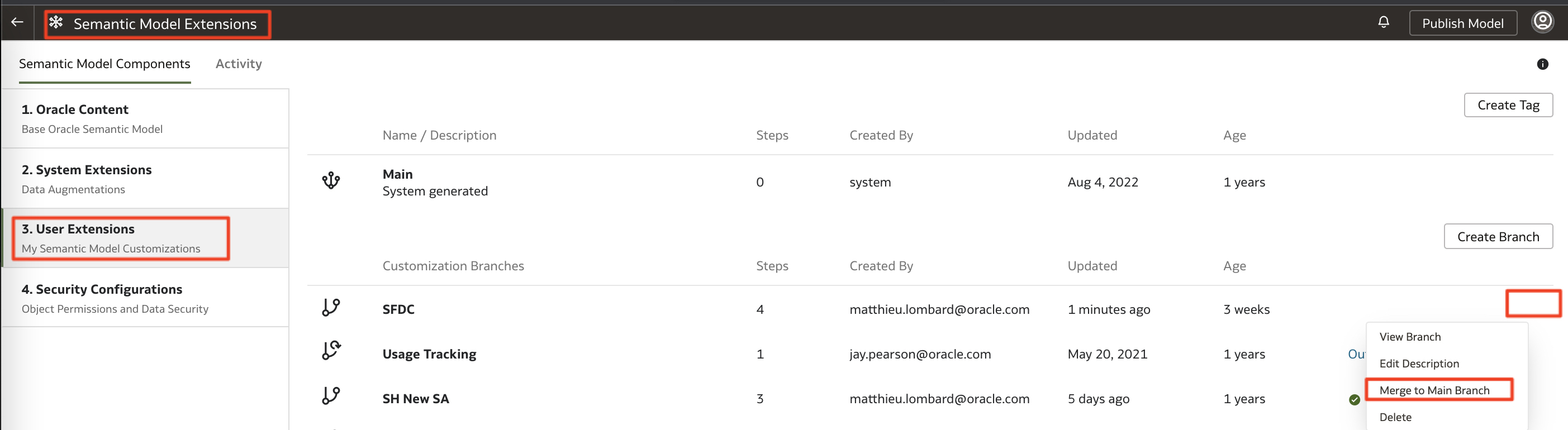
Publish the Semantic model extension and Merge with the Main Branch
a) Back in Semantic model extensions, under User extensions click on Publish Model
Figure 36: Publish Model
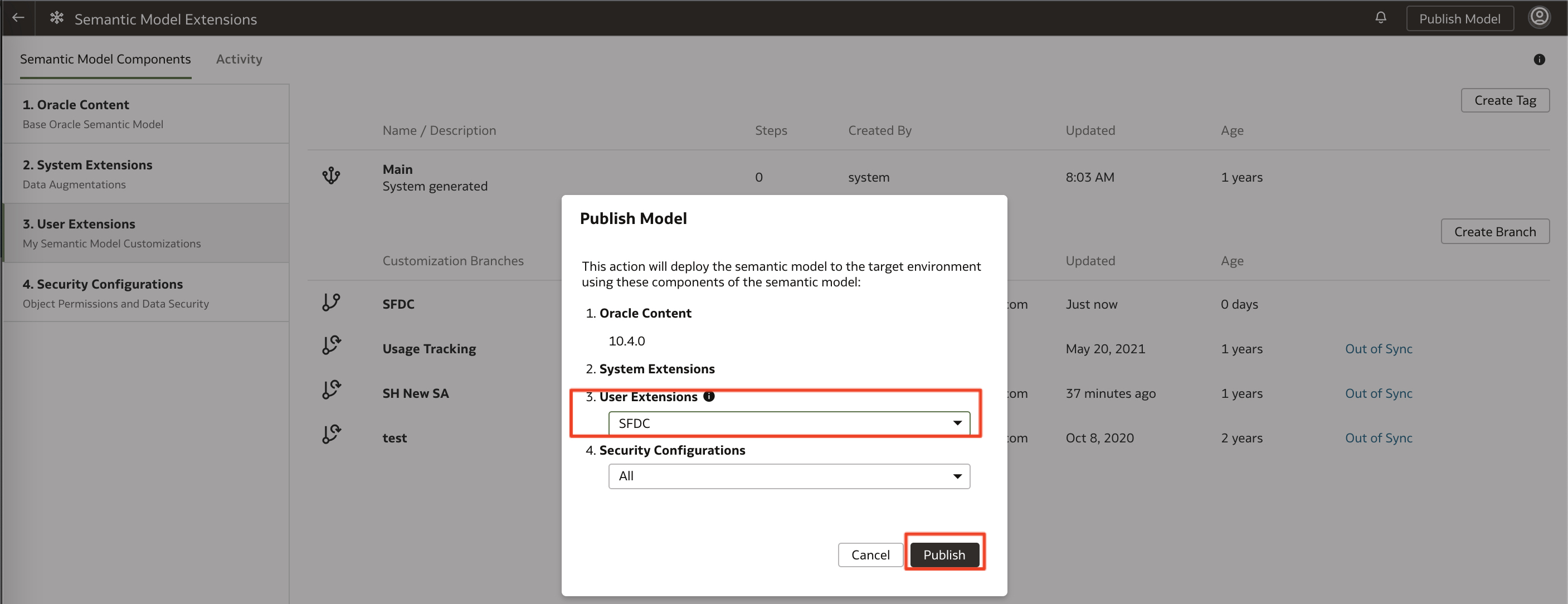
b) Select the SFDC user extension and click Publish
Figure 37: Select Salesforce Subject Area and Publish
c) Check the Activity and validate that the SFDC semantic model extension is published
Figure 38: Validate Salesforce Subject Area Publishing
d) Click on the SFDC Branch and select Merge With Main Branch
Figure 39: Merge with Main Branch
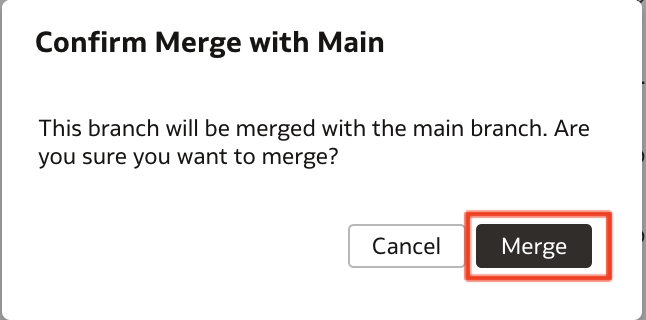
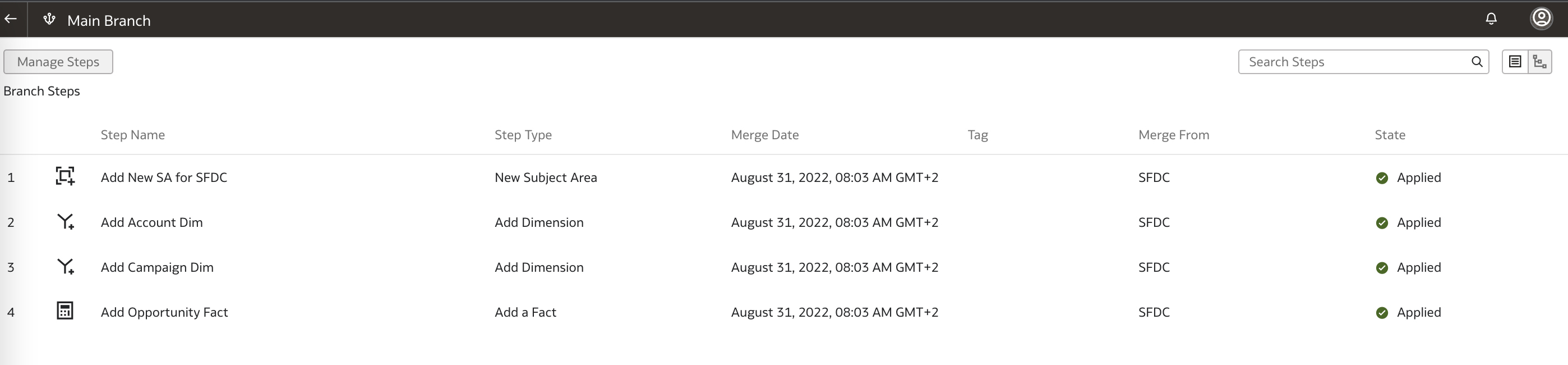
e) Confirm Merge. Check the Main Brnach steps and validate that the Custom – SFDC semantic model extension merge is done
Figure 40: Confirm and Validate Merge
Creating an OAC Workbook to Gain Business Insight with Salesforce Data
Now that we have seen how to use FAW Data Augmentation Managed Pipelines extract Salesforce Data and the FAW semantic model extension to build a new Salesforce Subject area, we can create visualization in OAC.
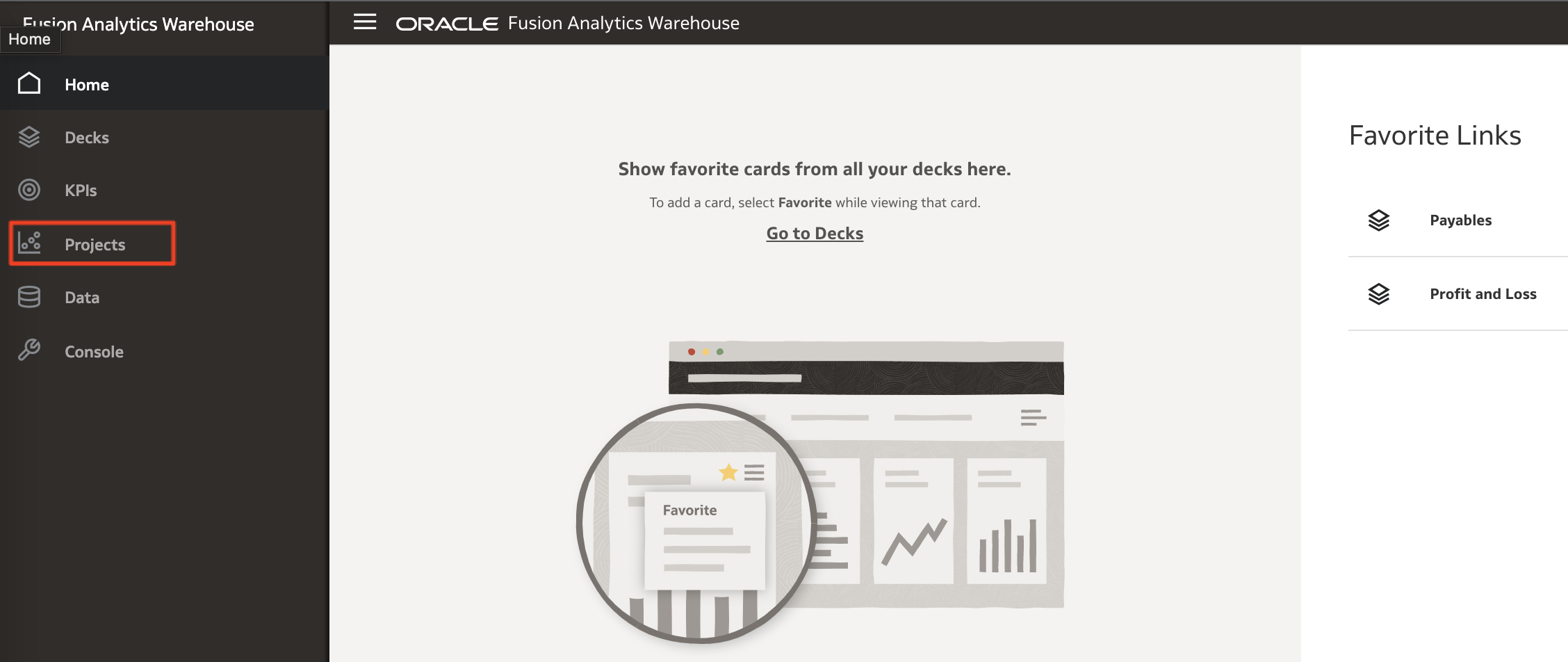
a) Go back to FAW Home page and click on Projects
Figure 41: Projects
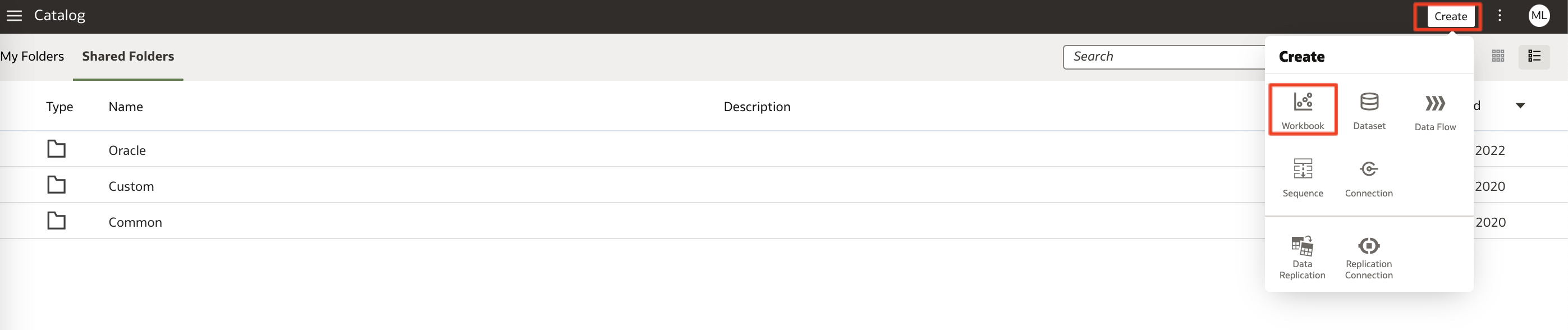
b) In OAC, click on Create Workbook
Figure 42: Create Workbook
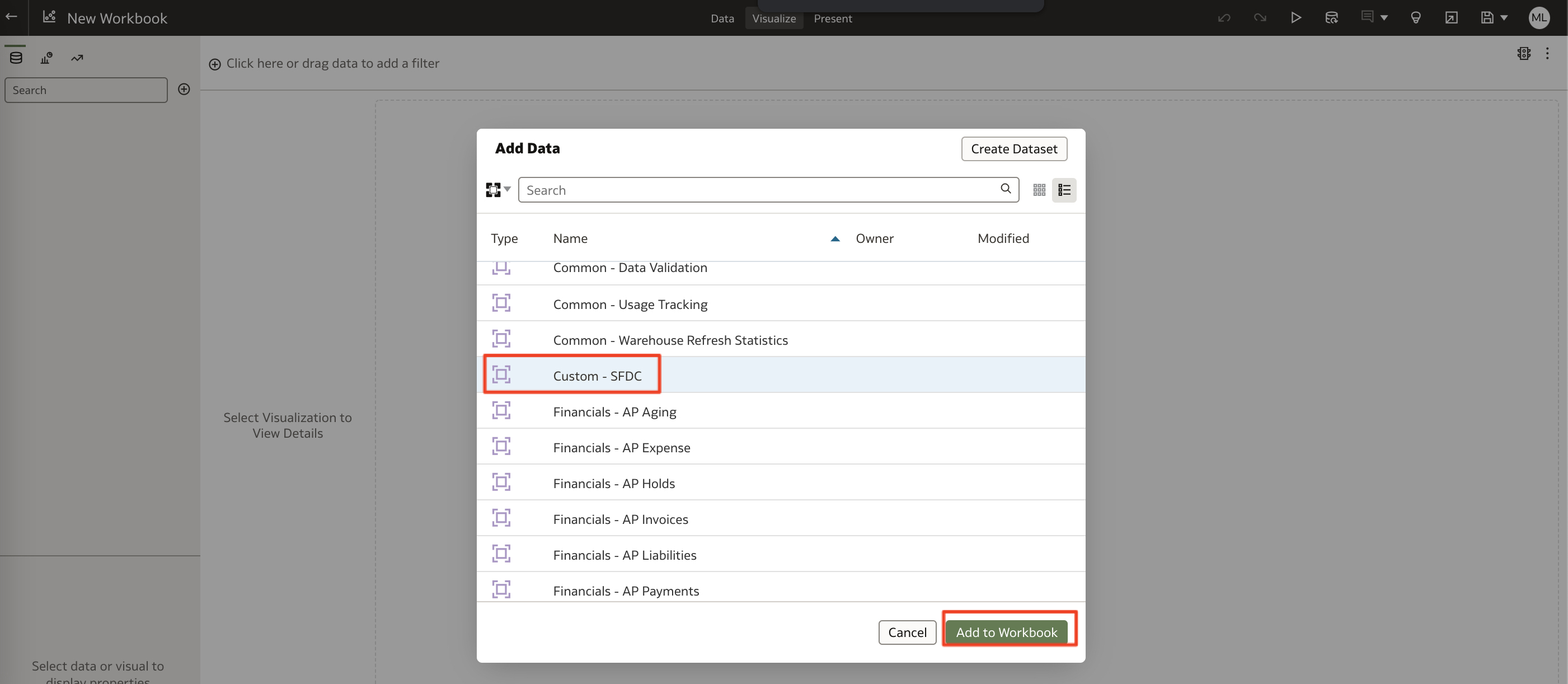
c) Select the Custom – SFDC Subject area and click Add to Workbook.
Figure 43: Add Custom SFDC Workbook
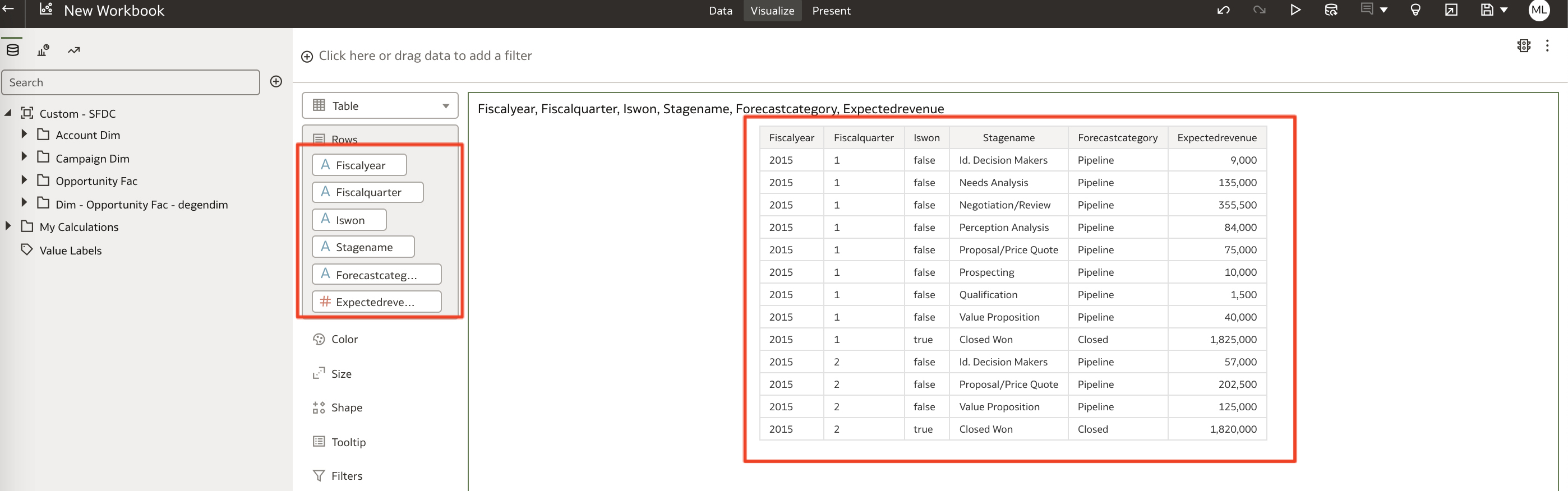
c) Select Columns from the dimensions and fact presentation tables to build a new Visualization and review the Results
Figure 44: SFDC OAC Visualization
This concludes the activities in the blog.
Want to Learn More?
Click here to sign up to the RSS feed to receive notifications for when new A-team blogs are published.
Summary
This blog described how to utilize Fusion Analytics (FAW) Data Augmentation Managed Pipelines to replicate transactions data from Salesforce Cloud Applications into Autonomous Data Warehouse (ADW) to extend the Data Layer of FAW. This blog also detailed the steps to extend the semantic model to ultimate allow customers to answer business questions and gaining business insight such as :
Opportunity conversion: As open sales opportunities move through the stages of sales, a sales executive wants to track the progress so that he/she can guide their team members
Bookings and Revenue by Customers and/or Channels or Regions
Forecast accuracy : As a sales/business executive, compute and manage open opportunities to bookings
Average resolution time : Compute and manage/improve resolution of customer issues 
Customer retention: An executive in customer support or customer experience organization needs to track and manage customer satisfaction leading to customer retention, in many industries such as retail, banking, financial services, etc.
Lead generation : Gaining the interest of potential customers in order to increase future sales
Bookmark this post to stay up-to-date on changes made to this blog as our products evolve.
Authors
Matthieu Lombard
Consulting Solution Architect
The Oracle A-Team is a central, outbound, highly technical team of enterprise architects, solution specialists, and software engineers.
The Oracle A-Team works with external customers and Oracle partners around the globe to provide guidance on implementation best practices, architecture design reviews, troubleshooting, and how to use Oracle products to solve customer business challenges.
I focus on data integration, data warehousing, Big Data, cloud services, and analytics (BI) products. My role included acting as the subject-matter expert on Oracle Data Integration and Analytics products and cloud services such as Oracle Data Integrator (ODI), and Oracle Analytics Cloud (OAC, OA For Fusion Apps, OAX).