
The posts in this series assume that you have some level of familiarity with ODI. The concepts of Model, Project, Interface and Package are used here assuming that you understand these concepts in the context of ODI. If you need more details on these elements, please refer to the ODI Tutorial for a quick introduction, or to the complete ODI documentation for detailed information on these concepts.
This is the first post of a series that will explore how variables can be used in ODI for more flexibility in code generation.
In this discussion, we will use a Timestamp to extract changes from a source table. This will help us illustrate the usage of variables in Interfaces and Packages.
Subsequent posts will explain the usage of variables in more advanced cases:
– using variables to pass parameters to a process
– bind variables
– using variables in Topology.
But first, let’s get started with the general usage of variables with our Timestamp extract example.
INTRODUCTION
Detailed instructions will be provided throughout this post to describe how to reproduce this case. We will create 2 variables in ODI for this example. Then we will implement the following logic:
– Store current date and time in variable1 as we start our process
– Filter out the data from the table on using variable2 that contains the data and time of the last operation
– Update variable2 with the value of variable1
– Run again!
The examples given below assume that we are using an Oracle database, but can easily be adapted to work on any other database.
1. VARIABLES SETUP IN ODI
1.1 Variables Definition
1.1.1 General Information
The first step is to create two variables in ODI. The first variable will be used to store the date and time at which we started the process – only for the duration of the process. The second variable will be used to save that date for the next iteration of the package.
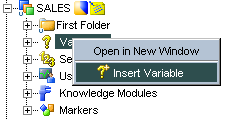
To create a variable in ODI, expand your project and right-click on the ‘Variables’ folder. Then select ‘Insert Variable’
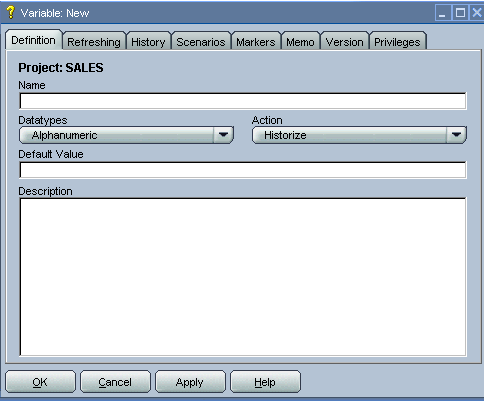
You will then see the Variable definition window:
1.1.2. First Variable: StartTime
We will name our first variable StartTime.
Set the data type to ‘Alphanumeric’, simply because it is generally easier to handle than dates.
Define a default value, for instance
’29-MAR-2009 10:08:12’.
Note the single quotes around the text for the default value. It is usually better to define a default value, if only to make sure that if you forget to set a value for your variable, you will not be left with a NULL…
Fill in the ‘Description’ field to explain what the variable will be used for. This is important as this field will be retrieved by ODI when the documentation is generated from the “Print” menu in your project:
This variable will be used to store the time at which the extraction process starts so that we can remember this value for the next run of this same process
Now click on the ‘Refreshing’ tab to see the following window:
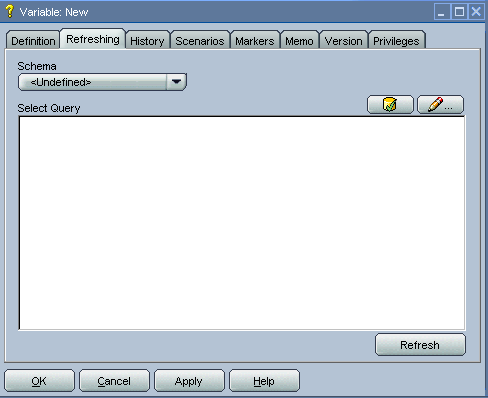
Select any logical schema on Oracle and type the following SQL query:
Select SYSDATE from DUAL
Note:: You can run the query to make sure it is valid. Click the ‘refresh’ button in the above window. Then close the variable definition window, and check in the ODI Logs that the query runs successfully. You can then re-open the variable definition window, and check the resulting value in the ‘History’ tab of the variable.
Click Ok to save your first variable.
1.1.3 Second Variable: LastUpdate
We will name our second variable LastUpdate.
Set the data type to ‘Alphanumeric’. The default value will be the original start date (basically the date for the oldest recors in our source file. (be careful here with the date format).
’01-JAN-1997 00:00:01’
No need to put a refresh value here. (Though an alternative may have been to put here a query to retrieve the oldest date in the source system!)
Click Ok to save your second variable
Both variables can be seen in the Project Tree if you expand the Variables entry.
2. USING THE VARIABLES IN INTERFACES AND PACKAGES
2.1. Use the ‘LastUpdate’ variable to filter incoming records
When you are designing your interface, you now want to filter data based on the timestamp. This will be done with the LastUpdate variable
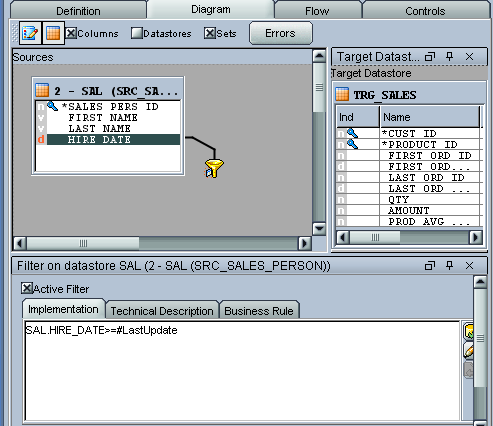
1. In the interface, create a filter: drag and drop a date column in on the dark gray area to create the filter. ODI will display a little funnel and open a property box for you to specify the filter expression. That box is pre-filled with the column name
2. Edit the filter expression and add:
>=#LastUpdate
(We only want the records where the timestamp is greater than the value of the variable)
2.2 Create a package to handle the timestamp values
Now you can create a package (in your project, right click on Packages and select Insert Package), in which you will do the following:
1. Drag and drop the LastUpdate variable from the Project Tree into the package. Then click on the icon representing the variable in the package and set the type to declare variable. Set the step name to Declare LastUpdate
2. Drag and drop the StartTime variable from the Project Tree into the package. Then click on the icon and set the type to declare variable. Set the step name to Declare StartTime.
3. Drag and drop the StartTime variable from the Project Tree into the package again. Then click on this icon and check that the type is set to refresh variable. This will run the associated query and store the returned value in our variable.
4. Drag and drop your interface in the package
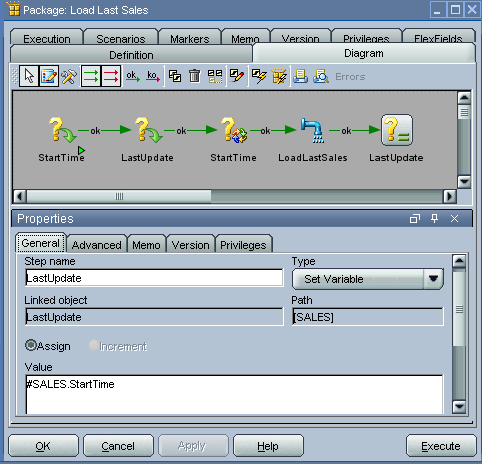
5.Drag and drop the variable LastUpdate again, but this time set the type to Set Variable, click the assign bullet and put the entire name of the StartTime variable (including the project code)
Note: in the screen shot below, replace SALES with the CODE of the project where the variables have been defined. To retrieve the project code, double-click on the project name in the objects tree
6. Then click on the  button (available in the Package upper toolbar), and connect the icons sequentially with green arrows to define the execution order for these steps. Once this is done, save your package. This package will now process incremental loads of your sales.
The screen shot below shows the sequential ordering of the steps, as well as the value set for our LastUpdate variable after processing the interface.
3. UNDERSTANDING POTENTIAL ERRORS
3.1 Project CODE vs. project NAME
Be careful when you use a variable to prefix it with a # sign, and with the project CODE, not the project NAME.
3.2 Mistyped variable names
Mistyped variable names (in the variable affectation step, or in the interface) might have unexpected results. Pay attention in particular to the case used for the variable names and when you reference them: variables are case sensitive!
3.3 Understanding Variable Values
Variables values are not visible in the generated code that you can review in the Operator interface. For instance, the code we have described above for the interface would appear in the Operator as
Select (…) from (…) where HIRE_DATE>=#SALES.LastUpdate
Even though the variable value is not visible here, we know that ODI has recognized the variable as it has inserted the project code. This is good news and guaranties that the value will properly be substituted at runtime.
If you want to see the value taken by the variable at runtime, look at the History tab in the variable definition, or look at the “Variables” folder in the operator (under the session ID) and then check out the history tab of all variables used in this execution.
MORE ON VARIABLES IN ODI
For more information on ODI variables, please refer to the ODI Users Guide (part of the Documentation Library that comes with the ODI installation), in particular the entry “Creating and Using Variables”
All Screenshots were taken using version 10.1.3.5 of ODI. Actual icons and graphical representations may vary with other versions of ODI.