
UPDATE: Our current blog system doesn’t allow sharing the Postman export files any more. Please contact me on Linkedin if you want me to send you the files.
When starting with OAuth sometimes it might be a little bit tricky to understand the right parameters for OAuth calls to Oracle Identity Cloud Service (IDCS). To make it easier and to provide you a quick start I’m sharing a Postman sample collection for common IDCS OAuth flow calls.
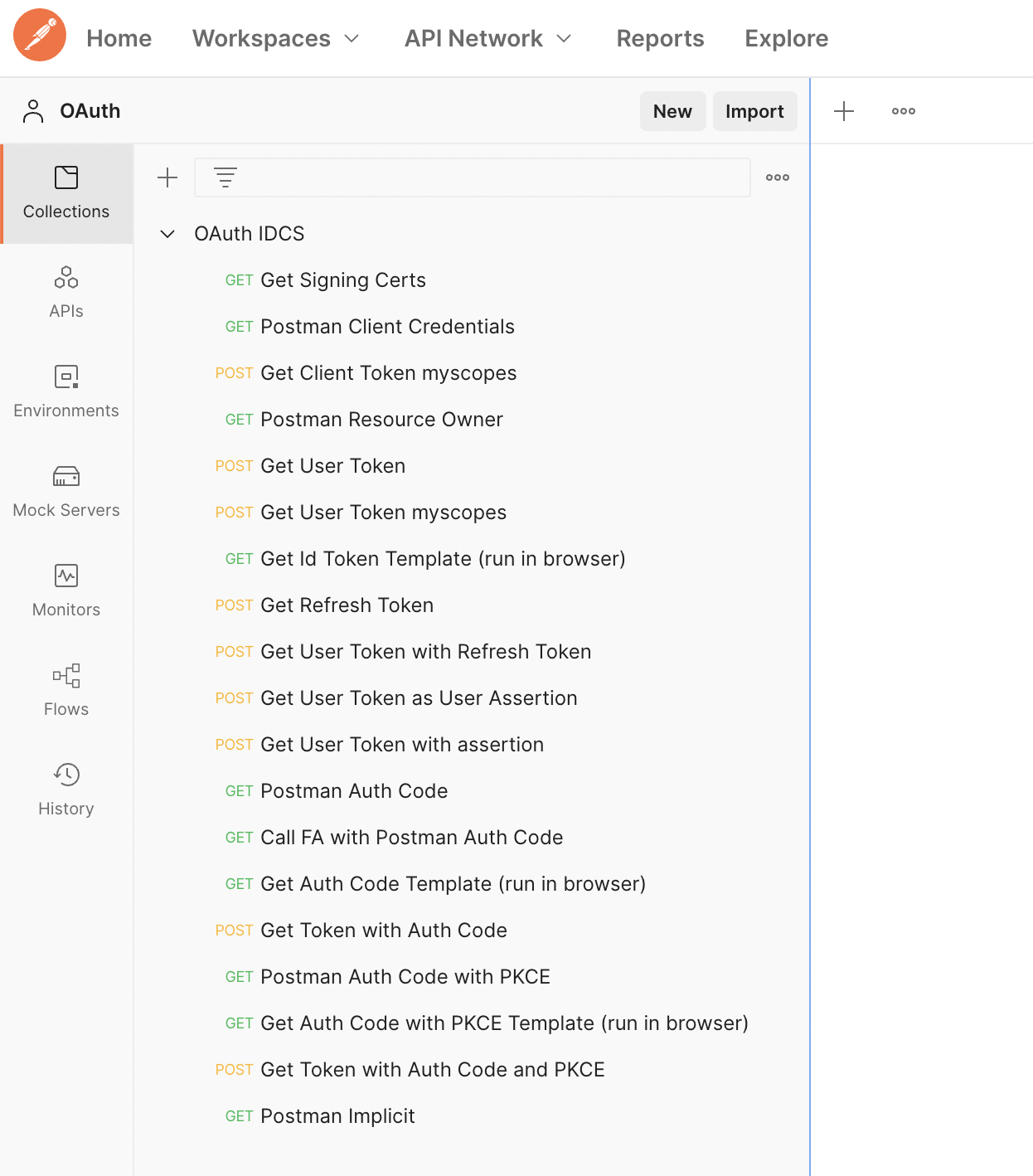
Find two Postman export files attached to this blog:
This file is the request collection which you can import into Postman.
This file is a Postman environment containing all environment variables needed for the collection which you should import into Postman as well. The variables need to be set accordingly to your Oracle Cloud and IDCS setup.
The collection contains following requests:
1. Get Signing Certs
OAuth tokens are signed by the issuer and you need to validate the signature before trusting the token.
This IDCS endpoint can be used to obtain the signing certs for the IDCS OAuth tokens. Make sure you have enabled the access to the signing certificate endpoint in the IDCS default settings. The first certificate in the x5c parameter within the returned response is the primary IDCS signing cert, the 2nd cert is the Certificate Authority (CA) cert. Valid PEM files can be created from those certs by framing the certs with an initial ‘—–BEGIN CERTIFICATE—–‘ line and an ending ‘—–END CERTIFICATE—–‘ line in the corresponding files.
Ie. in order for Fusion Applications to accept the OAuth token from IDCS both cert files need to be imported into a newly created API Authentication Provider in the Oracle Fusion Application (FA) Security Console.
Please note that the default IDCS issuer name “https://identity.oraclecloud.com/” is a reserved issuer name for FA API Authentication Providers. So, if another IDCS instance is already configured as an API Authentication Provider with this name -this is typically the case by default- you need to configure a different issuer name in the IDCS Security>OAuth settings of your additional IDCS instance. You then need to use this new issuer name when creating the API Authentication Provider in the FA Security Console.
2. Postman Client Credentials
This is an example of a client credential flow leveraging Postman’s token configuration to get a list of applications from IDCS using the “myscopes” scope.
3. Get Client Token myscopes
Explictly getting a client token from the IDCS token endpoint using the “myscopes” scope w/o leveraging Postman’s token configuration.
4. Postman Resource Owner
This is an example of a password credential (resource owner) flow leveraging Postman’s token configuration to get profile information about the resource owner from IDCS.
5. Get User Token
Explictly getting a user token valid for all application resources from the IDCS token endpoint using the user/password credentials.
6. Get User Token myscopes
Explictly getting a user token from the IDCS token endpoint using the user credentials and the “myscopes” scope which is ie. needed for IDCS admin APIs.
7. Get Id Token Template (run in browser)
This request gets an auth code and an id token (in JWT format) returned as parameter in the URL which you get redirected to. It doesn’t work in Postman but needs to run in a browser for the redirect to work. Don’t forget to replace the URL variables before calling it in the browser. The redirect URI must be the same as configured in the IDCS application, otherwise you get back an error message.
8. Get Refresh Token
Getting a refresh token additionally to the access token.
9. Get User Token with Refresh Token
Explictly getting a new access token as well as a new refresh token using a valid refresh token.
10. Get User Token as User Assertion
The typical use case for user assertions is to create a user assertion JWT token in an external application and use it for authorization with IDCS OAuth requests. However, as a simple example IDCS access tokens can also be used as an user assertion (JWT format) in subsequent IDCS token requests. As an example the user token from this request can be used as an user assertion in request #11 to get another new user token.
11. Get User Token with assertion
Getting a user token valid for all application resources from the IDCS token endpoint using an user assertion.
12. Postman Auth Code
This is an example of an authorization code flow leveraging Postman’s token configuration to get a list of applications from IDCS using the “myscopes” scope.
13. Call FA with Postman Auth Code
This is an example of an authorization code flow leveraging Postman’s token configuration to get a list of accounts from a Fusion Application (FA) instance using a FA scope. Make sure you have configured the FA scope within your IDCS application.
14. Get Auth Code Template (run in browser)
This request gets an auth code returned as parameter in the URL which you get redirected to. It doesn’t work in Postman but needs to run in a browser for the redirect to work. Don’t forget to replace the URL variables before calling it in the browser. The redirect URI must be the same as configured in the IDCS application, otherwise you get back an error message.
15. Get Token with Auth Code
Explictly getting a user token from the IDCS token endpoint using a valid authorization code w/o leveraging Postman’s token configuration.
16. Postman Auth Code with PKCE
This is an example of an authorization code flow using the PKCE option for (mobile) applications which can’t maintain the confidentiality of their client secret. This flow is generally recommended to be used instead of the deprecated Implicit OAuth flow. It leverages Postman’s token configuration to get a list of applications from IDCS using the “myscopes” scope.
17. Get Auth Code with PKCE Template (run in browser)
This request gets an auth code using the PKCE option returned as parameter in the URL which you get redirected to. It doesn’t work in Postman but needs to run in a browser for the redirect to work. Don’t forget to replace the URL variables before calling it in the browser. The redirect URI must be the same as configured in the IDCS application, otherwise you get back an error message.
18. Get Token with Auth Code and PKCE
Explictly getting a user token from the IDCS token endpoint using a valid authorization code and the code_verifier parameter needed with the PKCE option w/o leveraging Postman’s token configuration.
19. Postman Implicit
For completeness this is an example of an implicit flow leveraging Postman’s token configuration to get a list of accounts from a Fusion Application (FA) instance using a FA scope. Please note the Auth Code flow with PKCE option is generally recommended to be used instead of the deprecated Implicit OAuth flow. Make sure you have configured the FA scope within your IDCS application. Please also note the implicit flow doesn’t work for an IDCS confidential application, you need to configure a mobile application for it.
The collection is configured with Postman environment variables. You need to set them before you can use the requests in the collection:
– username
This is the user name configured in IDCS
– password
This is the user password configured in IDCS
– clientid
This is the client id of your IDCS confidential or mobile application which can be found in the configuration section of the IDCS application
– clientsecret
This is the client secret of your IDCS confidential application which can be found in the configuration section of the IDCS application
– idcsid
This is the id of your IDCS instance, you can see it in the browser url when connected to IDCS (the IDCS URL should like like https://idcs-<idcsid>.identity.oraclecloud.com)
– tenancy
This is your Oracle Cloud Infrastructure (OCI) tenancy name and it’s used as variable in the request URL. You can find it in the Profile menu in OCI
– redirecturi
This is the redirect URI for the OAuth authorize request to return an auth code or id token.
Postman provides an easy-to-use redirect uri (https://oauth.pstmn.io/v1/callback) in its Authorization token configuration. It can also be used to see the auth code or id token in the browser url you get redirected to (in request #7, #14, #17) even if you don’t use Postman’s token configuration
– fahost
This is the Oracle Fusion application host URL, you can see it in the browser url when connected to an Oracle Fusion application (the FA host url should look like https://<abcd>.fa.<region>.oraclecloud.com/)
– mobileappclientid
This is the client id of an IDCS mobile application used for the auth code flow with PKCE option (request #18) and the (deprecated) implicit flow (request #19)
I hope you find it useful.
max@ateam