
The /invokeAsync API in Oracle Fusion AI Agent Studio adds the capability of asynchronous communication with AI agents from other applications. External applications can call Oracle Fusion AI Agent teams using this API.
InvokeAsync API initiates an asynchronous request to the AI agent team to process user query. The initial API response includes a job ID, allowing clients to track progress and retrieve results when ready.
Steps
In this blog, we’ll go through the steps to test invokeAsync api in Postman and see the response payload.
Create an Agent Team in Fusion AI Agent Studio
AI Agent Studio is a design-time environment to create, configure, validate, and deploy AI agents. The Agent Team consists of a structured sequence of steps or actions that a single agent or a group of agents follows to accomplish a specific business task or answer a user query. The steps to create an Agent team using Fusion AI Agent Studio is here.
Note the Agent Team Code , version no. and Status. These will be used while calling the InvokeAsync API later.
Create a confidential application
- In Fusion Applications IAM, identify the identity domain where you’ll create your confidential application.
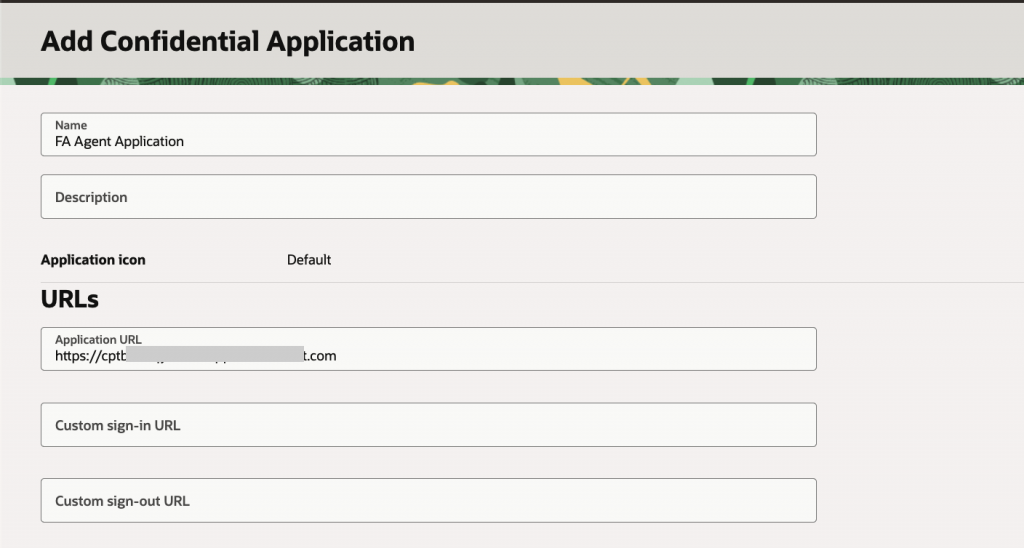
- Create a confidential application. Enter the FA host as the Application URL.
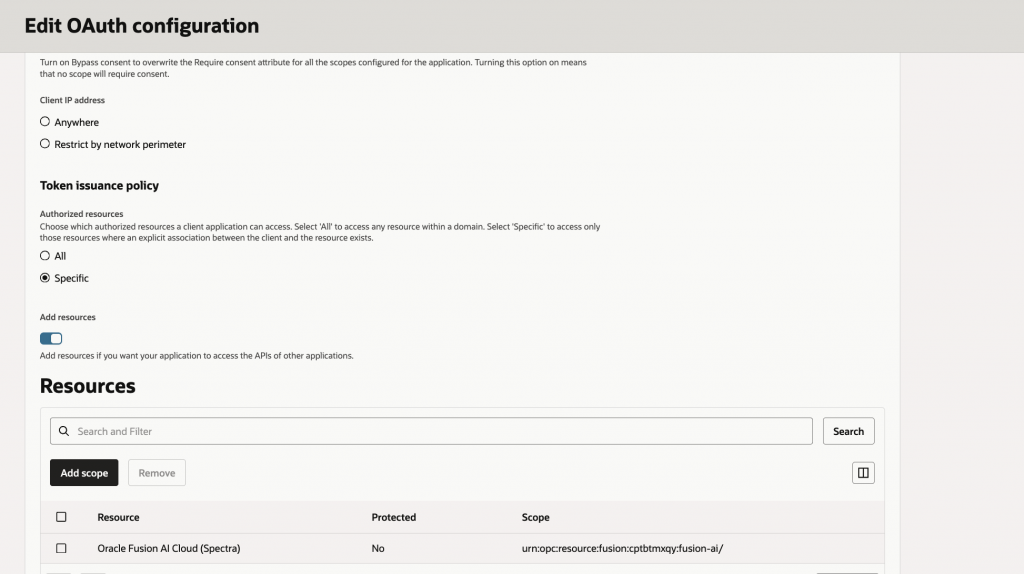
- Configure this application as a trusted client and select a supported grant: Client Credentials for service-to-service access without user context, or JWT User Assertion when the request must run on behalf of a user.
- Enable Add Resources and select Fusion AI Cloud(Spectra) as the scope.
- Activate the application.
- Note the client id . These are used in generating an access token in the next step.
Testing the API in Postman
- In Postman, create a new request.
- On the Authorization tab, select OAuth 2.0 as the Authorization Type.
- In the Configure New Token section, enter the following client configuration:
- Token Name: Enter a generic name for the token.
- Grant Type: Select Client Credentials.
- Access Token URL: The IDCS URL appended with
/oauth2/v1/tokenis used as the Access Token URL. - Client ID: Enter the Client ID value that was generated after creating the confidential application.
- Scope: Mention the scope -urn:opc:resource:fusion:<your pod>:fusion-ai/
- Client Authentication: Select Send client credentials in body.
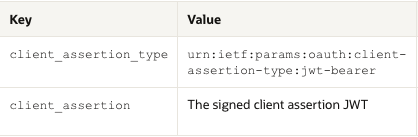
- In the Advanced section, go to the Token Request fields and add the client assertion details.
- Click Get New Access Token. Postman passes the information to the identity domain for authentication and receives the access token. Copy the access token.
Note : To access Agent assign appropriate roles to users as mentioned here. When using Client Credentials, assign the roles directly to the custom OAuth client application on the Security Console’s Application Extensions page.
Execute invokeAsync api
Make a POST request to the API, https://<fusion hostname>/api/fusion-ai/orchestrator/agent/v2/<YourAgentTeamCode>/invokeAsync , using the auth token as bearer token. More details on invokeAysnc API are here.
For e.g., pass a JSON body as below in the request.
The version is the version of the Agent Team and status is the status of the Agent Team.
{
    "conversational": "true",
    "version": 6,
    "status": "PUBLISHED",
    "message": "how many leaves are pending?"

}
The sample response will look like below.
{
    "input": "{\"workflowCode\":\"TESTAGENTTEAM\",\"message\":\"how many leaves are pending?\",\"conversational\":true,\"conversationId\":\"db55a3dd-4503-4857-b892-c4437253c953\",\"jobId\":\"45af666a-f347-47ad-8d8c-a9de6e4bf58e\",\"invocationMode\":\"END_USER\",\"version\":6,\"status\":\"PUBLISHED\",\"parameters\":{},\"refreshCache\":false,\"useInternalConfig\":false,\"workflowId\":\"300100654452806\"}",
    "output": null,
    "error": null,
    "followUpQuestions": [],
    "jobId": "45af666a-f347-47ad-8d8c-a9de6e4bf58e",
    "conversationId": "db55a3dd-4503-4857-b892-c4437253c953",
    "traceId": "000000000000000042723f56bcb887eb",
    "status": "RUNNING",
    "supportingChunks": [],
    "citations": [],
    "nodes": [],
    "waitingToolCode": null,
    "workflowCode": "TESTAGENTTEAM",
    "workflowVersion": 6,
    "workflowStatus": "PUBLISHED",
    "startDate": 1771373193271,
    "endTime": 0,
    "createDate": "2026-02-18T00:06:33.271+0000",
    "endDate": "1970-01-01T00:00:00.000+0000",
    "timeTaken": 0,
    "inputTokenCount": 0,
    "outputTokenCount": 0
}
Note the jobId and conversationId in the JSON response.
The Get Status API, gets the status of the given job ID that’s returned by the agent team. Keep calling this API until status is COMPLETE. Pass the jobId in the GET request as shown below.
Make a GET request to the status API, https://<fusion host name>/api/fusion-ai/orchestrator/agent/v2/<your agent code>/status/<job id obtained from Async API request> using the auth token as bearer token.
When the status in the response is COMPLETE, the output node has the answer from the Agent Team.
{
    "input": "{\"workflowCode\":\"TESTAGENTTEAM\",\"message\":\"how many leaves are pending?\",\"conversational\":true,\"conversationId\":\"db55a3dd-4503-4857-b892-c4437253c953\",\"jobId\":\"45af666a-f347-47ad-8d8c-a9de6e4bf58e\",\"invocationMode\":\"END_USER\",\"version\":6,\"status\":\"PUBLISHED\",\"parameters\":{},\"refreshCache\":false,\"useInternalConfig\":false,\"workflowId\":\"300100654452806\"}",
    "output": "You currently have 10 leaves pending. If you need any further assistance with your leave balance or requests, feel free to ask!",
    "error": null,
    "followUpQuestions": [],
    "jobId": "45af666a-f347-47ad-8d8c-a9de6e4bf58e",
    "conversationId": "db55a3dd-4503-4857-b892-c4437253c953",
    "traceId": "000000000000000042723f56bcb887eb",
    "status": "COMPLETE",
    "supportingChunks": [],
    "citations": [],
    "nodes": [],
    "waitingToolCode": null,
    "workflowCode": "TESTAGENTTEAM",
    "workflowVersion": 6,
    "workflowStatus": "PUBLISHED",
    "startDate": 1771373193315,
    "endTime": 1771373197119,
    "createDate": "2026-02-18T00:06:33.315+0000",
    "endDate": "2026-02-18T00:06:37.119+0000",
    "timeTaken": 0,
    "inputTokenCount": 0,
    "outputTokenCount": 0
}
To continue the conversation with the agent, call invokeAsync api again by adding the conversationId also in the request body.
Expand agent team access beyond Fusion Applications
After testing with Postman, you can access agent teams from applications outside of Oracle Fusion Cloud Applications, by using the steps mentioned here.
References
https://docs.oracle.com/en/cloud/saas/applications-common/26c/farca/configure_oauth.html