

🎯 Overview
Oracle Database@Google Cloud (ODBG) is revolutionizing how enterprises manage their Oracle workloads across Google Cloud (GCP) deployments. But with great power comes great responsibility—especially when it comes to access control.
If you’re onboarding ODBG and need to grant users access permissions outside the default RBAC setup as described in the ODBG documentation, for example at a GCP project level, this guide walks you through customizing the Google groups and corresponding OCI groups and policies to make it happen.
This post is your runbook for success—whether you’re tackling this during onboarding or adjusting post-deployment.
🔧 Prerequisites
Before you begin, make sure the following are in place:
- ✅ ODBG onboarding steps 1–6 completed
- ✅ GCP operator(s) with permission to
- Create/manage GCP groups
- Assign roles to the groups in the respective projects
- ✅ OCI operator with Tenancy Admin or Identity Domain Admin privileges
👥 Custom ODBG Groups: Why and How
By default, the Google groups set up for ODBG per the documentation, follow a strict naming convention because the names map directly to corresponding OCI groups and policies created by the automation when the multicloud link is established. Those default OCI policies provide access to the respective groups at an ODBG private offer / OCI tenancy level – meaning the respective access applies to all ODBG resources provisioned in the OCI tenancy regardless of the GCP project.
But what if you want something a little more tailored? For example, you deploy ODBG resources in multiple GCP projects. In GCP the ODBG roles are defined at a project-level and you require the OCI policies to provide permissions at the same granularity, i.e. the OCI compartment that maps to the GCP project. This process is briefly described in the documentation, but you are looking for more details to guide you to make the customization. This post is your answer.
🎯 The Goal: Assign OCI privileges for ODBG users at a more granular scope—GCP Project / OCI Compartment
✅ How to Do It:
- Identify a custom prefix (e.g., acmeco-finance) for your GCP group names
- Create GCP groups using this naming convention – refer to table 1 below
- Assign the predefined ODBG GCP roles per task 7 in the onboarding documentation to the new groups
- Complete or update the Identity Federation to add the groups to the OCI identity synchronization, per task 8 in the onboarding documentation, substituting the default group names in the Attribute mapping instructions with the newly created group names from above.
- Customize the OCI policies to assign permissions to the new groups (refer to the section below for more detail)
🧠 Pro Tips:
- Create separate Google groups for each GCP project.
- Create or sync the Google groups from GCP to OCI before updating the OCI policies. If the OCI groups do not exist then any policy referencing them will need to be updated before it takes effect.
- The steps in this blog use a naming convention combining the default group names appended to a custom prefix. Although you may use your own naming convention instead, keeping the default group name, as part of the name, helps identify the changes made from the default configuration – which can help if trying to fix issues in the future, including when working with Oracle Support.
Table 1
| GCP / OCI Group Name | Service | Description |
|---|---|---|
| <prefix>-odbg-exa-infra-administrators | ExaDB-D | Full access to Exadata Infrastructure and VM Cluster resources. |
| <prefix>-odbg-vm-cluster-administrators | ExaDB | Full access to Exadata VM Cluster resources |
| <prefix>-odbg-db-family-administrators | ExaDB, ADB-S | Full, owner access to all OraDB@GCP resources across ExaDB and ADB |
| <prefix>-odbg-db-family-readers | ExaDB, ADB-S | Read-only access to all OraDB@GCP resources |
| <prefix>-odbg-exa-cdb-administrators | ExaDB | Admin access to Container Databases (CDB) |
| <prefix>-odbg-exa-pdb-administrators | ExaDB | Admin access to Pluggable Databases (PDB) |
| <prefix>-odbg-network-administrators | ExaDB, ADB-S | Admin access to OraDB@GCP network resources in OCI |
| <prefix>-odbg-costmgmt-administrators | ExaDB, ADB-S | Admin access to cost governance features in OCI |
| <prefix>-odbg-adbs-db-administrators | ADB-S | Admin access to ADB-S resources |
| <prefix>-odbg-adbs-db-readers | ADB-S | Read-only access to ADB-S resources |
| <prefix>-odbg-exascale-db-storage-vault-administrators | ExaDB-XS | Admin access to Exascale Storage Vault resources |
| <prefix>-odbg-exascale-db-storage-vault-readers | ExaDB-XS | Read-only access to Exascale Storage Vault resources |
🔐 OCI Policy Customization: Step-by-Step
When you provision ODBG resources in a new GCP project, a new OCI child compartment is created under the multicloud link compartment.
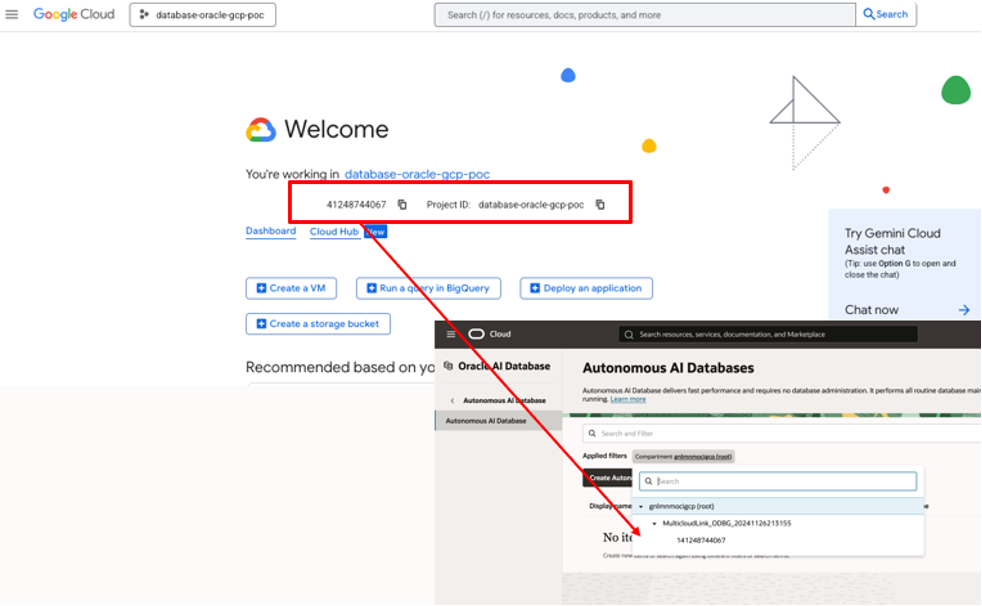
By default, the default ODBG OCI policies, and the permissions they grant, will apply to all compartments under the multicloud link compartment – in other words the same permissions apply to ODBG resources from every project.
To customize the OCI Policies, and grant access only to the new compartment/project using the custom groups created above,navigate to the OCI Console under Identity & Security → Policies and search for policies, in the root compartment, with a MulticloudLink_ODBG prefix. These policies reference the default odbg- groups. Refer to the screenshot below for an example.
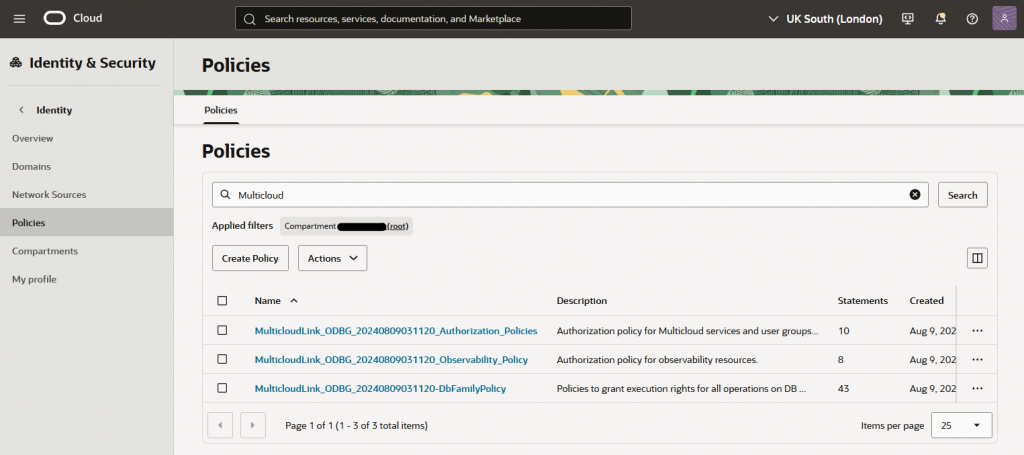
✍️ Create Custom Policies:
- For each existing policy, create a new policy with the same prefix used for the group names above. E.g. acmeco-finance-MulticloudLink_ODBG_YYYYMMDDHHMMSS_DbFamilyPolicy
- Copy the original policy statements (use advanced editor) and paste them in the new policy
- Edit each policy statement to:
- Match the corresponding custom group name(s)
- Reference the appropriate compartment, linked to the GCP project, instead of the MultiCloudLink compartment.
- Example syntax:
allow group acmeco-finance-odbg-exa-infra-administrators to manage <resource> in compartment <multicloudlink compartment name>:<project sub-compartment name>⏳ Note: Do not modify the existing policies as this may impact normal service operations. See documentation. Use the existing policies as a template for the new customer policies.
🔐 Using Identity Domains other than Default
OCI identity domains are where you manage users, groups, federation and other access controls in OCI. Your OCI tenancy comes with an identity domain named Default and this is where the default ODBG groups are created by the multicloud link automation. You may also choose to create additional identity domains to maintain separate identity populations. For example, an OCI security best practice is to use the Default domain for break glass accounts and a separate identity domain(s) for other identity use cases, which may include OraDB@GCP users, groups and federation.
If you do introduce a new identity domain, ensure that any custom IAM policies, applicable to groups in that domain, explicitly include the domain name in each policy statement. For example, when using an Identity Domain named GCP:
allow group 'GCP'/'acmeco-finance-odbg-db-family-administrators' to manage <resource> in compartment <multicloudlink compartment name>:<project sub-compartment name>Also, make sure Google Cloud IAM Federation and Synchronization is configured in the new Identity Domain.
🧩 Bringing It All Together
By customizing your groups and OCI policies:
- Empower your org with fine-grained access control
- Enable multi-project access control flexibility for Oracle Database@Google Cloud
- Keep user access clean, scoped, and secure
🧠 Helpful Resources
Oracle Database@Google Cloud Onboarding Guide
Google Groups Management
Oracle Guide for Oracle Database@Google Cloud RBAC
Google Guide for Oracle Database@Google IAM
Overview of Working with OCI Policies
OCI Identity Domains