
Oracle Enterprise Manager (OEM) permits unattended monitoring of your IT environment. If a target goes down, or if a performance metric crosses a warning or critical threshold, an OEM event is triggered. Administrators can be notified of the event and can take the appropriate action to remedy the situation. For cases where the remediation is known in advance, OEM can be configured to automatically execute a corrective action to resolve the issue, thus taking unattended monitoring to the next level.
Corrective actions ensure that routine responses to events raised by Enterprise Manager are automatically executed, thereby saving you time and ensuring problems are dealt with before they noticeably impact end users. Three of the common events for which corrective actions are typically created are:
- Metric Alert
- Availability
- Compliance rule violation
A great example of setting up corrective actions for the “Metric Alert” event type is this blog (also listed in the reference section below). As such, I’ll cover “Availability” and “Compliance rule violation” event types in this blog. Note the scenarios I cover are for the purpose of showing how to configure and use the feature. You can follow a similar approach to configure your use cases based on your own policies and operating procedures.
Licensing
Corrective Actions are part of Enterprise Manager base framework features. However, “Compliance Management” which I use in my example for fixing a compliance rule violation, is licensed under the Database Lifecycle Management Pack.
Pre-requisites
- Ensure you have the necessary privileges as described in the documentation here: Privilege and Access Requirements for Corrective Actions.
- Ensure you have setup preferred credentials for the targets that will be subject to corrective actions. Preferred credentials are described in the documentation here: Preferred Credentials. For the targets used in this blog, the following preferred credentials need to be set:
- Listener: “Host Credentials”.
- Pluggable database: “Database Host Credentials” and “SYSDBA Database Credentials”.
Availability Event Corrective Action
Scenario
Startup a listener if it goes down. Note if the listener is brought down for maintenance reasons, you need to put the listener target under blackout to prevent the corrective action from starting it.
Create the corrective action
- In OEM console, navigate to “Enterprise”->”Monitoring”->”Corrective Actions”. This will take you to “Job”->”Corrective Actions” screen.
- In the “Create Library Corrective Actions” field, expand the drop-down list, select “Startup Listener”, and click “Go”.
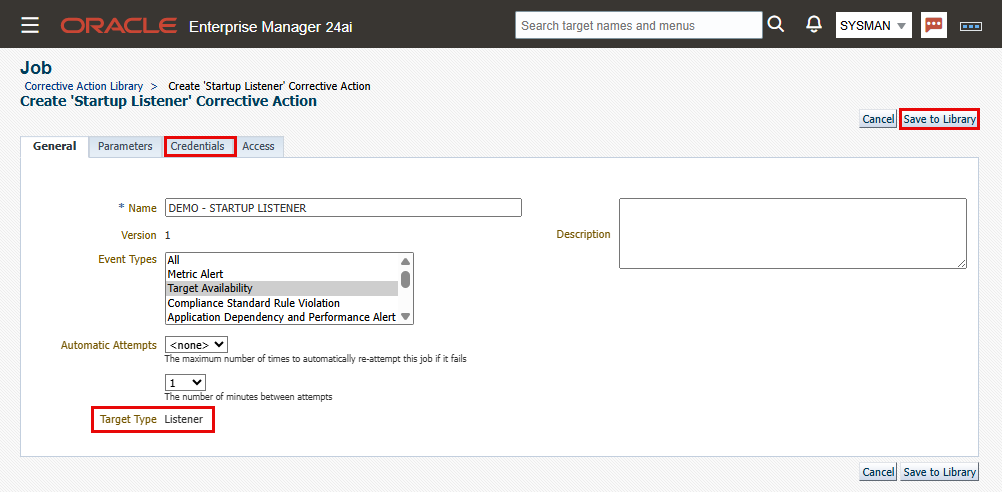
- On the “General” tab, provide a name and select “Target Availability” from the list of event types. Set the number of times to retry the job and minutes between attempts.
- On the “Credentials” tab, select “Host Credentials” for host credentials field.
- On the Access tab, add the administrators and/or roles you want to access the corrective action.
- Click “Save to Library”.
- The corrective action will now be in Draft status. The documentation at the link in the reference section provide steps to test the draft before publishing it. For the purpose of this blog, publish it on the next screen after saving to the library.
Configure the incident rule
Note: Corrective actions for “Metric Alert” event types can be enabled in a monitoring template or in an incident rule. For other event types, they must be enabled in an incident rule.
- In OEM console, navigate to “Setup”->”Incidents”->”Incident Rules”.
- Choose an existing custom ruleset (not system generated) or create a new ruleset.
- The ruleset can apply to “All targets” or to a subset of target types that include targets you’re configuring the feature on. For this blog it’s “Listener” and “Pluggable Database”.
- Under “Rules” click “Create”.
- On the “Select Type of Rule to Create” pop-up window, select “Incoming events and updates to events” and click “Continue”.
- On the “Create New Rule: Select Events” screen, select “Target Availability” from the “Type” drop-down list, then select “Specific events of type Target Availability” radio button.
- Under “Selected events of type Target Availability”, click “Add”.
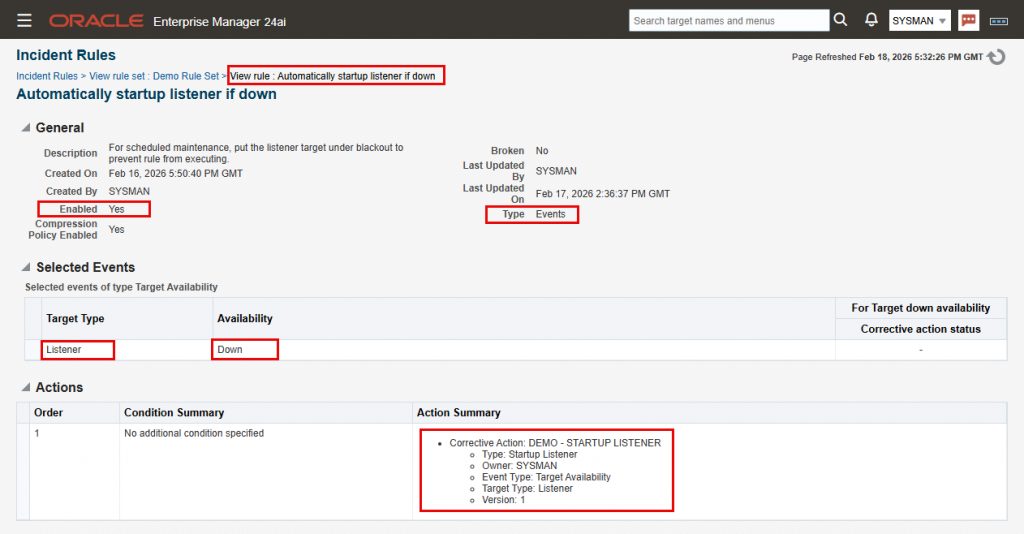
- “Select “Listener” from the “Target Type” drop-down list, then select the “Down” checkbox.
- Click “Next”.
- On the “Create New Rule: Add Actions” screen, click “Add”.
- On the “Add Actions” screen, under “Submit Corrective Action”, click “Select corrective action”.
- Select the corrective action you created in the previous step and click OK.
- Click Continue.
- Enter “Automatically startup listener if down” for the rule name and optionally provide a description.
- Click Next to review the new rule. Click “Continue” then “Save”.
Test and verify
If you are testing this same scenario in your environment, log in to the database host, stop the listener and confirm it is down. Keep checking and it should be running again momentarily. To verify the corrective action triggered as expected:
- In OEM console, navigate to the listener homepage.
- Click on the “Oracle Listener” menu, then Monitoring -> Incident Manager.
- Incident Manager should show the message “No data found” (since the issue was fixed).
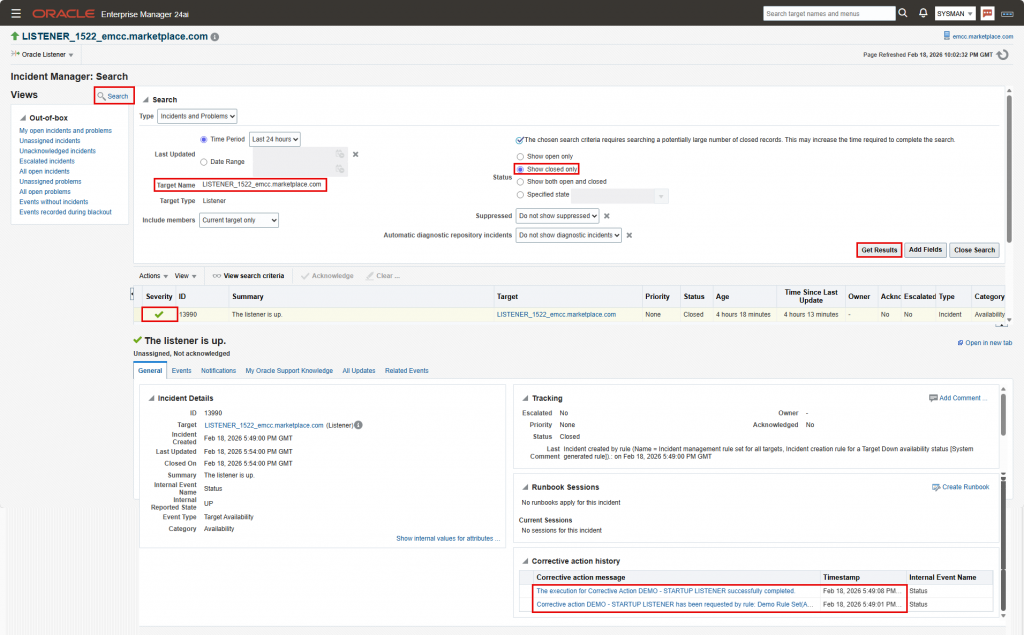
- Click on the search icon under “Incident Manager: All open incidents” and change the Status selection from “Show open only” to “Show closed only” or “Show both open and closed”.
- Click “Get Results”. The listener incident should show in the results area as resolved.
- Click on the incident row to display the incident details in the bottom window.
- As seen in the screenshot, the “Corrective action history” area in the bottom right of the incident details shows the corrective action was invoked and it completed successfully in 7 seconds. You can click on the corrective action message to see details of the job.
Compliance Rule Violation Corrective Action
Scenario
A company created a custom compliance standard in Enterprise Manager for their database configuration. One of the rules in the standard states that the initialization parameter “open_cursors” of a database must have a specific value (for our demo, let’s say 400). For the databases associated with the standard, any database with a different value for the parameter will be flagged as non-compliant. The corrective action will update the parameter automatically for the non-compliant databases.
Create the corrective action
- In OEM console, navigate to “Enterprise”->”Monitoring”->”Corrective Actions”. This takes you to “Job”->”Corrective Actions” screen.
- In the “Create Library Corrective Actions” field, expand the drop-down list, select “SQL Script”, and click “Go”.
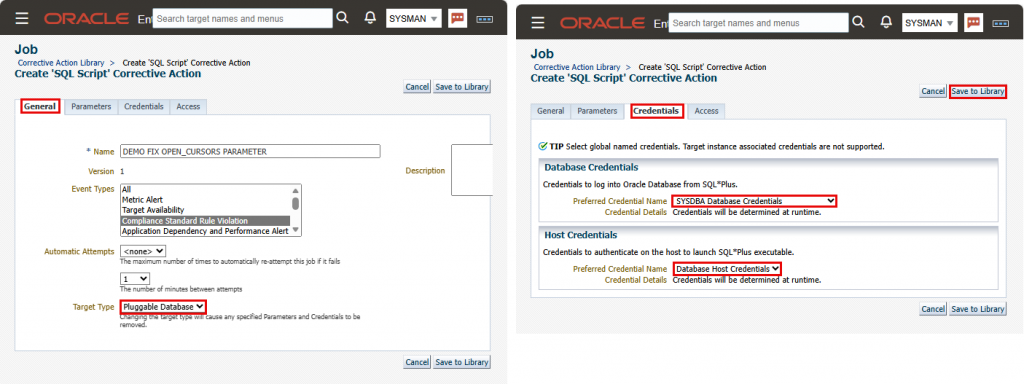
- On the “General” tab, provide a name for the corrective action and select “Compliance Standard Rule Violation” from the list of event types. Set the number times to retry the job and minutes between attempts. Select “Pluggable Database” for target type.
- On the “Parameters” tab, enter the following:
- “
alter system set open_cursors = 400 scope=both;“
- “
- On the “Credentials” tab, select “SYSDBA Database Credentials” for the database preferred credential field, and “Database Host Credentials” for the host preferred credential field.
- On the Access tab, add the administrators and/or roles you want to access this corrective action.
- Click “Save to Library”.
- The corrective action will now be in Draft status. The documentation at the link in the reference section provide steps to test the draft before publishing it. For the purpose of this blog, publish it on the next screen after saving to the library.
Configure the incident rule
- In OEM console, navigate to “Setup”->”Incidents”->”Incident Rules”.
- Choose an existing custom rule set (not system generated) or use the ruleset created in the previous task.
- Under “Rules” click “Create”.
- On the “Select Type of Rule to Create” pop-up window, select “Incoming events and updates to events” and click “Continue”.
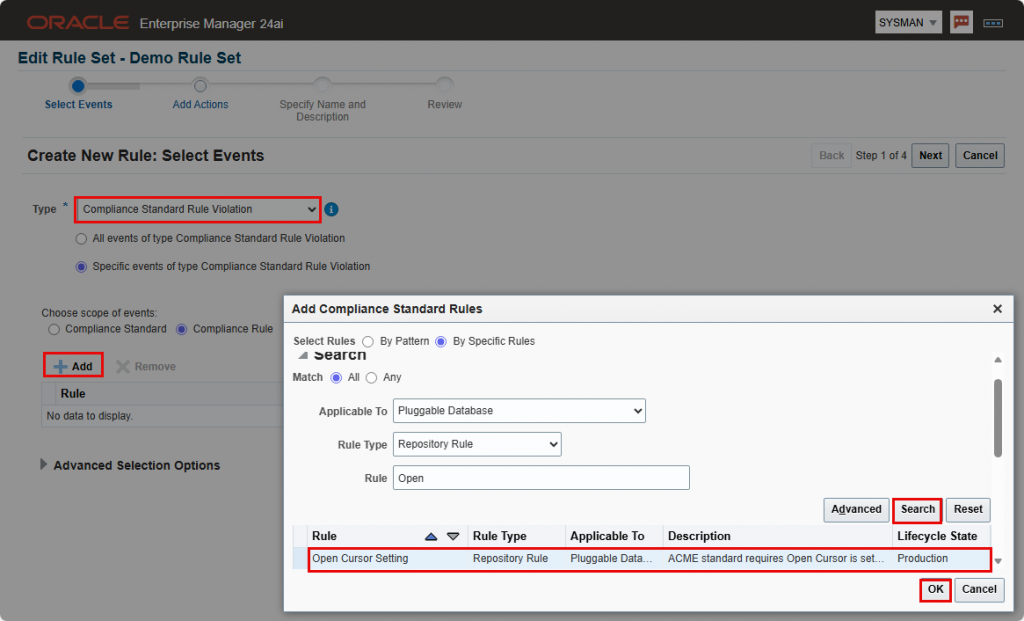
- On the “Create New Rule: Select Events” screen, select “Compliance Standard Rule Violation” from the “Type” drop-down list, then select “Specific events of type Compliance Standard Rule Violation” radio button.
- Under “Choose scope of events” select “Compliance Rule” radio button.
- click “Add”.
- In the “Add Compliance Standard Rules” pop-up window, choose Select Rules “By Specific Rules” radio button.
- Search for the rule name, in my case it’s “Open Cursor Setting” (screenshot below. This rule is in a custom compliance standard, so it won’t be in your environment). Select the row and click OK.
- Click “Next”.
- On the “Create New Rule: Add Actions” screen, click “Add”.
- On the “Add Actions” screen, under “Submit Corrective Action”, click “Select corrective action”.
- Select the corrective action you created in the previous step and click OK.
- Click Continue.
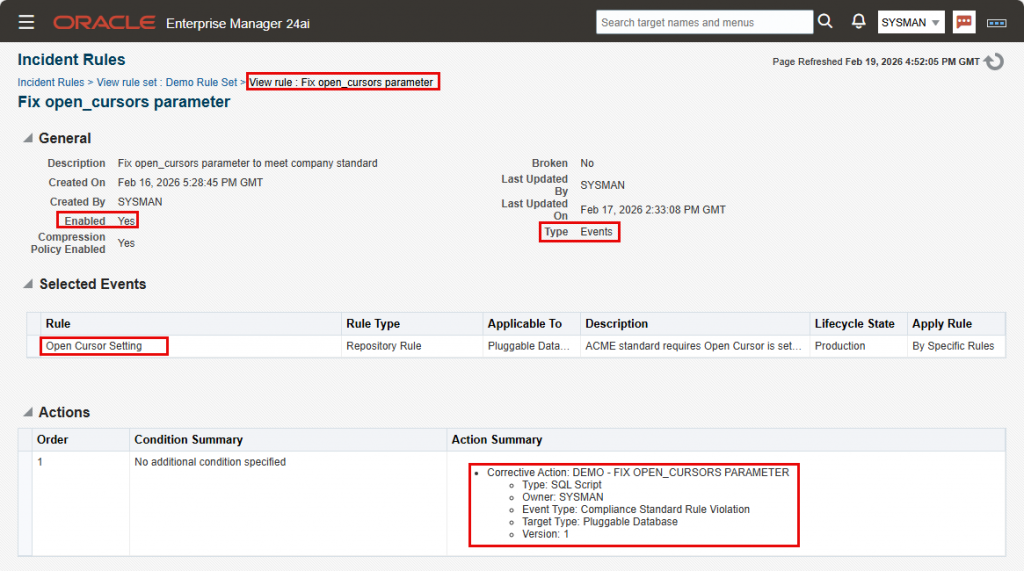
- Enter “Fix open_cursors parameter” for the rule name and optionally provide a description.
- Click Next to review the new rule. Click “Continue”, then “Save”.
Test and verify
Assuming you created a custom compliance standard that checks the “open_cursors” initialization parameter and flags it as non-compliant if it’s not equal to a specified value, e.g., 400. Set the parameter in your test database to a value lower or higher, then associate the database with the compliance standard. Upon association, the rules are run immediately (then run on pre-defined schedule afterwards). After a minute or so, check the parameter in the database, it should have been updated by the corrective action. To verify in incident manager:
- In OEM console, navigate to the database home page -> database menu -> Monitoring -> incident manager
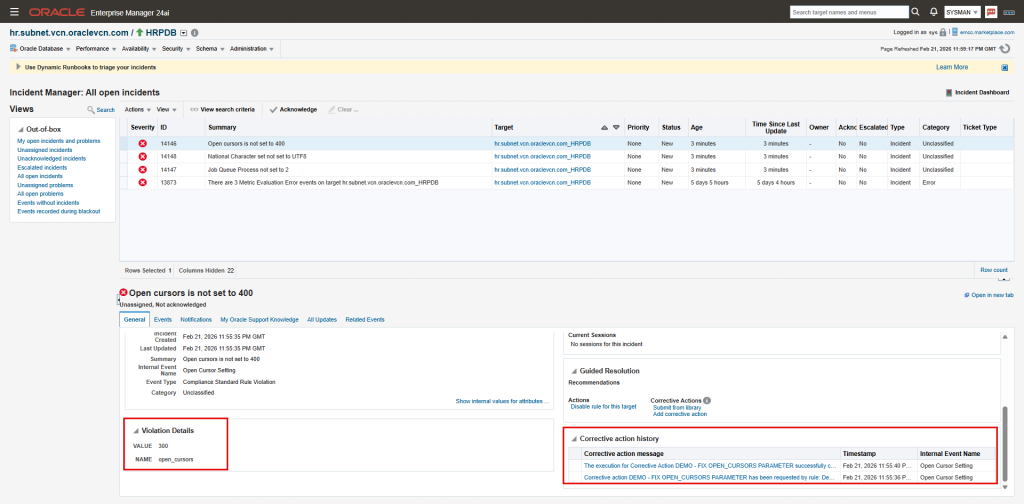
- Click on the incident row for the compliance rules violation to display the incident details in the bottom window.
- As seen in the screenshot, the “Corrective action history” area in the bottom right of the incident details shows the corrective action was invoked and successfully completed. You can click on the corrective action message to see details of the job.
Note: In the previous case, after the corrective action started the listener, as soon as the agent detected the listener as running, OEM cleared the incident. In this case, the incident is still open as seen in the screenshot, but will be cleared on the next run of the compliance standard evaluation job. The parameter has already been fixed though, and can be verified in OEM in the database homepage: Administration->Initialization Parameters.
Reference and Additional Resources
- Enterprise Manager Monitoring Guide (Documentation)
- How to Automatically Fix Tablespace Full Alerts Using Corrective Actions (Blog)
- EM 13c How to Use Corrective Action: Add Space to Tablespace (KB530520) (MOS note)
- Automating the Mundane with Corrective Actions and Oracle Enterprise Manager (Blog)
- Use Corrective Actions to Automate Metric Alert Resolutions (Blog)