

Oracle GoldenGate on Oracle AI Database@Azure is a fully managed, native cloud service that enables real-time data replication, migration, integration, and event-driven architectures across different environments. For organizations with strict security and compliance requirements, private access to the GoldenGate deployment console allows administrators to manage replication without exposing the console to the public internet.
Private access requires a network path between the administrator’s environment and the deployment, supported by appropriate routing, DNS resolution, and access controls.
This blog explores various access patterns for the Oracle GoldenGate deployment console on Oracle Database@Azure and outlines the networking prerequisites for each approach.
Option 1 – Access through a Jump/Bastion VM in a connected Azure VNet
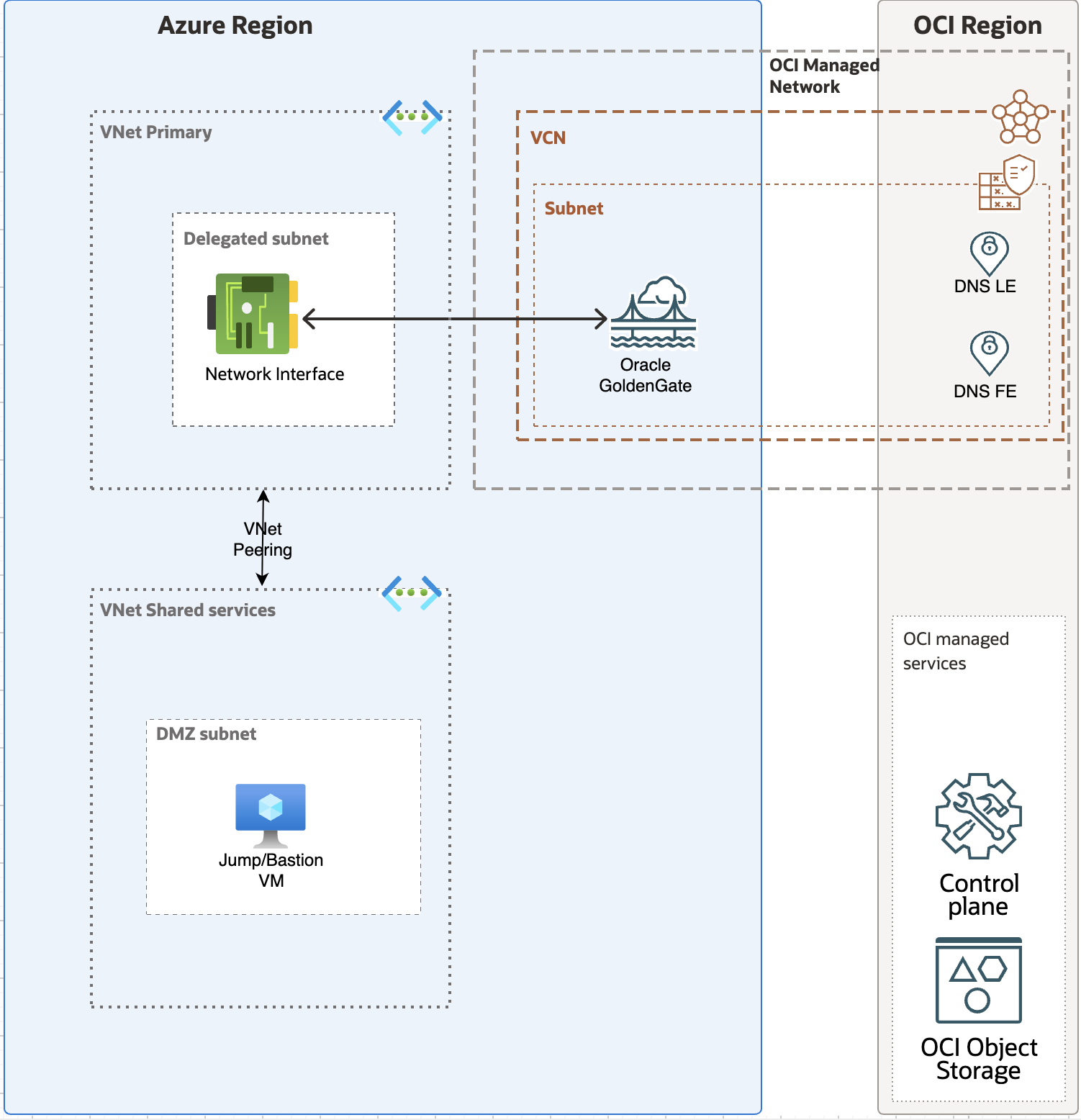
Provision a Windows or Linux jump VM in an Azure VNet with private connectivity to the GoldenGate in the delegated subnet. Administrators can connect to the VM through Azure Bastion or use RDP or SSH over a VPN or another approved network path.
Access the GoldenGate deployment console using a browser on the VM.
Configuration prerequisites
- If the jump VM resides in a different VNets, configure VNet peering with the VNet containing the delegated subnet.
- Ensure that routing and security rules allow HTTPS traffic on TCP port 443 from the jump VM to the GoldenGate deployment’s private IP.
- Configure conditional DNS forwarding for goldengate.<region>.oci.oraclecloud.com to the OCI DNS listening endpoint that can resolve the deployment hostname. Replace <region> with the OCI region shown in the deployment console URL.
- Verify that the deployment hostname resolves to the private endpoint IP address, then open the deployment console URL in a browser.
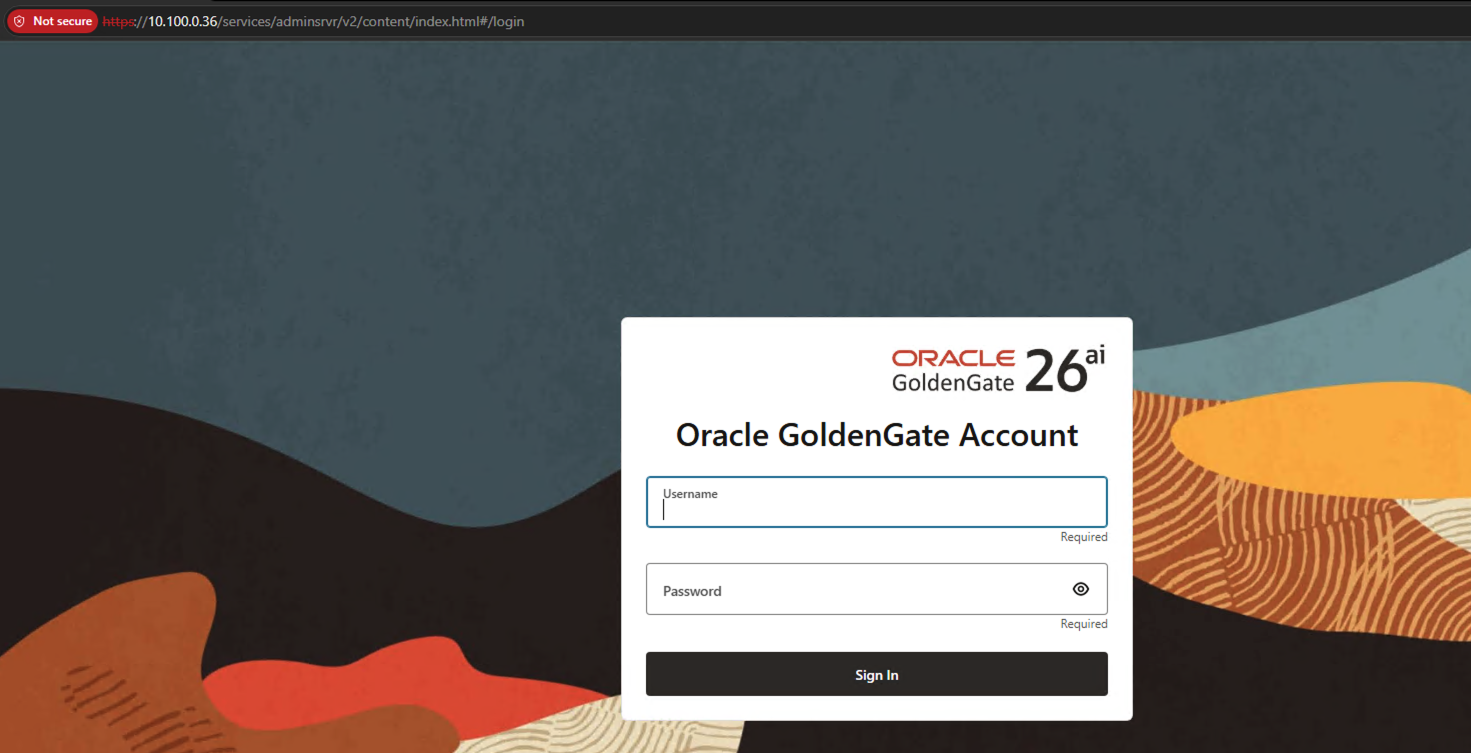
Use the console hostname for routine access. Direct access through the private IP address can cause certificate validation warnings and authentication redirect issues.
Console access using IP before configuring DNS forwarding
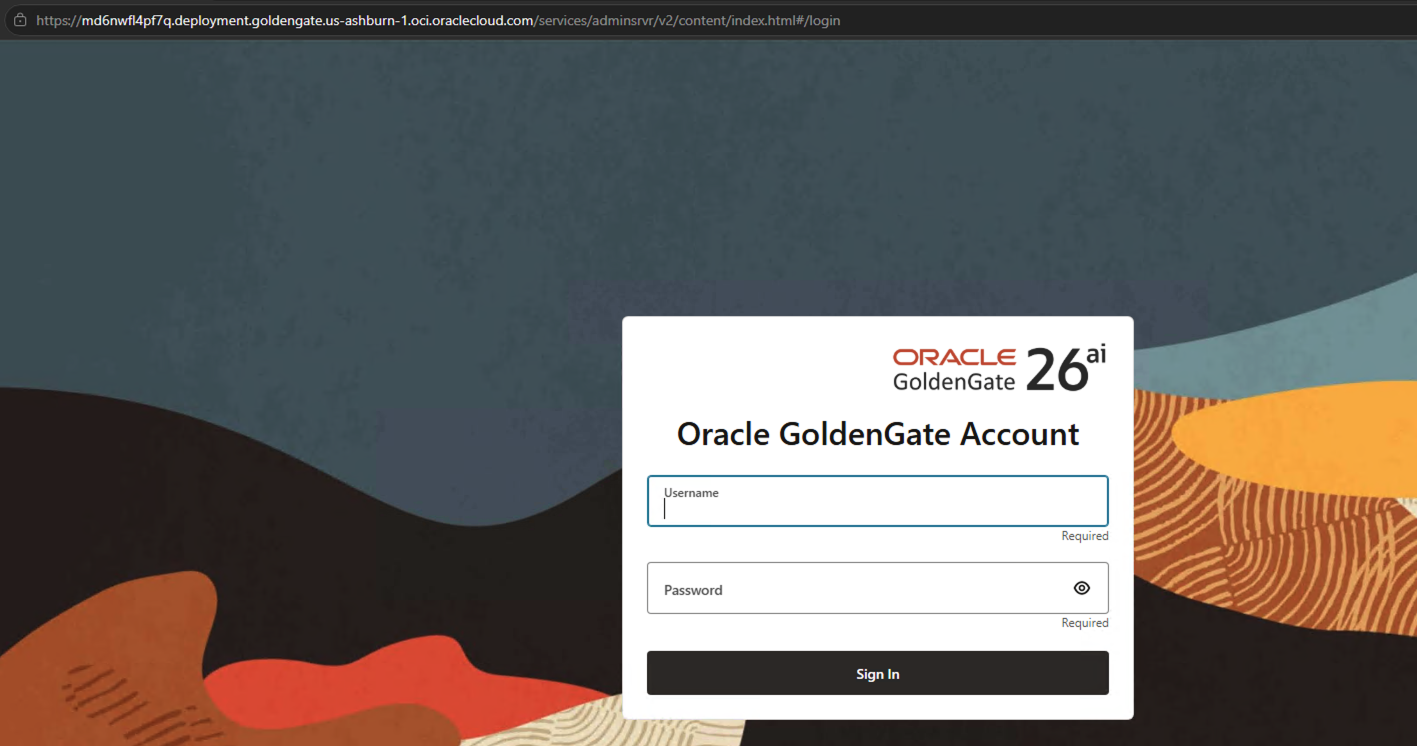
Once DNS lookup configured, you can use hostname to login
Option 2 – Access from the corporate network through private connectivity
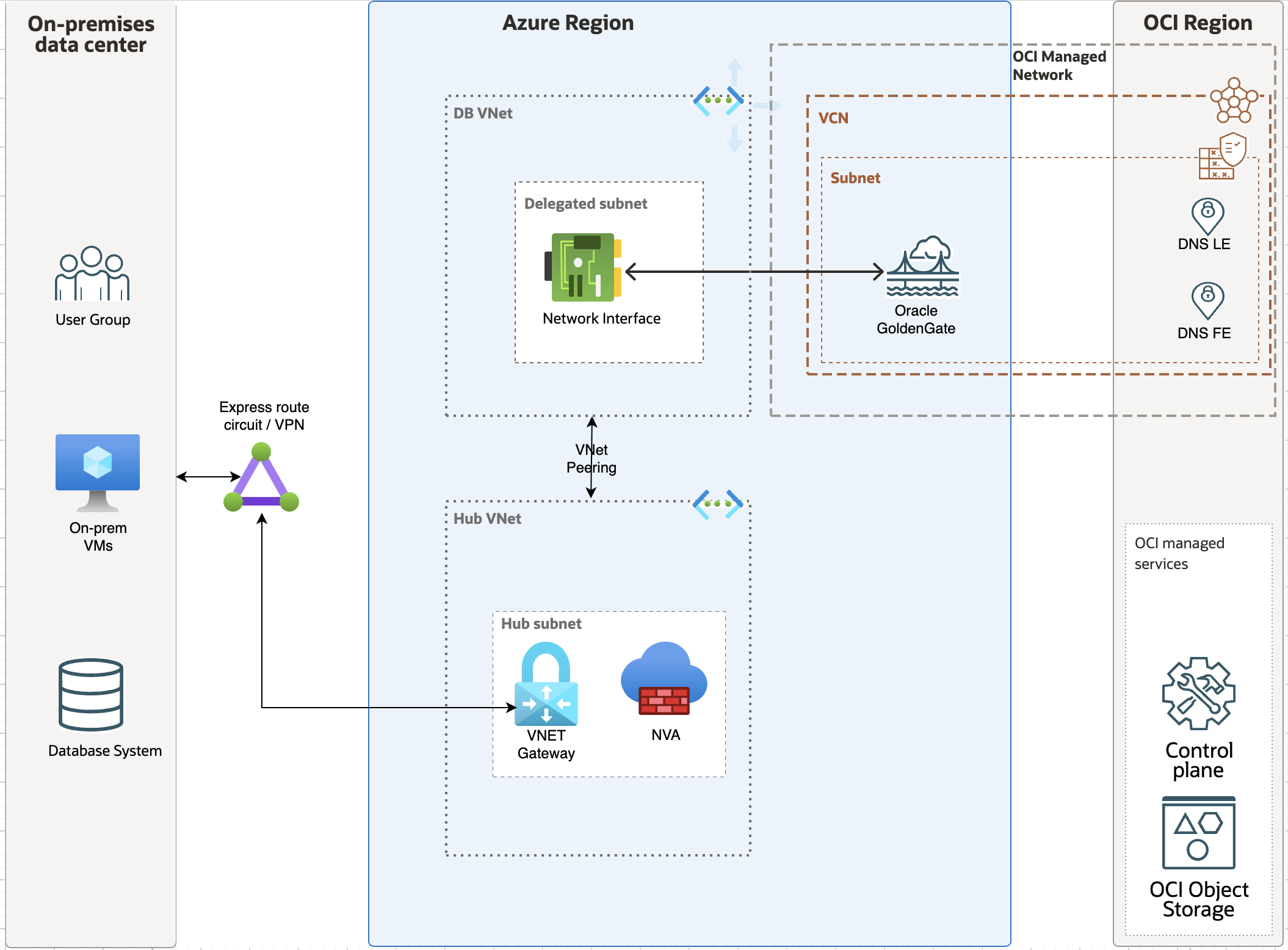
Administrators can access the GoldenGate deployment console directly from the corporate network through ExpressRoute, VPN, or another approved private connectivity path to the Azure VNet. This approach requires routing, DNS resolution, and security rules that allow access to the deployment’s private endpoint.
Configuration prerequisites
- If connectivity terminates in a separate hub VNet, configure VNet peering between the hub VNet and the VNet containing the GoldenGate. Configure gateway transit or NVA forwarding as required by the topology.
- Ensure proper bidirectional routing to support traffic in both directions between the corporate network and the deployment’s private endpoint.
- Configure security rules to allow HTTPS traffic on TCP port 443 from approved corporate source networks to the private endpoint.
- Configure corporate DNS to conditionally forward queries for goldengate.<region>.oci.oraclecloud.com to the OCI DNS listening endpoint that can resolve the deployment hostname. Replace <region> with the OCI region shown in the deployment console URL, and ensure the DNS forwarding path is reachable.
- Verify that the deployment hostname resolves to the private endpoint IP address, then open the deployment console URL in a browser on the corporate network.
Option 3 – Access through an OCI Compute Jump Host or OCI Bastion
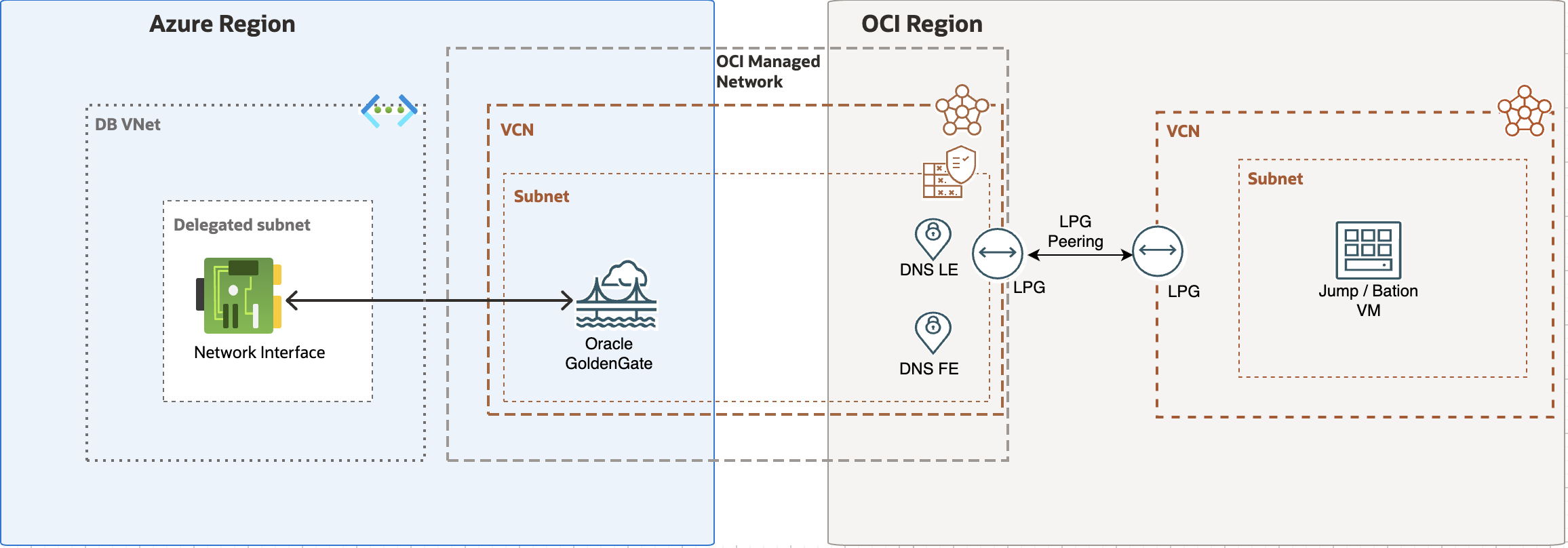
Administrators can access the GoldenGate deployment console through an OCI Compute jump host with private connectivity to the deployment. If the jump host resides in a separate VCN, establish VCN peering and configure the required routing and security rules. Access the console using a browser on the jump host or an SSH tunnel from a local browser.
Alternatively, use OCI Bastion to establish an SSH port forwarding session to the deployment’s private endpoint on TCP port 443.
Configuration prerequisites
- For a Compute jump host in a separate VCN within the same OCI region, configure Local Peering Gateways (LPGs) between the jump host VCN and the VCN containing the GoldenGate deployment’s private endpoint.
- Update the relevant subnet route tables on both sides to route traffic through the respective LPGs.
- Configure security lists or network security groups to allow HTTPS traffic on TCP port 443 from the jump host to the deployment’s private endpoint.
- For hostname resolution from the jump host, associate the private DNS view containing the GoldenGate deployment’s DNS records with the jump host VCN’s DNS resolver. Reciprocal association is required only if reverse name resolution is also needed.
- For OCI Bastion, configure the Bastion in the target deployment’s VCN, allow approved client source IP addresses, and create a port forwarding session targeting the deployment’s private IP address on port 443. Preserve the deployment hostname when accessing the console through the tunnel to avoid certificate and authentication redirect issues.
Option 4 – Temporary public access with security team approval
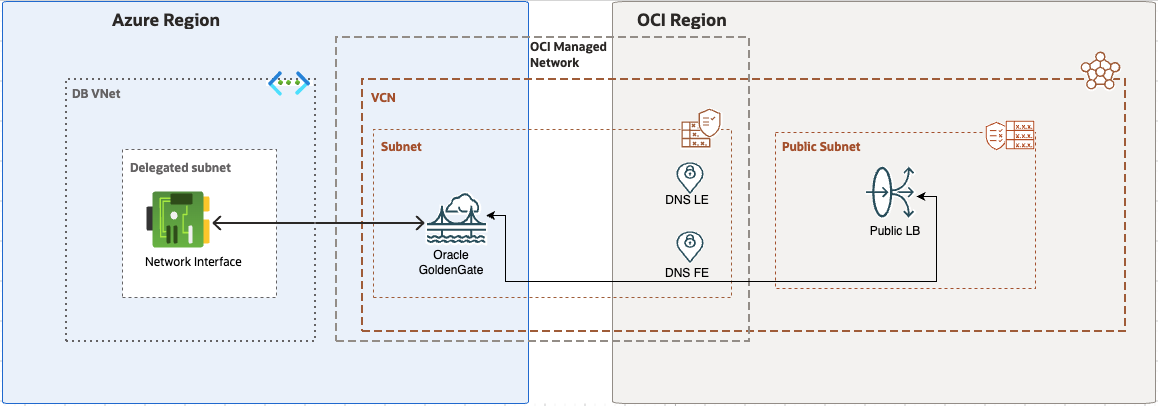
If organizational security policy permits, you can temporarily enable a public endpoint for the GoldenGate deployment console with security team approval. Restrict access to approved source IP addresses and disable public access when it is no longer required. Private connectivity remains the recommended approach for routine administration.
Configuration
- Create a public subnet in the same VCN as the GoldenGate deployment’s private endpoint.
- Create an Internet Gateway in the VCN if one does not already exist.
- Configure the public subnet’s route table with a default route (
0.0.0.0/0) pointing to the Internet Gateway, and associate the route table with the public subnet. - Configure an ingress rule in the public subnet’s security list to allow TCP port 443 only from approved source IP addresses or corporate egress CIDR ranges.
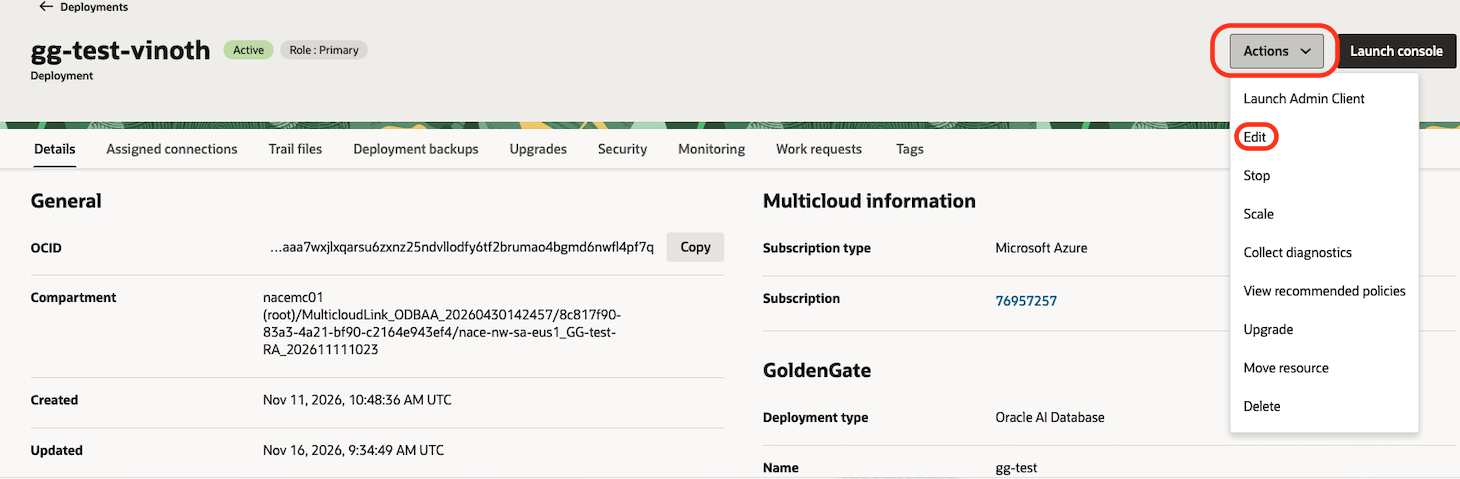
In the OCI Console, open the GoldenGate deployment details page and select Actions → Edit.
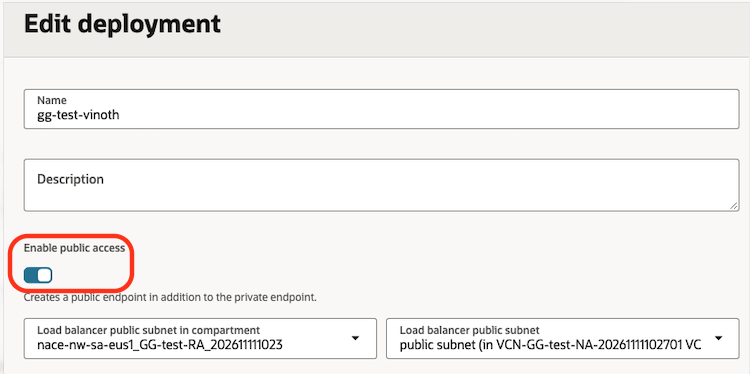
Enable Public access and select the public subnet from the drop-down list.
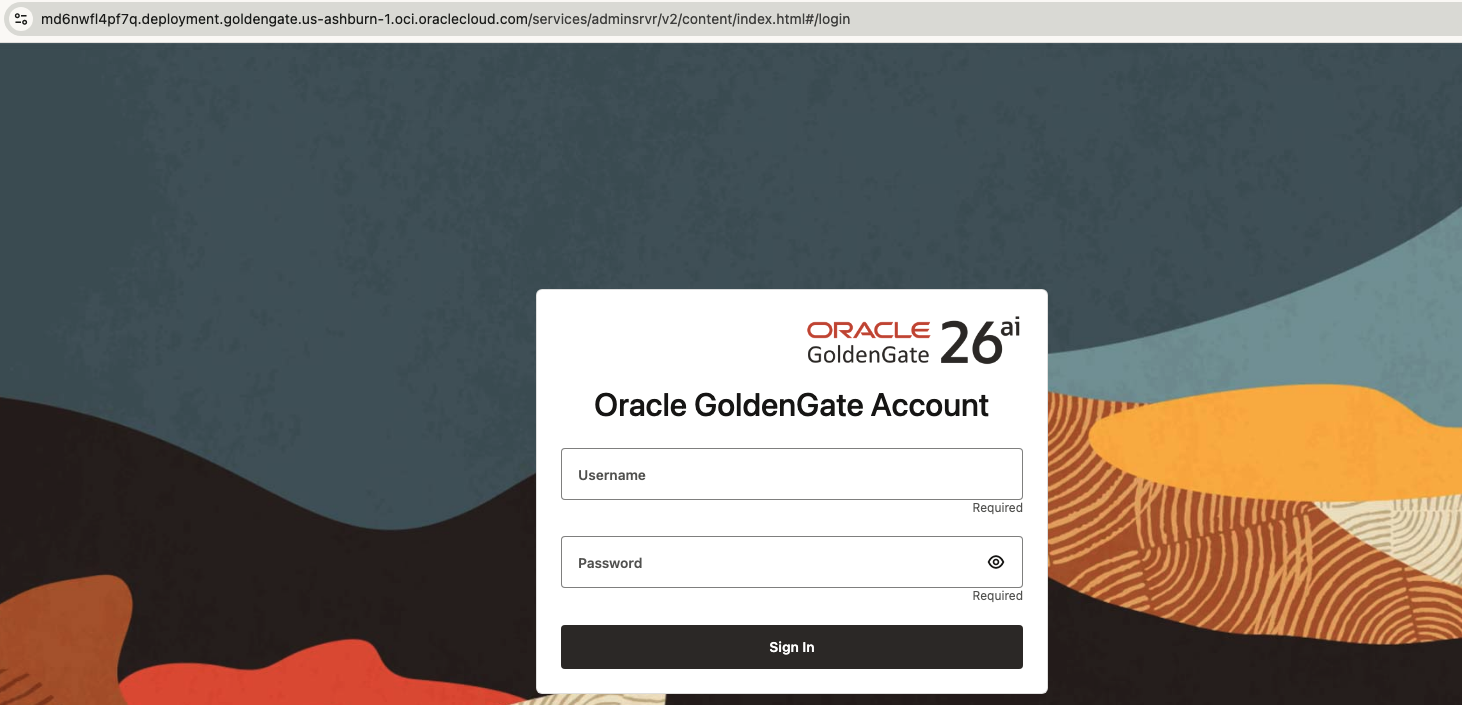
Once the load balancer is provisioned successfully, access the deployment console URL over the public internet from an approved source IP address and sign in.
Conclusion
Oracle GoldenGate on Oracle AI Database@Azure supports several console access patterns to suit different network architectures. An Azure jump VM, corporate connectivity through ExpressRoute or VPN, or an OCI Compute jump host or OCI Bastion can provide private administrative access when routing, DNS resolution, and security rules are configured correctly.
Choose the approach that aligns with your existing connectivity and operational requirements, keeping private access as the preferred model for production. Where temporary public access is necessary and approved, restrict it to trusted source IP addresses and disable it when no longer required.
Apply appropriate IAM policies, least-privilege GoldenGate user roles, and regular credential rotation to maintain secure administrative access.