
Oracle Enterprise Manager (OEM) supports multiple authentication methods. The default is repository based authentication. As a best practice, Oracle recommends you integrate Enterprise Manager with your corporate identity management system for enterprise wide authentication.
For companies using Microsoft Active Directory (AD) for authentication, you can implement AD-based authentication to have Enterprise Manager authenticate users against Active Directory. With this configuration, Enterprise Manager administrators use their existing corporate AD credentials to log in to OEM. This blog describes the tasks needed to setup this configuration in detail.
Pre-requisites
Network administrator task:
- Open connectivity from the host where the Oracle Management Server (OMS) is installed to Active Directory, on the Active Directory port.
Active Directory administrator task:
- Create a “service account” for OEM in Active Directory, for example “s_oem”:
- Grant the account search privilege on the “User Base DN” subtree. This is where all users who need to login to OEM are located. If the users are located in multiple base DNs, this should be the highest, most common DN.
- Grant the account search privilege on the “Group Base DN” subtree.
Gather the following information:
- Active Directory hostname, for example ldap.my-company.com.
- Active Directory port (this is usually 389 for LDAP and 636 for LDAPS).
- If your Active Directory uses LDAPS, you need the AD certificates (root and intermediate, if any) to add to the WebLogic trust store.
- Service account credentials.
- User Base DN, for example “OU=my-org-unit,DC=my-company,DC=com”.
- Group Base DN, for example “OU=my-groups,DC=my-company,DC=com”.
- User attribute for filtering, for example “Department=IT”. Unfortunately, you cannot filter by group membership here, as the “memberOf” attribute is not a supported search filter in WebLogic domain configuration for LDAP providers.
- Group attribute for filtering, for example “cn=oracle-dba”.
Configuration Tasks
Task 1: Test LDAP Connectivity and Access
To test connectivity and access, you can use LDAP client commands such as ldapbind and ldapsearch. Oracle database installations include LDAP client commands in the database home. In a “simple deployment” OEM instance provisioned from OCI Marketplace, you can use commands such as the following (for full syntax, see Oracle Internet Directory Data Management Tools):
[oracle@oms1 ~]$ . oraenv
ORACLE_SID = [emrep] ? <Hit Enter>
The Oracle base has been changed from /u01/app/oracle to /u01/app/oracle/database
[oracle@oms1 ~]$ which ldapsearch
/u01/app/oracle/database/product/bin/ldapsearch
In following commands, if your AD is not using default port, add the port using the “-p” parameter. If it’s using LDAPS, add your SSL auth mode and wallet information using parameters “-U”, “-W”, and “-P” as per the documentation link above, namely: [-U SSL_auth_mode {-W wallet_location -Q | -P wallet_password}]
Test connectivity with the service account user:
ldapbind -h ldap.my-company.com -D “s_oem” –q
Please enter bind password: <service account password>
To test with your own AD username and password, use the following syntax:
ldapbind -h ldap.my-company.com -D “LastName, FirstName” –q
Please enter bind password: <your password>
if your company uses a different format for the cn attribute (Common Name), use it instead of “LastName, FirstName”.
If your Active Directory is configured to allow anonymous binds, the commands above would be testing connectivity but not credentials. If so, test with a different command such as ldapsearch. For example:
ldapsearch -h ldap.my-company.com -D “s_oem” -q -b “OU=my-org-unit, DC=my-company, DC=com” -s sub -v “memberOf=CN=dba-group, OU=my-groups, DC=my-company, DC=com” sAMAccountName
Task 2: Configure OEM for Active Directory Authentication
1. If your Active Directory uses LDAPS, the AD root certificate and any intermediate certificates must be added to the OEM WebLogic trust store. This can be done in one of two ways:
- add the following parameters to the “emctl config auth ad” in step 2 below:
- “-use_ssl -cert_file “/tmp/ad-certificate-file.cer” (assuming you placed your certificate file in “/tmp/ad-certificate-file.cer”)
- or add the certificates ahead of time following the appropriate MOS document for your OEM version:
- OEM 24ai: Follow Doc ID 3074823.1.
- OEM 13.5: Instructions are in section 1.4 of Doc ID 1556720.1.
2. Login to the OMS host and execute the following emctl commands as user oracle. Run the “emctl config auth ad” command on each OMS:
emctl config auth ad -ldap_host “ldap.my-company.com” -ldap_port 389 -ldap_principal “s_oem” -user_base_dn “OU=my-org-unit, DC=my-company, DC=com” -group_base_dn “OU=my-groups, DC=my-company, DC=com”
…
Configuring LDAP Authentication … Started
Enter Enterprise Manager Root (SYSMAN) Password : <sysman password>
Enter LDAP credential: <service account password>
Successfully validated connection to LDAP server
Configuring LDAP Authentication … Successful
If this is a multi-OMS environment, restart all OMS(s) using: ’emctl stop oms -all’ and ’emctl start oms’
If use_ssl has been specified and the LDAP server certificate is self-signed, as part of the validation process, we have imported it into the keystore configured for Weblogic Server.
The above command creates a new authentication provider in the WebLogic domain of OEM. Next step it to restart OMS in “Admin Only” mode:
emctl stop oms -all
emctl start oms -admin_only
…
Starting Admin Server only…
Admin Server Successfully Started
Login to the OEM domain console as follows:
https://my-oem.my-company.com:7101/console
Username: weblogic
Password: <weblogic password>
Navigate to: “Security Realms”->”myrealm”.
Click on the “Providers” tab:
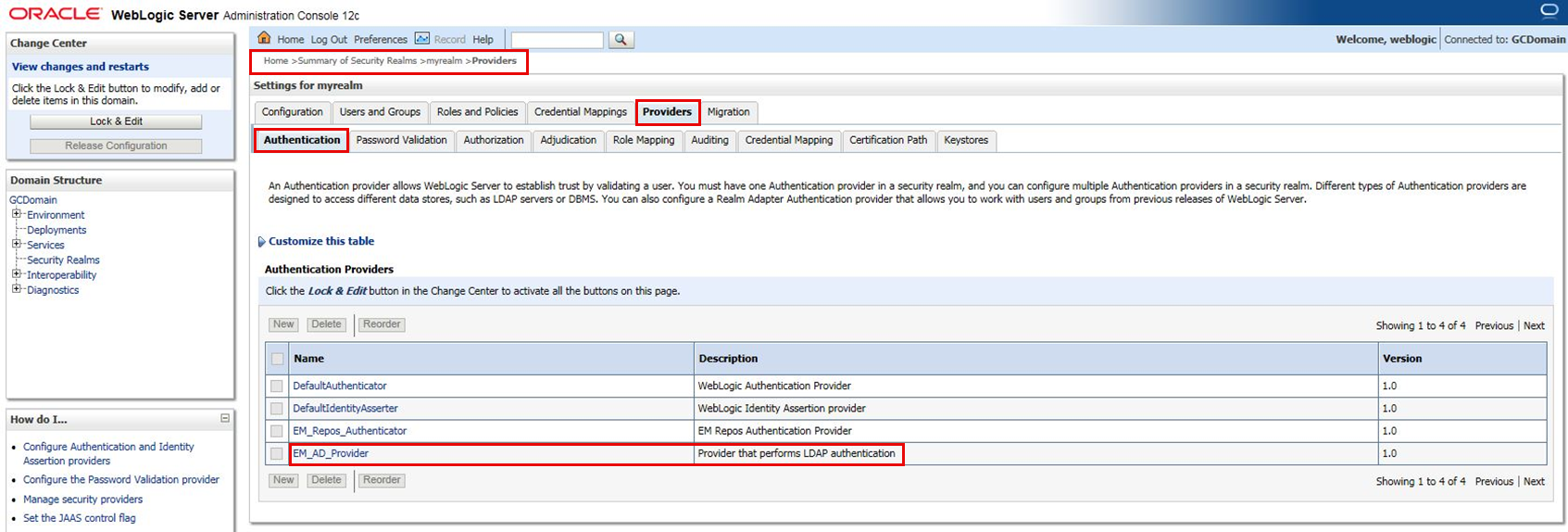
In the “Change Center” tile (top left), click on “Lock & Edit”.
Click on the newly created “EM_AD_Provider”.
On the “Common” tab under “Configuration”, set the “Control Flag” to “SUFFICIENT”.
Click “Save”.
Click on “Provider Specific” tab.
Make the following updates. Modify the values according to your environment:
- All Users Filter: (department=IT)
- User From Name Filter: (&(cn=%u)(objectclass=user))
- User Name Attribute: cn
- All Groups Filter: (cn=oracle-dba)
Click “Save”
On the “bread crumbs” line (top center of screen, under the “Home” icon), click on “Providers” link:
Home >Summary of Security Realms >myrealm >Providers >myrealm >Providers >EM_AD_Provider
Click “Reorder” and reorder the providers so that the AD Provider is before the default repository authenticator:
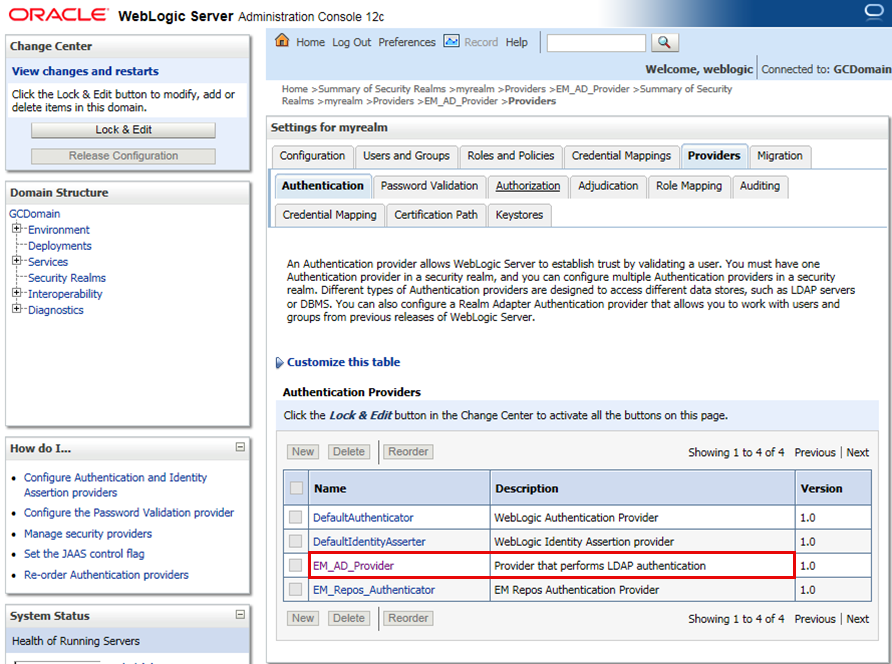
In the “Change Center” tile (top left), click on “Release Configuration”.
Restart OMS:
emctl stop oms -all
emctl start oms
Testing the Microsoft Active Directory Configuration
Use the WebLogic Server Administration Console (Users and Groups tab) to check whether the Microsoft Active Directory configuration has been successful. To navigate to this tab, click on “Users and Groups” on the “bread crumbs” line (top center of screen, under the “Home” icon) “Home>Summary of Security Realms>myrealm>Users and Groups“. From the Users and Groups tab, you should see users and groups showing up from Microsoft Active Directory.
In order for the external LDAP users to login to OEM, they must be created in Enterprise Manager first. They can be created manually or automatically:
- Manually: As a Super Administrator, create the new administrator as an “External User”. For “User Name”, use the “Name” value as shown in the WebLogic console (including spaces, if any).
- Automatically: Follow the instructions in the “Auto Provisioning” task under “Additional Tasks (Optional)” below.
External LDAP users can now login to OEM console using their Active Directory credentials. This completes the required tasks to configure Enterprise Manager for Active Directory authentication.
Restoring the Default Authentication Method
If for any reason you need to retore the default authentication method, follow the instructions in the documentation here: Restoring the Default Authentication Method.
Additional Tasks (Optional)
You can further customize and enhance your configuration with additional tasks. Following are direct links to the documentation for each:
- External Authorization using External Roles.
- Auto Provisioning.
- Using a Different Name to the External Users Display Name (Be sure to complete the instructions under heading “Updating the Oracle Virtual Directory with User Name Changes” as well. These are part of the same task).
- Mapping LDAP User Attributes to Enterprise Manager User Attributes.
- Changing User Display Names in Enterprise Manager.
Resources and Reference
Product documentation:
MOS documents:
- EM 24ai: How to Configure or Rollback Enterprise Manager Cloud Control Authentication with External LDAP Provider using EMCTL Command (Doc ID 3073200.1)
- EM 13c: How to Configure or Rollback Enterprise Manager Cloud Control Authentication with External LDAP Provider using EMCTL Command (Doc ID 2238223.1)
- EM 13c: How to Manually Configure or Rollback Enterprise Manager Cloud Control Authentication with External LDAP Provider (Doc ID 1556720.1)