Oracle Fusion SaaS provides a native capability known as BI Cloud Connector (BICC), which facilitates the extraction of business data into CSV format. These extracts can be stored on shared cloud-based resources such as the built-in Universal Content Management (UCM) server or Oracle Object Storage. Once data is staged in these locations, it can be programmatically or manually retrieved to local environments for downstream processing—including transformation, loading into data warehouses, or integration with other enterprise systems. The extracts, or data stores, are also referred to as View Objects (VOs).
Despite its utility, BICC remains relatively underutilized or unfamiliar to many practitioners. An important aspect of working with Oracle BICC is understanding the data lineage associated with the extracts. Oracle provides BICC lineage documentation, which outlines the mapping between Fusion source objects and the exported data structures. This documentation is essential for architects and data engineers aiming to ensure traceability, data integrity, and alignment with downstream data models. Leveraging these lineage resources allows teams to design more robust ETL processes, validate data consistency, and maintain compliance with data governance standards.
While the lineage documentation serves as a foundational reference for designing data pipelines with Fusion SaaS as the source, data architects and engineers often encounter challenges in navigating it effectively. Identifying the appropriate VOs for specific use cases can be difficult, as the documentation typically provides high-level logical mappings between objects and attributes, but lacks details such as join conditions, cardinality, and transformation logic. Interpreting the relationships among multiple VOs often requires domain knowledge that is not explicitly conveyed in the documentation.
This blog post outlines how to access the most recent version of the lineage documents—including those covering Flex Fields—and offers practical guidance and heuristics to help simplify navigation through the materials using straightforward logical principles.
If you are a JRR Tolkien’s fan, you will get the reference to Bilbo’s journey in Middle-earth, detailed in “The Hobbit,” that starts in the Shire, his home, and takes him on a quest to reclaim the kingdom of Erebor. He travels through various lands, facing dangers like orcs and goblins, and encounters Gollum and the magic ring. This journey significantly changes Bilbo’s character, transforming him from a comfortable hobbit to a brave and resourceful adventurer.
Hopefully after reading this blog post, one will be as brave and resourceful an adventurer using BI Cloud Connector to extract data from Fusion SaaS application as Bilbo when he came back to the Shire.
Have access to Fusion SaaS BI Cloud Connector Console
Have installed locally on your computer an application capable of opening Excel documents (Microsoft Excel, LibreOffice Calc, Apache OpenOffice Calc, WPS Office Spreadsheets, OnlyOffice) or have access to their online conterpart (Office.com, Google Sheets,…)
Leaving the Shire – Overview of the BICC Lineage Documents
In this section, we will explain how to access the BICC lineage documentation files, either through Oracle Cloud Customer Connect or My Oracle Support (MOS). We will also provide an overview of the document structure and the various columns and metadata included within the files.
They are periodically updated to reflect schema changes in new Fusion releases, so it’s important to ensure you’re using the version that aligns with your Fusion instance release.
Getting to the BICC Lineage
From MOS
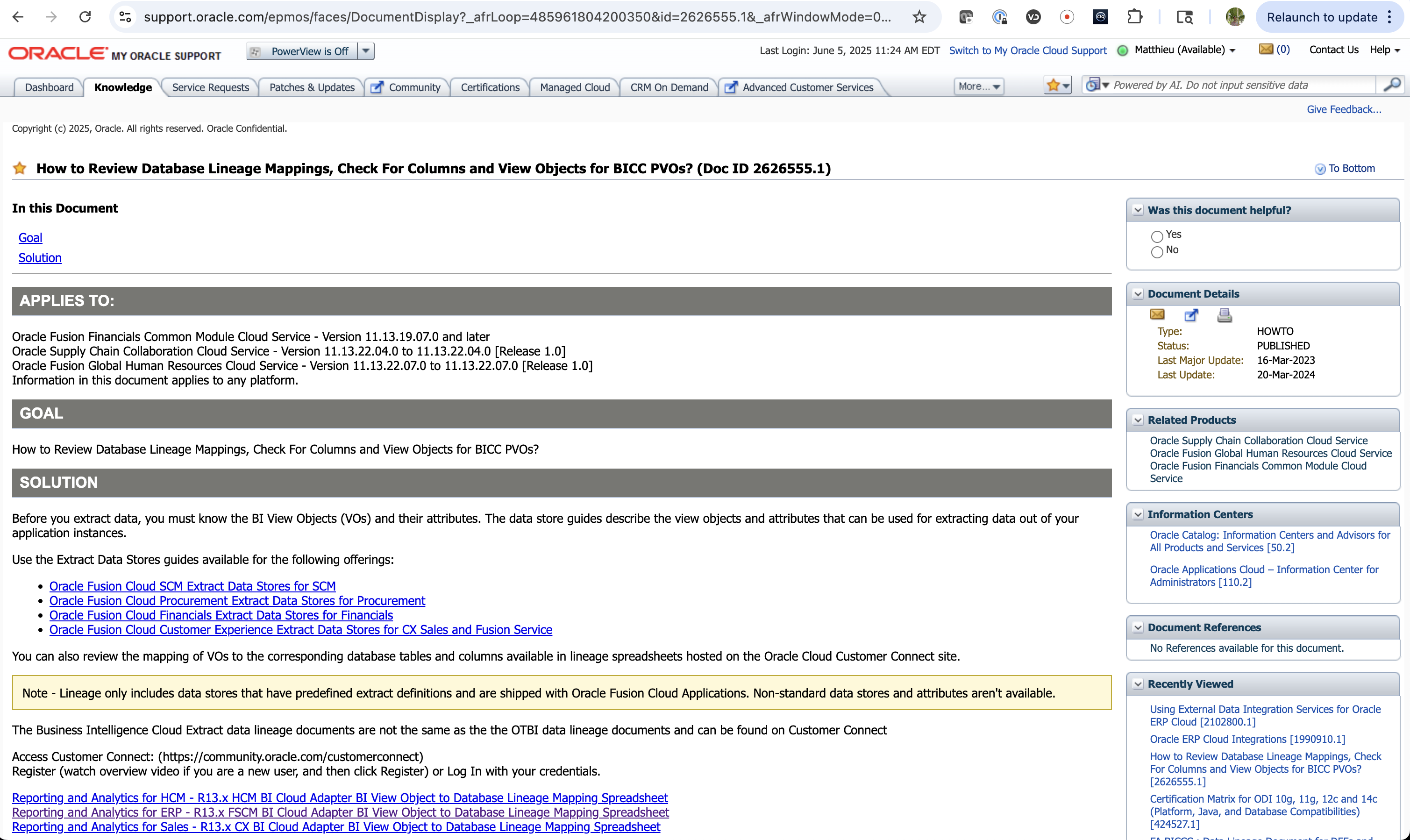
The main document in MyOracle Support to get to the BICC Lineage files Oracle Support Document 2626555.1 How to Review Database Lineage Mappings, Check For Columns and View Objects for BICC PVOs?)
Before initiating data extraction, it is essential to identify the relevant BI VOs and their associated attributes. The Extract Data Store guides provide detailed descriptions of the VOs and attributes available for use in data extracts from your Fusion application instances.
Guides are available for each of the Oracle Fusion Cloud offerings (see the BICC Datastores references above in the Suggested Prerequisite Collateral Material section). To further assist with pipeline design, you can consult the lineage spreadsheets available on Oracle Customer Connect, which map VOs to their underlying database tables and columns.
Note: Lineage documentation only covers predefined extract definitions shipped with Oracle Fusion Cloud Applications. Custom or non-standard data stores and attributes are not included. Also, the BI Cloud Extract lineage documents differ from the OTBI data lineage documents and are separately available on Cloud Customer Connect (CCC).
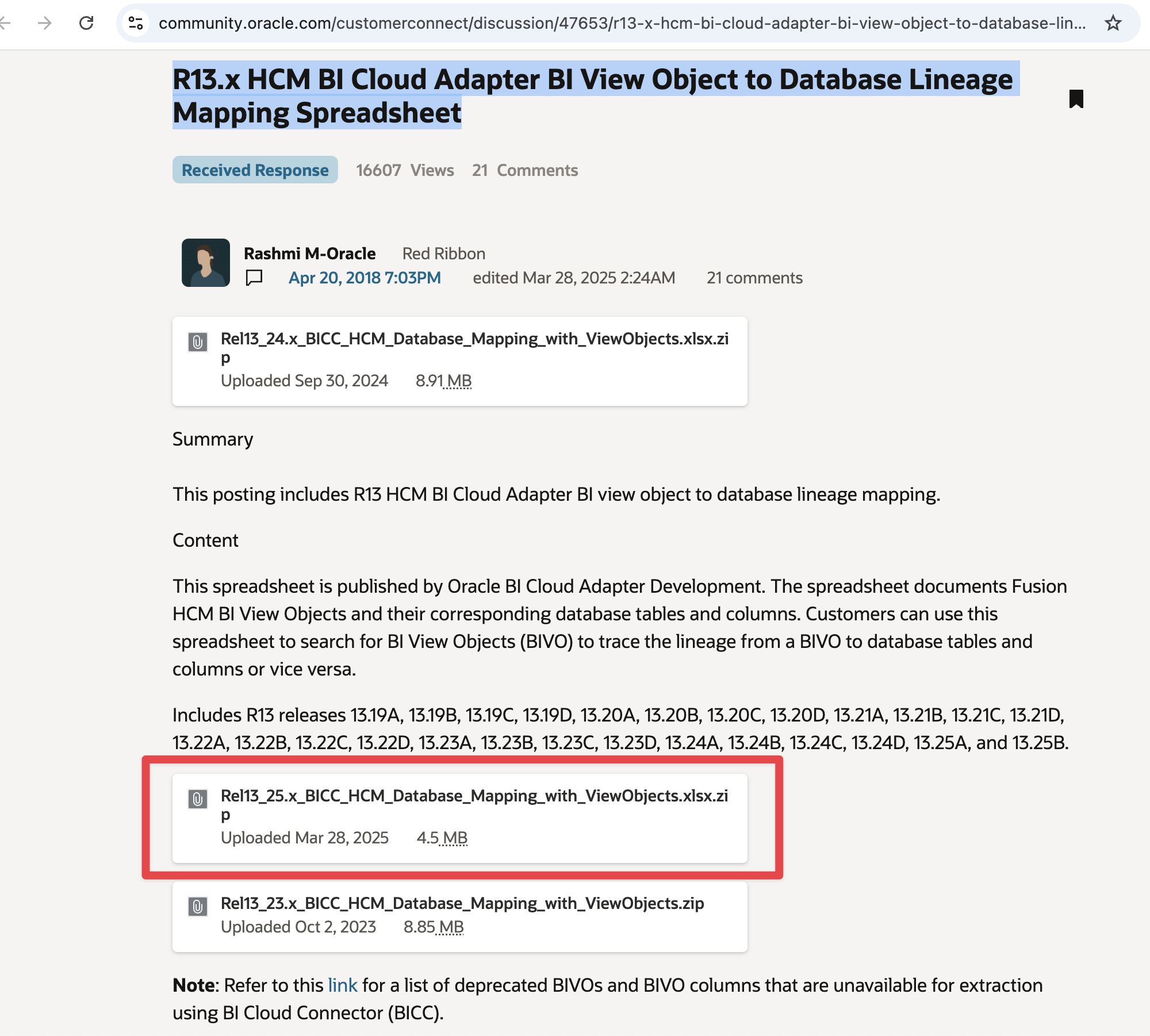
The links below are directly pointing you to the posts in CCC.
Figure 1: MOS Document 2626555.1
Direclty From Cloud Customer Connect
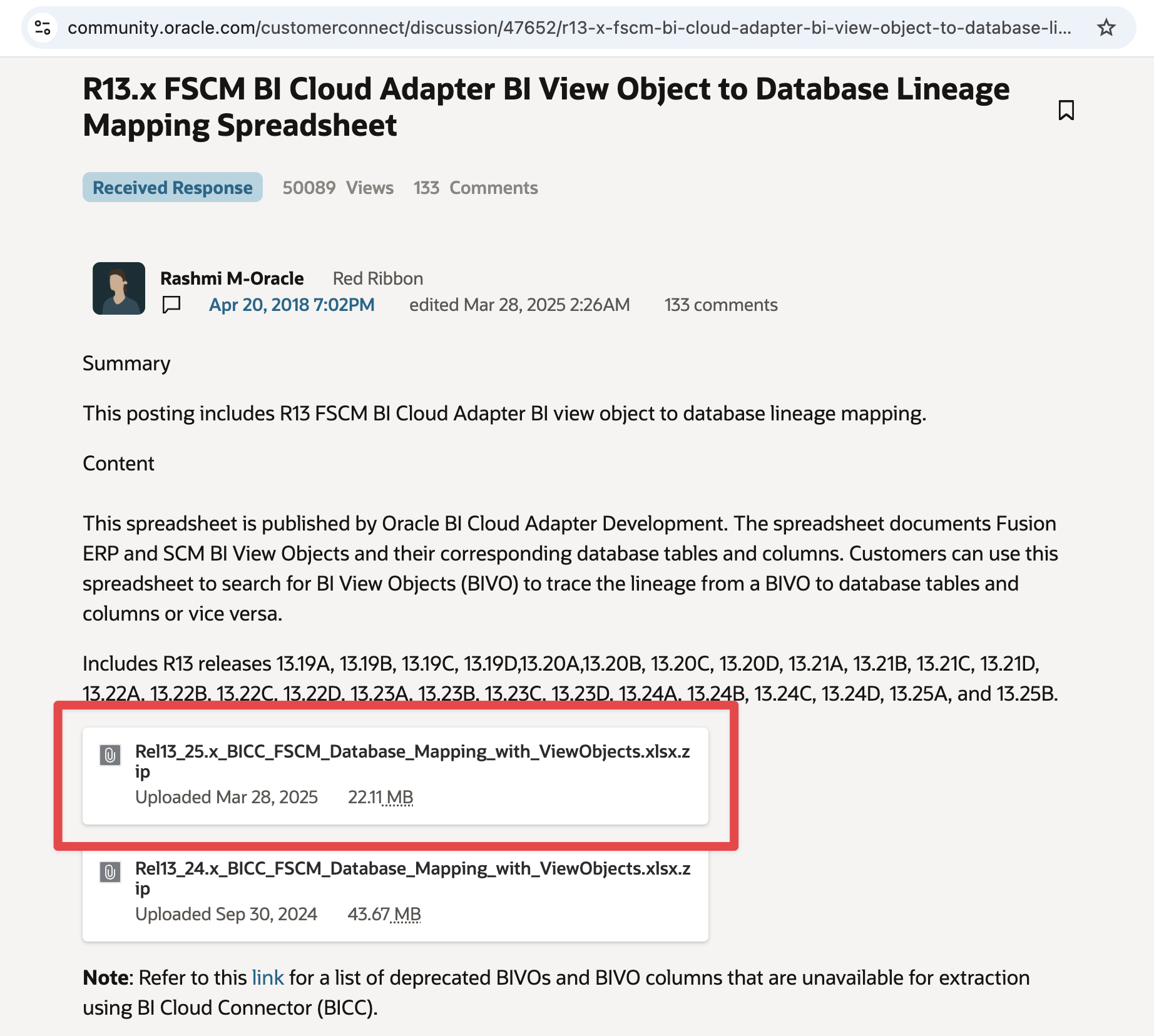
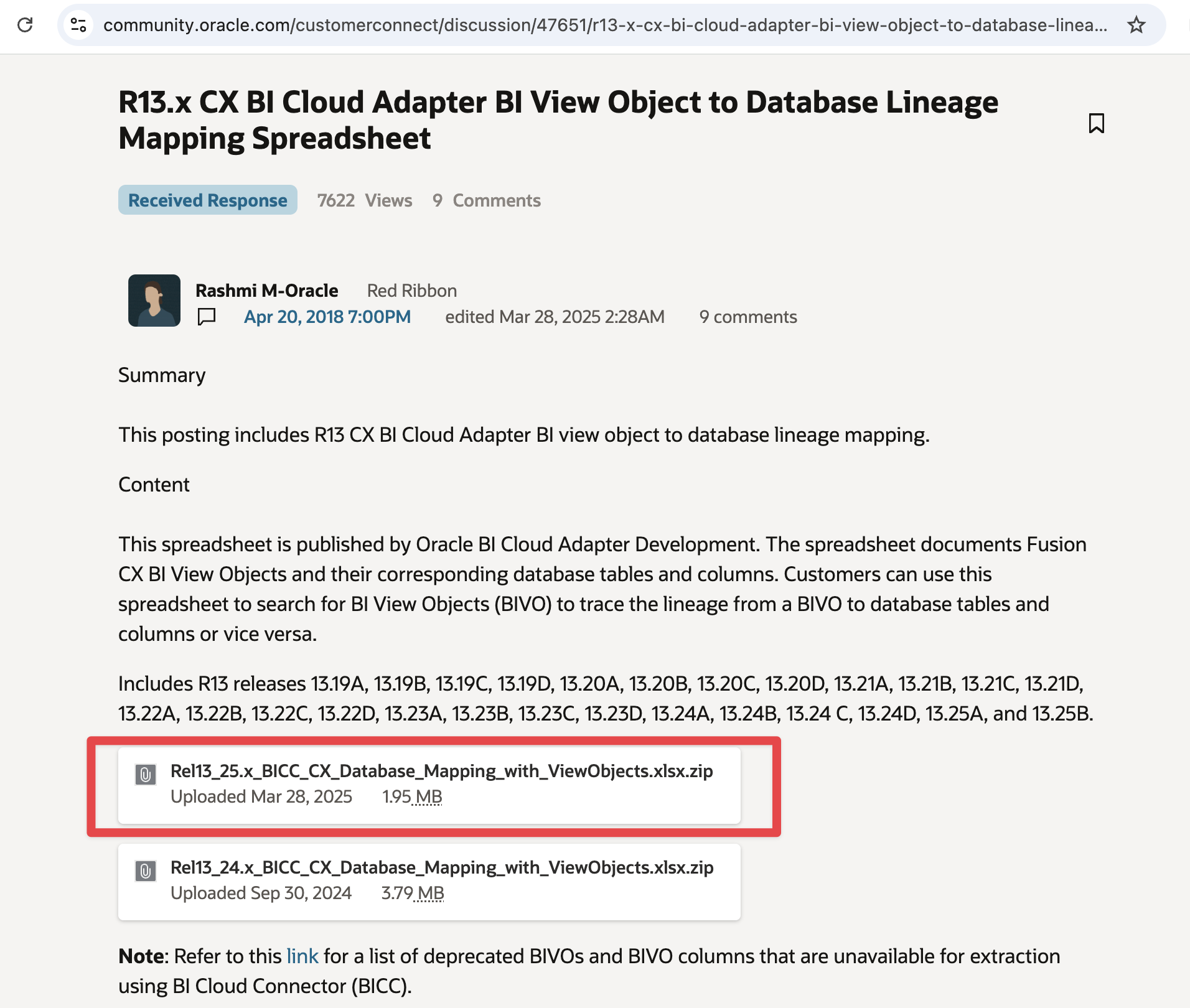
If you are more familiar with the Cloud Customer Connect navigation, you can also get direclty to the BICC lineage documents from the links below
Figure 3: ERP and SCM BICC Lineage Document in CCC
Figure 4: CX BICC Lineage Document in CCC
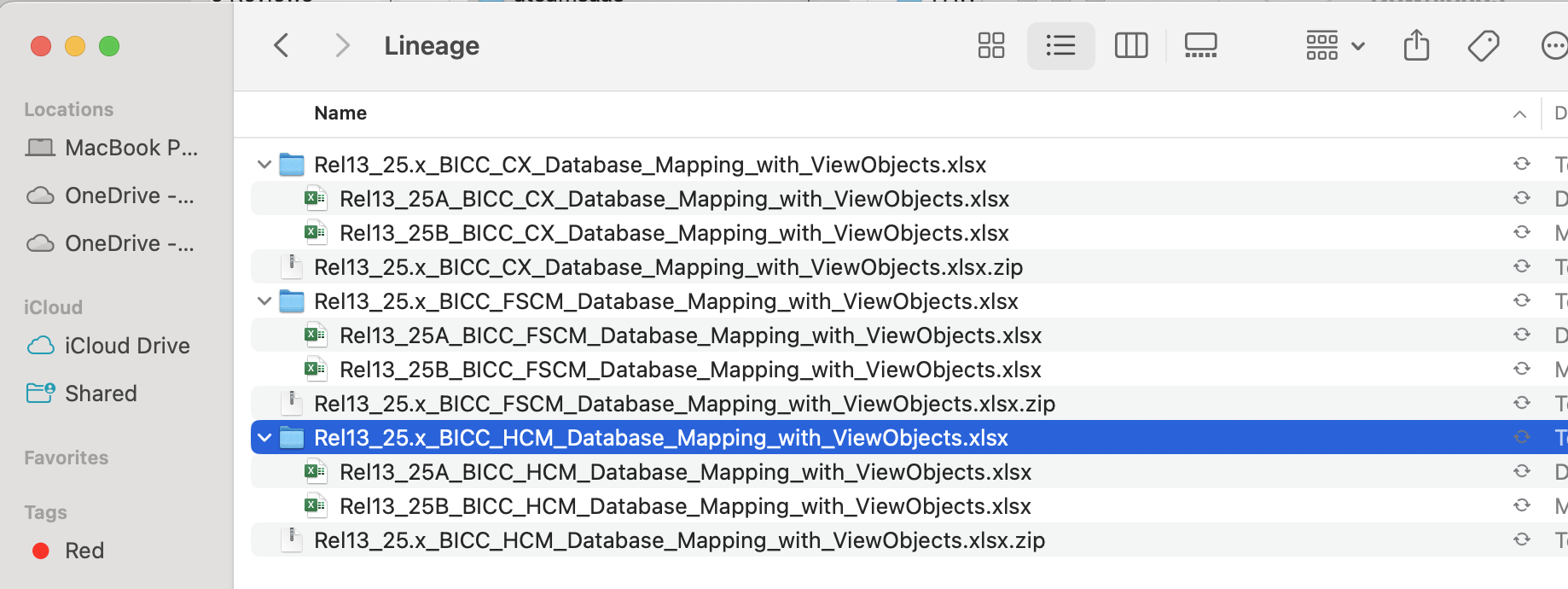
Click on each of the links hilighted in the red rectangles in the above screenshots to download the latest BICC lineages documents for each of the pillars.
Figure 5: BICC Lineage Excel files for each Pillars
Once the three archive files have been extracted, each folder will contain multiple documents corresponding to the number of Oracle Fusion SaaS quarterly updates released during the year. As of the time of writing, the current Fusion SaaS release is 25B, so you will find BICC lineage documents for both 25A and 25B across the various functional pillars.
Walking Through BICC Lineage Documents
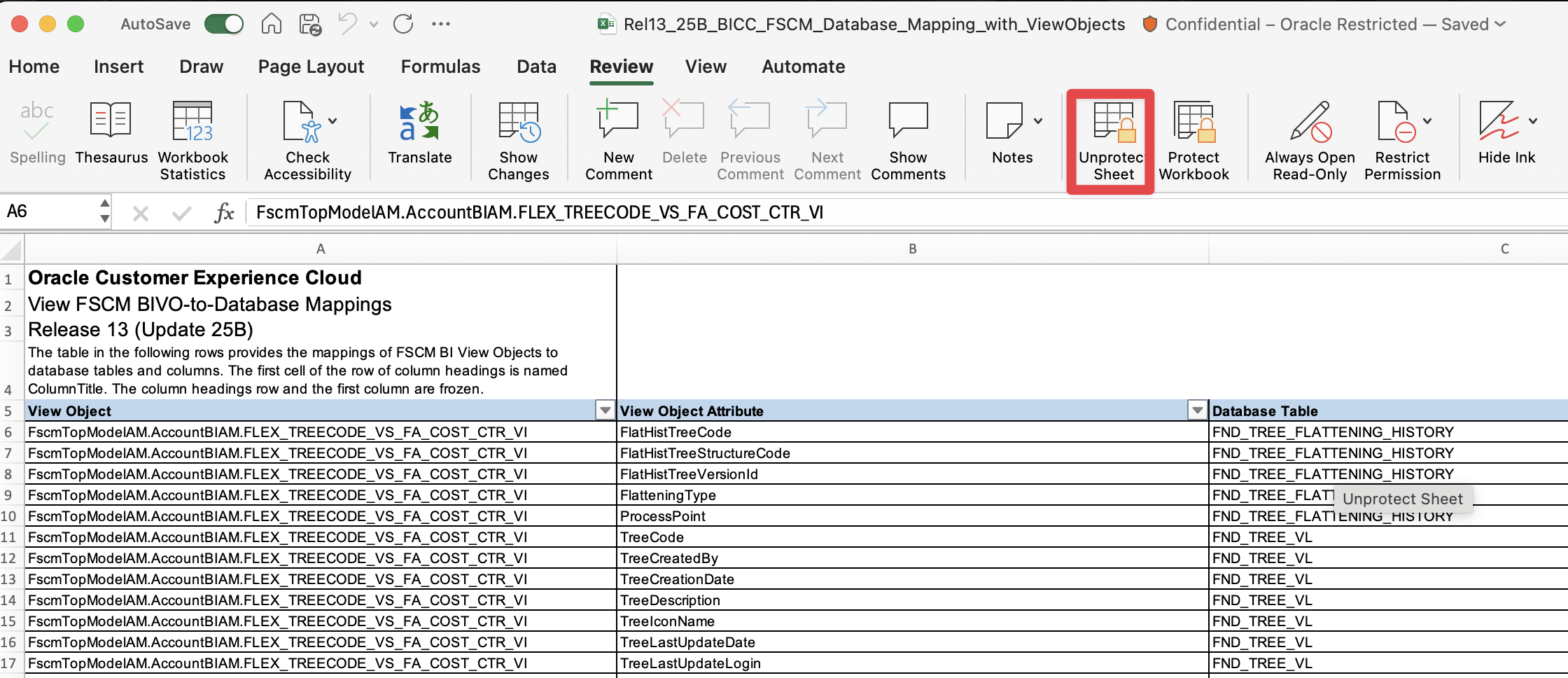
Now let’s open one of these Lineage document, for instance the Rel13_25B_BICC_FSCM_Database_Mapping_with_ViewObjects.xlsx file. Once opened, the file will show two protected sheets : Cover Page and BIVO to Database Tables. The first thing you will want to do to be able to use the filters, resize the columns, and any actions within Excel on this metadata is to unprotect the BIVO to Database Tables sheet.
Figure 6: Unprotect BIVO to Database Tables sheet
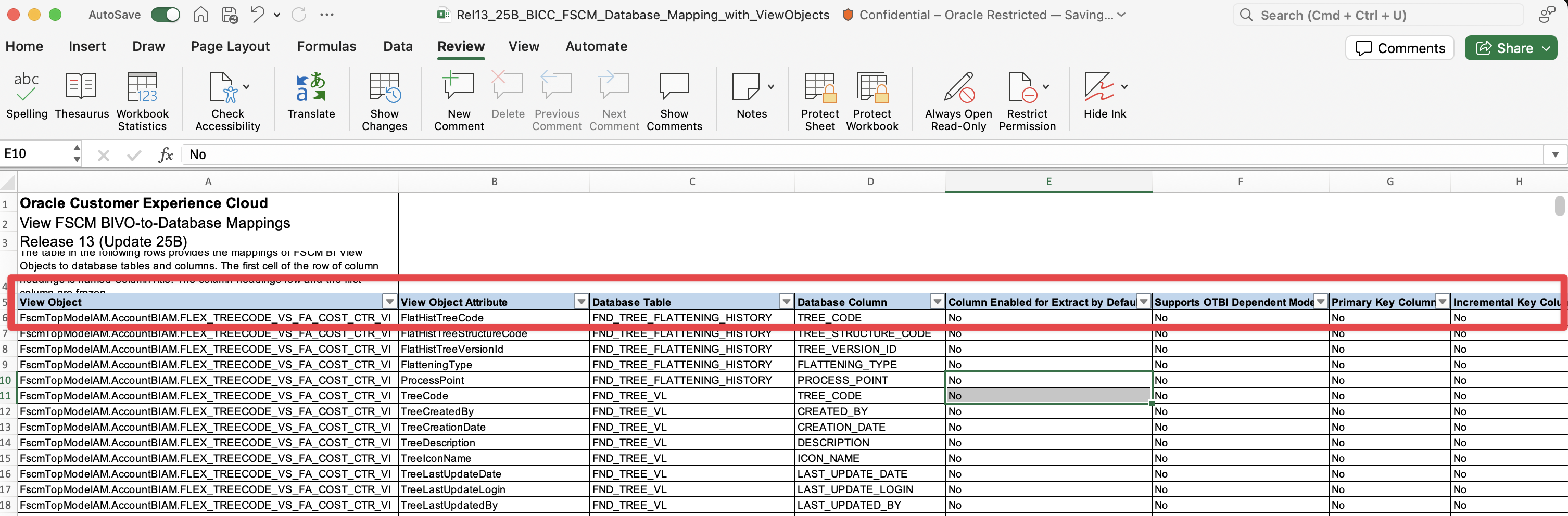
Once you have done that, you can resize each of the columns to have them all visible
Figure 7: These are all the BICC lineage document columns
The table below details each columns in the BICC lineage document, its description as well as its purpose and usage.
Column Name
Description
Purpose & Usage
View Object
Logical object in Oracle Fusion Applications used for BICC extracts.
Represents a business entity (e.g., invoices, journals) and defines the structure of the data extract.
View Object Attribute
Individual attribute or field within the View Object.
Corresponds to a specific data element (e.g., InvoiceNumber, JournalDate).
Database Table
Physical database table in Fusion Applications where the attribute data resides.
Useful for tracing data lineage and understanding source systems.
Database Column
Column in the database table that maps to the View Object attribute.
Enables deeper data validation and backend mapping.
Column Enabled for Extract by Default
Indicates if the attribute is included in the extract by default (Y or N).
Determines whether the attribute is automatically extracted or needs manual inclusion in extract setup.
Supports OTBI Dependent Mode
Shows if the attribute supports integration with OTBI Dependent Mode.
Important when aligning BICC extracts with OTBI-based reporting models.
Primary Key Column
Identifies whether the attribute is part of the primary key in the View Object.
Ensures uniqueness and is vital for data integrity and joins.
Incremental Key Column
Indicates if the attribute can be used for incremental data loads (e.g., LAST_UPDATE_DATE).
Supports change data capture strategies to improve extract performance.
Figure 8: BICC Lineage Columns Description and Purpose
This concludes this section and the following subsection proposes a video summary if you rather watch than read.
The Misty Mountains – A Base Example – ERP – General Ledger (GL) Journals
The main VOs
In this first example, the use case is identify the VOs to build a pipeline to extract GL journal information so we can produce in a Data Warehouse a GL Journal Balance report displays journal activity recorded in the general ledger for a specified time period or date range, so users can apply optional filters such as journal source, journal category, entered currency, and journal batch. The report should supports flexible grouping and sorting options at the time of submission, as shown in this document.
To identify the VOs, we are going to navigate the ERP BICC Lineage document Rel13_25B_BICC_FSCM_Database_Mapping_with_ViewObjects.xlsx and filter the VOs whish view object name contains Journal.
First hint: Financial PVOs that have been optimized for data extraction, what we call Fine Grain VOs, have a name that contains the string BiccExtract:
GlBiccExtract for General Ledger
ArBiccExtract for Account Receivable
ApBiccExtract for Account Payable
and so on…
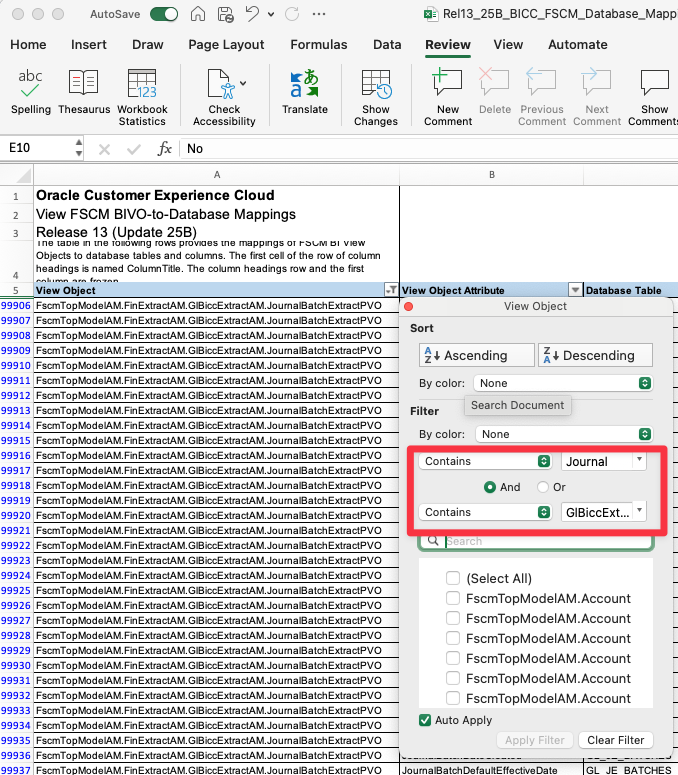
On top of the Journal filter, lets add GlBiccExtract to show only the Fine Grain VOs for GL Journals, as showns in the following image:
Figure 10: Filterting for Fine Grain VOs for GL Journal Extracts
This gives us a list of the following 11 distinct VOs:
JournalCategoryTLExtractPVO stores additional descriptive information in different languages on the Journal Category. Typically TL in the VO name indicate Transaltion table
We do not need the Transaltions of the Journal Source for now
Figure 12: List of Fine Grain VOs for GL Journal Extracts based on our requirement
We can now use the BICC UI to extract these VOs, or use Enterprise grade data integration tools like Oracle Data Transforms to do so. We have documented this appraoch in this blog.
How to join VOs
Identifying the VOs we need to extract based on our requirement is the first step, but we are not quite there yet as we do not know how to join this table to make sense of it. To do so, we will need to go back to the physical definition of the GL journal information, starting with the GL Journal Header VO FscmTopModelAM.FinExtractAM.GlBiccExtractAM.JournalHeaderExtractPVO. The lineage document points us to the GL_JE_HEADERS database table, which in this document and also shows us that the primary key is JE_HEADER_ID in GL_JE_HEADERS mapped to VO attribute JeHeaderId :
Figure 12: GL Journal Header primary key
If we filter the database columns with “Ends with “_ID” and on “Column Enabled for Extract by default” set to “Yes”, we can see all the “foreign keys” (even though they are not enforced for referential intergrity in the VO) of the GL Journal Header and give us insight on how to join with the other four VOs
Figure 13: GL Journal Header “foreign keys”
Second hint: In most case, Columns which name end with _ID correspond to either a primary key, a foreign key or a composite key, when mutiple columns composes the primary key for example.
We can naturally identify JE_BATCH_ID database column, mapped to VO attribute GlJeHeaderJeBatchId, as being the column to join to the FscmTopModelAM.FinExtractAM.GlBiccExtractAM.JournalBatchExtractPVO VO. Let’s verify by updating the View Object to this VO and retain the JE_BATCH_ID database column mapped to the VO attribute JournalBatchJeBatchID:
Figure 14: GL Journal Batch primary key
Let’s now look at the GL Journal Source FscmTopModelAM.FinExtractAM.GlBiccExtractAM.JournalSourceExtractPVOand GL Journal Category FscmTopModelAM.FinExtractAM.GlBiccExtractAM.JournalCategoryExtractPVO VOs and identify the primary keys JE_SOURCE_NAME from GL_JE_SOURCE_B table and JE_CATEGORY_NAME from GL_JE_CATEGORIES_B table:
Figure 15: GL Journal Source and Category primary key
Third hint: In other cases, i.e. where columns which name does not _ID correspond to either a primary key or a foreign key, the Primary Key column in the lineage document is the column to filter on and to rely on to identify keys and how to join VOs once extracted.
If we now go back the FscmTopModelAM.FinExtractAM.GlBiccExtractAM.JournalHeaderExtractPVO and filter on Database Column that contains “JE_CATEGORY”, we can see that we have a database column name JE_CATEGORY from GL_JE_HEADERS table, mapped to GlJeHeadersJeCategory VO attribute, that hints the join to attribute JournalCategoryJeJournalCategoryName :
Figure 16: Journal Category colum in Journal HeaderPVO
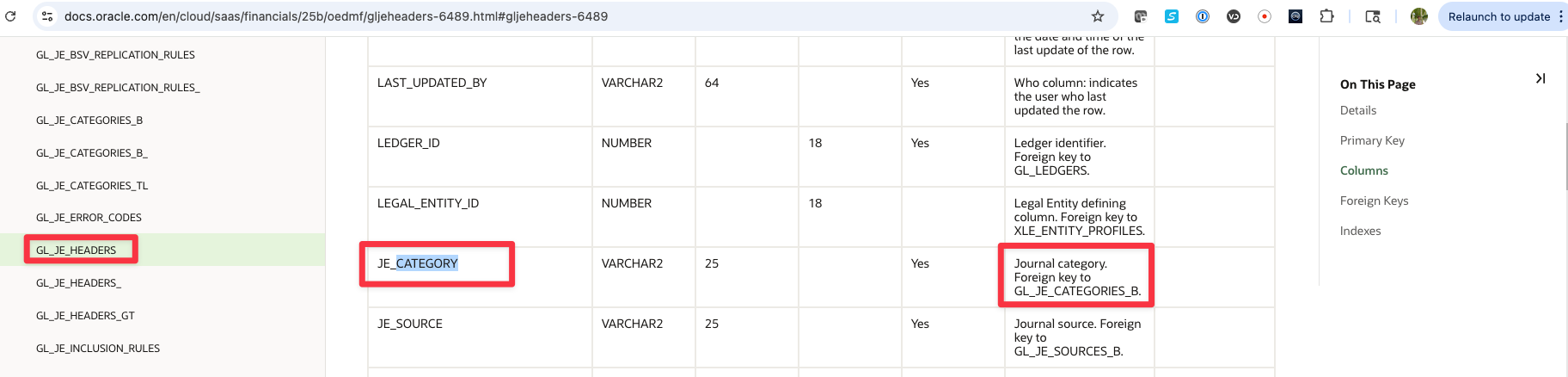
By reading the GL_JE_HEADERS table definition here, we can confirm that JE_CATEGORY column is the foreign key to table GL_JE_CATEGORIES_B.
Figure 17: GL_JE_HEADERS Foreign key to GL_JE_CATEGORIES_B
Similarly, we can lookup JE_SOURCE column in source from GL_JE_HEADERS
Figure 18: Journal Source colum in Journal HeaderPVO
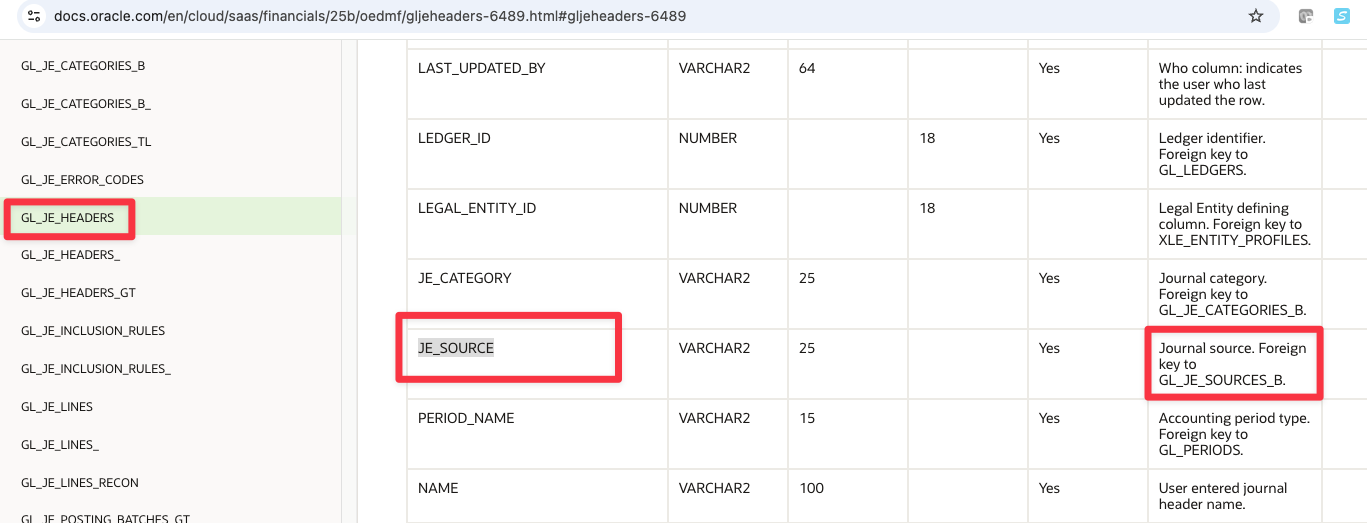
Adn we can confirm here, JE_SOURCE column is the foreign key to table GL_JE_SOURCES_B.
Figure 19: GL_JE_HEADERS Foreign key to GL_JE_SOURCES_B
The last VO we need to join now to the GL Journal Header is the GL Journal Lines FscmTopModelAM.FinExtractAM.GlBiccExtractAM.JournalLineExtractPVO. When filtering the lineage document on this View object, as well as filtering on the Primary key, we see that the GL_JE_HEADER_ID, mapped to JeHeaderId attribute, is composing the primary key and is our join the FscmTopModelAM.FinExtractAM.GlBiccExtractAM.JournalHeaderExtractPVO VO, on JeHeaderId attribute too. We can confirm it here on the GL_JE_LINES table definition
Figure 20: GL Journal Lines to GL Journal Header join
The currency information can be found on the FscmTopModelAM.FinExtractAM.GlBiccExtractAM.JournalHeaderExtractPVO VO and on the FscmTopModelAM.FinExtractAM.GlBiccExtractAM.JournalLineExtractPVO VO:
Figure 21: Currency for GL Journal Lines to GL Journal Header
The Accounted and Entered Credit and Debit amounts can be found on the FscmTopModelAM.FinExtractAM.GlBiccExtractAM.JournalLineExtractPVO VO:
Figure 22: Amounts in GL Journal Lines
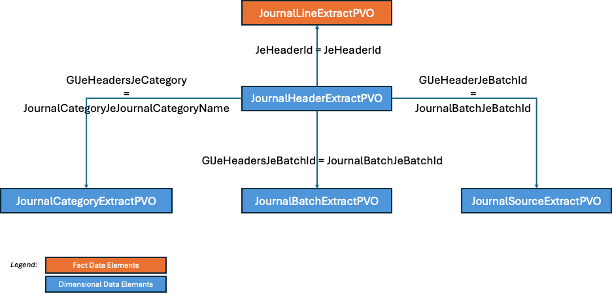
The following diagram summarizes the joins of the VOs once extracted to allow users to build the GL Journal Balance report chosen as our example, with in blue the VOs that are dimensional in nature and in orange the one that contains fact measures.
Figure 23: All joins
As you experienced, understanding how to join BICC VOs once extracted is not trivial and requires an initimate knowledge of the underlying physical database tables and columns. Please refer to section Suggested Prerequisite Collateral Material above to get yourself familiarize with them further.
Let’s leave the Misty Mountains and head our journey to the elven haven of Rivendell.
Rivendell – Another Example – CX – Incentive Compensation
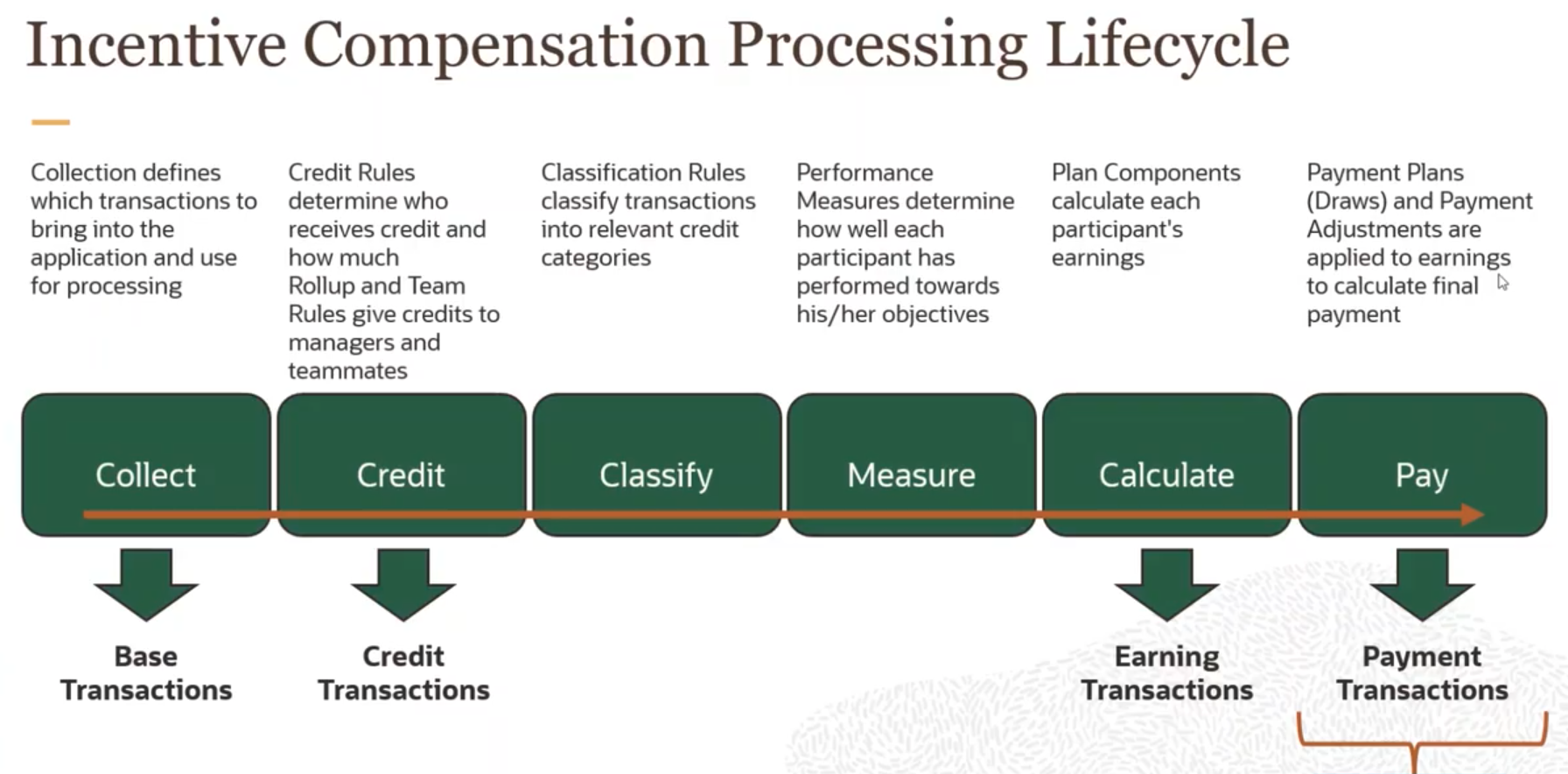
Oracle Sales Performance Management, part of our CX pillar, uses Incentive Compensation features in combination with territory and quota management as part of its holistic approach to enhancing sales performance. These capabilities support organizations in launching new planning initiatives, offering productivity tools to lower administrative expenses, and delivering valuable business insights to boost sales effectiveness. Incentive Compensation has a specific processing lifecycle that follows 6 specific steps, as depicted in the diagram below:
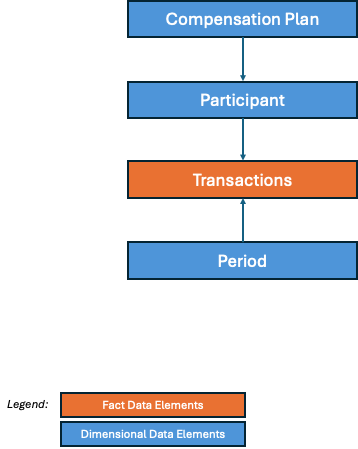
For our example, we will focus on the Collect phase and provide the data required to build a report where we can aggregate the transaction amounts in functional and source currency of all the participants and filter by compensation plans and by period, involving the following entities
Figure 25: Base transaction report with compensation plan, participant and period
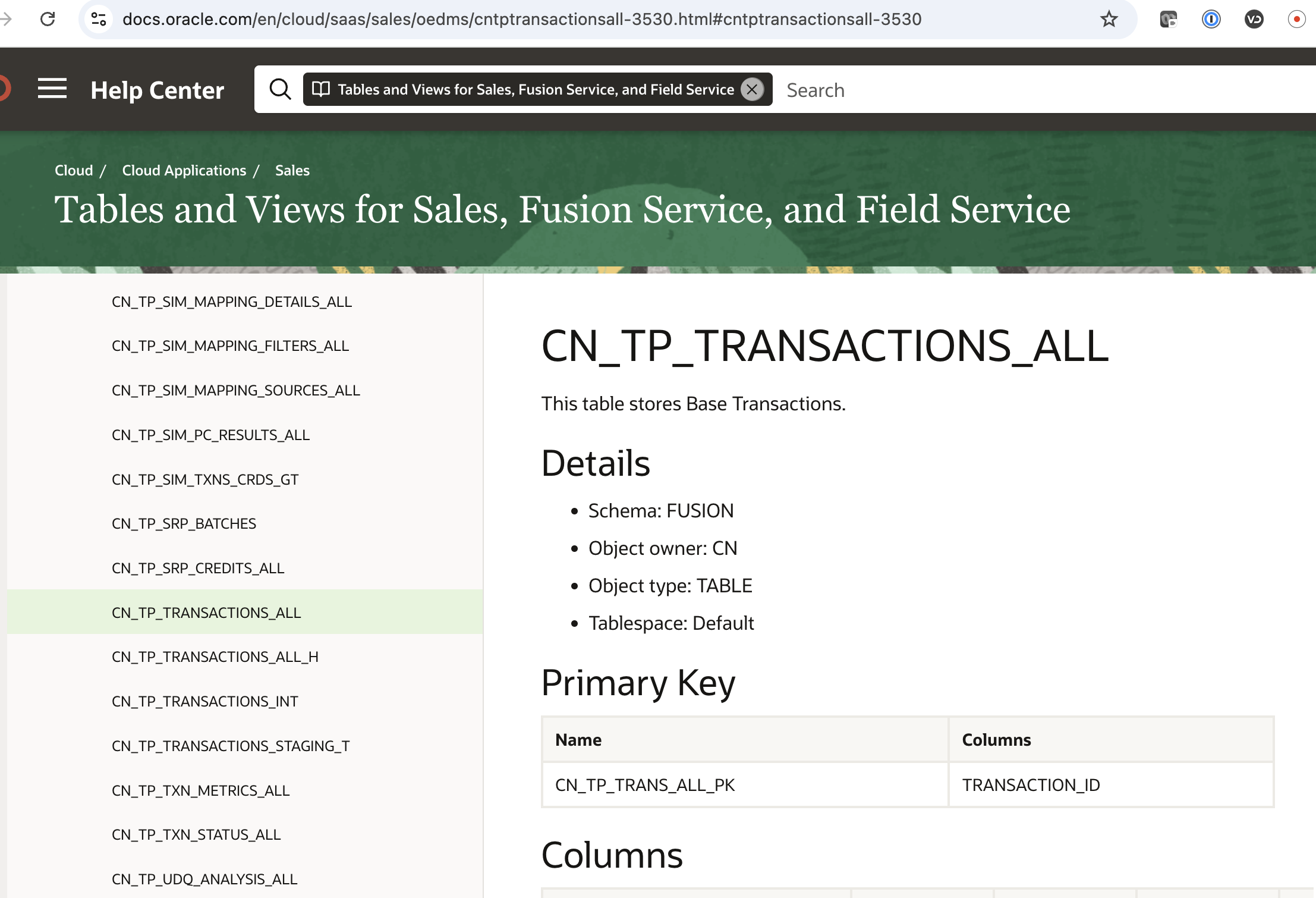
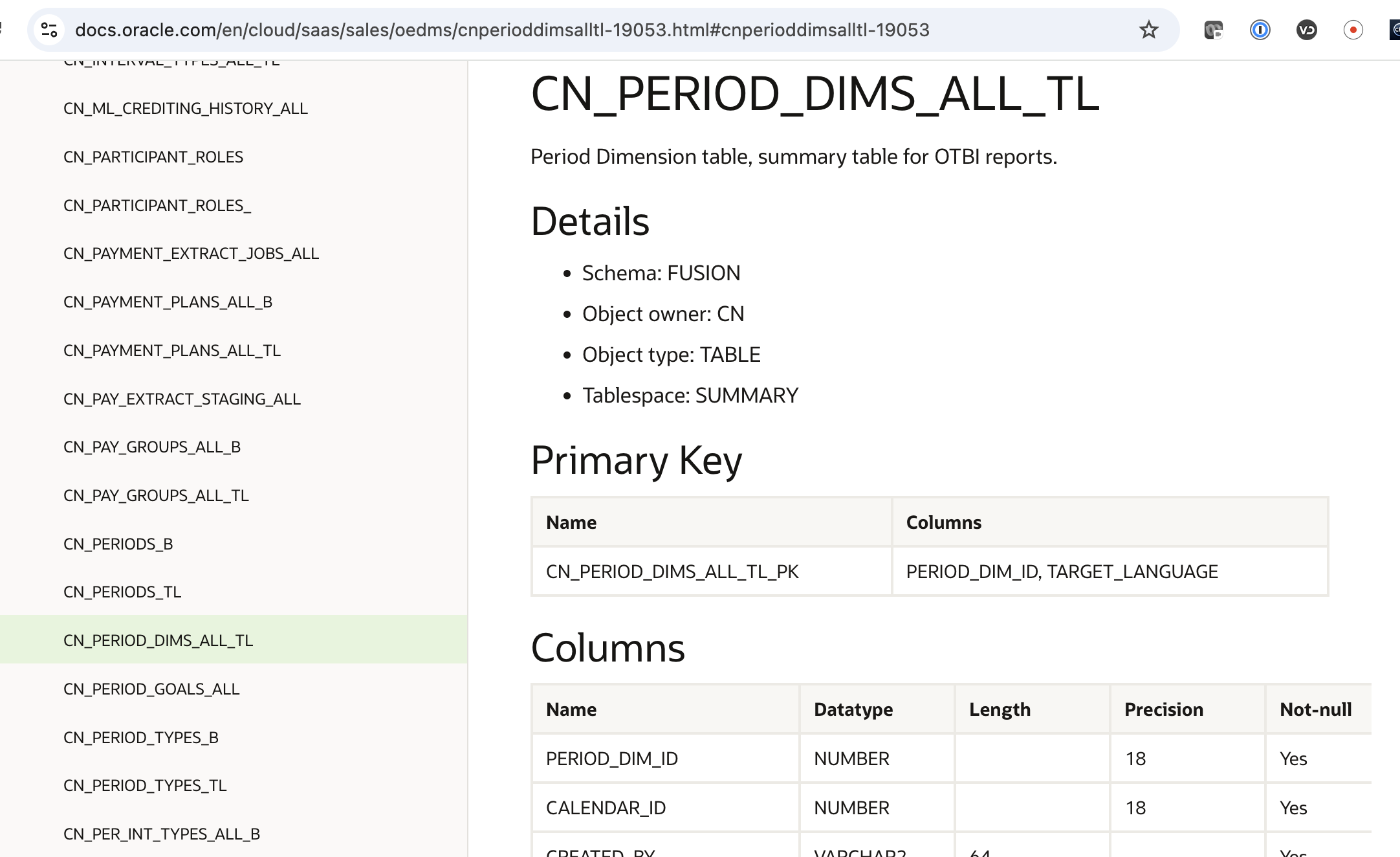
Our first stop here is looking up the base transactions in Fusion SaaS. They are stored in the CN_TP_TRANSACTIONS_ALL table
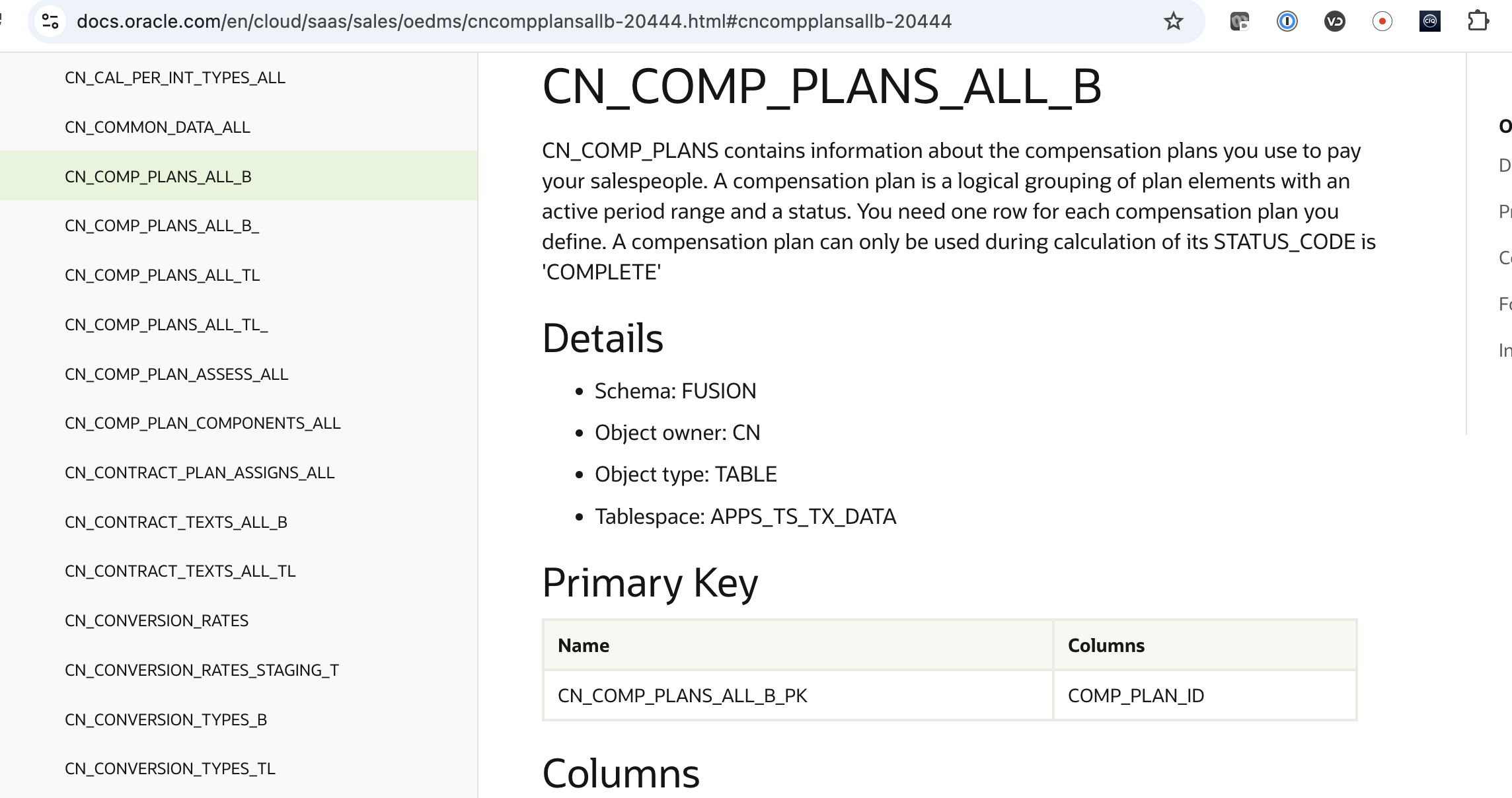
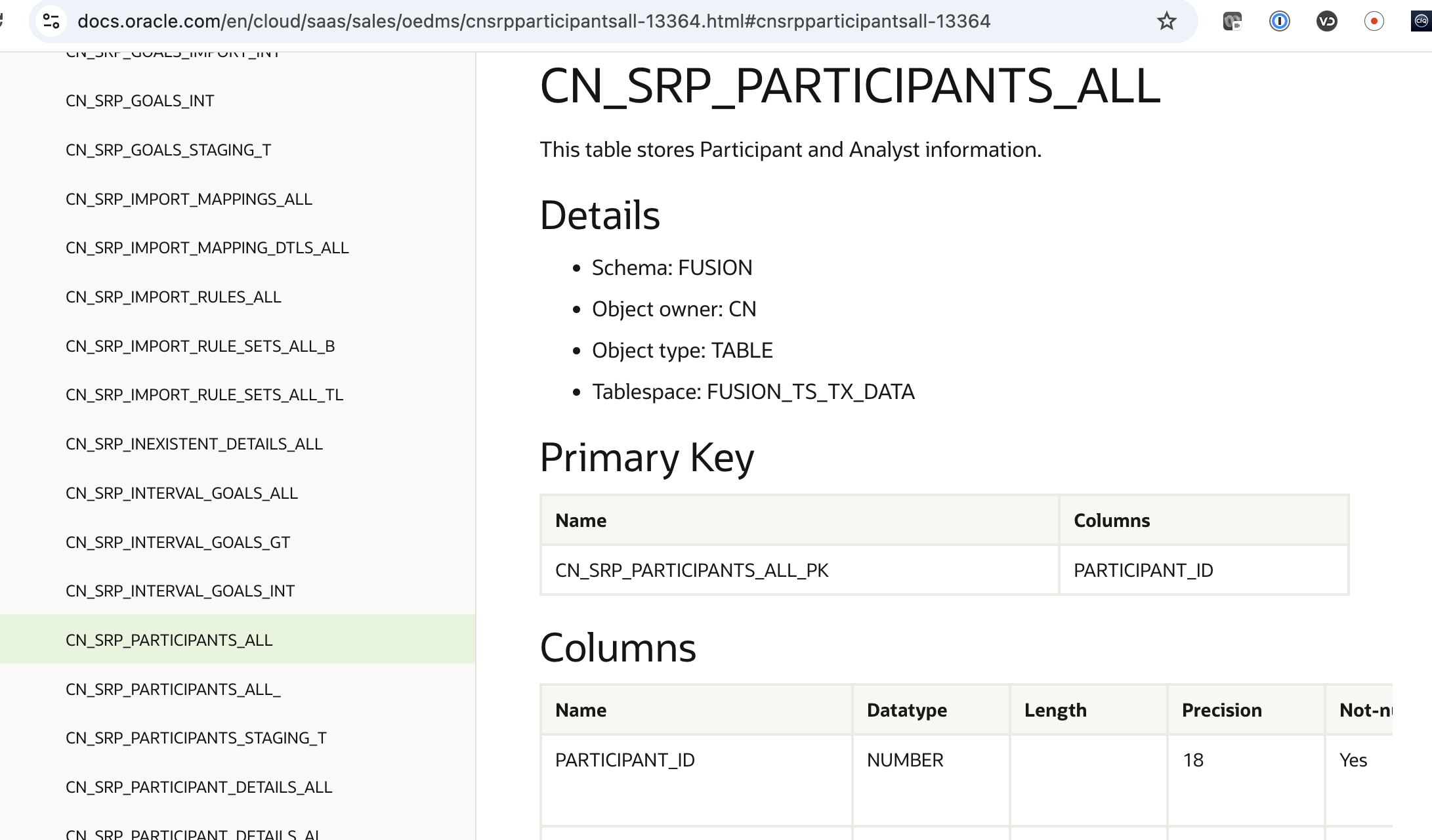
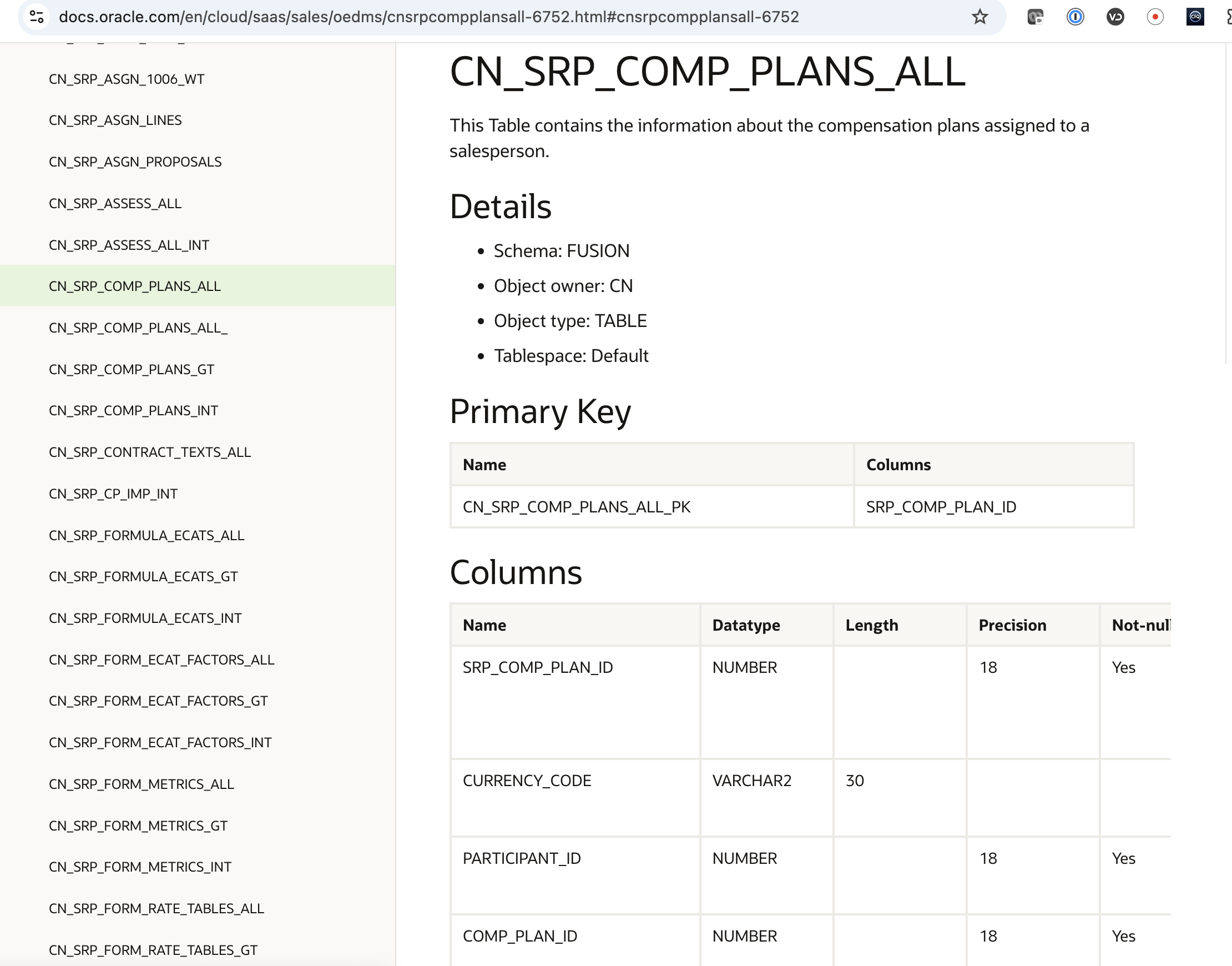
To join compensation plans and participants, we need to get to the table that stores the compensation plans assigned to a salesperson CN_SRP_COMP_PLANS_ALL
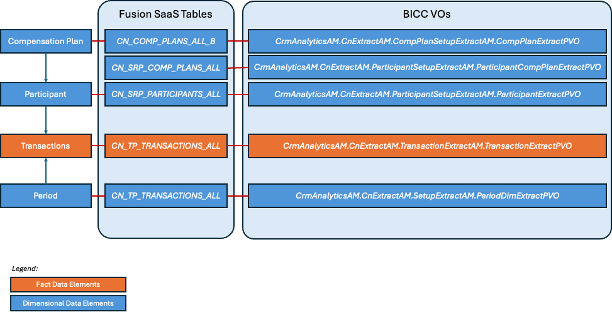
Following the same methodology as in the first example, we can design the following diagram that give us the mapping between our entities, the physical tables and the Incentive Compensation VOs
Figure 31: Incentive Compensation base transactions tables and BICC VOs
Fourth hint: When working with CX BICC VOs, filter the View Object name with “ExtractAM” to get to all VOs designed for bulk data extraction.
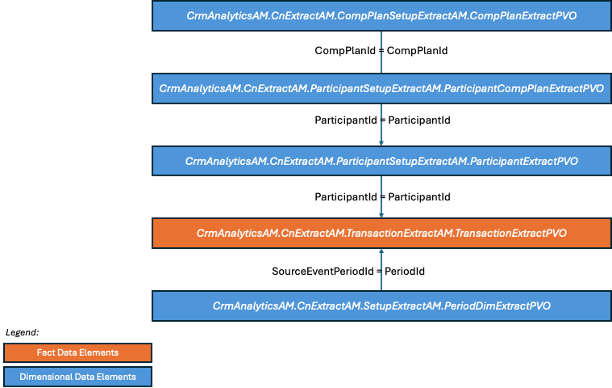
Again with the same approach as in the first example, we can identify the columns that will allow us to join the Incentive Compensation VOs once extracts
Figure 32: Incentive Compensation Base Transactions- VO joins
Let’s continue our adventure to a dangerous Mirkwood forest filled with spiders, goblins, and other perils.
The Lonely Mountain and Smaug – A Final Example – Extracting Flex Fileds
In Oracle Cloud Applications, flexfields are used to capture additional data that isn’t part of the standard application schema. They provide a way to customize applications without programming. There are three main types of flexfields:
Descriptive Flexfields (DFFs) allow you to capture additional information not already tracked in the base application.
They can be used to add extra fields to a page or form for supplemental data entry. DFFs can be made context-sensitive, so different fields show up depending on conditions. They can include data security, validation, and default values.
Example: On a supplier record, you might add a DFF to track the supplier’s certification expiry date.
Key Flexfields (KFFs) represent key information (usually identifiers or codes) composed of multiple segments.
They are commonly used in financial and enterprise structures and can be used to define composite keys, often for charts of accounts, asset categories, etc. KFFs support segment validation, hierarchical structures, and security.
Example: General Ledger Chart of Accounts is a classic use of a KFF, with segments like Company, Cost Center, Account, etc.
Extensible Flexfields (EFFs) are used for complex custom attributes on entities like items, products, or employees.
They can capture structured, object-like data that needs to scale or vary across business contexts. EFFs Provide a hierarchical or grouped structure and support multiple contexts and categories, making them flexible and reusable. They are often displayed as part of a dynamic UI component.
Example: For a product item, an EFF might track technical specifications like voltage, material type, or warranty period, varying by product category.
The following steps will cover DFFs and KFFs. EFFs will be part a subsequent article
The table below decribes a few example by module with flexfiled usage and examples:
Flexfield Type
Use Case
Module
Example Attributes
DFF
Track visa expiration date for employees
HCM
Visa Expiry Date
KFF
Define asset category structure
Fixed Assets
Region – Type – Category
EFF
Store vehicle specifications
Inventory / PIM
Engine Type, Fuel Efficiency, Transmission
Figure 33: Flexfied Comparison with Use cases
Extracting Descriptive Flex Fields
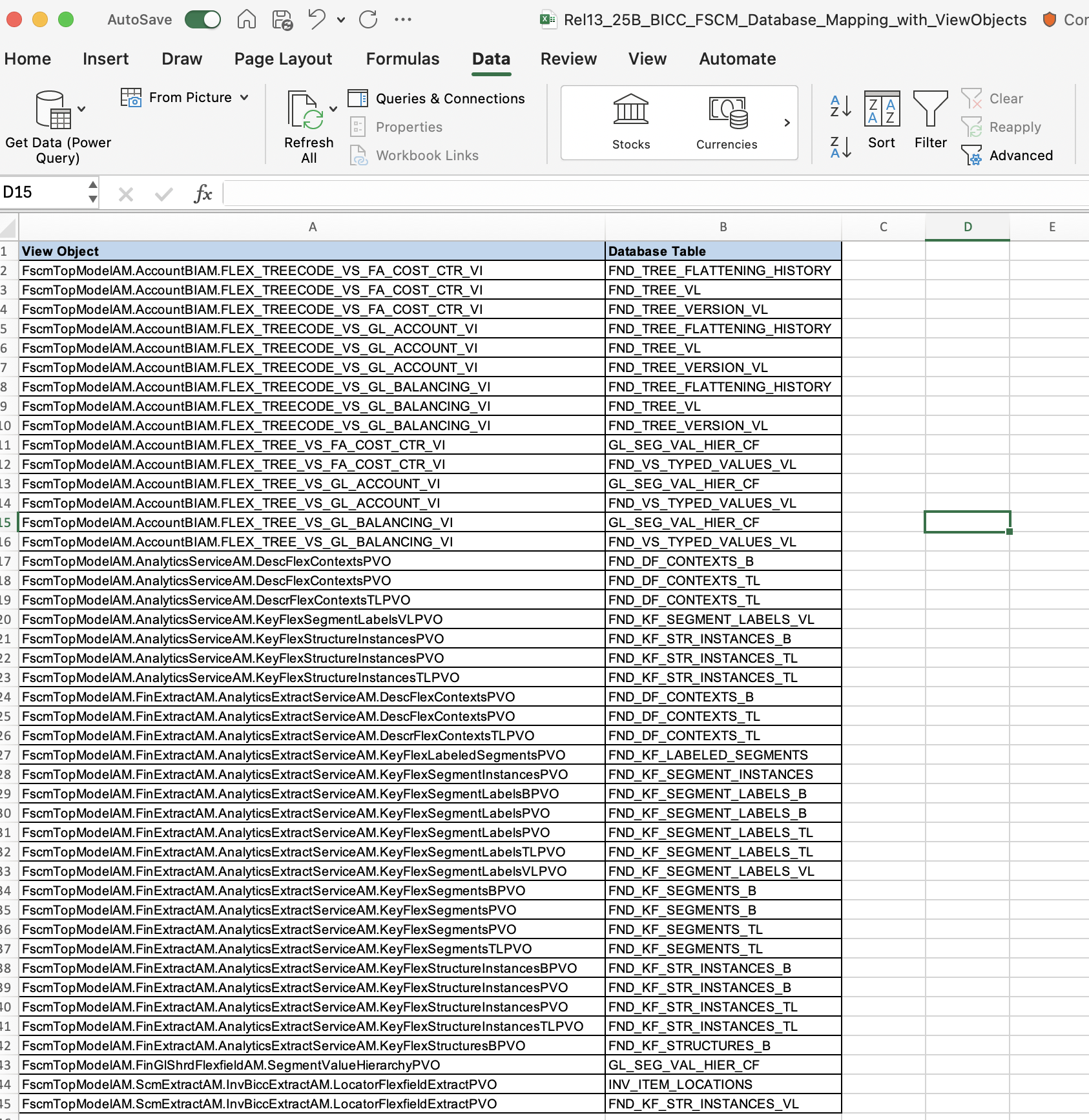
Follow this note on how to configure Descriptive Flex Fields (DFF) for Transctional Reporting. DFFs and EFFs are documented in the BICC Lineage document but finding them is not obvious. If you filter on VOs which name include “FLEX” or ends with “_IV”, you will find them.
Fifth hint: BICC VOs for DFFs have a name that contain “FLEX” or ends with “_IV”
The following image is an example of the DFFs VOs for ERP
These DFF VOs are not automatically enabled for extract by default in BICC. In order to enable them, please follow the steps below:
1. Navigate to “Manage Offerings and Data Stores” 2. Select an offering, example Financial 3. Select the ‘+’ icon to Add a Data Store. 4. In the ‘Define Data Store’ screen, enter the information for the data store, such as: Data Store Key: FscmTopModelAM.JournalEntryLineFLEXBIAM.FLEX_BI_JournalEntryLineFLEX_VI Associated Offerings: You can associate the custom data store to one or more offerings 5. Click ‘Save’ 6. The data store will be brought up in the edit screen where data store details and/or columns can be customized 7. After making any changes click on ‘Done’
Extracting Key FlexField KFF
Follow this note on how to configure KEy Flex Fields (DFF) for Transctional Reporting.
The follow table desribes the supported Key Flex Fields
Product Area
Key Flexfield
Dimension
Fixed Assets
Category (CAT#)
Dim – Asset Category
Fixed Assets
Location (LOC#)
Dim – Asset Location
General Ledger
Accounting (GL#)
Dim – Balancing Segment
Dim – Cost Center
Dim – Natural Account
Payroll
Costing
Dim – Costing Segments
Supply Chain Management
Locator
Dim – Inventory Org
Supply Chain Management
Item Category
Dim – Item
Revenue Management
Pricing Dimensions (VRM)
Dim – VRM Segment
Budgetary Control
Budgeting (XCC)
Dim – XCC Segment
Figure 36: Supported KFFs
KFFs are documented in the BICC lineage document and the corresponding table name starts with FND_KF
Sixth hint: BICC VOs for KFFs have a name containing “KeyFlex” and have mapped database table names that starts with “FND_KF”
Below is an example of the BICC lineage document for ERP KFFs
Click here to sign up to the RSS feed to receive notifications for when new A-team blogs are published.
Summary
This blog post outlined how to access the most recent version of the BI Cloud Connector lineage documents—including those covering Flex Fields—and offered practical guidance and heuristics to help simplify navigation through the materials using straightforward logical principles by examples.
Bookmark this post to stay up-to-date on changes made to this blog as our products evolve.
Authors
Matthieu Lombard
Consulting Solution Architect
The Oracle A-Team is a central, outbound, highly technical team of enterprise architects, solution specialists, and software engineers.
The Oracle A-Team works with external customers and Oracle partners around the globe to provide guidance on implementation best practices, architecture design reviews, troubleshooting, and how to use Oracle products to solve customer business challenges.
I focus on data integration, data warehousing, Big Data, cloud services, and analytics (BI) products. My role included acting as the subject-matter expert on Oracle Data Integration and Analytics products and cloud services such as Oracle Data Integrator (ODI), and Oracle Analytics Cloud (OAC, OA For Fusion Apps, OAX).