
Introduction
This blog will help VBCS developers to quickly display the oracle fusion DFF (Descriptive Flexfield data) in VBCS page.
A Flexfield is a set of placeholder fields (segments) that is associated with a business object. Oracle Fusion Applications provides three types of Flexfields – descriptive, extensible, and key. A Flexfield is a flexible data field that your organization can customize to your business needs without programming.
Description
Steps involved in the DFF Data integration with VBCS Page.
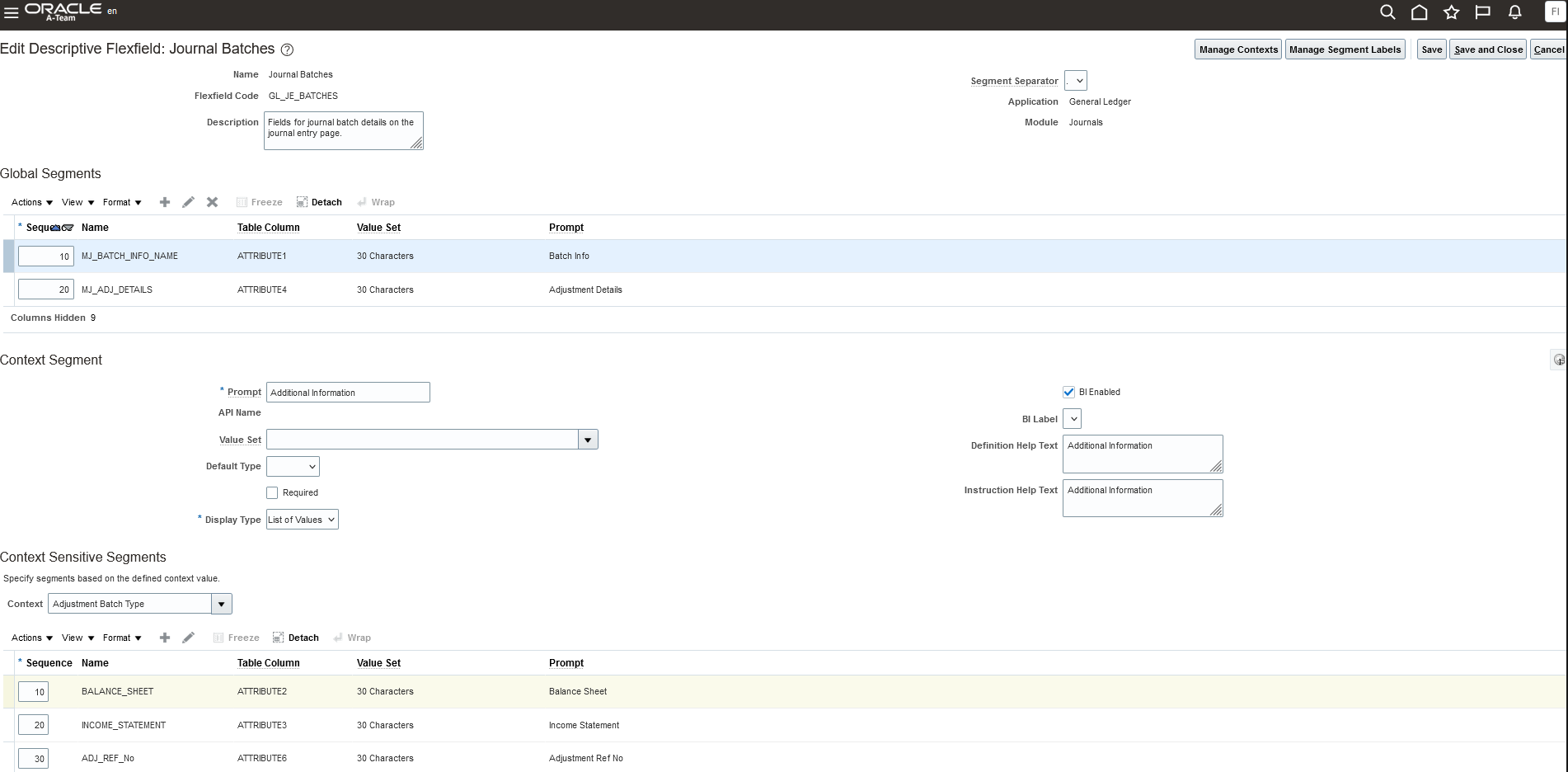
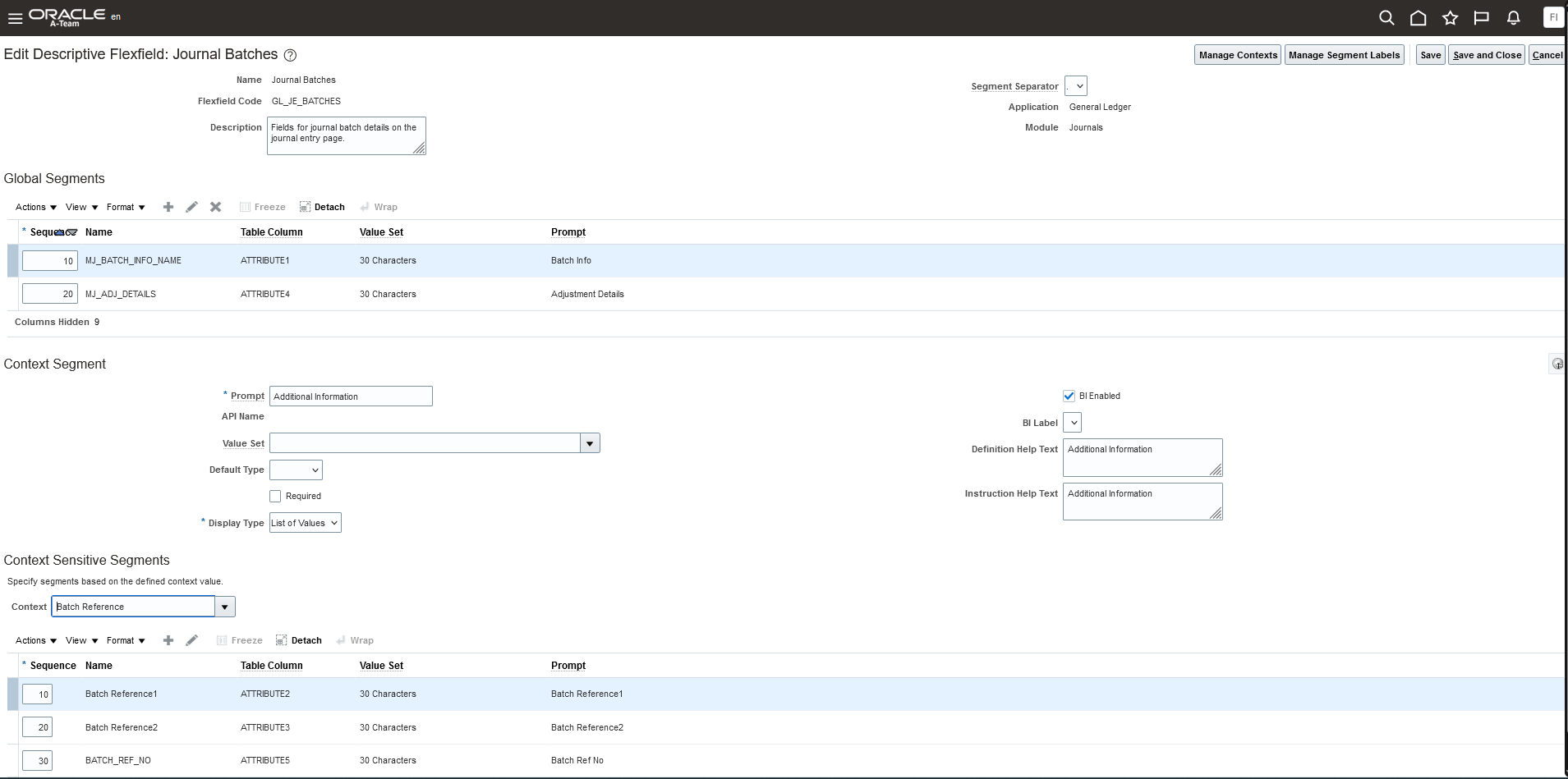
1. Enable and Define DFF in the Business Object as per the business requirement.
e.g : GL Journal Batch
A. Context : Adjustment Batch Type
B. Context : Batch Reference
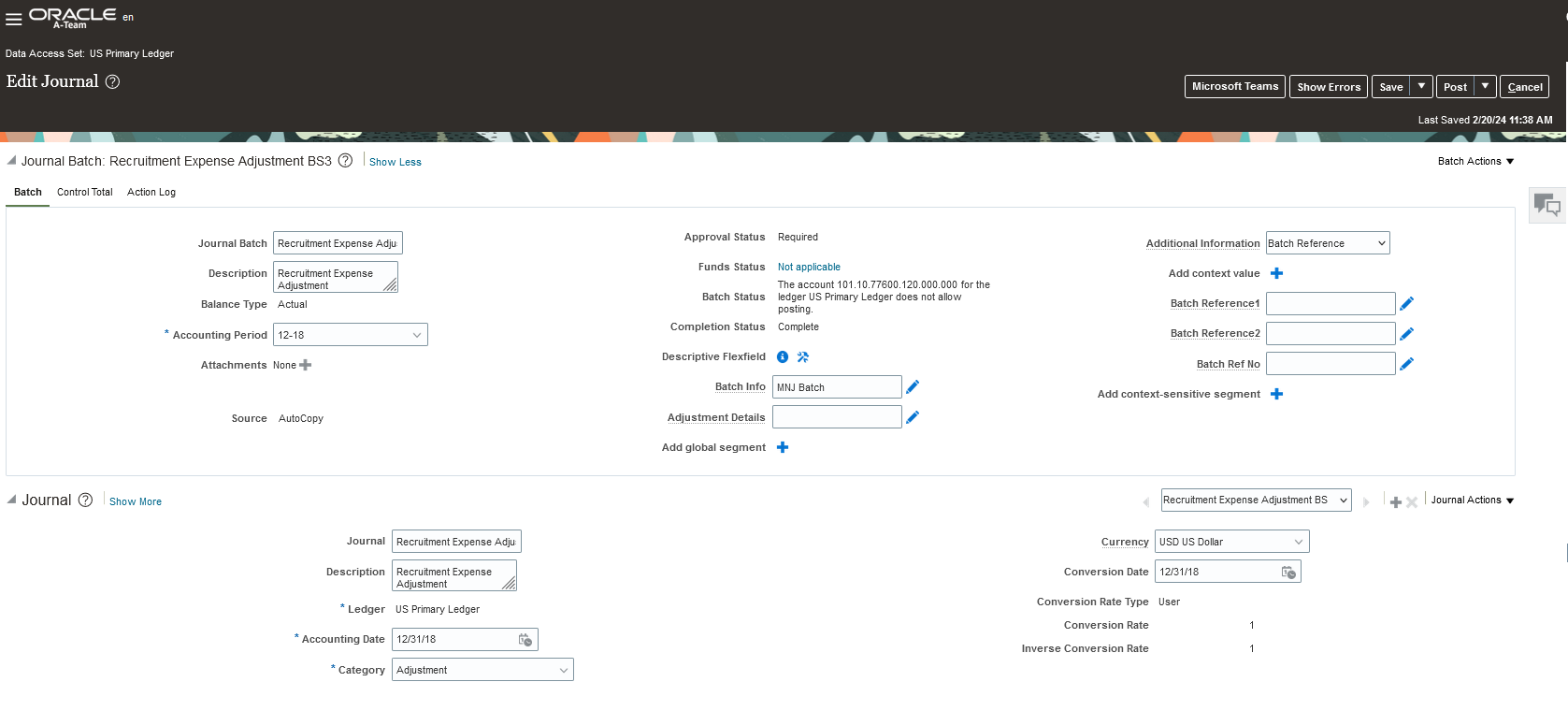
2. Enter the DFF data for the Journal Batches
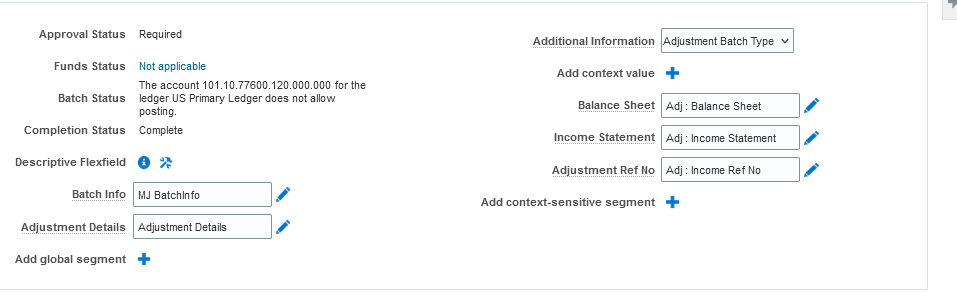
3. Create new application in VBCS and Integrate DFF
A. Design and Create Web Application
Design Page as per your requirement using panels, Dynamic tables and Flex Containers.
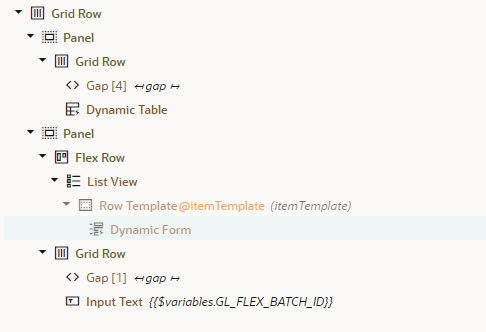
e.g : 1.Drag and Drop 2 Panels (Panel 1 and Panel 2) side by side as shown in the application design.
2. Drag and drop Dynamic table on top of Panel1.
3. Drag Flex Container right side panel (Panel1) where the flex fields data are going to be displayed based
on search or by clicking the panel 1 journal batch records.
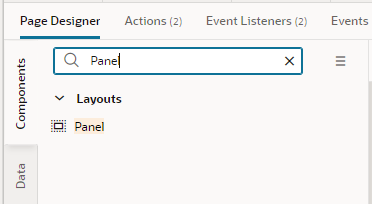
Component: Panel
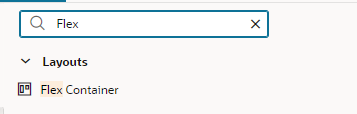
Component: Flex Container
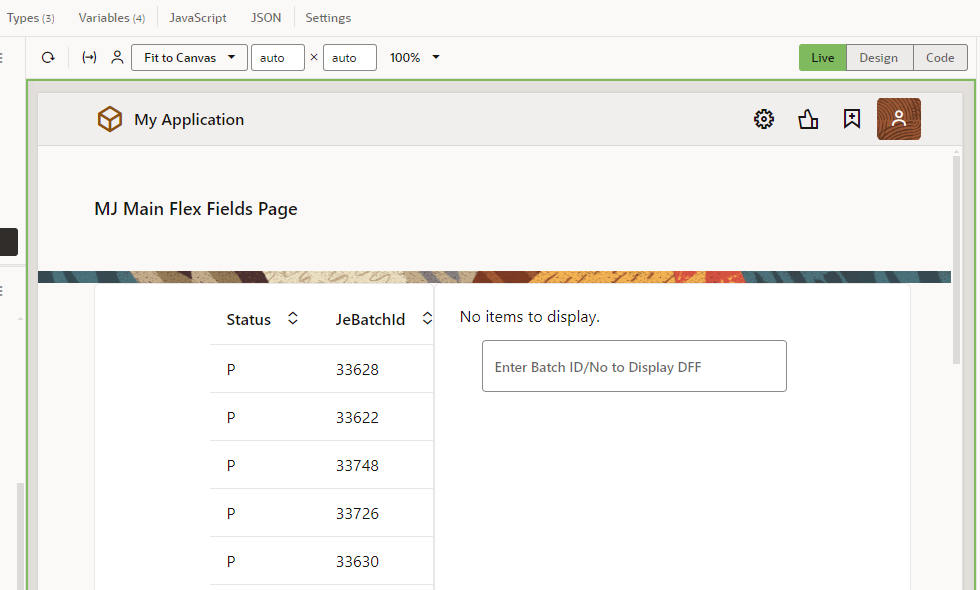
Application Design with limited fields for demo (Live)
Structure Details

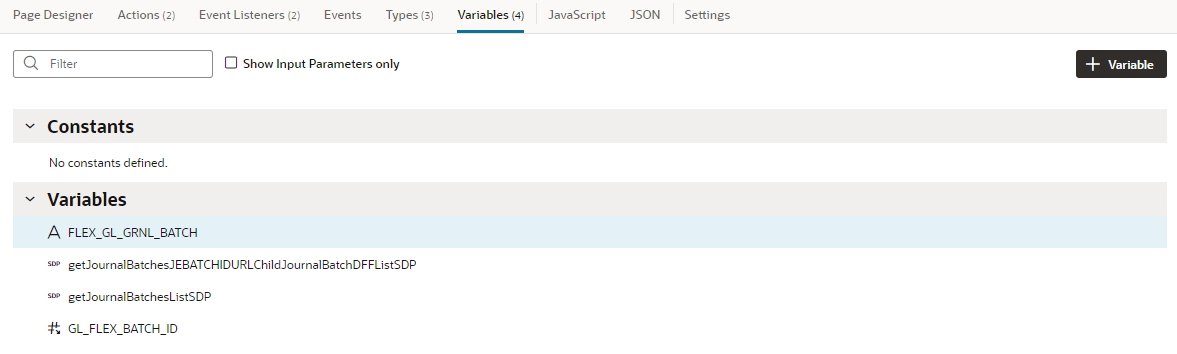
Please note that , I have created 2 variables
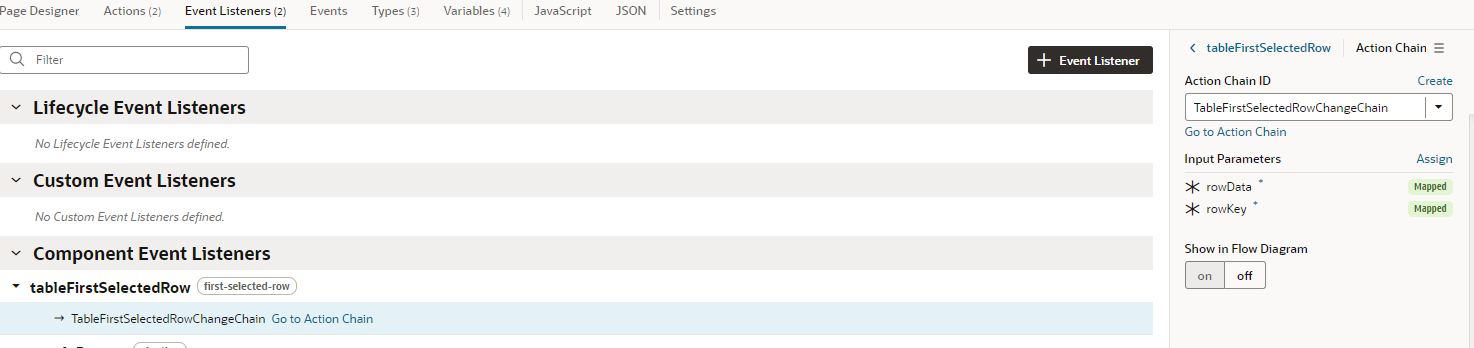
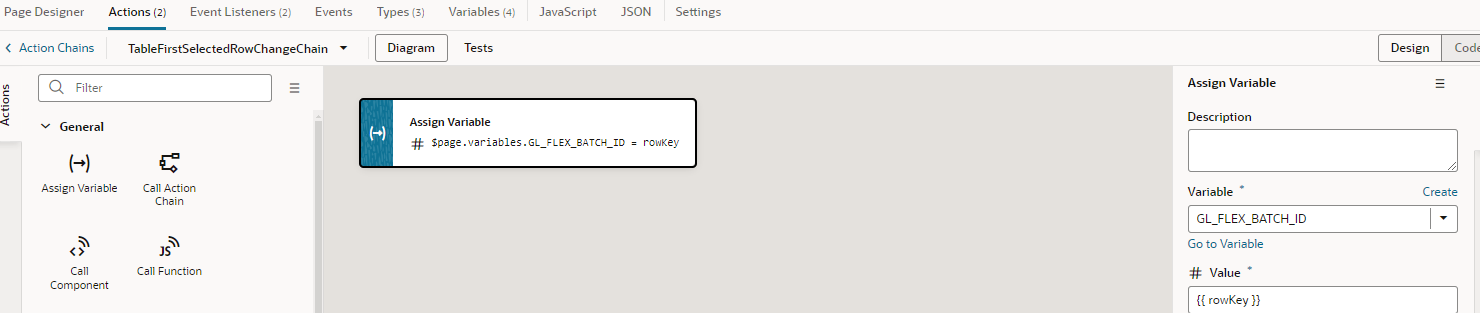
GL_FLEX_BATCH_ID : Scenario1 : This variable has the value from batch id from panel1 (Event: TableFirstSelectedRow) and pass the value to the DFF Rest API and get the journal DFF data and displayed in the panel 2. So, whenever user selects the journal data in the first panel , corresponding DFF data would be displayed in the panel2.
FLEX_GL_GRNL_BATCH : Scenario2 : This variable has the value from batch id from panel2(Text field : User entered value)and pass the value to the DFF Rest API URI and get the journal DFF data and displayed in the flex container of panel2.
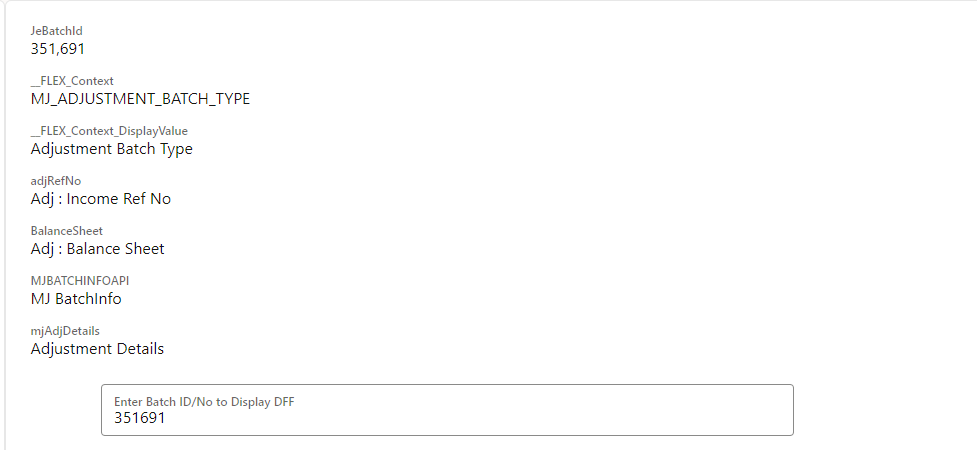
User enters the Batch ID data in the panel 2 text field and displays the corresponding journal DFF data in the panel2.
Variables
Events
TableFirstSelectedRow Event
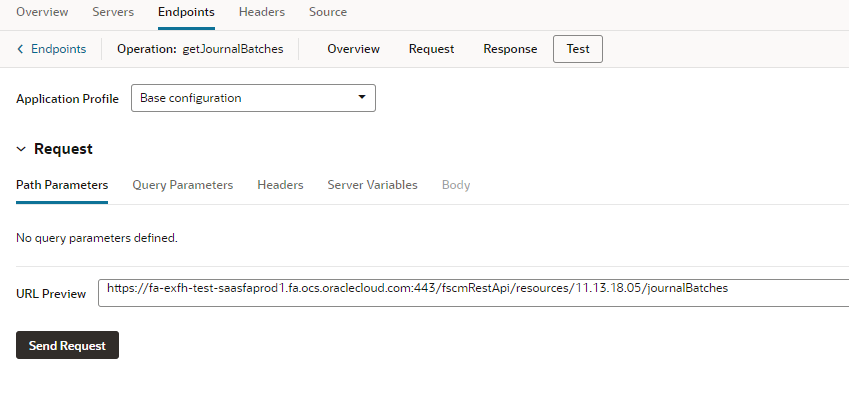
B. Create 2 Service connections : Get GL Journal Batches (Many) and Get Journal Batches DFF (Batch Id as URI parameter)
GL Journal Batches (SC1)
GL Batch Journal DFF URL (SC2)
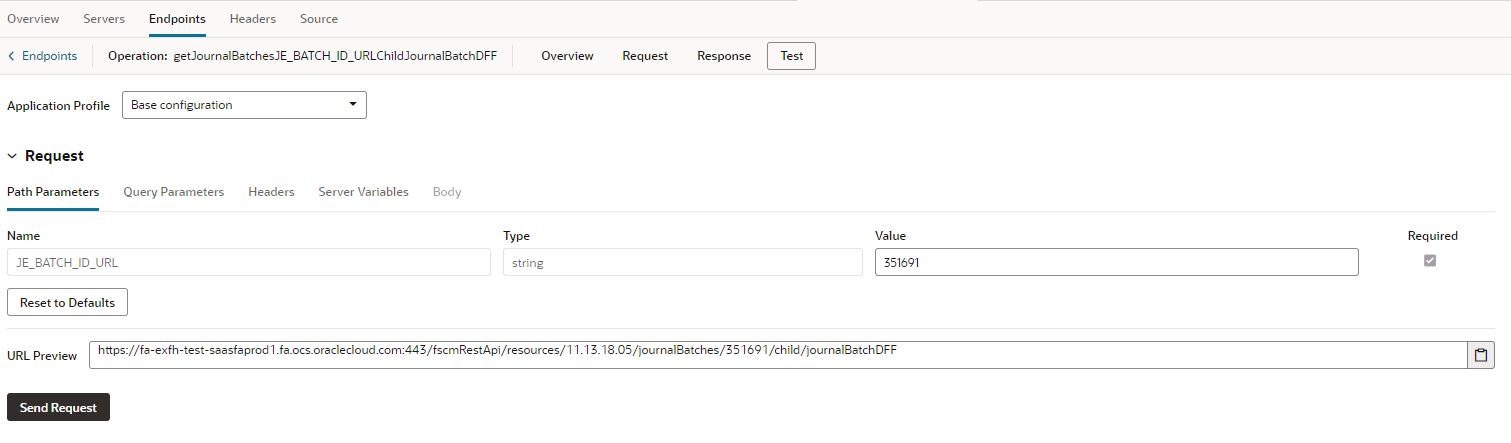
C. Drag and drop SC1 to panel1 and SC2 to panel2 and map the GL_FLEX_BATCH_ID
Page Java Script
  {
  "title": "main flex page",
  "description": "",
  "variables": {
    "FLEX_GL_GRNL_BATCH": {
      "type": "string"
    },
    "getJournalBatchesJEBATCHIDURLChildJournalBatchDFFListSDP": {
      "type": "vb/ServiceDataProvider",
      "defaultValue": {
        "endpoint": "MJ_GETJNRNL_DFF/getJournalBatchesJE_BATCH_ID_URLChildJournalBatchDFF",
        "keyAttributes": "JeBatchId",
        "itemsPath": "items",
        "responseType": "getJournalBatchesJEBATCHIDURLChildJournalBatchDFFResponse2",
        "uriParameters": {
          "JE_BATCH_ID_URL": "{{ $variables.GL_FLEX_BATCH_ID }}"
        }
      }
    },
    "getJournalBatchesListSDP": {
      "type": "vb/ServiceDataProvider",
      "defaultValue": {
        "endpoint": "MJGetJournalBatches/getJournalBatches",
        "keyAttributes": "JeBatchId",
        "itemsPath": "items",
        "responseType": "getJournalBatchesResponse"
      }
    },
    "GL_FLEX_BATCH_ID": {
      "type": "number",
      "input": "fromCaller",
      "required": false
    }
  },
  "metadata": {
    "mJGETJNRNLDFFGetJournalBatchesJEBATCHIDURLChildJournalBatchDFFMetadata": {
      "type": "vb/DynamicLayoutMetadataProviderDescriptor",
      "defaultValue": {
        "endpoint": "MJ_GETJNRNL_DFF/getJournalBatchesJE_BATCH_ID_URLChildJournalBatchDFF",
        "metadataPath": "items"
      }
    },
    "mJGetJournalBatchesGetJournalBatchesMetadata": {
      "type": "vb/DynamicLayoutMetadataProviderDescriptor",
      "defaultValue": {
        "endpoint": "MJGetJournalBatches/getJournalBatches",
        "metadataPath": "items"
      }
    }
  },
  "types": {
    "@decorators.getJournalBatchesJEBATCHIDURLChildJournalBatchDFFResponse": {
      "endpoint": "getJournalBatchesJE_BATCH_ID_URLChildJournalBatchDFF",
      "service": "MJ_GETJNRNL_DFF",
      "path": "response"
    },
    "@decorators.getJournalBatchesJEBATCHIDURLChildJournalBatchDFFResponse2": {
      "endpoint": "getJournalBatchesJE_BATCH_ID_URLChildJournalBatchDFF",
      "service": "MJ_GETJNRNL_DFF",
      "path": "response"
    },
    "@decorators.getJournalBatchesResponse": {
      "endpoint": "getJournalBatches",
      "service": "MJGetJournalBatches",
      "path": "response"
    },
    "getJournalBatchesJEBATCHIDURLChildJournalBatchDFFResponse": {
      "items": "object[]"
    },
    "getJournalBatchesJEBATCHIDURLChildJournalBatchDFFResponse2": {
      "items": "object[]"
    },
    "getJournalBatchesResponse": {
      "items": "object[]"
    }
  },
  "eventListeners": {
    "tableFirstSelectedRow": {
      "chains": [
        {
          "chain": "TableFirstSelectedRowChangeChain",
          "parameters": {
            "rowKey": "{{$event.detail.value.key}}",
            "rowData": "{{$event.detail.value.data}}"
          }
        }
      ]
    },
    "toggleDrawer": {
      "chains": [
        {
          "chain": "application:toggleDrawerHandler"
        }
      ]
    }
  },
  "imports": {
    "components": {
      "oj-button": {
        "path": "ojs/ojbutton"
      },
      "oj-dyn-form": {
        "path": "oj-dyn/form/loader"
      },
      "oj-dynamic-table": {
        "path": "oj-dynamic/table/loader"
      },
      "oj-input-text": {
        "path": "ojs/ojinputtext"
      },
      "oj-list-item-layout": {
        "path": "ojs/ojlistitemlayout"
      },
      "oj-list-view": {
        "path": "ojs/ojlistview"
      }
    }
  }
}
4. Run the application to see the DFF output based on the batch ID
Click on Journal batch record which is not linked to any DFF data.
Journal Batch records without DFF Data
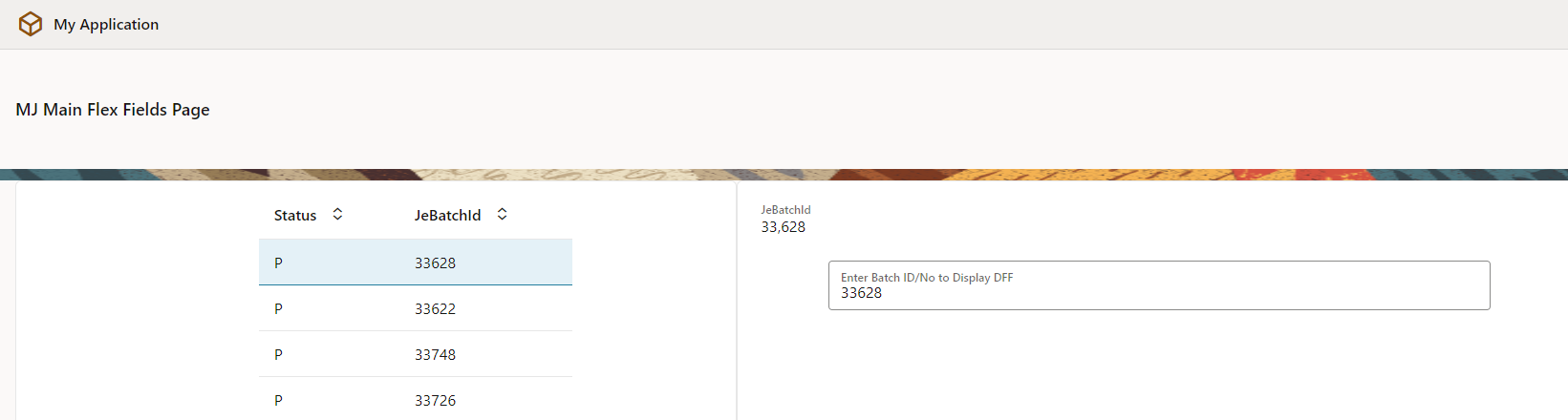
Click on Journal batch record which is not linked to any DFF data.
Enter the batch ID in the text field which has DFF Data : Flex container expands as per the DFF data setup dynamically
and displays the data.
Conclusion
In this post, I have displayed the data related to the DFF in VBCS and the same logic can be used for the other flexfields.