
How-Tos : Oracle Fusion Applications Expense Bot
Introduction
Oracle Fusion Application is a complete cloud suite of SaaS applications bringing consistent processes and a single source of truth across the most important business functions—from enterprise resource planning, supply chain management, and human capital management to advertising and customer experience. Oracle Fusion ERP Financials is a suite of applications within Oracle Fusion Application that provides complete finance and accounting solution for growth and innovation. Oracle Fusion Expense is one such application of Oracle Fusion ERP Financials that helps with expense management that includes capturing and submitting expenses, which can involve: submitting reimbursement claims, approving, or denying those claims, scheduling the claims for payment, and, finally, reimbursing the employee.
Oracle Digital Assistant (ODA) is PaaS cloud service that delivers a complete AI platform to create conversational experiences for business applications through text, chat, and voice interfaces. Oracle Fusion Apps Digital assistant (FA DA) provides the digital assistant capabilities for Oracle Fusion Applications and is built on ODA.
Oracle Fusion Expense Skill (Expense Bot) within the FA DA that lets you create, submit, manage, and attach expenses using a conversational experience. This blog will go over some common How-Tos while implementing Expense Skill.
How-Tos
- How to extend an Oracle Fusion Expense Skill?
Even before we learn about how to extend an Expense Skill, let’s talk about why one would need to extend Expense Skill. Expense Skill come with many out-of-box functionality for creating, updating, and submitting expense. However, in many scenarios the oracle-delivered skill may not be sufficient to the customer requirements and the skill may need to be modified to specific features, processes, terminologies, and culture. This is where extending the skill and adding customer-specific requirements comes in handy. Extensibility can be defined as the augmentation of existing resources/artifact of a skill.
To extend the Expense Skill, it is recommended to –
First: Extend the FA DA
For this this –
- Sign into Oracle Digital Assistant using your SSO credentials. (this is not Oracle Fusion UI)
- Drop down the top menu and then click More
- Click Extend
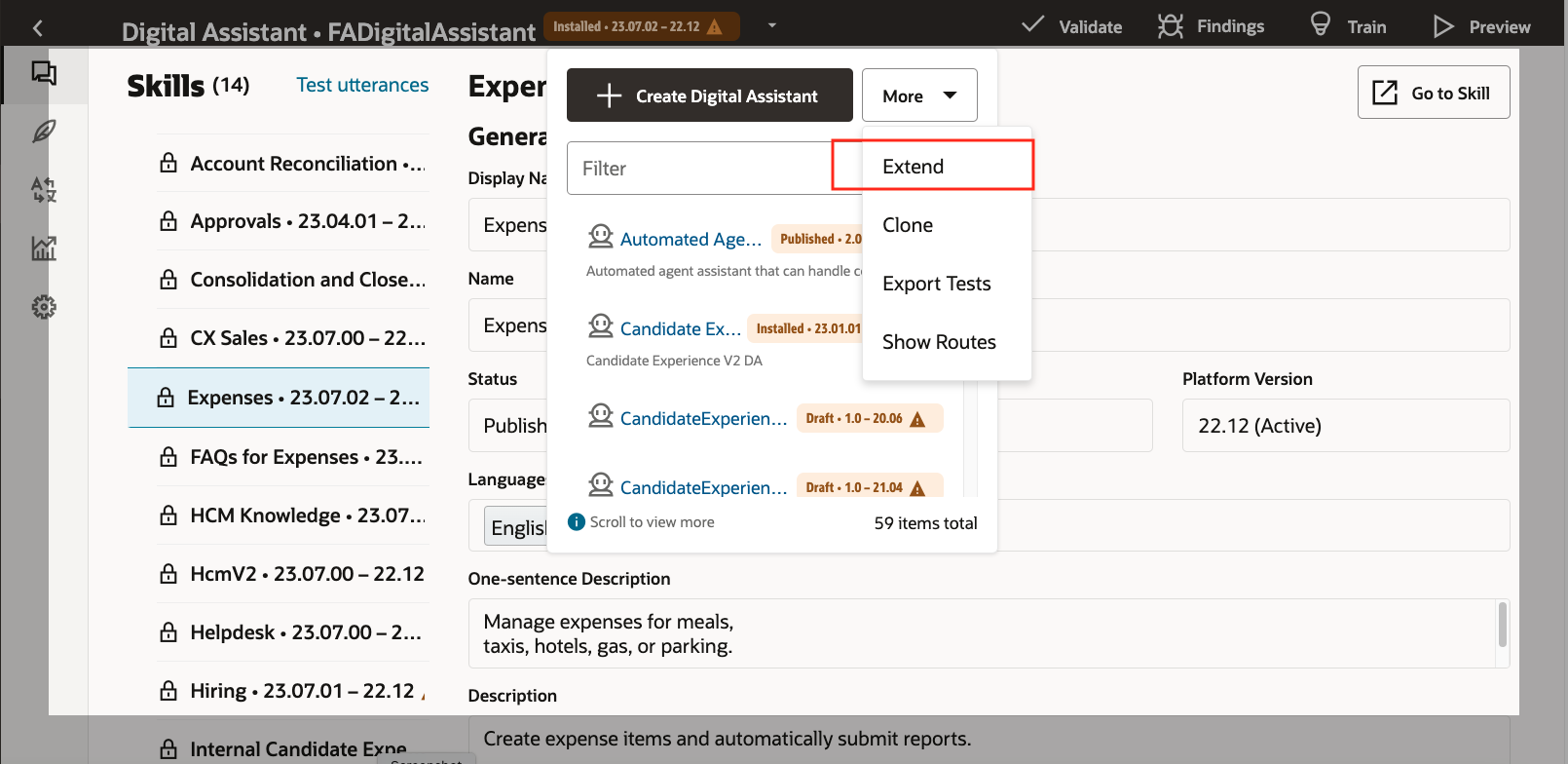
- Give a proper name and click Extend
Second: Extend the Expense Skill within FA DA
- To extend the skill, click on the skill and drop down the top menu and then click More
- Click Extend
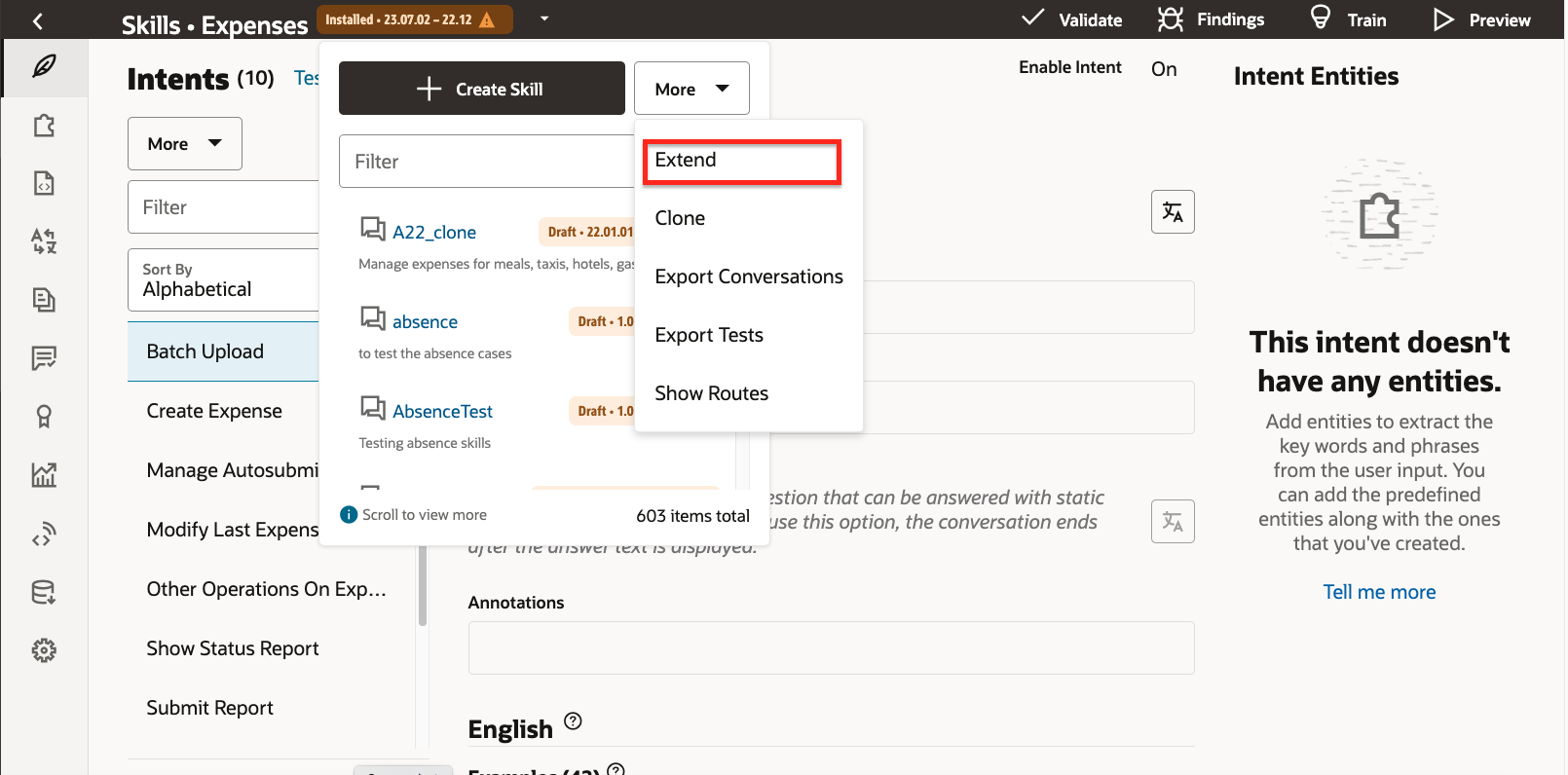
- Provide a name for the extended skill and click “Extend”
- Now add the skill to the extended Digital Assistant. To do this click on the extended Digital Assistant
- Click on the expense skill, so click on “Expenses .xx.xx.xx”
- Now click on “Update Skill” and choose the extended skill that you created in the previous step.
Additional information may be found in the documentation here – https://docs.oracle.com/en/cloud/paas/digital-assistant/use-chatbot/extending-skills2.html#GUID-F442AD6C-4A2B-4A39-9990-724B59FEA119
- How to adjust the number of Expense Types displayed on Expense Bot?
When creating an expense, the Expense Bot lists the expense type against which the expense needs to be created. For example, let’s take this flow –
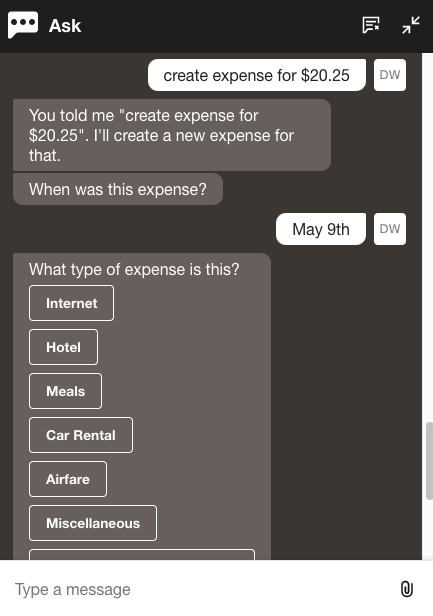
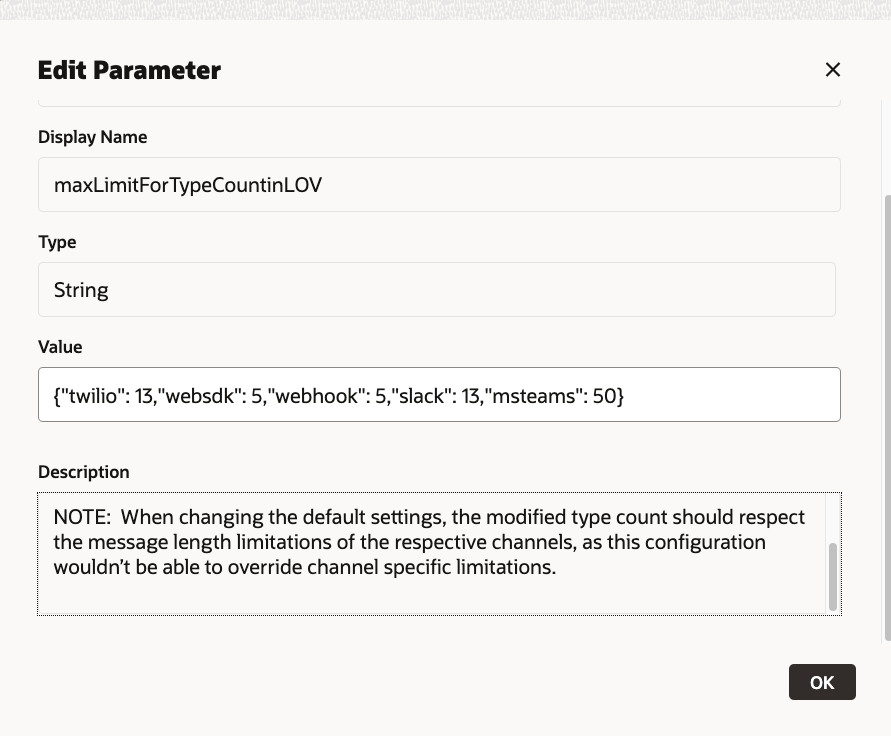
As you can see, the Expense Bot lists the expense types – Internet, Hotel, Meals etc. Is there a way to control how to many expense types are displayed here? Sure, there is a way, and this can be done using a skill variable called “maxLimitForTypeCountinLOV”. This variable has all channels listed and has default number against each channel. To get to the skill variable one must use the Oracle Digital Assistant UI and not the Fusion UI.
- How to add an Expense Type to display and render that particular Expense Type to top of Expense Type listing?
You can use the variable “preferredTypesForCategories”. This is a Skill variable to push valid expense types to the top of the Type prompt LOV based on the type of category code extracted. When no category code is extracted from user input, the valid types listed under “DEFAULT” will be pushed to the top of type LOV, for prompting the expense type.
Based on requirements, please add the valid expense types mapped to their correct category code and ensure that the types provided are listed under quotes, separated by commas.
Example:
Say if we want to see the valid type “Meals” and “Meals – Employee(s) Only” showing up in the top of the type of prompt LOV, when the category code extracted from user input is Meals, then Please make the change as follows:
“MEALS”:[“Meals”,”Meals – Employee(s) Only”]
So that the final value for the skill variable will be:
{“ACCOMMODATIONS”:[],”AIRFARE”:[],”CAR_RENTAL”:[],”ENTERTAINMENT”:[],”MEALS”:[“Meals”,”Meals – Employee(s) Only”],”MISC”:[],”DEFAULT”:[]}
- How to modify last created expense?
User can modify the last created expense line from the Expenses skill if the following conditions are met-
- The expense line which is to be modified should be created from Expenses Skill.
- The expense line which is to be modified should be in the work area (It should not have got auto submitted)
If any of the above conditions are not met, then the user won’t be able to modify the expense line.
- How to configure session timeout of the Expense Skill?
- Sign into Oracle Digital Assistant using your SSO credentials.
- From the Navigator, select Development > Channels.
- Click on the channel for which timeout must be updated.
- How attach a PDF expense attachment?
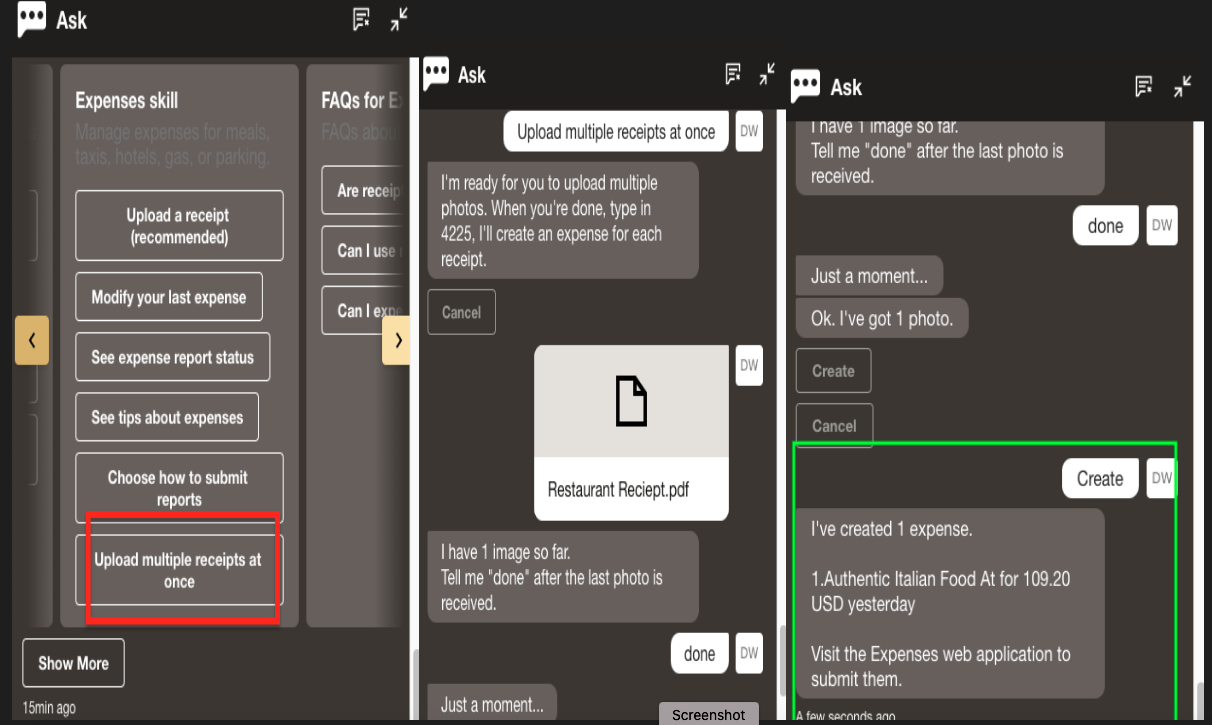
The Expense skill can take both picture and PDF as attachments to create an expense line. While picture is a simple drag and drop and the bot understands to create an expense line. However, for the PDF receipts there are some nuances.
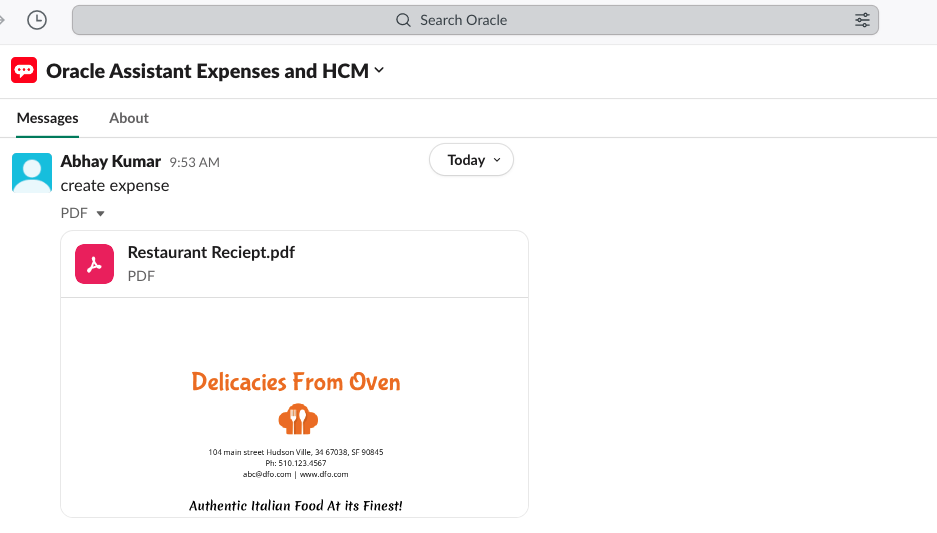
Slack and MS Teams:
PDF receipts using Slack and MS Teams channels, should be send with both text (like “create expense”) and PDF attachment in a single message for the expense line to be created.
WebSDK/Fusion UI:
Using a WebSDK channel that is used by the digital assistant widget within Fusion UI, to create expense line with PDF receipt use the “Upload multiple receipts at once” selection provided by the Bot.
The above the current functionality and can change in future releases.