
Introduction
Oracle Fusion Cloud Applications REST APIs can be invoked with various authentication standards:
- Basic authentication over SSL (Secure Socket Layer), which extracts the user name and password credentials from the HTTP header.
- SAML 2.0 bearer token in the HTTP header over SSL , which extracts a SAML 2.0 bearer assertion (XML security token).
- JWT in the HTTP header over SSL, which extracts the user name from the JWT .
The Bearer JWT token can be a Fusion Token, or an Oracle Identity and Access Management (IAM) / Oracle Identity Cloud Service (IDCS) token or any token that meets Fusion requirements (wrt sub, aud, iss etc claims) and for which the certificate has been imported.
However, if your organization uses Microsoft Entra ID (previously known as Microsoft Azure AD) as Authentication Server, you cannot directly use the token issued by MS Entra ID to call Fusion REST APIs as it does not meet Fusion requirements.
In this article, we will discuss how you can use the JWT Assertion Grant Type to exchange an MS Entra ID token for an Oracle IAM token and then invoke Fusion REST APIs without authenticating directly against Oracle IAM or Fusion.
Flow Diagram and Description
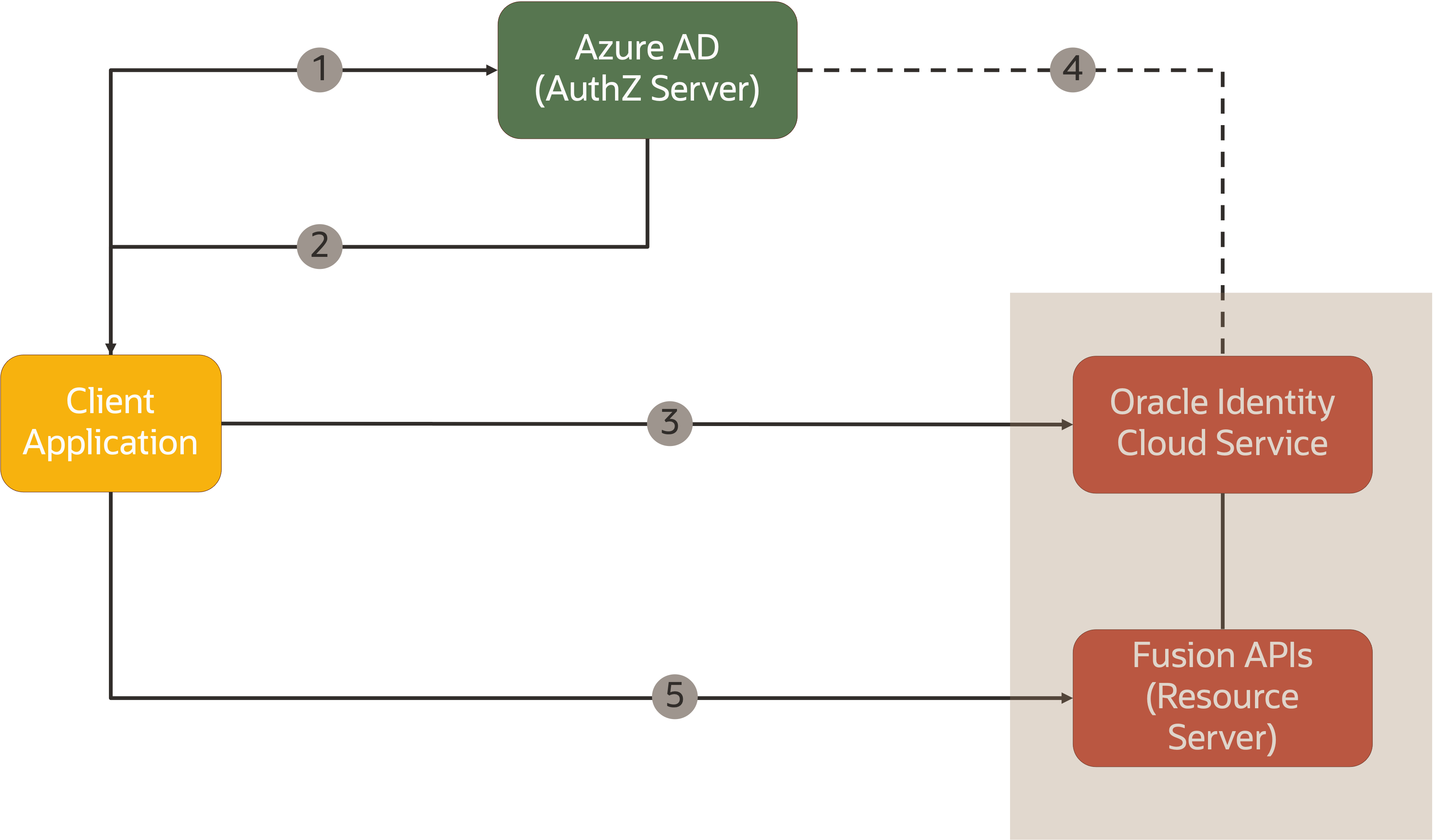
- Client application initiates a client credential flow using the client id and secret key provided by MS Entra ID
- MS Entra ID returns a JWT token to the client application
- The client application uses this token and calls Oracle IAM to exchange the token using the JWT Assertion Grant Type flow
- Before exchanging the token, Oracle IAM validates the token with MS Entra ID and then sends a new token to the client application.
- Client Application invokes the Oracle APIs using the Oracle IAM token.
Configuration Steps
There are some configuration steps required in MS Entra ID, Oracle IAM and Oracle Fusion Cloud Applications.
MS Entra ID
There are 2 steps required on MS Entra ID:
1. Register the Client Application in MS Entra ID and store its Client ID and Client Secret. This step enables the client application to request and receive an access token using the Client Credentials Grant Type
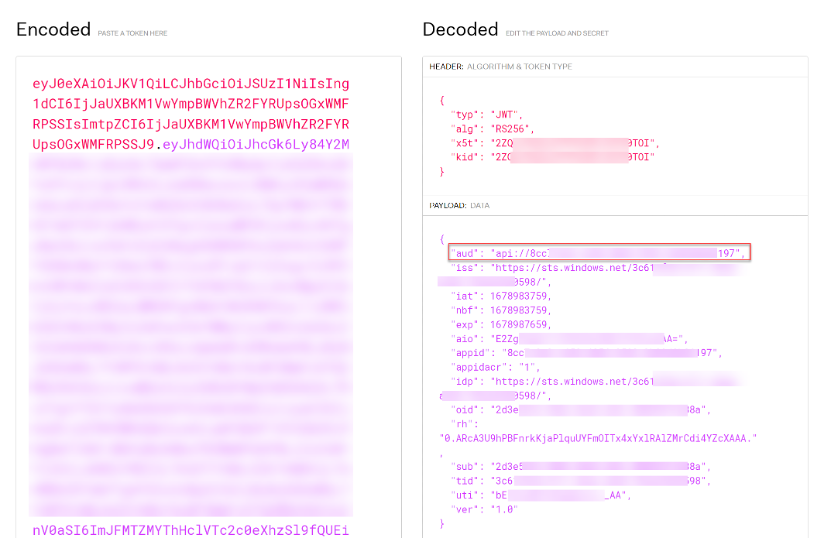
2. If you want to import the MS Entra ID signing certificate directly in the Oracle IAM Confidential Application later on make sure the kid value in the MS Entra ID token is alphanumeric and does not have any special characters. This can be done by decoding the token (see below). If the kid has non-alphanumeric characters, then you need to find a kid which only has alphanumeric characters from the JWK URL and use it. The steps to do so is documented by Microsoft and is outside the scope of this article. Alternatively you can upload the MS Entra ID signing certificates in the Oracle IAM identity domain’s “Trusted partner certificates” page (under the OCI IAM Settings tab) which accepts kid values with non-alphanumeric/special characters. Those “trusted partner certificates” will be used as well for checking the MS Entra ID user assertion.
Oracle Identity and Access Management (IAM)
- Configure Confidential Application in Oracle IAM. This application will act as Fusion OAuth Client. It will be configured to use JWT Assertion Grant Type so that it can exchange an MS Entra ID token for an IAM token.
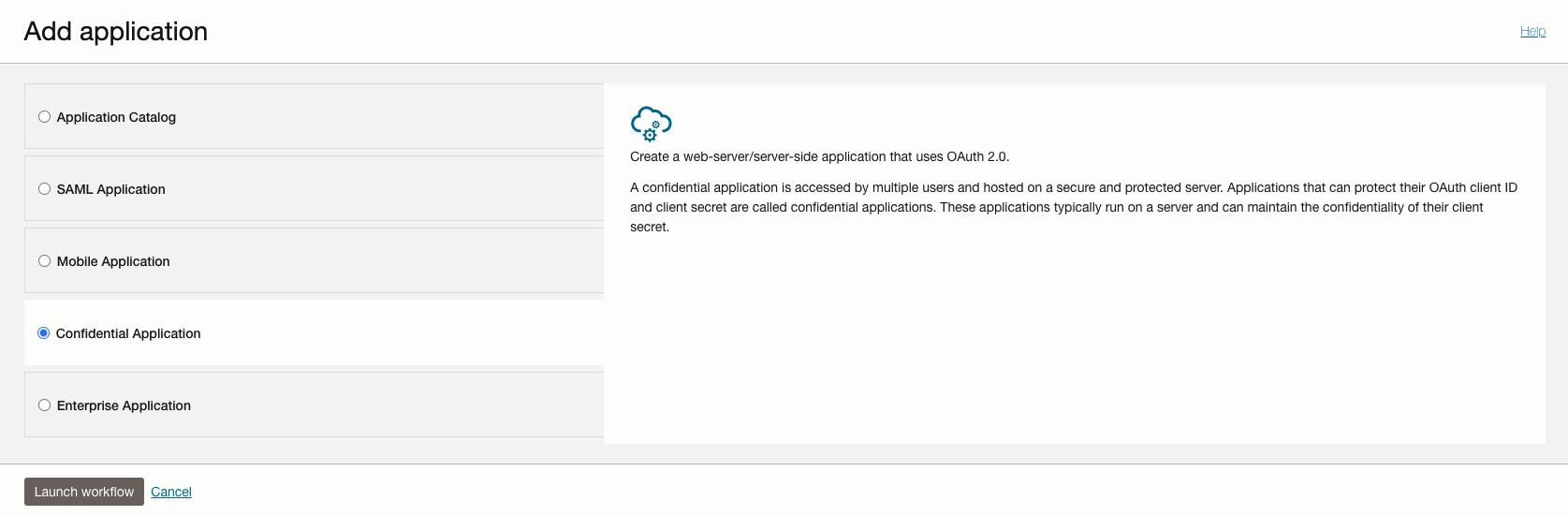
In Oracle IAM add Application. Select Confidential Application and add the App details and click Next button to add the Client details
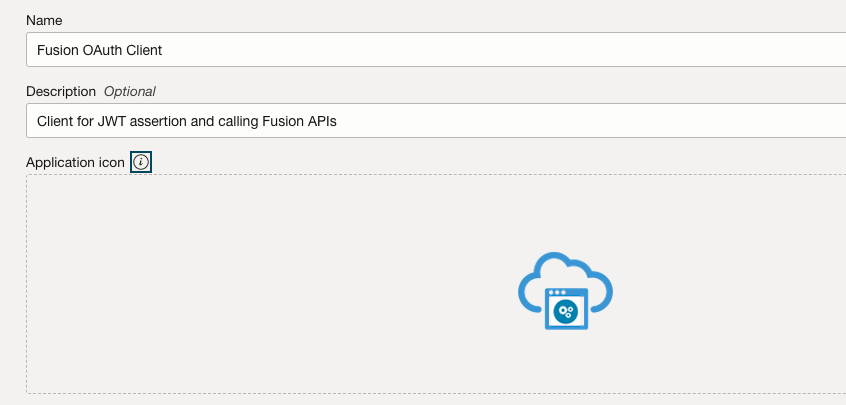
-
Select “Configure this application as a client now”. Enable JWT Assertion in the Allowed Grant Types section. If you want to import the MS Entra ID signing certificate directly in the Oracle IAM Confidential Application enable “Trusted Client” and import the MS Entra ID public certificate in the Security section. Here the certificate alias value need to be set to the kid value of the JWT token issued by MS Entra ID. Please note that the alias value entered here only accepts alphanumeric characters. Alternatively you can leave the client type in the Oracle IAM Confidential Application to “Confidential” and upload the MS Entra ID signing certificates in the Oracle IAM identity domain’s “Trusted partner certificates” page (under the OCI IAM Settings tab) which accepts kid values with non-alphanumeric/special characters. Those “trusted paterner certificates” will be used as well for checking the MS Entra ID user assertion.
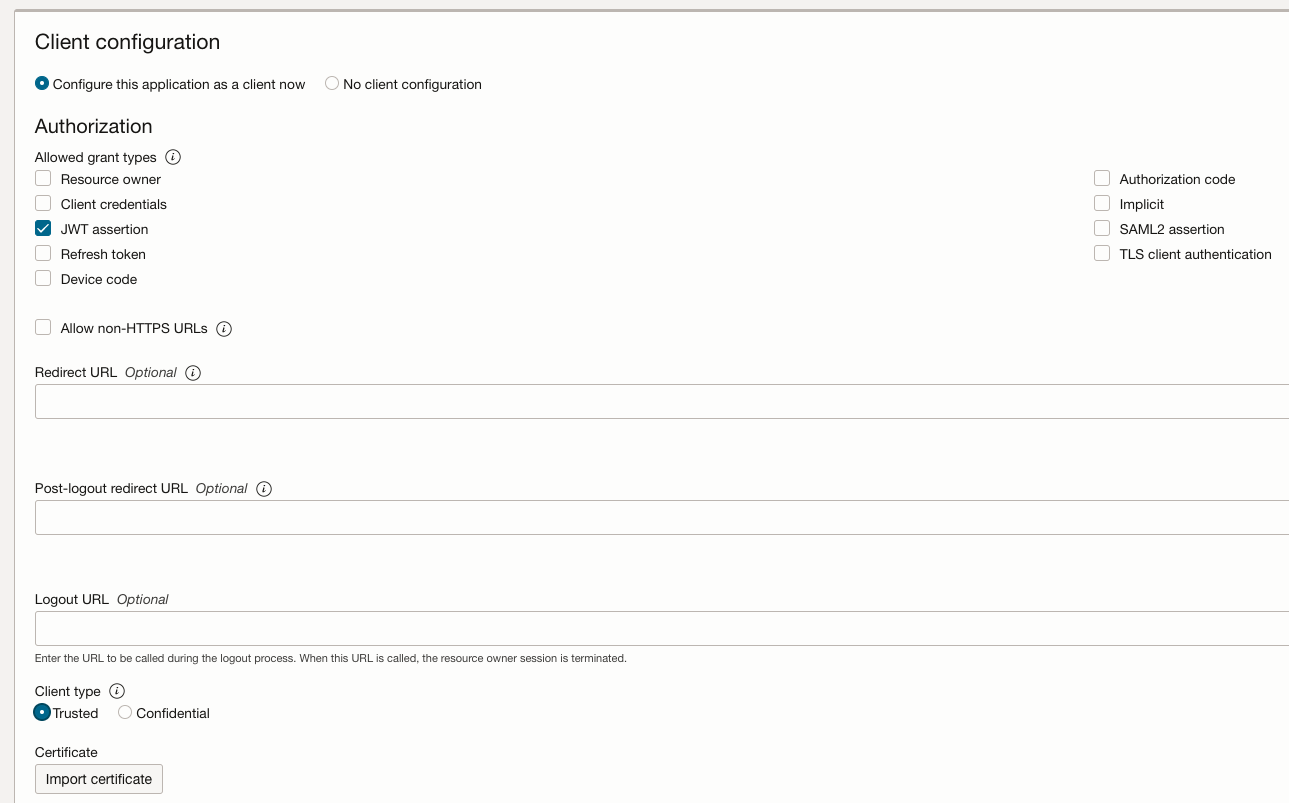
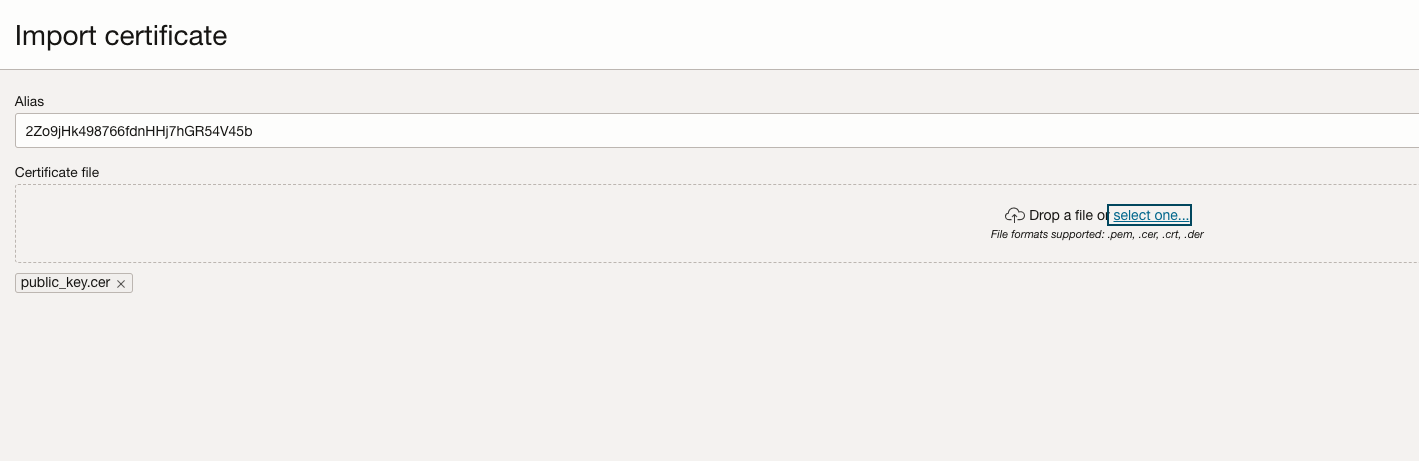
-
Add Oracle Fusion Application resource to the Scope
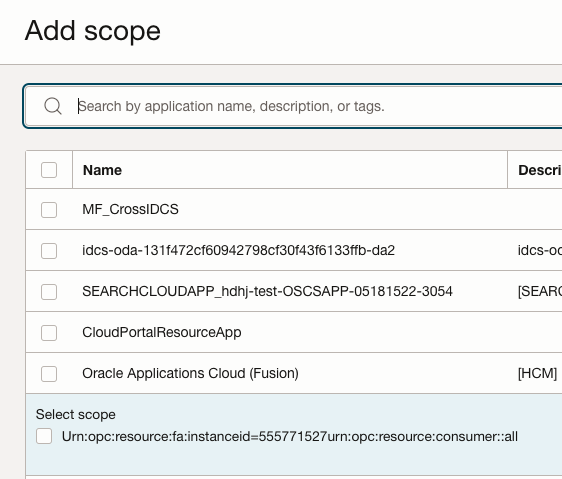
Click OK to Confirm and then Click Activate button to activate the Application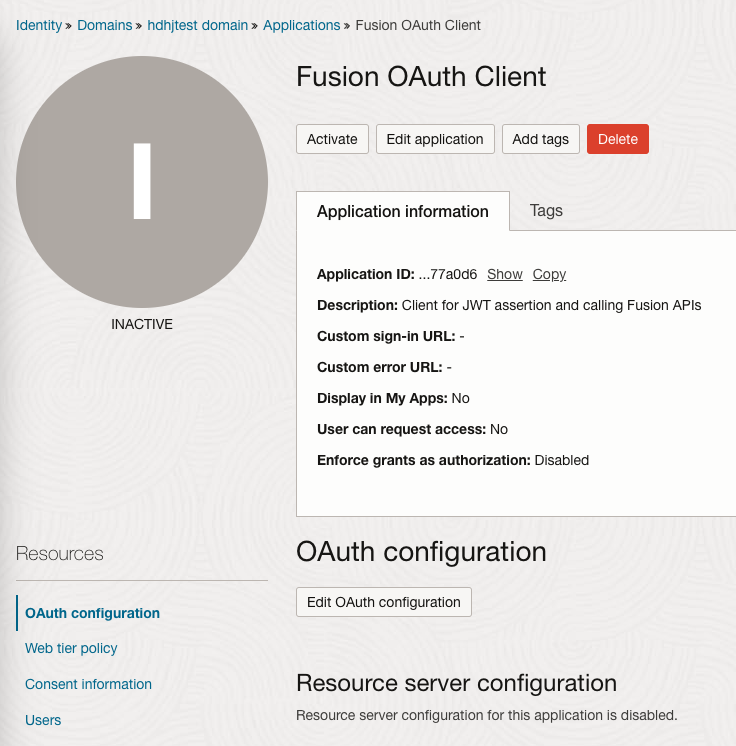
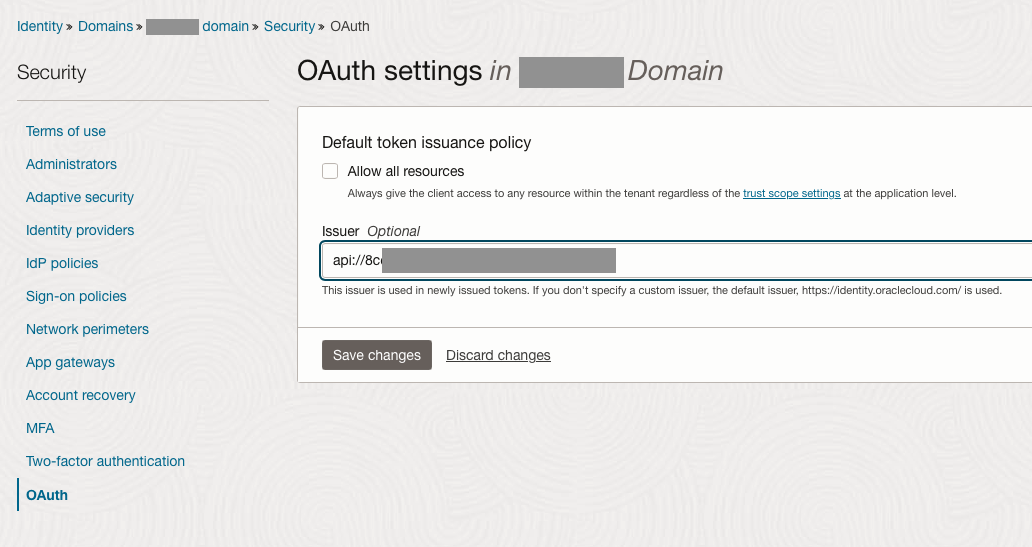
- Configure Default Token Issuance Policy.
Select Security -> OAuth to configure the OAuth settings
Add the Issuer value as same as aud value in the MS Entra ID token. Save the changes
Oracle Fusion Applications
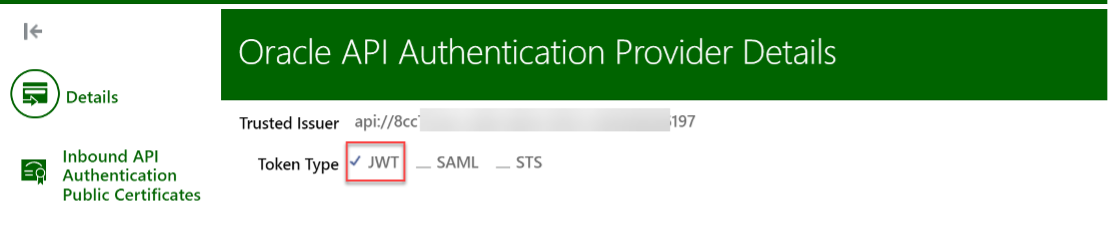
- Create Oracle API Authentication Provider. Navigate to Security Console -> API Authentication

- In the Details section, enter the MS Entra ID token Audience (“aud”) value as Trusted Issuer in the MS Entra ID token and ensure that the name matches the aud value. Select Token Type as JWT
-
Get the Public certificates details using Oracle IAM JWK URI and create certificate files in .pem format with the format specified below. Upload the certificates in the Inbound API Authentication Public Certificates section
Oracle IAM JWK URI Syntax:
https://idcs-xxxxxxx.identity.oraclecloud.com/admin/v1/SigningCert/jwkCopy the content from the Oracle IAM JWK URI and save the file as a json file which contains both IAM and CA Cert details.
JSON data contains both Oracle IAM and CA Cert details:
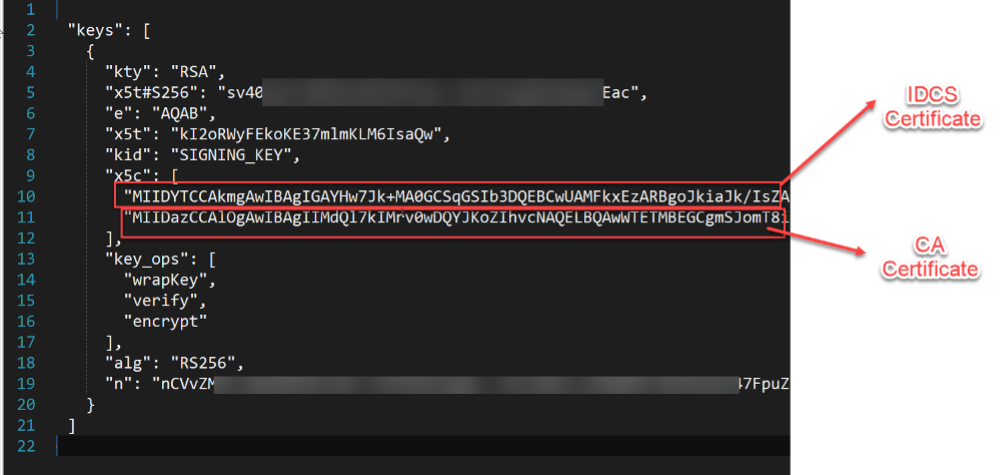
Create separate IAM and CA Certificates as .pem files and the content in the file must follow the format specified below:
Format for .pem file:
—–BEGIN CERTIFICATE—–
<<Paste the certificate string>>
—–END CERTIFICATE—–
- Upload the certificates in the Inbound API Authentication Public Certificates section

- Create a Non-federated user account as same as sub value in the MS Entra ID token and make sure this account has right privileges to invoke the Oracle APIs. This is done because the sub field of MS Entra ID token is used to match the user id in Fusion.

Testing
After all the configuration is done, we’ll test the end-to-end flow using Postman. The steps we will perform are the following:
- Obtain MS Entra ID token
- Use JWT Assertion Grant Type flow to obtain an Oracle IAM token by providing the MS Entra ID token as user assertion
- Use the token obtained from Oracle IAM to make a call to Fusion REST APIs
First, we’ll obtain the MS Entra ID token. Detailed steps to do so are documented in MS Entra ID online documentation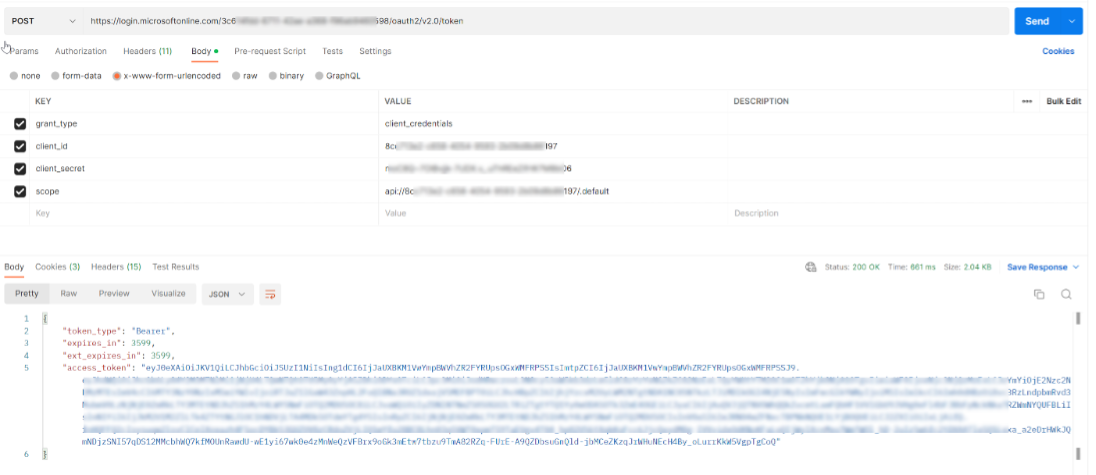
Then we will obtain an Oracle IAM token
URL: https://tenant-id.identity.oraclecloud.com/oauth2/v1/token
Authorization: <base64 encoded client_id:client_secret of the IAM Confidential App created earlier>
grant_type: urn:ietf:params:oauth:grant-type:jwt-bearer
assertion: JWT Token obtained from MS Entra ID
scope: The scope for Fusion Applications REST API that we had chosen earlier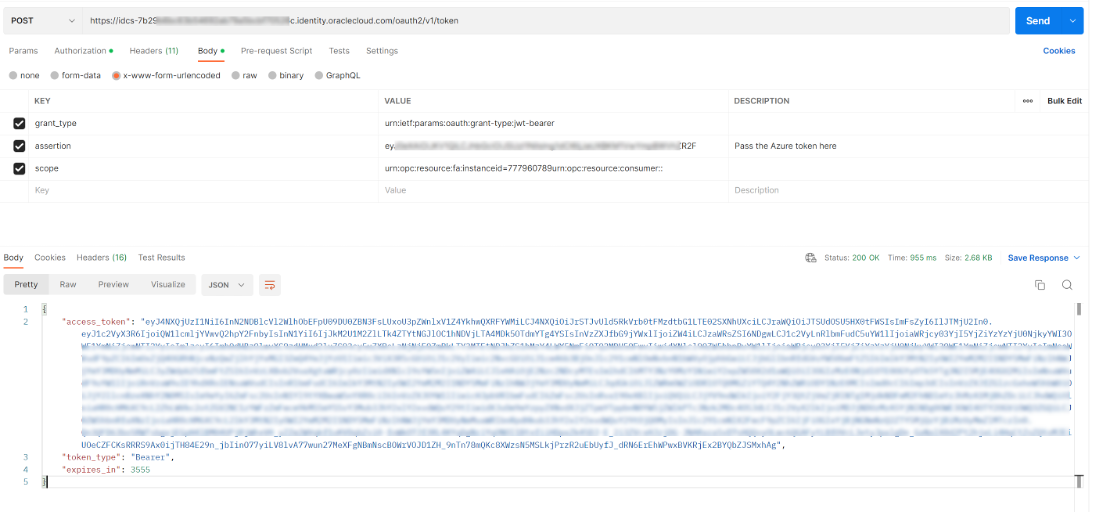
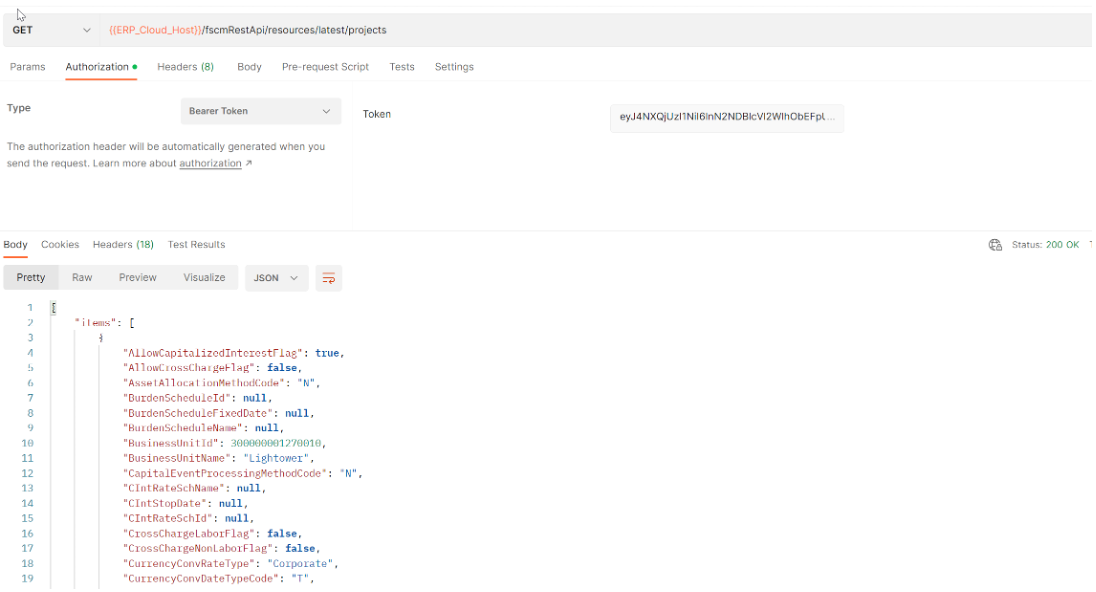
Finally, we will invoke the Fusion REST APIs using the IAM token received in the previous step