

Introduction
Oracle APEX is a low-code platform for building secure, custom extensions for Oracle Fusion Applications(HCM, SCM, ERP, CX). It accelerates development of tailored UIs, dashboards, and workflows using REST APIs and PL/SQL to securely access, display, and update Fusion data.
It provides a declarative development framework, and wizards to build robust applications. APEX provides clean native integration with Fusion SaaS REST APIs making it a natural choice for building extensions on top of Fusion Cloud Applications. Also, Oracle APEX resides and executes within Oracle Database and with instant access to all data types and utilities to speed up extension development.
In addition to the above advantages, APEX since 24.2 makes it easier to setup federated identity with Fusion Cloud Applications. Now Apex extensions can use single sign on and propagate identity between the Fusion and extensions built on APEX. With a wizard driven approach, APEX takes care of wiring this security integration all behind the scenes
Typical extension uses cases involve
- Dashboards providing custom insights from Fusion SaaS data
- Custom workflows for organization specific funtionality
- Integrating with on-premises and cloud customer applications in hybrid environments
Setup
Let us look at the wizard based setup for integrating APEX with Fusion Cloud applications.
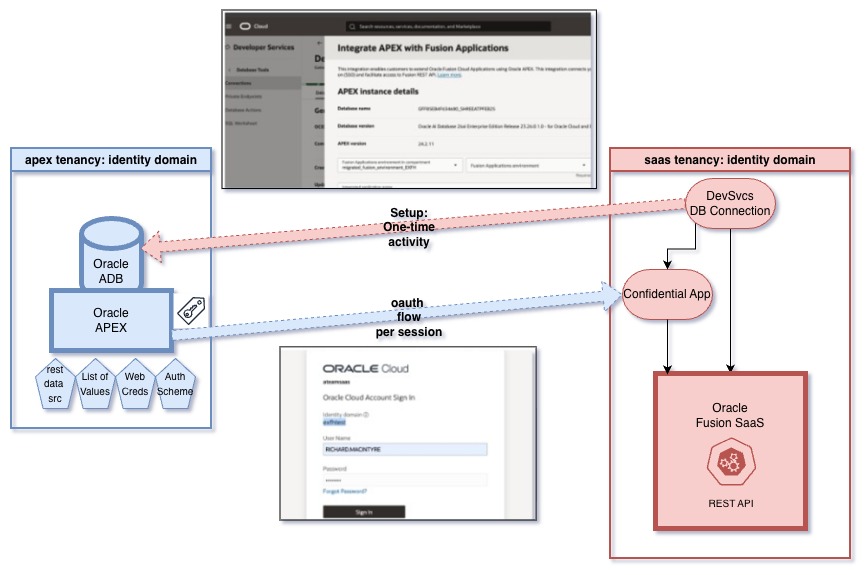
The setup uses the OCI Database Tools Connection to establish connection between Fusion and APEX.
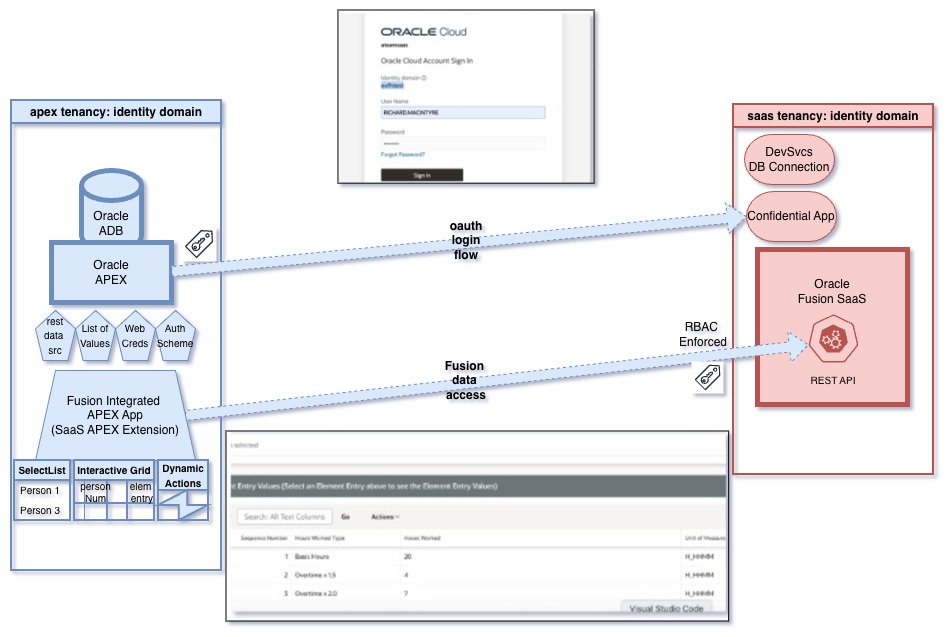
Once complete, the extension user should be able to obtain an Oauth token as part of the login flow and execute the allowed Fusion Application REST APIs. This is logically depicted in the below diagram
Artifacts
As part of the setup, the following artifacts are created in Fusion and APEX
Fusion:
- A Confidential Application on Fusion Application identity domain. This will be used by the APEX extension user at runtime to obtain an Oauth access token granting access to Fusion Applications REST API.
APEX:
- Remote server pointing to Fusion Application Base URL
- Web credential used to request access token from Fusion Application
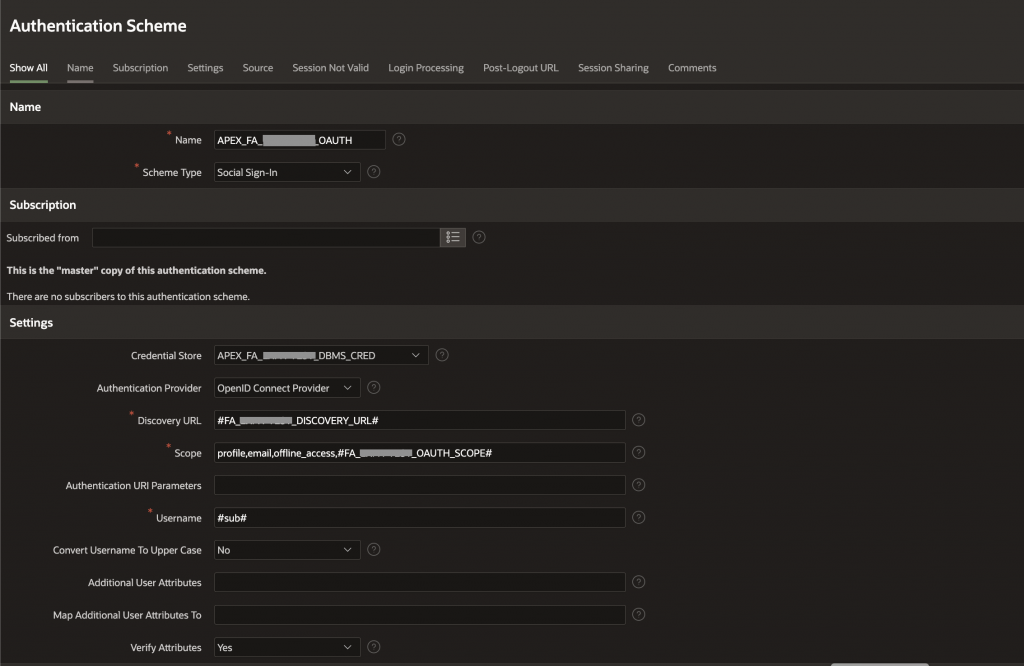
- Authentication Scheme – Encapsulates the OAuth flow for authenticating with Fusion Application
- Sample REST datasource – Ready to access the Fusion Application HCM Self Details REST endpoint which provides the logged in user’s details
Prerequisites
1. Database Connection
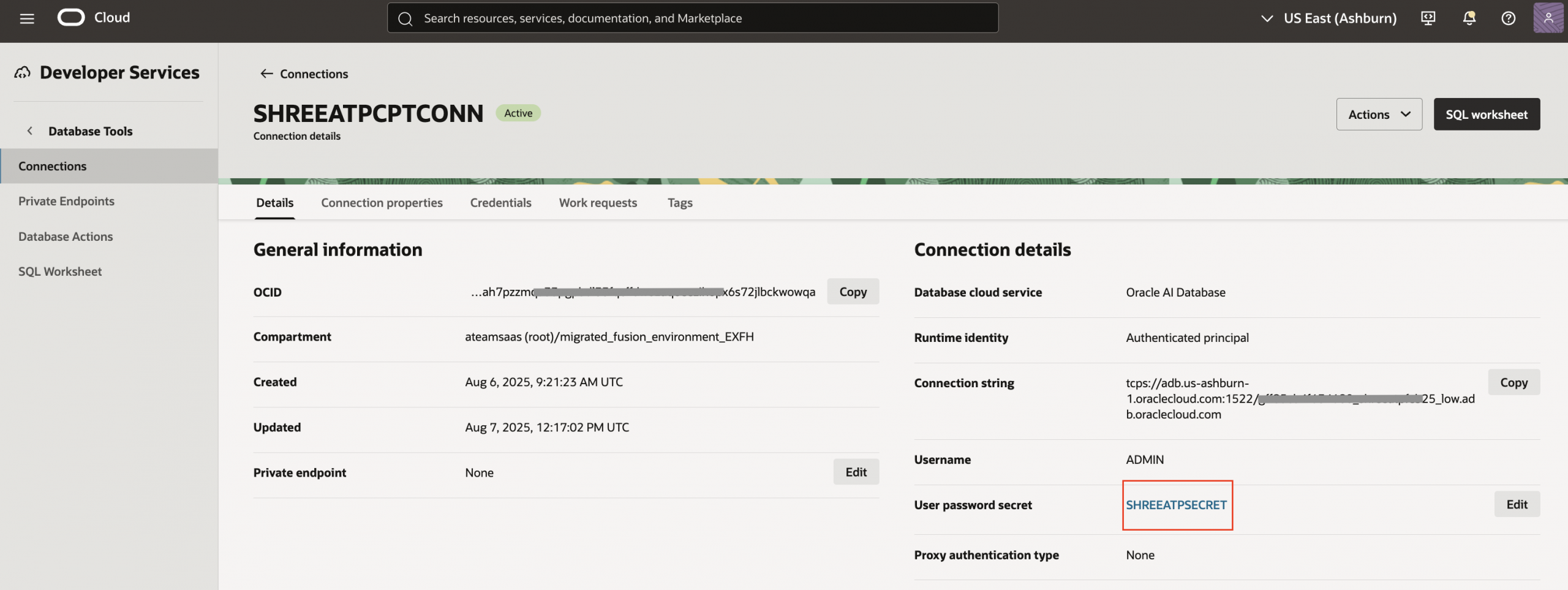
Create a Database tools connection in the Fusion SaaS tenancy pointing to the APEX Backing database. This is typically an Autonomous database instance.
Example screen below shows Developer Services -> Database connection. The credentials for the APEX database needs to be provided using an OCI secret.
2. Roles
Ensure that the user performing the setup is granted the Application Administrator for Fusion Applications Administrator or Identity Domain Administrator role on the Fusion instance’s identity domain. This ensures that user is privileged to create the confidential application in Fusion Application identity domain.
3. IAM Policies
Create the below referenced IAM policies and grant access to the group of the user performing the setup steps. These are designed to provide the user access to create the above mentioned artifacts.
4. APEX Administration Services
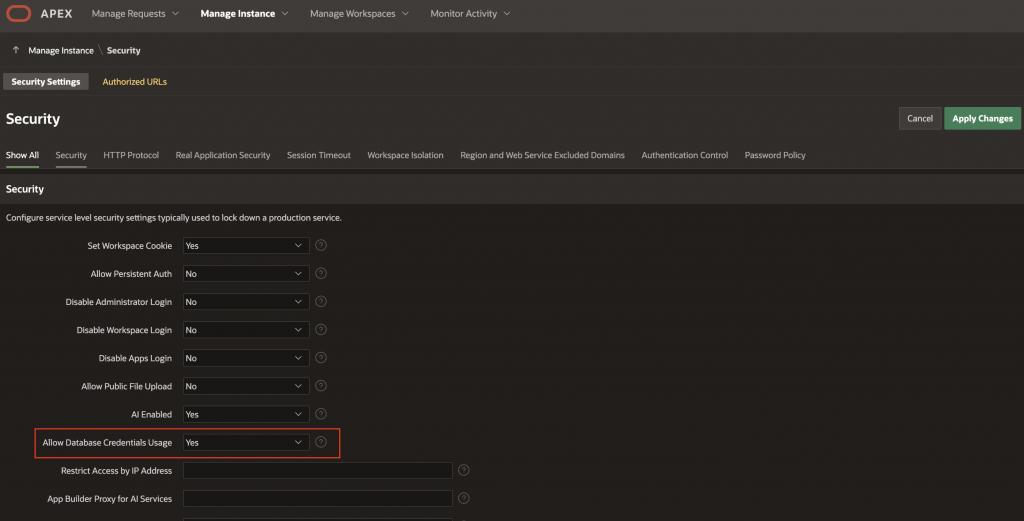
Ensure that ‘Allow Database Credentials Usage’ is enabled on APEX instance security settings. This can be enabled by logging into APEX Administration services and navigating to ‘Manage Instance > Instance Settings > Security’, as shown below
Wizard
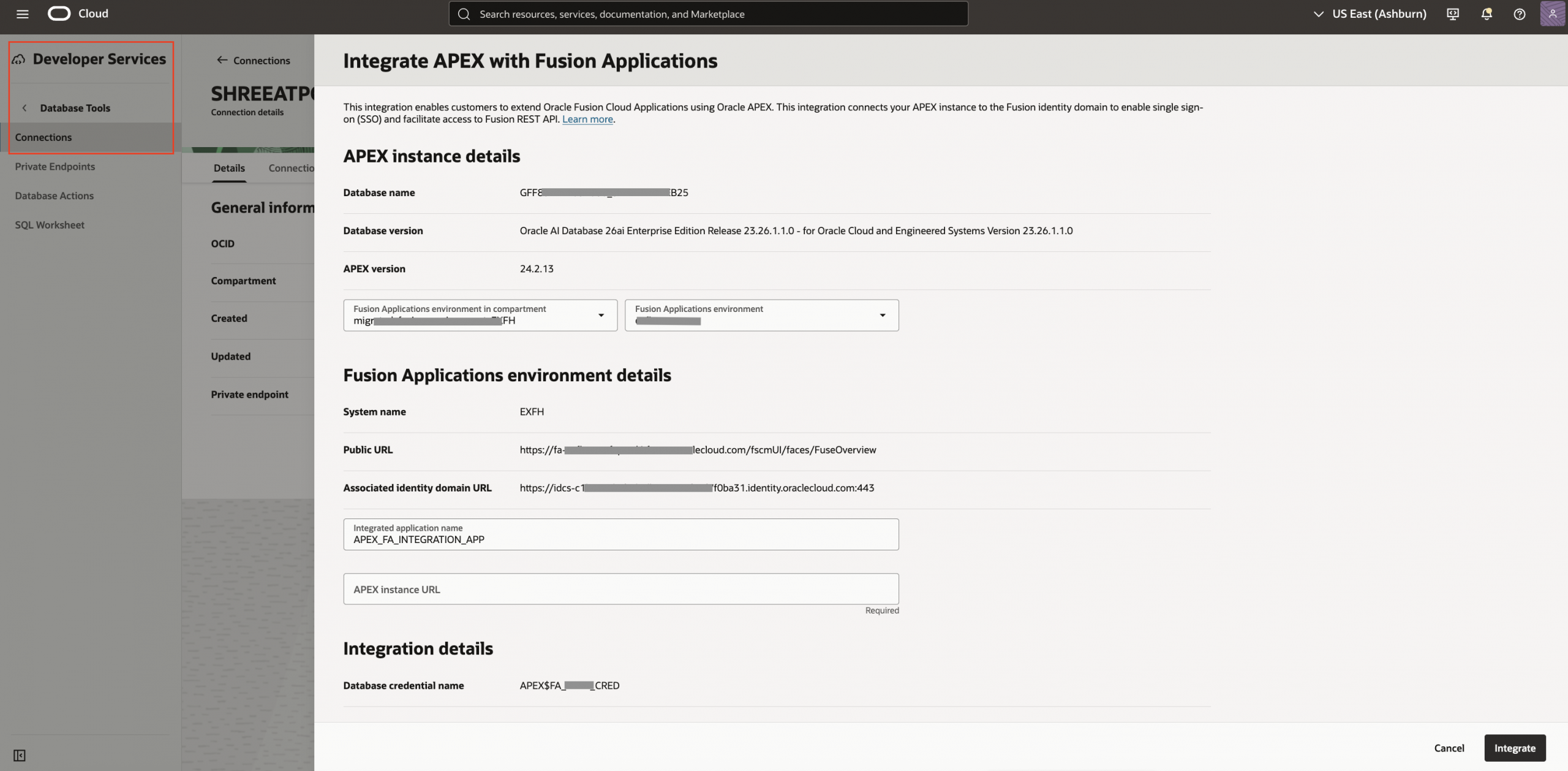
- On the database connection, choose ‘Integrate APEX with Fusion Applications’ from Actions menu
- On the next screen, the APEX instance details are pre-filled from the database connection
- Select the compartment and Fusion Application instance to be integrated with APEX
- Ensure the Integrated Application name and APEX instance url fields have correct values
- Review the details and click ‘Integrate’
With successful integration, all the necessary artifacts mentioned above are created on Fusion Application and APEX.
Fusion Integrated APEX App
Login to the APEX instance
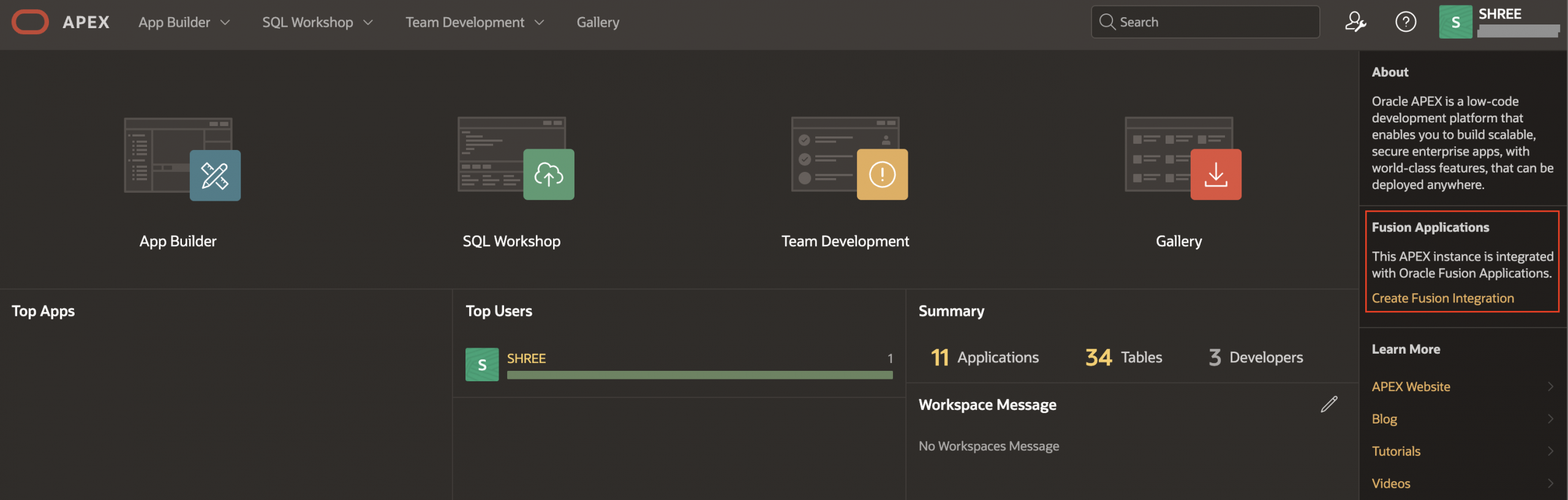
Notice that “This APEX instance is integrated with Oracle Fusion Applications” appears on the right side of Workspace homepage in APEX.
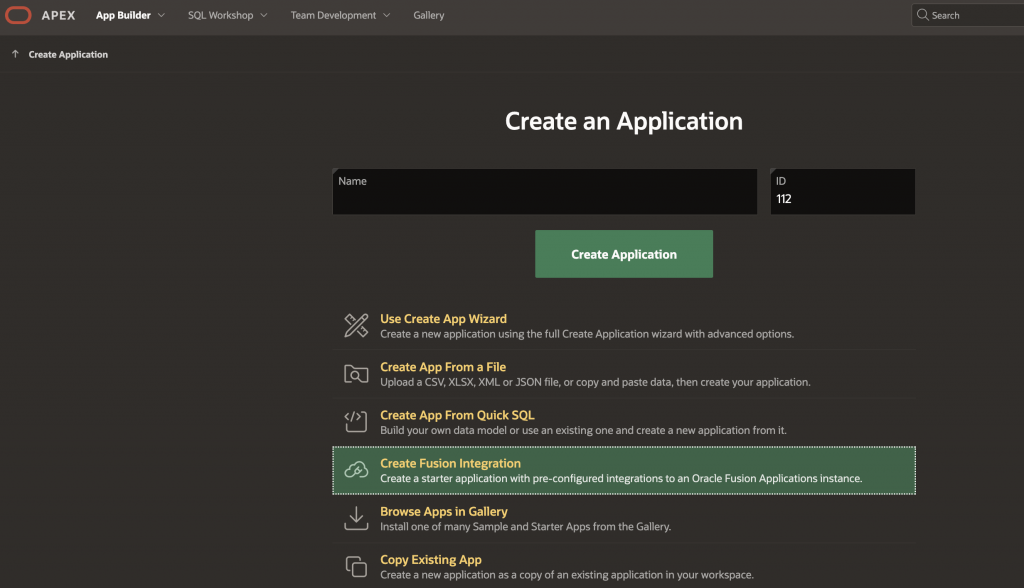
From the APEX Workspace click on AppBuilder -> Create and choose ‘Create Fusion Integration’
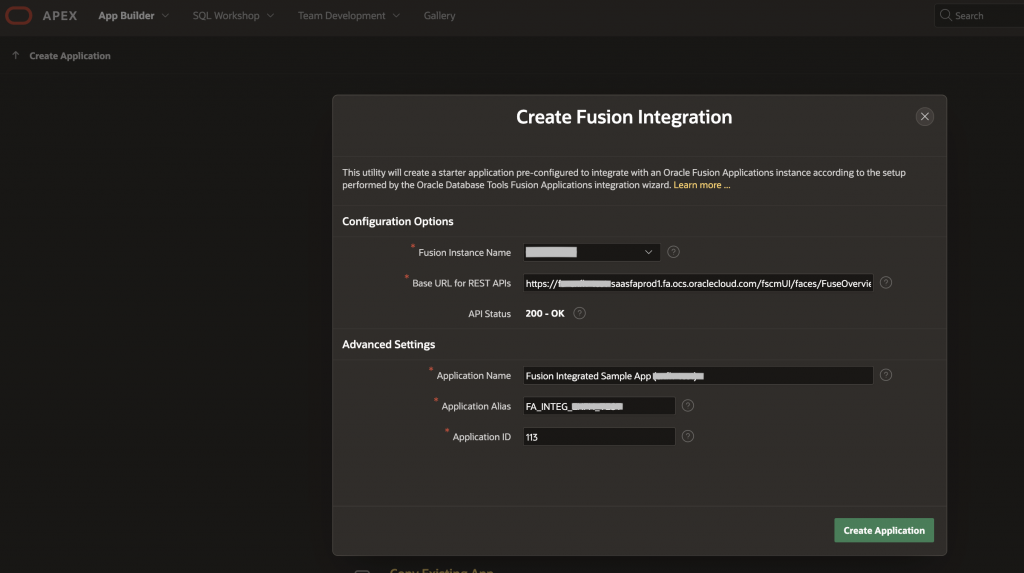
In the Options screen, select the Fusion instance from the dropdown. At this point APEX connects to the Fusion instance and the remaining fields auto-populate with defaults and can be changed if necessary. Select ‘Create Application’ to complete the creation of Fusion Integrated APEX application and associated objects like Authentication scheme.
Navigate to the newly created application and within Shared Components, verify the Authentication scheme created to retrieve access token from Fusion Cloud application.
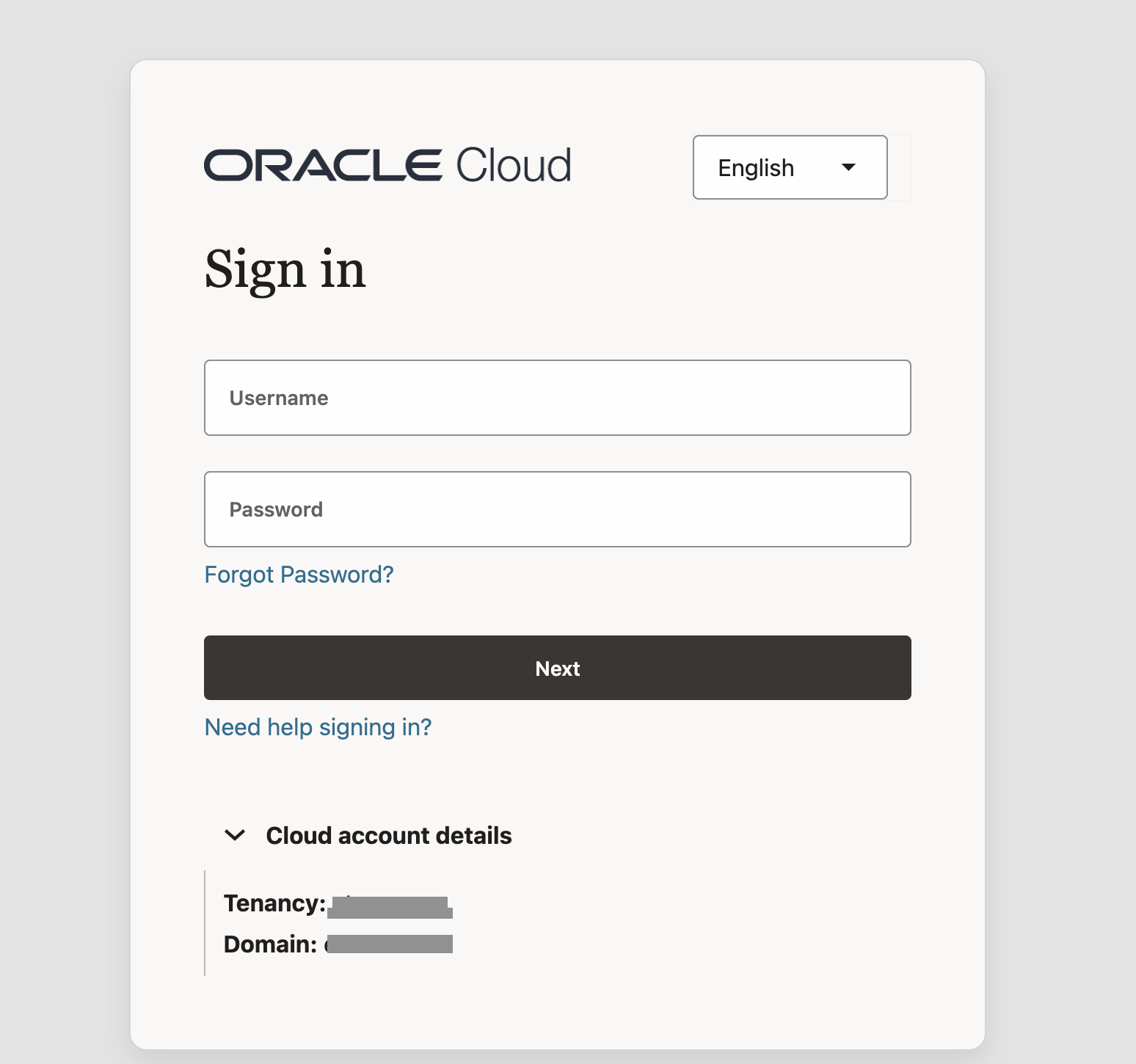
Run the application. This should bring up the Fusion Application SSO login screen
On logging in with a valid Fusion Application user credentials, you should be navigated to the HCM Self details page showing the logged in user details
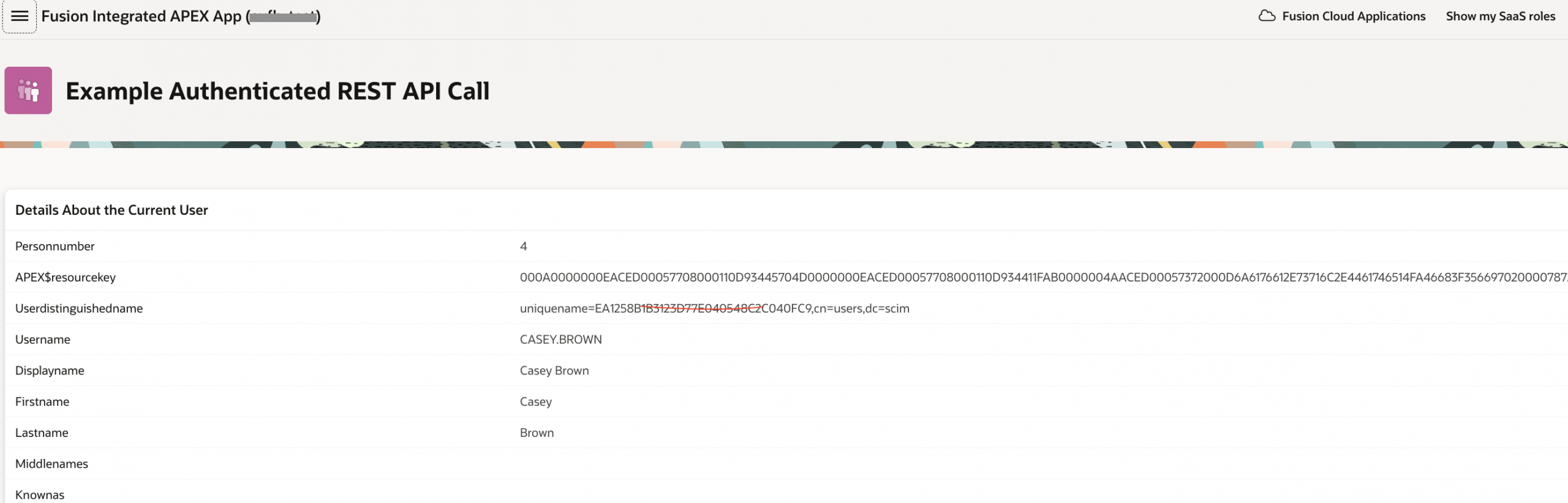
Diagram below depicts the login flow and runtime Fusion applications data access
To create a new APEX application for extension development, choose create new application from app builder and choose the Create Fusion Integration option
Note: The Fusion Starter app’s access token from Fusion IDCS expires in about one hour by default, while APEX and Fusion Applications sessions can last longer. To avoid unnecessary re-authentication and session expiration errors in FA extension APEX apps, you can automatically refresh access tokens without user action. To auto enable refresh tokens and prevent OAuth token expiry, follow this support document.
This completes the setup ! This extension application is now ready to build the required APEX extension pages and workflows as needed.
In the next blog in this series, we will delve into development of custom extensions to extend the core Fusion Cloud HCM functionality.
Happy Fusion Extension Development using APEX !
Appendix
The Fusion Application APEX integration supports multiple deployment topologies of APEX
- Cross tenancy – APEX and Fusion Application belong to different tenancies, potentially across 2 regions.
This is the setup steps we saw in this blog. - Same tenancy – Here APEX and Fusion Application are part of the same unified tenancy on OCI.
This is a simplified case of the previous topology and the setup steps are similar - On-Premise – In this topology the APEX instance resides in customer’s on-premise network
- Multi cloud – APEX is running on a 3rd party cloud aplication example Azure cloud
For 3. and 4. ensure that the database connection from Fusion tenancy has network access to APEX database (using Public Internet/VPN/FastConnect)
References
- Enhancing Oracle Fusion Applications with Oracle APEX: Getting Started – Blog
- Extending Fusion Applications using APEX – Doc
- Enabling automatic refresh token flow in APEX extension – Support Doc