
Introduction
Oracle Database Tools MCP Server supports OCI service logs for troubleshooting MCP operations. Oracle announced this capability on August 21, 2026. Service logs release announcement
Combining OCI Audit, MCP invocation logs, and Database Unified Audit helps streamline security incident investigations. Together, these sources help us identify the caller, understand invocation errors, and see the database operations executed.
We use OCI Log Analytics in this example to consolidate the three log sources into a single investigation view. Its correlation, troubleshooting, and LoganAI capabilities help users explore the collected activity. Customers can adapt this approach to their preferred logging or security information and event management (SIEM) platform to support their security operations workflows
Architecture
End to end identity and security path
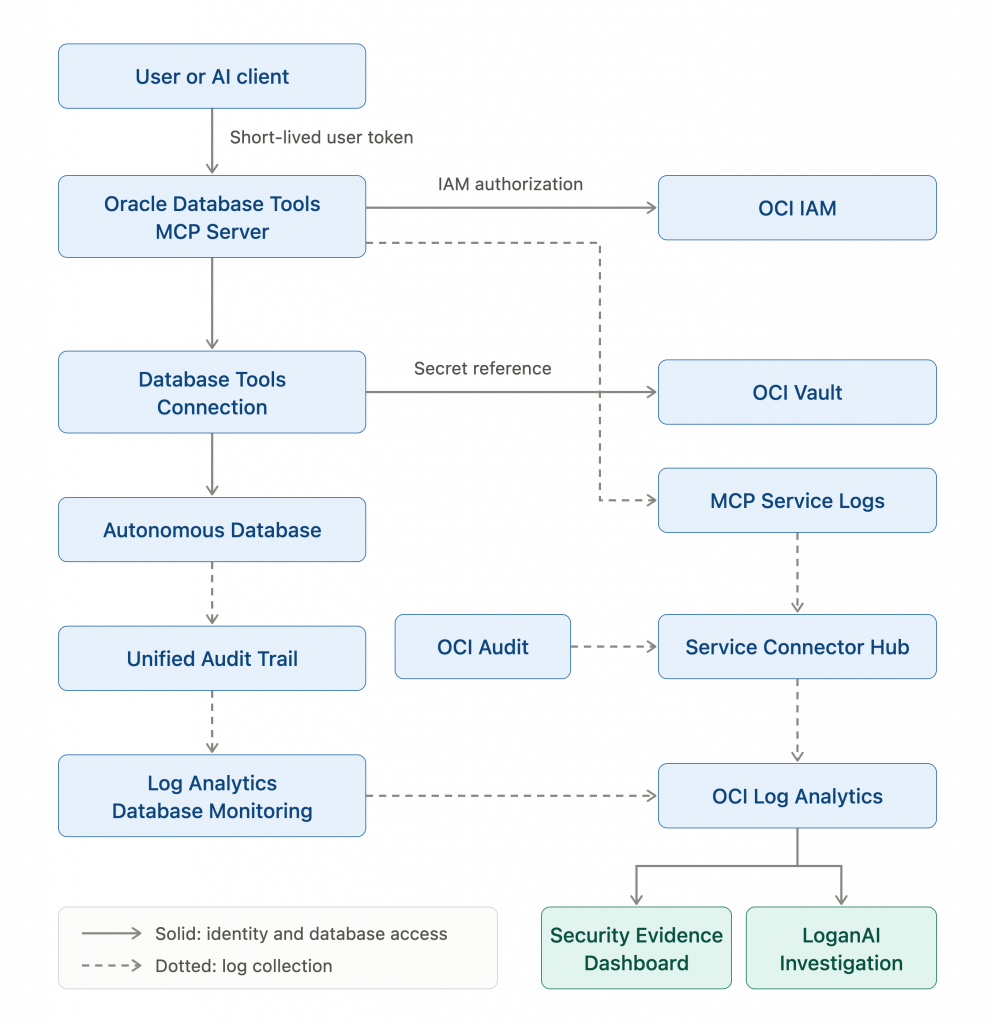
Architecture overview: Identity, database access, and security evidence collection.
The user or AI client invokes MCP with a short-lived user token. IAM controls invocation access, and a Database Tools connection uses Vault secret references to connect to the database. MCP service logs capture invocation diagnostics, and Unified Audit records the configured database actions. OCI Audit feeds OCI Log Analytics through a separate Service Connector Hub logging branch, independent of the MCP access path.
The dotted lines distinguish log collection from the solid identity and database-access paths. Database audit collection uses a Management Agent with the Log Analytics plug-in. Dashboards and LoganAI are investigation options for the consolidated evidence.
Connecting the log sources
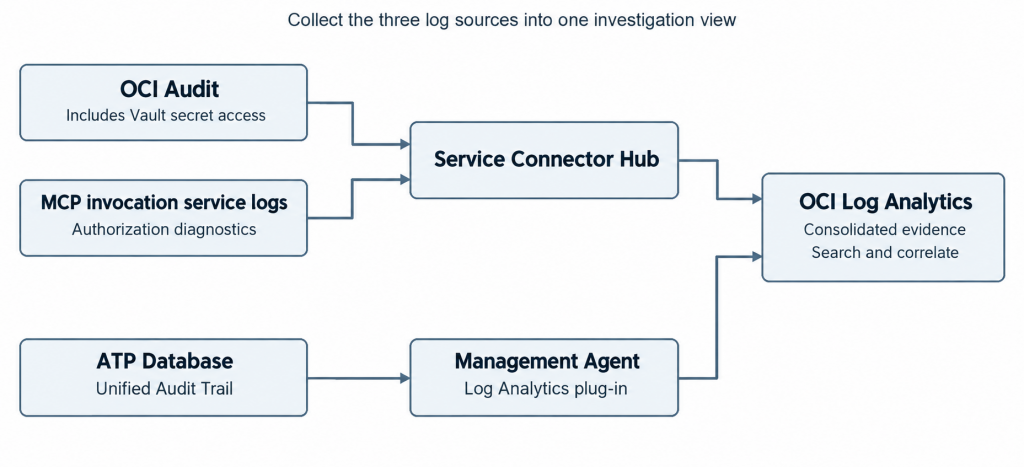
OCI Audit records supported API activity across OCI services, including Database Tools and Vault—not just the MCP path. One service connector sends tenancy Audit logs with subcompartments included and the selected MCP invocation log to OCI Log Analytics. Configure SCH log ingestion
Database Unified Audit is collected separately. A Management Agent on a host with ATP connectivity reads the audit trail using a dedicated account and wallet, then sends it to the same Log Analytics group. Configure ATP database collection
Prerequisites
- An operational MCP server needs a database connection, application roles, and IAM permissions. MCP policy setup
- MCP Invocation Logs must be enabled for service diagnostics to be available. Enable service logging
- An enabled Unified Audit policy determines which database actions are recorded. Captured Database Tools application context adds caller attribution and request metadata. Configure Unified Audit policies
- Enable Logging Analytics for logging consolidation from all the sources.
- LoganAI can help explain the records selected for an investigation. The examples below show how consolidated evidence supports caller attribution, request tracing, and analysis of failures. LoganAI configuration and use
Scenarios
1. Understand MCP activity by combining three log sources
Combining MCP invocation logs, OCI Audit, and Database Unified Audit in Log Analytics gives us a common view of MCP activity. MCP logs explain invocation errors, OCI Audit identifies callers and requests, and Database audit logs show the SQL operations executed. LoganAI helps us explore these records through natural-language questions.
- In Log Explorer, select a time range covering the activity you want to investigate—for example, Last 24 Hours. The following query illustrates how to view the three log sources together; adapt the log group, log source names, and search terms to your environment.
‘Log Group’ = ‘mcp-security-evidence’ and (‘DATABASE_TOOLS_MCP_SERVER_INVOKE’ or ‘InvokeMcpServer’ or ‘MCP_AUDIT_PROBE’) and not (‘ParseQuery’ or ‘SearchLogs’) and ‘Log Source’ != ‘OCI Unified Schema Logs’ | timestats count as logrecords by ‘Log Source’
Click the AI icon above the records and ask: Were there any MCP invocation errors, how many, and what do they indicate? Follow up with questions about the callers, invoked tools, and database operations.
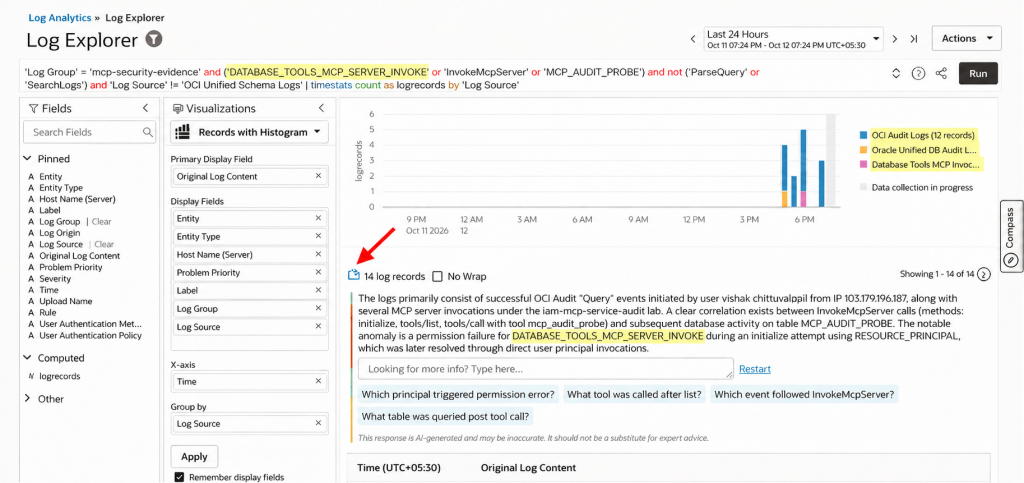
Figure 1 Combining MCP invocation logs, OCI Audit, and Database Unified Audit with LoganAI to understand MCP activity.
In this example, MCP invocation logs show an authorization error for a missing invocation permission. OCI Audit provides the caller and request details, while Database Unified Audit provides visibility into activity involving MCP_AUDIT_PROBE. Request IDs can be used to connect the relevant invocation and database records.
2. Trace an MCP invocation to database activity
A request ID lets us trace an individual MCP tool call from OCI Audit to the SQL operation recorded by Database Unified Audit. This example uses mcp_audit_probe, a fixed read-only tool that selects rows from ADMIN.MCP_AUDIT_PROBE.
1. Find the tool call in OCI Audit. Filter to OCI Audit Logs and the tool name, excluding Log Analytics search activity. The method tools/call identifies the tool invocation. From its request.id, take the shared prefix used in this example: mcp-lab-8f58f9b5-a6c3-4f8d-917c-. For another invocation, use its own request-ID prefix.
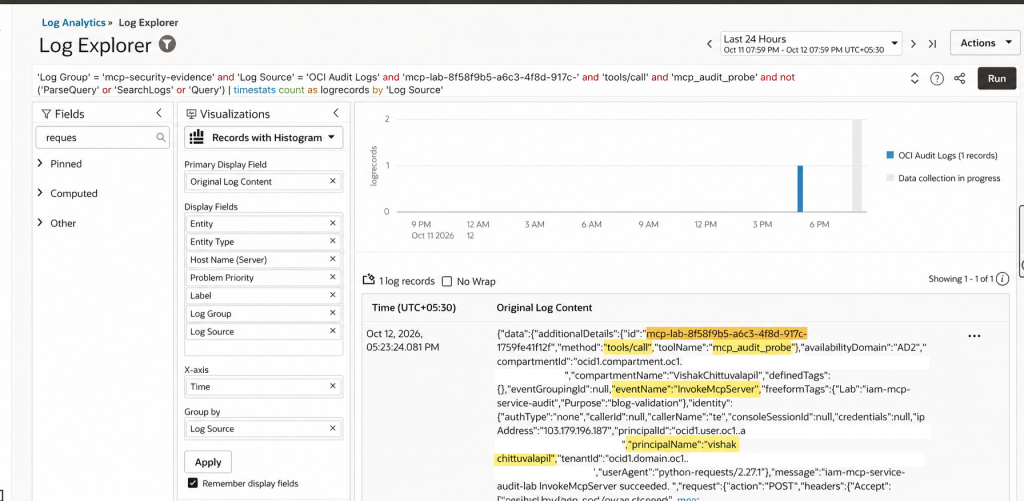
Figure 2 OCI Audit identifies the tools/call invocation, tool name, and caller.
2. Search that shared prefix in Database Unified Audit logs to locate the database operation. The displayed Context ID is shorter than the full OCI Audit request.id, so use the common prefix to find the record. The method tools/call is not needed in this search: the database records the SQL action instead.
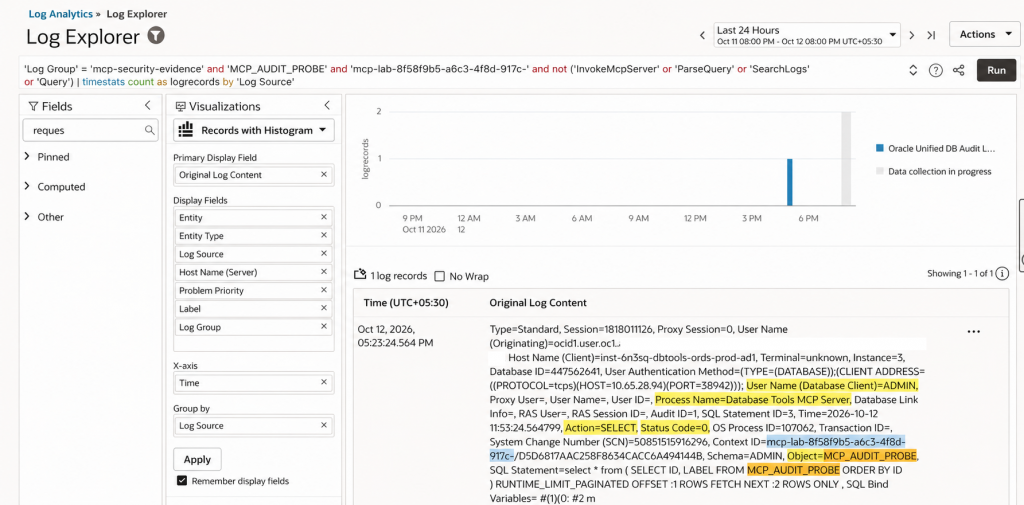
Figure 3 The shared request-ID prefix locates the database SELECT and its request context.
Read the database fields as follows: Action=SELECT means the operation read data; Status Code=0 means it completed without a database error; Object=MCP_AUDIT_PROBE identifies the table accessed. Together, they show a successful read of the probe table. They describe this operation, not the full set of privileges held by the database user.
For the full correlation value, expand Original Log Content and find OPC_REQUEST_ID. In this example it exactly matches OCI Audit request.id, whereas the displayed Context ID is shortened
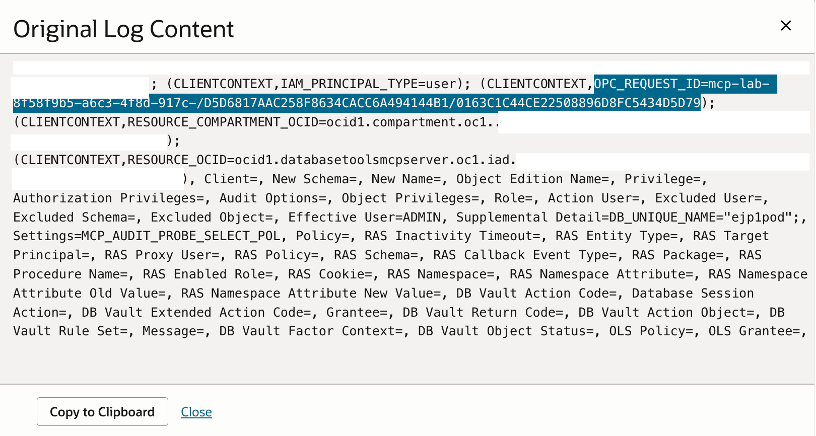
3. Use the full OPC_REQUEST_ID to bring the invocation and database records into one view. Keep the desired time range covering the invocation and run this query. Records with Histogram automatically adds timestats; keep that suffix.
‘Log Group’ = ‘mcp-security-evidence’ and ‘mcp-lab-8f58f9b5-a6c3-4f8d 917c-/D5D6817AAC258F8634CACC6A494144B1/0163C1C44CE22508896D8FC5434D5D79’
and not (‘ParseQuery’ or ‘SearchLogs’ or ‘Query’) | timestats count as logrecords by ‘Log Source’
4. Click the AI icon above the two records.
LoganAI identifies the same user OCID as the originating user in the database audit record and the principal ID in the OCI Audit invocation record. It also highlights the shared context prefix and closely timed events, helping trace the invocation to the database activity.
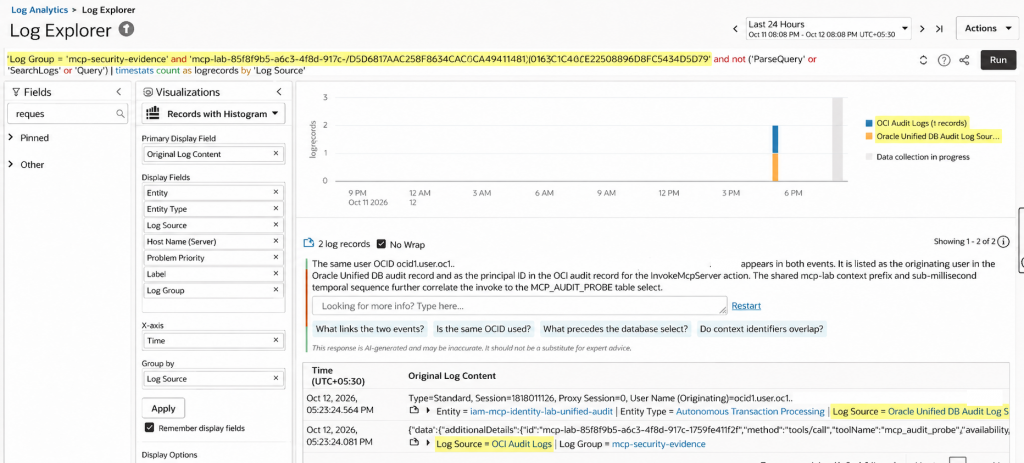
Figure 4 A full request ID brings together OCI Audit and Database Unified Audit, with LoganAI explaining the activity.
3. Audit context and Unified Audit policy
The Unified Audit policy records the database SELECT, while the captured application context identifies the original MCP caller, server, and request. This preserves caller attribution when the database connection uses a shared account such as ADMIN. Context capture supplies metadata; an enabled audit policy determines which database operations are recorded.
1. In Log Explorer, keeping Last 24 Hours and searching for the probe audit policy.
‘Log Group’ = ‘mcp-security-evidence’ and ‘MCP_AUDIT_PROBE_SELECT_POL’
and not (‘ParseQuery’ or ‘SearchLogs’ or ‘Query’) | timestats count as logrecords by ‘Log Source’
2. Open more on the database record to show Original Log Content. Check User Name (Database Client)=ADMIN, Process Name=Database Tools MCP Server, Action=SELECT, Status Code=0, and Object=MCP_AUDIT_PROBE. These fields show that the MCP service executed a successful read of the probe table through the ADMIN database account.
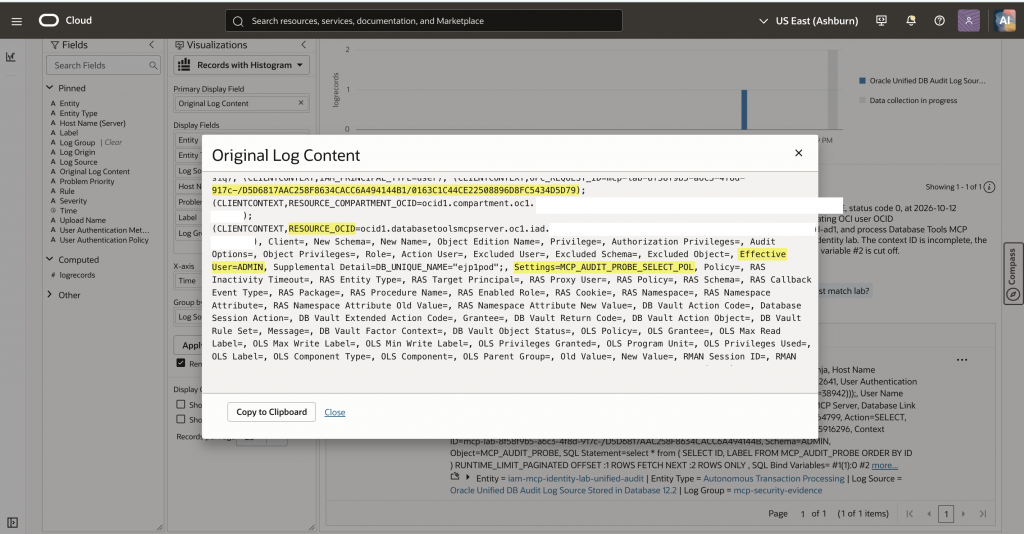
Figure 5 Database operation and application context in the original audit record.
3. In Application Context, IAM_PRINCIPAL_OCID identifies the original OCI caller and IAM_PRINCIPAL_TYPE=user identifies a user principal. OPC_REQUEST_ID provides the full correlation value used in Scenario 2. Use the shared request-ID prefix to locate the record when the displayed Context ID is shorter.
4. Scroll down in the same modal. RESOURCE_OCID identifies the MCP server, Effective User=ADMIN identifies the database account, and Settings=MCP_AUDIT_PROBE_SELECT_POL names the audit policy associated with this record.
Figure 6 MCP resource, effective database user, and audit policy in the same record.
5. Return to the selected record and ask LoganAI: Which database account executed this SQL, which original MCP caller is identified in the application context, and what do the policy and request-ID fields tell us? Use the original fields shown above to follow the explanation.
This view helps investigators distinguish the database connection account from the original MCP caller and trace the audited SQL back to the invocation.
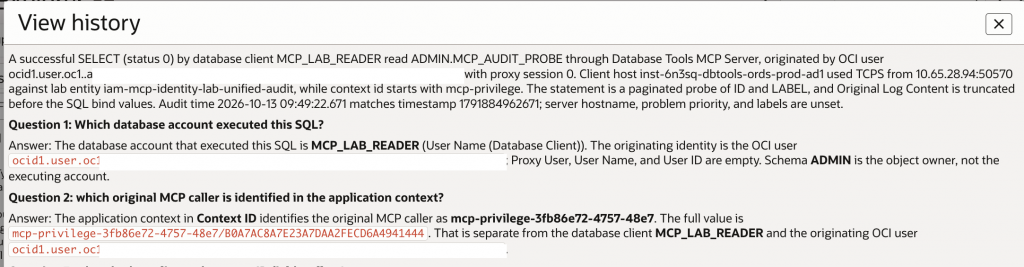
Figure 7 Sample LogAn AI questions and responses to trace the audited SQL back to the invocation.
4. Trace a database privilege denial
An MCP tool invocation can be recorded as successful while its database operation fails. This investigation starts with related records, isolates the flagged database operation, and traces its request back to the corresponding invocation.
1. Find the related requests. In Log Explorer, select a time range covering the activity you want to investigate. Search using the request-ID prefixes for the two invocations to bring their related records into one view. Replace the example log group and request identifiers with those from your environment.
‘Log Group’ = ‘mcp-security-evidence’ and (‘mcp-privilege-3fb86e72-4757-48e7’ or ‘mcp-privilege-e2b73a71-5525-42f8’) and not (‘ParseQuery’ or ‘SearchLogs’ or ‘Query’) | timestats count as logrecords by ‘Log Source’
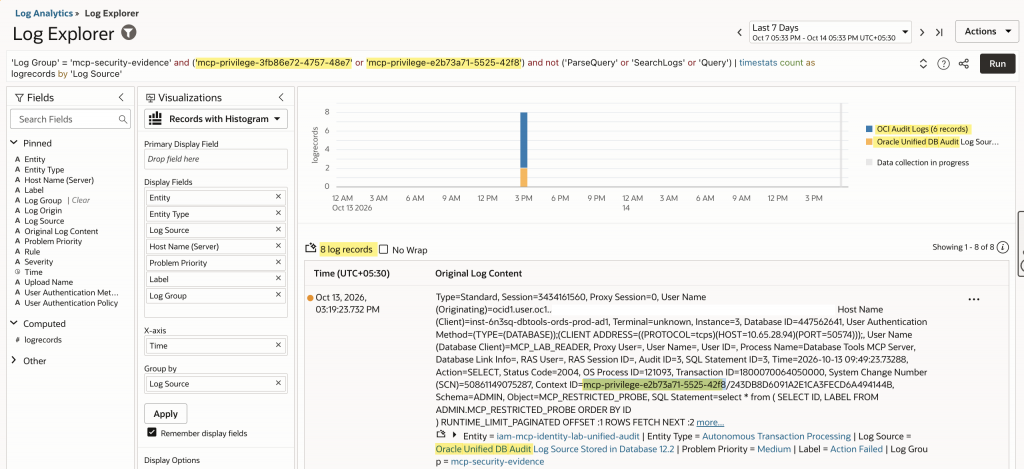
Figure 4a The example query returns 8 records: 6 OCI Audit events and 2 Database Unified Audit records.
2. Focus on the record flagged as a problem. In Display Options, select Show Problem Logs Only. In this example, the results narrow from eight records to one flagged Database Unified Audit record, labelled Action Failed with Problem Priority=Medium. The record shows MCP_LAB_READER attempting SELECT on MCP_RESTRICTED_PROBE with nonzero Status Code=2004.
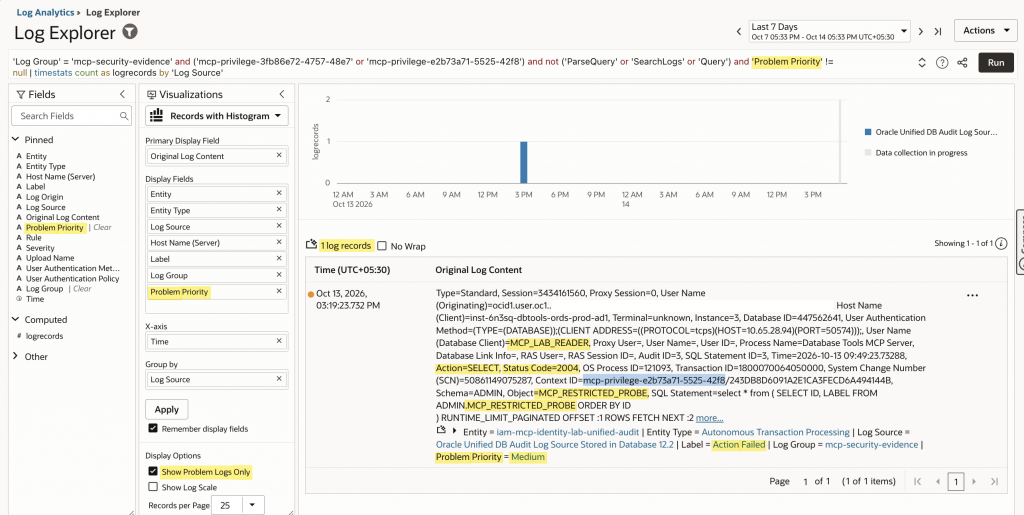
Figure 4b Show Problem Logs Only isolates the flagged database operation.
3. Inspect the failed database operation and its request context. Open more… to view Original Log Content. Check the database client MCP_LAB_READER, process Database Tools MCP Server, Action=SELECT, Object=MCP_RESTRICTED_PROBE, and Status Code=2004. These fields identify the attempted operation and its nonzero database audit outcome.
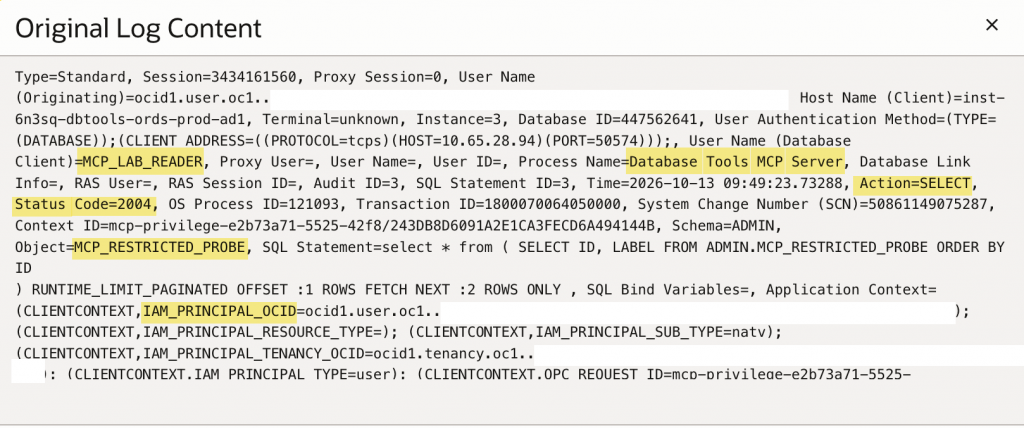
Figure 4c The full database record identifies the database account, SQL action, target object, and audit status.
Scroll within the same record to Application Context and copy the full OPC_REQUEST_ID for the next search. IAM_PRINCIPAL_OCID identifies the original caller, while IAM_PRINCIPAL_TYPE=user indicates a user principal. Effective User=MCP_LAB_READER and Settings=MCP_PRIVILEGE_BOUNDARY_POL identify the effective database account and the audit policy associated with this record.
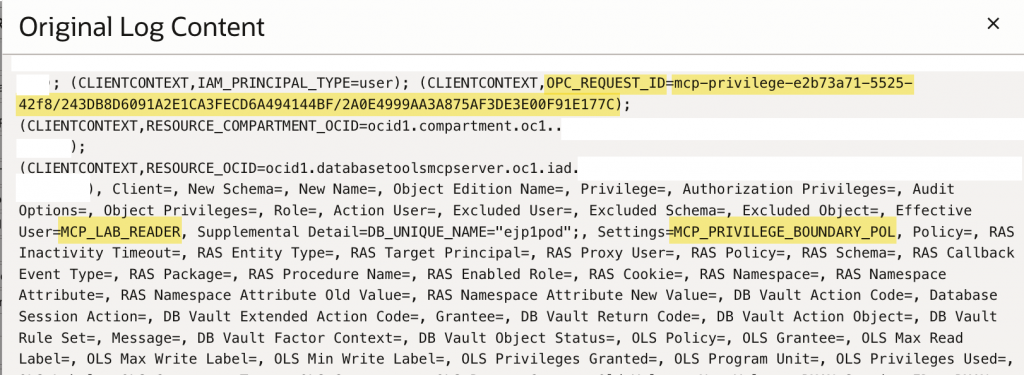
Figure 4d Application Context supplies the full request ID; the same record shows the effective user and audit policy.
4. Bring the failed operation and its invocation into one view. Clear Show Problem Logs Only, then search using the full OPC_REQUEST_ID copied from the database record. In this example, the results contain two records: the failed database operation and its corresponding OCI Audit invocation.
‘Log Group’ = ‘mcp-security-evidence’ and ‘mcp-privilege-e2b73a71-5525-42f8/243DB8D6091A2E1CA3FECD6A494144BF/2A0E4999AA3A875AF3DE3E00F91E177C’ and not (‘ParseQuery’ or ‘SearchLogs’ or ‘Query’) | timestats count as logrecords by ‘Log Source’
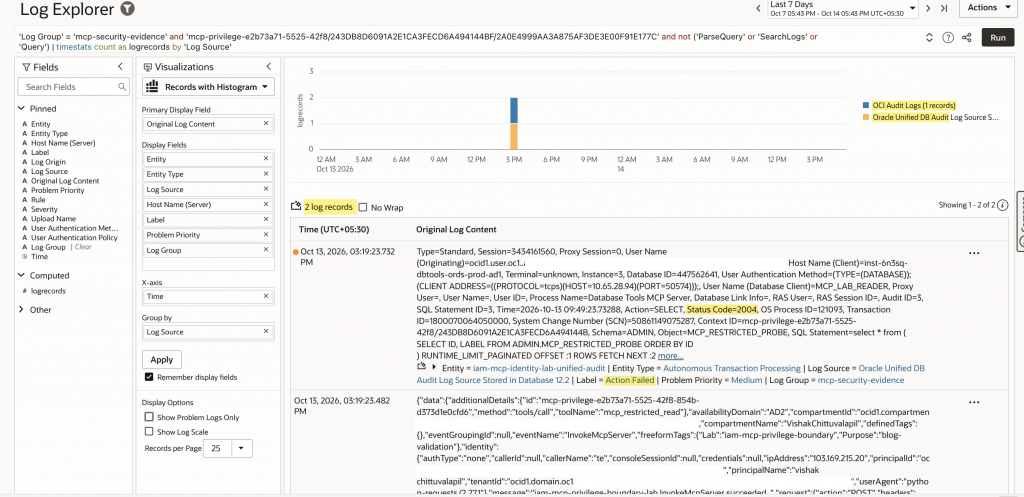
Figure 4e The full request ID connects one Database Unified Audit record with one OCI Audit record.
5. Verify the corresponding MCP invocation. Open Original Log Content on the OCI Audit record. It shows eventName=InvokeMcpServer, method=tools/call, toolName=mcp_restricted_read, and the message InvokeMcpServer succeeded. The principalId field identifies the caller. This service outcome does not mean that the database read succeeded.
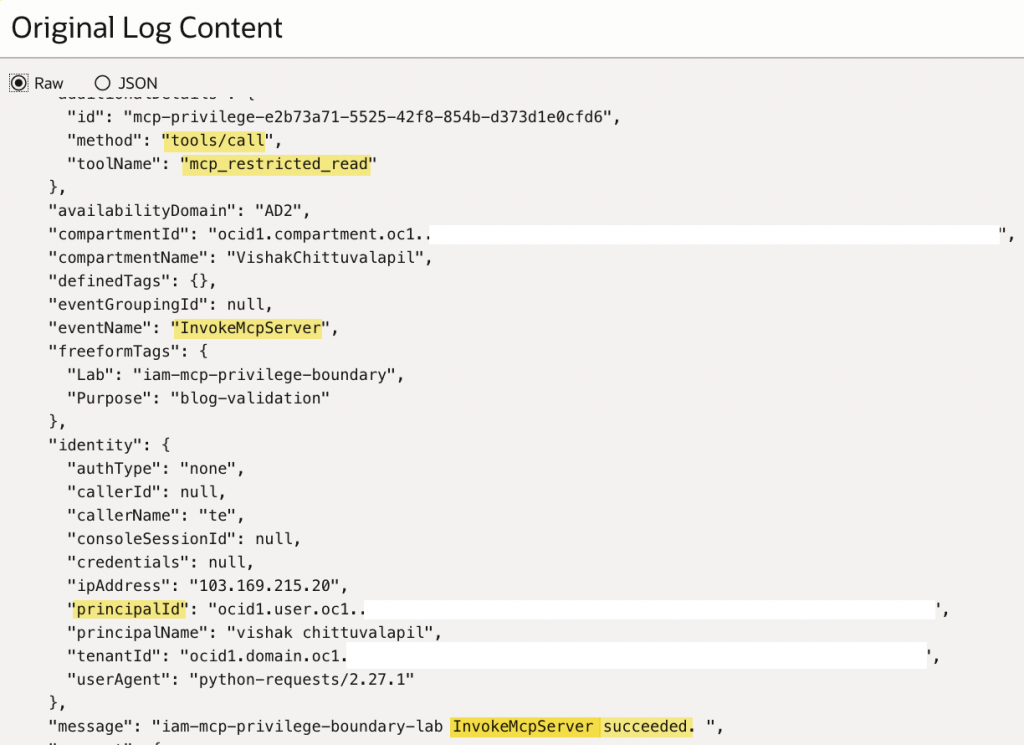
Figure 4f OCI Audit identifies the tool call, original caller, and successful service invocation message.
In the request section, verify that the full request.id matches the database application-context OPC_REQUEST_ID. The shorter client-supplied opc-request-id header is a separate identifier; use the full request.id for this correlation.
Figure 4g OCI Audit request.id matches the full OPC_REQUEST_ID copied from the database record.
6. Ask LoganAI to explain the two outcomes. Return to the two-record view, click the AI icon, and ask: Did the MCP invocation fail, or did the database operation fail? Identify the tool, database account, object, and outcome shown in these records.
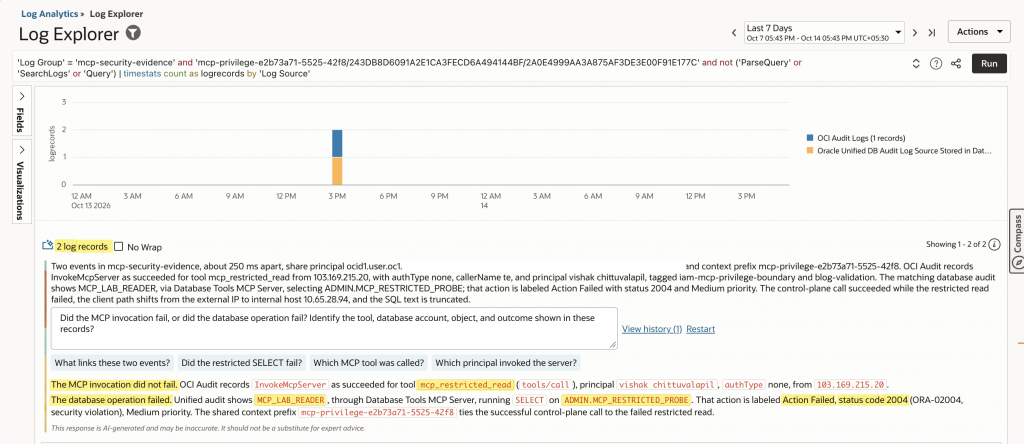
Figure 4h LoganAI distinguishes the invocation outcome from the database operation outcome.
LoganAI identifies mcp_restricted_read, MCP_LAB_READER, and ADMIN.MCP_RESTRICTED_PROBE and explains that the service invocation succeeded while the database operation failed. Verify the explanation against the original fields. A nonzero Status Code=2004 and the Action Failed label establish the recorded failure.
5. Discover Secret access failures with clusters and LoganAI
We can discover credential-access failures without knowing a connection OCID, secret OCID, or request ID in advance. Cluster the consolidated logs, select a secret-retrieval failure pattern, and use LoganAI to identify whether Database Tools connection resource principals are involved.
1. In Log Explorer, select a suitable investigation range such as Last 7 Days and switch the visualization to Cluster. Start with the log group and exclude Log Analytics search activity:
‘Log Group’ = ‘mcp-security-evidence’ and not (‘ParseQuery’ or ‘SearchLogs’ or ‘Query’) | cluster
2. In Cluster Sample, locate Get secret bundle request failed. Select that cluster and choose Show Records. In this screenshot it is cluster ID 2; cluster numbers can change between runs, so identify the pattern by its sample text. The drill-down generates the clusterdetails query automatically.
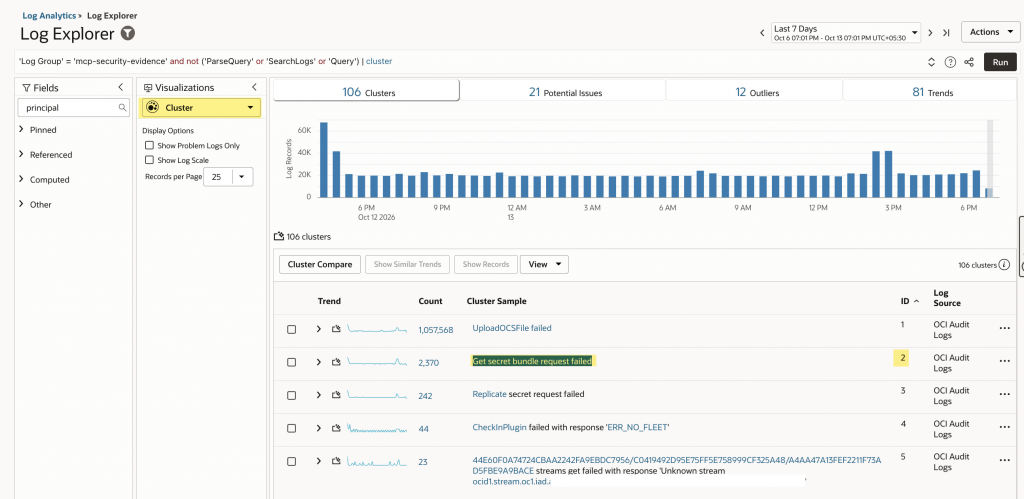
Figure 5a. Cluster view groups similar messages. The Get secret bundle request failed pattern is cluster ID 2 in this run.
3. With that cluster open in Records with Histogram, ask LoganAI the below and see the magic:
Are there failed secret retrievals in these records which are requests made by Database Tools connection resource principals? Identify the principal and outcome.
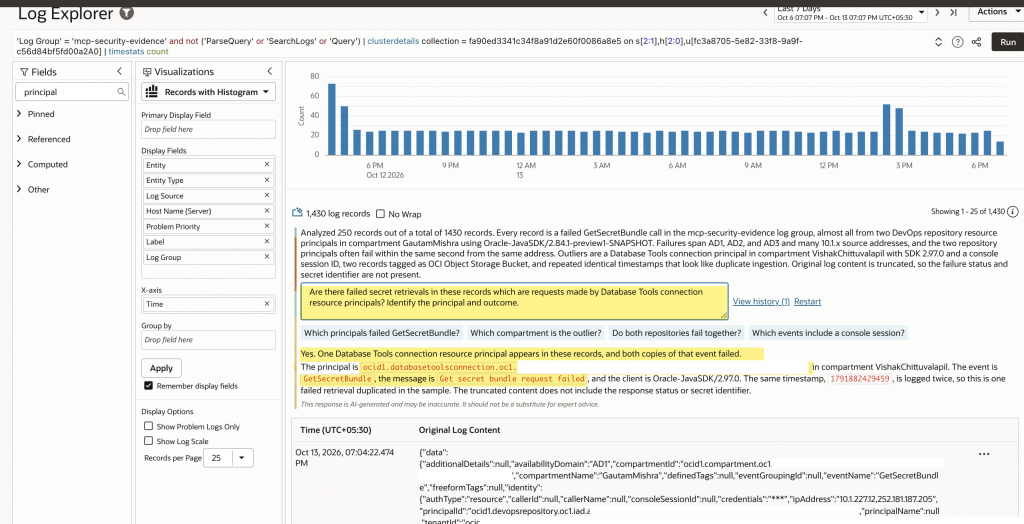
Figure 5b. LoganAI identifies a Database Tools connection resource principal within the selected secret-retrieval failure cluster.

Figure 5c. A closer view of the question and answer highlights the Database Tools connection principal, GetSecretBundle event, and failed retrieval message.
LoganAI surfaces the connection resource principal in VishakChittuvalapil and identifies GetSecretBundle with the message Get secret bundle request failed. We arrive at the connection from the failure pattern, rather than entering a known connection or error identifier at the start.
Using the principal and timestamp surfaced by LoganAI, we can narrow the selected cluster to the exact log entries and view more details. Add the connection OCID as the Principal filter, and add | where Time = 1791882429459 before | timestats count.
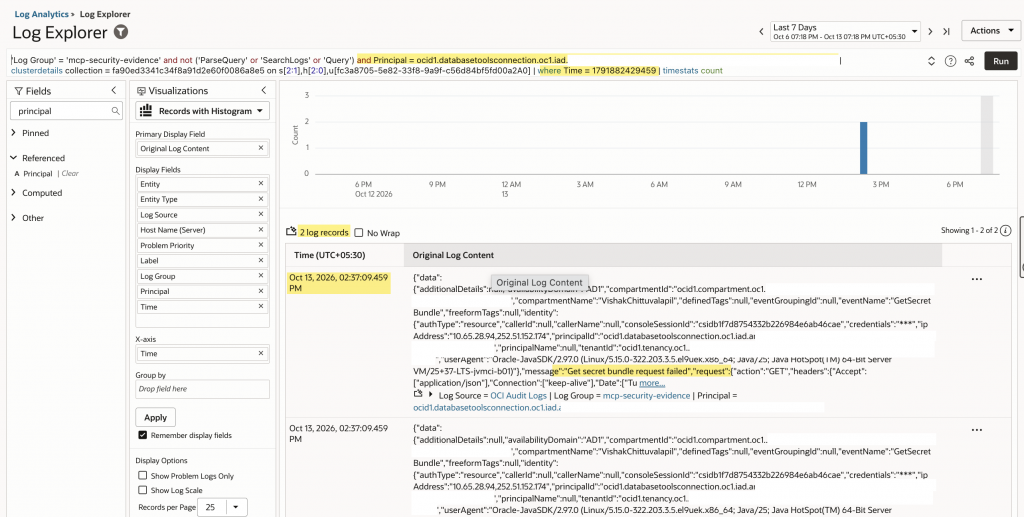
Figure 5d. The Principal and Time filters narrow the cluster to two matching log records, ready for inspection in Original Log Content.
Expand Original Log Content to inspect identity.authType, identity.principalId, resourceId, request.id, and response.status. The connection principal identifies who attempted the retrieval, and the failed message describes its outcome.
Conclusion
OCI Audit identifies the caller and managed-service request, MCP invocation logs explain service-visible authorization failures, and Unified Audit records database operations and their outcomes. Consolidating these sources gives security operations center (SOC) teams a common view for tracing activity and identifying the security boundary involved. LoganAI helps investigators explore selected evidence. Organizations can adapt this approach to their preferred logging or security information and event management (SIEM) platform for broader security monitoring and investigation workflows.
Next, we’ll explore how dashboards can turn these logs into actionable views for SOC teams. Stay tuned!