
Monitoring the health and compliance of cloud databases requires visibility into key operational metrics. While OCI exposes this information through its comprehensive REST APIs, aggregating and analyzing these metrics across a fleet of databases can be complex and time-consuming. In this blog post, we’ll show you how to leverage Oracle Log Analytics to collect database backup events through OCI Events service, Streaming, and Service Connector Hub to build centralized dashboards for real-time backup event monitoring.
In Part 1 and Part 2 of this blog series, we explored how to collect database backup and recovery metrics from OCI Monitoring service and database metadata using multi-tier REST API calls.
While these approaches provide valuable metrics and metadata, they rely on periodic polling. For real-time visibility into backup events as they occur, you need an event-driven approach that captures events immediately when backup operations complete, fail, or change state.
In Part 3, we’ll show you how to implement a real-time event collection solution using OCI Events service, Streaming, and Service Connector Hub to automatically route database backup events to Oracle Log Analytics. This approach enables you to:
- Consolidated Backup Monitoring: Consolidate backup events from all databases and block/boot volumes into a single view for real-time monitoring.
- Compliance and Audit Reporting: Simplifies generating compliance reports and monitoring backup policy enforcement.
- Dashboards & Insights: Centralizes backup events for operational dashboards, allowing visualization of trends by database, region, or compartment, supporting proactive planning and troubleshooting.
- Alerting & Automation: Supports automatic detection and notification of issues, such as failed backups or suspicious patterns.
Blog posts in the series:
- Part 1: Collecting Database Backup and Recovery metrics in OCI Log Analytics via OCI Monitoring and OCI REST API
- Part 2: Collecting Oracle Cloud Database Backup metadata in OCI Log Analytics via multi-leg REST API calls
Solution Design
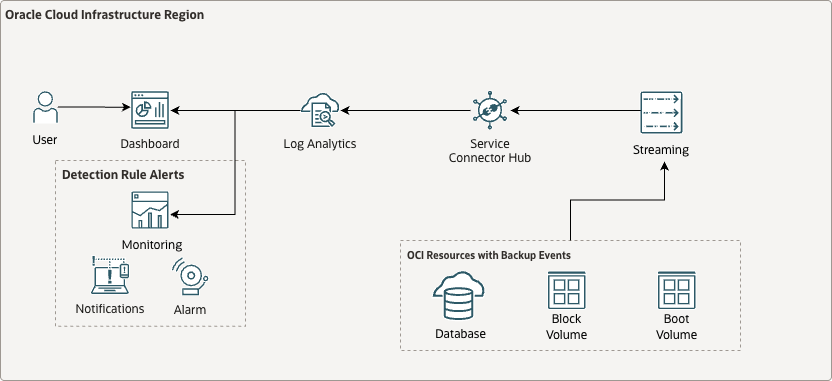
OCI Database Service generates events when backup operations occur, including backup start, completion, and failure events. These events follow the CNCF OCI Events specification and contain rich metadata about the backup operation, database configuration, and operational status.
The solution architecture flows as follows:
- OCI Events Service: When a database backup operation completes (or fails), OCI Database Service generates a OCI Events-formatted payload
- OCI Streaming: OCI Events service captures these events based on configured event rules. Events are published to an OCI Streaming stream for reliable buffering and delivery
- Service Connector Hub: Automatically routes events from the stream to Log Analytics
- Log Analytics: Log Analytics receives events and parses them using a custom parser to extract fields
- Dashboards and Monitoring: Visualizes backup events and triggers alerts
Reference Architecture:
Prerequisites
Before proceeding, ensure you have:
- Set up service policies for Oracle Cloud Log Analytics. See Enable Access to Log Analytics and Its Resources and Prerequisite IAM Policies in Oracle Cloud Infrastructure Documentation.
- Administrative access to configure OCI Events, Streaming, and Service Connector Hub
- A Log Analytics log group for storing backup events
- Understanding of OCI OCI Events from services (see Services that Produce Events)
Implementation Overview
Let’s walk through the implementation process for collecting OCI backup events using the event-driven approach:
- Create an OCI Streaming stream for event buffering
- Configure an OCI Events rule to capture database backup events
- Set up Service Connector Hub to route events from Streaming to Log Analytics
- Create a custom parser in Log Analytics for OCI Events format
- Create a log source in Log Analytics for backup events
- Verify event ingestion and create dashboards
Step 1: Create OCI Streaming Stream
-
Navigate to Streaming Service
- Log in to the Oracle Cloud Console
- Navigate to Analytics & AI > Streaming
- Click Create Stream
-
Configure Stream Details
- Name: Enter a descriptive name (e.g.,
events_stream) - Compartment: Select your compartment
- Configure stream pool: Create new stream pool if you don’t have one, or use the existing one
- Select endpoint type: Select Public endpoin
- NOTE: OCI Event service onyl supports a public endpoint to access the stream, if you want to use a private endpoint, you need to use OCI Functions to publish the events to the private stream. Please refer to Write Events to an OCI Private Stream using OCI Events Service and OCI Functions
-
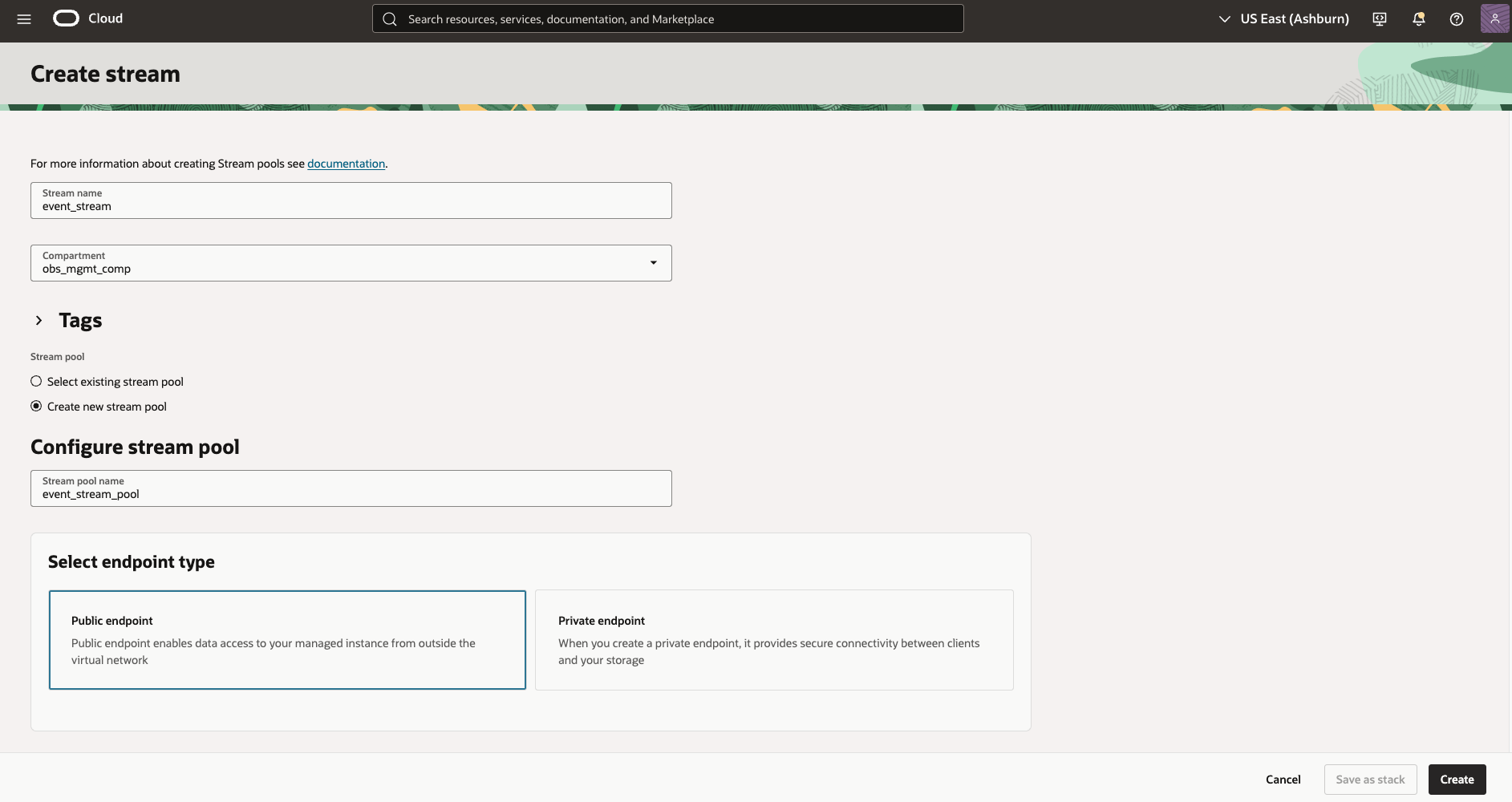
Figure 2: OCI Streaming Stream Endpoint Type
- Configure encryption settings: Select Encrypt using Oracle-managed keys
- Define stream settings:
- Retention: Set retention period (e.g., 24 hours)
- Partition count: Set to 1 (default is sufficient for most use cases)
- Click Create
-
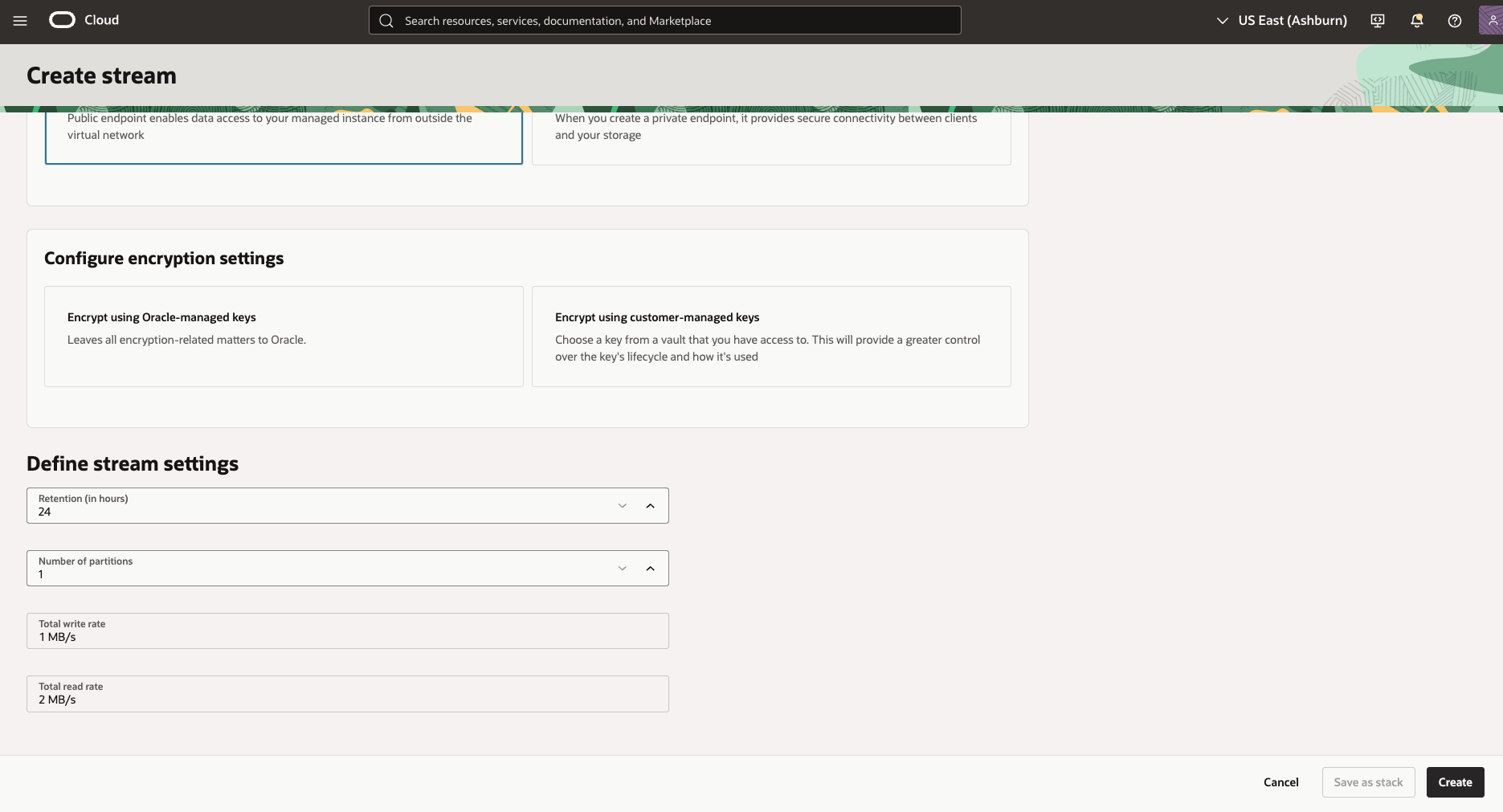
Figure 3: OCI Streaming Stream Creation
- Define stream settings:
- Name: Enter a descriptive name (e.g.,
Step 2: Configure OCI Events Rule
-
Navigate to Events Service
- In the Oracle Cloud Console, go to Observability & Management > Events Service
- Click Create Rule
-
Configure Rule Details
- Display Name: Enter a name (e.g.,
Database Backup Events Rule) - Description: Enter a description (e.g.,
Capture database backup start and end events) - Compartment: Select your compartment
- Display Name: Enter a name (e.g.,
-
Configure Event Conditions
- Event Type: Select Service Name =
Database Service - Event Type: Select Event Type =
Backup Database End(orBackup Database Startfor start events) - You can create multiple rules for different event types, or use a single rule with multiple conditions
Example conditions:
Event Type: com.oraclecloud.databaseservice.backupdatabase.end Event Type: com.oraclecloud.databaseservice.automaticbackupautonomousdatabase.end Event Type: com.oraclecloud.databaseservice.autonomous.database.backup.end Event Type: com.oraclecloud.blockvolumes.createbootvolumebackup.end Event Type: com.oraclecloud.blockvolumes.copyvolumebackup.end - Event Type: Select Service Name =
-
Configure Actions
- Action Type: Select Streaming
- Compartment: Select the compartment containing your stream
- Stream: Select the stream you created in Step 1 (e.g.,
events_stream)
-
Click Create Rule
-
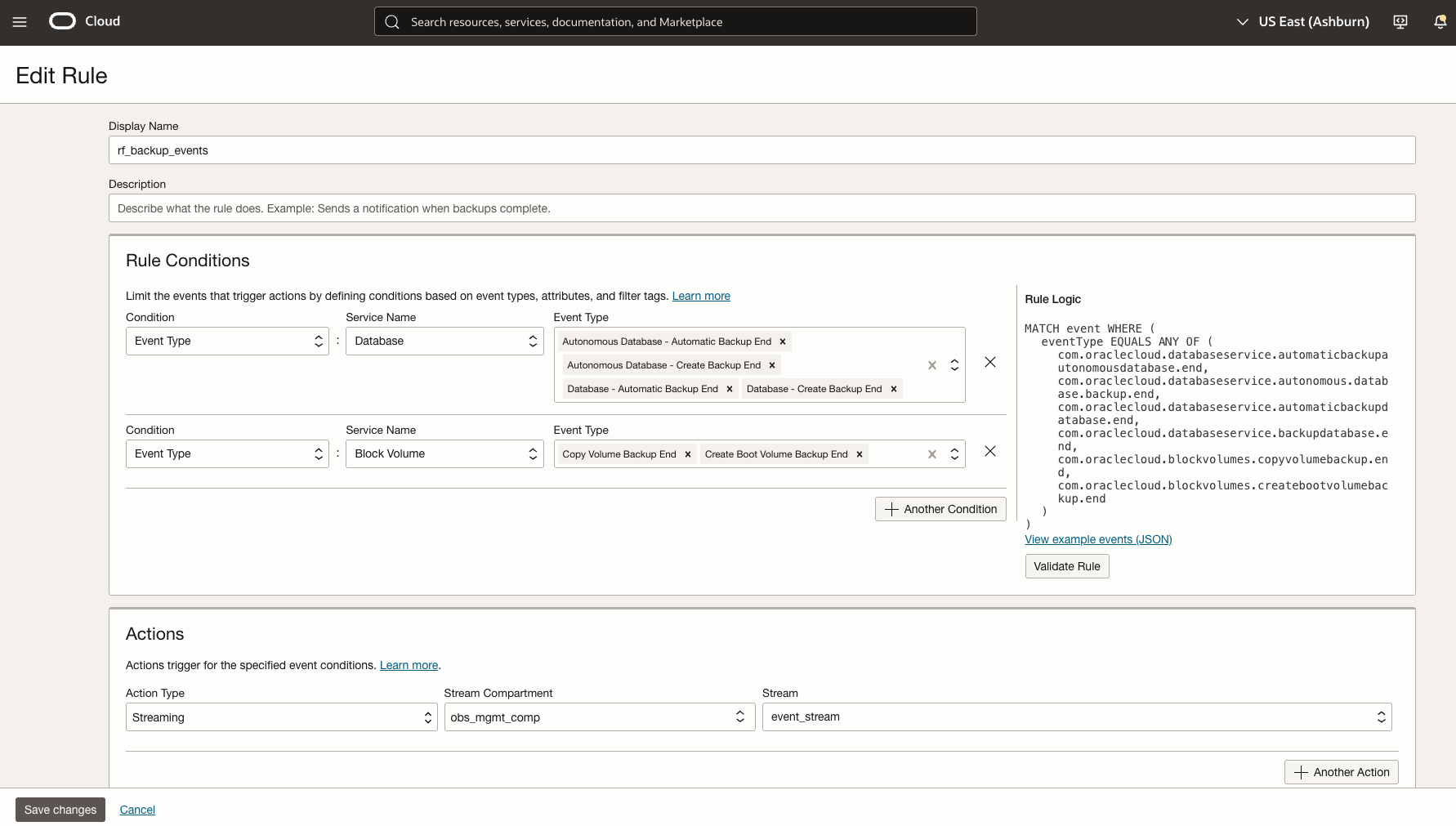
Figure 4: OCI Events Rule Creation
Step 3: Import the OCI_Backup_Event_Source log source
- Import the OCI_Backup_Event_Source log source
- Download the OCI_Database_INFO log source from Github repo: here
- Navigate to Observability & Management > Log Analytics
- Click on the Administration tab
- Click Import Configuration Content
- Select the OCI_Backup_Event_Source log source zip file
- Click Import
Step 4: Configure Service Connector Hub
-
Navigate to Service Connector Hub
- In the Oracle Cloud Console, go to Observability & Management > Logging > Connectors
- Click Create Connector
-
Configure Connector Details
- Name: Enter a name (e.g.,
db-backup-events-to-loganalytics) - Compartment: Select your compartment
- Description: Enter a description
- Name: Enter a name (e.g.,
-
Configure Source
- Source: Select Streaming
- Compartment: Select the compartment containing your stream
- Stream: Select the stream created in Step 1 (e.g.,
events_stream) - Stream pool: Select the stream pool created in Step 1 (e.g.,
events_stream_pool) - Read position: Select Latest
-
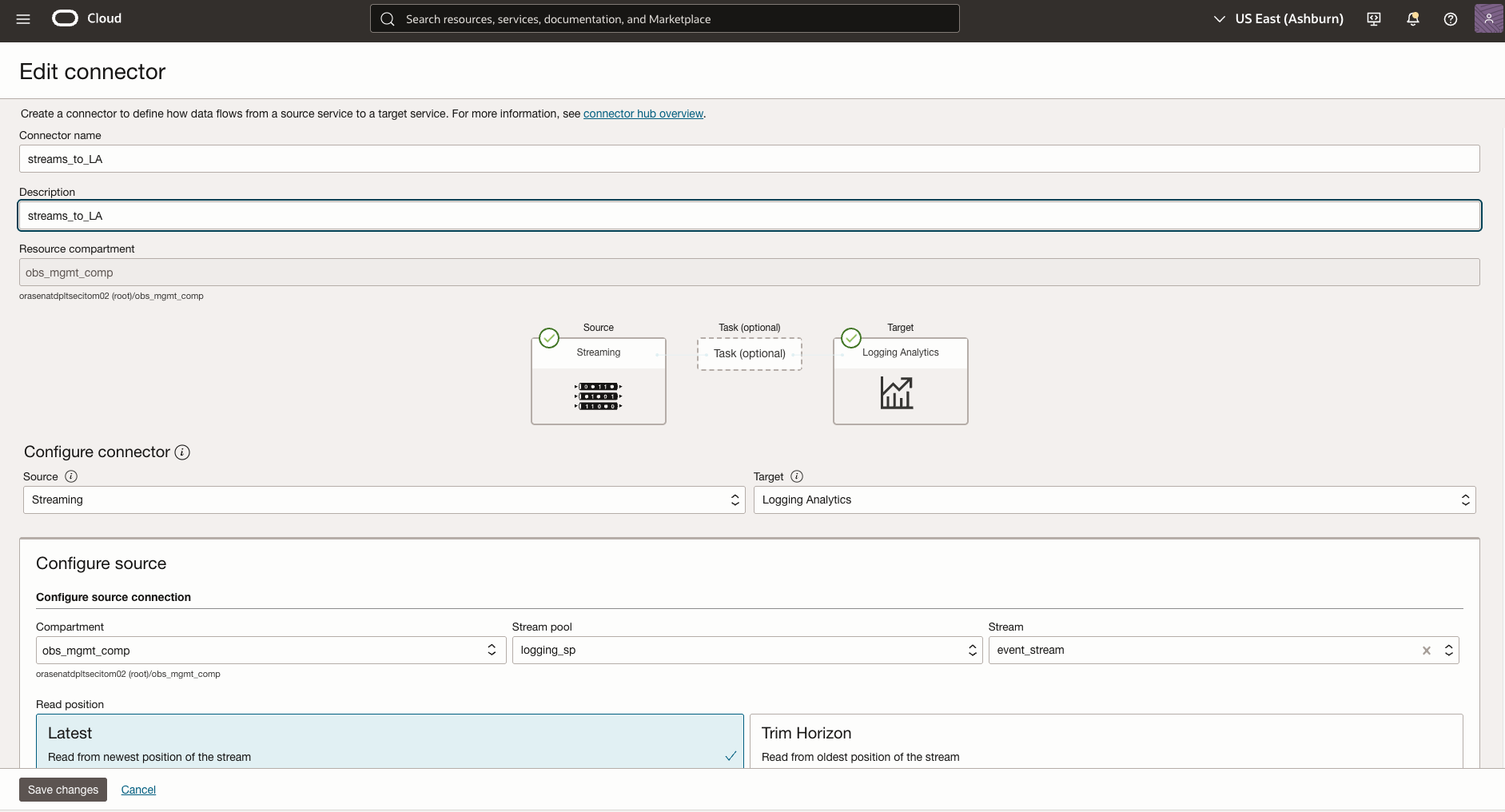
Figure 5: OCI Service Connector Hub Source Configuration
-
Configure Target
- Compartment: Select the compartment containing your Log Analytics namespace
- Target: Select Logging Analytics
- Log Group: Select an existing log group or create a new one (e.g.,
OCI Backup Events) - Log source identifier: Select OCI_Backup_Event_Source
-
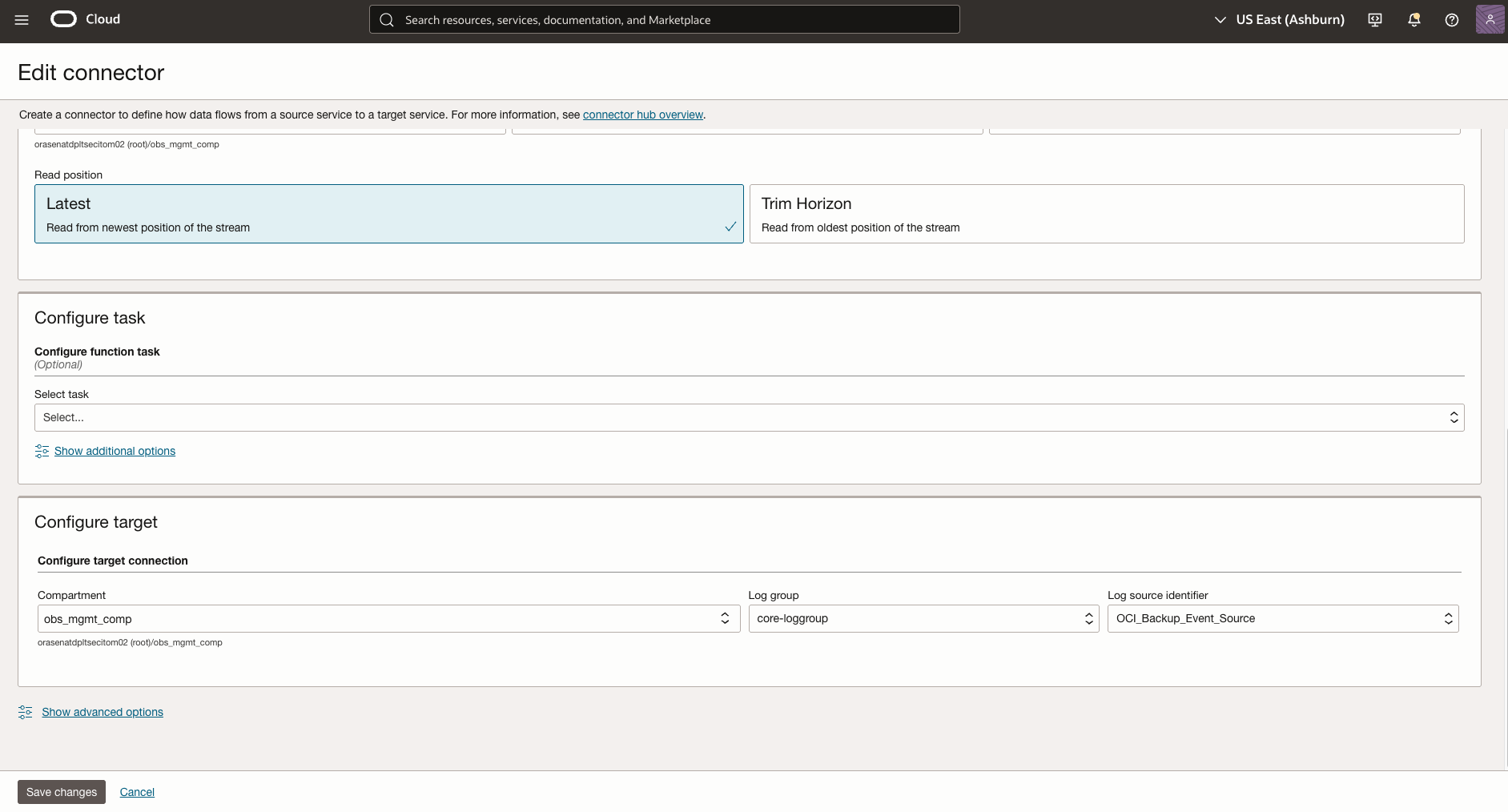
Figure 6: OCI Service Connector Hub Target Configuration
-
Configure Policies (if prompted)
- Service Connector Hub will require policies to read from Streaming and write to Log Analytics
- Example policies:
allow any-user to {STREAM_READ, STREAM_CONSUME} in compartment id <compartment_OCID> where all {request.principal.type='serviceconnector', target.stream.id='<stream_OCID>', request.principal.compartment.id='<compartment_OCID>'}
allow any-user to {LOG_ANALYTICS_LOG_GROUP_UPLOAD_LOGS} in compartment id <compartment_OCID> where all {request.principal.type='serviceconnector', target.loganalytics-log-group.id='<target_log_group_OCID>', request.principal.compartment.id='<compartment_OCID>'}
-
Click Create
Step 5: Verify Event Ingestion
-
Trigger a Test Backup
- Perform a manual database backup or wait for a scheduled backup to complete
- This will generate a backup event
-
Check Log Explorer
- Navigate to Log Analytics > Log Explorer
- Query for backup events:
'Log Source' = OCI_Backup_Event_Source | fields -'Entity Type', -'Host Name (Server)', -'Problem Priority', -Label, -Entity, -'Log Source', 'Compartment Name', DBUniqueName, LifecycleState, 'OCI Resource Name', BackupDestinationType, backupType, recoveryWindowInDays, DatabaseEdition, autoBackupEnabled, dbVersion, isCdb - Verify that events are being ingested
-
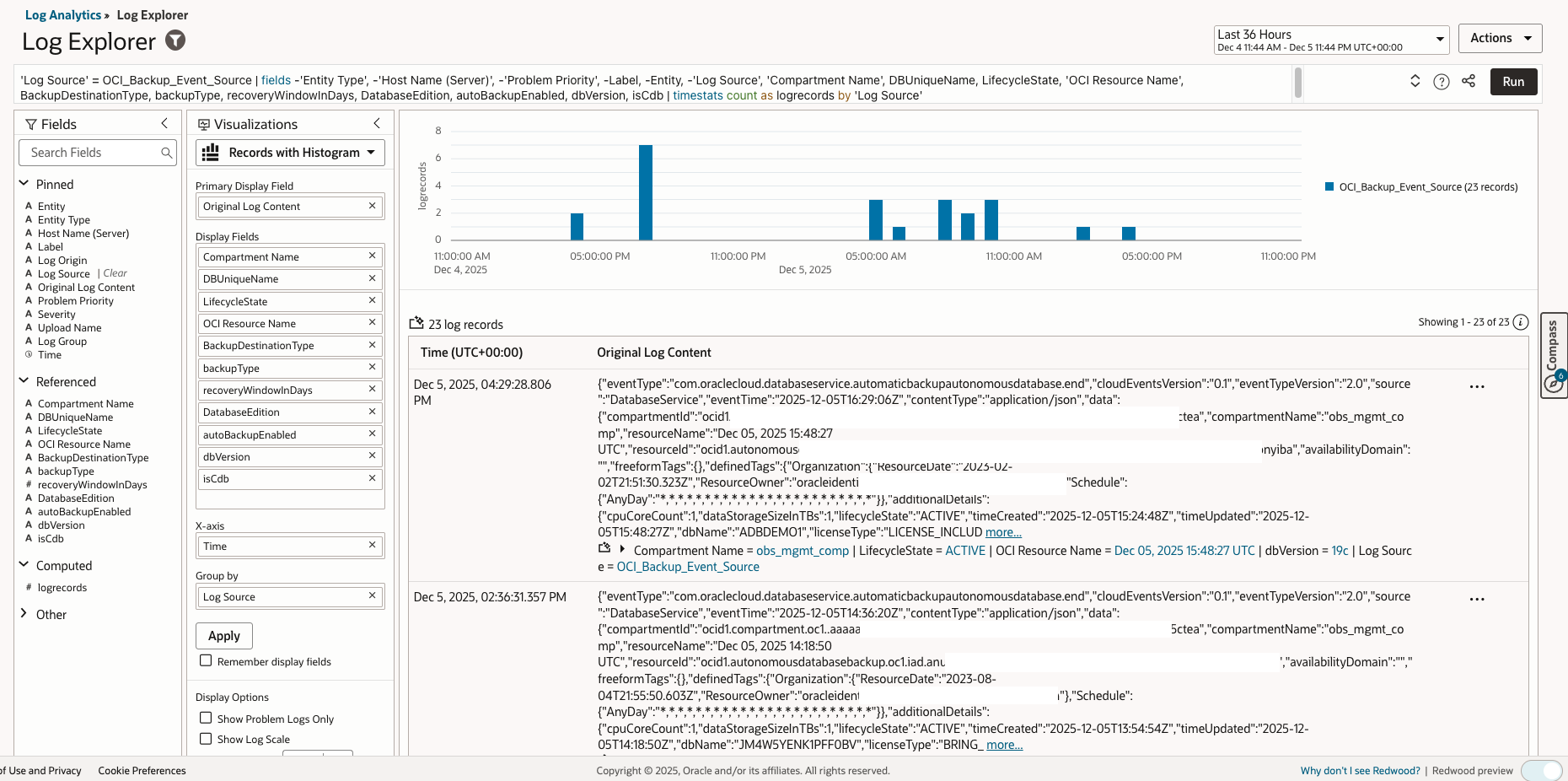
Figure 7: OCI Backup Event Ingestion
Step 6: OCI Backup EventDashboard Widgets
Create a dashboard with the following widgets:
-
OCI Backup Trend by Backup Type
- Widget Type: Time Series Chart
- Query: Backup events over time grouped by BackupType
- Format: Line chart with multiple series
- Query:
'Log Source' = OCI_Backup_Event_Source | timestats count as logrecords by Datasource -
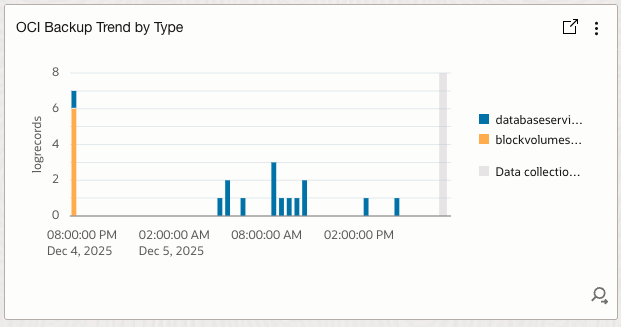
Figure 8: OCI Backup Trend by Backup Type
-
OCI Backup by Status Pie Chart
- Widget Type: Pie Chart
- Query: Backup events grouped by BackupStatus
- Format: Pie chart with percentage breakdown
- Query:
'Log Source' = OCI_Backup_Event_Source | stats count as logrecords by BackupStatus -
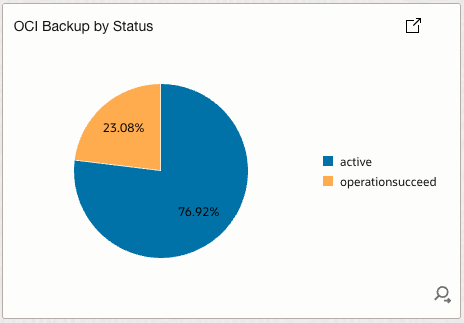
Figure 9: OCI Backup by Status Pie Chart
-
OCI BAckup Schedule Heatmap
- Widget Type: Heatmap
- Query: Backup events grouped by BackupType and BackupStatus
- Format: Heatmap with color coding for BackupType and BackupStatus
- Query:
'Log Source' = OCI_Backup_Event_Source | timestats count as logrecords by Datasource, BackupStatus -
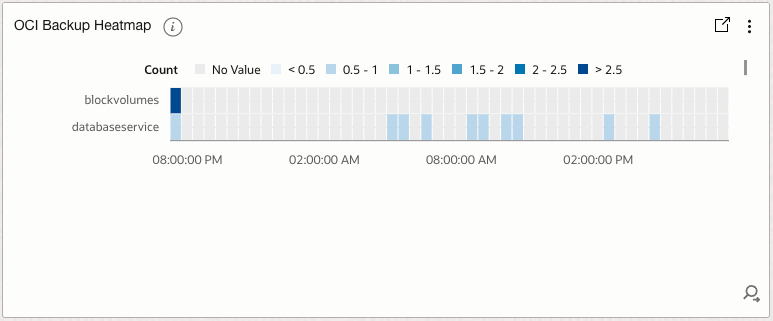
Figure 10: OCI Backup Schedule Heatmap
-
OCI Database Backup Report
- Widget Type: Table
- Query: Backup events grouped by Database and BackupType
- Format: Table with columns for Database, BackupType, BackupStatus, BackupTime
- Query:
'Log Source' = OCI_Backup_Event_Source | stats count as logrecords by DBUniqueName, backupType -
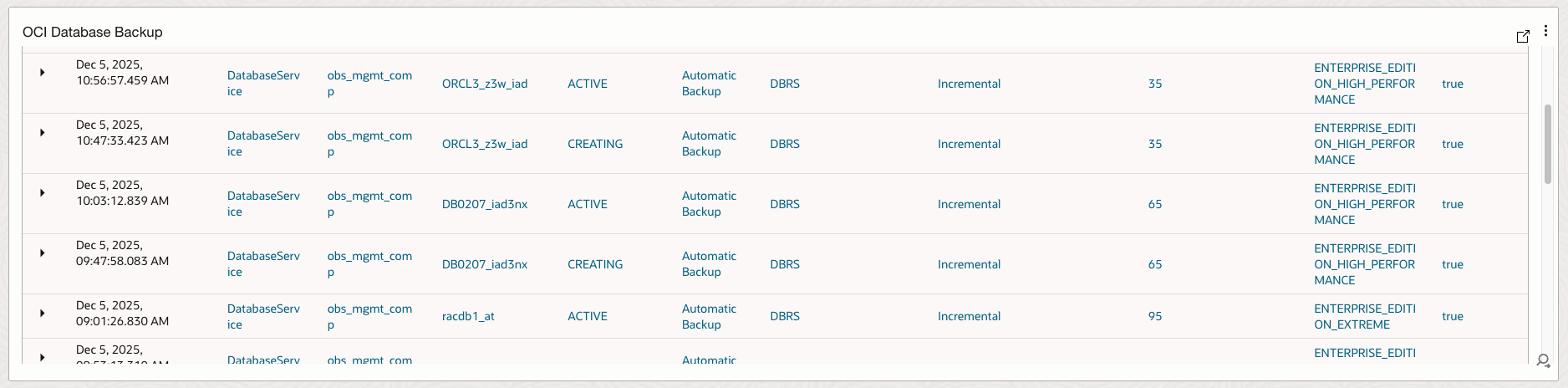
Figure 11: OCI Database Backup Report
-
OCI Volume Backup Report
- Widget Type: Table
- Query: Backup events grouped by Volume and BackupType
- Format: Table with columns for Volume, BackupType, BackupStatus, BackupTime
- Query:
'Log Source' = OCI_Backup_Event_Source | stats count as logrecords by VolumeName, backupType -

Figure 12: OCI Volume Backup Report
Conclusion
By implementing event-driven backup event collection using OCI Events service, Streaming, and Service Connector Hub, organizations can achieve real-time visibility into database backup operations. This approach complements the polling-based methods from Parts 1 and 2, providing:
- Unified Backup Monitoring: Aggregates backup events from all databases and block/boot volumes into a single, real-time, consolidated dashboard.
- Streamlined Compliance and Audit: Facilitates efficient compliance reporting and makes it easier to track adherence to backup policies.
- Actionable Dashboards & Insights: Provides centralized access to backup event data, enabling visualization of trends by database, region, or compartment to support proactive management and troubleshooting.
- Proactive Alerting & Automation: Enables automatic detection and notification of backup failures or unusual activity, supporting rapid response and automation.
Combined with the monitoring metrics from Part 1 and metadata collection from Part 2, this event-driven approach provides complete visibility into your OCI database backup infrastructure, enabling proactive monitoring, compliance reporting, and operational excellence.
References
- OCI Events Service Documentation
- OCI Streaming Service Documentation
- Service Connector Hub Documentation
- Oracle Log Analytics Parser Documentation
- Part 1: Collecting Database Backup and Recovery metrics in OCI Log Analytics via OCI Monitoring and OCI REST API
- Part 2: Collecting Oracle Cloud Database Backup metadata in OCI Log Analytics via multi-leg REST API calls
- Part 3: Collecting OCI Backup Events in OCI Log Analytics for OCI Backup Dashboard