
In Part 1 of this blog series, we explored how to collect database backup and recovery metrics from OCI Monitoring service and Autonomous Recovery Service using Oracle Log Analytics REST API Log Source. This approach provides valuable time-series metrics about backup duration, backup size, and recovery service status.
However, to gain comprehensive visibility into your database infrastructure, you often need to collect detailed metadata about database configurations, backup policies, and operational status directly from the OCI Database service REST APIs. This requires a more sophisticated approach: multi-tier REST API collection where you first fetch a list of resources (such as Database Homes), then use those resource identifiers to collect detailed information for each resource.
In Part 2, we’ll demonstrate how to leverage Oracle Log Analytics’ “Add list endpoint for multiple logs” feature to implement this multi-tier collection pattern, specifically focusing on collecting database metadata by first fetching DB Home IDs and then using those IDs to retrieve detailed database information.
Blog posts in the series:
- Part 1: Collecting Database Backup and Recovery metrics in OCI Log Analytics via OCI Monitoring and OCI REST API
- Part 3: Collecting OCI Backup Events in OCI Log Analytics for OCI Backup Dashboard
Solution Design: Multi-Tier REST API Collection with JSON Path Variables
Oracle Log Analytics provides a powerful feature called “Add list endpoint for multiple logs” that enables multi-tier REST API collection. This feature allows you to:
- Configure a Parent List Endpoint: Define a REST API endpoint that returns a list of resources (e.g., DB Homes)
- Extract Resource Identifiers: Use JSON path expressions to extract identifiers from the parent response
- Configure Child Endpoints: Define child endpoints that use the extracted identifiers to fetch detailed information for each resource
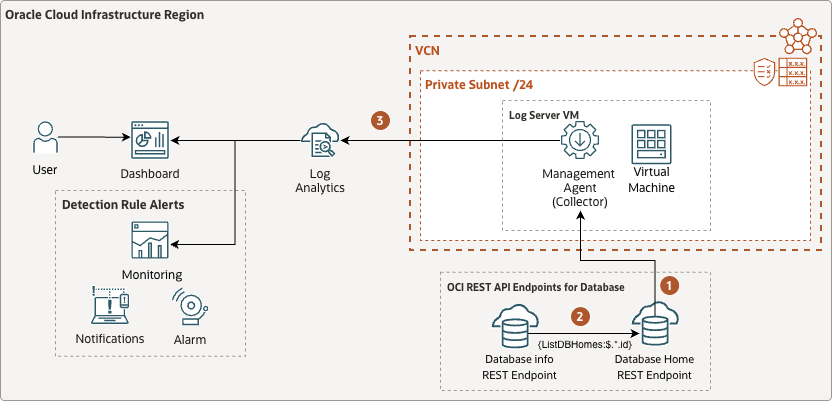
The key to this approach is using JSON path variables to pass data from the parent endpoint response to child endpoint URLs. This enables dynamic, scalable collection without hardcoding resource identifiers. Therefore, we can collect the database and corresponding backup info from the OCI Database service REST API.
Reference Architecture:
Prerequisites
Before proceeding, ensure you have completed the prerequisites from Part 1:
- Set up service policies for Oracle Cloud Log Analytics. See Enable Access to Log Analytics and Its Resources and Prerequisite IAM Policies in Oracle Cloud Infrastructure Documentation.
- Install the Management Agent on a client host VM which has http or https access to your endpoint server. See Set Up Continuous Log Collection From Your Hosts.
- Create a dynamic group for the Management Agent and configure IAM policies (as described in Part 1)
- Update the Management Agent configuration to enable REST API collection (as described in Part 1)
Additionally, ensure your IAM policies include permissions to read database resources:
allow dynamic-group ManagementAgentDynamicGroup to read database-family in tenancy
Implementation: Configuring Multi-Tier REST API Collection
Let’s walk through the step-by-step process of configuring multi-tier REST API collection for database metadata. Before configuring the Log Source, it’s important to understand the API endpoints and their response structure:
Parent Endpoint – List DB Homes:
GET https://database.{region}.oraclecloud.com/20160918/dbHomes?compartmentId={COMPARTMENT_ID}
Example Response:
[
    {
        "compartmentId": "ocid1.compartment.oc1..aaaaaexampleaaaaa",
        "databaseSoftwareImageId": null,
        "dbHomeLocation": "/u01/app/oracle/product/19.0.0.0/dbhome_1",
        "dbSystemId": "ocid1.dbsystem.oc1.iad.aaaaaexampleaaaaa",
        "dbVersion": "19.26.0.0.0",
        "definedTags": null,
        "displayName": "dbhome202512345",
        "freeformTags": null,
        "homeType": null,
        "id": "ocid1.dbhome.oc1.iad.aaaaaexampleaaaaa",
        "isUnifiedAuditingEnabled": false,
        "kmsKeyId": null,
        "lastPatchHistoryEntryId": "ocid1.dbpatchhistory.oc1.iad.aaaaaexampleaaaaa",
        "lifecycleDetails": null,
        "lifecycleState": "AVAILABLE",
        "oneOffPatches": null,
        "systemTags": null,
        "timeCreated": "2024-10-29T17:43:56.879Z",
        "vmClusterId": null
    },
    {
        "compartmentId": "ocid1.compartment.oc1..aaaaaexampleaaaaa",
        "databaseSoftwareImageId": null,
        "dbHomeLocation": "/u01/app/oracle/product/19.0.0.0/dbhome_1",
        "dbSystemId": "ocid1.dbsystem.oc1.iad.aaaaaexampleaaaaa",
        "dbVersion": "19.26.0.0.0",
        "definedTags": null,
        "displayName": "dbhome202412345",
        "freeformTags": null,
        "homeType": null,
        "id": "ocid1.dbhome.oc1.iad.aaaaaexampleaaaaa",
        "isUnifiedAuditingEnabled": false,
        "kmsKeyId": null,
        "lastPatchHistoryEntryId": null,
        "lifecycleDetails": null,
        "lifecycleState": "TERMINATED",
        "oneOffPatches": null,
        "systemTags": null,
        "timeCreated": "2025-02-25T14:31:04.846Z",
        "vmClusterId": null
    }
]
Child Endpoint – List Databases by DB Home:
GET https://database.{region}.oraclecloud.com/20160918/databases?dbHomeId={DB_HOME_ID}&compartmentId={COMPARTMENT_ID}
The child endpoint uses the dbHomeId parameter, which we’ll extract from the parent response using JSON path variables.
Step 1: Import the Log Source directly into Log Analytics
- Import the OCI_Database_INFO log source
- Download the OCI_Database_INFO log source from Github repo: here
- Navigate to Observability & Management > Log Analytics
- Click on the Administration tab
- Click Import Configuration Content
- Select the OCI_Database_INFO log source zip file
- Click Import
Step 2: Configure the Parent List Endpoint
-
Configure List Endpoint for Multiple Logs
- Navigate to Log Analytics > Administration > Sources
- Click the OCI_Database_INFO log source
- In the Endpoints tab, Check the “***” of the Enabled Log endpoint: ListDBHomes
- Click Edit
-
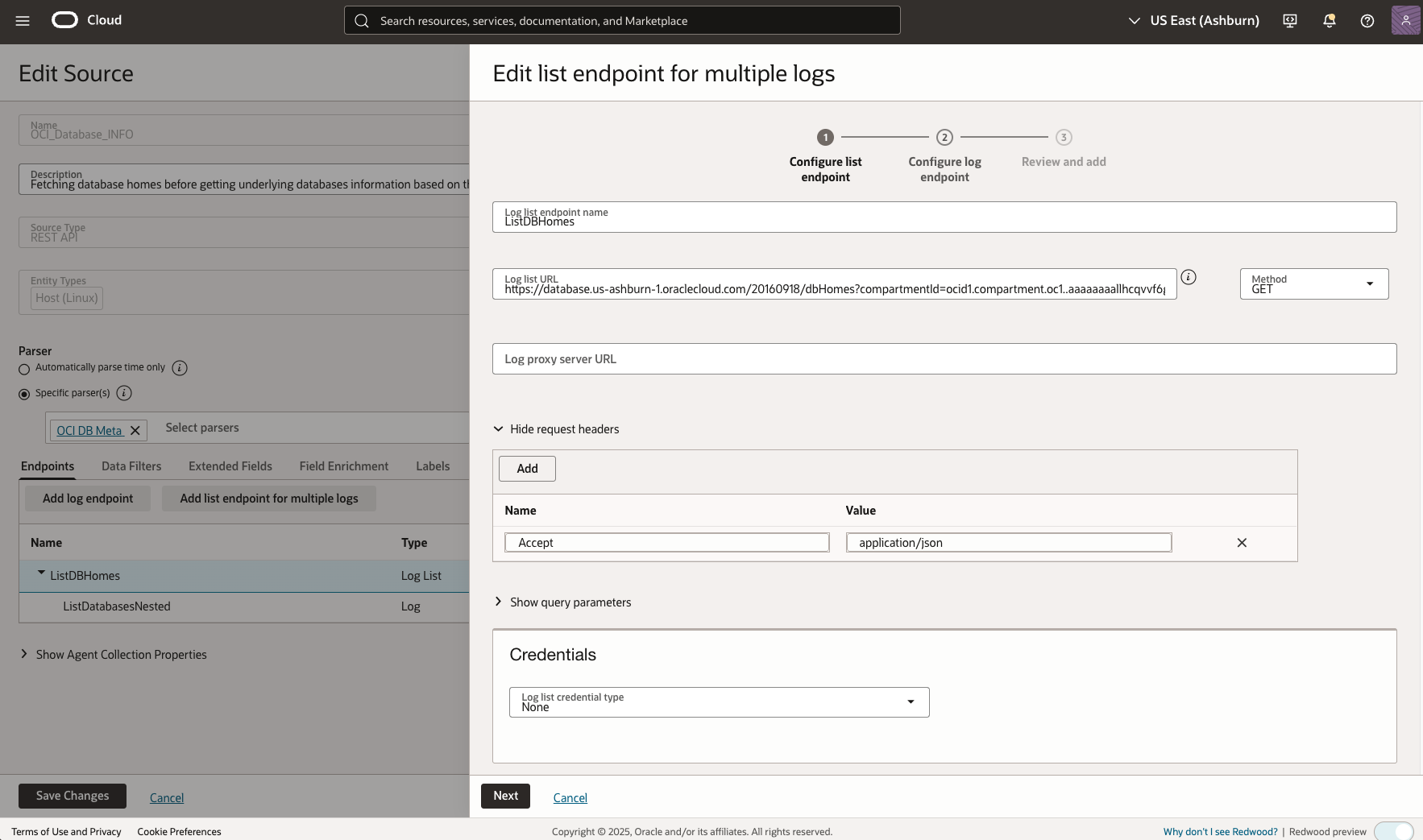
Figure 2: OCI Database INFO Log Source Edit List Endpoint for Multiple Logs - Update the Log list URL with the compartmentId matches your environment
-
Configure List Endpoint for multiple logs
- Review the example response of the log list endpoint: ListDBHomes
- Log URL: Construct the URL using JSON path variables to reference the parent endpoint response:
-
https://database.us-ashburn-1.oraclecloud.com/20160918/databases?dbHomeId={ListDBHomes:$.*.id}&compartmentId={COMPARTMENT_ID} -
The JSON path expression to extract the DB Home IDs is:
{ListDBHomes:$.*.id}Key Points about JSON Path Variables:{ListDBHomes:$.*.id}is the JSON path variable syntaxListDBHomesis the name of the list endpoint (matches the “Log list endpoint name” you specified)$.*.idis the JSON path expression that extracts allidvalues from the items array- The
$.*.idpath means: starting from root ($), match all elements (*), and extract theidfield - This will create multiple child API calls, one for each DB Home ID found in the parent response
-
Click Next
-
Update the Log URL with the correct compartmentId that matches your environment
-
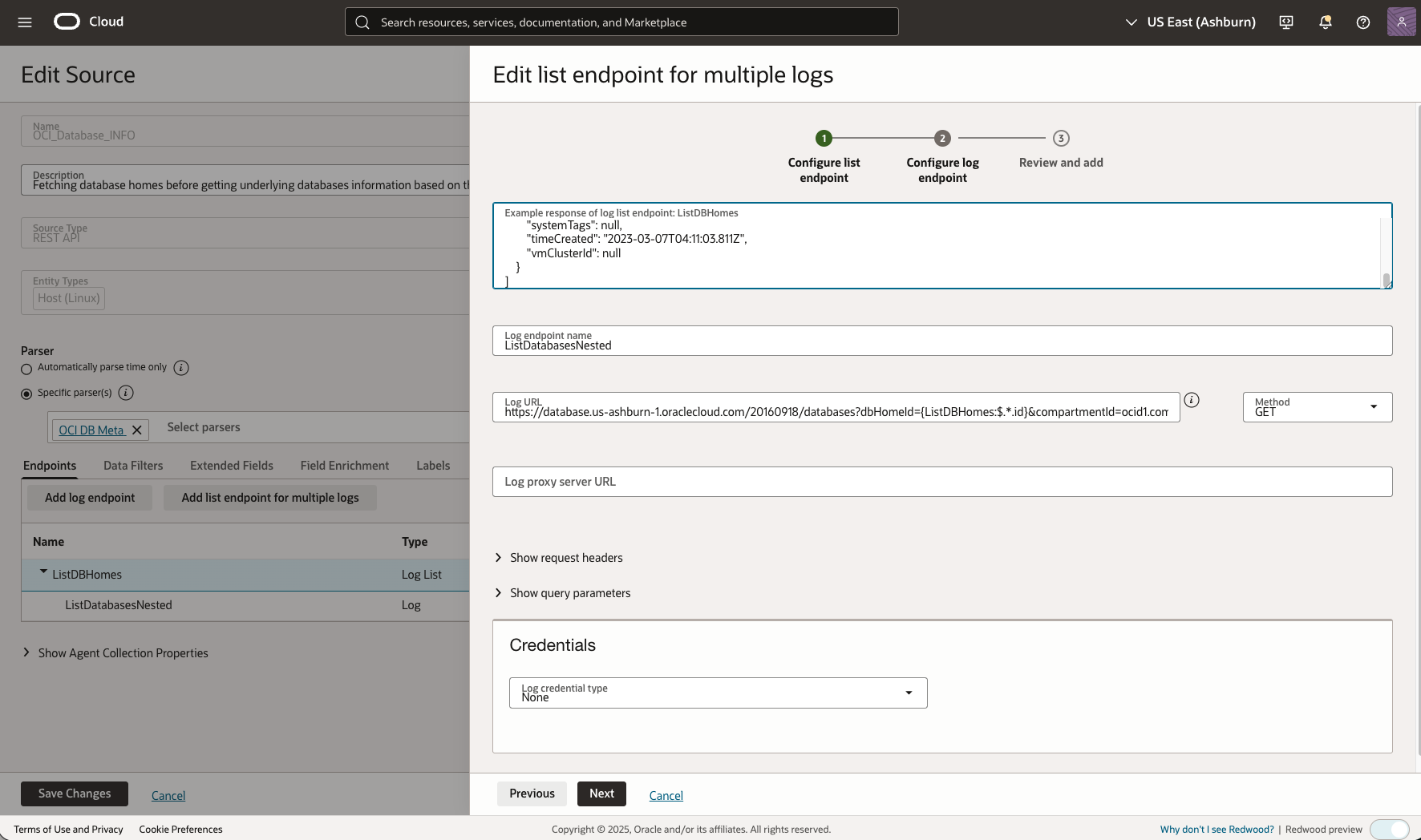
Figure 3: OCI Database INFO Log Source listdatabases Edit Multiple Logs - Request Headers: Click Show request headers and add:
- Name:
Accept - Value:
application/json
- Name:
-
Credentials: Select Log credentials type: None (the Management Agent will use resource principal authentication for OCI APIs)
-
Click Next to proceed to the next page
-
Review and Add Tab
- Review the configuration summary
- Verify that the list of URLs is displayed correctly (you should see multiple database URLs, one for each DB Home ID that would be extracted)
- If there are any errors, go back and fix them
- Click Save to create the source
-
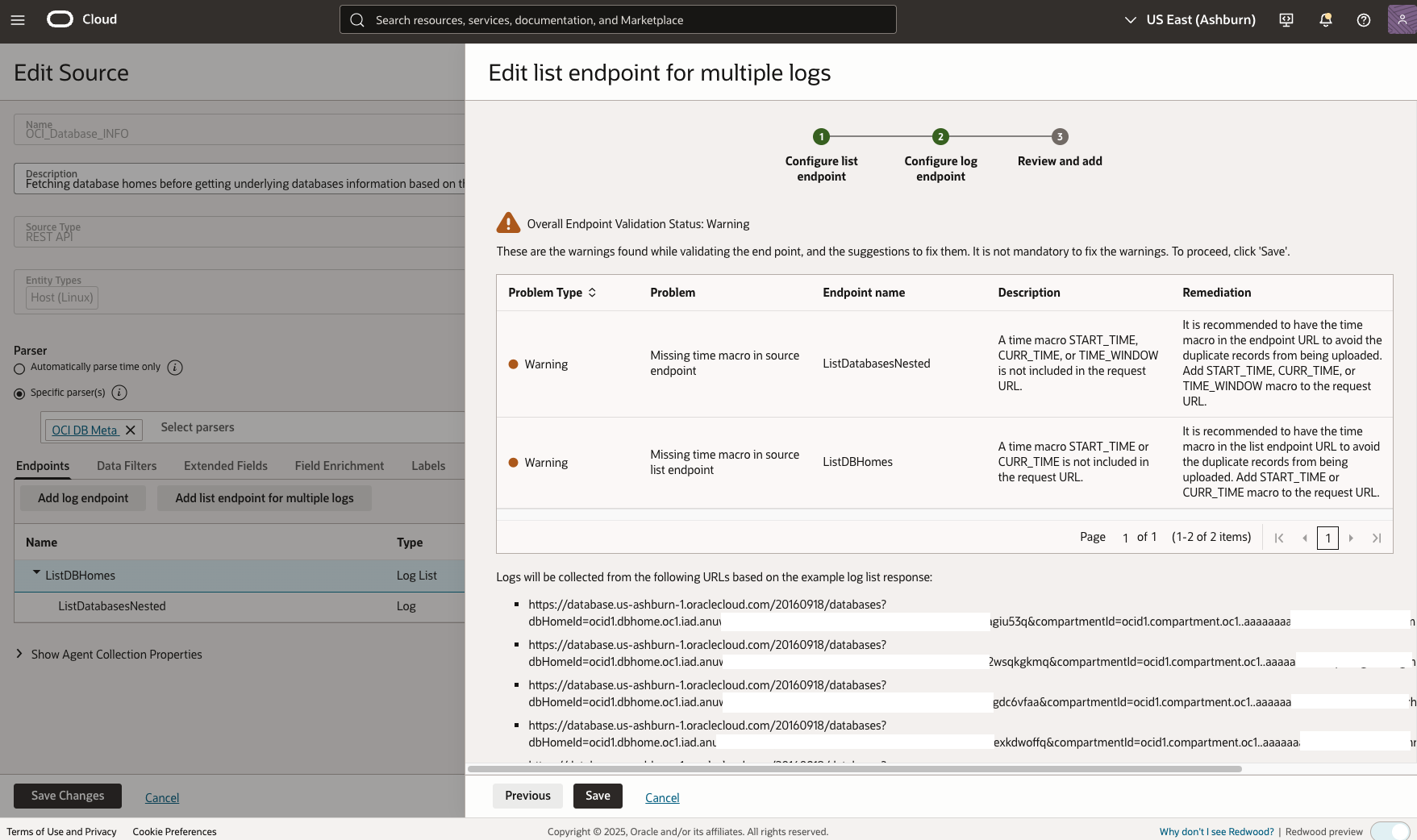
Figure 4: OCI Database INFO listdatabase list endpoint for Multiple Logs Review and Add
Step 4: Understanding JSON Path Variable Syntax
The JSON path variable syntax is crucial for multi-tier collection. Here’s a detailed explanation:
Basic Syntax:
{ListEndpointName:JSONPathExpression}
Components:
ListEndpointName: Must match the “Log list endpoint name” you specified in the parent endpoint configurationJSONPathExpression: A JSON path expression that extracts values from the parent response
Common JSON Path Expressions:
-
Extract all IDs from an array:
- Expression:
$.*.id - Example Response:
{ "items": [{"id": "id1"}, {"id": "id2"}] } - Result:
["id1", "id2"]
- Expression:
-
Extract IDs from nested arrays:
- Expression:
$.items[*].id - Example Response:
{ "items": [{"id": "id1"}, {"id": "id2"}] } - Result:
["id1", "id2"]
- Expression:
-
Extract multiple fields:
- Expression:
$.*.id(for IDs) and$.*.name(for names) - You can use multiple variables in the URL:
https://example.com/api?resourceId={ListEP:$.*.id}&resourceName={ListEP:$.*.name}
- Expression:
In Our Example:
- Parent endpoint name:
ListDBHomes - JSON path:
$.*.id - Variable usage:
{ListDBHomes:$.*.id} - This extracts all
idvalues from the root-level array in the response
Step 5: Associate the Source with Management Agent
-
Navigate to Source Association
- Go to Log Analytics > Administration > Sources
- Select your newly created source (
OCI_Database_INFO)
-
Add Entity Association
- Click on Unassociated Entities menu
- Select your Management Agent host entity
- Click Add Association
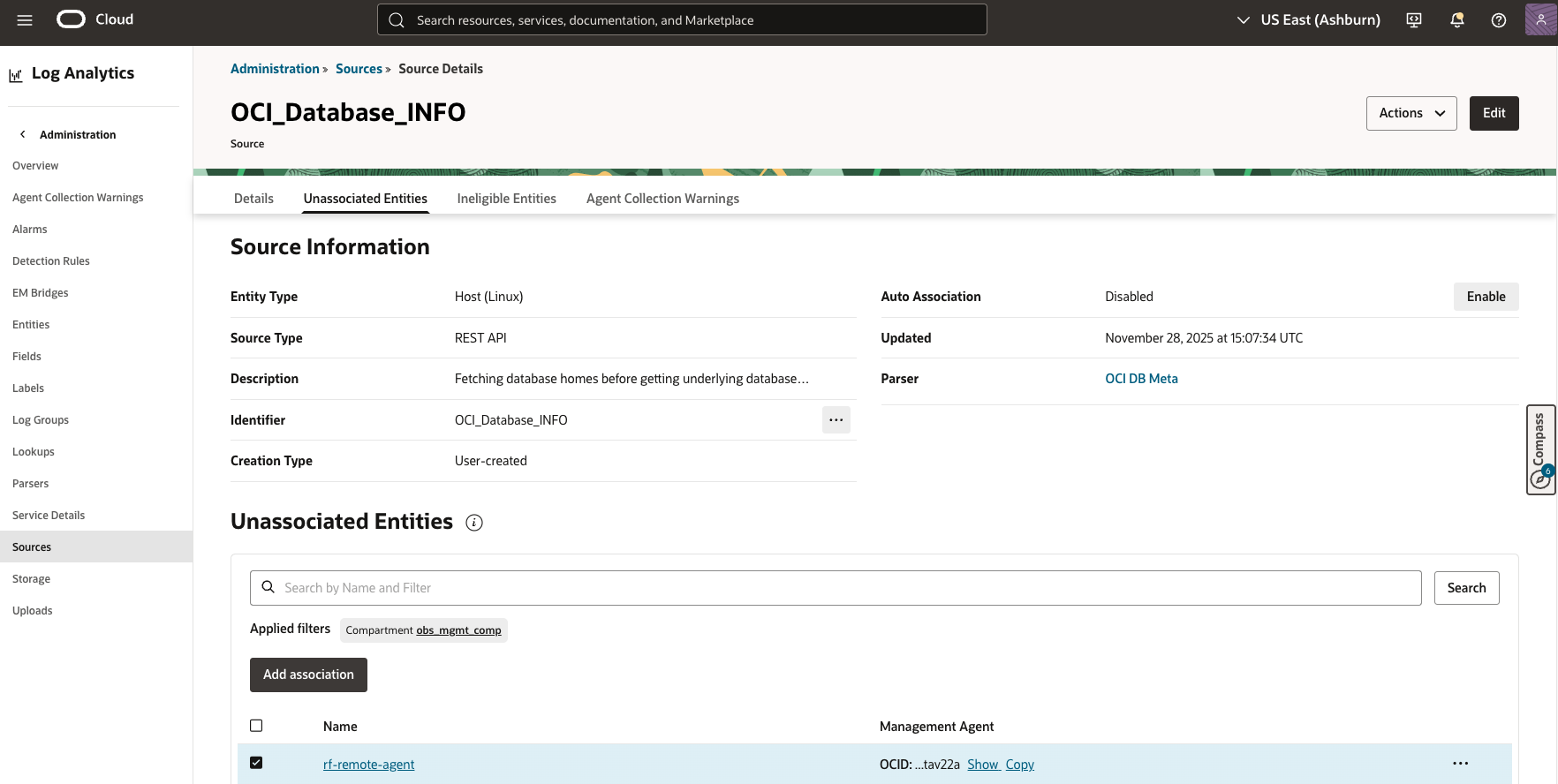
Figure 5: OCI Database INFO Log Source Entity Association -
Configure Log Group
- In the association dialog, select or create a log group for database metadata
- Click Submit to finalize the association
-
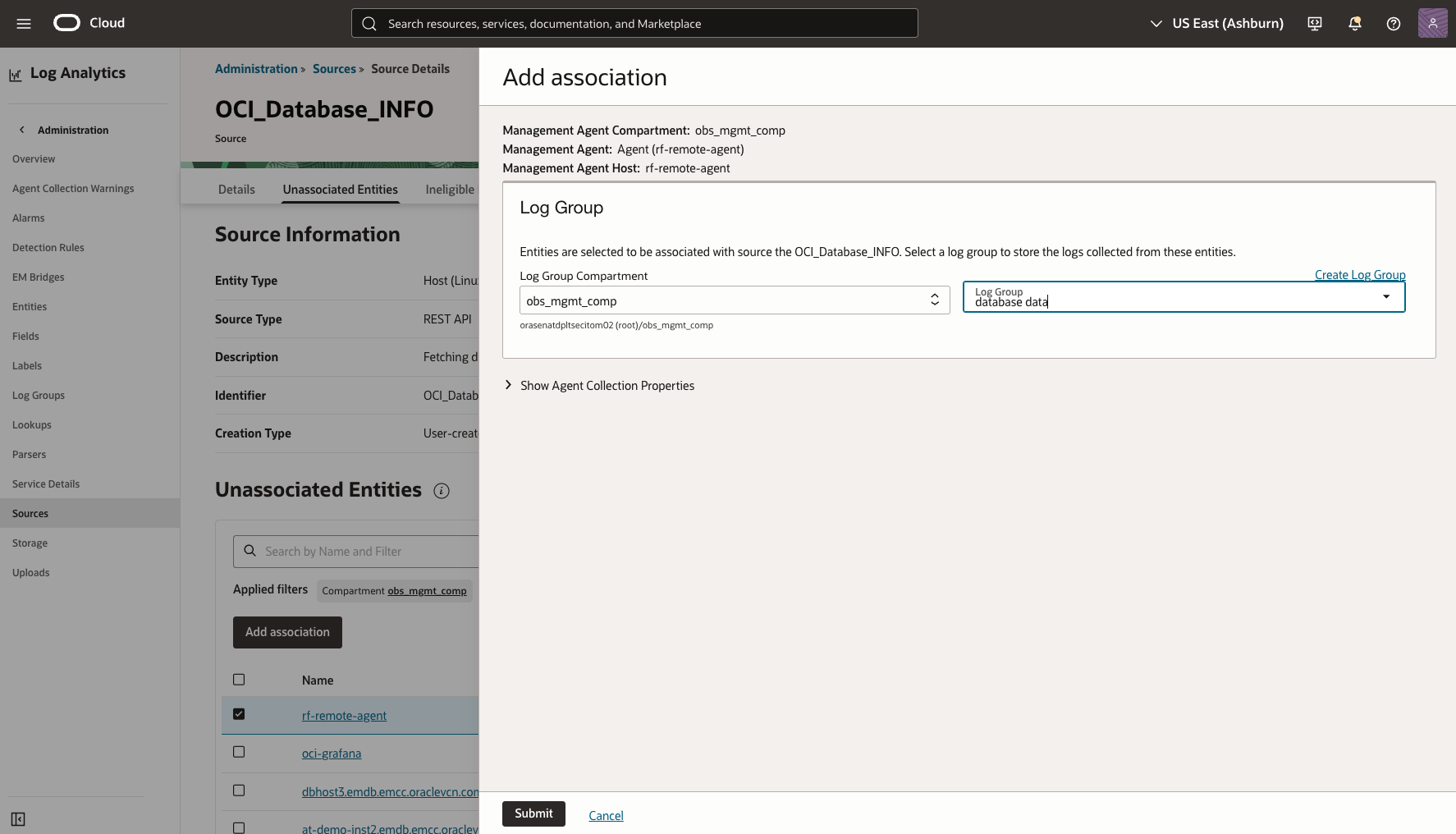
Figure 6: OCI Database INFO Log source Log Group Association
The Management Agent will now begin collecting database metadata using the multi-tier REST API approach. It will:
- Periodically call the DB Homes API to get the list of DB Homes
- Extract DB Home IDs using the JSON path expression
- For each DB Home ID, call the Databases API to get detailed database information
- Ingest all collected data into Log Analytics
Step 6: Verify Data Collection
- Check Log Explorer
- Navigate to Log Analytics > Log Explorer
- Query for your log source:
'Log Source' = OCI_Database_INFO | fields -Entity, -'Entity Type', -'Host Name (Server)', -'Problem Priority', -Label, -'Log Source', DBUniqueName, pdbName, LifecycleState, lastBackupDurationInSeconds, autoBackupEnabled, autoFullBackupDay, backupDeletionPolicy, characterSet, recoveryWindowInDays, lastBackupTimestamp, lastFailedBackupTimestamp, lastRemoteBackupTimestamp - Select time range for 24 hours as needed
- Verify that database backup information is being collected
-
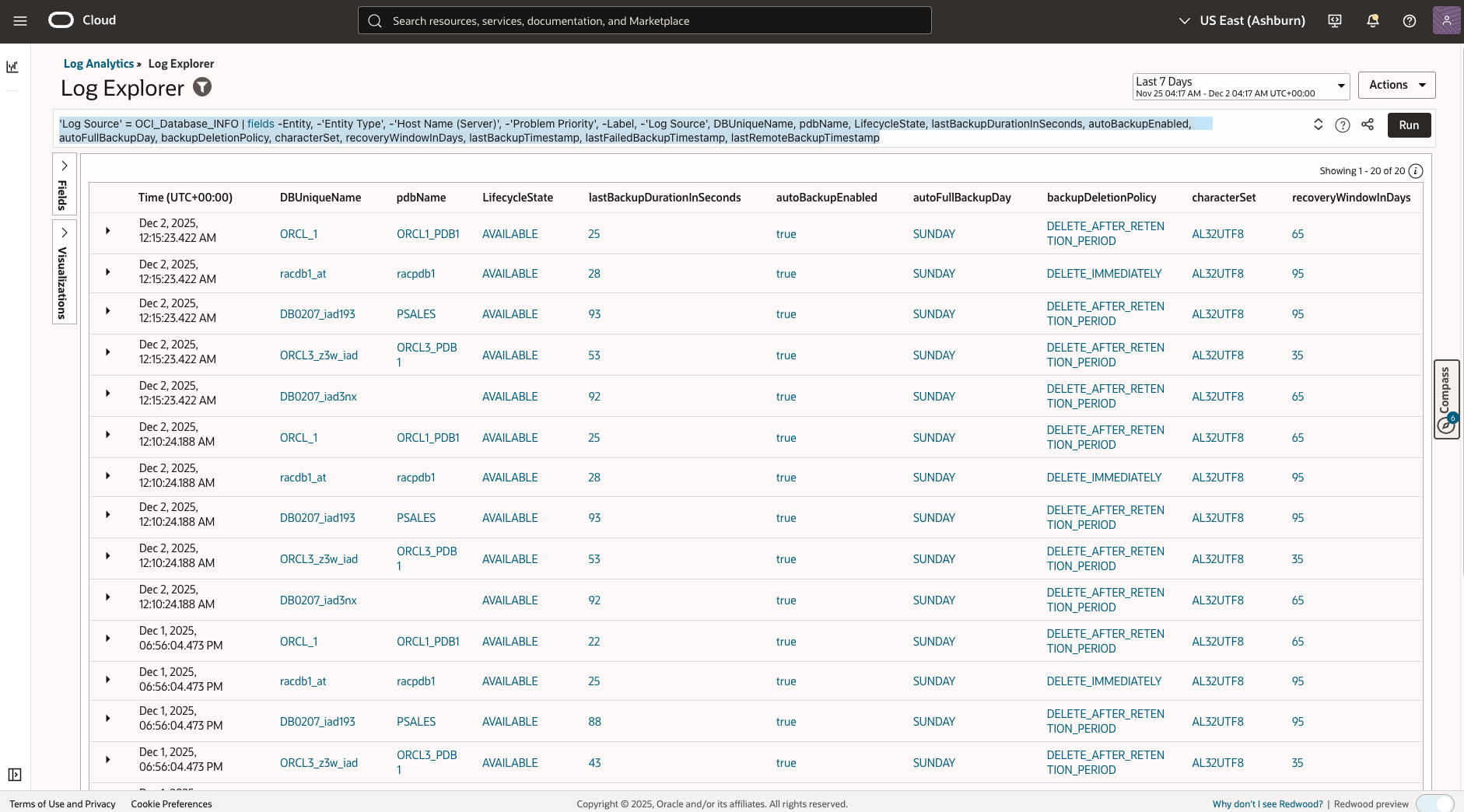
Figure 7: OCI Database Backup Query Report
Conclusion
By leveraging OCI Log Analytics multi-leg REST API collection capability, organizations can efficiently collect hierarchical database metadata that would otherwise require complex scripting or manual API traversal. This approach provides several key advantages:
- Unified Observability: When combined with the monitoring metrics collection from Part 1, you can now have a complete picture of your database backup and recovery status:
- Backup Metrics: Backup duration, backup size, recovery service info
- Database Backup Metadata: Database configurations, backup status, lifecycle states
- Cross-telemetry Correlation: Easily correlate database backup metadata with operational metrics from OCI Monitoring and OCI Events service
- Automatically Discover Resources: Dynamically discover and monitor all databases without hardcoding identifiers
This comprehensive approach transforms Log Analytics into a central hub for database operations intelligence, enabling data-driven decisions for backup management, compliance reporting, and capacity planning.
References
- Oracle Log Analytics REST API Documentation – Add list endpoint for multiple logs
- OCI Database Service API Documentation
- Variables for REST API Log Collection
- Part 1: Collecting Database Backup and Recovery metrics in OCI Log Analytics via OCI Monitoring and OCI REST API
- Part 2: Collecting Oracle Cloud Database Backup metadata in OCI Log Analytics via multi-leg REST API calls
- Part 3: Collecting OCI Backup Events in OCI Log Analytics for OCI Backup Dashboard