
Introduction
When deploying performance intensive applications in the cloud, proximity and network throughput between compute resources can make or break the experience.
This is where Cluster Placement Groups (CPGs) in Oracle Cloud Infrastructure (OCI) shine, especially for use cases demanding high bandwidth and low latency networking.
In this blog, I’ll walk you through what Cluster Placement Groups are, how they work, and most importantly, why they’re a game-changer from a networking perspective.
Agenda
- What Are Cluster Placement Groups?
- Why Networking Matters Here.
- How to Create a Cluster Placement Group in OCI.
- Conclusion.
What Are Cluster Placement Groups?
Cluster Placement Groups in OCI allow you to group resources in close physical proximity within a single availability domain (AD). The primary goal is optimizing networking performance by reducing network latency, which is essential for application that require fast communication between resources.
Why Networking Matters Here.
One of the key advantages of Cluster Placement Groups is their ability to significantly enhance network performance between instances. By placing compute resources in close physical proximity within the same AD, CPGs enable low latency communication between instances.
The reduction in latency can result in more responsive and stable application performance, especially for workloads that involve frequent data synchronization or large volume data transfer between nodes.
How to Create a Cluster Placement Group in OCI.
Let’s create a cluster placement group in which you can collocate resources to support low-latency networking.
Note: Before you get started, make sure your IAM user or group has the appropriate permissions to control access to the CPG service. For more information, check this link out!
Create the Placement Group
Log into the OCI console. Navigate to Networking > Cluster Placement Groups.
Click Create Cluster Placement Group. On the Placement Pre-check page, select an availability domain.
Then, specify the type of resources that you intend to add to the cluster placement group by selecting compute to add compute instances and instance pool. Or more with adding block volume resources, under block storage, select volume.
Click on show advanced option if you have been provided a unique code by OCI for CPG creation.
Note: For large capacity cluster placement needs please reach out to your OCI account representative.
To continue creating the CPG, click next and provide details for CPG that you want to create.
Check the screen record below.
Launch Compute Instance in the CPG
From the OCI hamburger menu, navigate to Compute > Instances.
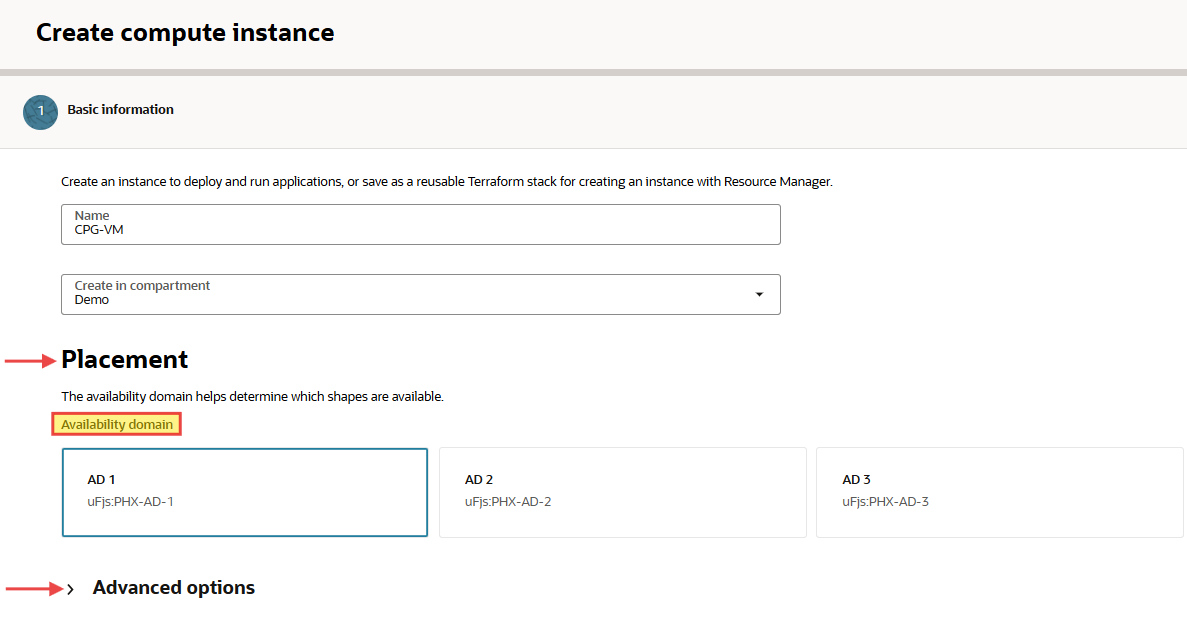
Click create instances. After named your instance and select the compartment, in the Placement section, select your availability domain.
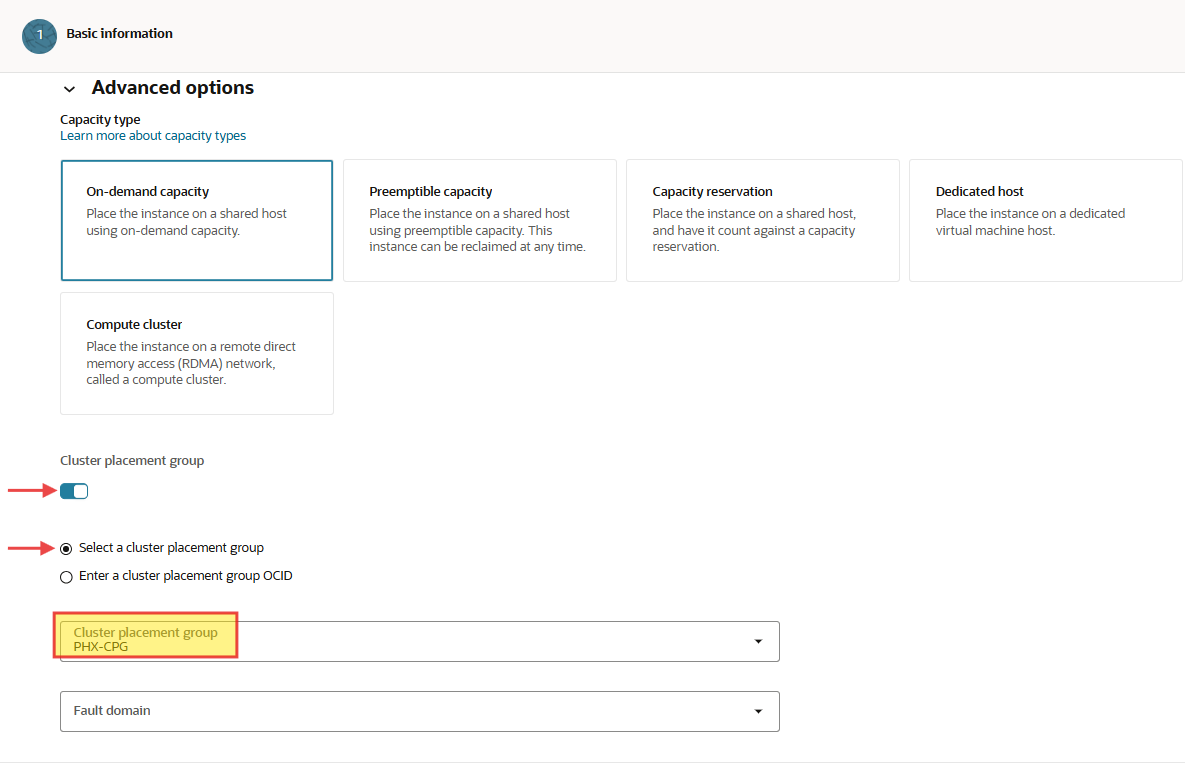
Expand the Advanced options section and toggle Cluster placement group option for selecting your desired group from the drop-down list.
Complete the rest of your instance configuration as usual.
Check the screenshots below.
Note: You might get “out of capacity” error after creating your resources inside the CPG. In this case contact your account executive to request more capacity or try again later.
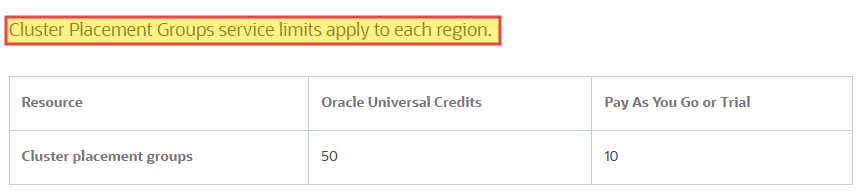
Note: Cluster placement groups have service limits, but don’t incur costs.
Conclusion
By placing VMs in close physical proximity within a single availability domain (AD), CPGs drastically reduce latency. This is critical for high performance computing, graphics processing, and artificial intelligence applications and workloads require low-latency network performance.
By aligning compute proximity with network performance, CPGs unlock new level of efficiency and reliability in cloud architectures.
So next time you’re designing a solution that relies on fast and low latency networking- don’t forget to group up!
I hope you enjoyed it!