
Java environments often contain more runtimes than application owners realize. Older JDKs may remain after upgrades, different applications can depend on different release families, and management tools can include their own agent-managed Java runtimes. Oracle Cloud Infrastructure Java Management Service (JMS) provides a centralized view of Java inventory and fleet-level management across OCI, on-premises environments, and third-party clouds.
This article walks through the core lifecycle: prepare the host, register it with a JMS fleet, validate discovery, review runtime state, install an approved target release, validate application compatibility, and remove an obsolete runtime when it is safe to do so.
Why centralized Java inventory matters
Manual host-by-host checks do not scale. A centralized inventory helps answer questions such as:
- Which Java versions and vendors are installed across the environment?
- Which applications were observed using each runtime during the selected reporting period?
- Which installations have an update available?
- Which systems still contain runtimes below an organizational baseline?
- Which lifecycle actions completed successfully, and which require follow-up?
Key principle Centralized visibility does not replace application ownership. Platform teams can standardize discovery and access, while application owners remain responsible for compatibility testing, scheduling, and approval of runtime changes.
How JMS Fleet Management works
A JMS fleet is a logical grouping of managed Java deployments. A host or Kubernetes environment reports inventory and usage through a JMS plug-in deployed using a supported agent.
- Oracle Cloud Agent (OCA) for supported OCI Oracle Linux compute instances in the same tenancy and region as the JMS fleet.
- Oracle Management Agent (OMA) for other supported hosts, including supported on-premises systems and compute instances in third-party clouds.
- Oracle Container Management Agent (OCMA) for supported Oracle Kubernetes Engine and standalone Kubernetes environments.
For an overview of all three agent options and instructions for deploying the JMS plug-in, see Configuring Managed Instances and Installing Management Agent and Deploying the JMS Plug-in.
After registration, the host or Kubernetes workload appears as a managed instance in the fleet. JMS can report installed Java runtimes, observed applications, vendor information, operating system details, and security state. Fleet Management provides basic inventory and usage insights, while advanced capabilities such as Java Runtime Lifecycle Management are enabled separately.
Before you begin
The following prerequisites are required to set up Java Management Service:
- An OCI tenancy and access to Java Management Service.
- A compartment containing the JMS fleet resources.
- IAM policies and dynamic-group rules that permit fleet access and agent registration.
- A supported operating system and agent configuration.
- Network connectivity from the host to the required OCI endpoints.
- Administrative access to the host for agent installation or optional validation.
- Eligibility for any advanced feature you plan to enable under applicable Java SE subscription or qualifying OCI terms.
Note: JMS fleets are regional. Select the OCI region in which you intend to manage the relevant resources and verify the region before creating or opening a fleet.
Basic inventory versus advanced lifecycle management
Basic Fleet Management can discover and report Java installations and observed usage without enabling Java Runtime Lifecycle Management. Use basic inventory first to understand the environment.
- View Java runtime versions and vendors.
- Identify systems running Oracle Java.
- Review applications observed on Oracle Java runtimes.
- Identify Oracle Java installations that are not current within their release family.
- Export fleet data for analysis.
Enable Java Runtime Lifecycle Management when you need JMS to install or remove supported Oracle Java runtimes on eligible managed instances. Review the current platform and feature requirements before performing lifecycle operations.
Step 1: Prepare the agent and JMS plug-in
A host must have a supported agent and the JMS plug-in before it can report Java information.
Oracle Linux
- In the OCI Console, open Compute and select Instances.
- Open the target instance.
- Under Resources, select Oracle Cloud Agent.
- Locate Oracle Java Management Service.
- Enable the plug-in and wait for the status to become Running.
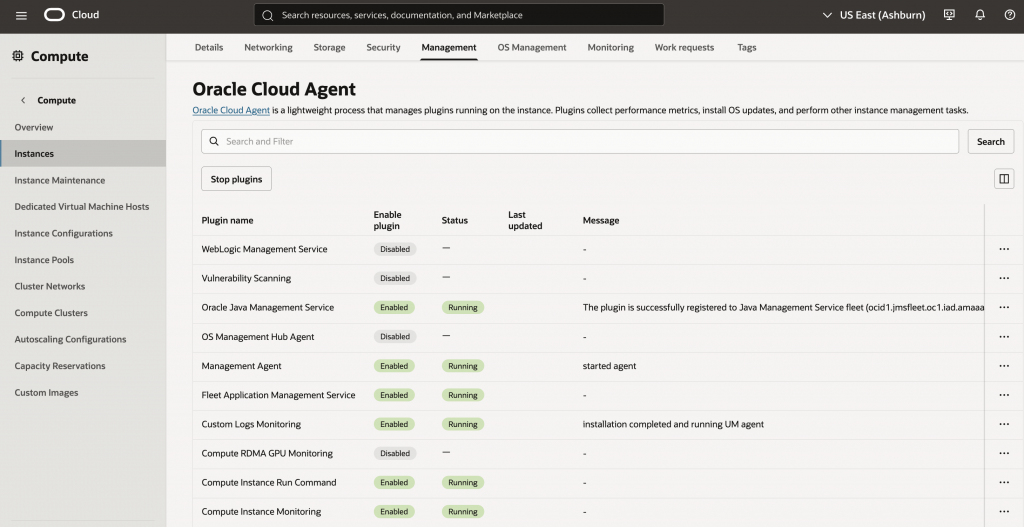
Oracle Cloud Agent must be installed, the plug-in must be enabled, and the plug-in must be running. Changes can take several minutes to become visible.
Custom images, non-Oracle Linux, or Windows
If Oracle Cloud Agent or the JMS plug-in is not available, use the appropriate Oracle Management Agent installation method. Do not manually modify agent directories. Follow the applicable Oracle installation guide for the operating system.
Oracle documentation:
- Installing an agent for JMS:
https://docs.oracle.com/en-us/iaas/jms/doc/installing-management-agent.html - JMS system requirements:
https://docs.oracle.com/en-us/iaas/jms/doc/system-requirements.html - Windows installation:
https://docs.oracle.com/en-us/iaas/jms/doc/manually-installing-management-agent-premises-windows.html
Step 2: Register the instance with a fleet
- Open the OCI navigation menu and select Observability & Management.
- Select Java Management, then Fleets.
- Confirm the intended region.
- Open an existing fleet or create one based on your organization’s grouping strategy.
- Under Resources, select Managed instances.
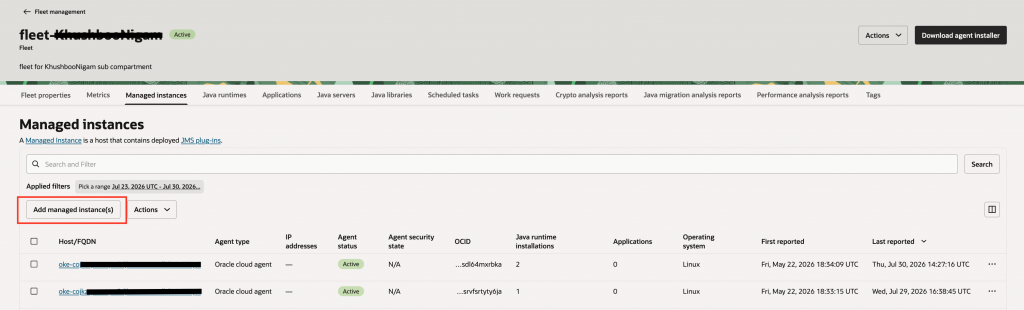
- Select Add managed instances.
- Choose the compartment containing the instance, select the target instance, and submit the request.
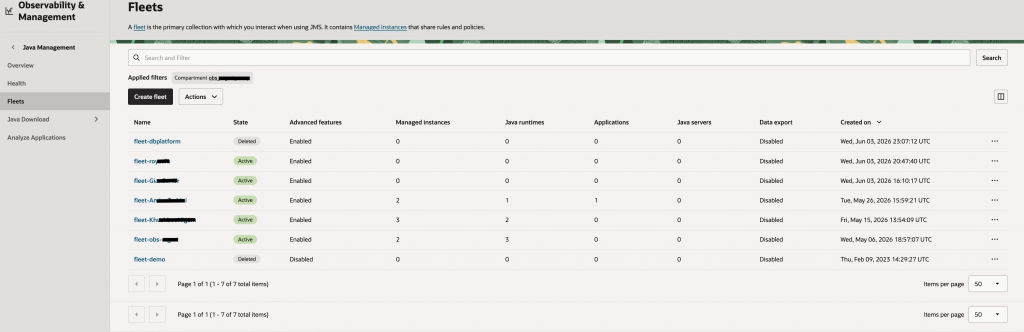
A fleet is a logical management boundary and does not need to map one-to-one to an OCI compartment. Organizations commonly group fleets by region, environment, application, business unit, ownership, or maintenance boundary.
Selecting Add managed instance(s) opens the registration workflow. Choose the compartment containing the compute instance, select the instance you want to onboard, and submit the request. After registration, allow several minutes for the JMS plug-in to begin reporting inventory before validating the instance in the fleet.
Step 3: Validate discovery
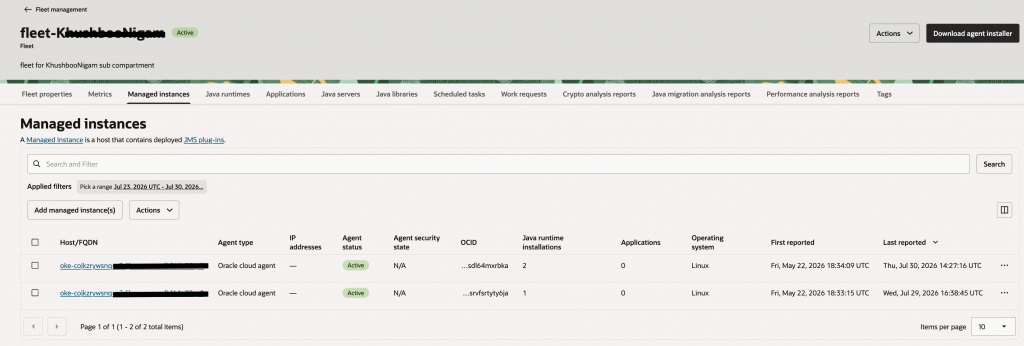
Allow time for the agent to report, then open the fleet and select Managed instances. Confirm that:
- The instance is listed.
- The agent status is Active.
- The Last reported value is recent.
- A Java runtime installation count is shown.
Next, open Java runtimes and confirm that JMS reports the version, vendor, operating system, security state, installation count, managed-instance count, and associated applications where available.
Step 4: Review Java runtime inventory and security state
The security state helps identify runtimes for review. Typical values include Up to date, Update available, Upgrade required, and Unknown, depending on the runtime and available metadata.
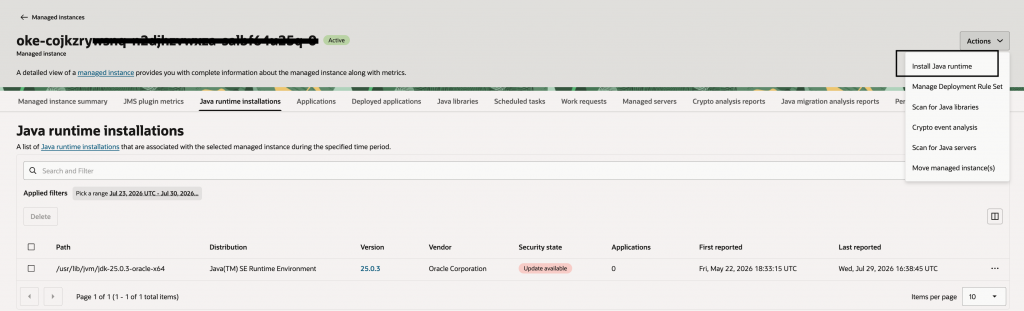
Select the Java runtime installations tab for the managed instance to review the Java versions discovered on that host. For each installation, JMS shows information such as the installation path, distribution, version, vendor, security state, associated applications, and reporting timestamps.
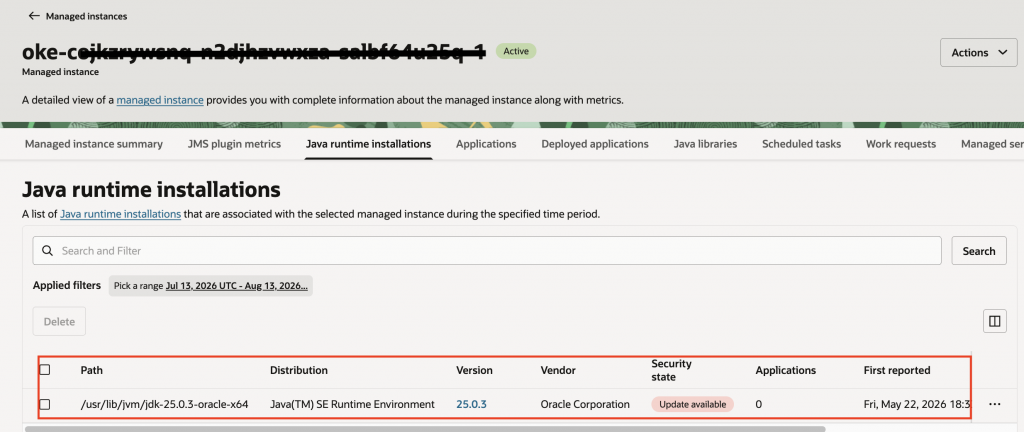
Use the security state as a signal for further review rather than as an automatic remediation instruction.
Interpret carefully — Up to date means current within that Java release family. It does not necessarily mean the runtime meets your organization’s approved major-version baseline. Update available identifies a candidate for review, not an automatic instruction to modify production.
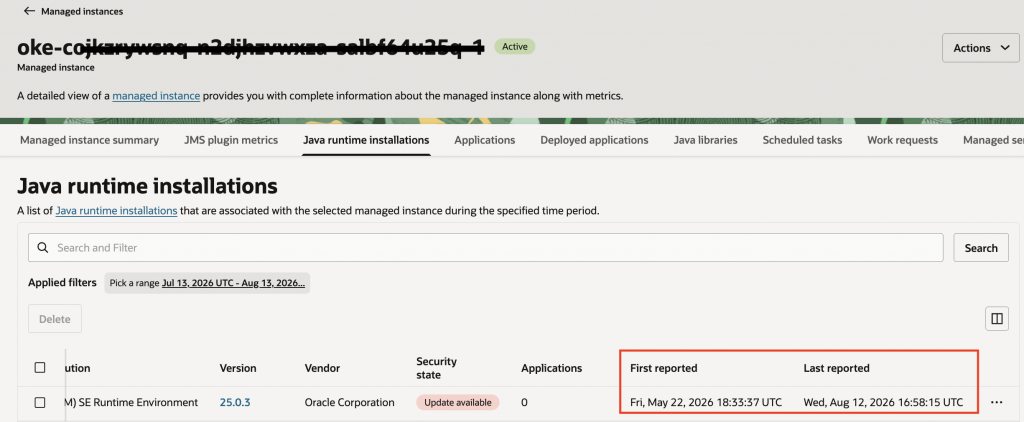
Why an installed runtime can show zero applications
Installed-runtime inventory and observed application usage answer different questions. File scanning can discover a JDK or JRE even when no application was observed using it during the selected reporting period. Infrequently executed jobs, scripts, scheduled tasks, and workloads outside the time window may not appear.
Agent-managed Java runtimes
A discovered Java runtime may belong to the management infrastructure rather than to a business application. For example, Oracle Management Agent requires Java 8 and may use a Java runtime that is visible in the managed instance’s Java inventory.
Do not treat an agent-managed runtime as an unused application runtime solely because the application count is zero. Java Runtime Lifecycle Management operations cannot be used to update or remove a Java runtime that is being used by Oracle Management Agent.
The update method depends on how Management Agent was deployed. For Management Agent running as an Oracle Cloud Agent plug-in, the bundled Java runtime is maintained as part of the Management Agent upgrade process. For standalone Oracle Management Agent installations, follow the documented Management Agent Java update procedure or use the applicable OMA installer bundle rather than deleting or replacing the runtime through ordinary JMS lifecycle actions.
Step 5: Enable Java Runtime Lifecycle Management
- Open Java Management and select Fleets.
- Open the target fleet.
- Select Actions, then Edit properties.
- Under Advanced features, enable Java Runtime Lifecycle Management.
- Review and accept any required acknowledgment, then save the changes.
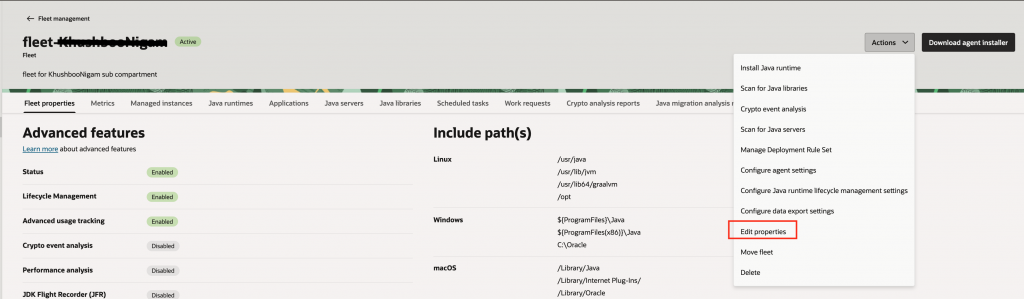
From the fleet Actions menu, select Edit properties, then enable Lifecycle management under Advanced features.
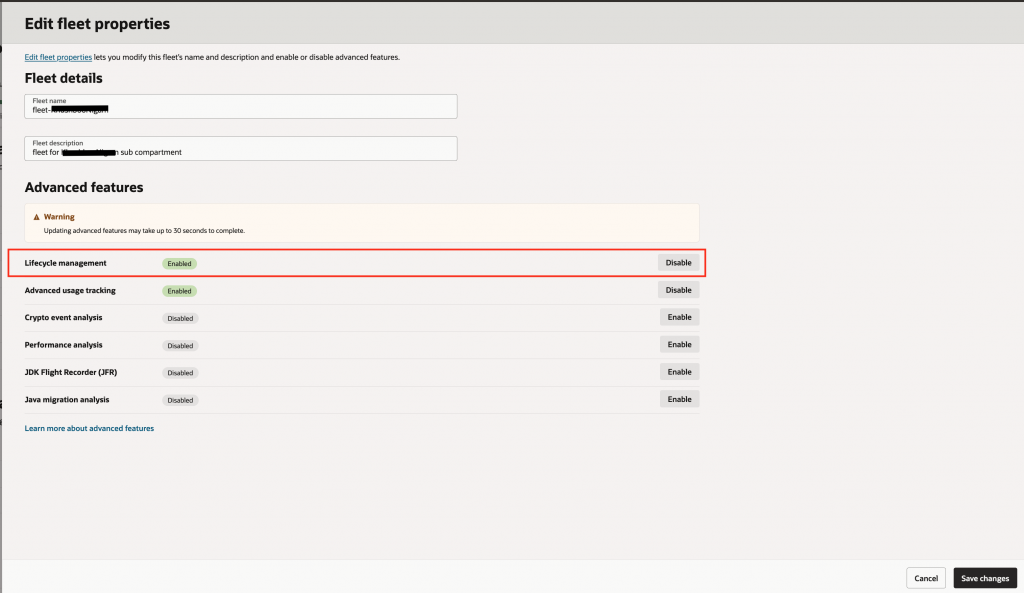
Enable other advanced features only when they support your use case and the environment meets the applicable eligibility requirements.
Step 6: Install an approved target release
Confirm the approved target Java release and target hosts before submitting an installation.
- Open the target fleet and select Managed instances.
- Select the target instance.
- Open Actions and select Install Java Runtime.
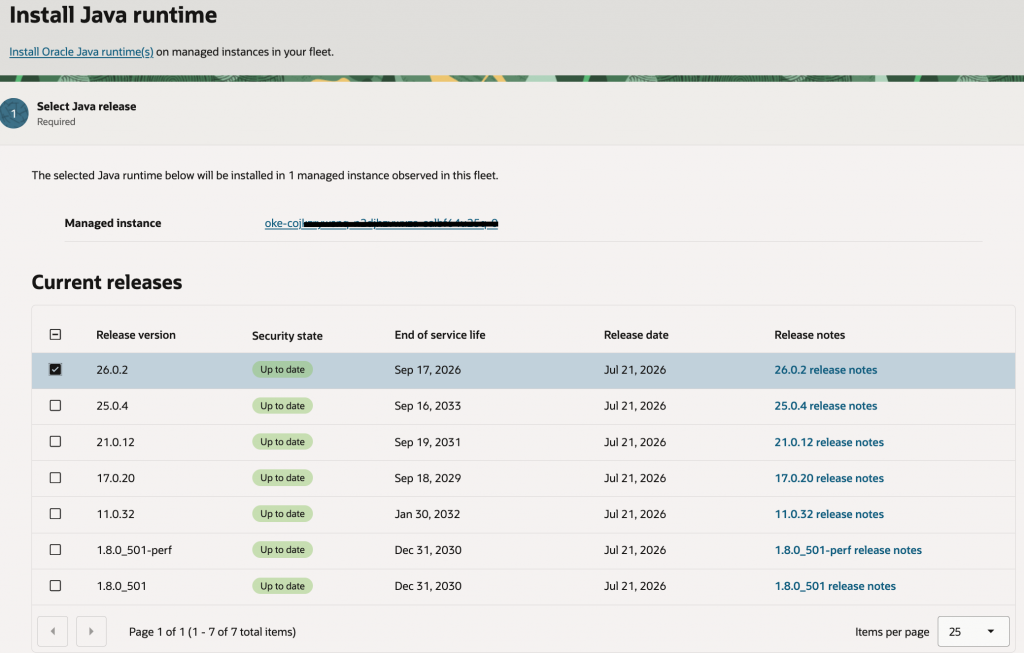
- Choose the approved Oracle Java release.
- Review installation and post-installation options.
- Submit the request.
Important
Installing a new Java release adds another runtime to the host. It does not automatically change JAVA_HOME, update system alternatives, rewrite startup scripts, rebuild container images, move running applications to the new runtime, or remove the previous runtime.
Step 7: Validate application compatibility
Before removing an older runtime:
- Confirm the replacement runtime is installed
- Update application configuration where required.
- Restart or redeploy the application through the approved change process.
- Complete functional and integration testing.
- Review application logs and runtime behavior.
- Confirm rollback is available.
- Obtain application-owner approval for removal of the older runtime.
Application count is not proof of non-use – A value of zero applications in JMS does not conclusively prove that a runtime is unused. Validate across an appropriate reporting period and, when necessary, inspect the host and application configuration.
Step 8: Remove an obsolete runtime safely
Do not remove an older runtime solely because a newer release was installed. Multiple Java versions can coexist legitimately when applications have different compatibility requirements.
| Remove when | Do not remove when |
| The runtime is outside the approved baseline or has been identified for remediation | An application, service, script, scheduled job, or agent still depends on it |
| The replacement release has been installed and tested | Compatibility testing or owner approval is incomplete |
| Application configuration has been updated to the replacement | It is the default runtime, the last required runtime, or a runtime used by Oracle Management Agent or another management component. |
| Rollback and recovery expectations are understood | The exact installation path or ownership is uncertain |
Warning – The delete operation removes the selected Java runtime installation directory. Verify the installation path before submitting the operation. JMS may prevent deletion when the runtime is still required by the management infrastructure. Do not bypass these safeguards through manual file removal.
After confirming that the older runtime can be safely removed:
- Open the target fleet and select Managed instances.
- Open the target managed instance.
- Select Java runtime installations.
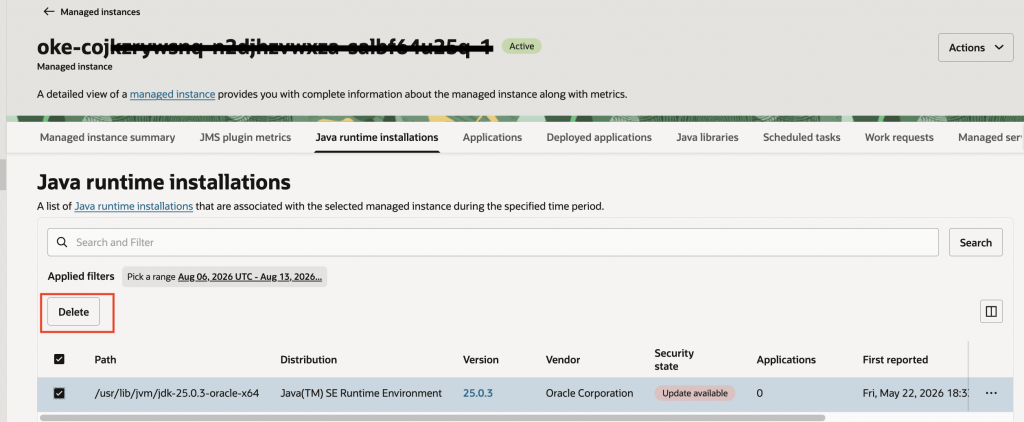
- Select the obsolete runtime installation. Select Delete.
- Verify the runtime version and installation path.
- Submit the request. Monitor the resulting Work Request.
Step 9: Monitor Work Requests
- Open the target fleet.
- Select Work requests.
- Open the relevant installation or deletion operation.
- Review status, progress, target resources, start and finish time, and any error details.
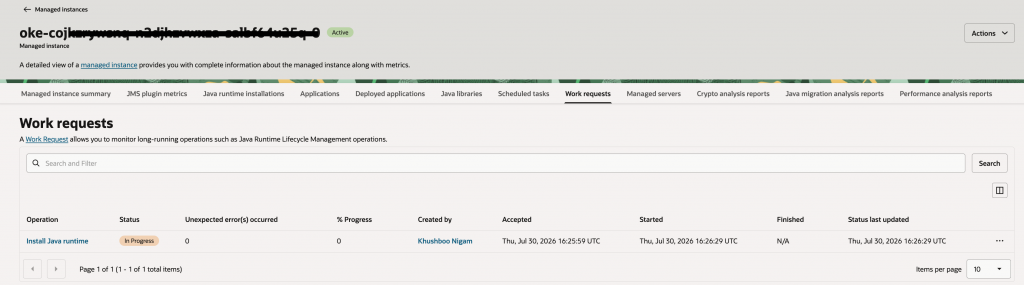
A change should not be considered complete until both the Work Request and the expected host or application state have been validated.
Understand time-based reporting
JMS inventory views use a selected reporting period. A recently deleted runtime can remain visible when the selected time range includes a period during which it was installed. When validating a removal, compare:
- The Work Request result.
- The runtime Last reported value.
- The selected reporting time range.
- The current host installation path and application configuration.
Common troubleshooting
The following checks can help resolve some common JMS onboarding and lifecycle-management issues.
| Symptom | What to check |
|---|---|
| JMS plug-in is not visible | Verify the operating system and image eligibility, Oracle Cloud Agent availability, selected OCI region, and IAM configuration. For supported hosts where the Oracle Cloud Agent JMS plug-in is not available, use the applicable Oracle Management Agent onboarding method. |
| JMS plug-in is enabled but not running | Verify that Oracle Cloud Agent is enabled and running, allow time for the plug-in status to refresh, and review the JMS plug-in logs. Also verify network connectivity if the agent cannot communicate with OCI services. |
| Instance does not appear in the fleet | Verify the selected region and compartment, IAM and dynamic-group configuration, JMS plug-in state, and whether the managed instance has been successfully registered with the fleet. |
| Java runtime removal is blocked | Verify that the selected runtime is not the default runtime, the last required runtime, or a runtime used by Oracle Management Agent or another management component. Do not bypass JMS safeguards by deleting an agent-managed runtime manually. |
For Oracle Linux instances using Oracle Cloud Agent, Oracle documents the following check to verify that Oracle Cloud Agent is enabled and running:
systemctl is-enabled oracle-cloud-agent &>/dev/null && echo "OCA is enabled" || echo "OCA is disabled" \
&& systemctl is-active oracle-cloud-agent &>/dev/null && echo "OCA is running" || echo "OCA is not running"
JMS plug-in logs for Oracle Cloud Agent are located under:
/var/log/oracle-cloud-agent/plugins/oci-jms/If additional diagnostics are required, JMS provides a log collector for Linux instances using Oracle Cloud Agent:
sudo /usr/libexec/oracle-cloud-agent/plugins/oci-jms/collect_logs.shFor more detailed troubleshooting procedures, refer to the Oracle documentation links at the end of this article.
Conclusion
Java runtime management is more than installing the newest JDK. Organizations need reliable inventory, application context, controlled rollout, and evidence that changes completed successfully. JMS provides a central view of Java deployments while preserving application-owner control over compatibility and change timing.
For large environments, start with discovery. Establish which releases exist, where they are installed, and who owns the applications before enabling lifecycle operations. This approach delivers immediate visibility while reducing the risk of removing a runtime that is still required.
Oracle documentation
For current product requirements, configuration details, and troubleshooting procedures, see the following Oracle documentation: