
There are many networking metrics available to you to ensure functionality of your resources within OCI. A new set of metrics recently released are DRG (Dynamic Routing Gateway) Metrics. DRG Metrics allows you to monitor the health, capacity, and performance of network attachments connected to the DRG. In this blog, I’ll show how to review DRG metrics, filter on attachments, and extend capabilities with the use of alarms and notifications
Note: This feature is only available for upgraded DRGs (DRGv2) and not legacy DRGs.
Be sure to check the companion video below where I review the metrics in action:
Accessing DRG Metrics
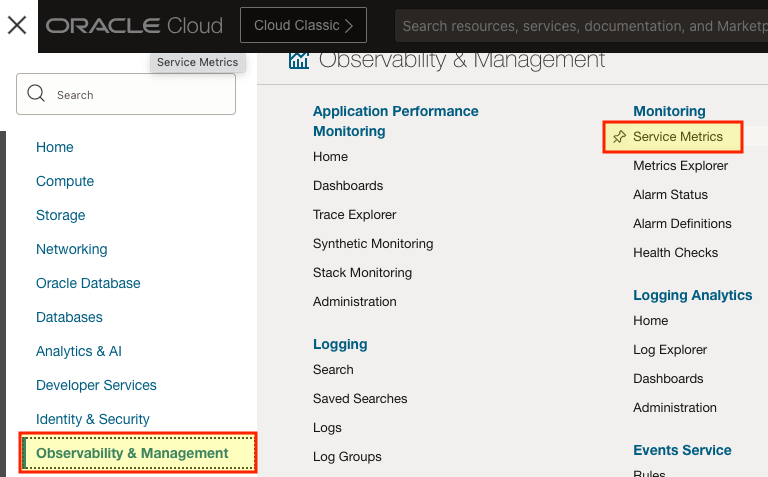
DRG Metrics aren’t available from the DRG itself. To view these metrics you’ll need to go through the Observability and Management from the top left hamburger menu and select Service Metrics:
From here the metrics can be found under the metrics namespace; the namespace we’re looking for is oci_dynamic_routing_gateway.
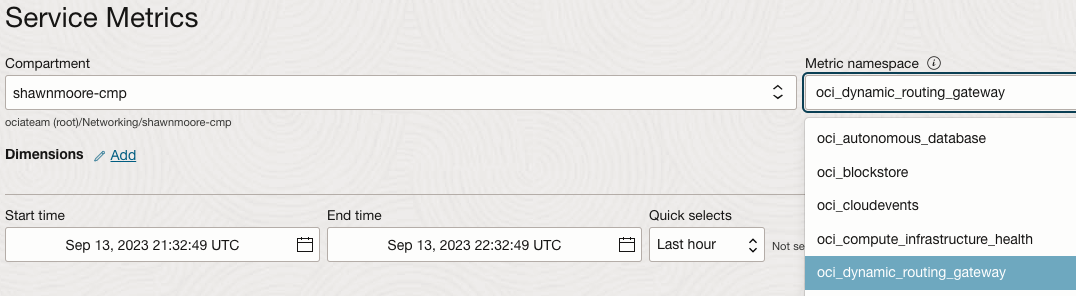
Once selected you’ll be presented with different statistics that you can pull data from:
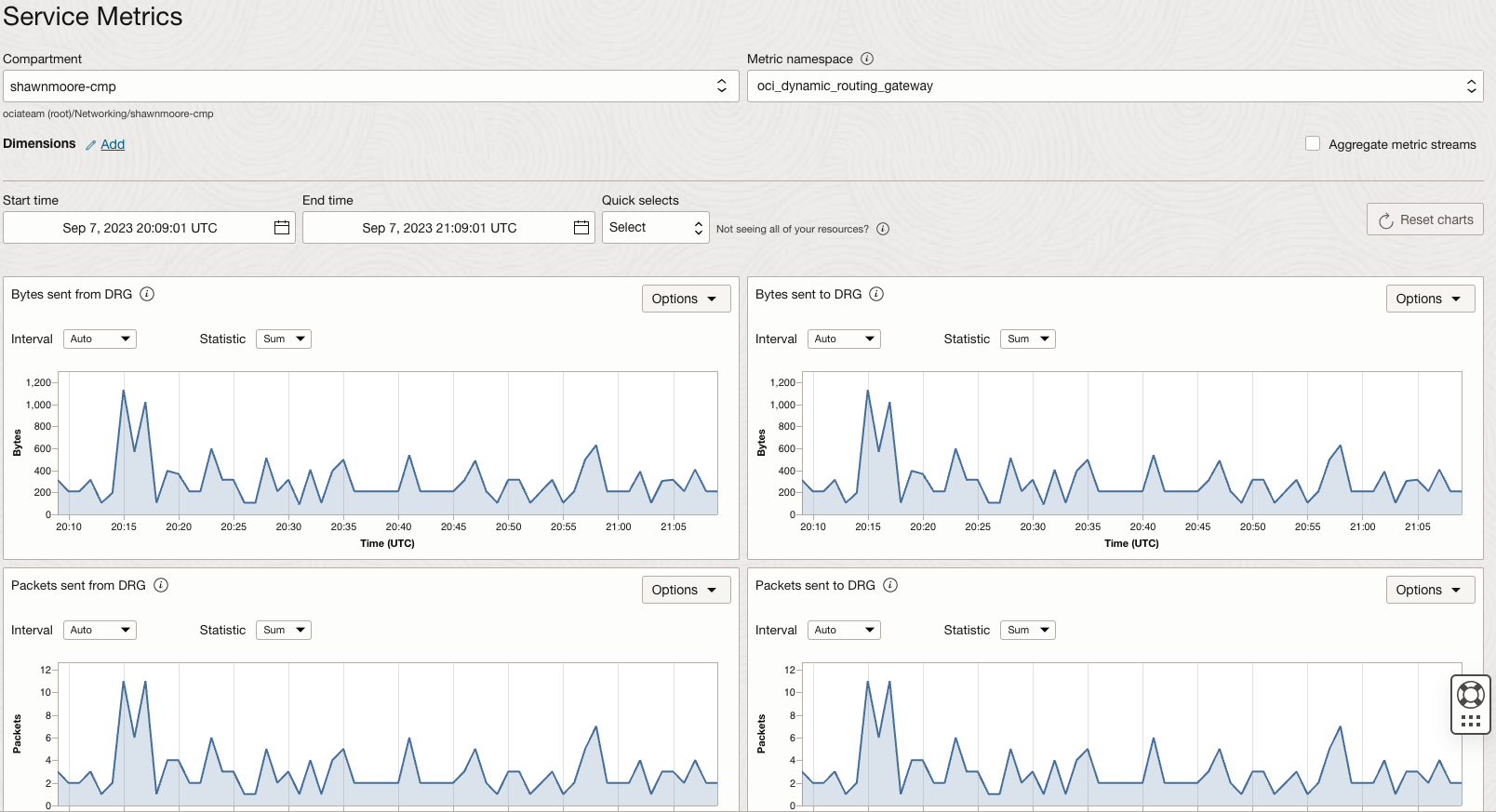
Metrics include bytes sent and received from the DRG and packets sent and received from the DRG. What’s interesting here is that there’s also a metric to view dropped packets that were bound for the DRG attachment. The number of packets sent from a DRG attachment and dropped by the DRG itself is also included:

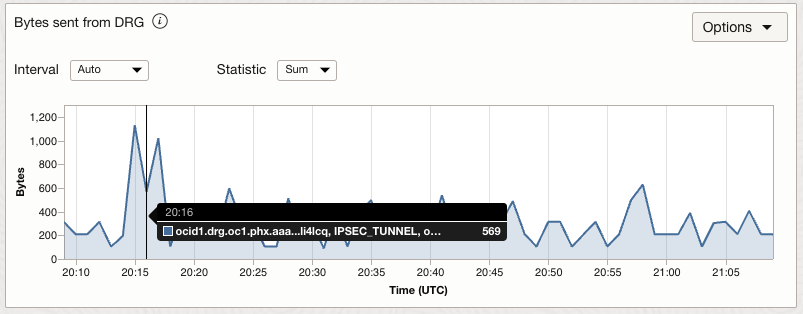
Note that I have data available to me from my current IPSEC_TUNNEL and VCN attachments. Showing data traffic initiated from my On-prem VPN to one of my VCNs. This can be filtered further by using the dimensions filter.
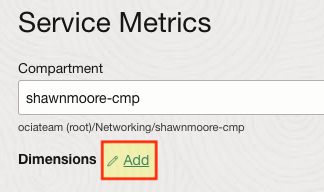
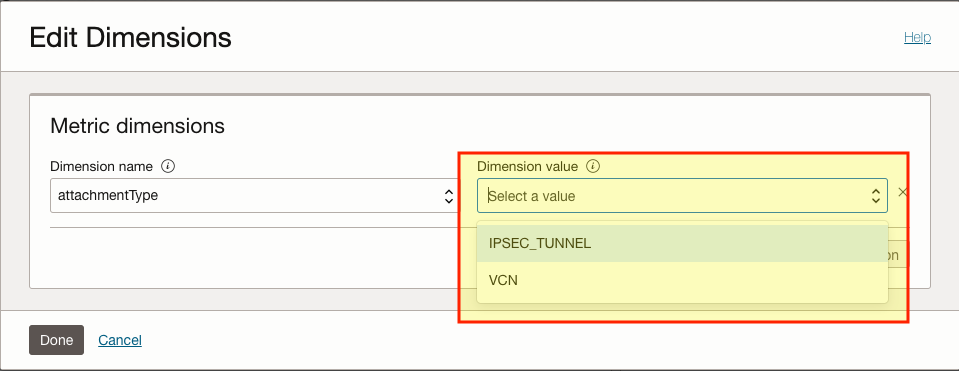
Select the Dimensions Add button, followed by the particular Dimension name that you would like to filter metrics on. Once selected, you’ll be presented with a list of different Dimension values to choose from. The outputs will show only data for that particular dimension(s).
Creating DRG Metric Alarms
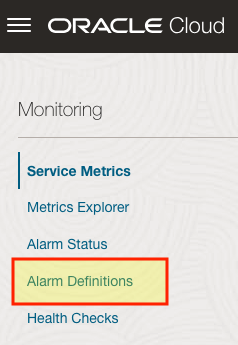
OCI metrics can be extended further by alerting you to any events of interest, such as down IPSec Tunnel attachment. This can be done by selecting the Alarms menu and creating a specific trigger. This can then send a notification or even perform an action such as invoking an OCI Function for further processing. This can also be accessed from the Monitoring menu under Alarm Definitions:
As an example, I would like to invoke an OCI Function if an IPSec Tunnel attachment does not receive any network traffic to the DRG over 5 minutes. When creating an alarm, you’ll need to provide a name, a Metric description, and optionally Metric dimensions.
For the Metric description section select the oci_dynamic_routing_gateway under the Metric namespace dropdown. Then choose the particular Metric name you’re looking for, in this case, I’ll need BytesToDrgAttachment. The datapoints Interval will use the smallest value which is 1 minute and the Statistic will be set to Min:
![METRIC DESCRIPTION]](/wp-content/uploads/sites/134/2025/11/DAM-METRIC-DESCRIPTION.png)
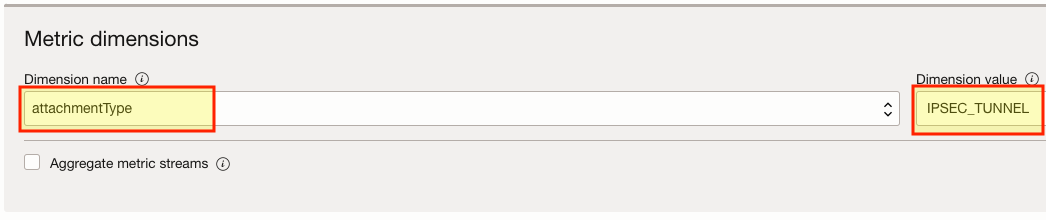
In particular, I’m only interested in IPSec Tunnel attachments so I’ll need to filter further by selecting a Metric dimension. Choose attachmentType under the Dimension name drop-down and select IPSEC_TUNNEL as the Dimension value.
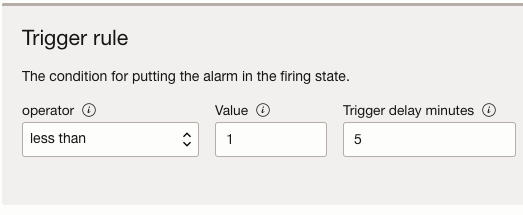
Next, we’ll need to create a Trigger rule, which will determine the conditions needed to fire off the alarm. As mentioned, we need an OCI Function to trigger if bytes aren’t received across the IPSec VPN Tunnel over 5 minutes. For this I’ll change the operator to less than, Value to 1, and Trigger delay minutes to 5.
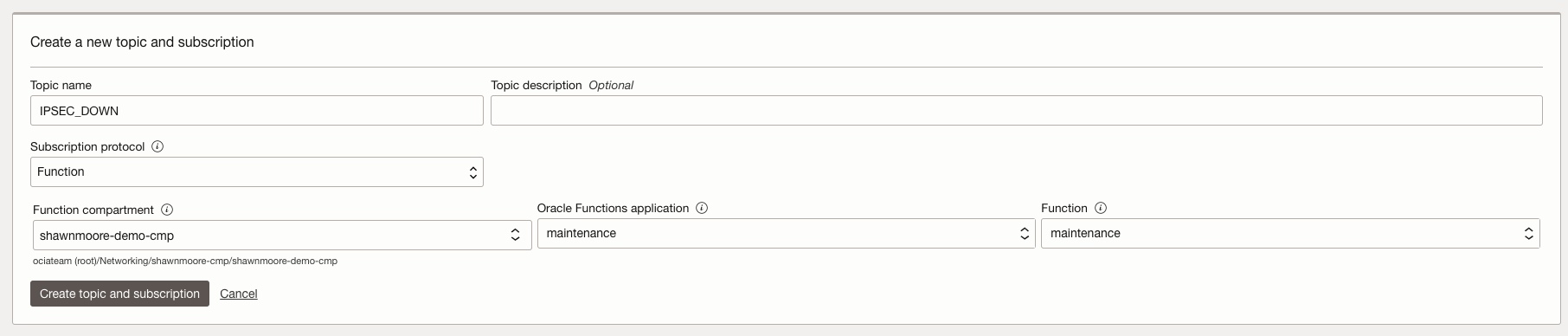
Last, we need to define the destination to send the trigger. I’ll create a new topic and subscription that uses Function as the Subscription protocol. From here I can select my existing Function under the Function drop-down menus. Once finished, select Create topic and subscription.
Once the Alarm is created, I recommended performing a test on the use case to ensure the alarm performs as expected.
Conclusion
Metrics should be a part of any OCI architecture looking to meet the best practices framework. For further information on DRG metrics and OCI Alarms, please review the official OCI documentation located here.