
Welcome back!. This marks the third post (Part 3) of the blog post series centered around the topic of Multi-factor Authentication (MFA) for Oracle Databases. In the preceding blog post, you were provided detailed instructions on how to configure and enable MFA for Oracle Databases using OCI IAM RADIUS Proxy. Assuming you have finished all those configurations successfully, let’s see how MFA for Oracle Database works in action.
Within this blog post, you will explore the necessary configurations that must be in place for the user before executing the use case.
Enable Authentication Factors On Your Identity Domain Account:
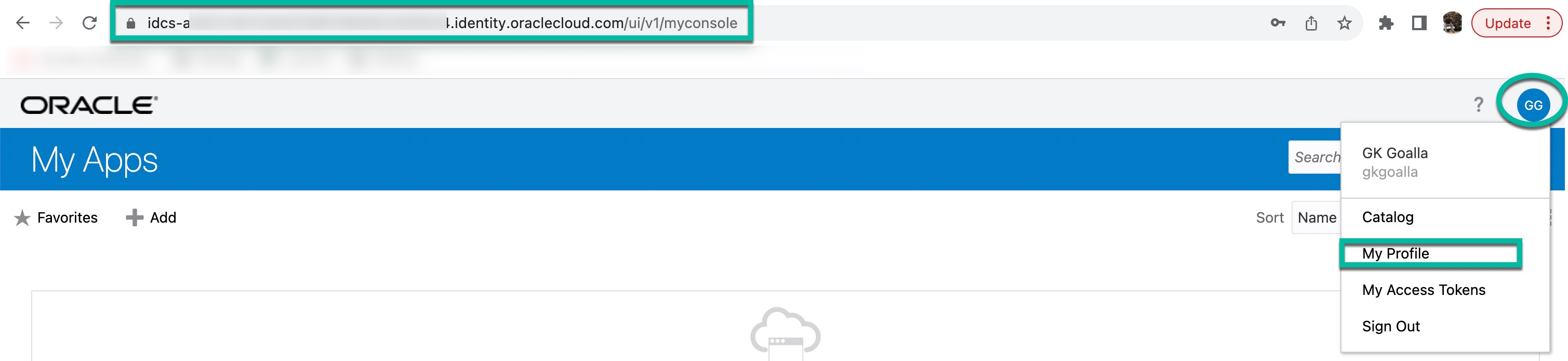
- Login to Identity Domain My Apps dasboard (https://<identity_domain>/ui/myconsole).
- Click on the user icon located in the upper right corner and then select “My Profile“.
- Click on “Security” tab.
- Configure authentication factors for your profile under “2-Step Verification” section.

Note: Please note that only the following authentication factors are supported with this integration. Therefore, make sure you have configured at least one of the three factors mentioned below and set one of them as the “default” factor. For now, set Phone Number to default factor and you can change it later if you wish to.
- Mobile App Notification
- Mobile App Passcode
- Phone Number (Text Message/SMS)
Setup Your SQL *Plus (Database Client) Environment:
You are going to use SQL *Plus command line utility to test out MFA use case. Let’s set up the database client environment.
- If you are planning to test this use case from the same database server, you can skip this step as you have already configured “sqlnet.ora” on the database server as per the preceeding blog post. If not, make sure “sqlnet.ora” file on database client machine that you are testing from has below entries at minimum.
- SQLNET.authentication_services=(RADIUS, BEQ, TCPS)
- SQLNET.RADIUS_CHALLENGE_RESPONSE=on
- SQLNET.RADIUS_AUTHENTICATION_INTERFACE=oracle/net/radius/DefaultRadiusInterface
- SQLNET.RADIUS_CLASSPATH=<Oracle_Home>/network/jlib/netradius8.jar:<Oracle_Home>/network/jlib:<Oracle_Home>/jdk/jre/lib:<Oracle_Home>/sw/lib:<Oracle_Home>/jdk/jre/lib/amd64:<Oracle_Home>/sw/jdk/jre/lib/amd64/server/
2. Set CLASSPATH and LD_LIBRARY_PATH operating system environment variables as shown below.
- CLASSPATH=<Oracle_Home>/jdbc/lib/ojdbc8.jar:<Oracle_Home>/jlib:<Oracle_Home>/rdbms/jlib
- LD_LIBRARY_PATH=<Oracle_Home>/jdk/jre/lib/amd64/server:/usr/lib:<Oracle_Home>/rdbms/lib:<Oracle_Home>/jdbc/lib:<Oracle_Home>/lib

Test MFA now:
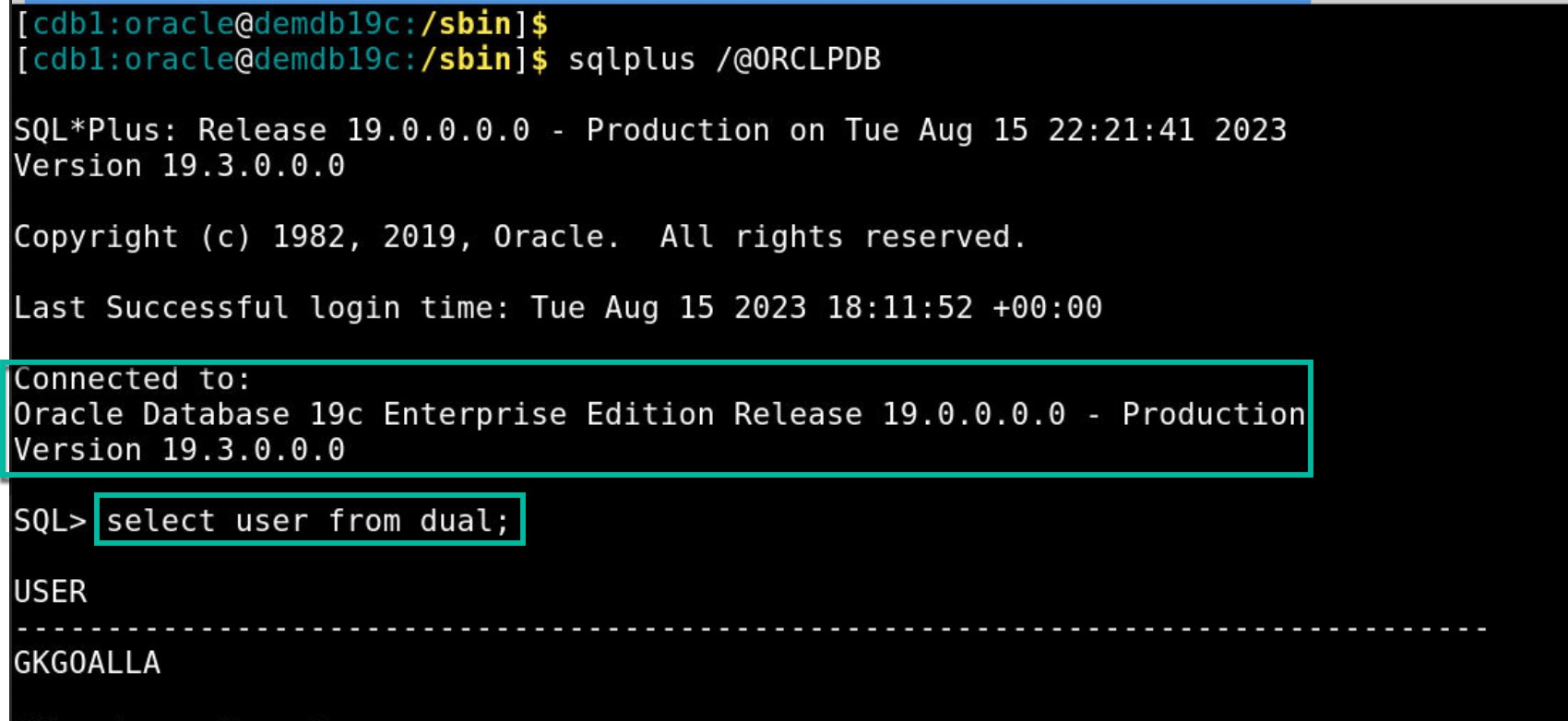
- Run the SQL command sqlplus /@<database_sid>. Example: sqlplus /@ORCLPDB
- You should see a popup window to enter your Identity Domain user credentials. Enter your credentials and click on OK.
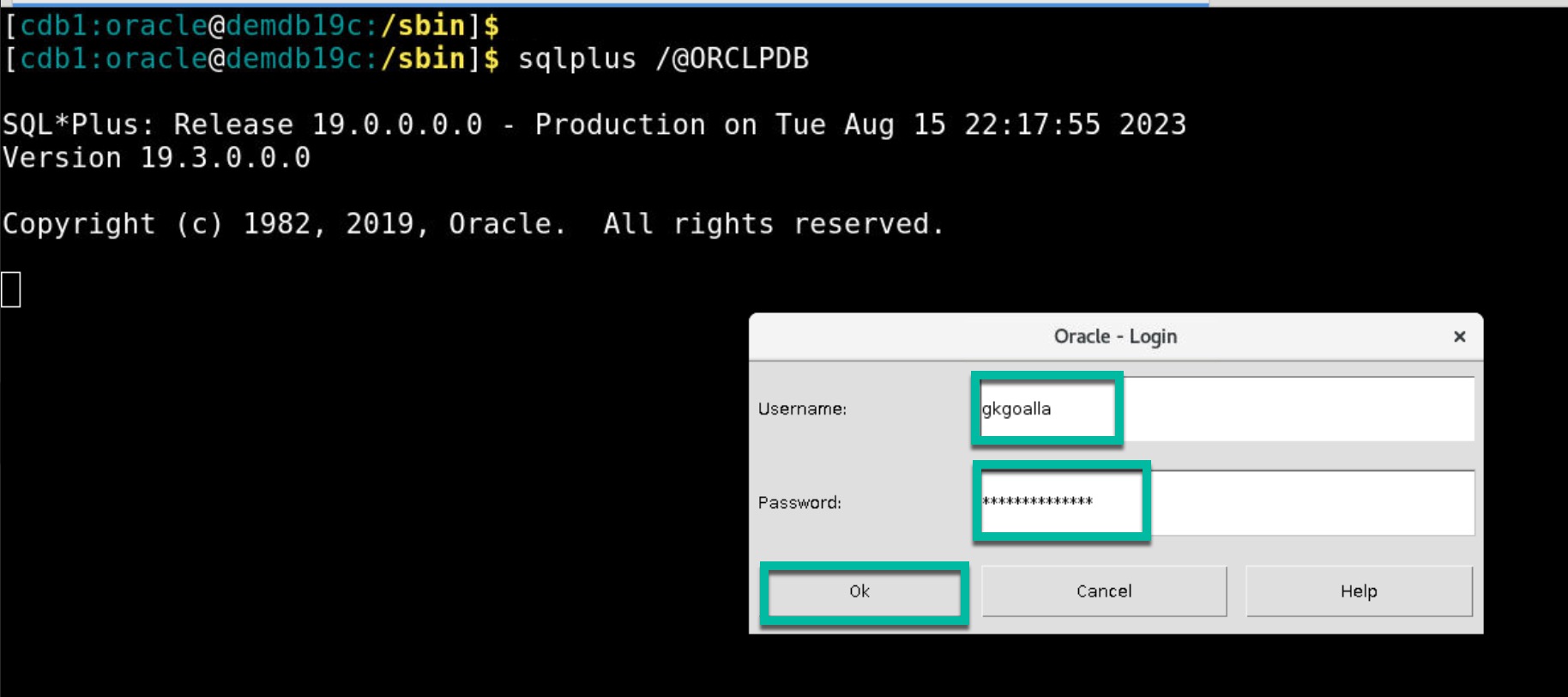
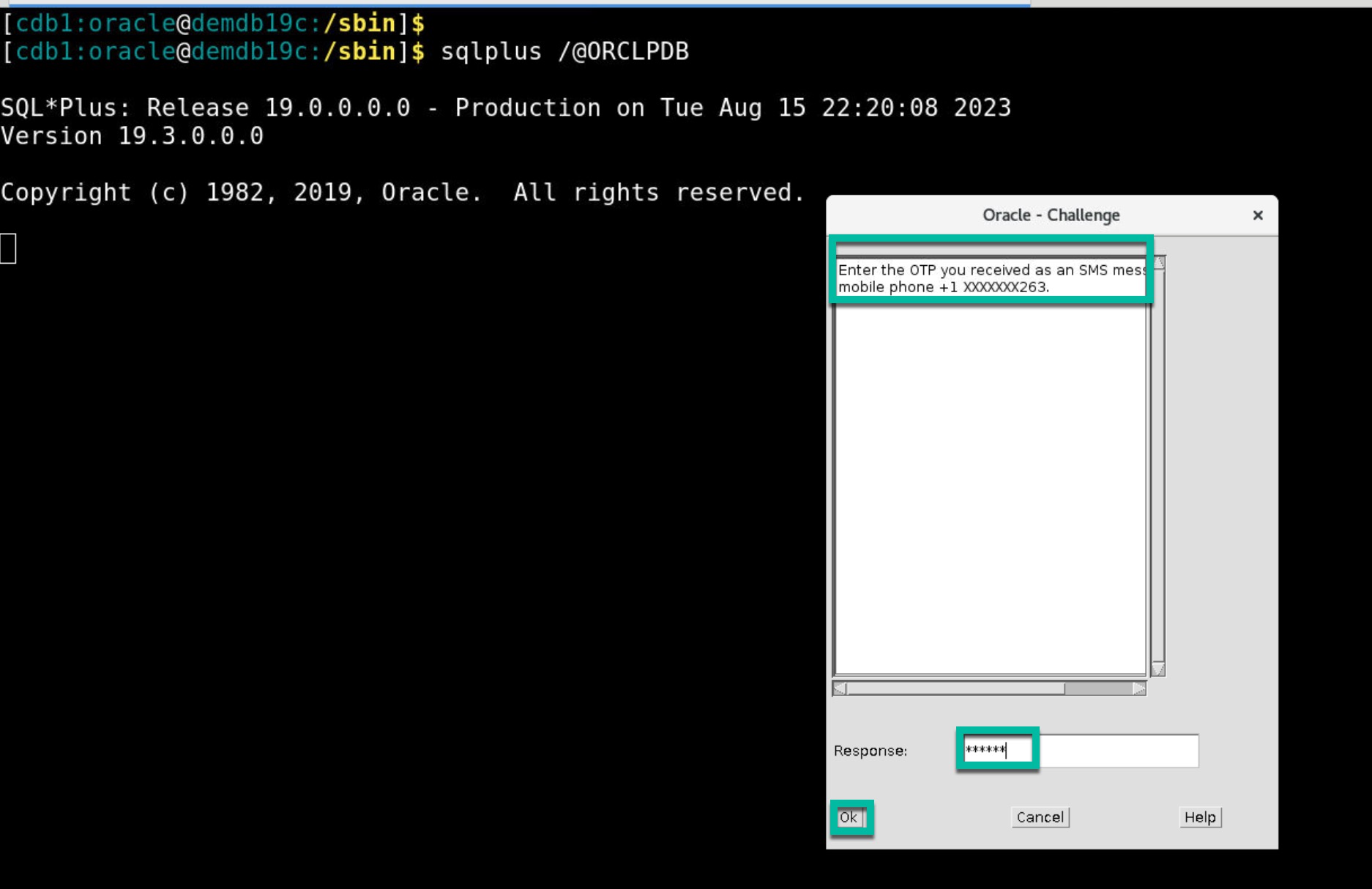
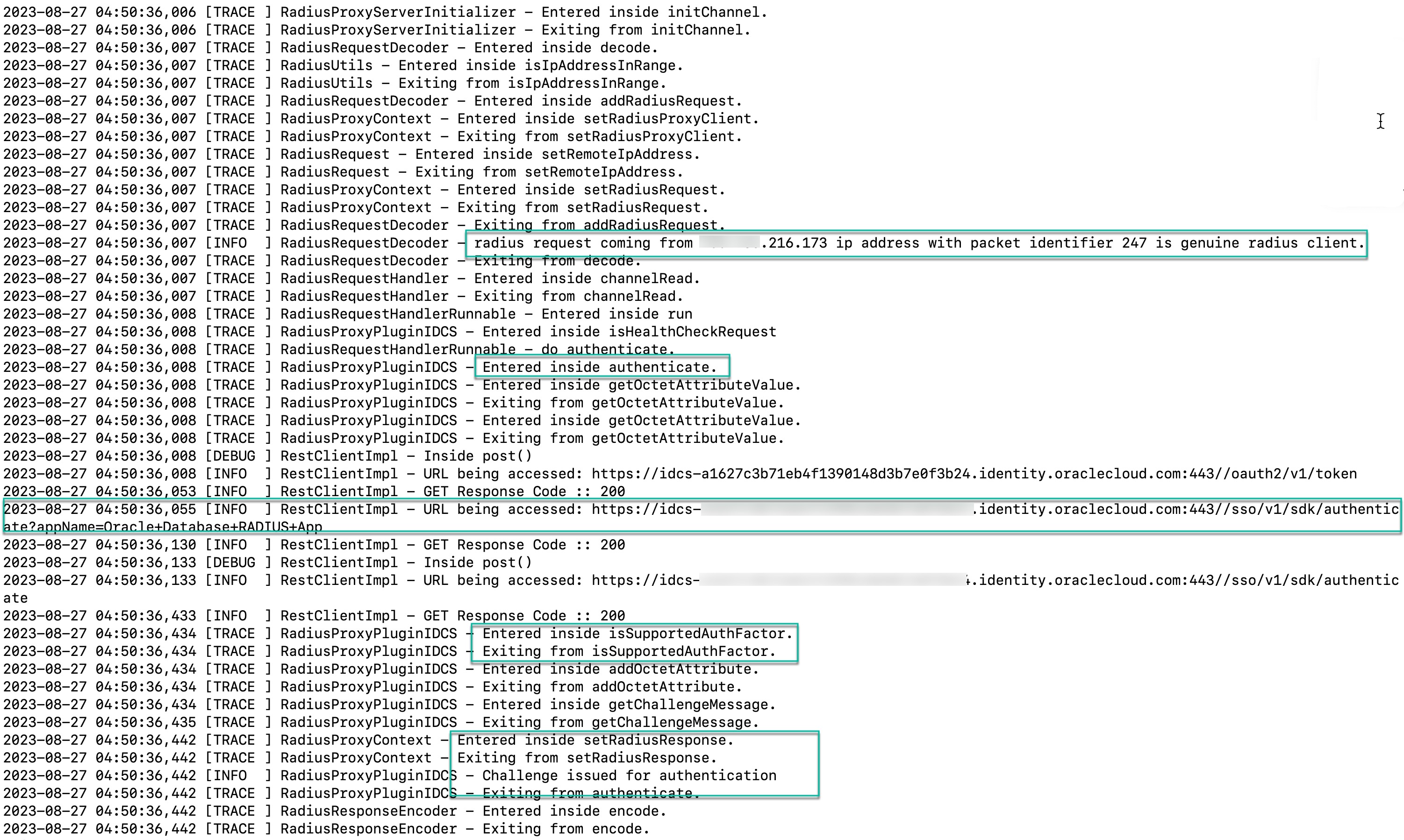
- RADIUS proxy server posts credentials to Identity Domain endpoint /sso/v1/sdk/authenticate. After your credentials are validated successfully, you should see a pop-up for second factor authentication. Since you have set “Text Message (SMS)” factor as default factor, you should receive OTP (One Time Passcode) on your mobile. Enter the OTP and click on OK.
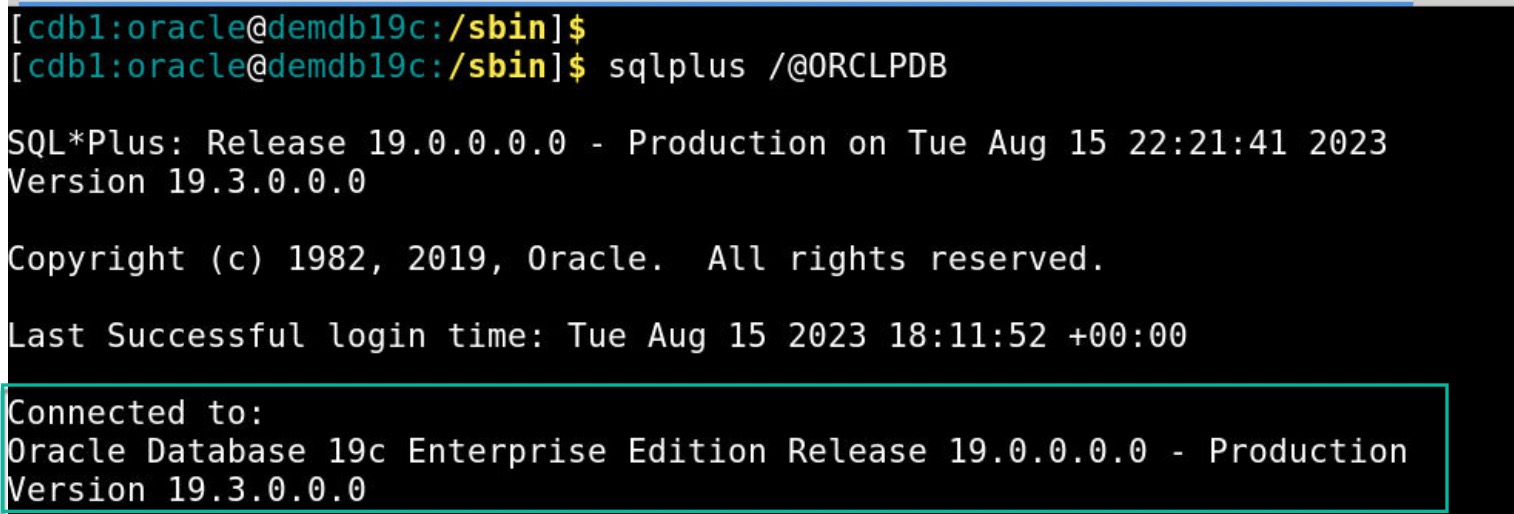
- Once OTP is validated successfully, it lets you to connect to the database. You can optionally run ‘select user from dual’ query to see current user information.
Note:
Here are some tidbits from RADIUS proxy logs to understand what goes behind the scenes when a user tries to login to the database with second factor authentication (MFA).
Summary:
In this blog post, you have explored configurations which should be in place for the user and also experienced how MFA for Databases works in action. I hope this post would be beneficial for anyone who are curios to know how this feature works in action.
To summarize, implementing MFA demonstrates a commitment to security and a proactive approach to safeguarding sensitive data. It adds an additional layer of defense, making it harder for attackers to breach the database.