
Introduction
In the previous article (link) we discussed how we solved the issue of having SSO configured between Oracle Fusion Applications and Oracle VBCS in a way that allows VBCS to be embedded but still allowing local IDCS users for other services associated with IDCS.
This blog article goes through the steps required to implement the solution detailed in the previous blog article
Assumptions
- Oracle IDCS already has SSO federation configured with Oracle Fusion SaaS
- The reader has basic knowledge of creating applications with Oracle VBCS and configuration of Oracle IDCS
Implementation of this pattern involves three components
- A bare bones VBCS application, which participates in the SSO transaction but displays nothing (or in our case a green background)
- Configuration of IDCS where we configure IDCS so that it treats this application differently to others
- Embedding the VBCS Application in Oracle Fusion Applications
- A test VBCS Application in a sub page
Create the Bare bones “SSO_Helper_App” in Oracle VBCS
We need to create a bare bones SSO_Helper_Application in VBCS so we can bootstrap the SSO process for other VBCS applications. This application needs to be tiny and devoid of virtually everything so that it loads super-fast.
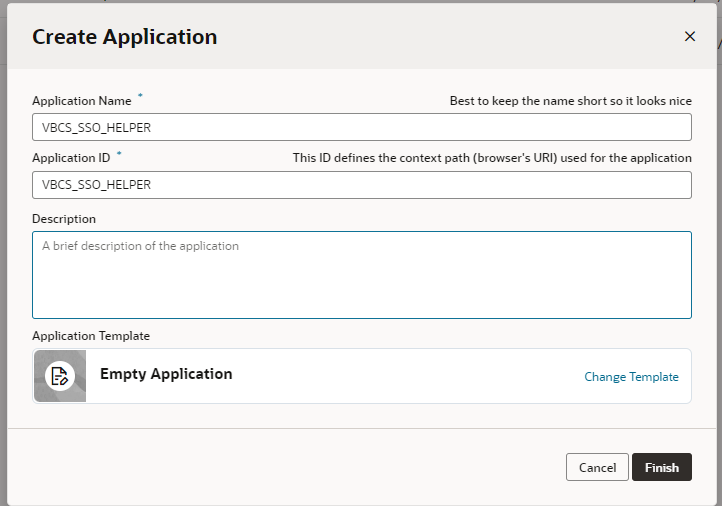
- Create a new VBCS Application called VBCS_SSO_HELPER, use an empty application
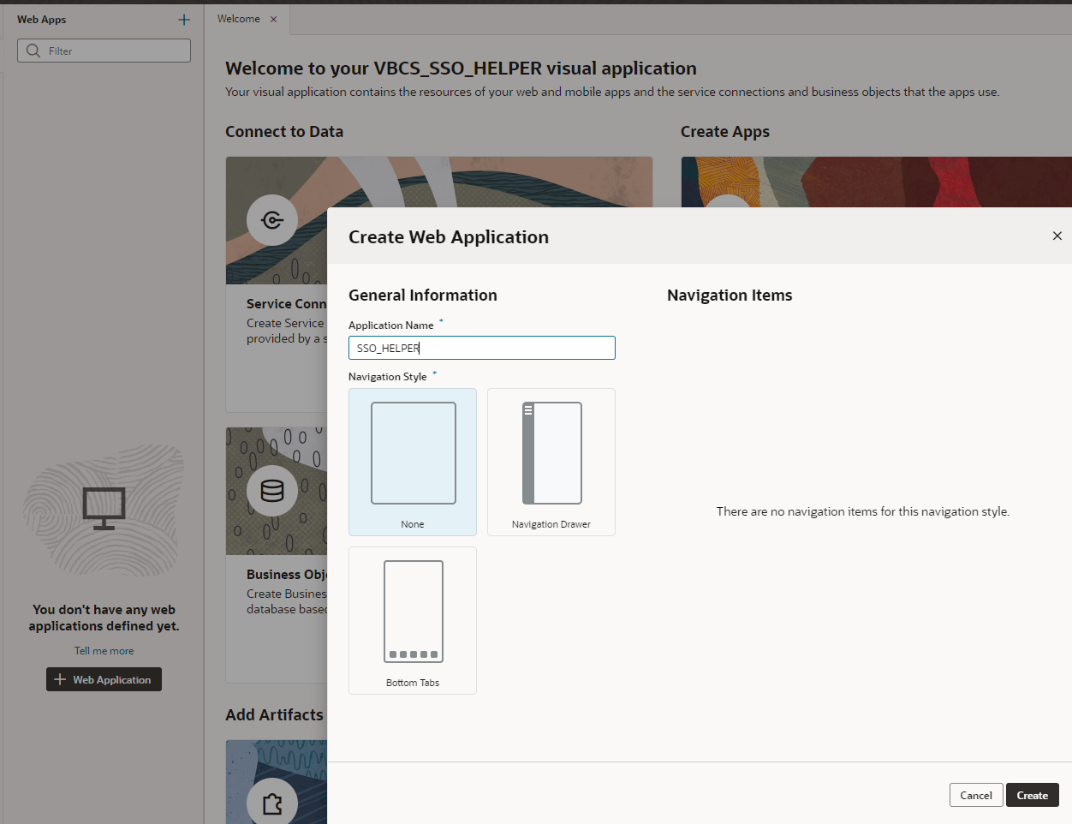
- Create a Web Application using the none template
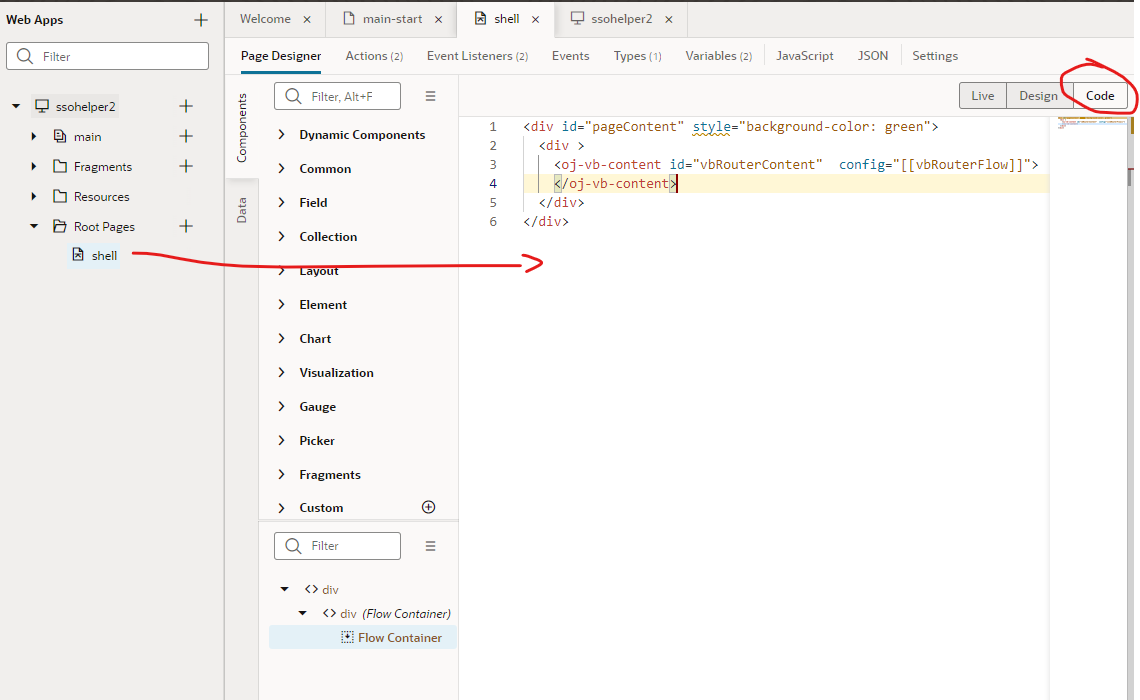
- Using the “Code” panel , replace all HTML with the following bare bones HTML. Here we are just having a <div> with a empty header however you could embed a logo or some text if desired.

- Navigate to the root shell using the menu (Root Pages/shell).
- Using the “code” tab remove everything except the following HTML. This is the smallest amount of HTML that keeps VBCS working without any menus/toolbars/footers etc. Additionally, here we have set the background colour to “green” so we can see a visual indication that the VBCS app has started.
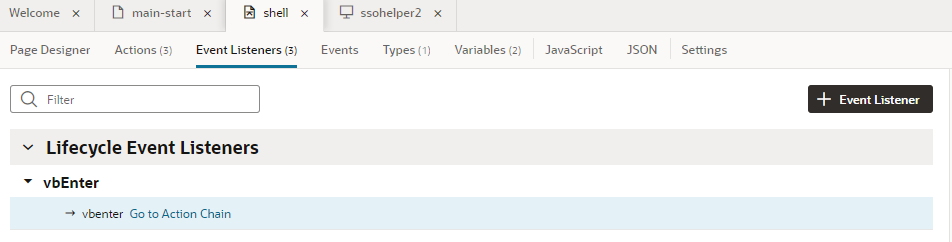
- Optional: For debugging you can add a vbEnter Event so that we can display some debug to the browser JavaScript console.
- Create an “Event Listener” on the page of type “vbEnter”
- Bind an new “Action Chain” to the Event Listener
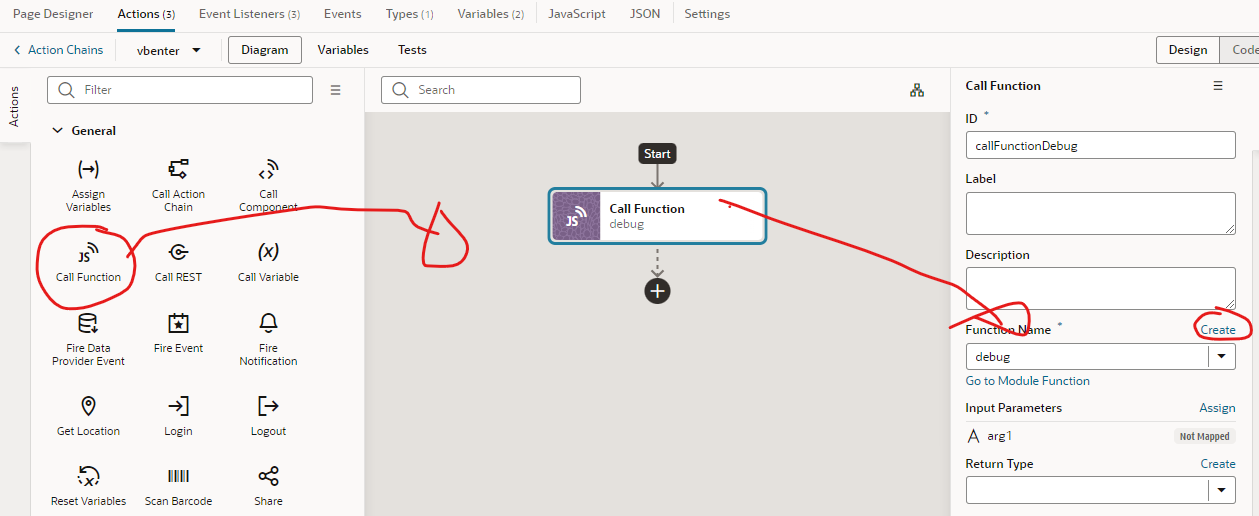
- Within the action chain drag and drop the Call Function (JavaScript) onto the chain
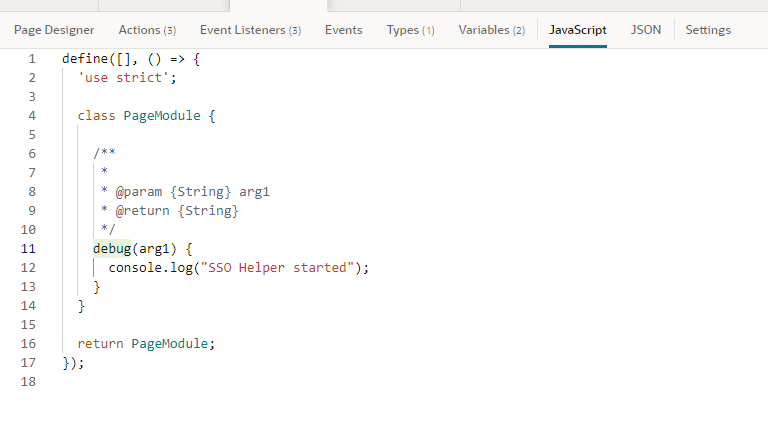
- Within the Call Function action, bind it to a new JavaScript module/function and add some debug using console.log()~
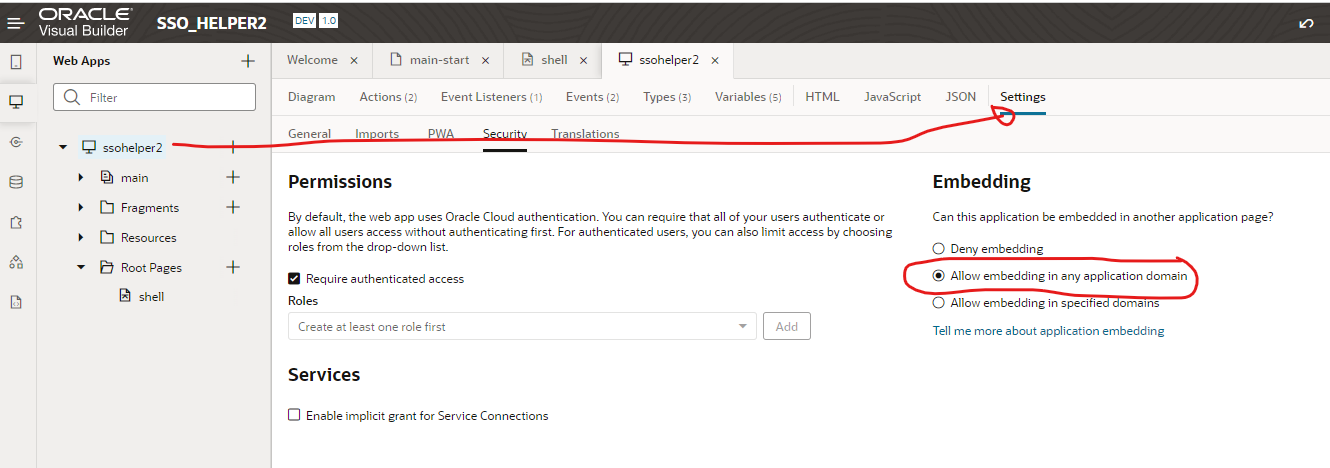
- Navigate to the VBCS Applications Settings menu and ensure embedding is set to allow “Embedding from any application domain”. This is a catch all and once tested you should can change this to be “Allow Embedding in specific domains” with the Oracle Fusion Apps domain to increase the security of the solution.
- Now run the solution using the VBCS run button
- If all is good then your browser should just render a green bar, like this
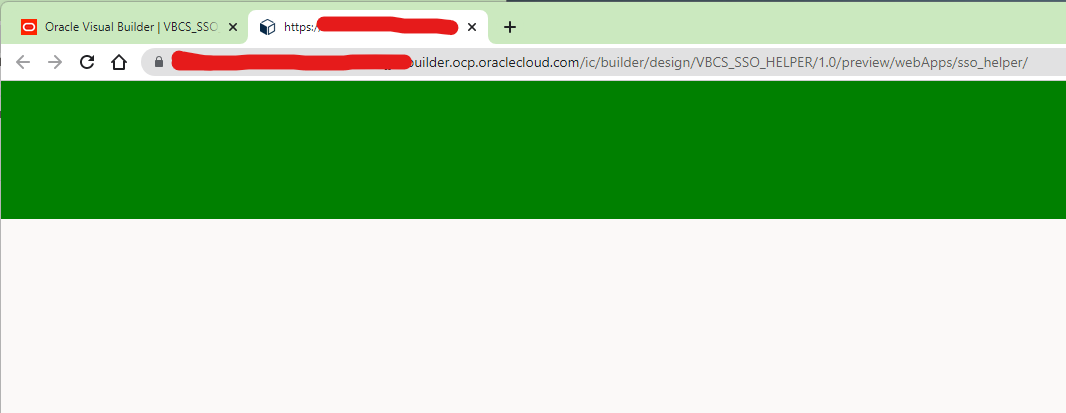
and within the JavaScript console you should see a debug message saying “SSO Helper Started” - Now navigate to the main VBCS Home page and Stage and Publish the application.
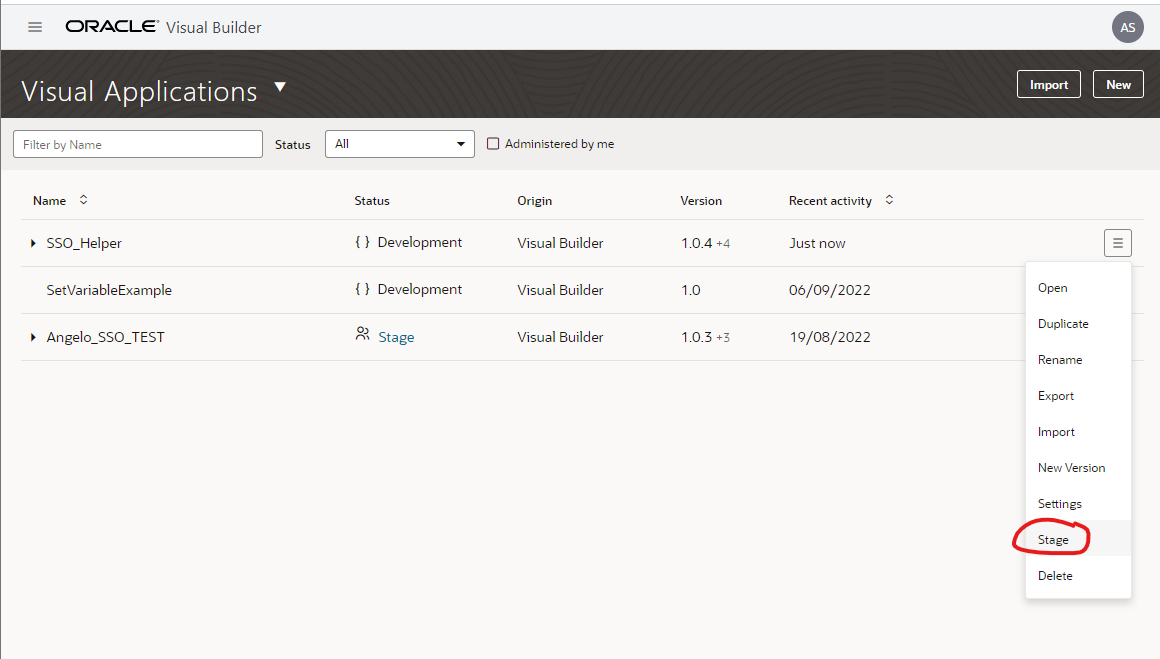
- Click on the live text, it will show you a link for your SSO Helper application, click on this. This will run the application in the browser in live mode in your browser
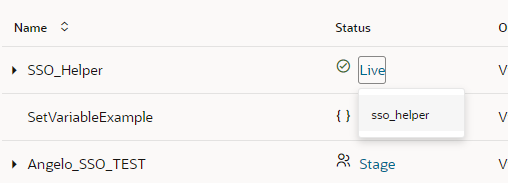
- Now make note of the VBCS Application runtime URL as we will need this in the next step.
IDCS Configuration
Within IDCS we need to create a new “IDCS Application” which we will configure to always use the Oracle Fusions Login page. To do this we need to create an IDCS confidential application, register the VBCS Applications URL and then create an IDCS SSO policy that it forces the IDCS login process to use Oracle Fusion Applications Login screen (as opposed to the IDCS login) to log in.
When we later call the VBCS SSO Helper Bootstrap application we will no longer use the VBCS URL, but we use the “IDCS Application” URL.
IDCS Configuration Steps
- Log into the Oracle IDCS
- Create the IDCS Application defining our application
- Navigate to Applications and create a new confidential application, with the name of your application
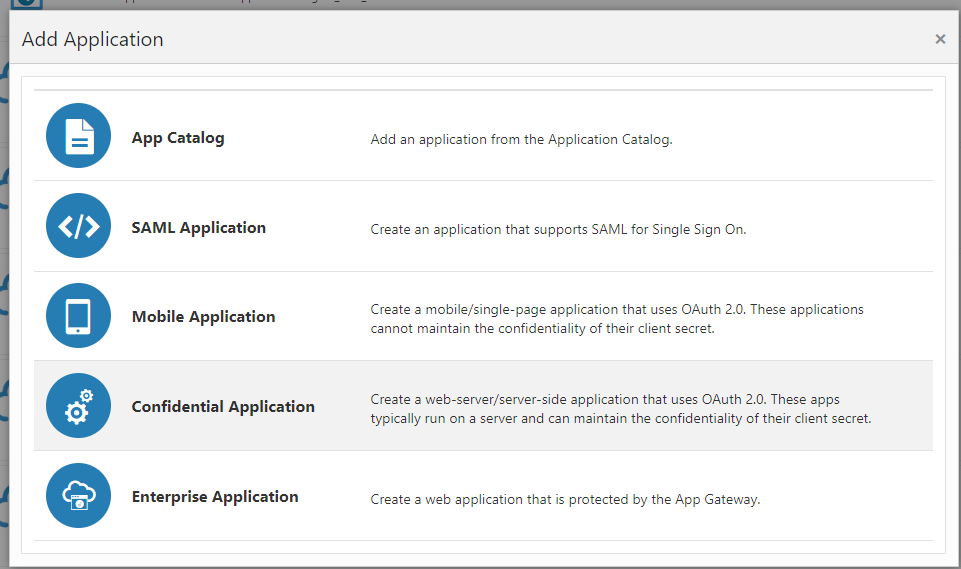
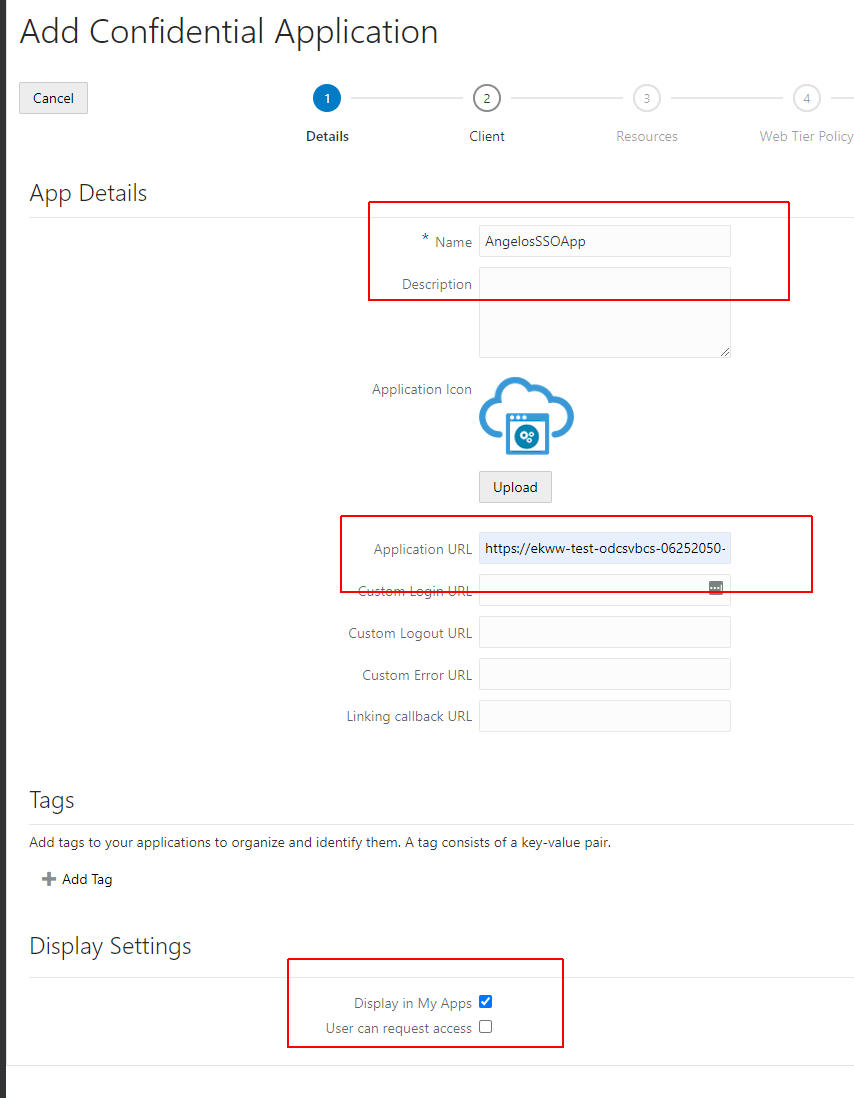
- On the next page
- Give the application a name
- Enter the VBCS URL in the Application URL box.
- Ensure “Displayed in My Apps” is selected
- Leave all other fields empty
- Next Configure the client and select JWT Assertion
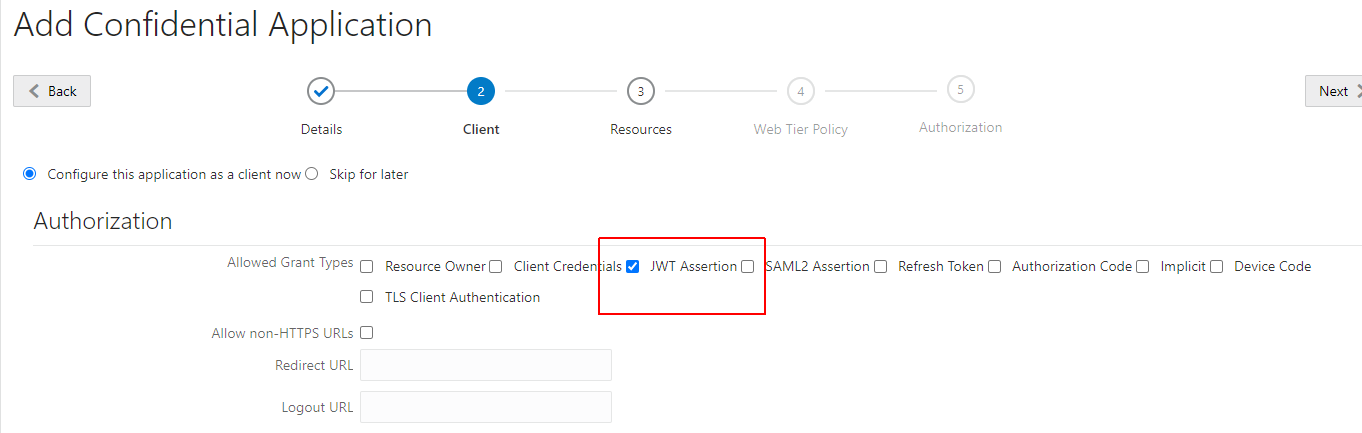
- Click and finish
- Re-Enter the application and navigate to users, or groups and add your user(s) or the group(s) you wish to have access to the app. This would normally be a group, containing all users which have access to Oracle Fusion but for my example I have entered myself and a colleague of mine.
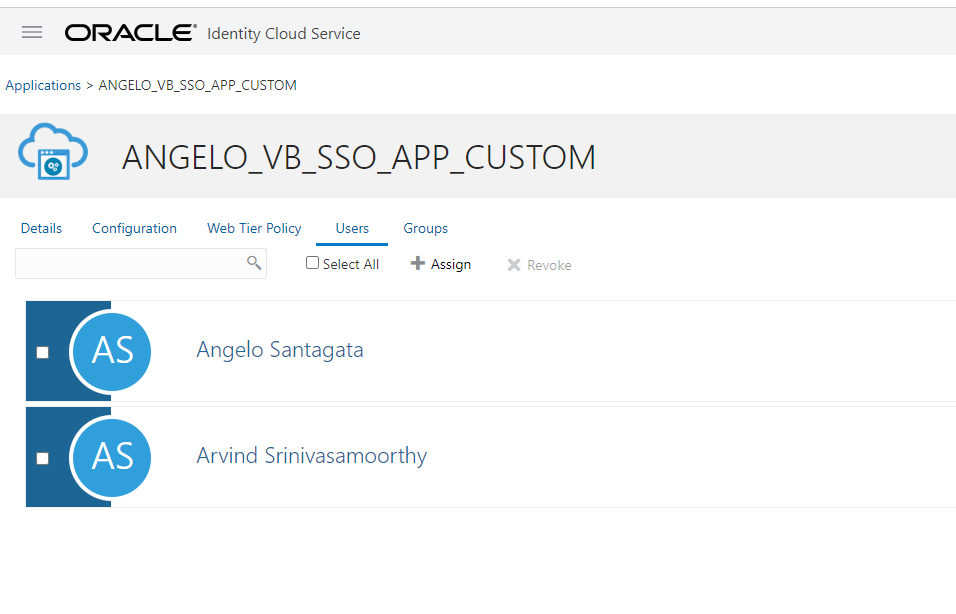
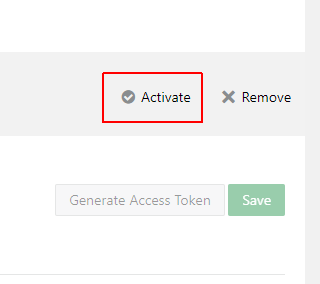
- Activate the application
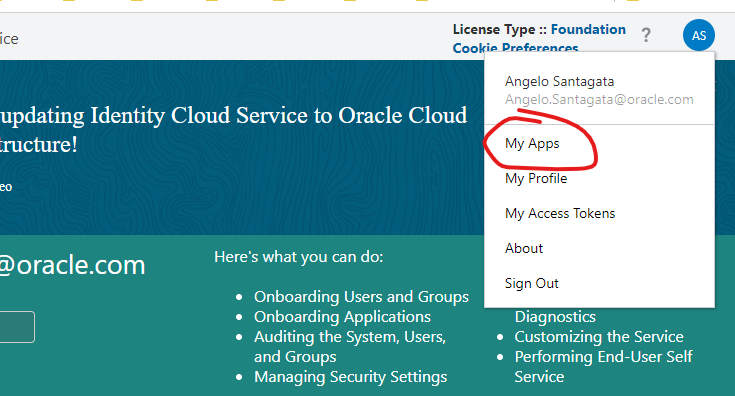
- Finally, go to my apps icon and view “My Apps”. The IDCS Application we have created will be shown there.
- Right mouse click on the application name “text” and copy the URL, store this somewhere as we will need this later for embedding the IDCS App within Oracle Fusion.
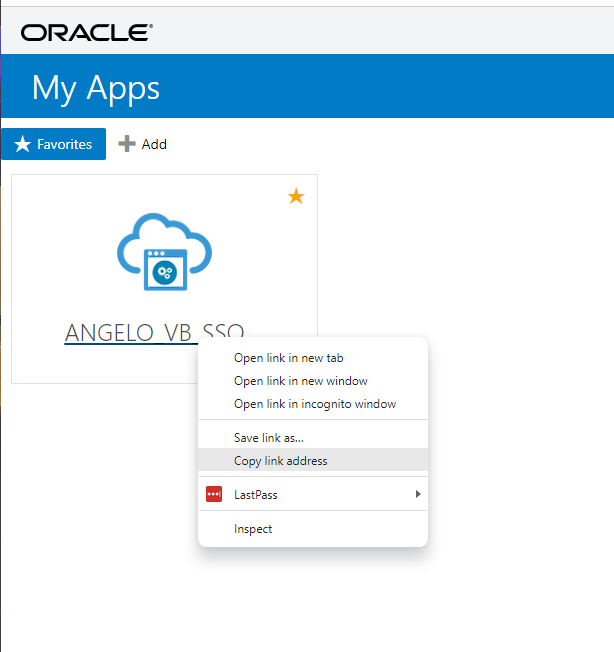
- Navigate to Applications and create a new confidential application, with the name of your application
- We now need to create a custom IDP Policy. This is a policy which will executed when we access our application using the IDCS URL
- Navigate to Security/IDP Policies
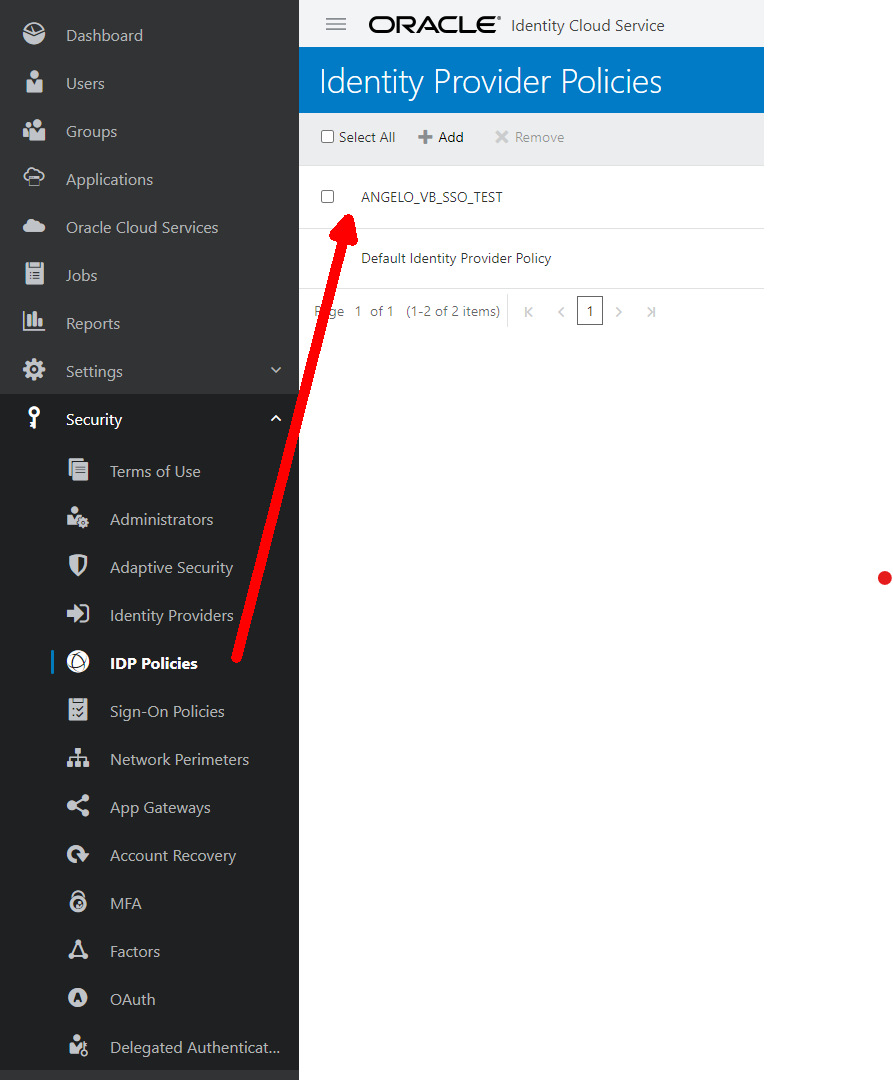
- Create a new Policy for your VBCS App
- Edit this policy and ensure
- Within this policy there is only one rule and this rule ONLY contains Oracle Fusion Apps as the Identity provider. This tells IDCS to use, and only use, Oracle Fusion Login as the authentication identity provider
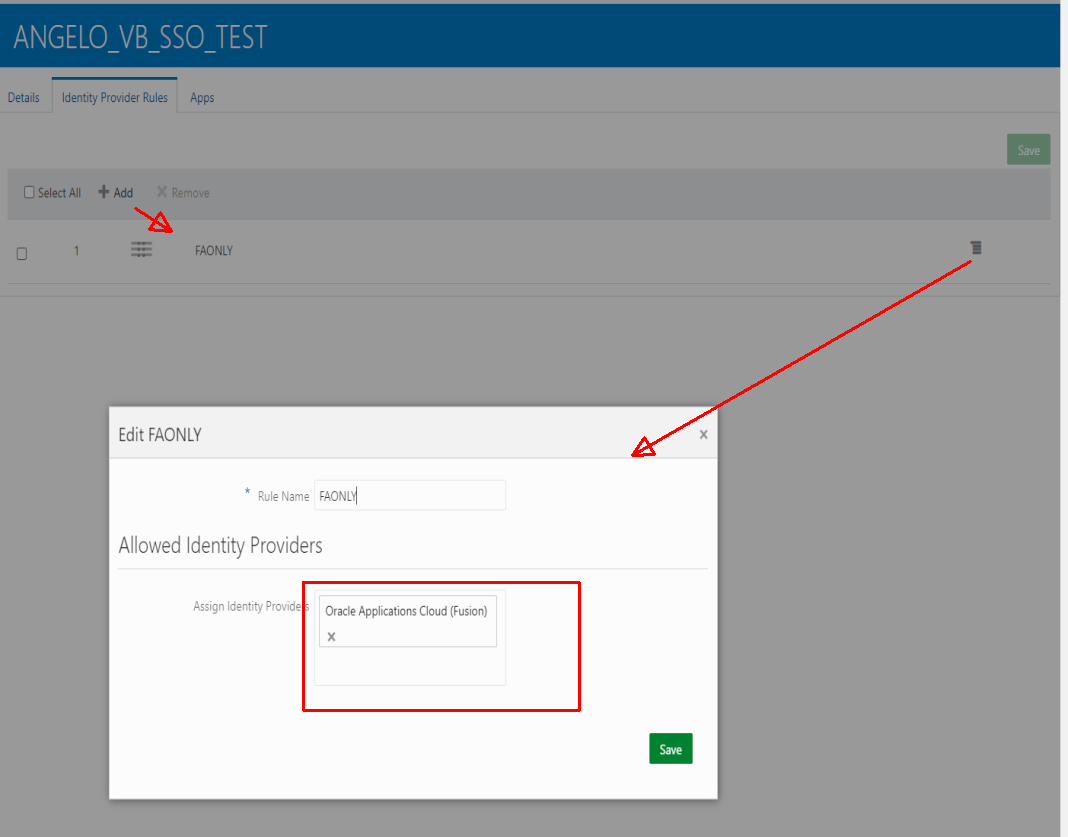
- Within this policy there is only one rule and this rule ONLY contains Oracle Fusion Apps as the Identity provider. This tells IDCS to use, and only use, Oracle Fusion Login as the authentication identity provider
- Navigate to the “Apps” tab and add the IDCS App you previously created
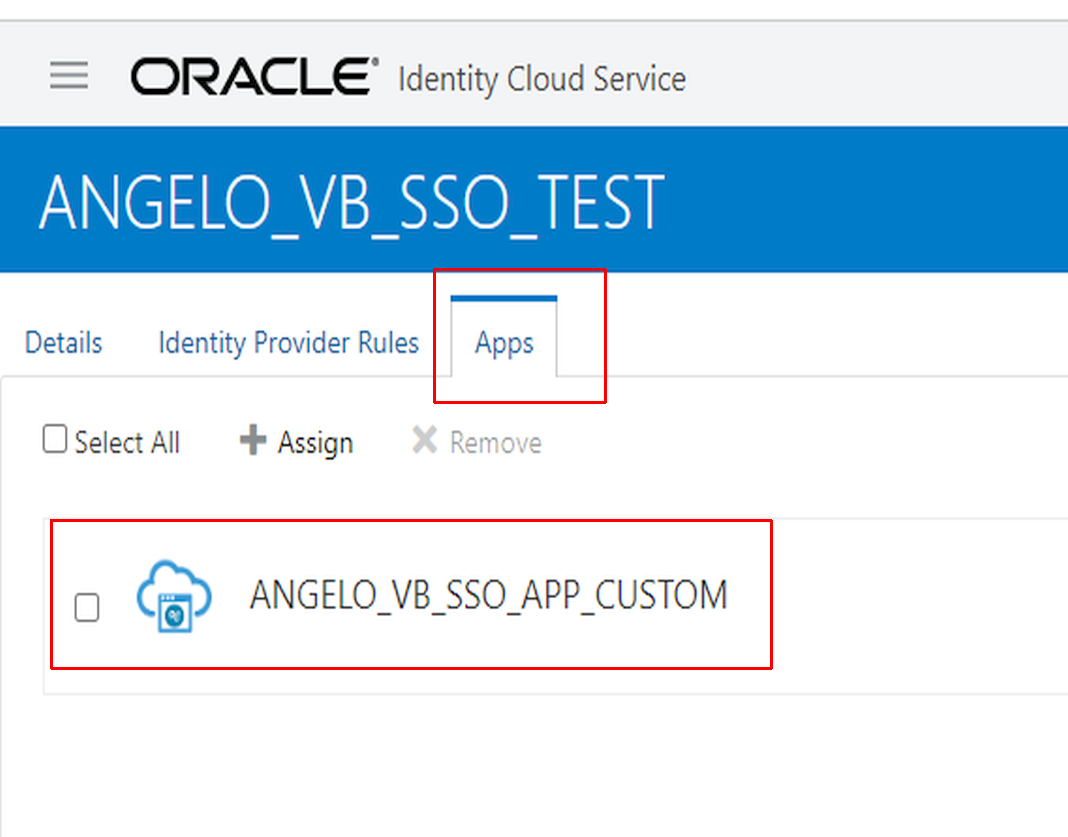
- Finally before leaving IDP Policies, we want to make sure all other users get the chooser login, go back to the IDP Policies and check that the Default Identity Provider Policy contains Both Username-Password AND Fusion Apps
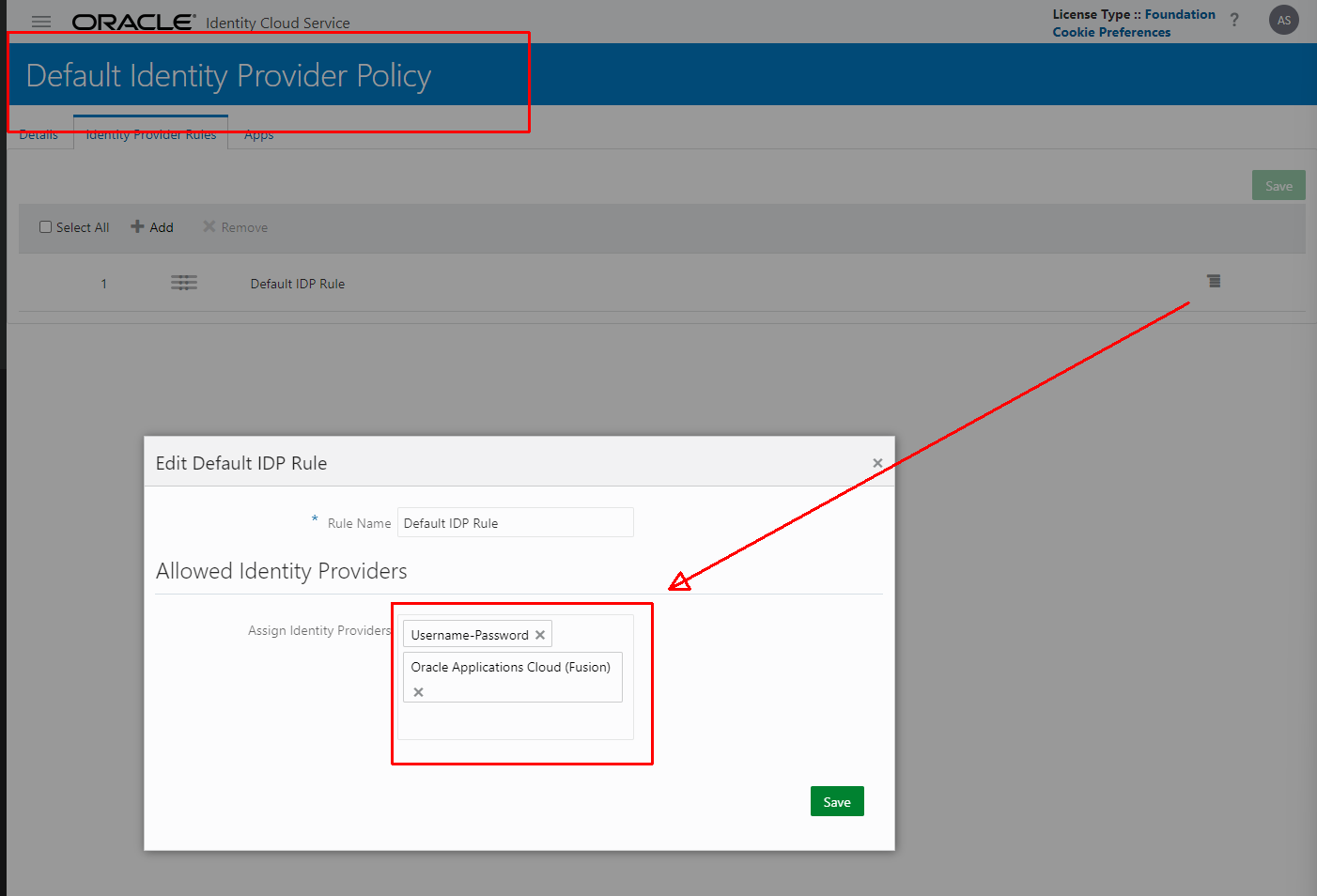
- Edit this policy and ensure
- Navigate to Security/IDP Policies
-
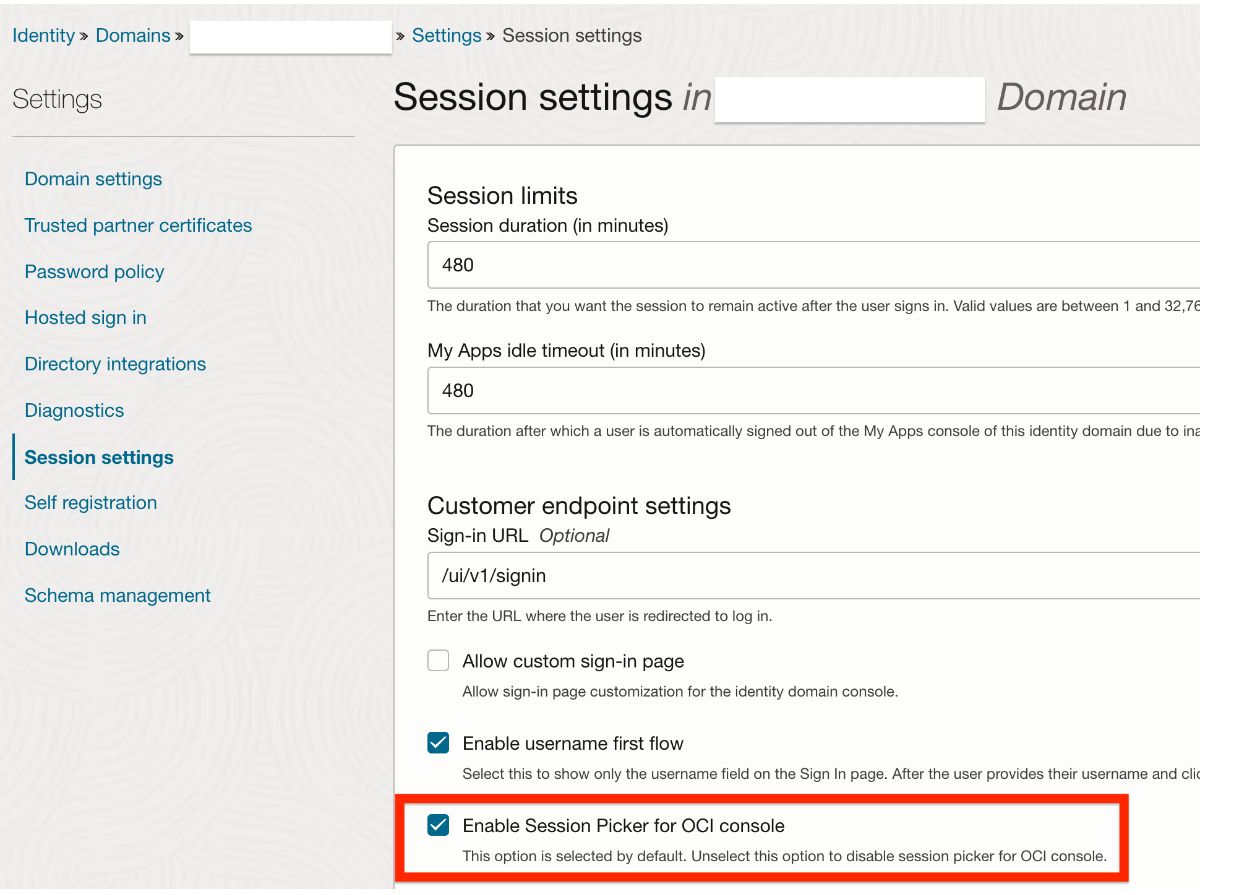
We now need to disable the session picker for the console. You can disable session picker at Menu > Identity & Security > Select the domain > Settings > Session settings > Uncheck “Enable Session Picker for OCI console“.
-
For more information on why we disable this setting can be found here https://support.oracle.com/epmos/faces/DocumentDisplay?parent=SrDetailText&sourceId=3-35764715841&id=2982865.1
-
- You can now test it is all working by
- Restarting the browser and navigate to your VBCS Design Time URL. If everything is working, then you should be prompted with a IDCS login page
- Restart the browser and then navigate to the “IDCS App URL” (the one from the MyApps Screen copied previously), this should redirect you to Oracle Fusion Applications login page and not the IDCS login page
- If you try and access the “real” VBCS Application runtime URL, ie the one entered in the IDCS Application URL field, it should also prompt you with an IDCS login page. This is because the changes we have made do not affect normal VBCS usage only our specific application
Embed the SSO Helper VBCS Page within Oracle Fusion SaaS using Page Composer
Finally, we need to embed this VBCS SSO Helper application into our Oracle Fusion Home page. The plan here is that he VBCS SSO Helper application loads
Add the VBCS SSO_HELPER to Oracle Fusion Applications Homepage
In this section we will add the VBCS SSO Helper to Oracle Fusions Application page. By letting this helper run in an iFrame we can ensure all of the IDCS SSO cookies are setup so that any other VBCS application is already authenticated and thus won’t show the IDCS Login page.
Assumptions
- The reader is familiar with editing the Fusion Applications Homepage with Page Composer
- The reader already has a VBCS application embedded within Oracle Fusion in an iFrame (using AppComposer or Page Composer)
Configuring Oracle Fusion Applications
- Log into Oracle Fusion Applications
- Create a Sandbox with the ability to use PageComposer
- Navigate to the Fusion Homepage
- Select the Structure control and drag up the structure panel from the bottom
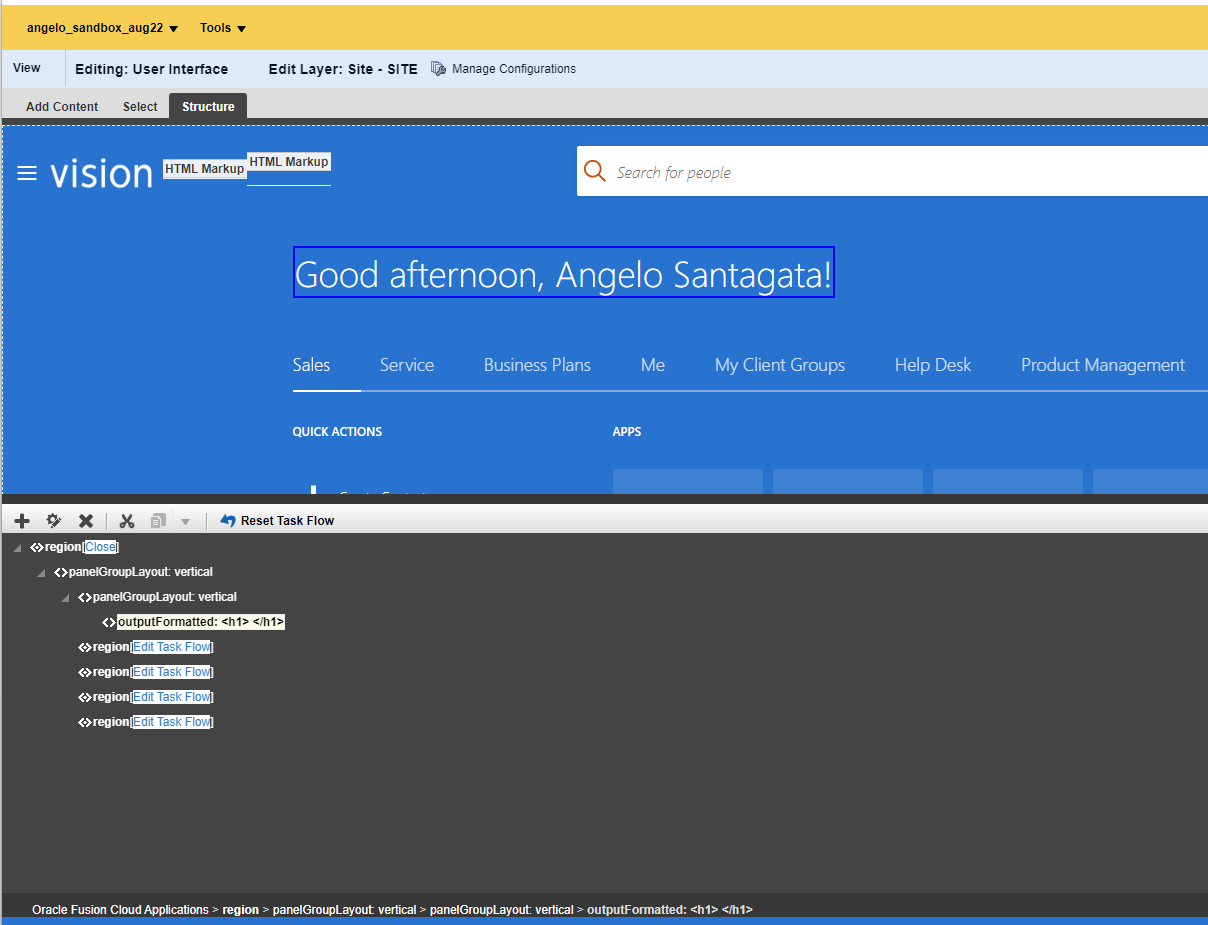
- Within the Structure Panel select the “outputFormatted: <h1></h1>” component. You should see the greeting on the browser be highlighted with a blue bounding box.
- Select the panelGroupLayout:vertical component above this
- Click the + to add a component to the panelGroupLayout
- Within Components add a HTML Markup component
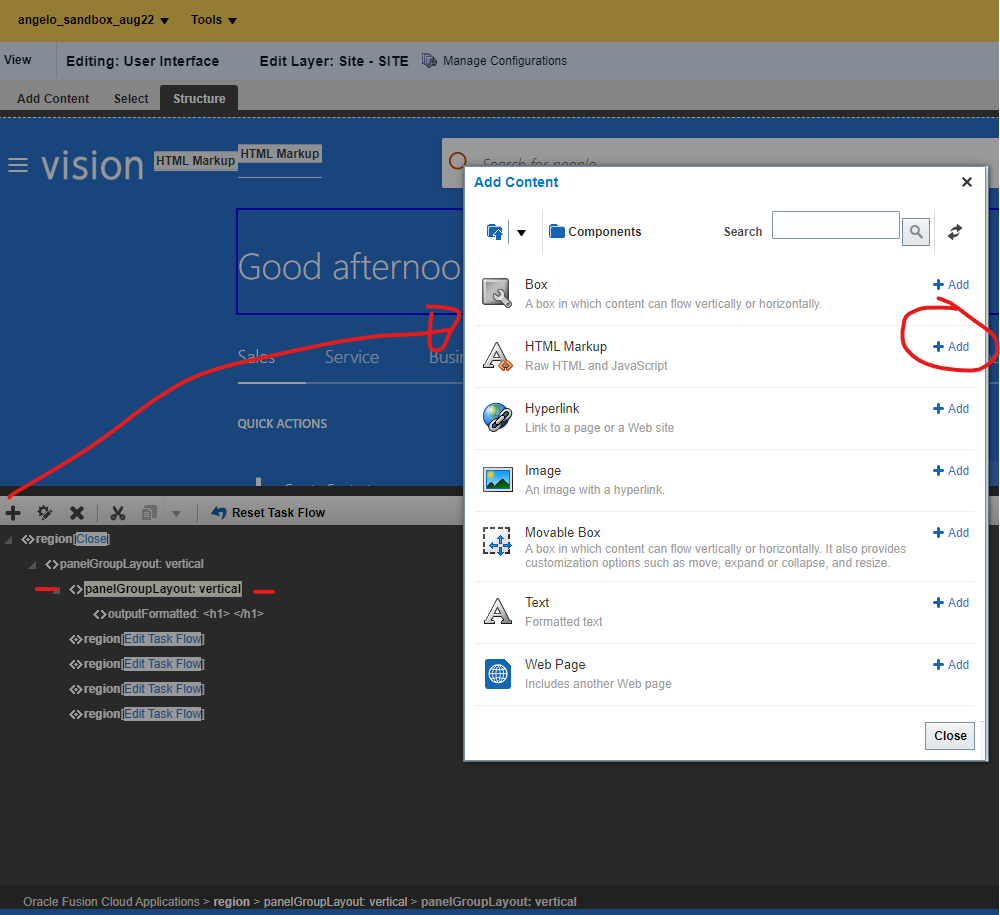
This should add a HTML Component to the page just above the greeting. What you should see added is a showDetailFrame and an outputText component
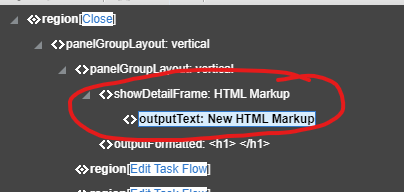
- Select the outputText component and edit it using the “cog”
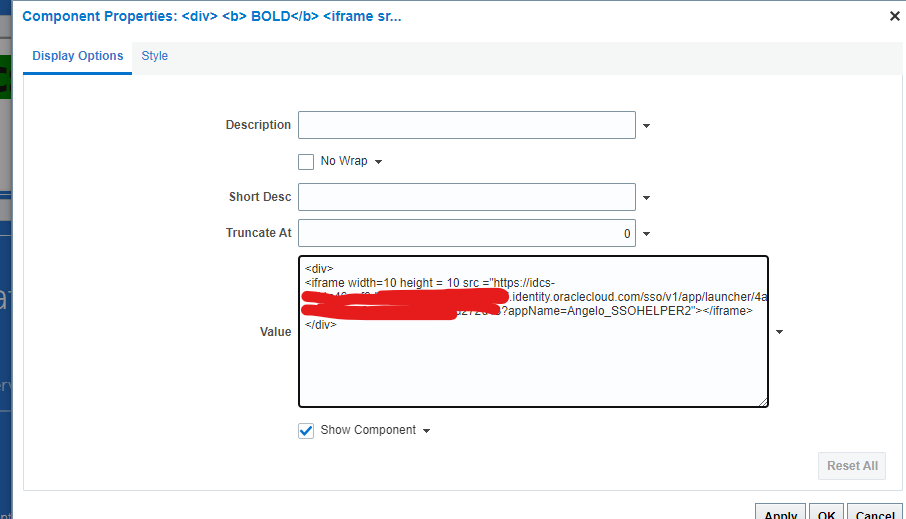
- Within the dialog edit the value of the component by selecting the arrow down and expression builder
- Within the expression builder we want to enter a value. The value is “real” HTML and we’ll be adding an iFrame with no border and 1×1 big. For testing you can change the size of the iframe to be 10×10. In the example below replace the src with your IDCS APP URL not the VBCS URL
NOTE: You must surround the iFrame html tag with a <div> tag , if you don’t then the Fusion User interface may not render correctly
Example
<div>
<iframe width=10 height=10 border-width=0
src="https://idcs-xxxxxxxx.identity.oraclecloud.com/sso/v1/app/launcher/xxxxxx?appName=Angelo_SSOHELPER2"
</iframe>
<div>
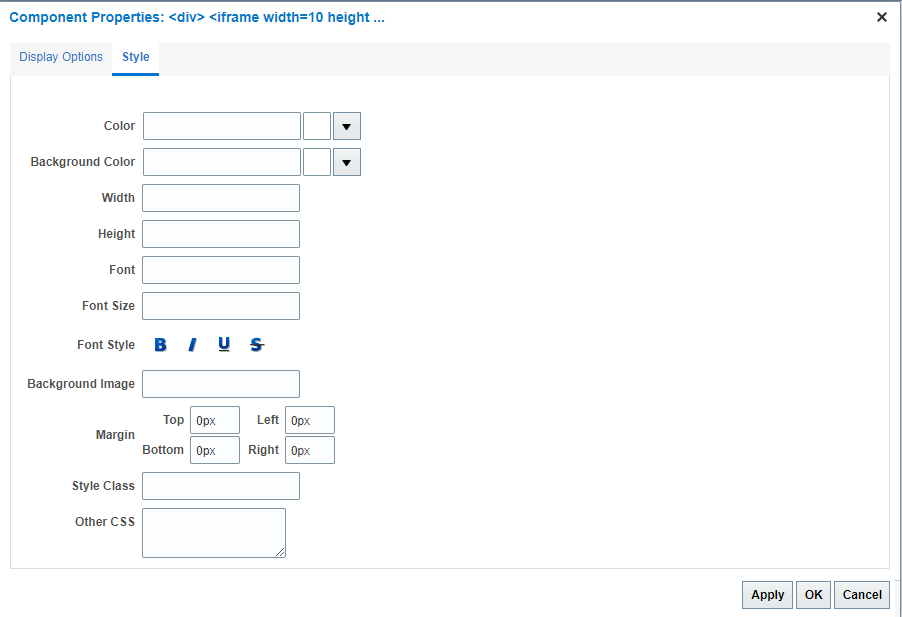
- And set the margins to 0
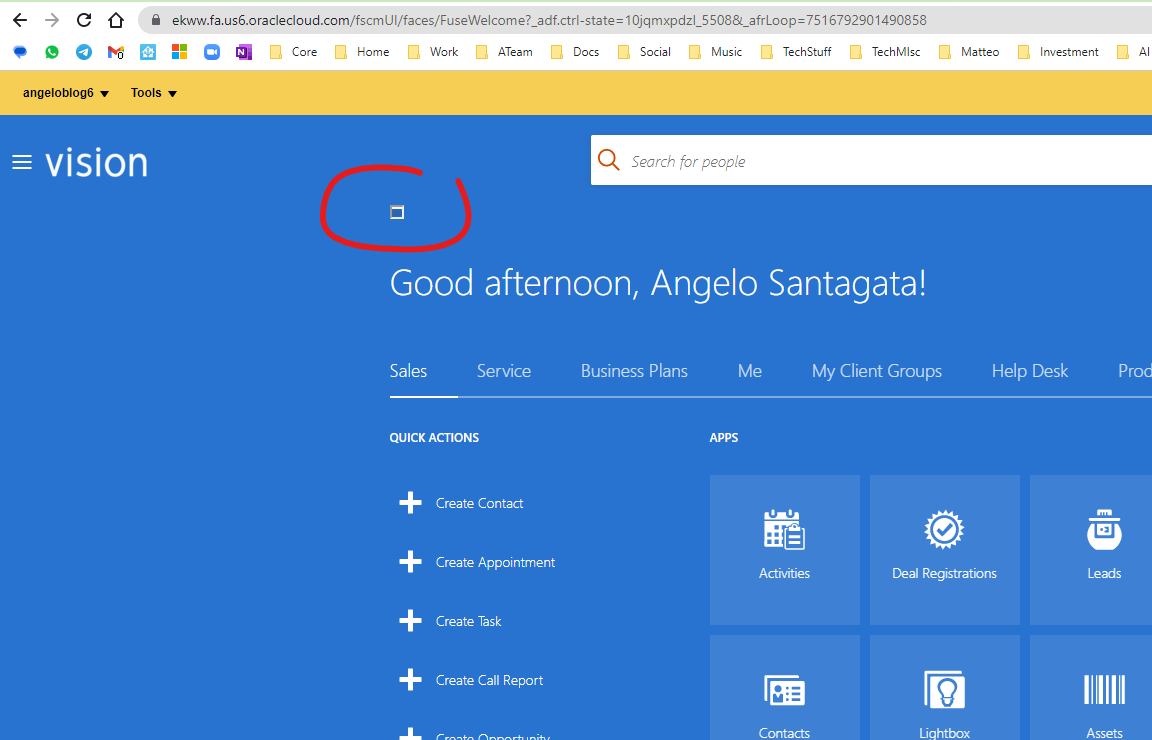
- When rendered you should see something like this.
The green dot/box is our VBCS iFrame being rendered. We can only see it because we’ve set the height to 10 x 10, once everything is working then you should change the height and width to 1, and the colour to a colour of your choice.
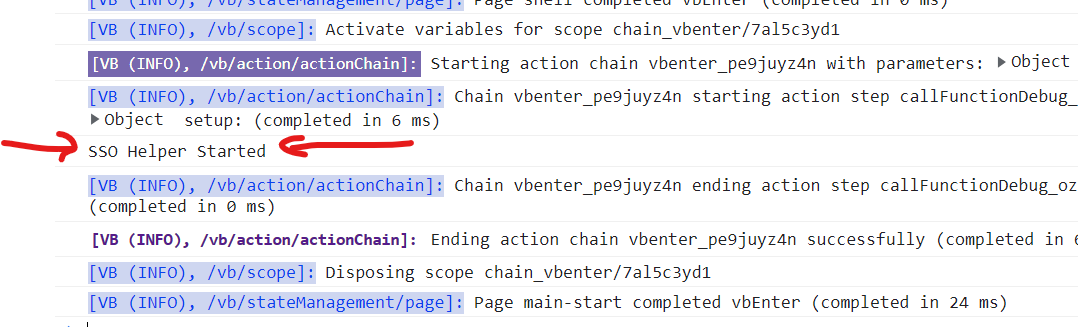
- Earlier on in our VBCS application development we added a debug message to indicate the VBCS app is ready (and working). If you look at the JavaScript console you should see this message printed.
E.g
- If you now navigate to the page within Fusion with the embedded VBCS page , using the normal VBCS login, you should find that it will just work, no logging in required
Conclusion
This blog article is the second part of a two part series where we show how you can solve the issue of having two sets of users in Oracle Integration cloud,s some of them requiring SSO with Oracle Fusion and the other set being integration users or IDCS only users. Thank you.