
Introduction
In a recent proof of concept development, a customer, who has Oracle Process Automation (OPA) instances created in each of their multiple Oracle cloud tenancies, tried to invoke OPA process instances running on OPA instances in different tenancies via the OPA REST Connector. OPA REST API only allows OAuth-based authentication types that require a user principal in the authorization code grant. As a result, OPA REST API does not support Client Credential grant type. The OPA REST Connector currently only support Client Credential and JWT Assertion grant types. Therefore, the only way to use the OPA REST Connector to invoke another OPA process instance running on a different OPA instance is to use the JWT Assertion grant type. However, in the POC, the customer was getting an authentication failure when trying to use JWT assertion to obtain an access code.
This blog describes the cause of the authentication failure and provides a solution to enable OPA communications via REST API across OPA instances.
The Cause
When an OPA instance is created in a cloud tenancy, a set of default configurations are also added to the Oracle Cloud Services in your identity domain (Please see the image below).
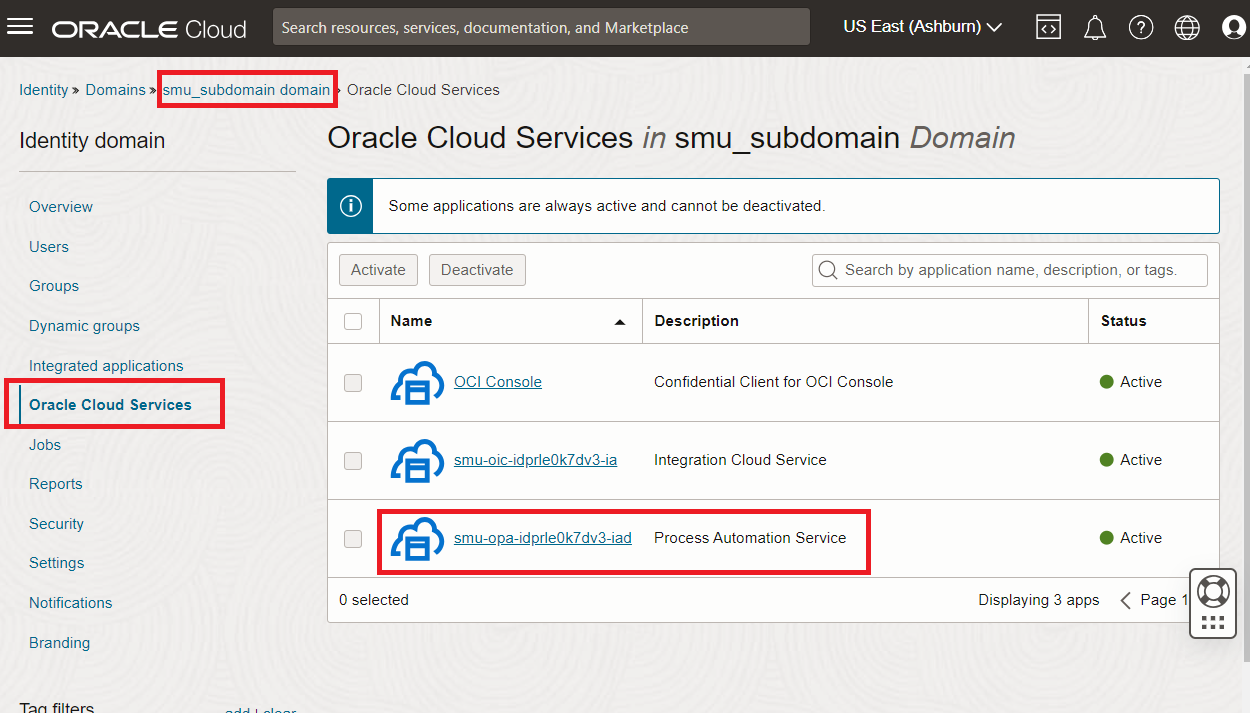
This default configuration contains two main parts. The first part defines a set of REST API resouces as scopes available for client applications to access. The second part defines authentication types required for the client to access the resources. The default configurations are not modifiable. Clicking into the default configuration, one can see how the resources and authentication types are configured as seen in the image below.

As one can see, the JWT assertion grant type is disabled by default for some reason. This is the cause of the authentication failure when the customer tried to access the OPA instance with JWT assertion.
A Solution
While we can not modified the default client configuration for OPA instances, we can create a custom client configuration that exposes the same REST resources as the default and enables the JWT assertion. Here is how.
Create an Integrated Applicaiton of type Confidential Application
Go to your identity domain and add a new integrated application as shown in the images below. Here I have already created an example highlighted in red.
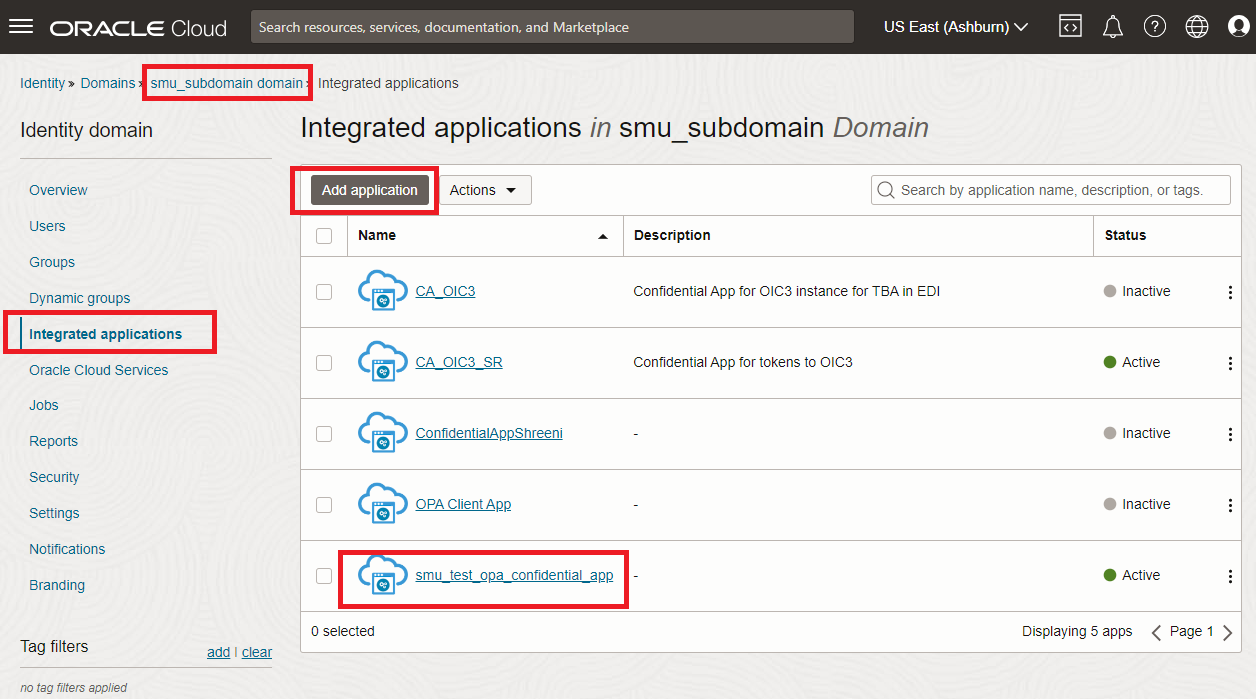
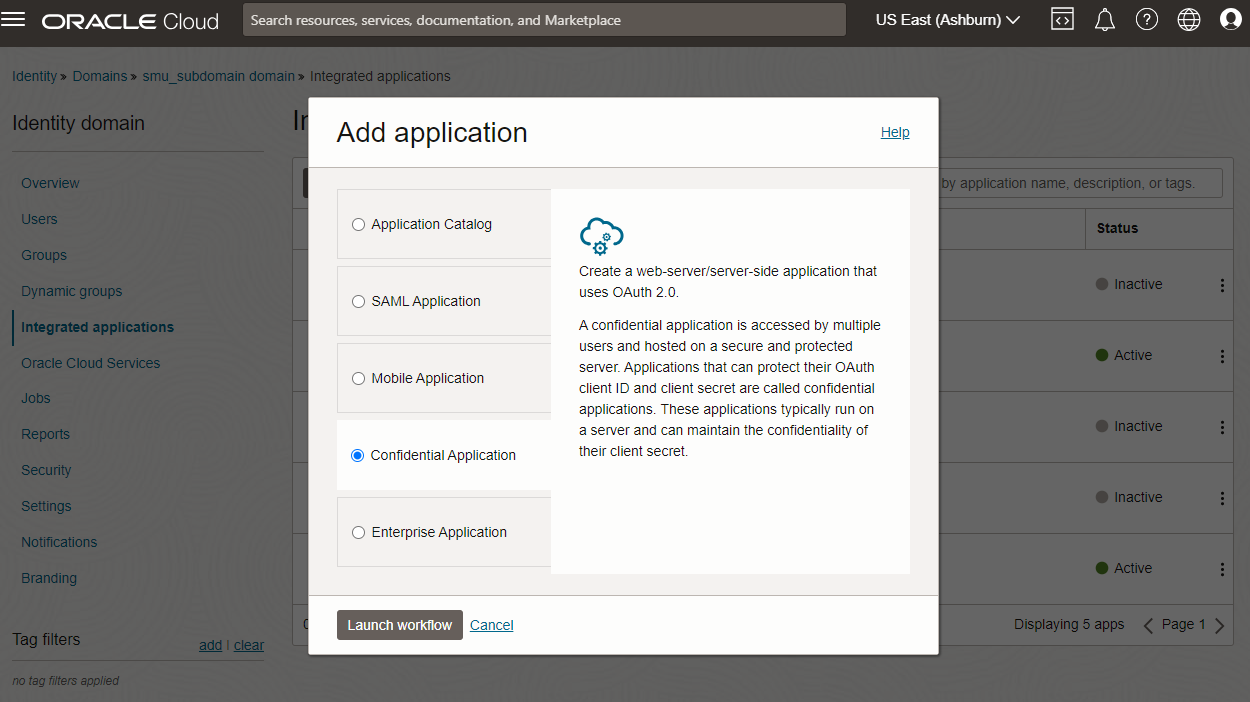
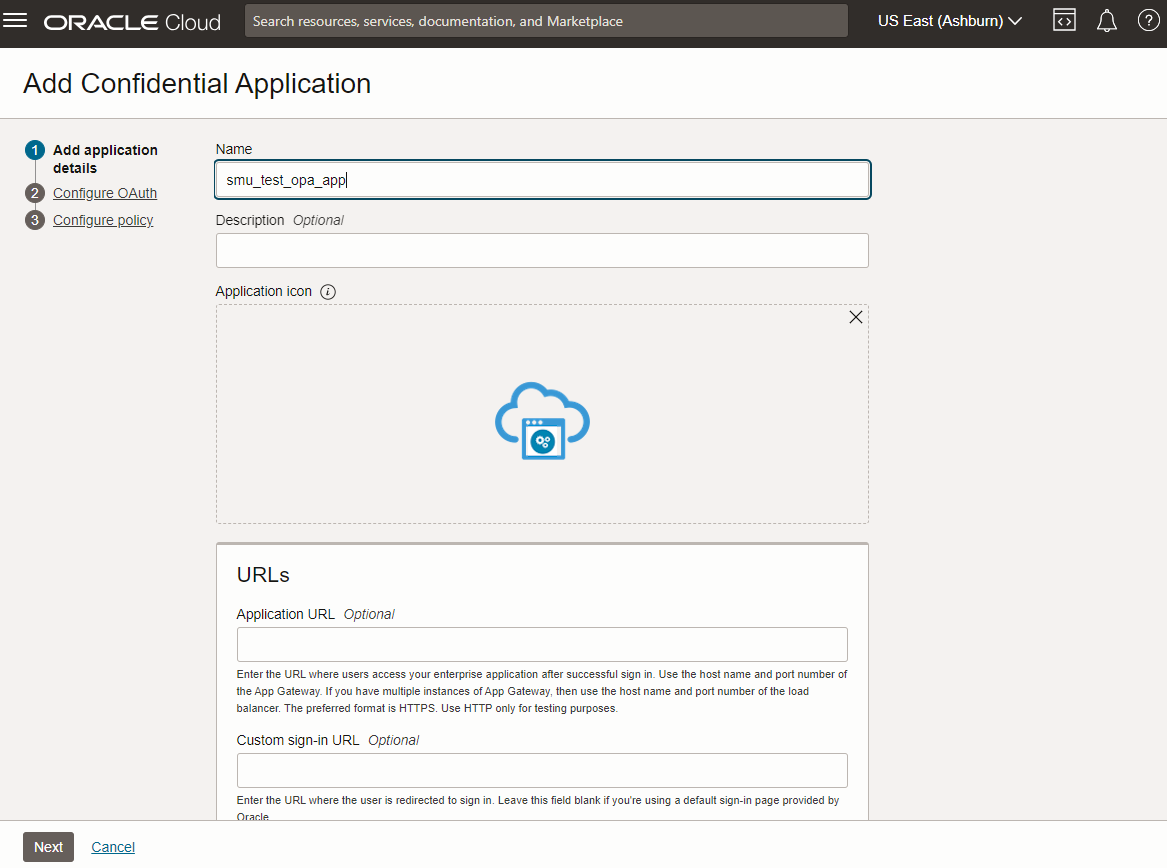
Specify Client Configuration
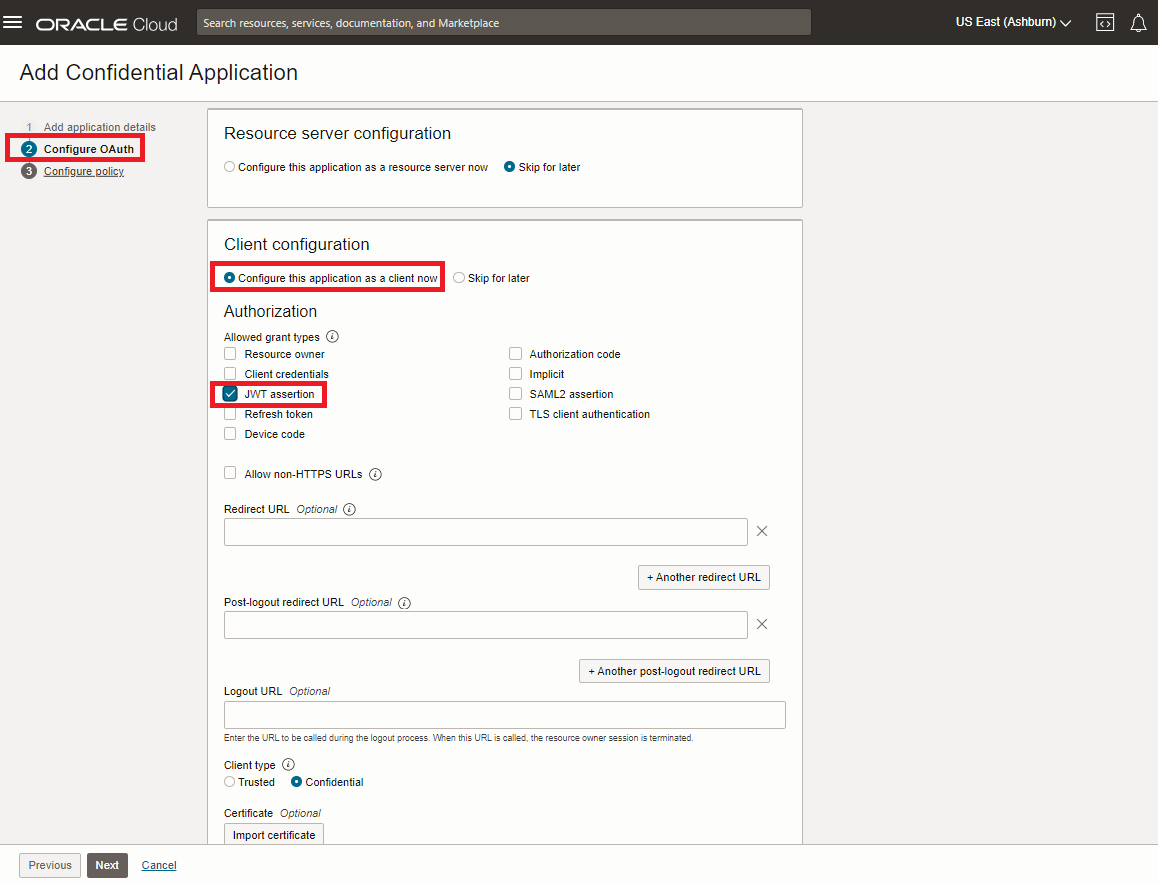
Following the workflow to Configure OAuth. Select “Configure this application as a client now” as we are only going to expose resources that have already been defined and check the JWT assertion box to enable it. Additional grant types can be enabled if necessary.
Add Resources to the Custom Client Application
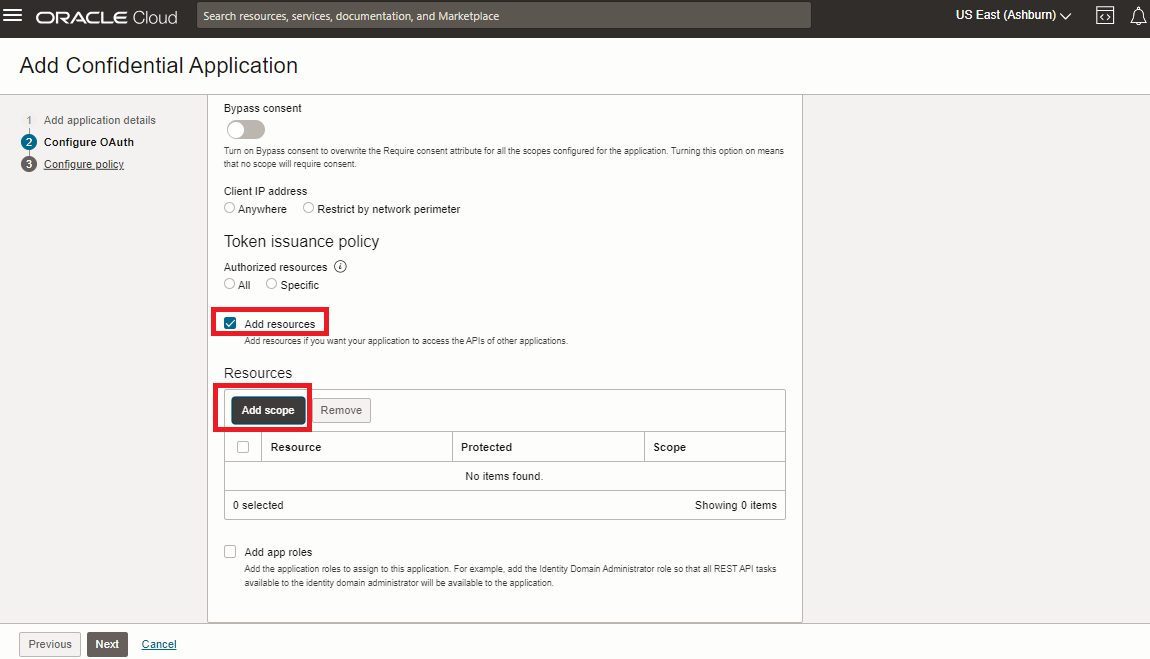
Scroll down the Configure OAuth page to check “Add resources” and “Add scope”.
Select the Default OPA Configuration
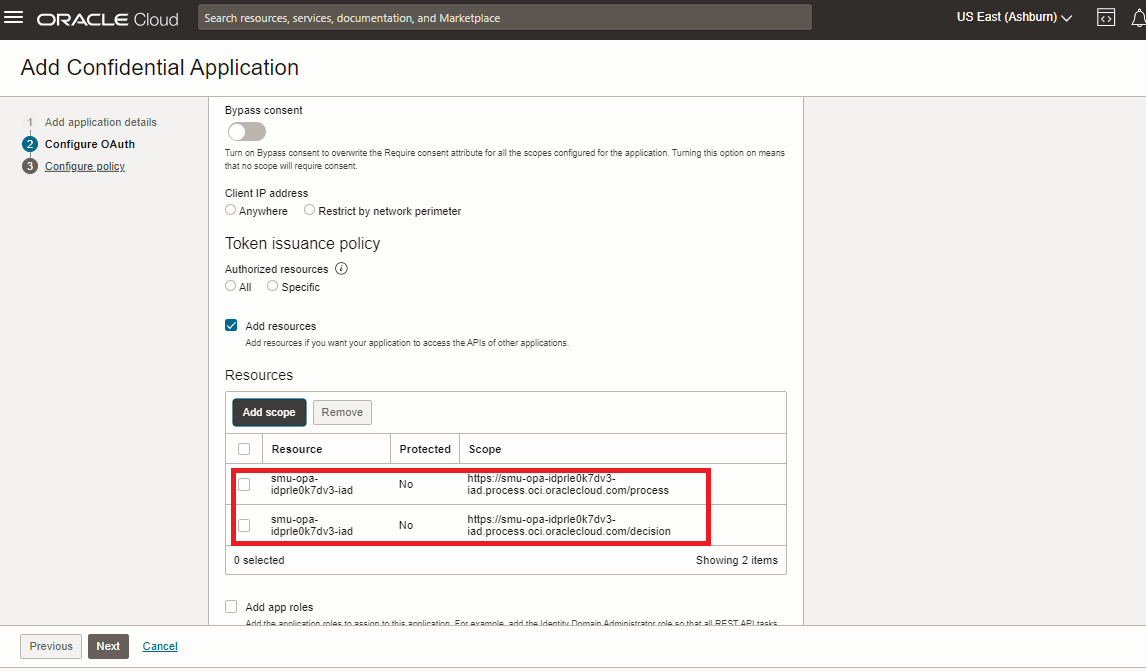
Check the default OPA configuration and the predefined OPA resources are added to the custom client application.

Complete the Custom Client Application and Activate
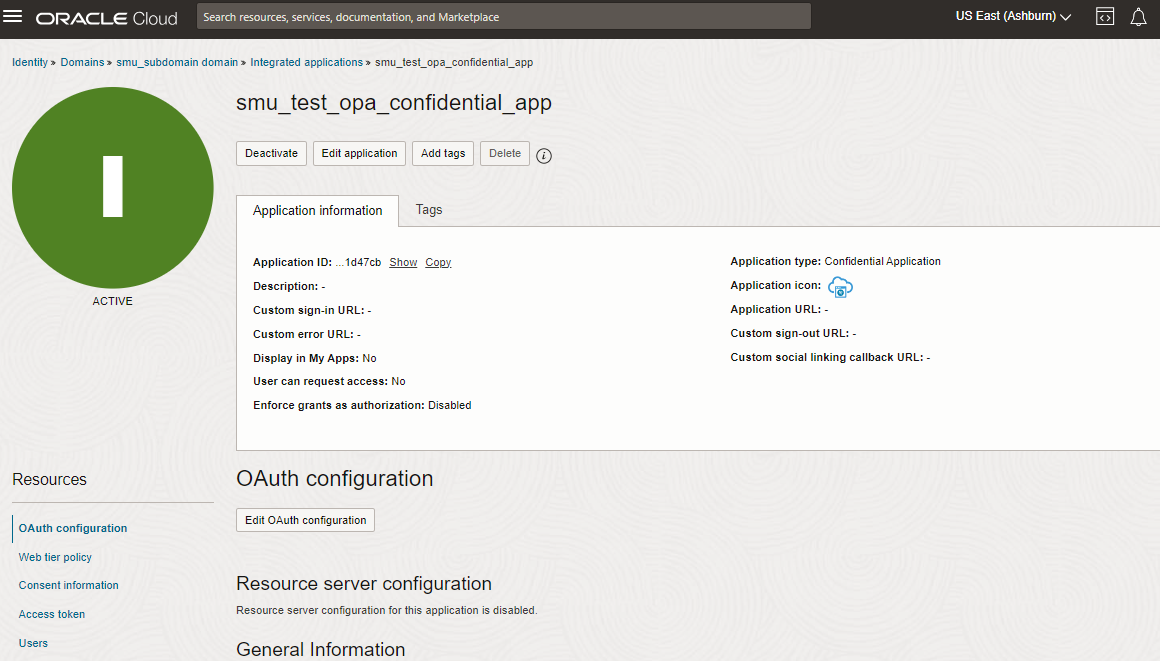
For our purposes, we can skip the last step for policy configuraiton and click Finish. Make sure the new custom client applicaiton is activated as shown below.
Final Look
The final custom client application should look like the image below. Now we can use this client application to connect to OPA with JWT assertion.
