

In security-concscious environments, managing encryption keys is only part of the story. It’s equally critical to know how those keys are used. Oracle Cloud Infrastructure (OCI) Vault’s Key Management Service provides tools to help protect sensitive data with customer-managed keys. But here’s what many users may not realize: you can use service logs to get better visibility into how those keys are used.
This post shows how to enable OCI Logging for KMS to capture cryptographic operations, such as:
- Decrypt and encrypt
- GenerateDataEncryptionKey
By capturing and analyzing these logs, you can:
- Analyzing key usage
- Monitoring for unusual activity
- Correlating application behavior with cryptographic operations
Whether you’re strengthening your security posture or investigating how encryption keys are used in your applications, enabling service logs can help give the visibility you need.
Step 1: Understand What KMS Service Logs Capture
By default, OCI Audit logs capture management operations on KMS resources such as vaults and keys like CreateVault, CreateKey, and RotateKey. However, cryptographic operations like Decrypt and GenerateDataEncryptionKey are available in service logs, which must be enabled explicitly.
Service logs do not contain any critical information that can impact the integrity of customer data. Instead, they capture metadata such as:
- Calling principal (user, function, or instance)
- Key OCID and version
- Operation type (e.g., Decrypt)
- Timestamp
- Vault and compartment details
Step 2: Prerequisites
Before enabling service logs, ensure:
- You have the required IAM permissions.
- Logging is enabled per vault, so repeat this for each vault in each region.
Step 3: Enable Service Logs for a KMS Vault
- In the OCI Console, go to:
- Observability & Management > Logging > Logs
- Click Enable Service Log
- Observability & Management > Logging > Logs
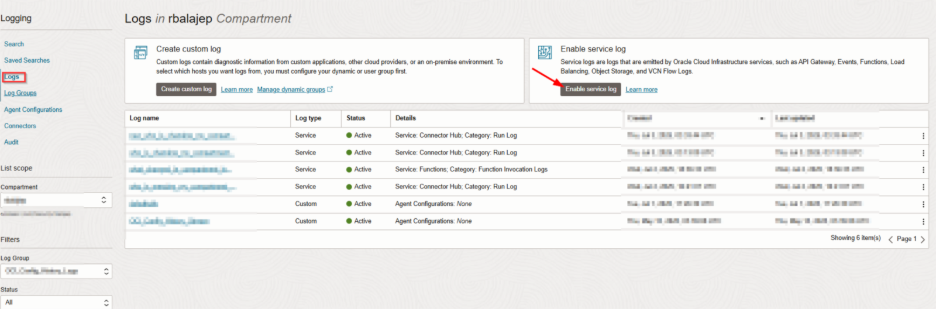
3. Make appropriate selections to configure the log:
- Compartment: Select the one containing your Vault
- Service: Key Management Service
- Resource: Select the Vault you want to monitor
- Log Category: Crypto Operations
- Log Name: Choose a name for the log
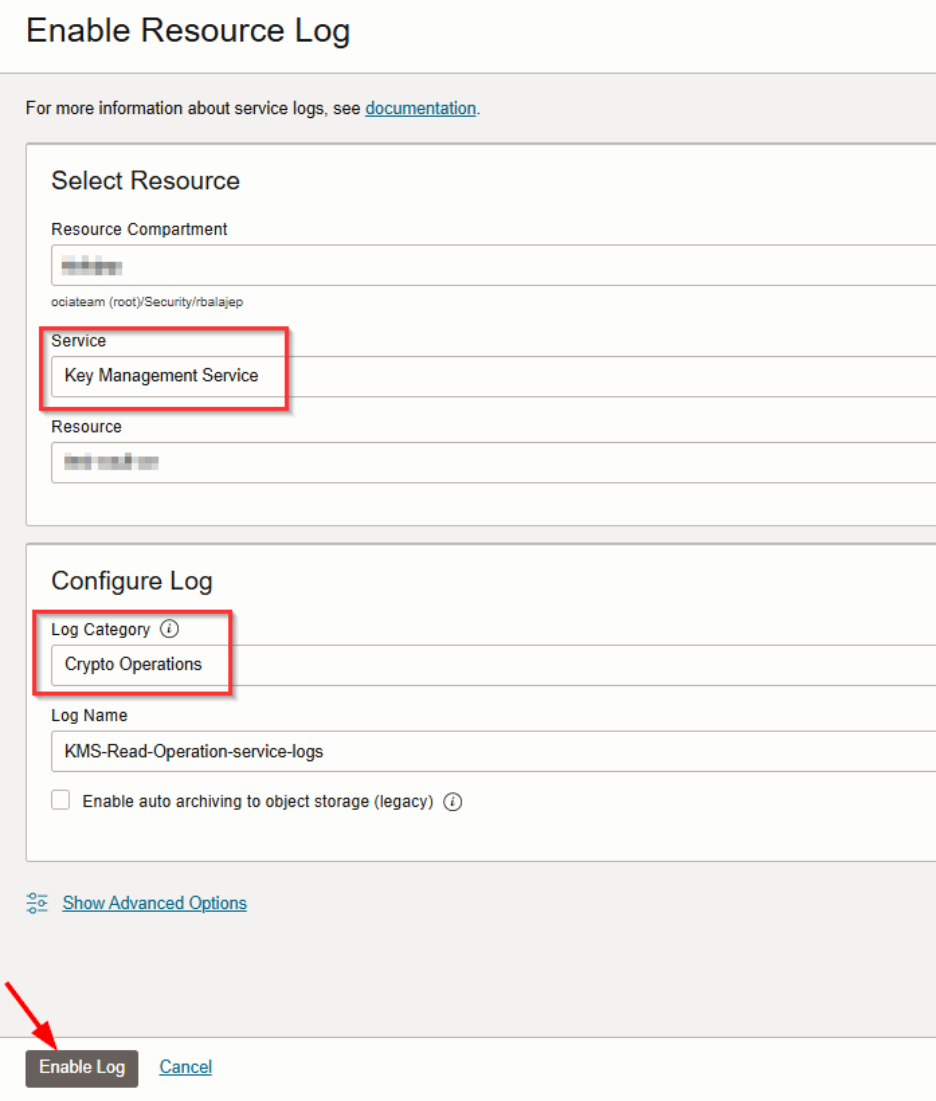
This enables the collection of cryptographic operations performed in the selected vault.
Step 4: View and Query KMS Logs
To explore the logs:
- Go to: Logging > Logs
- Navigate to the Log created in Step 4
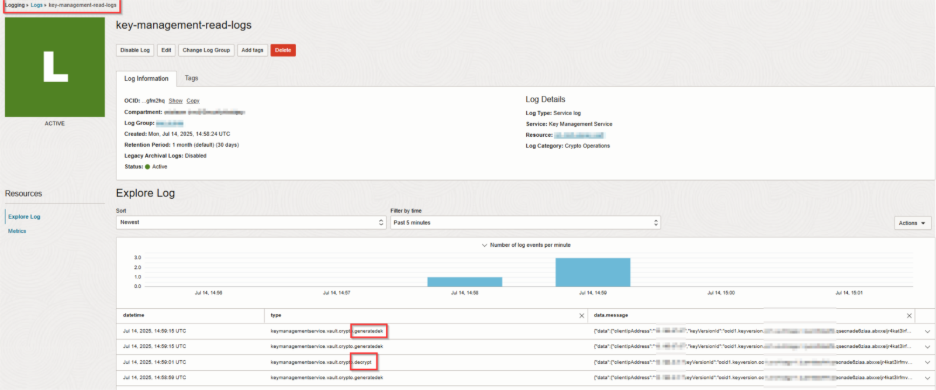
-
Each Log entry will have additional details as shown below
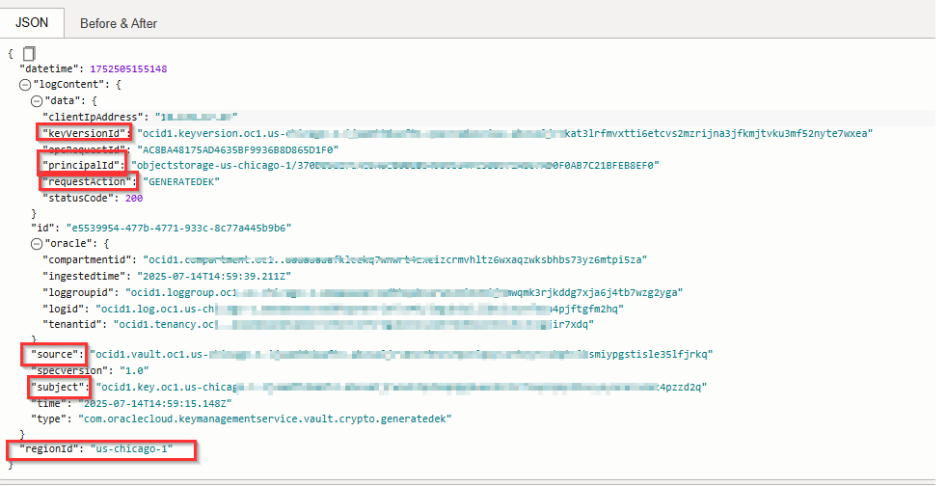
This helps you quickly identify decryption events and their context. Modify the query as needed to query on other fields.
Step 5 (Optional): Send Logs to Object Storage or SIEM
By default, Services Logs are stored for 30 days. For long-term retention or external analysis, use Service Connector Hub to forward logs to:
- Object Storage (for archival)
- Logging Analytics
- External tools like SIEM platforms
Conclusion
Enabling service logs for KMS gives you deeper insight into how, when, and by whom your keys are used. This enhances your security posture, helps meet compliance requirements and improves operational visibility.