INSERT INTO OAC_USER.DV_DOG_SELECTED_PROMPT(USER_NAME,SELECTED_BREED) VALUES (‘jay@oracle.com’,’Pug’); COMMIT;
Test Prompt Section table
SELECT * FROM OAC_USER.DV_DOG_SELECTED_PROMPT;
Create Prompt Selection Stored Procedure
CREATE OR REPLACE PROCEDURE OAC_USER.SP_DOG_SELECTION (parm1 VARCHAR, parm2 VARCHAR) IS BEGIN DELETE FROM OAC_USER.DV_DOG_SELECTED_PROMPT WHERE USER_NAME = parm1; INSERT INTO OAC_USER.DV_DOG_SELECTED_PROMPT (USER_NAME, SELECTED_BREED) VALUES (parm1, parm2); htp.p(parm1 || ‘ Your data is ready for breed ‘ || parm2); END;
Test Stored Procedure
BEGIN OAC_USER.SP_DOG_SELECTION(‘jay@oracle.com’,’Dalmatian’); END;
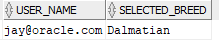
SELECT * FROM OAC_USER.DV_DOG_SELECTED_PROMPT;
DV Data Set & Canvas Setup
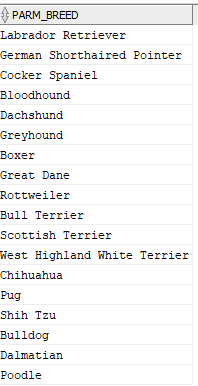
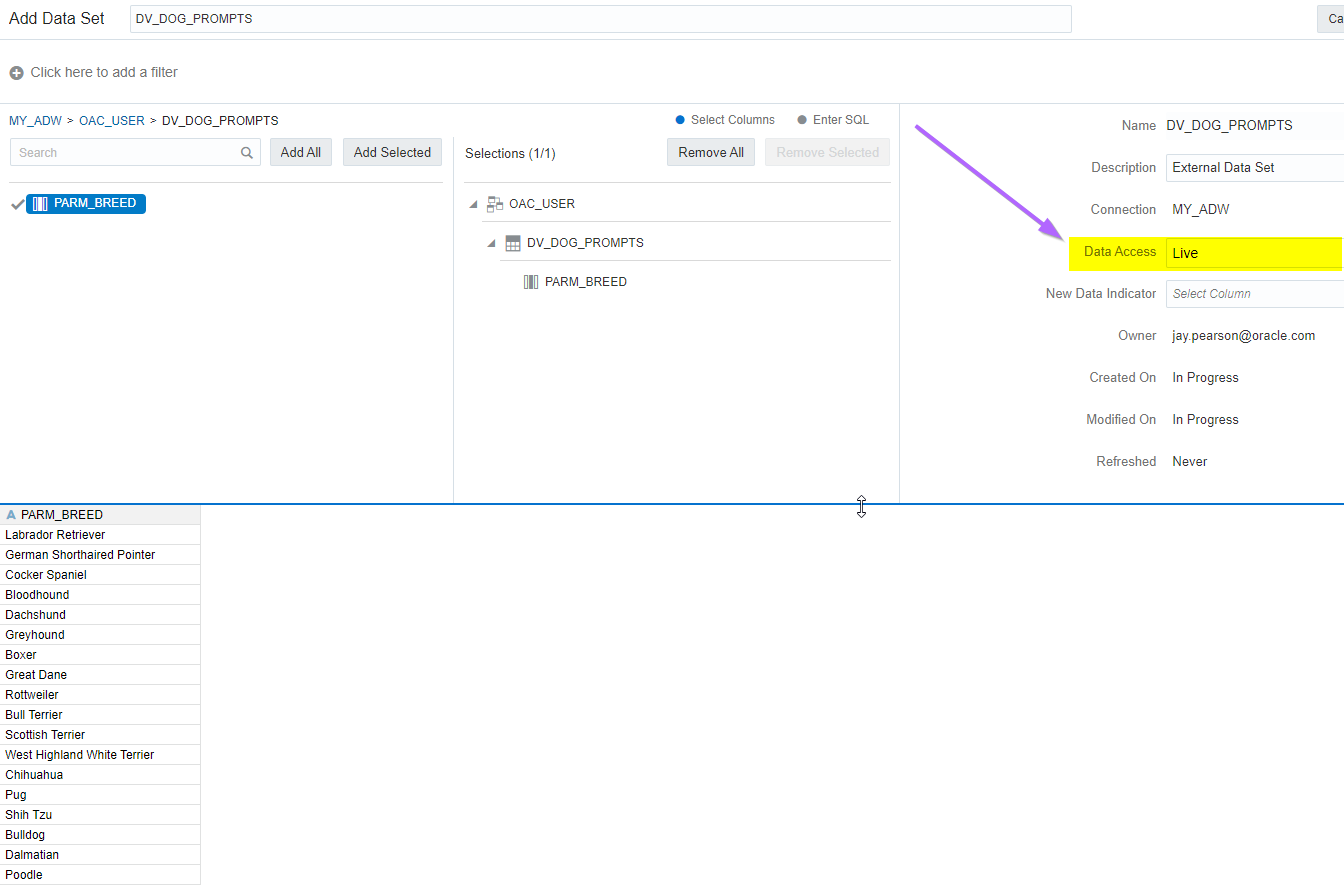
a) Create the data set to display the prompt. Set Data Access = Live.
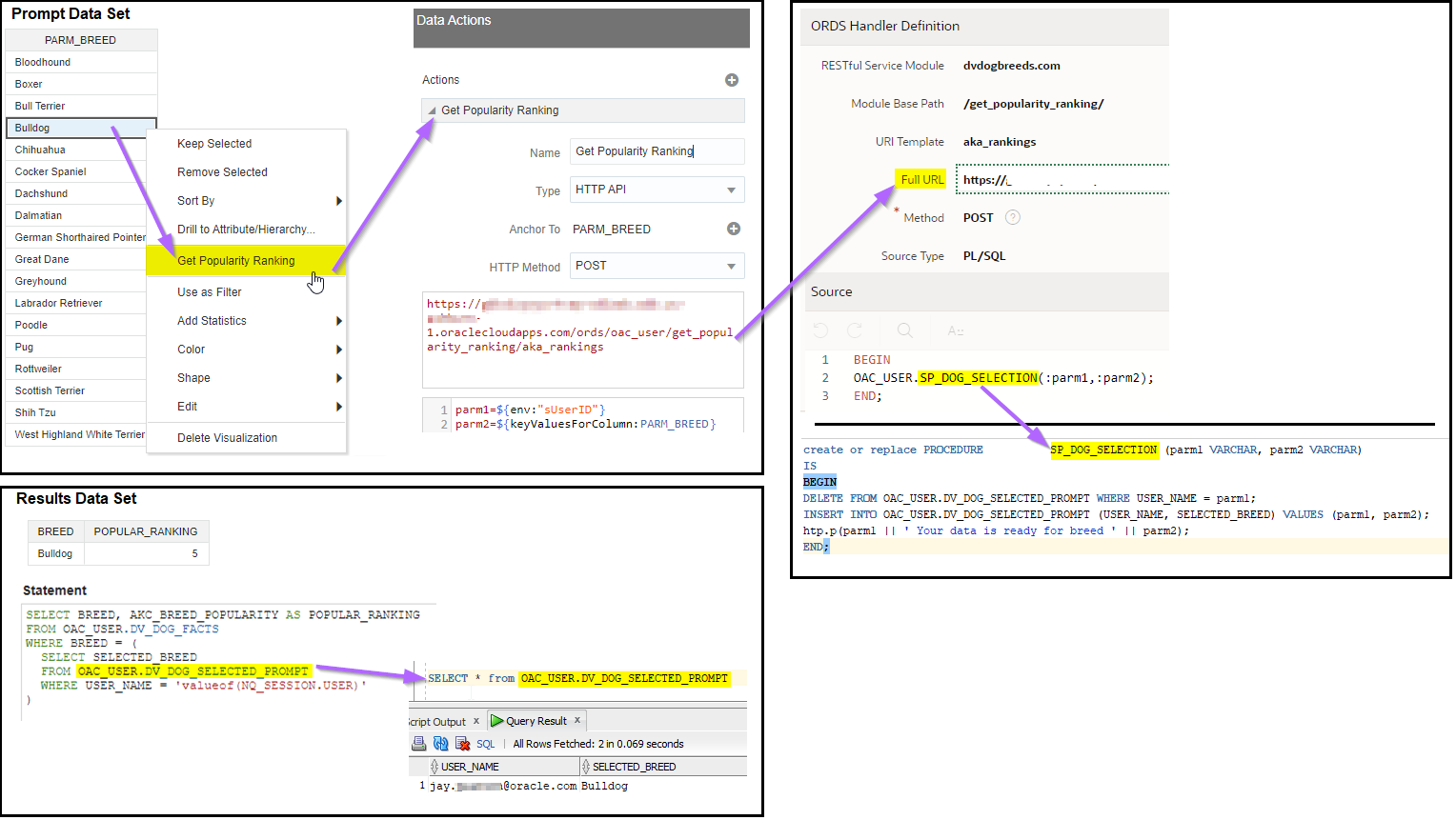
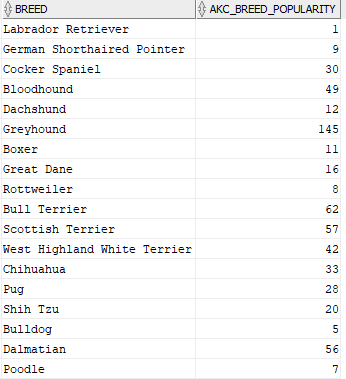
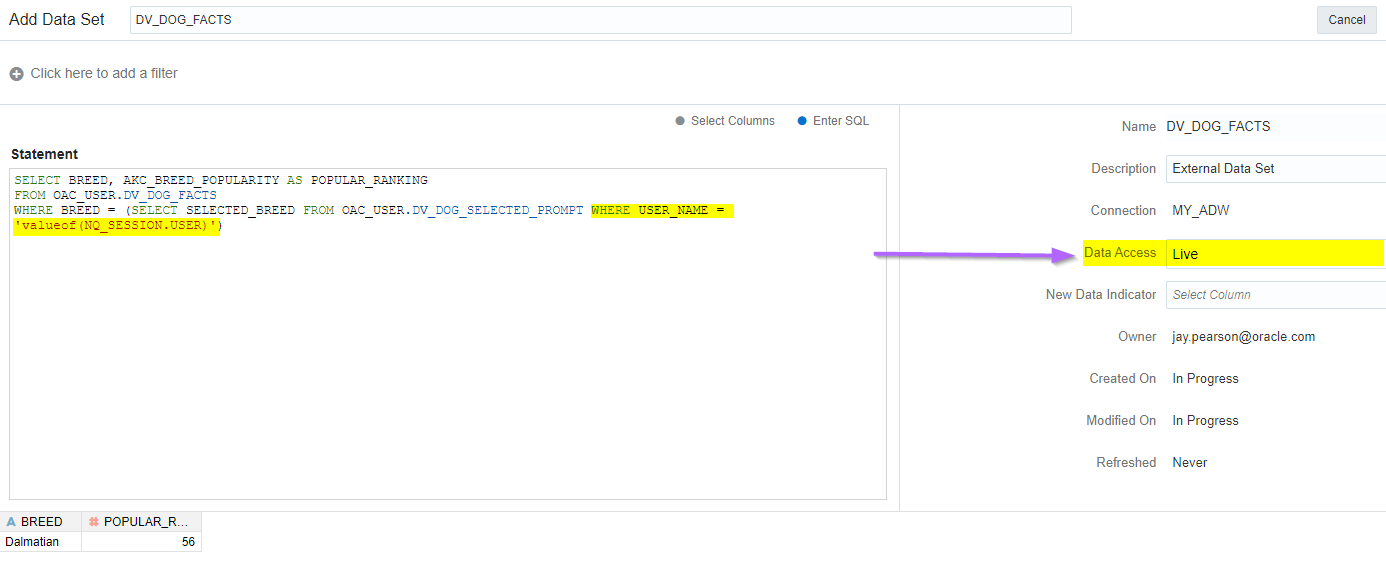
b) Create the Data Set to display the results from the selection. Note that the SQL reads from the parameter selection table using the USER session variable as a filter. Set Data Access = Live.
SELECT BREED, AKC_BREED_POPULARITY AS POPULAR_RANKING FROM OAC_USER.DV_DOG_FACTS WHERE BREED = (SELECT SELECTED_BREED FROM OAC_USER.DV_DOG_SELECTED_PROMPT WHERE USER_NAME = ‘valueof(NQ_SESSION.USER)’)
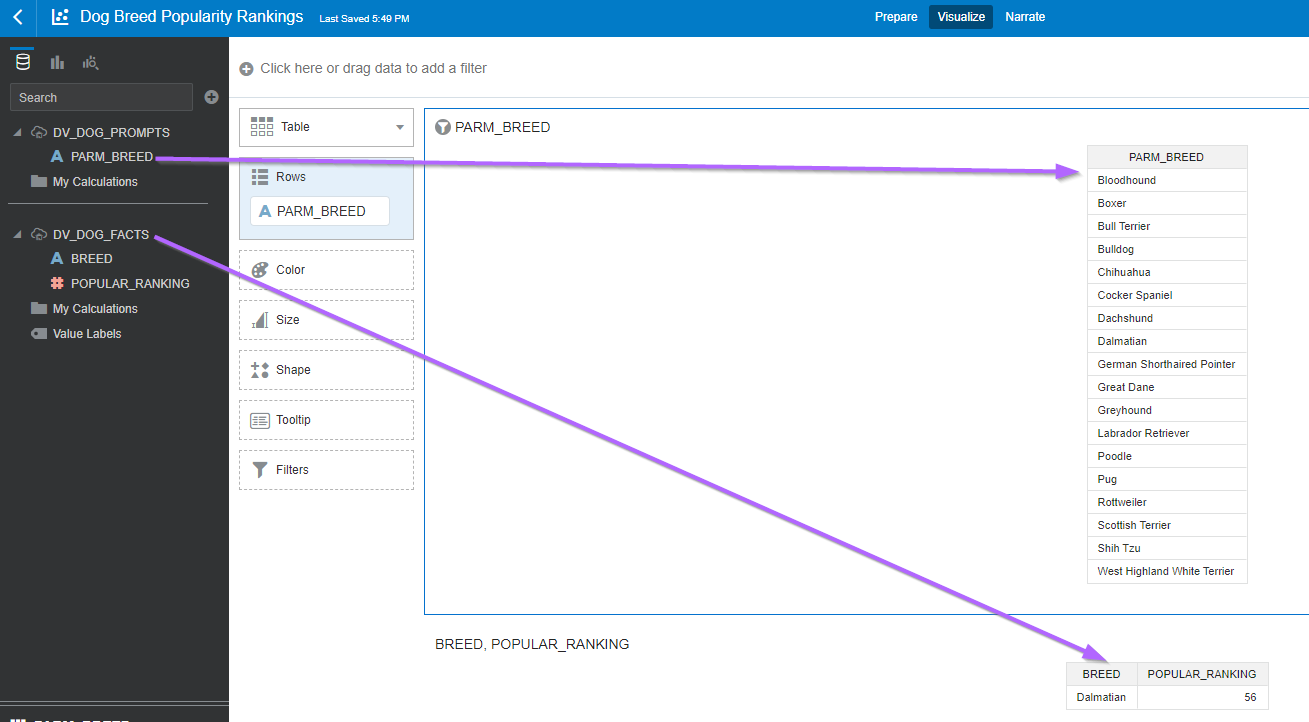
c) Add the Prompt & Results Data Models to the Canvas in table format.
RESTful Services Setup
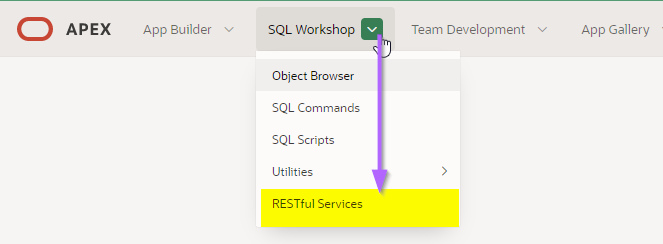
a) Log into Apex. Go to SQL Workshop -> RESTful Services
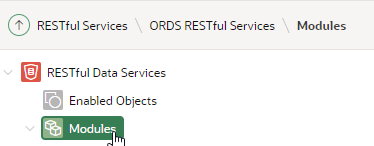
b) Create a New Module
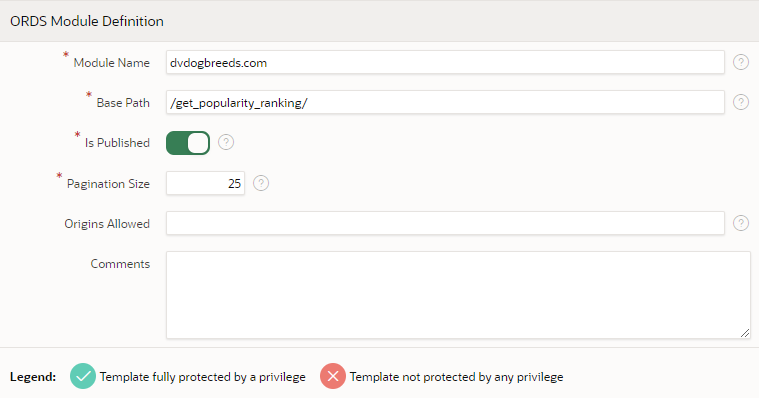
c) Provide Module Name and Base Path
d) Hit Create Module again
e) Click Create Template
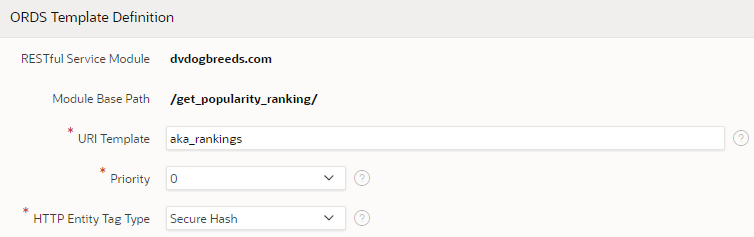
f) Prefix the URI Template name with something meaningful.
g) Click Create Template
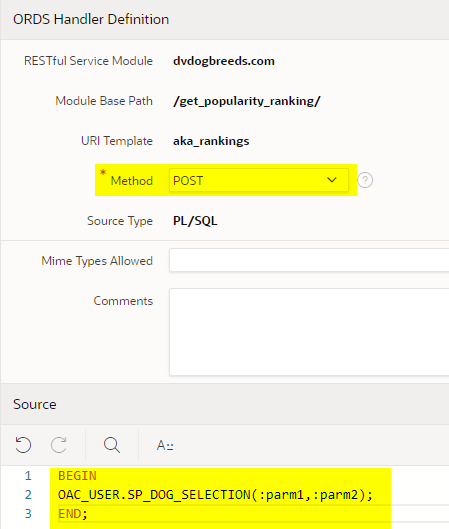
h) ORDS Handler Definition
Method = POST
Source =
BEGIN OAC_USER.SP_DOG_SELECTION(:parm1,:parm2); END;
i) Click Create Handler
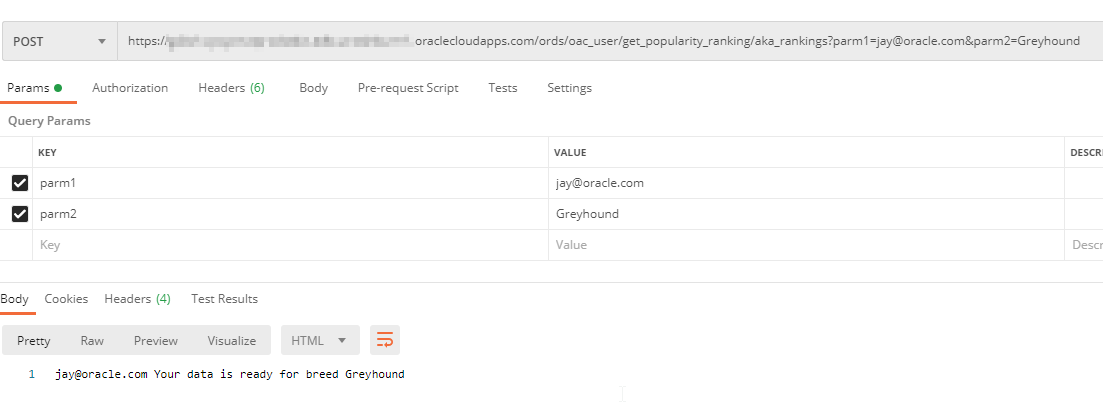
j) Test the POST in Postman
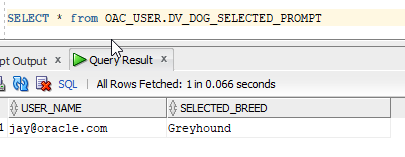
k) Confirm that the Prompt Section table has been updated.
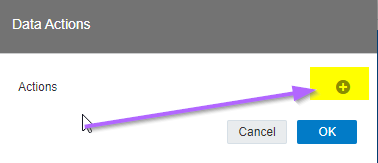
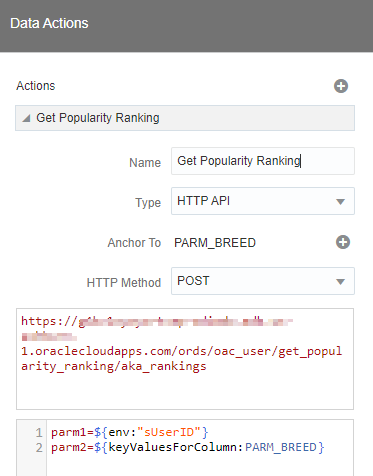
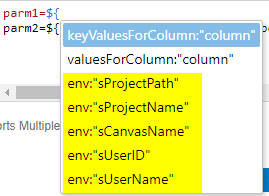
d) The UserID environment variable (a.k.a session variable) is being passed to the stored procedure. It may also be desirable to pass other environment variables to the procedure / parameter table such as ProjectPath, ProjectName, CanvasName etc.
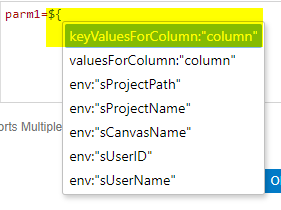
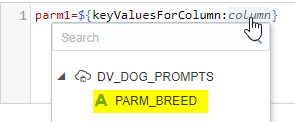
e) When entering the keyValuesForColumn, first enter ${, then select keyValuesForColumn.
Then click on column
Available fields can then be clicked to avoid typos.
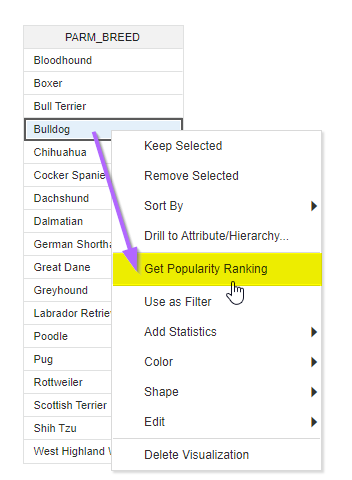
f) Run the Data Action. Right Click on desired breed -> Click “Get Popularity Ranking”.
g) Wait for the successful message.
h) Refresh the project (top right).
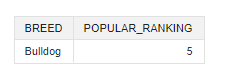
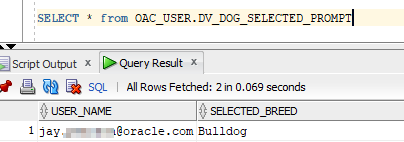
i) Results are updated on canvas and in parameter table.
Want to Learn More?
Click here for more A-Team Oracle Analytics (OAC) Blogs.
Summary
This article walked through the steps to invoke Oracle REST Data Services (ORDS) in Oracle Analytics Cloud (OAC) Data Visualization (DV). Possible use cases for this article are write-back, running DML statements, or passing pre-process parameters. Functionality covered included: DV Data Actions, Apex ORDS RESTful Services, and Referencing DV Environment Variables (a.k.a Session Variables) in Data Sets and Data Actions.
Authors
Jay Pearson
Consulting Solutions Architect, Business Intelligence